How to Fix a Mac Restarting Because of a Problem
Troubleshoot and fix a Mac restarting because of a problem with step-by-step solutions to stop unexpected restarts caused by software or hardware issues.
Unexpected restarts on Mac usually originate from software conflicts or connected hardware. A common scenario is a kernel panic, a safety mechanism that forces restarts when the system encounters a fatal error. If an app triggered the restart, macOS may prompt you to move that app to the Trash to prevent further issues. Simply forcing a restart by holding the power button risks data loss and should be a last resort.
This guide walks you through troubleshooting in the right order, including disconnecting peripherals except the display, keyboard, and mouse or trackpad to pinpoint hardware problems. You'll also learn how to use Safe Mode to check for software causes and how updating macOS or reinstalling it can fix persistent restart problems.
Every limit and setting name below comes from Apple Support, iGeeksBlog, EaseUS (full list at the end), as of November 2026.
The quickest way to restart your Mac safely
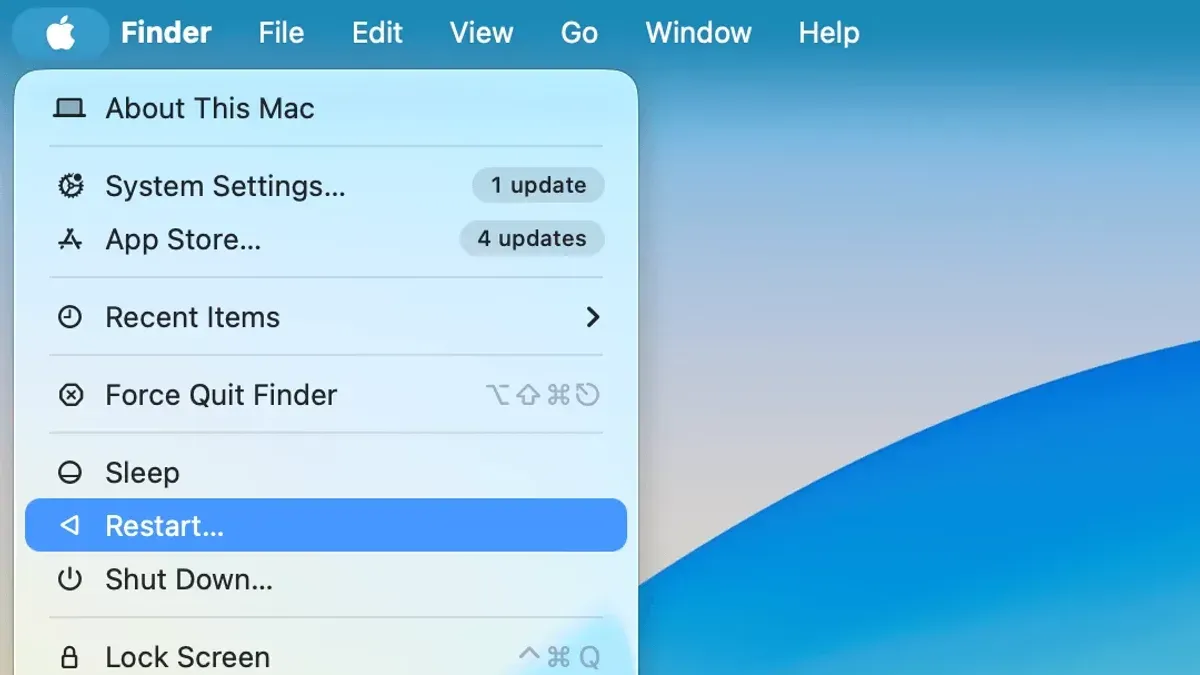
The fastest way to restart your Mac under normal conditions is through the Apple menu. Click the Apple logo in the top-left corner and select Restart. Your Mac will close all apps and reboot cleanly, preserving open documents if you allow it.
This method forces an immediate shutdown, bypassing regular processes.
It risks unsaved data loss because apps do not close properly, and system files might be at risk if the shutdown interrupts a critical operation. After the Mac powers off, press the power button again to turn it back on.
- Click the Apple menu and choose Restart. Your Mac will close apps and reboot normally.
- If the Mac is unresponsive, press and hold the physical power button until the screen goes black and the system powers off.
- Wait a few seconds, then press the power button again to start your Mac.
Why does my Mac keep restarting because of a problem?
Your Mac restarts unexpectedly mainly because of software installed on your system or connected devices. These restarts often happen as a safety response when the system detects a severe issue it cannot handle.
It occurs when your Mac’s operating system encounters fatal errors that prevent normal operation, forcing an automatic restart to protect the system.
These can trigger errors that the system cannot recover from without restarting.
Devices connected to your Mac, such as external drives or peripherals, may create conflicts or failures that result in a kernel panic or system crash.
| Symptom or Message | Likely Cause | Fix |
|---|---|---|
| Mac restarts with a message about a problem detected | Kernel panic triggered by fatal system error | Update macOS and apps; disconnect peripherals to isolate hardware issues |
| Random restarts without warning | Software conflicts or outdated system software | Check for software updates; remove recently added apps |
| Restarts after connecting a device | Peripheral causing hardware conflicts | Disconnect devices; test with Apple diagnostics or replace device |
How to restart a Mac system and isolate the cause of restarts
Start by booting your Mac into Safe Mode to limit software loading and check if the restart problem persists. To do this, shut down your Mac, then press the power button and immediately hold the Shift key until the login window appears. If your Mac stops restarting in Safe Mode, the issue is likely software-related.
Next, disconnect all peripheral devices except your display, keyboard, and mouse or trackpad. This step isolates any hardware that might trigger restarts. Restart your Mac normally after disconnection to see if the problem continues.
If disconnecting peripherals resolves the issue, reconnect each device one at a time and restart after each to identify the faulty hardware. This methodical approach avoids confusion and prevents unnecessary replacements.
- Shut down your Mac completely.
- Press the power button and immediately hold the Shift key until the login screen appears, indicating Safe Mode.
- Check if the restart issue occurs in Safe Mode; if not, proceed to disconnect peripherals.
- Disconnect all devices except display, keyboard, and mouse/trackpad.
- Restart your Mac normally and observe if restarts stop.
- If resolved, reconnect peripherals one by one, restarting each time to find the cause.
How to update macOS and third-party apps to fix restart issues
Outdated macOS versions and third-party applications often cause kernel panics and unexpected restarts. Keeping your system and apps up to date resolves many of these software bugs that lead to instability.
- Open the Apple menu.
- If you have a recent macOS version, go to System Settings → General → Software Update. On older versions, choose System Preferences → Software Update. You should see available updates if any exist.
- Click Update Now or Upgrade Now to install the latest macOS version. Your Mac will restart when the update completes.
- Next, disable or remove problematic third-party apps that may trigger restart loops. Navigate to System Preferences → Users & Groups → Login Items to disable unused startup apps that can cause conflicts.
- Update or uninstall any third-party software known to cause kernel panics, as outdated or incompatible apps often cause restarts.
Regularly updating macOS and managing startup items reduces the risk of restart problems caused by software conflicts or bugs. This approach helps maintain system stability and performance over time.
Hardware resets that can fix restart problems
These resets clear settings that control hardware functions and can fix issues with startup, display, power, and other system behaviors.
Resetting NVRAM/PRAM
- Shut down your Mac completely.
- Turn it on and immediately press and hold the Option + Command + P + R keys simultaneously.
- Keep holding the keys for about 20 seconds. Your Mac may restart during this period.
- Release the keys and allow the Mac to boot normally.
This reset clears data like speaker volume, display resolution, and startup disk selection, which can cause restart loops if corrupted.
Resetting the System Management Controller (SMC)
The SMC manages low-level hardware functions such as power, battery, and thermal management. Reset steps vary by Mac model:
- For MacBooks with non-removable batteries: Shut down, then press Shift + Control + Option and the power button simultaneously for 10 seconds, then release all keys and power on normally.
- For Mac desktops: Shut down, unplug the power cord, wait 15 seconds, plug it back in, wait 5 seconds, then turn on the Mac.
SMC resets often fix power-related restart problems when the Mac behaves erratically or fails to start.
These hardware resets are effective when restart issues stem from corrupted hardware settings rather than software faults. If resets fix the problem, no further action is needed unless restarts return.
- Reset the NVRAM/PRAM by holding Option + Command + P + R during boot for about 20 seconds.
- Reset the SMC following the method appropriate to your Mac model.
- Restart your Mac normally and observe if the restart problem persists.
Using Disk Utility and macOS Recovery to repair disk errors causing restarts
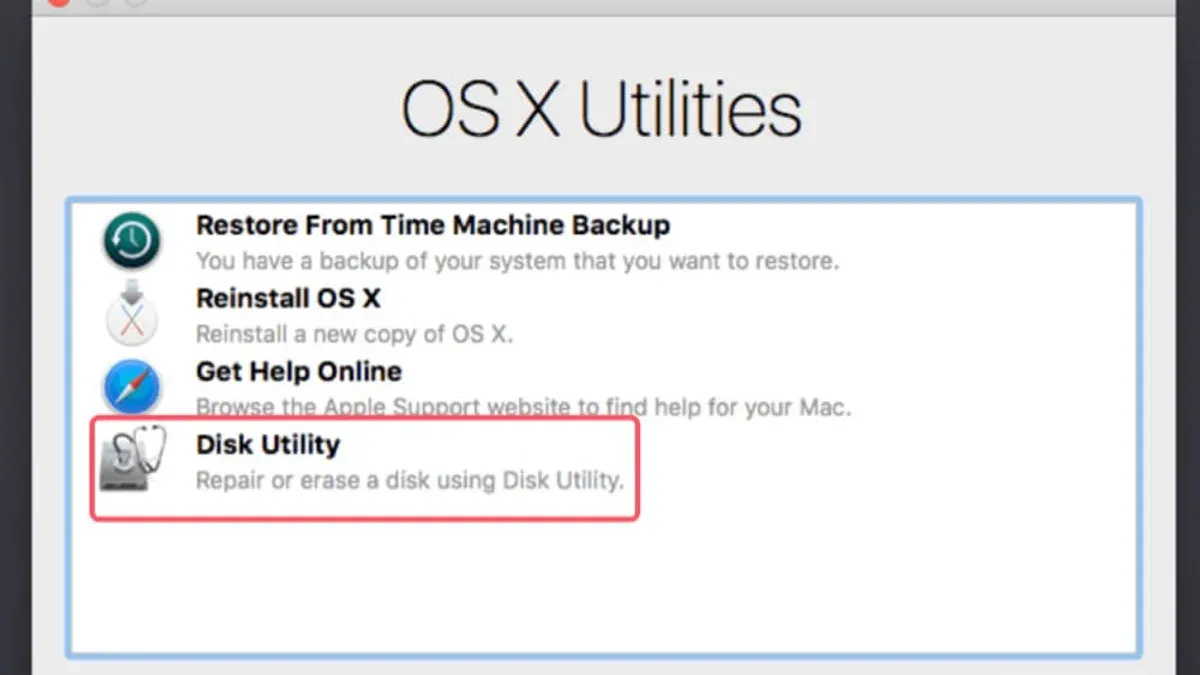
If your Mac keeps restarting because of disk errors, running First Aid on the startup disk can resolve these issues. Begin by booting into macOS Recovery Mode: immediately hold down Command + R after turning on your Mac. Keep holding until the macOS Utilities window appears.
- Select Disk Utility from the macOS Utilities window and click Continue. This opens the tool to check your disks.
- In Disk Utility, choose your startup disk—usually named "Macintosh HD"—from the sidebar. Make sure you select the disk itself, not just its volumes.
- Click the First Aid button in the toolbar. Confirm by clicking Run when prompted. Disk Utility will scan and attempt to repair detected disk errors.
- Wait for the process to complete. If Disk Utility reports the disk appears okay and the repairs are successful, exit Disk Utility and restart your Mac normally.
- If errors persist or Disk Utility cannot repair the disk, consider reinstalling macOS to replace corrupted system files. Remember to back up your data before reinstalling.
However, persistent errors after a successful repair usually require macOS reinstallation to restore system integrity.
When to reinstall macOS and how to do it safely
If your Mac continues to restart unexpectedly after updating software and using Safe Mode, reinstalling macOS is the recommended next step. This process can repair corrupted system files that cause restart problems but carries a risk of data loss.
Failing to do so may result in permanent loss if issues arise during reinstallation.
To reinstall macOS safely, follow these steps:
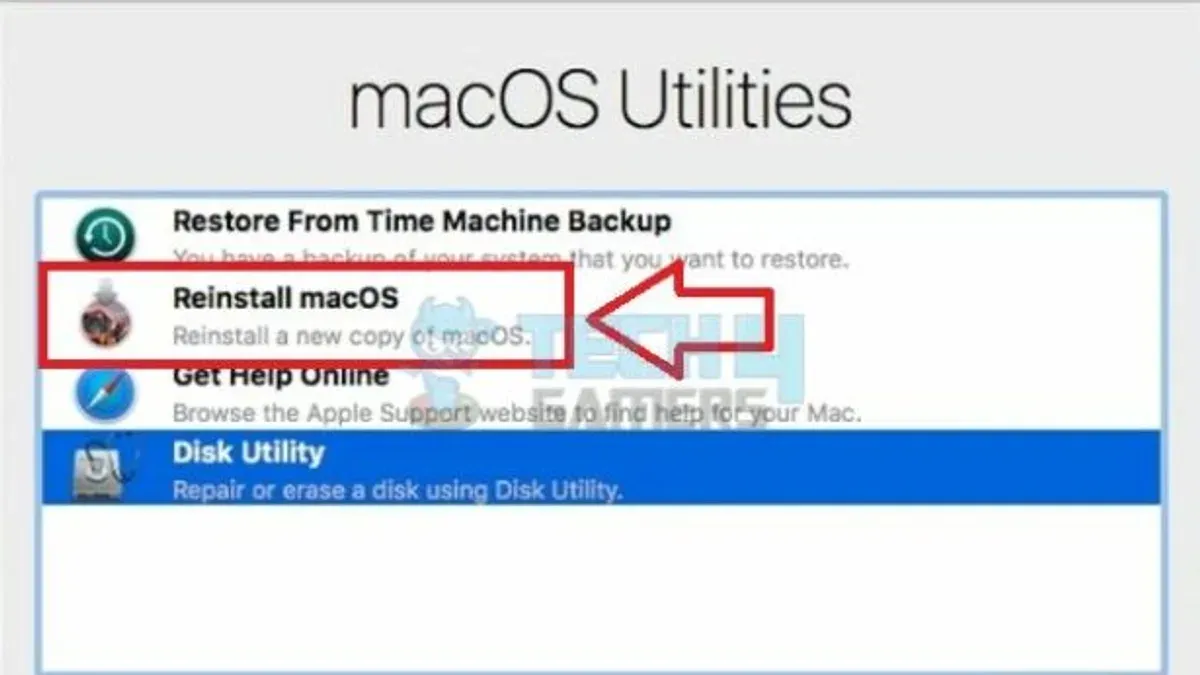
- Restart your Mac and immediately hold Command + R to enter Recovery Mode. You should see the macOS Utilities window.
- Select "Reinstall macOS" and click Continue. Follow the on-screen instructions to choose your startup disk and begin installation.
- Wait for the process to complete and your Mac to restart. You should see the login screen once the reinstallation finishes successfully.
This method refreshes system files without erasing your data, but backups remain essential as unexpected issues can cause data loss. Use reinstallation only when other troubleshooting steps fail to resolve restarts.
What this article does not cover and when to seek professional help
However, some issues go beyond user repair. Hardware failures such as faulty logic boards, memory modules, or other internal components require professional diagnostics and repair.
In these cases, contact Apple Support or visit an Apple Store’s Genius Bar for precise diagnostics and repair services.
- Back up your data using Time Machine or another method to prevent loss.
- Contact Apple Support via their official website or schedule a Genius Bar appointment.
- Bring your Mac to the Apple Store or authorized service provider for hardware diagnostics.
- How to Fix a Mac Stuck on the Loading Bar: Step-by-Step Solutions
- How to Fix the Question Mark Folder on Startup on Mac
- How to Fix the Circle with Line Through It at Mac Startup
Frequently asked questions
How to restart mac system?
To restart your Mac system safely, click the Apple menu and select "Restart." Avoid using the power button unless the system is unresponsive, as force restarts risk data loss.
Why does my macbook keep restarting?
Your MacBook may keep restarting due to software conflicts, corrupted system files, or hardware issues such as faulty RAM or disk errors. Identifying the exact symptom helps isolate the cause and apply the proper fix.
Why does my mac restart because of a problem?
This restart occurs when macOS detects a kernel panic or critical error, often indicated by a message on screen. Causes include incompatible software, corrupted system files, or hardware faults like failing storage. Fixes vary from updating software, resetting hardware settings, to repairing disks.
How to restart a mac computer?
Use the Apple menu to choose "Restart" for a safe reboot. If the system is frozen, hold the physical power button until it shuts down, then press it again to start—this should be a last resort due to risk of data loss.
Why does my macbook pro keep restarting?
Repeated restarts on a MacBook Pro often point to software incompatibilities or hardware malfunctions like bad RAM or disk errors. Checking login items, updating macOS and apps, and performing hardware resets can help isolate and fix the issue.
How to restart Mac system quickly?
The quickest safe method is selecting "Restart" from the Apple menu. Force restarting by holding the power button is faster but risks losing unsaved data and should only be used when the Mac is unresponsive.
Common mistakes that prolong Mac restart problems
- Using force restart too often: Holding the power button until shutdown risks data loss and corruption. Use this only when the Mac is completely unresponsive and all other restart methods fail.
- Resetting NVRAM/PRAM without proper timing: The reset requires holding Option + Command + P + R for about 20 seconds during boot. Releasing too soon may not clear the settings, so ensure the full duration is observed.
- Ignoring software update order: Updating macOS first before third-party apps avoids compatibility issues that can cause restarts. Skipping or reversing this order may prolong problems.
- Running Disk Utility repairs without macOS Recovery: Repairing the disk while booted normally can miss errors. Using macOS Recovery ensures more thorough checks and fixes.
- Reinstalling macOS prematurely: Reinstalling too soon can waste time if simpler fixes like resets or updates solve the problem. Follow the decision matrix to know when it’s necessary.