How to Fix a Mac Stuck on the Loading Bar: Step-by-Step Solutions
Follow step-by-step solutions to fix a Mac stuck on the loading bar by repairing disks and reinstalling macOS safely.
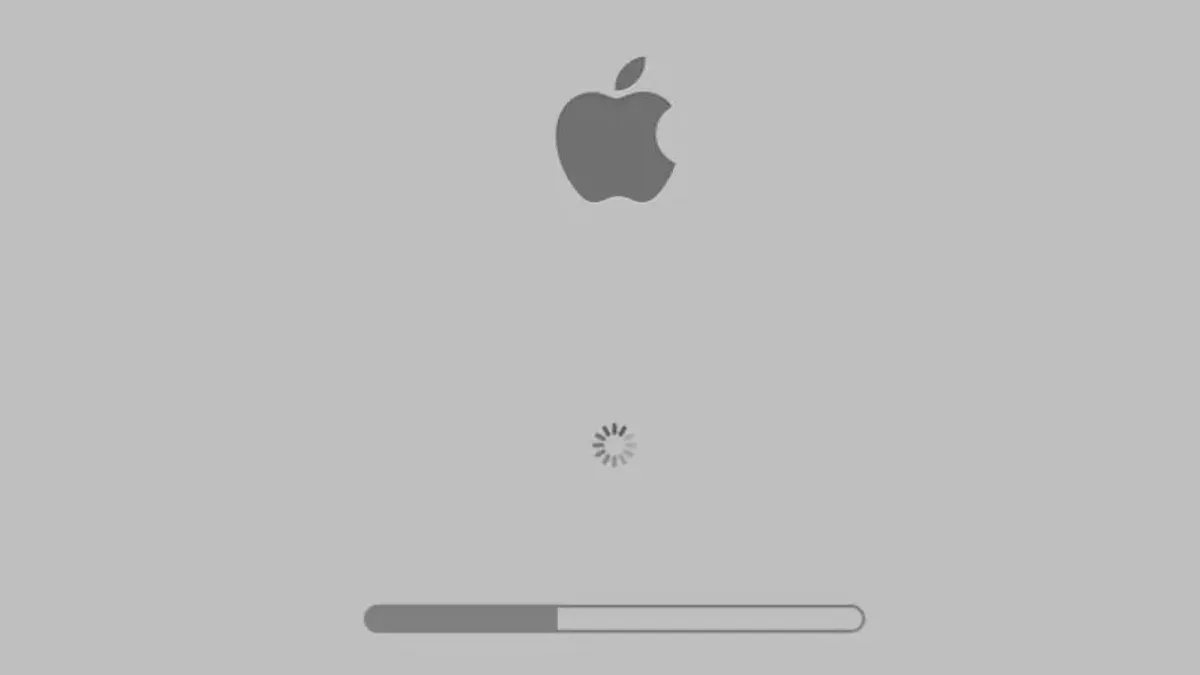
The key to a successful Mac stuck on loading bar fix lies in following the right sequence: first run Disk Utility’s First Aid on the volume, then the container, and finally the physical disk to maximize disk repair. If that doesn’t resolve the issue, reinstall macOS from Recovery Mode to refresh system files without erasing your data or apps.
Last verified November 2026 against Apple Support, EaseUS, Apple Gazette (full list at the end).
How to fix Mac stuck on loading screen
- Force shutdown your Mac by pressing and holding the power button for up to 10 seconds until it turns off. This interrupts any frozen processes and allows a fresh start.
- Disconnect all non-essential external devices such as USB drives, printers, or external monitors. Peripheral conflicts often cause startup issues, so removing these helps isolate the problem.
- Start your Mac in Safe Mode to disable third-party login items and perform a basic disk check. On Apple silicon Macs, shut down, then hold the power button until startup options appear, select your startup disk, hold Shift, and click Continue in Safe Mode. On Intel Macs, power on and immediately hold the Shift key until the login window appears.
- If Safe Mode does not resolve the issue, boot into Recovery Mode to run Disk Utility’s First Aid. On Apple silicon, shut down, hold the power button until options appear, then select Options and Continue. On Intel Macs, restart and hold Command + R until the Apple logo or spinning globe appears. Run First Aid sequentially on the volume, then the container, then the physical disk to maximize repair effectiveness.
- If disk repairs fail, reinstall macOS from Recovery Mode. This refreshes system files without erasing your apps or data, potentially resolving corrupted system components causing the hang.
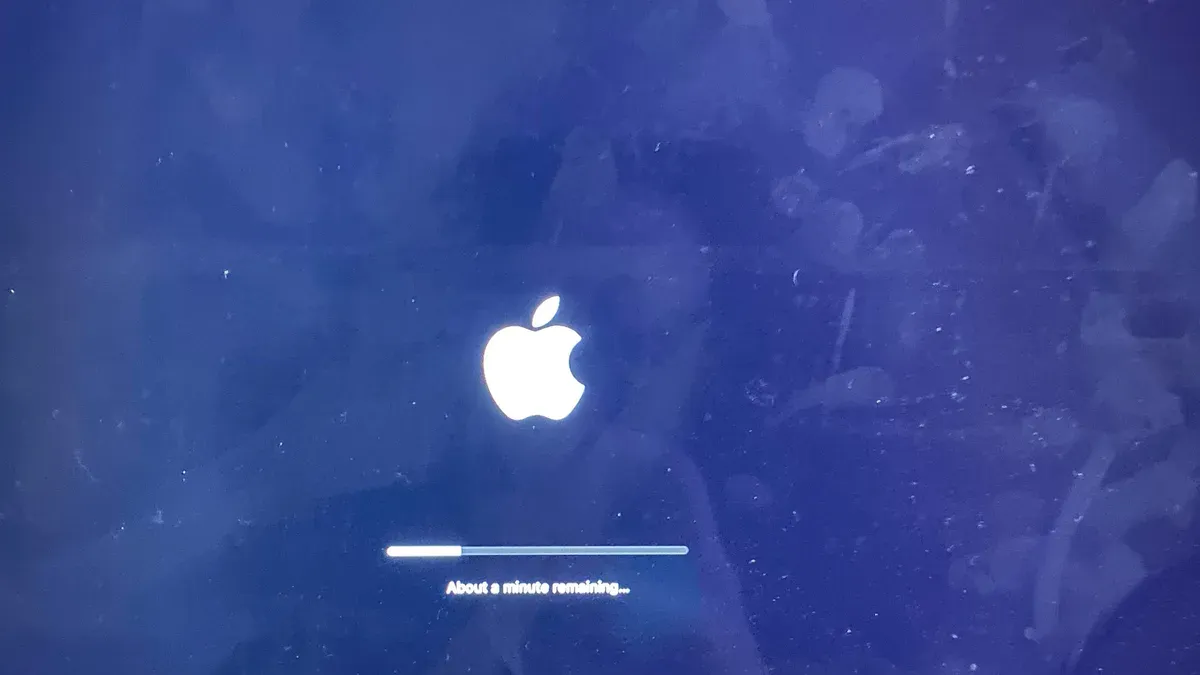
- If your Mac is stuck after a macOS update, wait overnight before attempting other steps. The progress bar can move slowly and pause for long periods during installation, and interrupting it too soon may cause problems.
Skipping steps or changing the order may miss hardware conflicts or software issues that these procedures isolate.
How to fix MacBook stuck on loading screen by model-specific resets
Macs with different architectures require specific reset procedures to address startup issues effectively. Identifying your Mac type—Intel or Apple silicon—is essential before proceeding.
- For Intel Macs with a T2 chip, reset the System Management Controller (SMC): Press and hold the Shift + Control + Option keys on the left side of the keyboard and simultaneously hold the power button for 7 seconds. Release all keys, then press the power button again to turn on your Mac. A successful reset can resolve power and hardware management issues causing the startup hang.
- Reset NVRAM/PRAM on Intel Macs: Immediately after turning on your Mac, press and hold the Command + Option + P + R keys together. Continue holding these keys for about 20 seconds until the Mac appears to restart. This resets stored system settings like startup disk selection and can fix boot problems.
- Apple silicon Macs do not require SMC or NVRAM resets: These Macs handle such resets automatically during startup. Attempting manual SMC or NVRAM resets on Apple silicon models is unsupported and ineffective, so you should instead use Apple silicon-specific Safe Mode and Recovery Mode procedures for troubleshooting.
How to address macOS stuck loading bar after login
If your Mac hangs on the loading bar after you log in, software conflicts and disk space shortages are common causes. Safe Mode helps isolate these issues by disabling third-party login items and fonts, and performing a basic disk check.
- Restart your Mac and boot into Safe Mode. For Intel Macs, hold the Shift key immediately after powering on until you see the login window. In Safe Mode, only essential system software and Apple login items load, which prevents third-party extensions from interfering.
- Once in Safe Mode, open System Settings and navigate to General > Login Items. Review the list of login items and remove any third-party apps that might cause startup problems. After removing them, restart your Mac normally to see if the loading bar completes.
- Check your disk’s free space. macOS requires at least 15–20% of your disk to be free for startup and system processes to finish correctly. If your free space is below this threshold, delete unnecessary files or move them to external storage.
- After freeing up space, restart your Mac again to verify the issue is resolved. Insufficient disk space is a frequently overlooked reason for startup stalls and can prevent macOS from completing its initialization.
What to do after fixing the Mac stuck on loading bar
- Confirm your Mac completes startup normally. After removing problematic login items in Safe Mode, check System Settings → General → Login Items to ensure only necessary apps launch at login. Normal startup speed and stable login items indicate the issue is resolved.
- Monitor disk space regularly. Keep at least 15–20% of your disk free to allow macOS to finish initialization and updates without stalling. Use Storage Management to review and free up space as needed.
- Keep macOS updated but be patient during progress bars. macOS updates can display slow-moving or paused progress bars for extended periods. Avoid interrupting updates too soon to prevent restarting or corrupting the process.
- Back up important data consistently. If you recovered data before repair, maintain regular backups using Time Machine or another method. This protects your files against future startup issues or data loss.
- Review your login items periodically. Problems may reoccur if new third-party apps add background login items. Remove any that cause slowdowns or hangs after startup.
- Allow long waits during system updates. A progress bar that pauses or moves very slowly for several minutes is normal. Interrupting it prematurely can cause boot failures or require reinstalling macOS.
- Use data recovery tools if needed before future repairs. If your Mac stalls again, consider recovering critical files first to avoid permanent data loss.
Following these steps ensures your Mac remains stable and avoids repeated loading bar issues. Maintaining disk space, login item hygiene, careful update handling, and regular backups are key to a healthy system. For detailed insight on update progress bars, see Apple's guidance.
- How to Fix the Question Mark Folder on Startup on Mac
- How to Fix the Circle with Line Through It at Mac Startup
- How to Fix No Bootable Device on Mac: Step-by-Step Solutions
- How to Fix ‘An Error Occurred While Preparing the Installation’ on Mac
Frequently asked questions
Why is my iMac stuck on the loading bar and how can I fix it?
Your iMac may be stuck on the loading bar due to software issues, corrupted system files, or disk errors. Start by booting into Safe Mode by holding the Shift key during startup for Intel Macs or using the power button method for Apple silicon Macs. Then run Disk Utility’s First Aid on the volume, container, and physical disk in that order. If this does not help, consider reinstalling macOS from Recovery Mode to refresh system files without erasing your data.
What should I do if my Mac touch bar is not working during startup?
The method depends on your Mac model: for MacBook Pros with T2 chips, shut down, then press Control + Option + Shift on the left side for 7 seconds and power button for another 7 seconds, then release all and wait before restarting.
Essential steps to resolve a Mac stuck on the loading bar
For Apple silicon Macs, starting with the power button method to enter Safe Mode is essential, while Intel Macs require holding Shift at startup. If startup hangs persist after basic checks, run First Aid in the precise order to maximize disk repair. Model-specific resets like NVRAM or SMC on Intel Macs come next if Safe Mode and disk repairs don’t help. Reinstalling macOS refreshes system files without deleting apps or data and is advisable when system corruption is suspected. If problems arise after login, examine startup items or corrupt user profiles.
Sources
- If your Mac starts up to an Apple logo or progress bar - Apple Support — Apple Support
- How to Fix Mac Stuck on Loading Screen [6 Straightforward Methods] — EaseUS
- MacBook Stuck on Loading Screen - A Human-Friendly Fix Guide - Apple Gazette — Apple Gazette
- Mac Stuck on Loading Screen, How to Fix It? — iBoysoft