
How to Fix Your Mac Shutting Down Randomly: Step-by-Step Solutions
Discover step-by-step solutions to fix your Mac shutting down randomly and get it running reliably again with targeted troubleshooting.
For example, having less than 10 GB of free storage can trigger shutdowns due to excessive swap memory use and heat buildup.
It also explains how to read error codes that reveal shutdown causes, and highlights common troubleshooting errors that delay resolution. With this approach, you can apply the right steps in the right order to get your Mac running reliably again.
Settings, menu paths and limits here were checked against Apple Support, CleanMyMac by MacPaw, Macgasm (full list at the end) in November 2026.
Which method fits your Mac and situation
- Identify your Mac’s chip type. If it is an Intel-based Mac, resetting the System Management Controller (SMC) is an option for power and thermal management issues. Apple silicon Macs do not support SMC reset.
- Determine when shutdowns occur. If shutdowns started after installing new software or apps, focus on updating, uninstalling, or contacting the software developer to resolve conflicts.
- Check for connected peripherals. Disconnect any external devices that might cause power or hardware conflicts to isolate their effect on shutdowns.
- Choose your troubleshooting approach based on your Mac type and symptoms:
- Intel Mac with power or thermal shutdowns: perform an SMC reset to address hardware control problems.
- Apple silicon Mac: skip SMC reset; run Apple Diagnostics and focus on software troubleshooting steps.
- Shutdowns linked to recent software changes: update or remove the problematic software before exploring hardware fixes.
- Random shutdowns without recent changes: prioritize hardware diagnostics and peripheral isolation.
- Begin with the method that suits your Mac model and shutdown pattern, then proceed to the next relevant steps if the issue persists.
Learn more about SMC reset for Intel Macs.
How to manually shut down your Mac safely
The standard method involves using the Apple menu to initiate a controlled shutdown, allowing all active processes to close safely.
- Click the Apple icon in the top-left corner of your screen.
- Select "Shut Down…" from the drop-down menu.
- In the confirmation dialog, click "Shut Down" again to proceed.
- Your Mac will close all apps and power off without risking damage.
It ensures that system files and user data are properly saved before the power goes off.
In this case, a forced shutdown is necessary but should be used only as a last resort.
- Press and hold the power button on your Mac until the screen goes black and the device powers off.
- Release the button once the Mac is completely off.
Use it only when your Mac does not respond to normal commands.
Use restart when you need to refresh system resources or apply updates, but shut down when you want to power off completely.
Following these shutdown guidelines helps you protect your Mac’s hardware and software integrity over time. Learn more about safe shutdown methods.
Check and free up storage to prevent shutdowns
Your Mac needs at least 10 GB of free disk space to operate smoothly. Falling below this threshold can cause excessive use of swap memory, which leads to overheating and may trigger random shutdowns.
- Open the Apple menu and select About This Mac, then click the Storage tab. You will see the amount of free space available on your Mac’s internal drive.
- If available storage is less than 10 GB, begin freeing up space by removing large files you no longer need. Check your Downloads and Movies folders first.
- Empty the Trash to permanently delete files and increase free space. Simply right-click the Trash icon and choose Empty Trash.
- Move seldom-used files to an external drive or cloud storage service to free internal disk space without losing access to important data.
- Uninstall unused applications by dragging them from the Applications folder to the Trash, then empty the Trash to reclaim space.
- Use the Storage Management tool, accessible from the Storage tab, to review recommendations such as optimizing storage or reducing clutter.
Check your storage regularly to avoid these issues and keep your Mac running reliably.
Use Safe Mode to isolate software causes of shutdowns
Booting your Mac in Safe Mode limits the system to essential macOS components and disables third-party extensions. This environment helps you determine if software conflicts or corrupted items are triggering the random shutdowns.
- Shut down your Mac completely.
- If you have an Intel Mac, start it and immediately press and hold the Shift key until the login window appears. Release the key when you see the login screen.
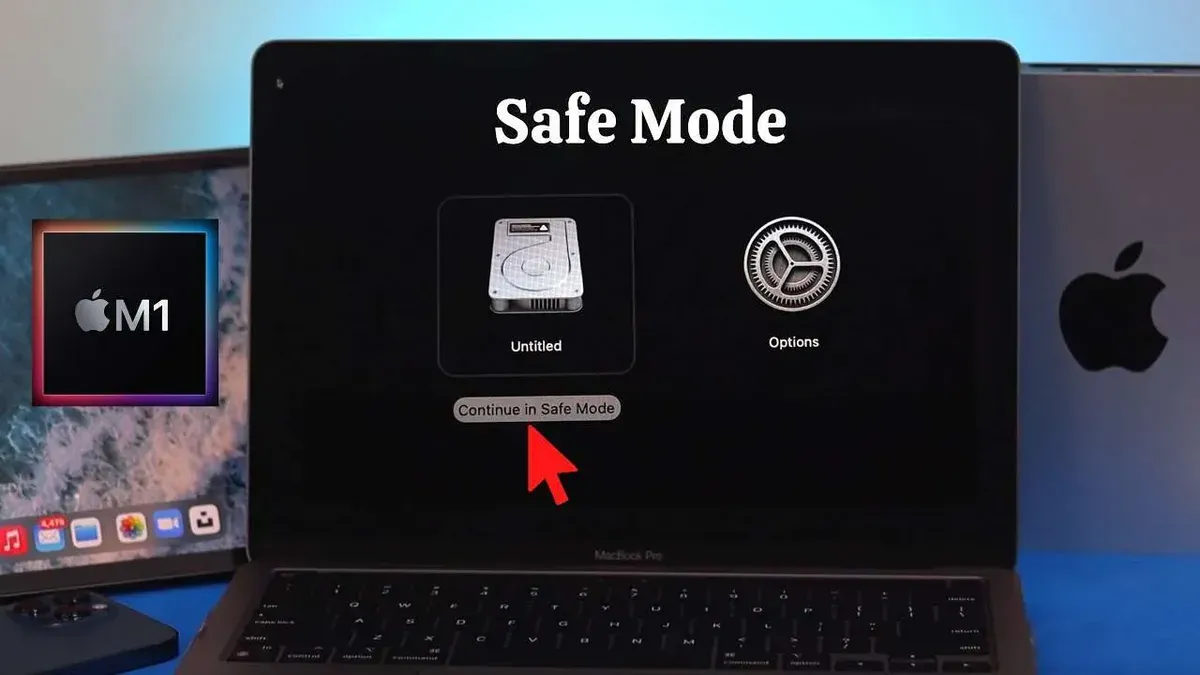
- If you have an Apple silicon Mac, press and hold the power button until you see startup options. Select your startup disk, then press and hold the Shift key and click Continue in Safe Mode. Release the key when the login window appears.
- Log in to your user account. You may see “Safe Boot” in the menu bar on Intel Macs, confirming Safe Mode is active.
- Use your Mac as usual to check if the random shutdowns occur. Safe Mode disables unnecessary software, so if shutdowns stop, third-party software or extensions are likely the cause.
- If shutdowns do not occur in Safe Mode, identify and remove recently added apps or extensions, then restart normally to test again.
- If shutdowns persist even in Safe Mode, the problem is likely hardware-related or deeper system corruption, requiring further diagnostics or support.
Safe Mode is a critical step to isolate software causes by loading only what macOS needs to operate safely. Use this method early in troubleshooting to avoid unnecessary repairs or reinstalls.
Run Apple Diagnostics to identify hardware problems
Apple Diagnostics is a built-in hardware testing tool designed to detect faults that could cause your Mac to shut down unexpectedly. It applies to both Intel and Apple silicon Macs but requires different startup procedures depending on your model.
Running Apple Diagnostics on Intel Macs
- Turn off your Mac completely.
- Press the power button, then immediately press and hold the D key.
- Keep holding until you see a screen prompting the diagnostics to start.
- If pressing D fails to launch diagnostics, try holding Option-D instead to run the tests over the internet.
- Once started, Apple Diagnostics will check your hardware and display any detected issues along with reference codes.
Running Apple Diagnostics on Apple silicon Macs
- Press and hold the power button until the Options screen appears.
- Release the power button, then press Command-D to start Apple Diagnostics.
- The tool will scan your Mac’s hardware and show any error codes or warnings it finds.
After the test completes, you will see results indicating if hardware faults were detected. Each error code corresponds to a specific component or issue, helping you pinpoint problems like faulty memory, logic board errors, or power supply failures.
Resolving hardware faults is essential, as software fixes will not stop shutdowns caused by physical defects.
This tool is a crucial step in isolating hardware causes of shutdowns before attempting software-based troubleshooting or peripheral checks. Running Apple Diagnostics early can save time and direct you to the correct fix for your Mac.
Learn more about Apple Diagnostics.
Reset power and hardware controls on Intel Macs
Reset the System Management Controller (SMC)
This reset applies only to Intel Macs. It is not available or necessary on Apple silicon models.
- Shut down your Mac completely and disconnect the power adapter.
- For Mac notebooks with non-removable batteries: Press and hold the left-side Shift, Control, and Option keys simultaneously, then press and hold the power button as well.
- Keep all four keys pressed for 10 seconds, then release them simultaneously.
- Reconnect the power adapter and turn on the Mac by pressing the power button.
- If successful, the Mac will start normally, and power management functions will reset.
For desktop Intel Macs, the procedure varies slightly, usually involving unplugging the power cord for 15 seconds before reconnecting it and powering on.
Reset PRAM (Parameter RAM)
- Turn off your Intel Mac.
- Press the power button and immediately hold down Option, Command, P, and R keys simultaneously.
- Keep holding these keys for about 20 seconds, during which the Mac may restart and you might hear the startup chime twice.
- Release the keys and allow the Mac to continue starting up normally.
- This reset clears certain hardware settings and can resolve shutdown issues caused by corrupted startup parameters.
Follow the order: reset the SMC first, then PRAM. Changing this sequence can cause incomplete resets or persistent power management issues. Remember, Apple silicon Macs do not support SMC resets, so these steps apply only to Intel-based Macs.
More details on SMC reset for Intel Macs
Check battery health and power supply issues
Batteries have a limited number of charge cycles before their performance degrades, which can cause your Mac to shut down unexpectedly. Older Macs typically have around 300 charge cycles, while newer models can exceed 1000 cycles before battery health significantly declines.
To check your battery’s cycle count and health status, follow these steps:
- Open the Apple menu and hold the Option key while selecting System Information.
- In the System Information window, navigate to Hardware > Power.
- Look under Battery Information for the cycle count and condition.
If your cycle count approaches or exceeds the typical threshold for your Mac model, or the battery condition shows “Service Recommended” or similar warnings, your battery may be causing shutdowns at certain charge levels. Poor battery health leads to instability in power delivery, triggering unexpected shutdowns.
When you see error codes related to battery issues (such as -60 or -74), check your battery health first. For Intel-based Macs, resetting the power controls can help temporarily, but persistent problems usually require battery replacement.
Assessing these factors helps you decide if battery or power supply issues are behind your shutdowns and whether repair or replacement is necessary.
Identify and isolate problematic peripheral devices
External devices connected to your Mac can cause random shutdowns if they are faulty or incompatible. Such issues often arise from hardware conflicts, power supply problems, or driver errors. To find the device causing shutdowns, you need to disconnect all peripherals and then reconnect them systematically.
- Disconnect every external device, including USB drives, printers, hubs, and adapters. Confirm that your Mac runs without shutting down unexpectedly. This confirms a peripheral is involved.
- Reconnect one device at a time and use your Mac normally. If the shutdown recurs, the last connected device is likely the cause.
- If a device causes shutdowns, check for updated firmware or drivers from the manufacturer. If updates don’t help, avoid using that device or replace it.
- For devices connected through hubs or docks, test by connecting them directly to the Mac to rule out issues with intermediary devices.
- Remember that some devices draw more power and can trigger shutdowns if the Mac’s power delivery is insufficient or unstable.
Following this procedure helps you pinpoint the exact peripheral responsible for shutdowns. Ignoring peripherals as a cause prolongs troubleshooting and may lead to unnecessary repairs or software reinstallation. Isolating the faulty device ensures you address the root cause effectively and restore stable operation.source
Repair disk errors with Disk Utility First Aid
Disk errors can cause your Mac to shut down unexpectedly by disrupting the normal read and write operations on the startup disk. Running Disk Utility’s First Aid can detect and repair these errors, helping stabilize your system.
- Open Finder and navigate to Applications > Utilities > Disk Utility.
- Select your startup disk (usually named “Macintosh HD”) from the sidebar.
- Click the First Aid button in the toolbar, then confirm to run the check and repair process.
- Wait for the process to complete. When successful, you’ll see a message indicating the disk appears to be OK.
If First Aid cannot complete the repair on your startup disk, restart your Mac into macOS Recovery mode by holding Command + R during startup. From there, open Disk Utility and run First Aid again on the startup disk. Recovery mode allows repairs that cannot be done while the system is running normally.
Unexpected shutdowns can already put your files at risk, and repair attempts might worsen data loss if problems exist on the disk.
Regularly running First Aid and maintaining backups are key steps in preventing shutdowns caused by disk corruption. For more details, see this resource.
Update, uninstall, or reinstall macOS to fix software corruption
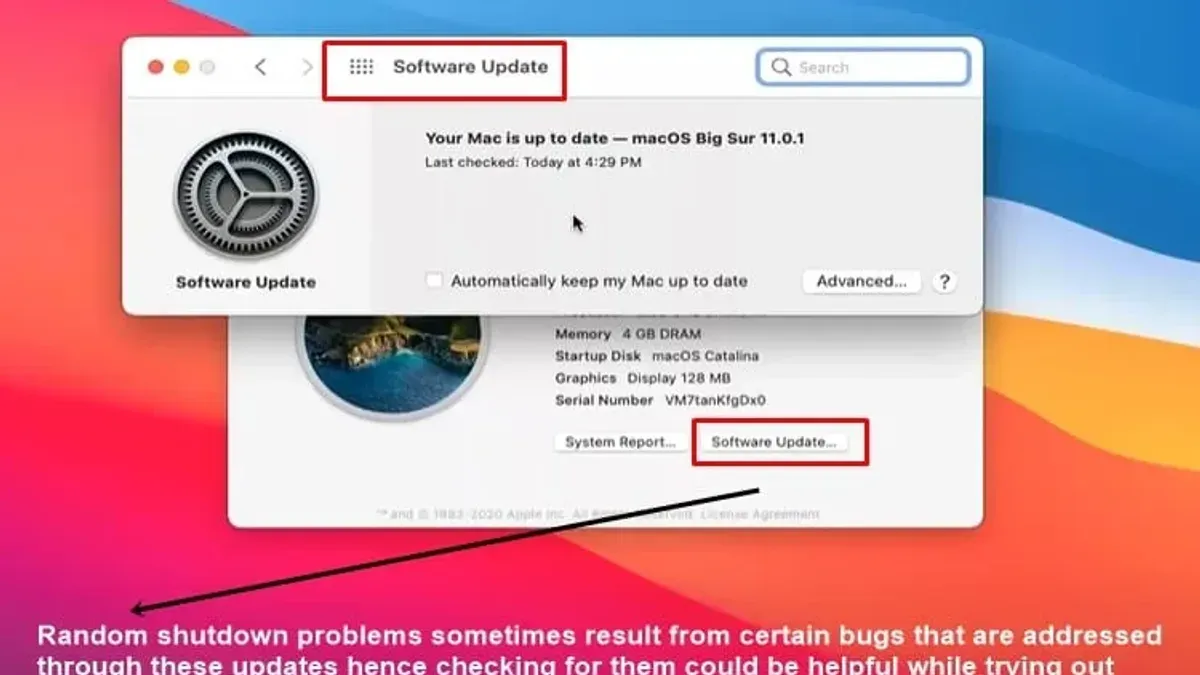
Software corruption can cause your Mac to shut down unexpectedly. Begin by checking for macOS updates, which often include fixes for known issues. Access this via the Apple menu, then System Preferences, and select Software Update. Install any available updates and observe if the random shutdowns persist.
If the shutdowns started after installing new software or apps, remove those applications. Uninstalling suspicious or recently added software can eliminate conflicts leading to instability.
When software corruption continues despite updates and uninstallations, reinstalling macOS is a reliable next step. Before proceeding, back up your data thoroughly to avoid loss, as unexpected shutdowns and OS reinstalls can worsen data damage.
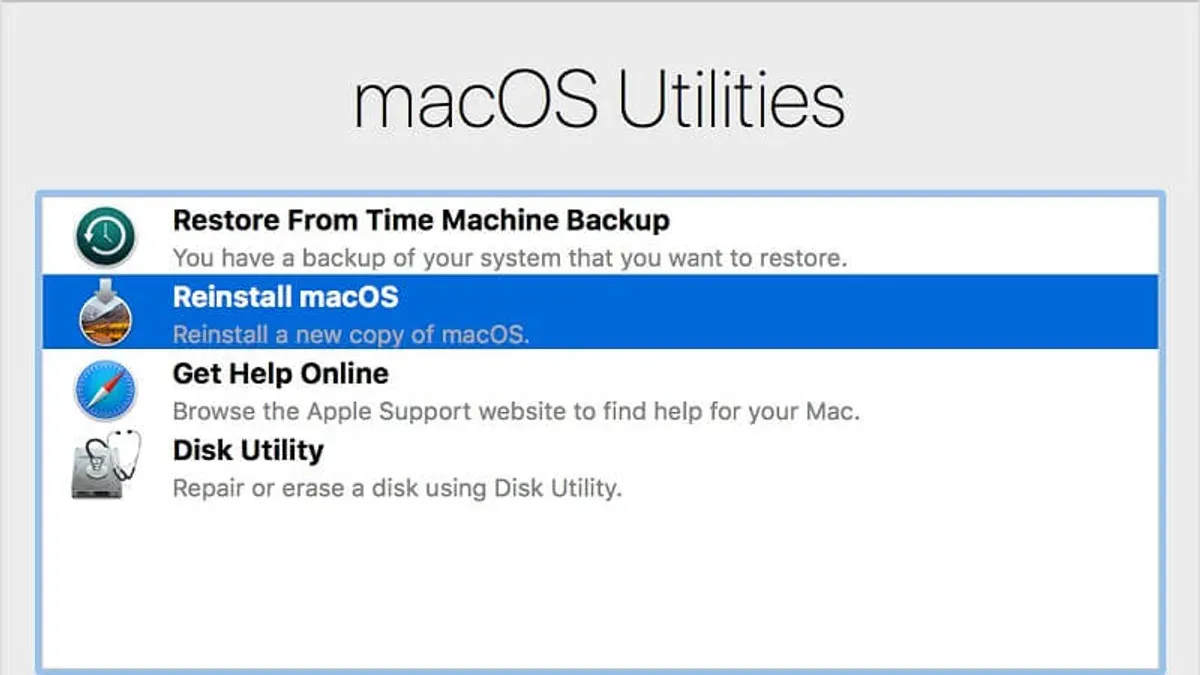
- Open the Apple menu and select Restart while holding Command + R to enter Recovery mode; you should see the macOS Utilities window.
- Choose Reinstall macOS, then follow the onscreen instructions; a progress bar indicates the installation status.
- After reinstalling, your Mac restarts automatically, and you return to your usual login screen without losing personal data.
Reinstalling macOS replaces the system files without erasing user data, resolving many corruption issues that cause shutdowns. This hierarchy—update, uninstall, then reinstall—ensures you address software causes in a safe and effective order.
- How to Fix Lines on Mac Screen: Step-by-Step Solutions
- How to Fix Dead Pixels on Mac: Step-by-Step Solutions
- How to Fix Your Mac Fan Running Loud Constantly
- How to Fix a Mac That’s Running Hot and Slow
Frequently asked questions
Why does my mac shut down unexpectedly?
Unexpected shutdowns can stem from software conflicts, hardware faults, or power supply issues. Battery health problems or incompatible peripherals may trigger sudden power loss. Identifying the exact symptom can narrow down whether the cause is software corruption, hardware failure, or external devices.
How to manually shut down a mac?
To manually shut down a Mac, hold the power button until the screen goes black, but this should be a last resort to avoid potential data loss. Instead, use the Apple menu to select "Shut Down" whenever possible for a safe closure of all applications and processes.
Why does my mac keep shutting down?
This repeated issue often points to persistent software errors, hardware degradation such as a failing battery, or power management settings that need resetting. System updates, disk repairs, or isolating problematic peripherals typically resolve ongoing shutdown loops.
Common mistakes that prolong shutdown issues
- Ignoring battery health despite frequent shutdowns. Check your battery status in System Settings > Battery > Battery Health to rule out power supply issues before other steps.
- Resetting hardware controls out of order on Intel Macs. Always reset NVRAM/PRAM first, then the SMC; reversing this can cause resets to fail.
- Skipping Safe Mode when troubleshooting software. Booting into Safe Mode isolates startup items and caches, which helps identify whether software is the cause.
- Overlooking peripherals as a cause. Disconnect all external devices and test the Mac alone, since faulty or incompatible peripherals often cause unexpected shutdowns.
- Neglecting to repair disk errors. Running Disk Utility First Aid can fix corrupted files that might trigger shutdowns, so do not skip this before reinstalling macOS.
Essential troubleshooting steps to fix your Mac shutting down randomly
Choosing the right approach depends on your Mac’s hardware and the symptoms you observe. If you have an Intel Mac, resetting NVRAM/PRAM and the SMC in the correct order is crucial, while this step is unnecessary for Apple silicon Macs. When software seems to cause shutdowns, Safe Mode and software updates or reinstalls help. Hardware issues warrant running diagnostics and checking batteries. If external devices are connected, test your Mac without them first to exclude peripheral causes. Follow this sequence based on your Mac’s specifics and the nature of the shutdowns for the most efficient resolution.
Pages this guide relies on
- If your Mac restarted because of a problem - Apple Support — Apple Support
- Mac randomly shutting down? A-Z diagnostic guide [15+ fixes] — CleanMyMac by MacPaw
- Why Does Mac Keep Shutting Down Randomly? (7 Ways to Fix It) — Macgasm
- MacBook Shuts Down Randomly? 7 Fixes for Unexpected Mac Shutdowns — Wondershare Recoverit



