
Mac Won't Wake from Sleep: How to Fix It
Learn how to fix your Mac when it won't wake from sleep using force restart, sleep setting adjustments, and troubleshooting tips.
You open your Mac to find it unresponsive, stuck in sleep mode without waking. This common issue often results from a hung resume state that a force restart can clear quickly.
Begin your Mac won't wake from sleep fix with this step before moving on to adjust sleep settings, disconnect peripherals, or reset internal controllers. Apple Silicon Macs (M1, M2, M3) require a full shutdown and restart instead of an SMC reset, which applies only to Intel models. Following a precise order in troubleshooting prevents wasted time and reveals when hardware repair is necessary.
Checked in November 2026 against LuxuriousComputers, IT Cares, The Droid Guy (full list at the end); details like these change, so the date matters.
Force restart to clear a hung wake state
This clears what is usually a stuck resume process that blocks wake. If your Mac screen remains dark or shows no response when you try to wake it, a force restart often restores normal operation.
Follow these steps to force restart your Mac:
- Press and hold the power button for about 10 seconds until the Mac powers off completely.
- Release the power button and wait a moment.
- Press the power button again to turn your Mac on.
However, if you find yourself force restarting every morning or frequently, this signals a deeper problem such as battery health issues or incorrect sleep settings that need addressing.
Use this method as the first step to clear stuck wake failures before moving on to more detailed troubleshooting.
Adjust sleep settings that cause wake failures
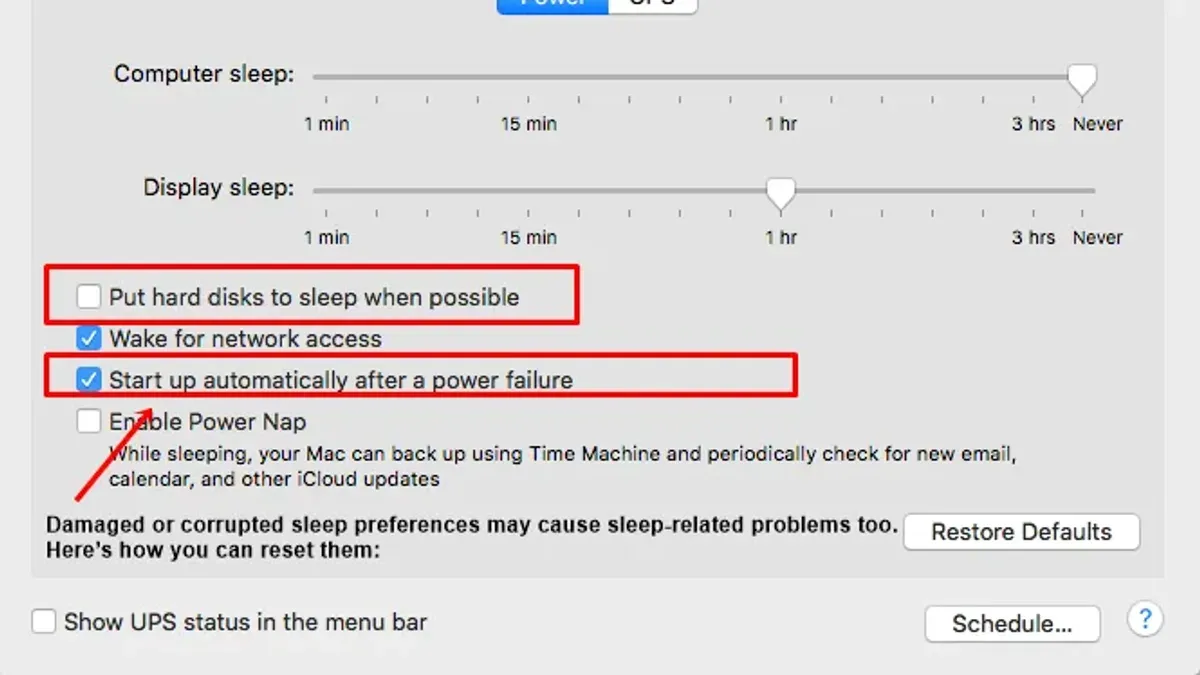
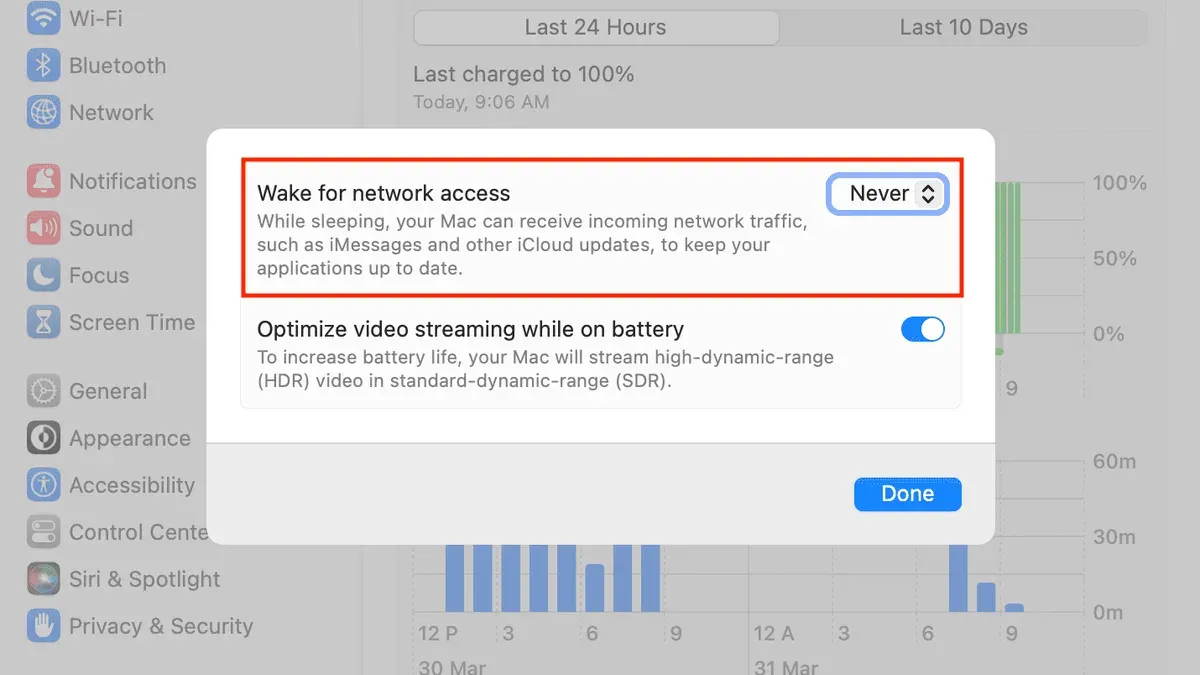
Some sleep settings cause your Mac to partially wake without showing the display, creating confusion about whether it truly woke. This setting is found in System Settings > Battery or Energy Saver, depending on your macOS version.
Another frequent cause is 'Power Nap.' This feature lets your Mac perform background tasks while asleep but can interfere with proper wake behavior.
Adjusting display sleep timeouts to your preference is fine, but avoid setting them too short. Extremely brief display sleep intervals can increase the chance of wake failures or inconsistent wake responses.
Apply these changes if your Mac keeps needing forced restarts to wake or appears to wake without the screen activating. After disabling these options and setting reasonable display sleep times, your Mac should wake reliably without requiring manual intervention.
- Open System Settings and select Battery or Energy Saver.
- Turn off 'Wake for network access.'
- Disable 'Power Nap.'
- Set display sleep timeouts to a comfortable length, avoiding very short intervals.
- Test waking your Mac normally to confirm the problem is resolved.
Disabling 'Wake for network access' and 'Power Nap' fixes many sleep-wake bugs.
Disconnect external peripherals to isolate wake hang issues
External displays, USB-C hubs, and Thunderbolt docks frequently cause Macs to fail waking from sleep because they cannot renegotiate connections properly. To find out if a peripheral triggers the problem, unplug all external devices and try waking your Mac on battery power alone. If it wakes normally, the issue lies with one of the peripherals.
Next, reconnect each device one at a time, then put your Mac to sleep and wake it again. This process reveals the specific peripheral or cable responsible for the wake hang. When identified, update the device’s firmware or software if available, or replace faulty hardware to restore reliable wake behavior.
Do not skip this step when diagnosing wake failures. Peripherals often block wake signals, and testing them individually isolates the root cause without guesswork.
Turn off unnecessary sharing services that block sleep
If your Mac struggles to enter or maintain sleep, these active services are often the cause. Disabling any sharing service you do not require improves sleep reliability and helps your Mac wake normally.
To check and disable unnecessary sharing services, open System Settings, then navigate to General > Sharing. Review the list of active services and turn off those you do not need. Common services to consider disabling include Printer Sharing, File Sharing, and Screen Sharing. Turning off these services prevents your Mac from staying awake to respond to network requests or shared resources.
If the problem persists after disabling sharing services, continue troubleshooting with other steps.
- Open System Settings and select General > Sharing.
- Identify any active sharing services that are not essential.
- Toggle off those unnecessary sharing services.
- Open General > Sharing in System Settings.
- Disable all sharing services you do not actively use.
- Confirm your Mac now sleeps and wakes reliably.
Increase display brightness to check if Mac is awake but screen is dark
A black screen does not always mean your Mac is asleep or unresponsive. Sometimes the display brightness is set to zero, making the screen appear off while the Mac is actually awake. To verify this, press the brightness increase key, usually labeled F2 or marked with a sun icon, several times in a row.
If the screen remains black after raising brightness, try connecting an external display. If the external monitor shows activity, your Mac is responsive but the internal display backlight may be off or stuck.
This issue often manifests as a no-wake symptom, but it is caused by display brightness settings rather than a true wake failure. Increasing brightness can quickly reveal if your Mac is awake but hidden behind a dark screen.
Follow these steps to confirm and resolve the problem:
- Press the brightness increase key (F2 or sun icon) repeatedly to raise the screen brightness from zero.
- If the screen stays black, connect an external display to check if the Mac is responsive.
- If the external display shows your desktop or login screen, adjust or repair the internal display as needed.
Avoid assuming a black screen means the Mac is off or dead before testing brightness and external displays.
Increasing brightness can reveal if the Mac is awake but the screen is dark
- Press the brightness increase key several times to raise screen brightness
- Connect an external display if the screen remains black
- Confirm if your Mac is responsive through the external display
Reset SMC on Intel Macs or fully shut down Apple Silicon Macs
Power management controls that affect sleep and wake functions differ between Intel and Apple Silicon Macs. Intel Macs use a System Management Controller (SMC) that can be reset to fix issues with power and battery behavior causing wake failures. Apple Silicon Macs do not have an SMC; instead, a complete shutdown and restart resets their power management system.
| Mac Type | Power Management Reset Method |
|---|---|
| Intel Mac | Reset SMC with specific key sequence |
| Apple Silicon Mac (M1, M2, M3) | Perform full shutdown and startup (no SMC present) |
For Intel Macs, follow these steps:
- Shut down your Mac completely.
- Press and hold the Control + Option (left) + Shift (right) keys simultaneously for 7 seconds.
- While holding those keys, press and hold the power button for an additional 7 seconds.
- Release all keys and the power button at the same time.
- Wait a moment, then start your Mac normally.
This sequence resets the SMC and resolves power-related issues that can block your Mac from waking.
For Apple Silicon Macs: There is no SMC to reset. Instead, perform a full shutdown by choosing Shut Down from the Apple menu and wait 30 seconds before starting your Mac again. This full power cycle resets the underlying power management system and can clear wake failures.
- Identify your Mac model type (Intel or Apple Silicon).
- If Intel, perform the SMC reset key sequence as outlined.
- If Apple Silicon, shut down fully, wait 30 seconds, then start up again.
Reset PRAM/NVRAM to resolve system setting conflicts affecting wake
Sleep and wake problems can stem from corrupted or conflicting settings stored in your Mac’s PRAM/NVRAM. These parameters control essential functions like display brightness and volume, which directly impact wake behavior.
To perform this reset, restart your Mac and immediately hold down the keys Option + Command + P + R simultaneously. Keep holding these keys for about 20 seconds during startup. Your Mac may appear to restart during this process; release the keys after the second startup sound or when the Apple logo appears and disappears twice.
This action clears stored settings related to sleep and wake, such as display and sound parameters, potentially restoring normal wake function.
Use this reset only after trying simpler fixes like adjusting sleep settings or resetting power management, as it resets a variety of system preferences that you may need to reconfigure afterward.
- Restart your Mac and hold Option + Command + P + R keys for about 20 seconds during boot
- Release keys after the second restart sound or Apple logo cycle
- Check if your Mac now wakes properly and system settings like brightness and volume are reset
Boot into Safe Mode to identify third-party software causing wake failures
This helps you determine if any installed software interferes with your Mac’s ability to wake from sleep.
The process to enter Safe Mode varies by Mac platform. For Apple Silicon Macs, hold the power button at startup until the startup options appear. Select your startup disk, then press and hold the Shift key and click Continue in Safe Mode. For Intel Macs, start your Mac and immediately hold the Shift key until the login screen appears.
If your Mac wakes normally while in Safe Mode but fails to do so in regular mode, the issue likely originates from third-party software or login items. To resolve this, uninstall or update any recently added or suspicious applications that might block the wake process.
Confirm that the problem is resolved by restarting your Mac normally and testing sleep and wake functionality. If the issue persists, Safe Mode diagnostics have ruled out third-party software, and further hardware or system-level troubleshooting is needed.
- Boot your Mac into Safe Mode using the appropriate method for your platform
- Test if the Mac wakes normally while in Safe Mode
- Remove or update any third-party software if Safe Mode fixes the wake problem
Check battery health and power issues that affect wake reliability
A battery that has degraded can cause instability in sleep and wake functions, leading to unexpected restarts or failure to resume from sleep.
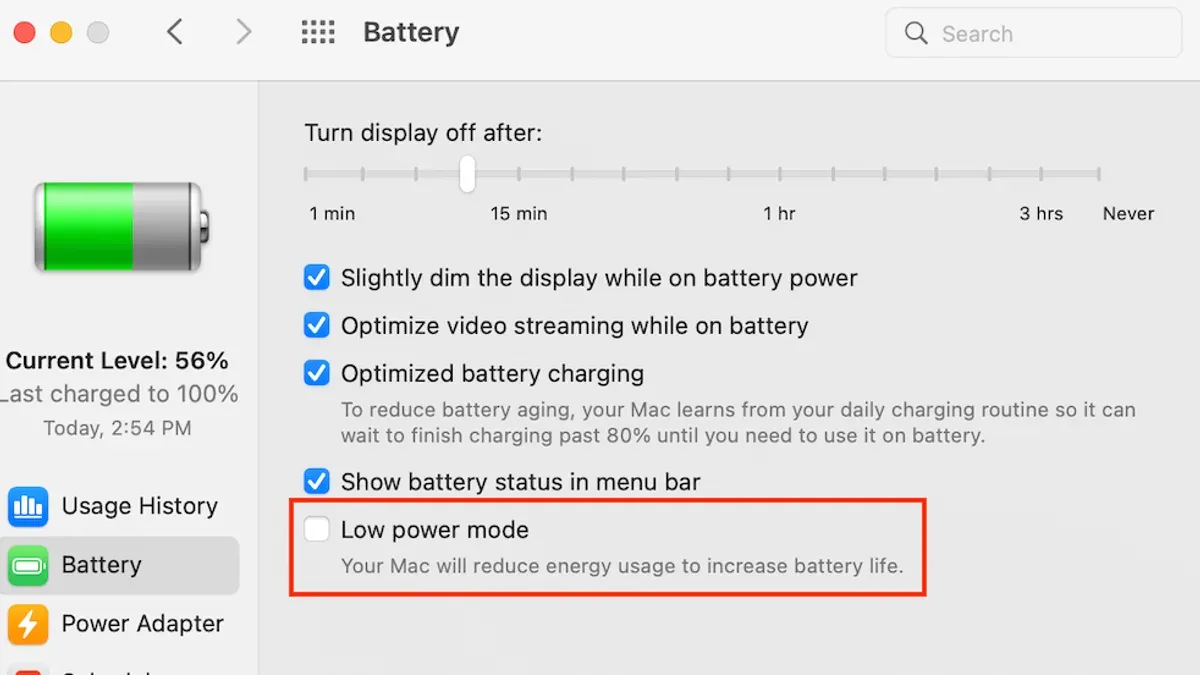
To identify if your battery contributes to the problem, open System Settings, navigate to Battery, then select Battery Health. Here, you can view the battery status to see if it requires service. A status indicating service needed means the battery no longer reliably supports power demands, which can cause wake issues.
Addressing battery health early prevents further hardware damage and improves your Mac's ability to wake consistently. If service is recommended, schedule a battery replacement to restore stable sleep and wake behavior.
Follow these steps when you suspect battery problems:
- Open System Settings and go to Battery > Battery Health.
- Check the battery status message for any indication of service required.
- If service is needed, arrange for battery replacement through a certified repair provider.
- After replacement, monitor wake performance and reduced need for force restarts over several days.
If wake reliability improves and force restarts stop, the battery was the likely cause. Continuing issues after battery service indicate other hardware or software factors.
- Arrange battery service if the status indicates it is needed.
- Monitor wake behavior after battery replacement to confirm resolution.
Keep macOS updated to benefit from sleep/wake bug fixes
Ensuring your system runs the latest macOS version improves stability and fixes known issues related to sleep and wake behavior.
Check for updates regularly by navigating to System Settings > General > Software Update. When an update is available, select Update Now to install it. This process is straightforward and requires only a stable internet connection and sufficient battery or power supply.
After installing an update, monitor your Mac's wake performance over the following day or week. If wake failures persist, verify that the update installed correctly and consider repeating the installation if necessary. If the update introduced new issues, you can reverse the update by restoring from a recent backup, but only do this if wake problems worsen.
Keeping macOS updated is a fundamental step in resolving and preventing wake failures caused by software bugs. It requires minimal effort but can significantly improve your Mac's sleep-wake reliability.
- Open System Settings > General > Software Update
- Click Update Now if an update is available
- Observe wake behavior for several days after updating
- How to Fix Dead Pixels on Mac: Step-by-Step Solutions
- How to Fix Screen Staingate Delamination on Your Mac
- How to Fix Your Mac Fan Running Loud Constantly
Frequently asked questions
Why won't my mac go to sleep?
Your Mac might stay awake due to active sharing services, connected peripherals preventing sleep, or specific energy settings configured to avoid sleep. Sometimes third-party software or system processes can block sleep as well, requiring you to check sharing options and running applications.
How to wake up mac from sleep?
Press any key on the keyboard, click the trackpad or mouse, or open the Mac's lid if it is a laptop. If it still does not wake, a forced restart may be necessary to clear a hung wake state, as detailed earlier.
How to set mac to not sleep?
Adjust the settings under System Settings > Battery or Energy Saver depending on your macOS version. You can set the display and computer sleep sliders to “Never” or disable “Put hard disks to sleep when possible” to prevent sleep.
How to make mac not sleep?
You can prevent your Mac from sleeping by modifying the sleep settings in the Battery or Energy Saver panel, turning off features like “Prevent computer from sleeping automatically when the display is off.” Additionally, some apps that require continuous activity can keep the Mac awake.
How to stop mac from sleeping?
The quickest way is to change the sleep timers in System Settings under Battery or Energy Saver. Also, disconnect unused peripherals and disable sharing services that might interfere with sleep behavior to ensure the Mac sleeps only when you want it to.
Key steps to fix your Mac not waking from sleep
Sources checked
- MacBook Won’t Wake From Sleep? Every Fix in Order — LuxuriousComputers
- Mac Won't Wake From Sleep? Black Screen Fix (13 Steps) — IT Cares
- How To Fix A Mac That Won’t Sleep Or Wakes Up On Its Own — The Droid Guy
- 4 Ways to Fix MacBook Not Waking Up From Sleep — Guiding Tech



