
How to Fix a Mac Stuck in Recovery Mode: Step-by-Step Solutions
Learn how to fix a Mac stuck in Recovery Mode with simple steps like resetting the startup disk and running Disk Utility’s First Aid.

When searching for a Mac stuck in Recovery fix, it is crucial to follow the right troubleshooting order. Many users skip resetting the startup disk first, which leads to ineffective attempts at reinstalling macOS or repairing disk errors. Knowing how and when to run Disk Utility’s First Aid, reinstall the system, or reset NVRAM (Intel Macs only) saves time and prevents unnecessary data loss.
It highlights common failure points and differences between Apple Silicon and Intel Macs, helping you navigate out of Recovery Mode efficiently and safely.
Checked in November 2026 against LuxuriousComputers, Apple Support, iBoysoft (full list at the end); details like these change, so the date matters.
Start by resetting the startup disk from Recovery Mode
This can resolve the issue where the Mac fails to find the correct boot volume and loops back into Recovery.
While in Recovery Mode, click the Apple menu in the top-left corner of the screen. From the dropdown, select Startup Disk. This opens a list of available startup volumes.
Choose Macintosh HD as the designated startup disk. Selecting this explicitly tells your Mac which disk to boot from, overriding any misconfiguration that might cause repeated entry into Recovery Mode.
After selecting Macintosh HD, click Restart. Your Mac will reboot and attempt to load the operating system normally from the chosen disk.
This order—access Apple menu, select Startup Disk, choose Macintosh HD, then restart—is critical. If you restart before setting the startup disk, the Mac will return to Recovery Mode because it still lacks the proper boot instruction. Setting the startup disk first ensures the Mac targets the correct volume on reboot.
Run Disk Utility’s First Aid on all startup disk volumes
File system corruption often causes your Mac to loop in Recovery Mode. Address this by running First Aid on every relevant volume of your startup disk. Begin by launching Disk Utility from the macOS Utilities screen in Recovery Mode.
- In Disk Utility, select View from the menu bar and choose Show All Devices. This expands the sidebar to display the physical drives, containers, and individual volumes.
- Select the physical drive that contains your startup disk. This is usually the top-level device in the sidebar. Click First Aid and confirm to run the repair process. A successful run will report no errors or that issues were fixed.
- Next, select the container within the physical drive and run First Aid again. Repairing the container addresses file system structures that affect all volumes inside it.
- Finally, select the Macintosh HD volume or any other startup volumes and run First Aid. This step ensures that the specific volume's file system is intact.
- If First Aid reports errors fixed, repeat the process on all three levels—physical drive, container, and volume—until no errors remain or First Aid fails to repair.
Running First Aid on all levels is essential because corruption can exist at the physical, container, or volume level. Skipping any may leave problems unresolved, continuing the Recovery Mode loop. If First Aid fails at any stage, this indicates deeper disk issues requiring advanced repair or replacement.
Reinstall macOS without erasing your files to fix system corruption
If your Mac keeps booting into Recovery Mode due to system issues, reinstalling macOS from Recovery can resolve corrupted or incomplete installations without deleting your personal data. This process replaces the system files while preserving your user files and settings.
- From the macOS Utilities window in Recovery Mode, select Reinstall macOS and click Continue. You will see the installer screen prompting you to proceed.
- Follow the on-screen instructions to select your startup disk (usually Macintosh HD) as the installation destination. Confirm the selection to begin.
- The reinstall process will take approximately 30 to 60 minutes and may include several automatic restarts. During this time, do not interrupt the installation.
- Once complete, your Mac should restart normally. Your files and user data remain intact unless you chose to erase the disk beforehand.
However, ensure you do not select disk erasure options during installation to maintain your files.
Reset NVRAM on Intel Macs to clear startup settings that cause boot issues
NVRAM stores certain settings that control startup behavior on Intel Macs. Resetting it can resolve issues preventing your Mac from booting normally or causing it to stay stuck in Recovery Mode.
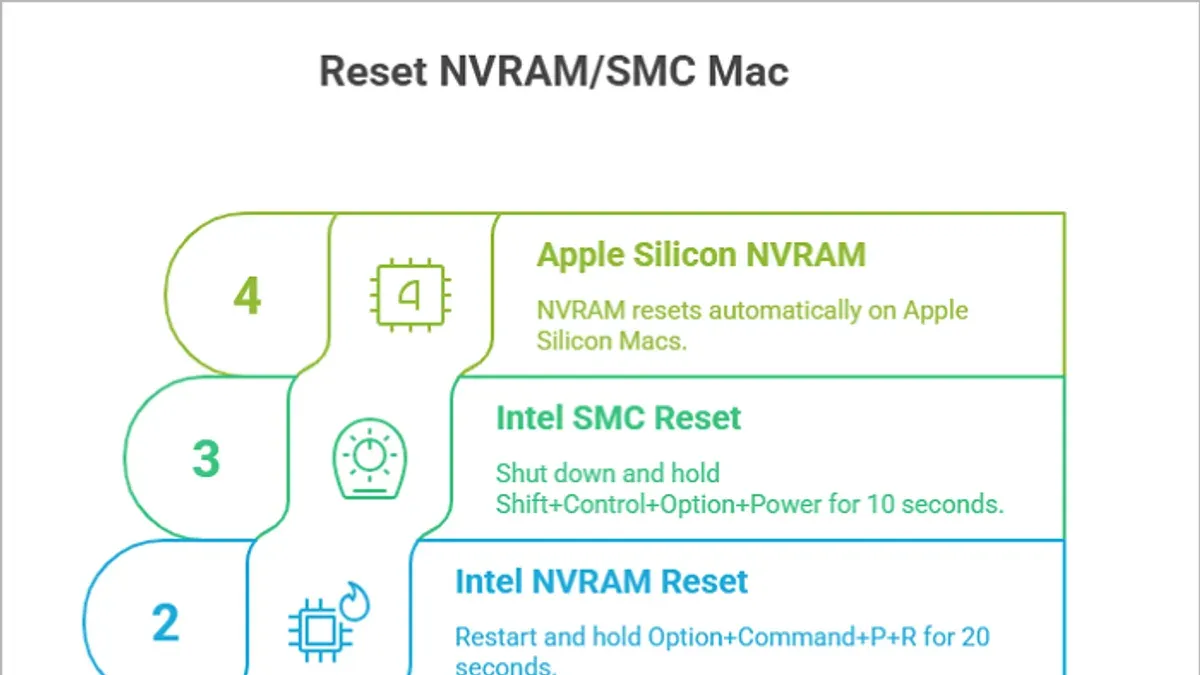
This reset is only applicable to Intel-based Macs. Apple Silicon Macs manage NVRAM automatically on restart, so this procedure does not apply to them.
- Completely shut down your Intel Mac.
- Turn it on and immediately press and hold the Command (⌘), Option (⌥), P, and R keys simultaneously.
- Keep holding these keys for about 20 seconds. Your Mac may restart during this process.
- Release the keys after this time. Your Mac should continue booting with the NVRAM reset.
It does not erase your data but resets low-level startup preferences.
- Shut down the Intel Mac fully.
- Power it on while holding Command-Option-P-R keys.
- Hold the keys for about 20 seconds, then release.
Use Safe Mode to break Recovery loops caused by software conflicts
This streamlined startup environment helps isolate software issues preventing normal boot.
On Intel Macs, enter Safe Mode by powering on and immediately holding the Shift key until the login window appears. Apple Silicon Macs require shutting down, then holding the power button until startup options appear; select your startup disk, press and hold Shift, then click Continue in Safe Mode. Successful boot into Safe Mode means you will see “Safe Boot” in the menu bar on the login screen.
Once in Safe Mode, disable or remove suspicious login items and extensions that might cause boot failures. Testing boot in this mode verifies if third-party software is the root cause of the Recovery loop.
If your Mac boots sometimes but returns to Recovery Mode afterward, Safe Mode is the recommended next step to identify and resolve software conflicts affecting startup.
- Shut down the Mac completely.
- For Intel Macs: Turn on and immediately hold Shift until you see the login window labeled “Safe Boot.” For Apple Silicon Macs: Press and hold the power button until startup options appear, select your disk, hold Shift, then click Continue in Safe Mode.
- Log in and observe if the system starts normally with Safe Mode active.
- Remove or disable any recently added login items or kernel extensions.
- Restart normally to see if the issue is resolved.
- Shut down your Mac completely before starting Safe Mode.
- Use the appropriate key or button sequence for your Mac model.
- Remove or disable problematic login items or extensions while in Safe Mode.
- Restart normally to check if Recovery Mode loops are resolved.
How to enter and exit Recovery Mode on Apple Silicon and Intel Macs
Entering Recovery Mode on Apple Silicon Macs
- Completely shut down your Mac.
- Press and hold the power button until you see the message "Loading startup options." This may take a few seconds.
- When the startup options appear, click Options and then Continue to enter Recovery Mode.
This method uses the Mac’s new startup architecture, which replaces previous key combinations.
Entering Recovery Mode on Intel Macs
- Restart your Mac.
- Immediately hold down the
Command-Rkeys as the Mac boots up. - Keep holding until you see the Apple logo or a spinning globe, indicating Recovery Mode is loading.
This traditional key combination remains the standard method for Intel-based Macs.
Exiting Recovery Mode on all Macs
To leave Recovery Mode normally, open the Apple menu and select Restart. If your keyboard is unresponsive or the system does not restart as expected, press and hold the power button until the Mac shuts down, then press it again to power back on.
- Shut down your Apple Silicon Mac before entering Recovery Mode
- Hold the power button until startup options appear on Apple Silicon Macs
- Use Command-R immediately at startup on Intel Macs
- Exit Recovery Mode via Apple menu > Restart or power cycle if necessary
What to do if Recovery Mode won’t load or Reinstall repeatedly fails
If your Mac’s standard Recovery Mode fails to load or the macOS reinstall repeatedly does not complete, you need to try alternative recovery methods before suspecting hardware issues. These steps address deeper system or disk problems.
- For Intel Macs, start Internet Recovery by holding Option-Command-R or Shift-Option-Command-R immediately after powering on. This loads a recovery system from Apple’s servers, not your local disk. Successful Internet Recovery will display a spinning globe icon and then open the macOS Utilities window.
- If Internet Recovery also fails to load or the reinstall repeatedly fails, create and use a bootable USB installer with the macOS version compatible with your Mac. Boot from this USB by holding the Option key at startup and selecting the installer drive. This bypasses local recovery environments and Internet connectivity issues.
- When all software recovery options fail—including First Aid, reinstall, Internet Recovery, and USB installer—consider hardware failure as a likely cause. Internal SSD issues can prevent boot and reinstall from working and usually require professional hardware repair or logic board replacement.
These steps escalate recovery attempts from local to remote and external tools before concluding hardware faults. Follow them in order to accurately identify the root cause.
- Try Internet Recovery with Option-Command-R or Shift-Option-Command-R on Intel Macs
- Use a bootable USB installer if Internet Recovery fails
- Seek hardware repair if software recovery repeatedly fails
Common pitfalls that cause or worsen Recovery Mode problems
Interrupting macOS updates by closing the lid, forcing a shutdown, or losing power leaves the system only partially installed. This incomplete installation causes your Mac to loop back into Recovery Mode repeatedly.
Failing to select the correct startup disk while in Recovery prevents your Mac from booting normally. Without specifying Macintosh HD or your designated startup volume, the system defaults back to Recovery Mode.
Using the wrong key combination to enter Recovery Mode differs between Apple Silicon and Intel Macs. On Apple Silicon, holding the power button accesses startup options, while Intel Macs require holding Command-R at startup. Applying the wrong method results in no entry into Recovery, prolonging troubleshooting.
Ignoring persistent errors reported by First Aid in Disk Utility risks missing a failing SSD or other hardware issues. These errors often indicate that software repairs won’t resolve the problem, and hardware repair or replacement may be necessary.
- Select the correct startup disk in Recovery Mode via the Apple menu > Startup Disk; you should see your usual startup volume listed and selectable.
- Use the proper key combination for your Mac model to enter Recovery Mode: power button hold for Apple Silicon, Command-R for Intel Macs; the Recovery screen should appear promptly.
- Run Disk Utility’s First Aid thoroughly on all devices and volumes; if errors persist after repeated attempts, consider hardware diagnostics or service.
Differences in Recovery Mode between Apple Silicon and Intel Macs
Accessing Recovery Mode and resetting NVRAM differ significantly between Apple Silicon and Intel Macs due to their distinct architectures. Understanding these differences helps you apply the right procedure to resolve boot issues effectively.
| Feature | Apple Silicon Macs | Intel Macs |
|---|---|---|
| Entering Recovery Mode | Shut down, then press and hold the power button until 'Loading startup options' appears; click Options and Continue. | Restart and immediately hold Command-R until the Apple logo or spinning globe appears. |
| Resetting NVRAM | Automatically reset on every restart; no manual action required. | Manually reset by shutting down, then powering on while holding Option-Command-P-R for about 20 seconds. |
| Internet Recovery Options | Not applicable; standard Recovery Mode covers most scenarios. | Use Option-Command-R or Shift-Option-Command-R at startup if standard Recovery fails to load. |
Apple Silicon Macs simplify Recovery access by using the power button to reach startup options, while Intel Macs depend on keyboard shortcuts during startup. The automatic NVRAM reset on Apple Silicon eliminates a common troubleshooting step required on Intel machines.
This feature is not available on Apple Silicon, which relies on built-in recovery capabilities.
Use the exact method for your Mac’s architecture to avoid confusion and ensure successful recovery.
For detailed guidance on entering Recovery Mode on Apple Silicon, visit Apple’s official instructions.
How to decide which Recovery fix to try first based on your situation
When your Mac boots into Recovery Mode, the first step is to check if Recovery utilities load successfully. If they do, start by resetting the startup disk to Macintosh HD, run Disk Utility’s First Aid on all volumes, and then reinstall macOS if necessary. These steps address most issues related to incorrect startup disk selection, file system corruption, and system software problems.
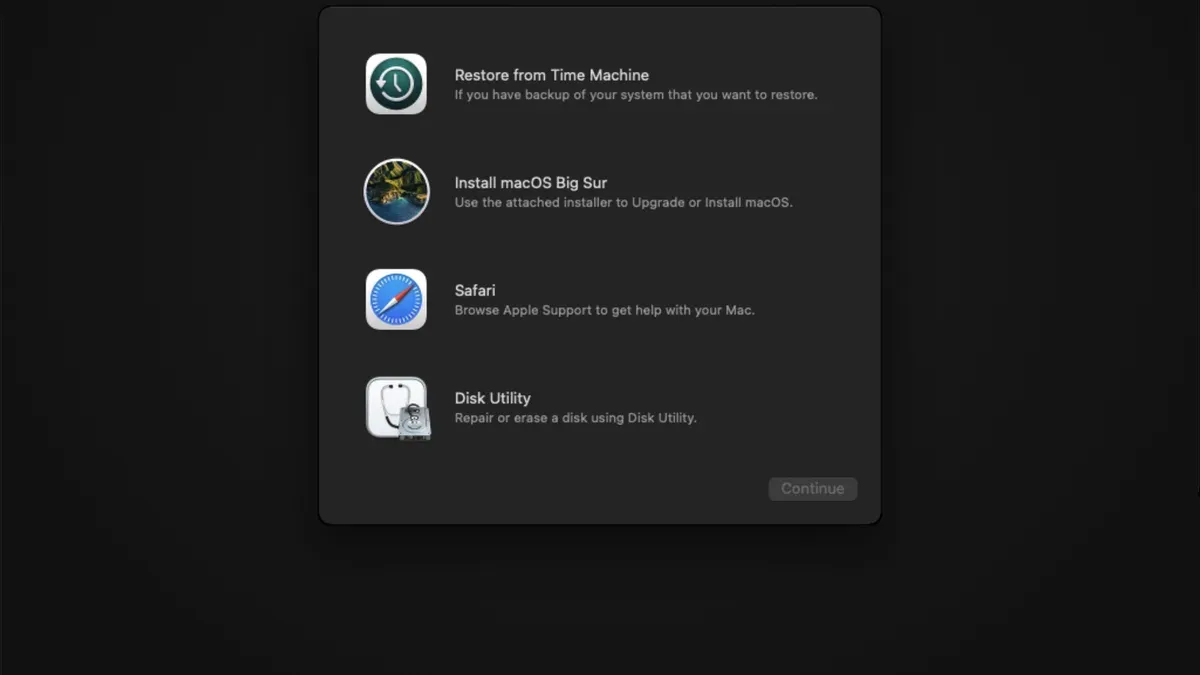
If Recovery Mode itself fails to load or if reinstalling macOS repeatedly fails, move on to Internet Recovery or use a bootable USB installer. These methods bypass local Recovery partitions and can help if the internal Recovery is damaged. Persistent failure at this stage usually points to hardware issues like a failing SSD or logic board, which require professional diagnostics.
In cases where your Mac boots sometimes but then returns to Recovery Mode, boot into Safe Mode. Safe Mode disables nonessential software and extensions, isolating software conflicts that cause boot loops. If Safe Mode allows a normal start, focus on removing problematic login items or extensions.
For older Macs needing logic board or SSD repairs, evaluate whether repair costs justify replacement or buying a refurbished machine. Hardware repair can be expensive and may not always be the most practical solution.
- Confirm if Recovery utilities appear after booting into Recovery Mode; if yes, reset the startup disk, then run First Aid, and finally reinstall macOS if needed. You should see the Mac restart normally after these steps.
- If Recovery does not load or reinstall repeatedly fails, attempt Internet Recovery or use a bootable USB installer. Success here lets you reinstall macOS or access disk tools.
- If the Mac boots intermittently but returns to Recovery, boot into Safe Mode to identify software conflicts. Safe Mode should lead to a stable desktop.
- If none of these steps resolve the issue, especially on older hardware, consider professional repair or replacement due to likely hardware failure.
- How to Fix Keyboard Repeating Keys on Mac: Step-by-Step Solutions
- How to Fix a Mac Stuck on the Loading Bar: Step-by-Step Solutions
- How to Fix No Bootable Device on Mac: Step-by-Step Solutions
- How to Fix a Mac Restarting Because of a Problem
Frequently asked questions
How to fix mac stuck in recovery mode?
Begin by resetting the startup disk from Recovery Mode through the Apple menu by selecting Startup Disk, choosing Macintosh HD, then restarting. Follow with Disk Utility’s First Aid on all startup disk volumes after enabling View > Show All Devices. If issues persist, reinstall macOS without erasing files, reset NVRAM on Intel Macs, or use Safe Mode to resolve software conflicts.
How to get out of macos recovery?
Exit Recovery Mode by selecting the startup disk in the Apple menu and restarting your Mac. On Apple Silicon Macs, simply shutting down and powering on normally also exits Recovery Mode.
How to do mac recovery?
Enter Recovery Mode by holding Command-R on Intel Macs at startup or pressing and holding the power button on Apple Silicon Macs until startup options appear. From there, you can access tools like Disk Utility, reinstall macOS, or reset settings depending on your needs.
When to seek professional help or consider data recovery
If your Mac shows signs of SSD or logic board problems, such as repeated hardware errors or failure to recognize the disk, professional service is necessary.
Choosing your first step based on your situation
If your Mac continually boots into Recovery Mode, start by resetting the startup disk to ensure the correct volume is chosen for booting. When disk errors appear, run First Aid on all devices in Disk Utility before reinstalling macOS. Intel Mac users should reset NVRAM if startup settings seem corrupted. Use Safe Mode to break looping caused by software conflicts, particularly if you have recently installed new software or updates.
For Apple Silicon Macs, rely on automatic NVRAM resets and use the specific key combinations to enter or exit Recovery Mode. If reinstalling macOS repeatedly fails, evaluate error messages against the failure map to decide if a different approach or professional help is needed.
Sources
- Mac Keeps Booting Into Recovery Mode? How to Break the Loop — LuxuriousComputers
- How to start up from macOS Recovery - Apple Support — Apple Support
- How to get out of Recovery Mode on Mac? (Intel,M1& M2) — iBoysoft
- Why Is My Mac in Recovery Mode? Causes & Fixes — WhyIsMy.org



