
How to Fix Activation Lock on a Used Mac
Discover how to fix activation lock on a used Mac and regain access by removing it safely with Apple ID or contacting the seller.
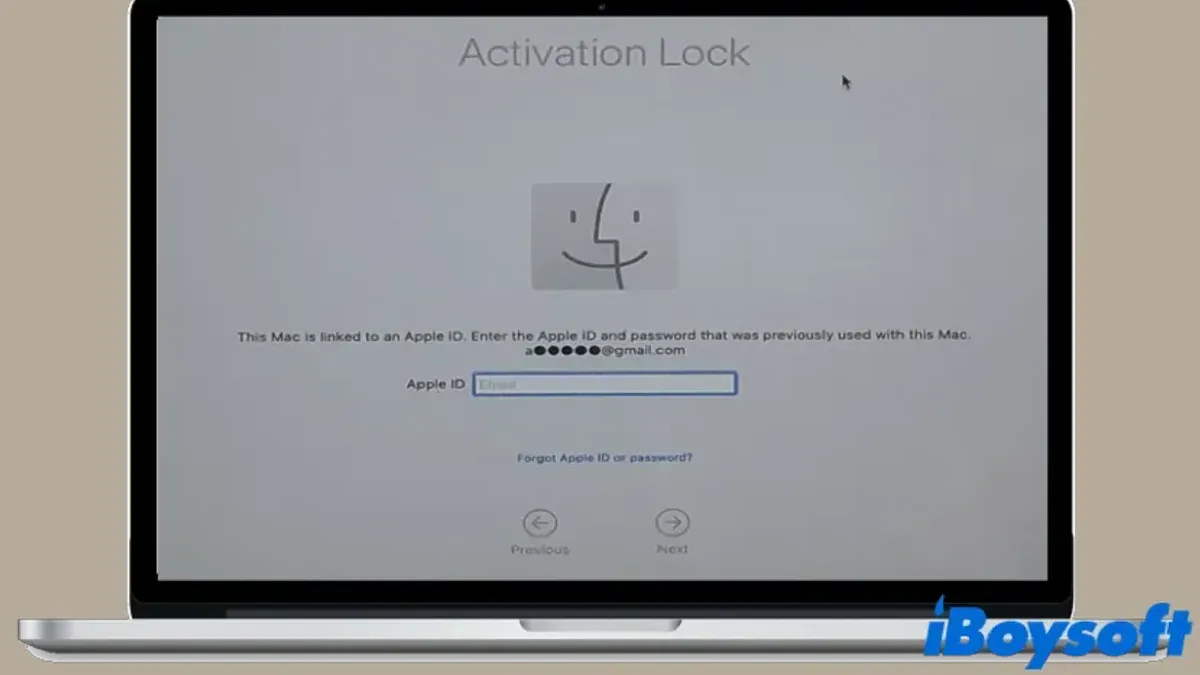
Last verified November 2026 against Apple Support.
What is activation lock on Mac
Learn more about Activation Lock from official guidance.
How to disable activation lock on MacBook quickly
- On the Mac itself, open System Settings and select Apple ID at the top of the sidebar.
- Click on Devices in the Apple ID section to view all associated devices.
- Select the Mac you want to remove from the account.
- Click Remove from Account. You should see confirmation that the device is no longer linked to the Apple ID.
- Alternatively, sign in to the iCloud website with the Apple ID used on the Mac.
- Open the Find iPhone app within iCloud.
- Select All Devices and choose the Mac you want to remove.
- Click Remove from Account. The Mac will be disassociated from the Apple ID and Activation Lock will be disabled.
Simply entering the Apple ID password on the device itself will also disable Activation Lock.
Tip: If you are the previous owner preparing to sell or give away your Mac, complete this removal step before handing over the device to avoid Activation Lock issues for the new user.
How to remove activation lock on MacBook when you don’t have the Apple ID
This security feature is designed to prevent unauthorized use of a Mac if it is lost or stolen. Attempts to remove the lock without credentials are unsupported and will not succeed.
Using these can put you at risk of scams or further issues with your device.
If you purchased a used Mac that is still Activation Locked, your first step is to contact the seller. Ask them to remove the Mac from their Apple ID account by either going to System Settings > Apple ID > Devices, selecting the Mac, and choosing Remove from Account, or by logging into iCloud.com, selecting Find iPhone, choosing the Mac, and removing it from the account. Once this is done, the Activation Lock will be disabled, and you can set up the Mac normally.
This is a deliberate part of Apple's security design to protect owners and their data.
- Confirm the Mac is Activation Locked by turning it on and seeing the lock screen requesting the Apple ID.
- Contact the person who sold or gave you the Mac and request that they remove it from their Apple ID using the device removal steps above.
- Wait for confirmation that the device has been removed from their account.
- Restart the Mac; it should now allow you to proceed with setup without the lock screen.
- If the seller cannot or will not remove the device, understand that no authorized method exists to bypass this lock.
More details on Activation Lock policies.
How to check activation lock status on a MacBook before buying
Before purchasing a used Mac, verify whether Activation Lock is enabled to avoid being locked out after the sale. Activation Lock requires the Apple ID and password of the previous owner to activate the device, so confirming its status is essential.
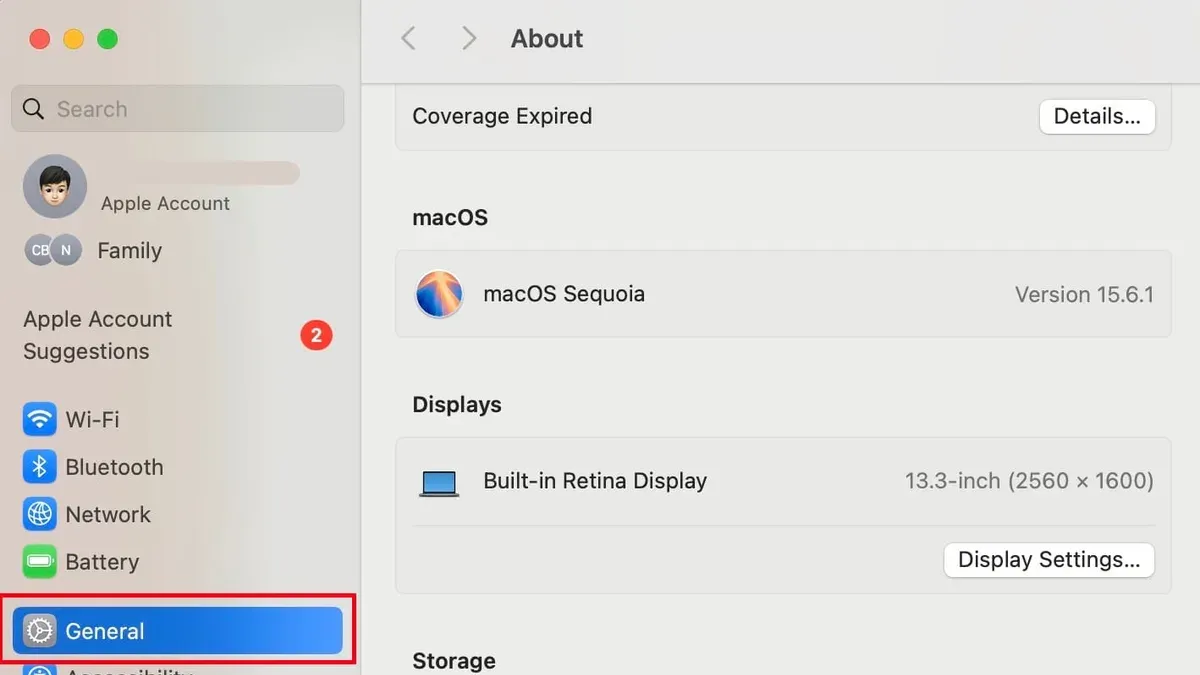
- Ask the seller to power on the Mac and reach the setup or login screen. If the Mac prompts for an Apple ID and password to activate, Activation Lock is active.
- If you have physical access to the Mac and it is logged in, open System Settings and select Apple ID in the sidebar. Then click Devices and locate the Mac in the list. If the device appears here, Activation Lock is enabled.
- If you have access to the seller’s Apple ID account, use the Find My service online. Under the list of devices, confirm whether the Mac is listed and still linked to their Apple ID.
- Ensure the seller removes the Mac from their Apple ID account before completing the purchase. This removal is mandatory to disable Activation Lock and avoid permanent lockout.
Tip: Insist on verifying Activation Lock status in person or through a live video call with the seller to prevent surprises after buying.
What to do if activation lock server cannot be reached on Mac
Activation Lock depends entirely on communication with Apple’s servers to verify device status and permit removal. When your Mac cannot connect to these servers, you will be unable to confirm or disable Activation Lock.
First, verify your internet connection by opening a webpage or using another app that requires online access. If your network is functional, try again after a short wait since server outages or maintenance can cause temporary blocks.
This connectivity issue does not bypass Activation Lock; your Apple ID and password remain necessary to unlock the device. The Mac will still require the original credentials once the connection is restored.
- Check your network settings to confirm Wi-Fi or Ethernet is active and online. Successful connection should allow loading web pages or online apps.
- If your network is active but the Mac still cannot reach the Activation Lock server, restart your router or modem, then reconnect to the internet.
- Try again to verify or remove Activation Lock on the Mac. A successful connection will allow the device to communicate with Apple’s Activation Lock servers and proceed.
- If the problem continues over several hours, use another internet connection, such as a mobile hotspot, to rule out local network issues.
- Persisting failures indicate a server-side issue or account problem. Contact Apple Support for assistance diagnosing and resolving server-related Activation Lock errors.
Tip: Use the Find My app or iCloud.com to check your device’s Activation Lock status remotely and ensure server connectivity.
The technical dependency on Apple’s servers means that network interruptions or Apple’s server downtime will block Activation Lock verification but do not disable the lock itself.
What to prepare before starting Activation Lock removal
- Have the Apple ID and password that were originally used to set up the Mac. Without these credentials, removing Activation Lock is not possible.
- Confirm you have access to a stable internet connection. Activation Lock removal requires communication with Apple’s servers to verify credentials and device status.
- If you are the previous owner, sign into your Apple ID on the Mac or visit iCloud.com. On the Mac, go to System Settings → Apple ID → Devices, select the Mac, and choose Remove from Account. Alternatively, sign in to iCloud.com, open Find iPhone, select the Mac, and remove it from your account. This action disables Activation Lock for the next user.
- If you are buying a used Mac, verify with the seller that they have removed the device from their Apple ID account before completing the purchase. Attempting to remove Activation Lock without this step will result in failure and lockout.
Tip: Confirming device removal on iCloud.com is a reliable way to ensure Activation Lock is disabled before taking possession of the Mac.
Step-by-step how to remove activation lock on MacBook with Apple ID
- Sign in on the Mac using the previous owner’s Apple ID and password. You must enter these credentials when prompted to access the device settings.
- Open System Settings and select Apple ID at the top of the sidebar. This area manages your Apple account and linked devices.
- Click on Devices to see a list of all devices associated with that Apple ID. Locate the Mac you want to remove from the account.
- Select the Mac from the list, then click Remove from Account. Confirm the removal. This action disables Activation Lock for this Mac linked to the Apple ID.
- Alternatively, if you cannot access the Mac directly, sign in to iCloud.com with the Apple ID credentials. Open Find iPhone, choose the Mac from the device list, and select Remove from Account remotely.
- After removal, erase the Mac to prepare it for the next user. Go to System Settings > General > Transfer or Reset, then choose Erase All Content and Settings. This will wipe the Mac and remove all personal data.
- Once erased, the Mac will restart without Activation Lock, ready for activation by a new user.
Tip: Removing the Mac from the Apple ID account must happen before erasing the device; erasing first without removal will leave Activation Lock active, preventing setup.
Edge cases: Shared devices, lost Apple ID access, and managed accounts
When dealing with shared Macs, only the primary Apple ID holder can remove Activation Lock. The device must be removed from their Apple ID account either through the Mac’s settings or via iCloud before Activation Lock can be disabled.
If you have lost the Apple ID password, you must complete the account recovery process through Apple before attempting removal. Without the original credentials or a successful recovery, no supported method exists to bypass Activation Lock.
For devices managed by organizations such as businesses or schools, administrators control Activation Lock status. These devices often have remote management profiles that prevent unauthorized removal. Only the managing administrator can disable Activation Lock in these cases.
Attempting to bypass Activation Lock on managed devices without permission can violate usage policies and may cause permanent lockout, rendering the Mac unusable.
- Identify if the Mac is a shared or managed device. If shared, contact the primary Apple ID holder; if managed, contact the administrator.
- If you lost Apple ID access, initiate Apple’s account recovery to regain credentials.
- Have the primary Apple ID holder or administrator remove the device from their account via iCloud.com or System Settings. Successful removal is confirmed when the device no longer appears under their account.
- Once the device is removed, Activation Lock is disabled and you can proceed with setup or resale.
Tip: Avoid purchasing Macs with unclear ownership or management status to prevent Activation Lock complications.
Learn more about Activation Lock removal requirements.
Common pitfalls when trying to remove Activation Lock
- Assuming a factory reset removes Activation Lock
The Activation Lock remains active even after erasing or resetting the Mac. The device will still require the original Apple ID credentials to reactivate. Without those credentials, the Mac cannot be used. This is because Activation Lock is tied to the Apple ID and not removed by a simple reset. - Buying a Mac without confirming the seller removed Activation Lock
Purchasing a used Mac that is still Activation Locked means you will be unable to set it up or use it. Confirm with the seller that they have removed the device from their Apple ID via System Settings → Apple ID → Devices → Select Device → Remove from Account, or through iCloud.com. Never assume the lock is disabled without verification. - Using unofficial tools or services to bypass Activation Lock
No supported or legitimate method exists to bypass Activation Lock without the original Apple ID credentials. Attempting to use third-party tools or services risks scams, device damage, or permanent lockout. Only official removal via the linked Apple ID is supported and secure. - Not verifying Apple ID credentials before attempting removal
If you try to remove Activation Lock without confirming you have the correct Apple ID and password, the process will fail. Ensure you have the full credentials before beginning removal steps to avoid repeated lockouts or errors.
Failure map summary:
| Symptom or Message | Cause | Fix |
|---|---|---|
| Device requests Apple ID after factory reset | Activation Lock still active; reset does not remove it | Enter original Apple ID credentials or have previous owner remove device |
| Cannot set up Mac due to Activation Lock | Device still linked to previous owner's Apple ID | Contact previous owner to remove device from their account |
| Lock bypass tools fail or cause errors | No supported bypass methods exist | Avoid unofficial tools; use Apple ID removal only |
| Removal attempts fail due to incorrect Apple ID | Wrong credentials entered or incomplete verification | Confirm exact Apple ID and password before removal |
Tip: Always verify the device’s Activation Lock status and removal with the seller before purchase to prevent locked devices.
More details on Activation Lock
What to do after Activation Lock is removed
Once Activation Lock is disabled, verify that the Mac can start up without prompting for the Apple ID that was previously linked to it. This confirms the lock is fully removed and the device is ready for setup.
- Turn on the Mac and watch for any requests to enter the previous Apple ID and password. If none appear, proceed to the next step.
- Set up the Mac either as a new device or restore your data from a backup. This ensures your personal settings and files are correctly configured without triggering Activation Lock.
- Secure your Apple ID credentials carefully. Keeping them private prevents accidental relocking or unauthorized access in the future.
- If you are selling or giving away the Mac, provide the new owner with proof that Activation Lock has been removed, such as a screenshot of the device no longer appearing under your Apple ID devices on iCloud.com.
Activation Lock remains active until the Apple ID credentials originally used to enable it are entered, even if the device is erased. Therefore, confirming the lock is disabled before setup saves time and frustration. Removing the device from your Apple ID account fully disables Activation Lock for the new user, allowing normal activation and use.
Tip: Check the Mac again a day or week after setup to ensure it remains unlocked and linked only to your Apple ID or the new user's account.
- How to Fix Your Mac Turning On by Itself
- How to Fix a Mac Stuck in Recovery Mode: Step-by-Step Solutions
- How to Fix the Question Mark Folder on Startup on Mac
- How to Fix the Prohibitory Sign at Startup on Mac
Frequently asked questions
What is activation lock on Mac?
Activation Lock is a security feature that prevents unauthorized use of a Mac by linking it to the owner’s Apple ID. It activates automatically when Find My Mac is enabled, requiring the Apple ID and password to erase or reactivate the device. This helps protect the Mac if it is lost, stolen, or sold without proper removal from the original owner’s account.
How do I disable activation lock on my MacBook if I have the Apple ID?
With the Apple ID and password, you can disable Activation Lock by signing in on the Mac and removing the device from your account via System Settings > Apple ID > Devices. Alternatively, you can use iCloud.com to select the Mac in Find iPhone and choose Remove from Account. The order is important: removing the device from the Apple ID must happen before erasing or resetting the Mac.
Can I remove activation lock from a MacBook without the Apple ID?
Removing Activation Lock without the Apple ID depends on your situation. If you are the previous owner but lost access to your Apple ID, you might regain it through Apple’s account recovery. For buyers, the previous owner must remove the lock remotely; otherwise, there is no official method to bypass Activation Lock without that Apple ID. The article’s decision matrix details which option applies based on your exact circumstances.
How do I check the activation lock status on a used Mac before buying?
You can check Activation Lock status on a used Mac by attempting to set it up after a factory reset; if Activation Lock is enabled, the Mac will prompt for the previous owner’s Apple ID and password. Asking the seller to remove the device from their Apple ID before purchase is essential. There is no official online check tool for Activation Lock status on Macs like there is for some other devices.
Final steps to secure your Mac
Once Activation Lock is removed, verify that your Apple ID is correctly signed in and that Find My Mac is enabled or disabled according to your preference. Check for any pending software updates and complete them to ensure security and compatibility. Keep in mind that Activation Lock can be reactivated if the device is associated with an Apple ID again, so manage device associations carefully.
The most useful next step is to confirm the Mac's activation lock status through System Settings → Apple ID → Devices before making any ownership changes or selling the device. This ensures you fully control the device and avoid activation issues later.
Documentation used
- Activation Lock on Apple devices — Apple Support



