
Fix NTFS Drive Write Issues on Mac: Step-by-Step Solutions
Learn how to fix NTFS drive write issues on Mac using reliable third-party drivers and simple steps to enable full write access.
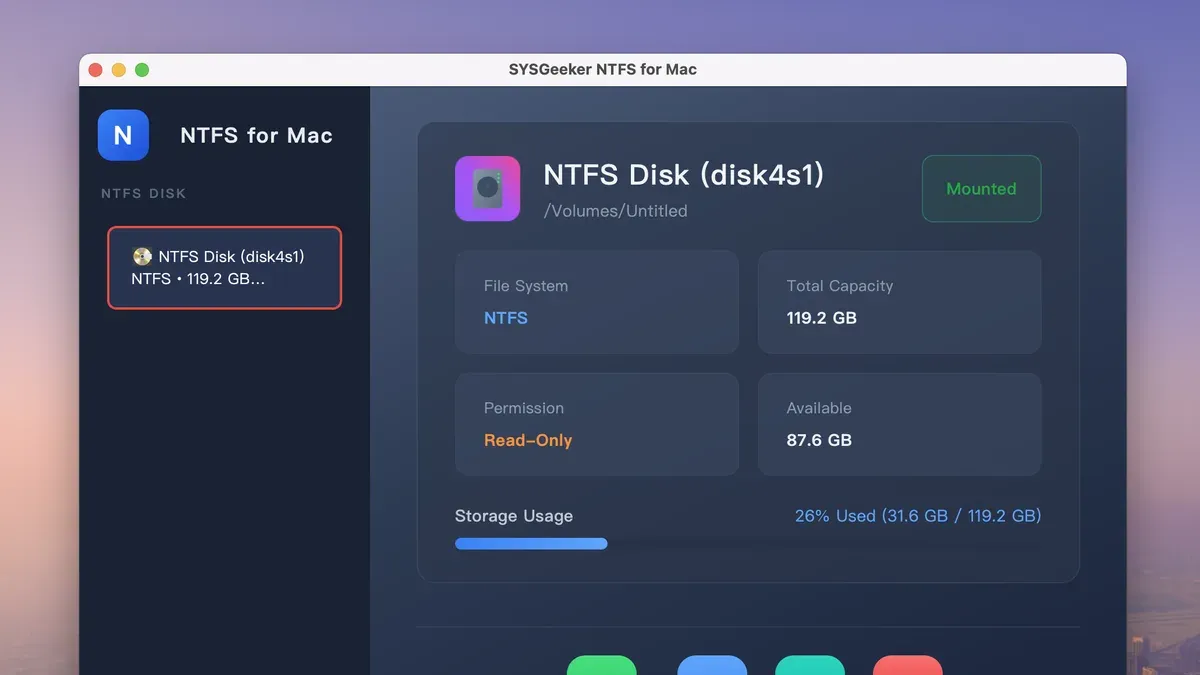
Checked in November 2026 against iBoysoft, Donemax, Appicker (full list at the end); details like these change, so the date matters.
Can Mac write to NTFS?
macOS systems can read NTFS-formatted drives without additional software, but write support is disabled by default due to concerns about stability and compatibility. Previously, some users enabled NTFS writing by editing the system file /etc/fstab with Terminal commands, but this approach was experimental and has been discontinued starting with macOS Ventura.
The fastest and most dependable way to gain write access to NTFS drives on any Mac model is to install a dedicated third-party NTFS driver application.
Installing a third-party NTFS driver remains the recommended solution to unlock full write access.
Can Mac OS write to NTFS with third-party drivers?
However, This limits its use on the latest systems but remains a viable option for compatible Macs.
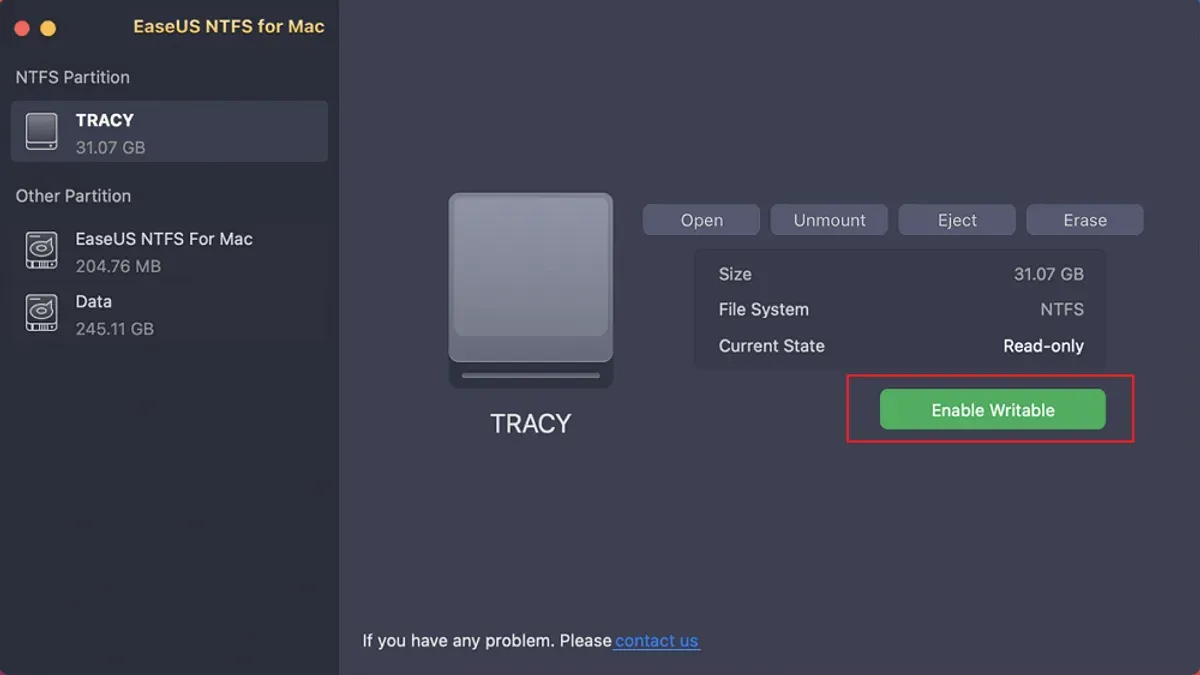
To enable writable mode with Donemax, open the app, select the NTFS drive, click Mount, then click Enable Writable. This process mounts the drive with write access quickly and conveniently.
| Driver | Trial Period | macOS Support | Installation Complexity | Key Features |
|---|---|---|---|---|
| Paragon NTFS for Mac | 10 days | Broad macOS support | Simple | Fast transfer speeds, seamless integration |
| Tuxera NTFS for Mac | 14 days | Broad macOS support | Simple | Format, check, repair tools included |
| Mounty for NTFS | Free | Up to macOS 27 | Complex | Uses NTFS-3G and macFUSE, free |
| Donemax NTFS for Mac | Trial unspecified | Broad macOS support | Simple | Fast transfer speeds, easy mounting |
- Install the chosen third-party NTFS driver according to its instructions.
- Launch the application associated with the driver (e.g., Donemax NTFS for Mac).
- Select the NTFS drive and follow prompts to mount it with write access enabled.
Can Mac read NTFS USB drive but not write?
This design choice protects the drive's data from corruption since the system does not fully support NTFS write operations natively. Therefore, even if the drive appears normally in Finder, attempts to write files will fail unless additional steps or software are used.
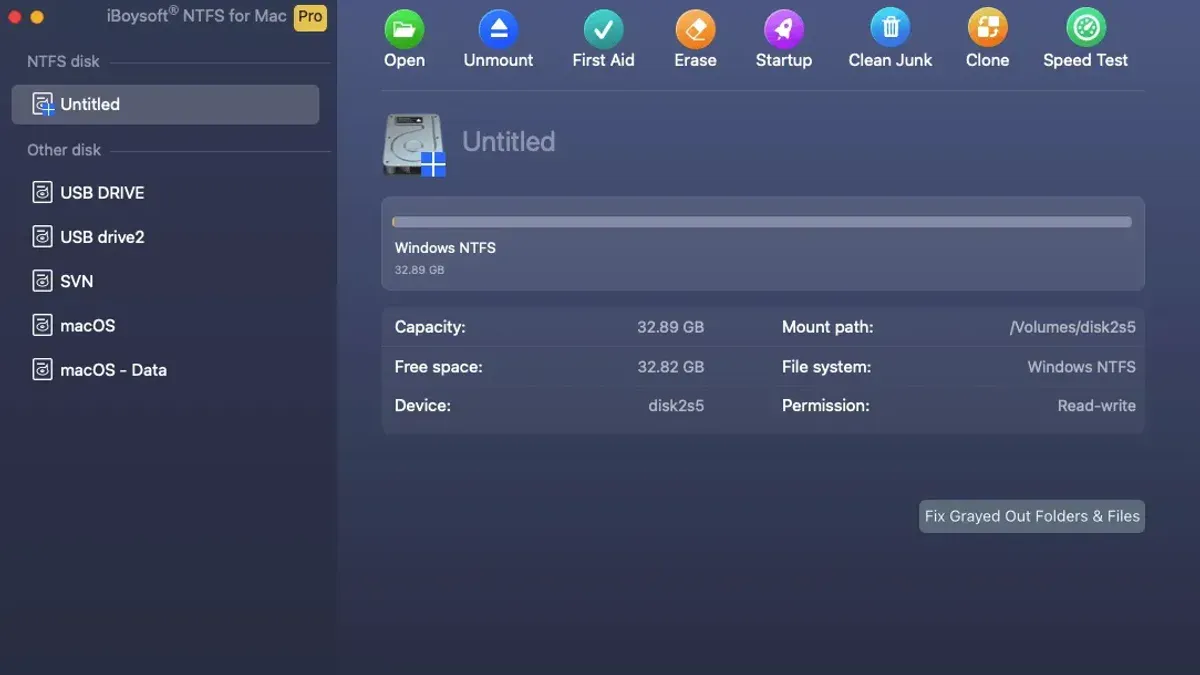
Permission settings on the external drive can also cause write restrictions. macOS applies ownership and permissions rules to external volumes, which might prevent write access despite the drive's format. To address this, users can bypass ownership enforcement by selecting the drive in Finder, choosing Get Info, and enabling Ignore ownership on this volume under the Sharing & Permissions section. This adjustment often resolves write permission problems related to macOS security settings.
Other reasons for NTFS drives mounting as read-only or not mounting at all include missing or incompatible NTFS drivers, especially on Apple silicon Macs, where native write support is not available. Hardware issues such as faulty USB cables or ports, and file system corruption, can also cause mounting failures or read-only states. Ensuring a proper NTFS driver is installed and verifying hardware connections are essential steps when encountering these issues.
- Connect the NTFS USB drive to the Mac and open Finder to confirm it mounts and is visible.
- Right-click the drive icon and select Get Info.
- Scroll to the Sharing & Permissions section and check the box labeled Ignore ownership on this volume.
- Close the Info window and try to write a file to the drive. Success indicates permission issues were resolved.
- Connect the NTFS USB drive and verify it mounts in Finder.
- Access Get Info for the drive and enable "Ignore ownership on this volume."
- Confirm write access by copying a file to the drive.
When Mac support NTFS format for writing?
Native NTFS write support on Mac has always been experimental and limited. It relied on editing /etc/fstab with Terminal commands like LABEL=DRIVE_NAME none ntfs rw,auto,nobrowse to enable writing. This method was unstable and hidden the drive in /Volumes. Since macOS Ventura, this native option has been completely cancelled and no longer works.
Apple silicon Macs never offered native NTFS write capability. They require third-party drivers to access NTFS volumes with write permissions. Intel Macs running pre-Ventura macOS versions could sometimes use the Terminal method, but it was risky and not officially supported.
Third-party utilities vary in their compatibility and installation complexity. For example, Mounty offers a free option using NTFS-3G and macFUSE, but it supports macOS versions only up to the latest releases before Ventura. Other drivers like Paragon or Tuxera provide broader support but require paid licenses. Users must match a utility’s macOS compatibility and their Mac’s hardware platform to ensure stable write access.
In summary, native NTFS write support is no longer available on recent macOS versions, and Apple silicon Macs always need third-party tools. The Terminal-based approach is obsolete and unsafe. Choosing a third-party driver compatible with the Mac model and macOS version is the reliable path for enabling NTFS write access.
Can NTFS work on Mac with encrypted drives or special cases?
NTFS drives encrypted with BitLocker cannot be accessed by typical Mac NTFS tools including iBoysoft NTFS for Mac. Such encryption prevents mounting or writing operations, making these drives incompatible with common Mac utilities designed for NTFS.
This often indicates hardware issues, corrupted drives, or software conflicts beyond the scope of standard driver solutions.
These conditions limit the ability to mount or write to NTFS drives even if the proper drivers are installed.
When access to an NTFS drive is lost due to corruption or mounting failure, troubleshooting should begin by checking connections and verifying the drive's health on other systems. If the drive still cannot mount on Mac, recovery or repair tools outside of standard NTFS drivers may be necessary.
Common pitfalls preventing NTFS writing on Mac and how to avoid them
Attempting to enable NTFS write support via Terminal commands is unstable and no longer supported on recent macOS versions. This method hides the drive in /Volumes and can cause data loss. It requires advanced technical knowledge and is cancelled starting with macOS Ventura. Relying on this approach is risky and ineffective.
Without a proper third-party NTFS driver, NTFS drives either fail to mount or remain read-only. This is especially true for Apple silicon Macs, which lack any native NTFS write capability. Installing a reliable NTFS driver is mandatory to gain write access on these machines.
Even with a correct driver, permission and ownership settings can block writing. macOS enforces ownership on external drives, and ignoring ownership via Finder’s “Get Info” is often necessary to enable write operations. This step is frequently overlooked but critical.
BitLocker-encrypted NTFS drives cannot be mounted or written to with standard NTFS utilities on Mac. If the drive is encrypted, write access is impossible without specialized software that supports BitLocker.
In such cases, the drive either fails to mount or remains read-only, requiring repair or data recovery before writing is possible.
| Symptom | Cause | Fix |
|---|---|---|
| NTFS drive does not appear in Finder or is read-only | No NTFS driver installed or incompatible with Apple silicon Mac | Install a compatible third-party NTFS driver |
| Drive mounted but cannot write, permission denied | Ownership and permissions restrict write access | Use Finder's “Get Info” and enable “Ignore ownership on this volume” |
| Terminal method enables write but drive hidden or unstable | Native NTFS write via Terminal is experimental and cancelled | Avoid Terminal method; use third-party drivers |
| Drive not mounting or writing, shows encryption or unrecognized format | BitLocker encryption or corrupted volume | Decrypt with Windows or repair drive; third-party NTFS tools won’t write |
Order of steps to enable NTFS write on Mac safely
- Identify the Mac model and macOS version. This determines the compatible method to enable NTFS write support. Apple silicon Macs and macOS Ventura or later require third-party drivers due to discontinued native support.
- Connect the NTFS drive and confirm it appears in Finder as readable. If the drive is not recognized or unreadable, check the connection, run disk diagnostics, or verify drive health before proceeding.
- If using an Apple silicon Mac or macOS Ventura or later, install a reliable third-party NTFS driver. Without this, the drive will remain read-only or fail to mount properly.
- Use the installed driver's interface to mount the NTFS drive with write access enabled. Avoid attempting to enable write by editing system files or Terminal commands, as these methods are unstable and disabled on recent macOS versions.
- If write access issues persist after mounting, adjust permissions by selecting the drive in Finder, opening "Get Info," and enabling "Ignore ownership on this volume" under Sharing & Permissions. This resolves macOS-specific permission restrictions on external drives.
- Safely eject the NTFS drive and then remount it to verify that write operations function correctly. Skipping this step may cause permission changes not to apply properly.
Following this sequence prevents data loss or mounting errors. Attempting Terminal edits like modifying /etc/fstab is discouraged due to instability and incompatibility with newer macOS versions. Installing the correct driver first is critical because macOS no longer supports NTFS write natively, especially on Apple silicon models.
Frequently asked questions
Can Mac read NTFS USB drive?
Macs have built-in support to read NTFS-formatted USB drives without additional software. The drive will mount automatically and allow file access in read-only mode, enabling users to view and copy files from the NTFS drive but not modify or add new files.
Can NTFS work on Mac without third-party software?
Native write support for NTFS on Macs is limited and has been removed starting with macOS Ventura. Intel-based Macs offered experimental write support via Terminal commands in older macOS versions, but this feature is no longer available on newer macOS releases or Apple silicon Macs. Therefore, third-party drivers are mandatory to enable reliable NTFS write access today.
How to write to NTFS on Mac without formatting?
Writing to NTFS drives without reformatting requires installing a third-party NTFS driver compatible with the Mac’s hardware and macOS version. Native macOS options do not support writing reliably, so third-party software is the safe and effective solution to enable full read-write access without altering the drive’s format.
Why is my NTFS drive read-only on Mac?
NTFS drives are read-only on Macs due to the lack of native write support, especially on Apple silicon Macs and macOS Ventura or later versions. Additionally, macOS permissions or ownership settings on the external drive can cause write restrictions; the “Ignore ownership on this volume” option in Finder’s Get Info panel often needs to be enabled to fix this.
When will Mac support NTFS format natively?
There is no announced timeline for macOS to restore native NTFS write support. Apple discontinued experimental native write support in recent macOS versions, making third-party drivers the only dependable method for NTFS writing on all Mac models, including Intel and Apple silicon.
Choosing the Right NTFS Write Solution for Each Mac Setup
Mac users with Intel-based models may consider native methods cautiously, yet Apple silicon Macs require third-party drivers due to the lack of built-in NTFS write support. Those running macOS Ventura or later must rely on third-party solutions, as native write commands were discontinued. When dealing with encrypted NTFS drives or volumes with strict ownership settings, adjusting permissions in Finder or using compatible drivers becomes essential. The decision hinges on Mac architecture, macOS version, and the drive’s encryption or permission status, directing users toward the safest and most effective write-enabling method.
Sources
- How to Write on NTFS External Drive from Mac (3 Ways) — iBoysoft
- Fix NTFS External Drive Not Mounting or Greyed Out on Mac — Donemax
- NTFS for Mac: How to Write to NTFS Drives on macOS — Appicker
- Fix Unable to Write to USB Drive on Mac — EaseUS
See also: How to Fix Dead Pixels on Mac: Step-by-Step Solutions · How to Fix Your Mac Shutting Down Randomly: Step-by-Step Solutions · Show Full File Path in Finder Title Bar on macOS · How to Add Color Tags to Files in Finder for Smarter Organization



