
How to Fix Software Update Not Showing on Mac
Discover effective troubleshooting steps to fix software update not showing on Mac and ensure your system stays up to date.
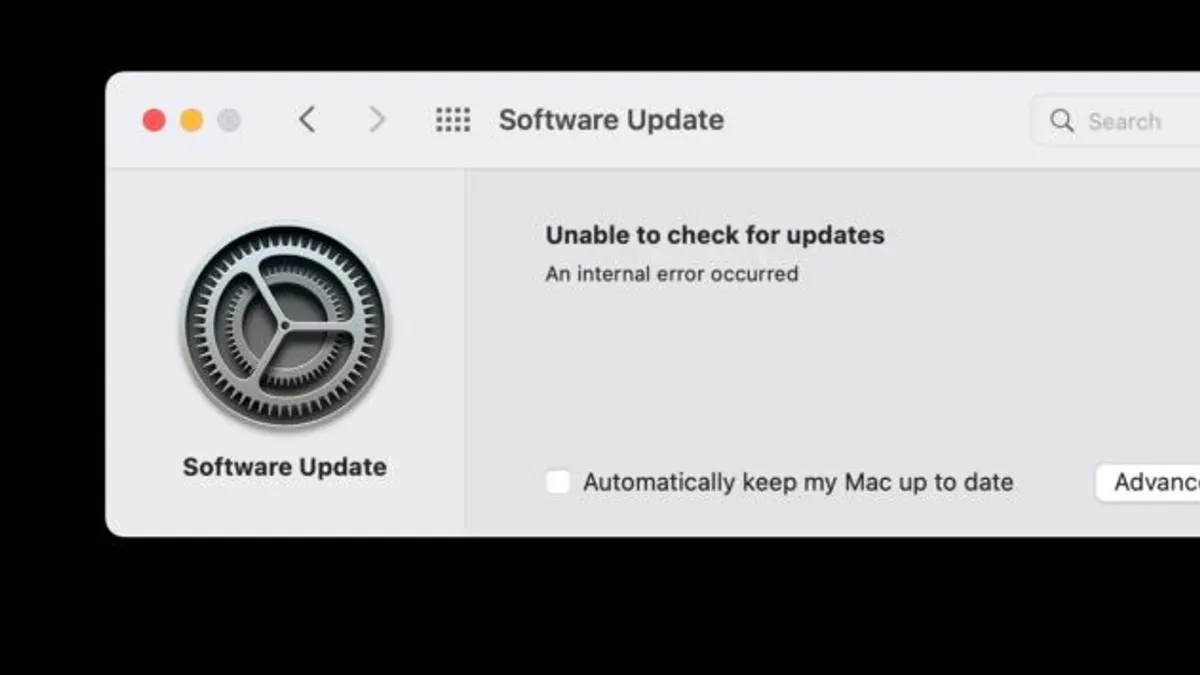
When software update not showing on Mac fix is needed, the issue often lies in compatibility or system communication errors. For example, macOS Golden Gate is available only for Apple silicon Macs; Intel-based Macs cannot access this update and remain on macOS Tahoe. Updates are checked in System Settings > General > Software Update, where pressing Command + R triggers a fresh search for available updates. Connectivity problems, incorrect date and time, or temporary glitches may block update visibility.
It explains why update checks sometimes fail, the order in which to apply fixes, and how to avoid typical mistakes. Readers will gain clarity on Mac compatibility, troubleshooting strategies, and advanced recovery options, ensuring that software updates become accessible again.
Every limit and setting name below comes from Setapp, OS X Daily, iDownloadBlog.com (full list at the end), as of November 2026.
Prepare Your Mac for Software Update Checks
Without this, the Mac cannot detect available updates.
This setting resides under System Settings > General > Date & Time.
When enabled via System Settings > General > Software Update > Automatic Updates, the system checks for updates periodically without manual prompts, helping users stay current without effort.
- Open Safari and load a familiar website. If the page loads correctly, network connectivity is confirmed.
- Navigate to System Settings > General > Date & Time. Enable "Set time and date automatically." When successful, the displayed time should correspond accurately to the local time.
- Go to System Settings > General > Software Update > Automatic Updates. Turn on "Check for updates." The Mac will now run update checks at set intervals.
Refresh Software Update to Force a New Check
When software updates do not appear automatically, forcing a refresh of the Software Update service often resolves the issue. Start by opening System Settings and navigating to General > Software Update. Once there, pressing Command + R triggers a fresh check for available updates and reloads the update information. Successful refresh will show the list of available updates or a message confirming the system is up to date.
If pressing Command + R does not produce a response or the update pane remains empty, closing and reopening System Settings can reset the interface and prompt a new update check. This step ensures the update service restarts without requiring a full system reboot.
In cases where the Software Update pane is stuck, empty, or unresponsive even after restarting System Settings, the underlying process responsible for handling updates may be frozen. Use Activity Monitor to locate the softwareupdate process and force quit it. This action terminates the stuck process, compelling the update service to restart when Software Update is reopened.
- Open System Settings and go to General > Software Update.
- Press Command + R to refresh the update check. The update list should reload or show a status message confirming current software.
- If the update pane is empty or unresponsive, close System Settings.
- Reopen System Settings and navigate again to General > Software Update. The update information should appear.
- If still empty, open Activity Monitor, find the
softwareupdateprocess, and force quit it. - Return to Software Update to confirm the list reloads correctly.
Following this sequence is essential, as pressing Command + R depends on the Software Update interface being active and responsive. Jumping directly to force quitting without attempting a refresh can cause unnecessary disruption. This methodical approach helps restore communication with the update servers and ensures the Mac accurately displays available updates.
More details on Command + R refresh.
Restart your Mac to resolve software update issues
When the Mac reboots, it clears system caches and resets background services responsible for detecting updates. This process removes minor software conflicts that could prevent updates from appearing in the Software Update pane.
A restart effectively refreshes these processes, often restoring update detection without further intervention. This makes it a reliable first action after confirming network stability and attempting to refresh the update check.
- Save any open work to avoid data loss during restart.
- Click the Apple menu and select Restart. The screen will go dark and the Mac will power cycle.
- Wait for the login screen or desktop to appear, indicating the Mac has fully restarted.
- Open System Settings > General > Software Update. The available updates should now be visible if the restart resolved the issue.
If updates remain hidden after restarting, the problem may involve deeper software or hardware issues requiring additional troubleshooting steps. However, restarting clears the most common temporary glitches blocking update visibility and is recommended early in the process.
This simple step restores normal operation in many cases where updates fail to show despite a stable network and correct system time.
Disable VPN and Network Interferences
This interference can prevent software updates from appearing in the Software Update pane. VPNs reroute internet traffic through remote servers, which may block or alter connections to Apple's servers, causing the Mac to show no available updates even when they exist.

To determine if a VPN is the cause, the active VPN connection should be turned off before checking for updates. After turning off the VPN, Software Update should be accessed again to confirm whether new updates appear.
- Disable any system-wide VPN by opening the VPN client or network preferences and disconnecting the VPN service. Once disconnected, the Mac's internet traffic routes through the normal network path.
- Open System Settings, navigate to General > Software Update, and observe whether available updates are now listed. Successful detection means the VPN was blocking update visibility.
- If updates remain hidden, try toggling Wi-Fi or Ethernet off and on again to refresh the network connection without the VPN active.
Turning off VPNs before update checks addresses a common cause of invisible or missing software updates. This step should be part of troubleshooting whenever no updates appear, as VPN interference is a documented and frequent issue.
Check Mac Compatibility with the Latest macOS Version
Identifying the Mac model is the first step to determine compatibility. Without this confirmation, software updates may not appear because the Mac is simply not eligible for newer system versions.
- Click the Apple icon in the top-left corner and select About This Mac. Confirm the Mac’s model name and processor type. This information is essential for compatibility checking.
- Visit the official compatibility list for the latest macOS version. Confirm whether the Mac’s model and processor type are included. If the Mac is absent from this list, it will not receive updates for that version.
- If the Mac is an Intel-based model, note that it will not support macOS Golden Gate. Intel Macs remain on macOS Tahoe, which is the latest compatible system version for these devices.
- If the Mac uses Apple silicon, it is eligible for macOS Golden Gate. This distinction means update availability depends on processor architecture.
When a Mac cannot receive the newest macOS, the Software Update tool will not display those updates. Instead, it will show updates only for the highest supported macOS version for that particular Mac.
| Mac Model | Processor | Supported Latest macOS |
|---|---|---|
| Intel-based Mac | Intel | macOS Tahoe |
| Apple silicon Mac | Apple silicon | macOS Golden Gate |
Confirming this compatibility prevents confusion when updates do not appear. Macs incompatible with the newest macOS version simply cannot show those updates in Software Update. This clarification directs troubleshooting toward other causes if the Mac is compatible but updates remain hidden. More details on compatibility and update restrictions.
Use Safe Mode to Bypass Software Conflicts
This limits interference from third-party software and extensions that may block the Software Update feature. Checking for updates in Safe Mode can reveal whether such conflicts are the root cause of missing update notifications.
For Intel-based Macs, enter Safe Mode by first shutting down the Mac. Then, restart it and immediately press and hold the Shift key. Release the Shift key when the login window appears. After logging in, open System Settings > General > Software Update to check if updates are now visible.
On Apple silicon Macs, shut down the Mac completely. Hold the power button until startup options appear. Select the startup disk, then press and hold the Shift key while clicking “Continue in Safe Mode.” Release the Shift key once the login window shows. Proceed to Software Update to see if updates appear.
If updates appear in Safe Mode but not during a normal boot, this indicates interference from non-essential software.
Should updates remain unavailable even in Safe Mode, other solutions like reinstalling macOS via Recovery Mode may be necessary. Safe Mode acts as a diagnostic step to isolate the issue before proceeding with more invasive repair methods.
Learn more about Safe Mode usage.
Manually Download macOS Installers When Updates Don’t Appear
This method involves locating the desired macOS version directly through the App Store or the Apple Support website, bypassing issues that might block automatic update detection.
- Open the App Store application on the Mac. The App Store offers access to macOS installers for major system releases.
- Use the search bar to enter the exact macOS version name intended for installation. Correct identification ensures the right installer is found.
- Click the Get button to download the installer. Once downloading begins, the installer app appears in the Applications folder.
- After download completion, run the installer by double-clicking it. Follow the onscreen instructions to upgrade or reinstall macOS.
- If the desired major macOS version isn’t available in the App Store, visit the Apple Support website to find official links for manual installer downloads.
It is important to note that minor updates, such as patch releases (for example, from 15.0 to 15.3.1), typically do not appear for manual download via these methods. These smaller updates remain accessible only through the Software Update mechanism. Therefore, manual downloading is best reserved for major macOS upgrades or full reinstalls when automatic updates fail to appear.
This manual approach can resolve update visibility issues caused by software conflicts or network problems that prevent the Software Update utility from checking or downloading upgrades. By directly downloading and running the installer, Mac users regain control over system updates and can proceed with critical upgrades despite automatic update failures.
For detailed guidance and official download links, searching the macOS version in the App Store or consulting the Apple Support website is recommended.
Reinstall macOS via Recovery Mode to Fix Underlying Issues
This process addresses persistent software update failures caused by corrupted or missing system components that prevent the update mechanism from functioning properly. It is a reliable step when earlier troubleshooting methods, such as Safe Mode or network corrections, have not restored update visibility.
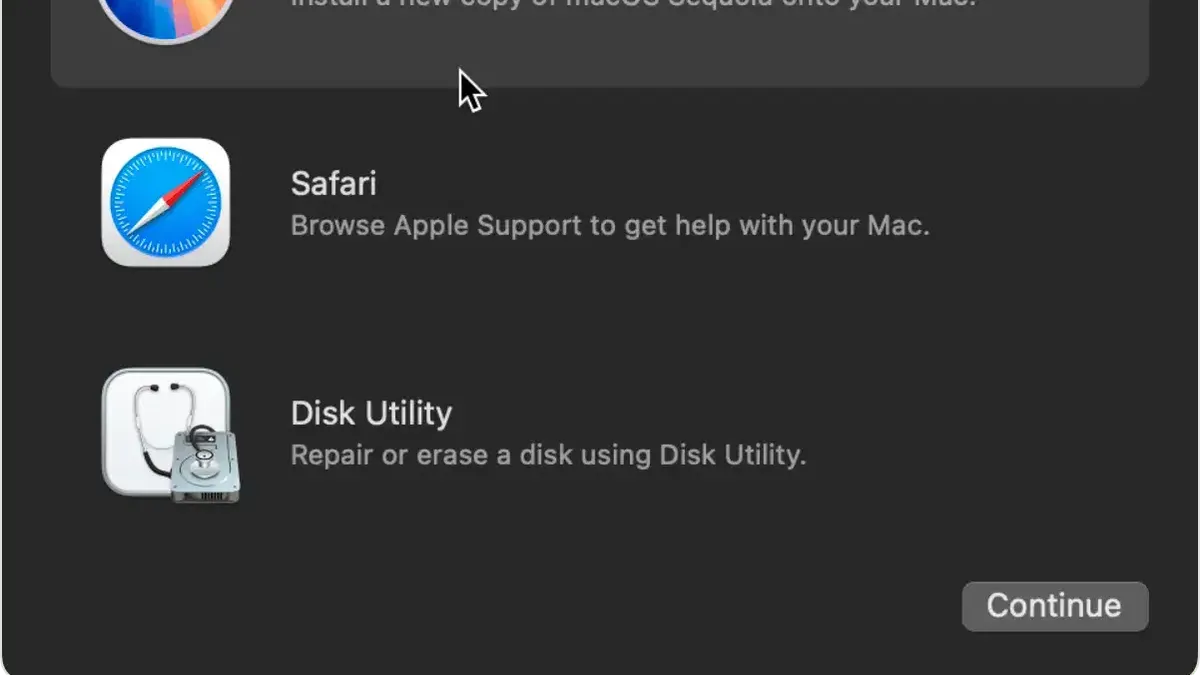
- Enter Recovery Mode:
- For Intel Macs: Restart while holding Command + R until the Apple logo or spinning globe appears.
- For Apple silicon Macs: Shut down the Mac, then press and hold the power button until startup options appear. Click Options, then Continue.
- Select the startup disk if prompted, then choose Reinstall macOS from the macOS Utilities window. This option installs a fresh copy of the operating system without deleting files or user settings.
- Follow the on-screen instructions to complete the installation. The Mac will reboot automatically when the process finishes.
This reinstallation overwrites system files and repair components essential for software updates, resolving issues that block update detection or installation. It is especially useful when the update system becomes unresponsive or reports errors without clear cause. Unlike a full erase and install, this method preserves user data while restoring system integrity.
Reinstalling macOS through Recovery Mode is a critical step for resolving update failures that resist simpler fixes. It ensures the system is in a clean state, allowing Software Update to function normally again without hidden corruption or damaged files.
Learn more about using Recovery Mode to reinstall macOS.
Understand Common Pitfalls That Prevent Software Update Visibility
The first frequent mistake is not verifying the system's date and time settings. An incorrect clock prevents secure connections to Apple’s update servers, resulting in updates not appearing. Ensuring the Mac’s date and time are set automatically is crucial for establishing trust with these servers.
Another pitfall is assuming that a message stating "no updates available" guarantees the presence of the latest macOS version. Macs incompatible with the newest macOS release, such as Intel-based Macs that cannot upgrade beyond macOS Tahoe, will never display updates for versions like macOS Golden Gate available only to Apple silicon models.
Using a VPN during the update process often causes communication failures between the Mac and update servers. VPNs can reroute or block essential traffic, preventing the Mac from detecting available updates. Disabling any active VPN before checking for updates helps eliminate this obstacle.
Ignoring the Apple System Status page is another common oversight. Apple occasionally experiences server outages or performs maintenance that temporarily blocks update availability. Checking this page confirms whether the issue lies with Apple’s servers rather than the Mac itself.
Finally, confusing update notifications intended for Command Line Tools or SF Symbols with full macOS system updates leads to misunderstanding. These notifications do not indicate new macOS versions and should not be mistaken for system software updates. Recognizing this difference avoids unnecessary troubleshooting.
- Verify the Mac’s date and time are set to update automatically. A correct clock allows secure connections and reveals updates.
- Confirm Mac compatibility with the latest macOS version. If incompatible, no new macOS updates will be listed.
- Disable any VPN and attempt the update check again. This ensures clear communication with Apple’s servers.
- Check Apple’s System Status page for active outages or maintenance affecting update visibility.
- Differentiate between system updates and notifications for tools like Command Line Tools or SF Symbols to avoid confusion.
Following these steps addresses the most frequent errors that prevent software updates from showing and streamlines the update process.
What to Do If Software Update Still Does Not Show Updates
When software updates remain hidden despite stable network and correct system settings, further targeted actions become necessary. Begin by forcing a refresh of the Software Update pane using Command + R, then restart the Mac again to clear lingering glitches. If the update interface still appears stuck or empty, open Activity Monitor and force quit the com.apple.preferences.softwareupdate.removeservice process. This action reloads the Software Update service, often restoring update visibility.
If update issues persist, scanning for malware and clearing junk files with tools such as CleanMyMac is advisable. Malware or system clutter can block update detection or cause conflicts. Running the app’s Protection feature can identify and remove such threats, improving system health and update reliability.
For repeated update failures, booting into Safe Mode can bypass software conflicts that interfere with update checks. If Safe Mode does not resolve the problem, reinstalling macOS through Recovery Mode refreshes core system files without erasing data, which can fix underlying corruption causing update issues.
When a major macOS upgrade does not appear in Software Update, manually downloading the installer from the App Store or Apple Support provides a direct installation path. This method is essential because major upgrades sometimes do not show automatically in Software Update, requiring manual intervention.
- Press Command + R in Software Update to force a refresh; successful action shows updated list of available updates.
- Restart the Mac; after reboot, check if updates appear normally.
- If Software Update pane is stuck or empty, open Activity Monitor, find and force quit the
com.apple.preferences.softwareupdate.removeserviceprocess; reopening Software Update should display updates. - Run CleanMyMac’s Protection scan to remove malware and junk files; a clean scan report indicates threats were removed.
- Attempt updating in Safe Mode; if updates appear, install them and then restart normally.
- If issues continue, reinstall macOS via Recovery Mode; successful reinstall completes without data loss and restores update functionality.
- For missing major upgrades, download the installer manually from Apple Support or the App Store; launch the installer to proceed.
Frequently asked questions
Why can't i update my mac?
Certain VPNs or firewall settings might block update servers, preventing visibility of updates. Checking Mac compatibility with the latest macOS version and ensuring system settings allow update checks can resolve most problems.
How to check mac software update info?
Software Update information is accessible under System Settings > General > Software Update. Pressing Command + R within this pane forces a fresh check for updates. This method ensures the latest update status is displayed without relying on cached data.
Why will my macbook not update?
This can be due to software conflicts, network interference, or the MacBook's hardware not supporting the latest macOS. Running the Mac in Safe Mode can bypass many software conflicts, while manually downloading macOS installers or reinstalling via Recovery Mode addresses deeper issues. Compatibility checks clarify if the device supports the newest updates.
Limitations of This Guide and When to Seek Professional Assistance
It does not address hardware malfunctions that may disrupt software update processes, such as problems with storage devices or internal components. Additionally, it does not cover scenarios where devices are managed by enterprise or educational organizations with restrictions that prevent access to updates. In such cases, update availability may be controlled remotely by administrators, limiting user intervention.
Sources checked
- Software update not showing on Mac? Expert fixes that work — Setapp
- System Software Update Not Showing on Mac? Here's the Fix - OS X Daily — OS X Daily
- How to fix Mac not showing new software update even though a new update is available — iDownloadBlog.com
- Software update not showing on Mac? Here are the fixes — MacPaw
- Keep your Mac up to date — Apple Support
See also: Finder Not Responding on Mac: How to Fix It Step-by-Step · How to Fix Keys Not Working After Spill on Mac · How to Fix 'macOS Could Not Be Installed on Your Computer' Error · How to Fix Kernel Panic After Update on Mac



