
How to Fix App Store Stuck on Waiting on Mac
Discover effective solutions to fix the App Store stuck on waiting issue on Mac and get your app downloads moving again smoothly.
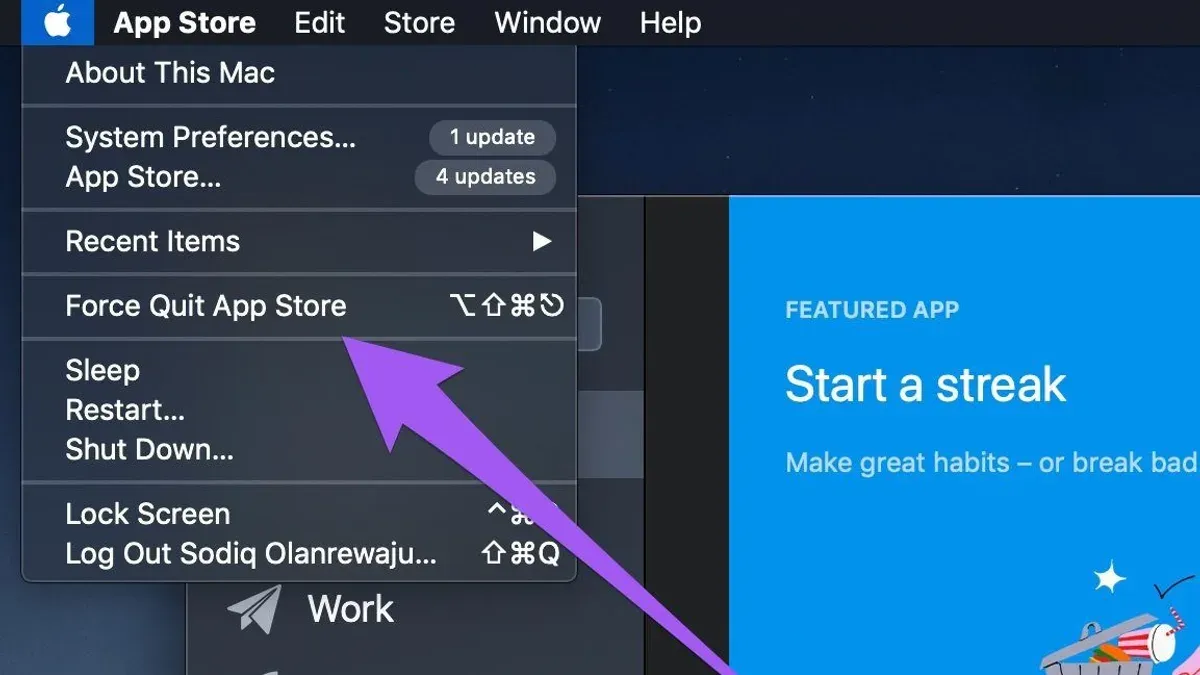
Specifically, the Mac App Store requires at least 5 GB of available storage to download and install applications properly, while a minimum internet speed of 5 Mbps is recommended for reliable downloads.
Quick overview of App Store stuck on waiting issue on Mac
- Follow the exact order when pausing and resuming downloads to avoid errors.
- Clear specific cache and preference files to eliminate corrupt data.
Last verified November 2026 against CloudHouse Technologies.
Check Mac Storage and Internet Speed Before Downloading
Ensuring sufficient storage and reliable internet speed is essential before attempting to download or update apps from the App Store. Insufficient storage can cause downloads to stall on 'Waiting...' as the system cannot allocate space for the app files.
Slow or unstable network connections often result in the App Store freezing during the download phase.
The displayed free space should exceed 5 GB to proceed.
- Open System Settings and select General → Storage. Confirm available free space is at least 5 GB. The storage overview will display this information clearly.
- Visit a reputable internet speed testing website. Run the test and note the download speed. It should be 5 Mbps or higher.
- If either storage or speed is below the minimum, free up disk space or improve network conditions before starting App Store downloads.
Meeting these baseline requirements prevents common stalls and ensures downloads progress smoothly from the start.
Pause and Resume the Stuck App Download in the App Store
Begin by opening the App Store app and clicking the profile icon at the bottom-left corner to access the download progress.
- Locate the stuck app's download progress circle next to its name in the profile section.
- Click the circle to pause the download; the status should change to indicate the pause.
- Wait a few seconds to allow the system to clear stalled network tokens.
- Click the circle again to resume the download and verify progress resumes.
If the normal pause and resume steps fail to restart the download, hold the Option key while clicking the pause button. This forces a restart of the download process, bypassing common token or connection glitches that prevent the download from progressing. This method effectively resets the download queue and refreshes authentication with Apple's servers, often resolving the issue without further intervention.
Following this precise order—pause first, then resume, and if needed, force restart with Option—ensures the App Store clears temporary stalls correctly. Skipping steps or reversing the order may leave the download stuck or cause it to restart improperly, wasting time and bandwidth. This approach works specifically within the macOS App Store environment and does not apply to other platforms or third-party app stores.
Clear App Store Cache and Preferences to Remove Corrupt Data
Corrupted cache and preference files often cause the App Store to freeze, display blank screens, or stall downloads. Removing these files forces the system to rebuild fresh data, resolving such issues. Begin by opening Finder and selecting Go → Go to Folder, then enter ~/Library/Caches/com.apple.appstore. Delete all contents within this folder. Repeat the process for ~/Library/Caches/com.apple.StoreKit and the system-wide cache folders under /var/folders/ related to the App Store.
Next, navigate to ~/Library/Preferences. Locate and delete these plist files: com.apple.appstore.plist, com.apple.storeagent.plist, and com.apple.commerce.plist. These preference files can become corrupted and cause unresponsiveness or blank App Store screens.
Skipping the restart may leave the corrupted data active, preventing the fix from taking effect.
It is a crucial step before considering more invasive measures.
Sign Out and Back Into Apple ID to Refresh Authentication
When the App Store stalls on 'Waiting…', expired or corrupted Apple ID authentication tokens are often the culprit. These tokens verify the user's identity and permissions for app downloads and updates.
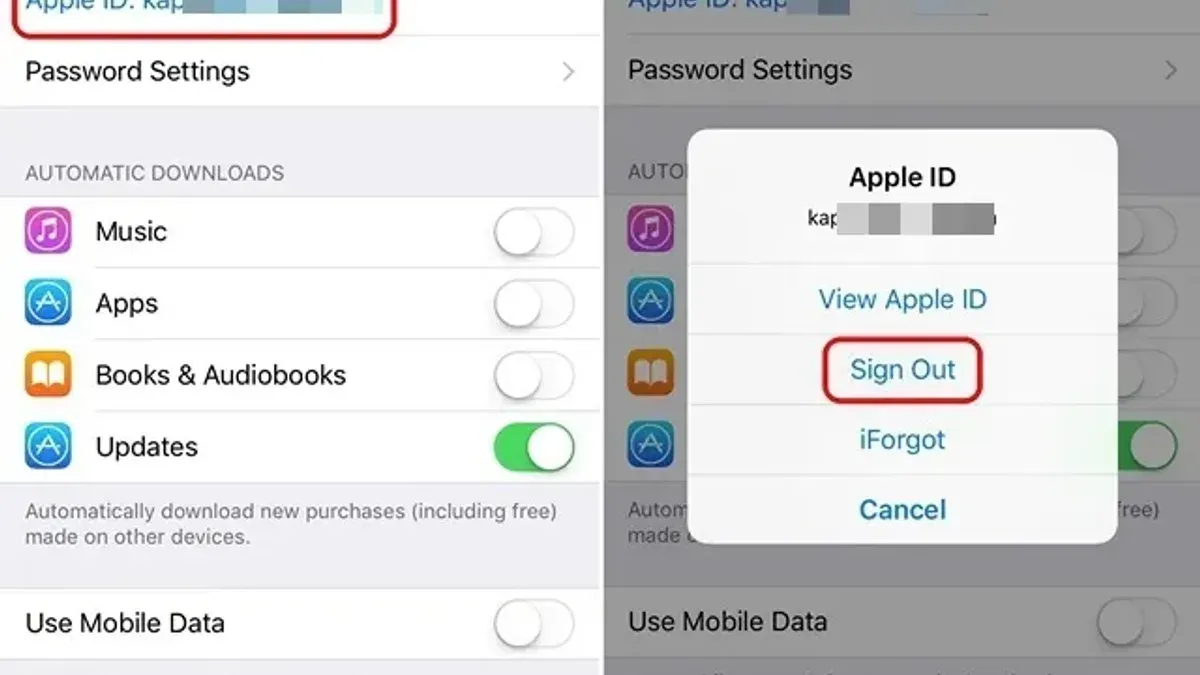
It is essential to perform this sign out/in before proceeding to more advanced troubleshooting methods, as it often resolves the issue simply.
- Open the App Store app on the Mac.
- Click the profile icon in the bottom-left corner to access Apple ID settings.
- Select Sign Out. The App Store will prompt for confirmation and then display a signed-out state.
- Click the profile icon again and choose Sign In.
- Enter the Apple ID credentials and complete the sign-in process. The profile icon should now display the Apple ID account, confirming a successful login.
Refreshing the Apple ID authentication tokens through this process removes any stalled tokens causing download failures.
Flush DNS Cache and Add Secondary DNS to Fix Network Resolution Issues
DNS problems can cause the App Store to get stuck on 'Waiting…' because the Mac fails to resolve server addresses properly. Flushing the DNS cache clears outdated or corrupted entries, restoring proper network name resolution.
Before you run this: sudo runs the command with administrator rights and asks for your login password (nothing appears as you type). With those rights a wrong path changes the wrong files, so check the command before pressing Return.
- Open the Terminal application.
- Enter the command
sudo dscacheutil -flushcache; sudo killall -HUP mDNSResponderand press Enter. This command clears the DNS cache and restarts the DNS responder service. A successful flush will not display output but will refresh DNS resolution. - Open System Settings and navigate to Wi-Fi.
- Select Details next to the connected network.
- Go to the DNS tab.
- Add a secondary DNS server by clicking the add button and entering
8.8.8.8or1.1.1.1. These are reliable public DNS servers that improve name resolution if the primary server is slow or unresponsive. - Close settings and attempt the App Store download again.
If the DNS cache is not flushed or secondary DNS is not added, the Mac may repeatedly fail to locate App Store servers, resulting in indefinite waiting. These steps are reversible by removing the added DNS servers from the Wi-Fi settings.
Check Apple System Status and Avoid Fixing During Server Outages
Visit the Apple System Status page to confirm whether the Mac App Store services are operational or experiencing outages. This step prevents unnecessary local fixes when the problem is on Apple's side.
Local troubleshooting actions will not resolve these issues while servers are down. Attempting fixes in this scenario wastes time and can cause confusion.
When the system status page indicates an outage affecting the Mac App Store, the recommended action is to wait patiently for Apple to restore service. Avoid initiating advanced repairs or system changes until the servers return to normal operation.
- Open a web browser and navigate to the Apple System Status page.
- Locate the Mac App Store in the list of services and check its current status indicator.
- If the status shows an outage or issue, note it and pause any troubleshooting steps.
- Wait for the status to change back to operational before retrying App Store downloads or updates.
Reinstall macOS from Recovery Mode to Refresh System Files
If all other troubleshooting steps fail, reinstalling macOS from Recovery Mode is the final method to refresh system files related to the App Store without removing user data or apps. This process replaces corrupted or missing system components that may cause persistent download or update issues.
- Shut down the Mac completely.
- If the Mac uses an Intel processor, start it up while holding the Command (⌘) and R keys until the Apple logo or spinning globe appears. For Apple Silicon Macs, press and hold the Power button until startup options appear, then select Options and click Continue.
- Once in Recovery Mode, choose “Reinstall macOS” from the macOS Utilities window.
- Follow the on-screen prompts to complete the installation. This step downloads and installs a fresh copy of macOS system files without erasing personal data or installed applications.
- After installation, the Mac will restart normally. The refreshed system files often resolve issues causing the App Store to remain stuck on “Waiting…”.
It should only be done after exhausting all other fixes, as it is the most invasive yet safe option that preserves user content.
Common Pitfalls That Prevent App Store Downloads from Progressing
- Attempting to fix the App Store during an Apple server outage. When Apple's Mac App Store servers are down, local troubleshooting steps will not resolve the issue. The download remains stuck on 'Waiting…' until Apple restores service, so checking Apple’s system status before proceeding is essential.
- Ignoring insufficient free storage space on the Mac. If less than 5 GB of free storage is available, even small app downloads can stall because temporary files cannot be created. Confirm at least 5 GB free in System Settings → General → Storage to avoid this problem.
- Failing to sign out and back into the Apple ID. Stalled downloads often result from expired or corrupted authentication tokens. Signing out via App Store → Profile icon and signing back in refreshes credentials, allowing downloads to proceed.
- Overlooking corrupted App Store cache files. These can cause blank screens and freeze the download queue. Clearing cache files like
com.apple.appstore.plistand restarting the Mac removes this barrier and helps the download continue.
What to Do After Fixing the App Store Waiting Issue
Once the App Store waiting issue is resolved, it is crucial to monitor app download progress after each fix step. Confirming that downloads proceed smoothly after pausing and resuming or after clearing caches ensures the problem is fully addressed. Regularly checking available disk space keeps it above the essential 5 GB threshold, which is necessary for app downloads and installations to complete without stalls.
Network reliability also requires attention. Running periodic DNS cache flushes helps prevent recurring network resolution problems that can cause downloads to freeze. Additionally, consulting the Apple System Status page before starting large downloads avoids wasted effort during Apple server outages. These checks maintain the App Store’s reliability over time and reduce the chance of future interruptions.
- After each troubleshooting action, verify that app downloads or updates begin progressing normally, indicated by active download bars or status changes.
- Monitor free disk space routinely via System Settings → General → Storage, ensuring it remains above 5 GB to support uninterrupted downloads.
- Use Terminal commands to flush DNS cache occasionally when network delays or stalls reappear, restoring proper domain name resolution.
- Check the Apple System Status page before initiating downloads to avoid starting them during known outages, which would cause stalls.
Following these steps creates a stable environment for the App Store, reducing the likelihood of encountering the waiting issue again. This ongoing maintenance ensures apps download and update efficiently without unexpected delays.
Frequently asked questions
How to fix app store not working?
Fixing the App Store not working often starts with checking the Mac’s internet connection and storage availability via System Settings → General → Storage. Clearing the App Store cache by deleting com.apple.appstore.plist and related preference files can remove corrupt data causing issues. Signing out and back into the Apple ID through the App Store’s Profile icon refreshes authentication and may resolve login-related problems.
Why is my app stuck on installing?
An app stuck on installing usually indicates a download or installation blockage. Pausing and then resuming the download in the App Store is effective only if done in the correct order: first pause the download, then quit the App Store, and finally reopen it before resuming. Skipping or rearranging these steps can perpetuate the stuck state.
How to fix app store?
This question overlaps with fixing the App Store not working; refer to the answer above for initial network and storage checks, cache clearing, and Apple ID sign-out/in. Additionally, flushing the DNS cache using macOS-specific Terminal commands can resolve network resolution problems affecting the App Store’s responsiveness.
Why apple app store not working?
The App Store might not work due to active Apple server outages, which can be verified by checking Apple System Status online. Attempting fixes during server downtime is ineffective; waiting until servers are operational is necessary before troubleshooting local issues.
Essential Steps to Resolve the App Store Waiting Issue on Mac
Choosing the appropriate next step depends on the current symptoms and prior actions taken. If the download is visibly stuck but the internet and storage are adequate, pausing and resuming the download in the correct order is critical. For persistent issues with corrupted preferences or authentication, clearing caches and signing out/in of Apple ID often resolves the problem. Network-related errors call for flushing DNS caches and adding secondary DNS servers to improve resolution. When software corruption is suspected after these steps, reinstalling macOS from Recovery Mode refreshes system files without deleting user data, making it the final option for stubborn cases.
Sources checked
- How to Fix Mac App Store Not Downloading or Updating Apps | CloudHouse — CloudHouse Technologies
See also: How to Fix a Mac Stuck in Recovery Mode: Step-by-Step Solutions · How to Fix Missing Apps in Launchpad on Mac · How to Fix a Mac Stuck on the Loading Bar: Step-by-Step Solutions · How to Fix 'App Is Damaged and Can't Be Opened' on Mac



