
How to Fix Missing Apps in Launchpad on Mac
Learn how to fix missing apps in Launchpad on Mac by rebuilding the database or using alternatives for newer macOS versions.
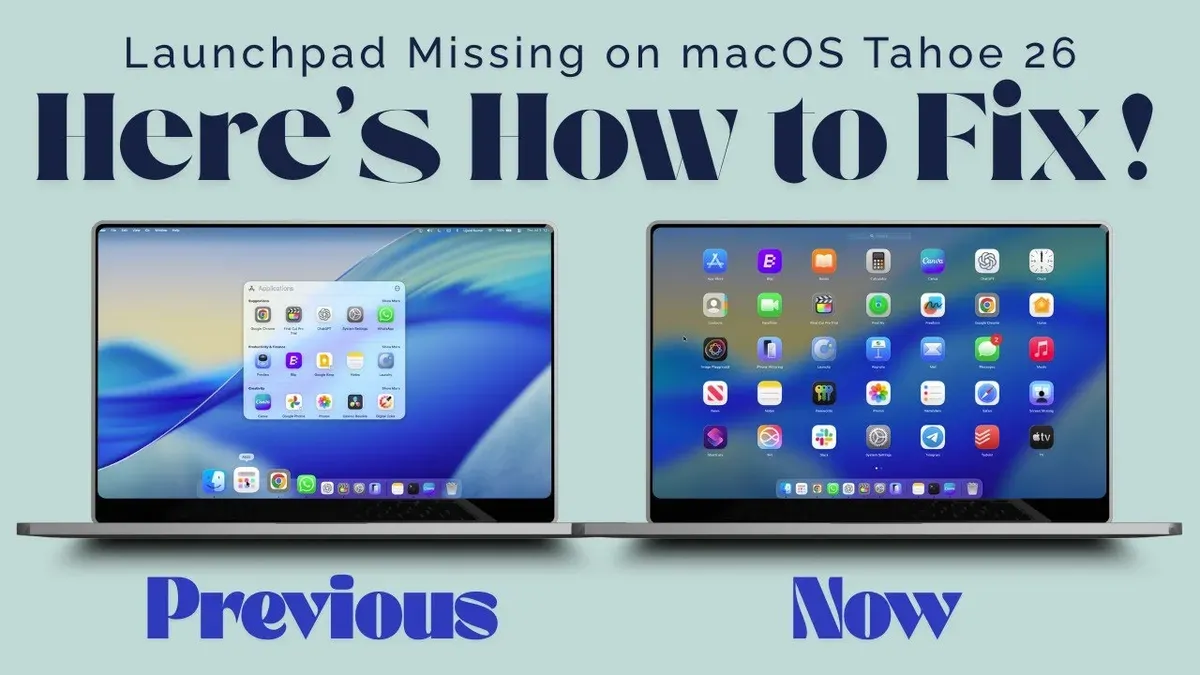
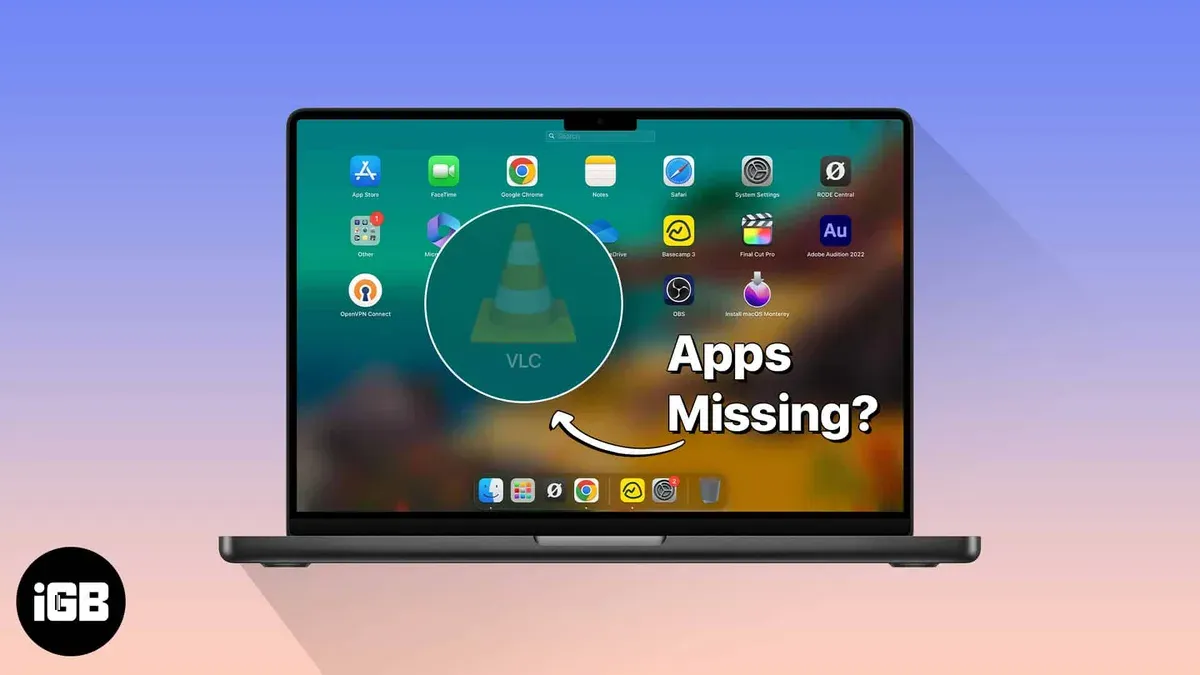
If you find apps missing from Launchpad on your Mac, the issue usually stems from a corrupted Launchpad database rather than the apps being uninstalled. A proven Launchpad missing apps on Mac fix is to delete the database files ending with .db in ~/Library/Application Support/Dock/ and then restart your Mac, which forces Launchpad to rebuild its app list and restore missing icons.
If your Mac runs macOS 26 or later, note that Launchpad has been completely removed and replaced by Spotlight Apps, which organizes apps differently and lacks features like custom folders and manual icon placement.
Checked in November 2026 against iGeeksBlog, macReports, LaunchOS; details like these change, so the date matters.
Which fix to try based on your macOS version and goals
Launchpad functions differently across versions, and macOS 26 (Tahoe) removed it entirely, replacing it with a Spotlight Apps window that lacks classic features like folders and manual icon arrangement.
- If you use macOS 15 or earlier and the Launchpad icon is missing from the Dock, open Finder, navigate to the Applications folder, locate Launchpad, and drag it back to the Dock. Alternatively, open Launchpad via Spotlight search. This restores easy access to Launchpad.
- If you have missing apps in Launchpad but are still on a macOS version that includes Launchpad, first try rebuilding Launchpad’s app database by deleting the
.dbfiles located in~/Library/Application Support/Dock/and then restarting your Mac. If this does not work, resetting the Dock using Terminal commands can help restore missing apps. - If you upgraded to macOS 26 or later, where Launchpad has been removed, use the new Spotlight Apps window for launching apps. This interface replaces Launchpad but does not support manual organization or folders.
- For users on macOS 26+ who want the classic Launchpad experience, installing the third-party app LaunchOS can restore a Launchpad-like interface with features absent from Spotlight Apps.
- If organizing apps in folders is important to you on macOS 26 or later, create folders containing aliases of your apps on the Desktop. Then add these folders as stacks to the Dock using grid view. This method simulates Launchpad’s folder organization.
This decision matrix aligns your macOS version and goals with the correct solution, ensuring you choose a fix or alternative that fits your setup and needs. For more on the replacement of Launchpad in newer macOS versions, see this source.
How to restore missing apps by rebuilding Launchpad database
If you still have Launchpad on your Mac but notice apps are missing, the issue likely stems from a corrupted Launchpad database, not the apps being deleted. Rebuilding this database can restore your missing apps effectively.
- Open Finder and select the Go menu from the menu bar.
- Choose "Go to Folder" and enter
~/Library/Application Support/Dock/in the field, then click Go. - In the folder that opens, locate and delete all files ending with
.db. These files store the Launchpad app database and may be corrupted. - Close Finder and restart your Mac. This forces Launchpad to rebuild its app database automatically.
- After the restart, open Launchpad. You should see your missing apps restored in their usual places.
Deleting the .db files before restarting is crucial. If you restart without deleting these files first, Launchpad will not rebuild the database and the missing apps will remain unrecovered. Similarly, deleting the files without restarting will not trigger the rebuild process.
It will not apply on versions where Launchpad has been removed.
Following these steps addresses database corruption directly and restores your app listings without affecting the apps themselves.
How to reset Dock and Launchpad using Terminal commands
If your apps are missing in Launchpad, you can reset both the Dock and Launchpad simultaneously via Terminal. This method deletes the database files that store Launchpad’s app layout and restarts the Dock, forcing macOS to rebuild the app database and often restoring missing icons.
- Open the Terminal application from your Utilities folder or search for it using Spotlight.
- Enter the following command exactly as shown and press Return:
rm ~/Library/Application Support/Dock/*.db; killall Dock - After running the command, the Dock will quit and automatically restart. You should see your Dock icons disappear briefly and then reappear.
- Check Launchpad to see if the missing apps have reappeared. If they do not show immediately, restart your Mac to complete the reset process.
Restarting the Dock reloads these databases, restoring Launchpad’s default app arrangement.
How to add apps to Launchpad manually when they don’t appear automatically
Launchpad only displays apps that are located in the /Applications folder or installed from the App Store. Apps downloaded from third-party sources or stored in other folders will not show up automatically. To make these apps accessible through Launchpad, you need to add them manually or move them to the correct location.
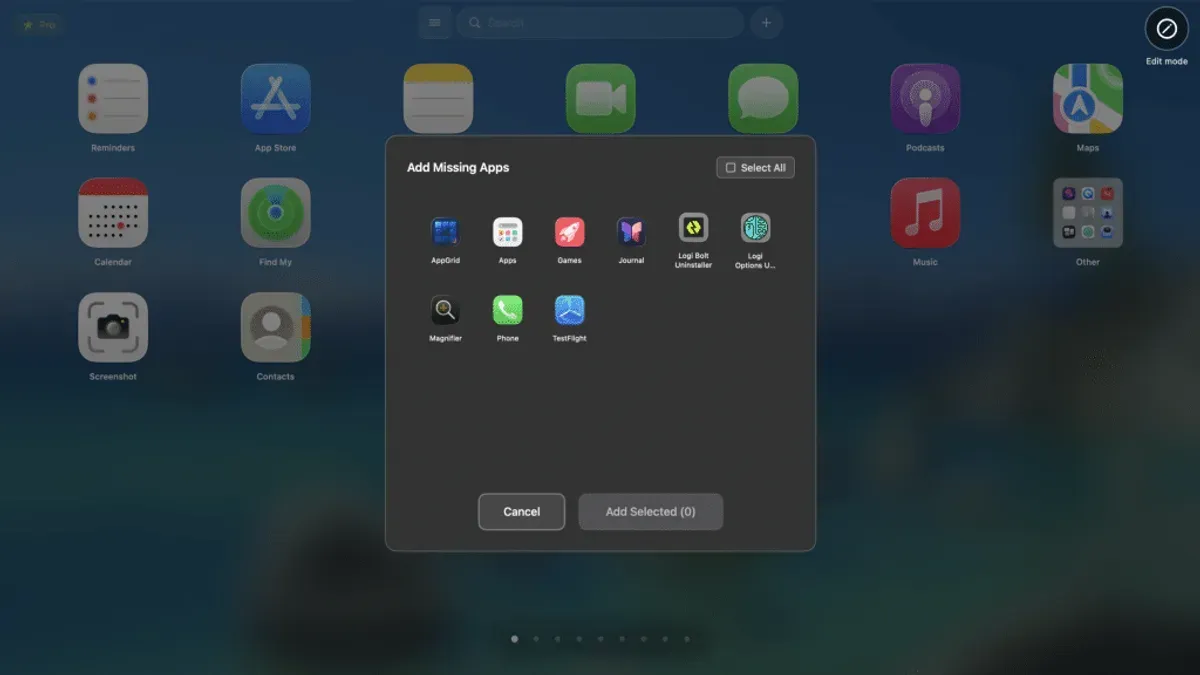
- Open Finder and locate the app you want to add. This app might be in your Downloads folder or another location outside /Applications.
- Drag the app’s icon directly onto the Launchpad icon in your Dock. When you see Launchpad open and the app icon appear, release the mouse button. This adds the app to Launchpad immediately.
- Alternatively, move the app to the /Applications folder by dragging it there in Finder. Apps in this folder will appear automatically in Launchpad after a short delay or after restarting Launchpad.
- After adding or moving the app, open Launchpad to confirm the app icon appears. If it does not show up right away, try restarting your Mac or logging out and back in to refresh the app list.
Moving apps to /Applications ensures automatic visibility but requires changing their folder location. Both methods solve the issue that Launchpad does not list third-party apps outside the standard Applications folder or App Store installations.
For users on newer macOS versions without Launchpad, this method does not work because Launchpad is no longer present.
Third-party apps often need manual addition or moving to Applications
How to access and use the new Spotlight Apps window replacing Launchpad
Starting with macOS 26 (Tahoe), Launchpad is no longer available and has been replaced by a new app browsing experience inside Spotlight. This change means you will use Spotlight not only for searching but also for launching apps, with a different interface and feature set.
- Open Spotlight by pressing Command + Space. This brings up the Spotlight search window.
- In the Spotlight window, click the Applications tab or press ⌘ + 1. This switches Spotlight into the new Apps view where you can browse through your installed applications.
- Explore your apps in either Grid or List view. Switch between these views by clicking the ⋯ button at the top of the Applications tab. Grid view shows app icons in a tiled layout, while List view displays them in a scrollable list with details.
- Note that apps are automatically grouped by categories such as Productivity, Games, or Utilities. These categories help organize your apps but do not allow manual rearrangement or the creation of custom folders.
- Use the search box at the top of Spotlight to quickly find any app by name. This makes it easy to launch apps even if they are buried in a category or list.
Because manual icon arrangement and folders are not supported in this new Spotlight Apps interface, organizing apps as you could with Launchpad is no longer possible. You must rely on the automatic grouping and search features for app access.
How to regain classic Launchpad features on macOS 26+ with LaunchOS
macOS 26 and later versions completely removed the classic Launchpad, including manual app arrangement, folders, and page navigation. If you want to restore these features, LaunchOS offers a comprehensive solution that mimics the familiar Launchpad experience.
It recreates a full-screen app grid where you can freely arrange icons and group them into folders, just like the classic Launchpad.
It requires purchasing a license after a 7-day free trial period.
- Download and install LaunchOS from its official site. Once installed, launch the app and you will see a full-screen grid displaying your apps.
- Arrange app icons freely by dragging them where you want. You can create folders by dragging one app icon onto another.
- Enable optional features like F4 key launching or trackpad gestures via the app’s preferences to match your workflow.
- Use LaunchOS in place of the missing Launchpad to access apps with the familiar interface and organization you expect.
This approach is currently the only way to recover classic Launchpad functionality on macOS 26 and later, which do not restore these features natively.
How to organize apps on macOS 26+ without Launchpad folders
Since macOS 26 removed Launchpad and its folder organization, you can replicate this functionality by creating desktop folders containing aliases of your apps. Then, add these folders to the Dock as stacks set to grid view for easy access.
- Create a new folder on the Desktop. Name it according to the app group you want, for example, “Work Apps”. After creation, open this folder.
- Inside the folder, add aliases of your desired applications. To do this, open Finder, go to the /Applications folder, right-click an app, and select “Make Alias”. Drag that alias into your new folder. Repeat for each app you want grouped.
- Once your folder contains aliases for all desired apps, drag the entire folder to the right side of the Dock, near the Trash. You should see it appear as a stack.
- Right-click (or Control-click) the folder stack in the Dock and set “View content as” to “Grid”. This gives a Launchpad-like grid display when you click the stack.
- Click the Dock stack to verify the grid view shows your grouped apps. You can open any app by clicking its alias in the stack.
You control the folder contents entirely, customizing groups exactly as you want. Updating groups only requires adding or removing aliases in the Desktop folder.
This approach restores folder-like app organization without Launchpad’s native feature, using built-in macOS tools and Dock functionality. For more details, see a few words.
Common mistakes people make when fixing Launchpad missing apps
This expectation leads to confusion because Launchpad was completely removed starting with macOS 26 (Tahoe). Instead, macOS replaced it with Spotlight Apps, which does not support custom folders or manual icon arrangements. Trying to restore or find the classic Launchpad on these versions will only cause frustration as it no longer exists.
Since Launchpad is not part of these versions, removing database files serves no purpose and will not bring back the app launcher experience users expect.
This includes many third-party apps downloaded directly from developers or other sources. Such apps must be manually added to the /Applications folder or added to Launchpad to become visible. Failing to do so is a common cause of missing apps.
However, this gesture was removed starting with macOS 26 and cannot be restored by any means. Attempting to bring back this feature results in wasted effort.
- Do not expect the classic Launchpad interface on macOS 26 or later. You should see the Spotlight Apps window instead, which offers a different browsing experience.
- Do not delete Launchpad database files on macOS 26 or newer, as Launchpad is no longer included, so this action does not fix missing apps.
- If apps are not showing, check whether they are installed outside the /Applications folder. If so, move or copy them into /Applications or add them manually to Launchpad if your macOS version supports it.
- Do not try to restore the Launchpad pinch gesture on macOS 26 or newer; it was permanently removed and cannot be recovered.
By avoiding these mistakes, you save time and prevent confusion. Understanding the fundamental changes in macOS 26 and later ensures your efforts to fix missing apps align with how the system currently manages app launching. Learn more about the removal of classic Launchpad features.
How to check if Launchpad missing apps fix worked
- Open Launchpad on macOS versions that still include it by clicking its Dock icon or using the gesture.You should see your previously missing apps reappear if the database was rebuilt successfully.
- On macOS 26 and later where Launchpad is replaced, press
Command + Spaceto open Spotlight, then click the Applications tab or press⌘ + 1.Browse or search apps and verify the missing ones are listed and grouped by category. - Launch several apps from Launchpad or Spotlight Apps to confirm they open correctly.This ensures the fix not only restored visibility but also preserved functionality.
- If you manually added apps to Launchpad or created folders of app aliases on macOS 26+, check that these additions are accessible and organized as intended.For Launchpad, manually added apps should appear in the grid; on macOS 26+, your alias folders should open as Dock stacks with grid view.
- After a day or more of regular use, revisit Launchpad or Spotlight Apps to confirm missing apps remain visible and the organization persists.This confirms the fix’s stability and that no automatic cleanup reverted your changes.
- If you need to undo the fix, reversing database deletions or uninstalling third-party tools like LaunchOS will restore the previous state.Keep backups of any custom app arrangements before making changes.
Launchpad missing apps usually result from a corrupted database, so seeing your apps restored after rebuilding confirms success. On macOS versions without Launchpad, Spotlight Apps presents your applications auto-organized, but lacks manual folders. Checking these details ensures you fully assess whether the fix worked as intended.
When this article’s fixes don’t apply: who should seek other solutions
If you experience missing Launchpad or Dock icons due to user account corruption or deeper macOS system damage, these steps won’t resolve the issue. Such cases often require account repair or system reinstallation tools beyond the scope of app-launcher fixes.
Accepting Spotlight Apps’ auto-grouped app browsing or installing third-party apps like LaunchOS is necessary for regaining that classic interface.
Problems launching apps caused by app corruption, uninstall, or missing files are separate from Launchpad or Spotlight Apps issues. You need dedicated troubleshooting such as reinstalling the app, repairing its permissions, or using system diagnostics. This guide does not cover app-specific repair steps.
- Identify if your user account or system files are corrupted by testing with another user account. If apps and icons appear normally there, the issue is account-specific and may need account repair tools.
- On macOS 26 or later, accept that classic Launchpad is not available. Use Spotlight Apps for launching or install LaunchOS to restore classic features.
- For app launch failures unrelated to Launchpad, uninstall and reinstall the affected apps or consult app-specific support resources.
Common mistakes people make when fixing Launchpad missing apps
- Deleting the Launchpad database files in macOS versions that no longer have Launchpad. This will have no effect because Launchpad was removed starting with macOS 26. Instead, use Spotlight Apps or third-party tools for app management.
- Resetting the Dock without understanding it also resets Launchpad. This can erase any manual app arrangements. Avoid this if you want to keep your current layout intact.
- Expecting third-party apps outside the /Applications folder to appear automatically in Launchpad or Spotlight Apps. These apps must be moved to /Applications or added manually; otherwise, they won’t show up.
- Running Terminal commands to rebuild Launchpad database out of order. For example, deleting the database before quitting Dock can cause the database to immediately regenerate with no changes. Always quit Dock first, then delete the database files, and restart Dock.
- Trying to organize apps with folders in macOS versions that replaced Launchpad with Spotlight Apps, which do not support folders. Use alternative organization methods instead.
Sources checked
- Apps missing from Launchpad on Mac? 3 Ways to get it back! – iGeeksBlog — iGeeksBlog
- Missing Launchpad in macOS Tahoe (26): What Changed, How to Get Your Old Flow Back • macReports — macReports
- Launchpad Missing on Mac? Fixes for macOS 15, 26 & 27 — LaunchOS



