
How to Fix Desktop Icons Disappeared on Mac
Learn quick and effective methods to fix desktop icons disappeared on Mac and restore your desktop to normal instantly.
If you search for a desktop icons disappeared on Mac fix, understanding this is crucial to resolving the issue quickly.
macOS Ventura and later introduce a unique setting controlling desktop icon visibility tied to Stage Manager, found under Desktop & Dock in System Settings. Overlooking this can make your icons disappear without an obvious cause.
Common factors include the Stacks feature grouping files and hiding icons, or iCloud Drive Desktop & Documents syncing moving files off your local desktop.
Last verified November 2026 against MacPaw, Guiding Tech, iBoysoft (full list at the end).
The fastest way to restore missing desktop icons
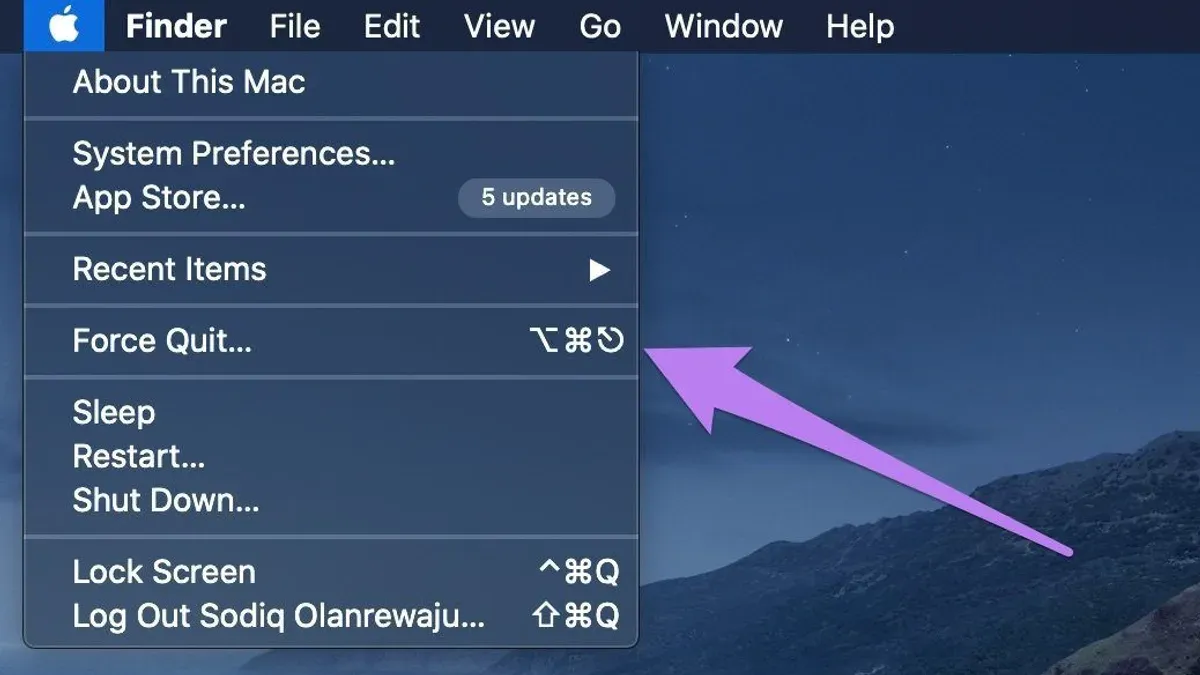
If your Mac’s desktop icons suddenly disappear, start by relaunching Finder to clear temporary glitches. Open the Force Quit menu with Option-Command-Escape, select Finder, then click Relaunch. This refreshes the desktop interface and often restores icons instantly.
If icons remain hidden, use the Terminal command defaults write com.apple.Finder CreateDesktop true; killall Finder. Entering this command unhides desktop icons by telling Finder to display them and then restarting Finder. This step works even when Finder preferences have been altered.
Another common cause is Stacks, a feature that groups files on the desktop. When enabled, Stacks can make the desktop look empty by consolidating icons into piles.
- Open the Force Quit menu (Option-Command-Escape), select Finder, and click Relaunch. Your desktop should refresh and display missing icons.
- If icons are still missing, open Terminal and enter
defaults write com.apple.Finder CreateDesktop true; killall Finder. This unhides desktop icons by resetting Finder’s display setting. - Check if Stacks is on by clicking the desktop, then View > Use Stacks. If checked, click it to turn Stacks off. You can also Control-click the desktop and uncheck Use Stacks or press Control-Command-0 to toggle it.
- Relaunch Finder via the Force Quit menu
- Run the Terminal command to unhide desktop icons
- Disable Stacks from the desktop View menu
How Finder preferences control what icons show on your desktop
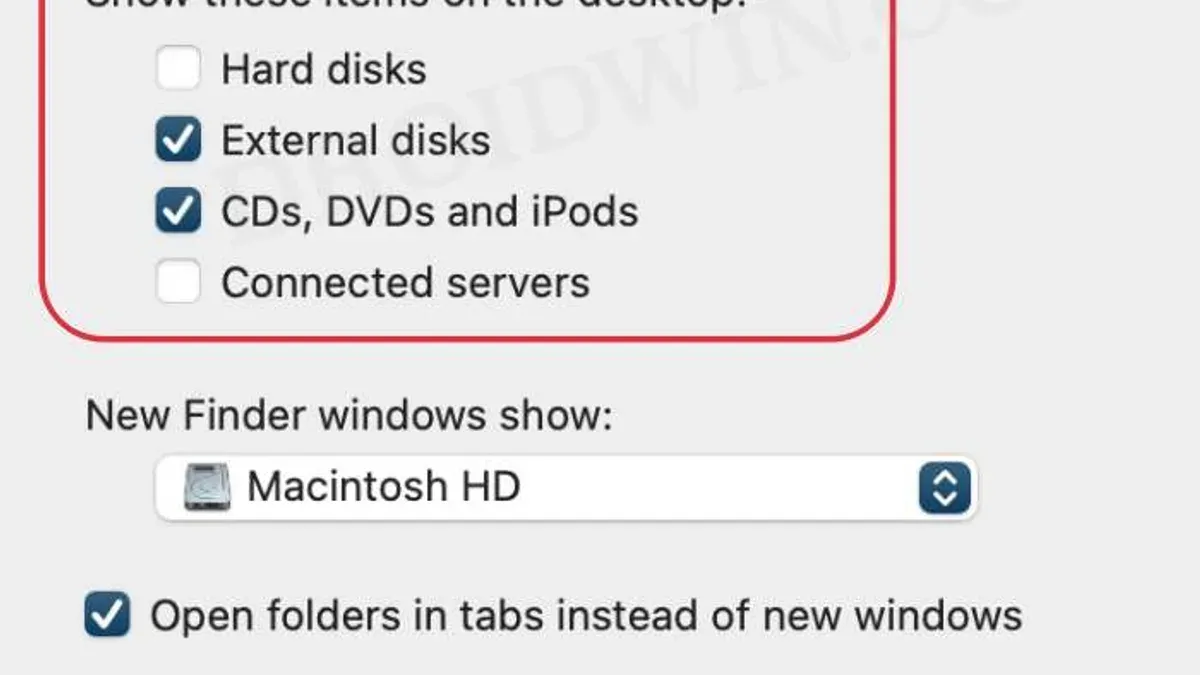
If these settings are incorrect, you may not see important icons like your hard disk or connected network servers.
To check and adjust these settings, open a Finder window and select Finder > Settings (or Preferences) from the menu bar. In the window that appears, click the General tab. Here, you will find checkboxes labeled Hard disks, External disks, CDs, DVDs, and iPods, and Connected servers.
Each checkbox controls whether that type of device or volume appears on your desktop. For example, if Hard disks is unchecked, your internal drives will not show up as icons, even if they are mounted and accessible elsewhere. Similarly, unchecking Connected servers hides network volumes from the desktop.
Enabling the relevant checkboxes immediately restores visibility for those items. This is especially useful when your desktop appears empty after connecting external drives or accessing network shares.
- Click Finder in the menu bar and choose Settings (or Preferences).
- Select the General tab in the window that opens.
- Check the boxes for Hard disks, External disks, and Connected servers to display those icons on your desktop.
- Close the preferences window; the selected icons should now be visible on your desktop.
Adjusting these Finder preferences ensures that your desktop accurately reflects the devices and servers currently connected or mounted on your Mac. If icons remain missing, other causes must be explored.
Why Stacks can hide your desktop icons and how to manage it
To check if Stacks is hiding your icons, you can toggle the feature off. Here is how:
- Click anywhere on the desktop to make sure Finder is active.
- Click the View menu in the menu bar and locate the Use Stacks option. If it is checked, click it to disable Stacks. Your individual icons should reappear immediately.
- Alternatively, Control-click (right-click) on the desktop background and select Use Stacks to toggle it off.
- You can also press Control-Command-0 as a keyboard shortcut to toggle Stacks off and on.
With Stacks off, your desktop will display all individual files separately, restoring the familiar icon layout. When Stacks is on, the desktop shows fewer icons grouped by category, which can easily be mistaken for missing files.
If your desktop icons are missing but you suspect Stacks is the cause, disable Stacks or click to expand stacks to access files.
Learn more about managing Stacks on Mac.
How iCloud Drive Desktop & Documents syncing affects desktop icons
To verify your missing desktop files, check the Desktop folder inside iCloud Drive. You can access it through Finder's sidebar under iCloud Drive or via the iCloud Drive folder in your Home directory. If files are present there, you can restore them by dragging them back to the local Desktop folder or by re-enabling Desktop & Documents syncing.
Keep in mind that the free iCloud storage limit is 5 GB. Exceeding this limit may cause syncing failures, resulting in missing or out-of-date desktop files. Managing your iCloud storage is crucial to maintaining consistent desktop icon visibility when using this feature.
- Open System Settings and select your name at the top.
- Click iCloud, then choose Drive.
- Locate and toggle Desktop & Documents Folders syncing as needed.
- If disabling, check the Desktop folder within iCloud Drive for your files.
- Restore files by dragging them back to the local Desktop or toggle syncing back on to sync them automatically.
- Open iCloud Drive Desktop folder to confirm file location.
- Adjust Desktop & Documents syncing setting in iCloud Drive.
- Manage iCloud storage to avoid syncing interruptions.
How corrupted Finder preference files can cause missing desktop icons
Finder uses preference files to manage how your desktop and file manager display icons. Two key files control these settings: com.apple.finder.plist and com.apple.desktop.plist, located in your user Library Preferences folder. Corruption in either file can cause desktop icons to vanish unexpectedly.
Removing these plist files forces macOS to generate fresh default preferences for Finder and the desktop. This reset often resolves icon disappearance caused by corrupted settings. It is an appropriate fix when you have ruled out other causes like Stacks, iCloud syncing, or Finder relaunches.
To remove these files and restore defaults:
- Open Finder and select the Go menu, then choose Go to Folder.
- Enter
~/Library/Preferencesand press Enter to open your preferences folder. - Locate
com.apple.finder.plistandcom.apple.desktop.plist. Move both files to the Trash — do not delete permanently yet. - Restart your Mac to allow macOS to recreate these preference files automatically.
After restarting, your desktop icons should reappear if corruption of these plist files was the cause. You may need to reconfigure some Finder preferences, as defaults are restored. This procedure avoids more drastic system changes and targets the specific failure of corrupted Finder preference data.
- Open Finder and use Go to Folder to access
~/Library/Preferences - Remove
com.apple.finder.plistandcom.apple.desktop.plistfrom the folder - Restart your Mac to recreate default Finder and desktop preferences
How to recover accidentally deleted desktop icons and files
If you deleted desktop files accidentally, you can recover them from iCloud Drive's Recently Deleted folder. This folder holds deleted files for 30 days across all your devices signed into iCloud. To restore files, visit iCloud.com, sign in, and open the Recently Deleted section in iCloud Drive. Select the files you want and click Recover. The files will return to their original desktop locations if iCloud Desktop syncing is enabled.
If you use Time Machine backups, you can restore missing desktop files from a point before deletion. Connect your Time Machine drive, open the desktop folder in Finder, and enter Time Machine. Navigate to the date and time when the files were present, select them, and click Restore. This will return the files to your desktop exactly as they were.
For files lost due to deletion beyond iCloud retention or without backups, data recovery software can help.
- Go to iCloud.com and sign in with your Apple ID. Open iCloud Drive and click Recently Deleted. Select the missing files and click Recover. The files will be restored to your desktop if syncing is active.
- Connect your Time Machine backup drive. Open Finder and navigate to your Desktop folder. Enter Time Machine using its menu icon or Launchpad. Browse backups to a date before the files disappeared, select the files, and click Restore. Confirm they return to your desktop.
- If files are not in iCloud or Time Machine, download and install EaseUS Data Recovery Wizard for Mac. Run a scan on your disk to locate deleted desktop files. Preview the results and recover the needed files, up to 2GB free.
- Recover deleted files from iCloud Drive Recently Deleted at iCloud.com
- Restore missing files from Time Machine backups
- Use EaseUS Data Recovery Wizard to scan and recover deleted desktop files
How hidden files and macOS display settings can hide desktop icons
macOS allows you to toggle the visibility of hidden files, which can affect whether desktop icons appear. Pressing Command-Shift-Period toggles hidden files on or off. If hidden files are enabled, some icons may become invisible or appear differently, leading you to think your desktop icons have disappeared.
Another factor is the automatic hiding of the Dock and menu bar, which can create the illusion of an empty desktop. When both the Dock and menu bar are set to auto-hide, you might miss visual cues that confirm icons are present.
To ensure your desktop icons are visible, disable these auto-hide settings. Open System Preferences, navigate to Dock & Menu Bar, then uncheck both 'Automatically hide and show the Dock' and 'Automatically hide and show the menu bar on desktop.' This action keeps these interface elements visible, making it easier to confirm desktop content.
- Press Command-Shift-Period to toggle hidden files visibility; your desktop icons should appear or disappear accordingly, confirming their visibility status.
- Open System Preferences and select Dock & Menu Bar.
- Uncheck 'Automatically hide and show the Dock' and 'Automatically hide and show the menu bar on desktop'; your Dock and menu bar will remain visible, helping you verify desktop icons are present.
- Press Command-Shift-Period to toggle hidden files visibility.
- Open System Preferences and go to Dock & Menu Bar settings.
- Disable auto-hide for both the Dock and menu bar on desktop.
Diagnosing third-party software interference by booting in Safe Mode
Safe Mode disables third-party extensions and startup items that can interfere with your desktop icons. It loads only essential macOS components, which helps isolate software conflicts causing icons to disappear. If your desktop icons reappear in Safe Mode, a third-party app or extension is likely the cause.
To start in Safe Mode, first turn off your Mac. Then turn it on and immediately press and hold the Shift key. Release the Shift key when the login window appears. You will see “Safe Boot” in the menu bar on the login screen, confirming Safe Mode is active.
Once logged in, check if your desktop icons are visible. If they have returned, this confirms that third-party software loaded in a normal startup is blocking them. You should then identify recent apps or extensions installed before the issue began and uninstall or update them. If icons remain missing in Safe Mode, the cause lies elsewhere.
To exit Safe Mode, simply restart your Mac without pressing any keys. Your system will boot normally with all extensions active again.
Common pitfalls that cause desktop icons to disappear unexpectedly
The Mac desktop functions as a folder where files can be moved, hidden, or deleted. This means icons may vanish if files are accidentally relocated or erased while organizing.
One frequent mistake is dragging desktop icons into the Trash or into other folders unknowingly. This physically removes them from the desktop folder, making the icons disappear.
Another common cause is enabling Stacks. Stacks groups files into piles, hiding individual icons and giving the impression that icons are missing when they are simply consolidated.
Turning off Desktop & Documents Folders syncing in iCloud Drive also causes icons to vanish locally. This action moves files to iCloud Drive and leaves empty Desktop folders on your Mac, creating the illusion of missing icons.
Ignoring Finder preferences can lead to missing drive icons. If the settings to show hard disks or external drives on the desktop are disabled, their icons won't appear, even if the drives are connected.
| What you see | Cause | Fix |
|---|---|---|
| Icons disappear after moving files | Files dragged to Trash or moved elsewhere | Check Trash and other folders; restore files to desktop folder |
| Desktop appears empty but files exist in Stacks | Stacks grouping hides individual icons | Turn off Stacks to display separate icons |
| Desktop icons vanish after toggling iCloud Desktop & Documents | Files relocated to iCloud Drive; local Desktop folder empty | Re-enable Desktop & Documents syncing or access files via iCloud |
| Drive icons missing | Finder preferences for showing disks disabled | Enable drive icons in Finder preferences |
- Check Trash and other folders for accidentally moved desktop files
- Disable Stacks to see if icons reappear individually
- Verify Desktop & Documents syncing status in iCloud settings
- Adjust Finder preferences to show hard disks and external drives on desktop
How to confirm your desktop icons have returned and what to do if they have not
Begin by visually inspecting your desktop for the expected icons such as files, folders, drives, and server shortcuts. Next, open Finder and navigate to the Desktop folder to verify if those items appear there. Their presence in Finder but absence on the desktop may indicate display settings or Finder glitches.
- Restart your Mac or relaunch Finder using Option-Command-Escape, select Finder, then click Relaunch. When successful, your desktop icons should reappear, resolving temporary glitches.
- If icons remain missing, check iCloud Drive’s Recently Deleted folder on iCloud.com. Select any deleted desktop files and click Recover. This restores mistakenly deleted files that affect icon visibility.
- Use Time Machine backups to restore missing desktop icons and files by selecting an appropriate backup point and restoring the desktop folder contents to your Mac.
- If data loss is suspected due to deletion, virus, or system crash, run EaseUS Data Recovery Wizard for Mac. It can scan, preview, and recover up to 2GB of lost desktop files free of charge.
- Should these steps fail, consider professional data recovery services or advanced troubleshooting for potential system corruption or hardware issues.
- How to Fix a Forgotten Mac Login Password: Step-by-Step Guide
- How to Fix Screen Staingate Delamination on Your Mac
- How to Fix Trackpad Cursor Jumping on Mac
- How to Fix Universal Control Not Working on Mac
Frequently asked questions
How to fix missing icons on desktop?
Start by checking Finder preferences to ensure desktop items are set to show. Verify if Stacks or iCloud Drive Desktop & Documents syncing is hiding icons. If these are not the cause, reset corrupted Finder preference files or boot into Safe Mode to isolate software conflicts.
How to remove icons from mac desktop?
Drag unwanted icons to the Trash or organize them into folders. You can also disable showing certain icons in Finder preferences under Desktop by unchecking items like external disks or connected servers.
Why my icons on desktop disappeared?
Icons may disappear due to Finder preferences hiding them, Stacks grouping files, iCloud Desktop & Documents syncing moving files to iCloud, or corrupted Finder preference files. Managed accounts or third-party software interference can also cause this.
Why have icons disappeared on my desktop?
This often results from macOS Ventura and later controlling desktop icon visibility through Stage Manager settings. If "Show Items" is disabled under Desktop & Dock > Desktop & Stage Manager, icons won’t appear even if files remain present.
Why are my desktop icons missing?
Icons might be missing because hidden files settings are active, or desktop files have been moved or deleted accidentally. Additionally, third-party apps or Safe Mode conflicts can temporarily hide or remove icons.
How to fix missing desktop icons?
Refer to the decision matrix in the fastest way to restore missing desktop icons section for a targeted approach. Common steps include adjusting Finder preferences, managing Stacks, checking iCloud sync status, and removing corrupted preference files in the correct order to avoid further issues.
Key steps to restore and verify your Mac’s desktop icons
To confirm the icons have returned, ensure your desktop shows all expected files and folders immediately after completing these steps. Check again after a day or a week to verify that settings remain stable and icons do not disappear again. If icons remain missing, revisit the iCloud Drive status and Finder preference files, or consider whether recent software installations or updates coincide with the issue. Maintaining a regular backup routine helps recover files if accidental deletion caused the disappearance. Undo any temporary settings changes, such as disabling Stacks or Safe Mode, once the problem resolves to restore your normal desktop environment.
Pages this guide relies on
- What to do if your desktop icons disappear on your Mac — MacPaw
- 3 Ways to Fix Mac Desktop Icons Missing or Not Showing — Guiding Tech
- All Mac Desktop Icons Disappeared, How to Get Them Back — iBoysoft
- 6 Best Ways to Restore Disappeared Desktop on Mac [Step-by-Step Tutorial] — EaseUS
- How To Fix Missing Desktop Icons And Files On A Mac — The Droid Guy


