
How to Fix Trackpad Cursor Jumping on Mac
Discover practical solutions to fix trackpad cursor jumping on Mac caused by moisture, settings, or hardware issues for smoother navigation.
Accidental touches from Tap to Click or moisture on the Force Touch trackpad are common triggers that you can address yourself through precise macOS settings.
It also incorporates a decision matrix strategy to navigate hardware checks and software adjustments, helping you fix cursor jumping on your Mac efficiently without unnecessary replacements.
Every limit and setting name below comes from LuxuriousComputers, MacPaw, Fix My PC Store (full list at the end), as of November 2026.
How to fix jumping cursor on laptop
Caution: sudo runs the command with administrator rights and asks for your login password (nothing appears as you type). With those rights a wrong path changes the wrong files, so check the command before pressing Return.
- Check the trackpad for moisture. Use a barely damp microfiber cloth to gently clean the surface, then dry it completely. Moisture can register as phantom touches and cause erratic cursor movement.
- Disable 'Tap to Click' by going to System Settings → Trackpad → Point & Click and turning off the Tap to Click toggle. This prevents accidental light touches from jumping the cursor.
- Turn off 'Force Click and haptic feedback' in System Settings → Trackpad → Point & Click. Haptic feedback can cause the cursor to skip or jump when resting your finger on the trackpad.
- Inspect the Mac for signs of a swollen battery, such as a raised trackpad or bulging case. A swollen battery pressing on the trackpad causes erratic cursor behavior and is a safety hazard. Stop using the device immediately and arrange for battery replacement, which typically costs between $130 and $250 depending on the model.
- If you use a wireless mouse, check its battery level in System Settings → Bluetooth. Replace or charge the mouse battery if it is below 20%, as low power often causes cursor jumping.
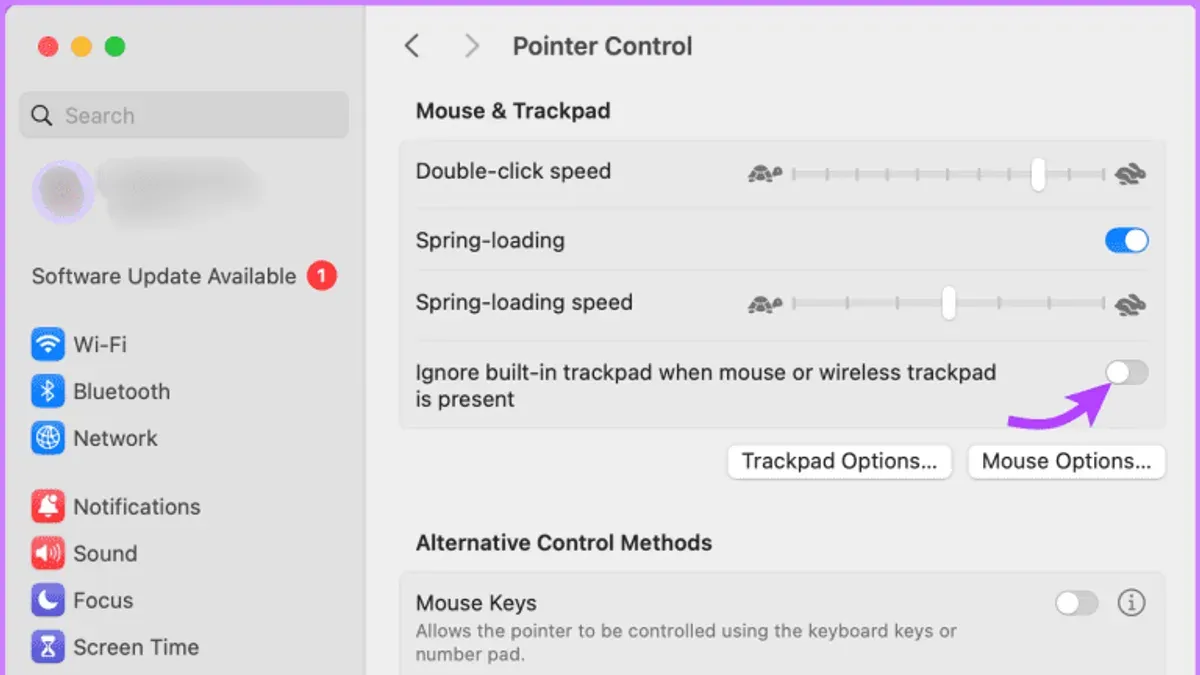
- Disable the setting Ignore built-in trackpad when mouse or wireless trackpad is present found under System Settings → Accessibility → Pointer Control. This prevents conflicts between the trackpad and external input devices.
- Reset the Bluetooth module using Terminal by entering
sudo pkill bluetoothd. This command clears all Bluetooth connections and configurations, which can resolve cursor issues caused by Bluetooth conflicts. Do not run this if you are actively using other Bluetooth devices you rely on. - Delete corrupted trackpad preference files by removing
com.apple.AppleMultitouchTrackpad.plistandcom.apple.driver.AppleBluetoothMultitouch.trackpad.plistfrom~/Library/Preferences. Then restart your Mac to restore default trackpad settings. - Reset the System Management Controller (SMC) and Non-Volatile Random-Access Memory (NVRAM) following Apple’s official instructions for your Mac model. These resets address deeper system communication issues that may cause cursor jumping.
Following these steps in order addresses the most common hardware and software causes of cursor jumping on Mac laptops. Swollen battery pressing on the trackpad is a critical safety issue that requires immediate attention.
How to stop my cursor from jumping when using a touchpad
Moisture and oils on your Mac's capacitive Force Touch trackpad can create phantom touches that make the cursor jump unexpectedly. Cleaning the trackpad with a barely damp microfiber cloth and drying it thoroughly eliminates these false inputs.
Electrical grounding problems from cheap or damaged chargers often cause cursor jumping only when the Mac is plugged in. Test your Mac with a genuine Apple charger connected to a different outlet to rule out electrical noise as the cause.
- Clean the trackpad gently using a barely damp microfiber cloth, then wipe it dry. If the cursor stops jumping, moisture was likely the issue.
- Open System Settings, navigate to Trackpad → Point & Click, and disable Tap to Click and Force Click and haptic feedback. Confirm the cursor no longer jumps when resting your finger on the trackpad.
- Check for physical signs of battery swelling by gently inspecting the case near the trackpad. If swelling is detected, arrange for immediate battery replacement to prevent erratic cursor behavior and ensure safety.
- Unplug your Mac and observe cursor behavior. Then reconnect using an original Apple charger plugged into a different power outlet. If jumping only occurs when plugged in, suspect a grounding issue with the charger or outlet.
How to fix MacBook trackpad when cursor is missing or not moving
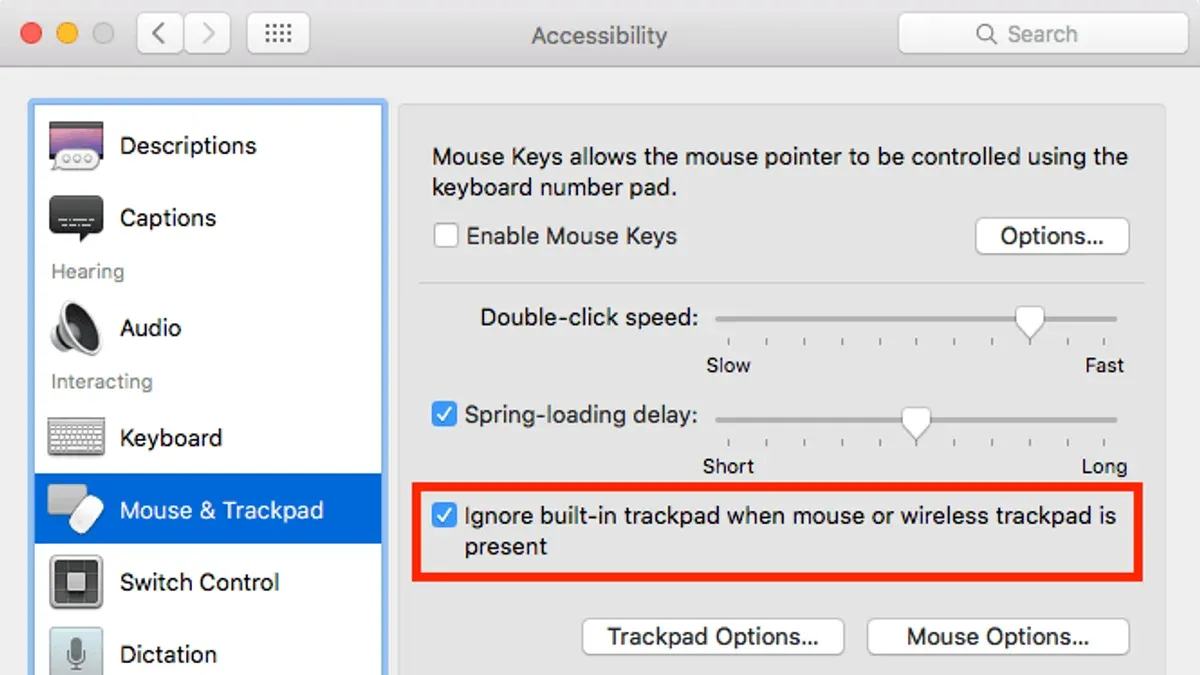
- Check if an external mouse or trackpad is connected. Navigate to System Settings > Accessibility > Pointer Control and ensure Ignore built-in trackpad when mouse or wireless trackpad is present is disabled. If enabled, your built-in trackpad may be turned off, causing the cursor to disappear or not move.
- Boot your Mac into Safe Mode to isolate software conflicts. For Intel Macs, restart and hold the Shift key immediately after the startup sound until the login window appears. For Apple Silicon Macs, shut down, then press and hold the power button until startup options appear; select your startup disk, hold Shift, and click Continue in Safe Mode. Safe Mode disables third-party login items and kernel extensions that might interfere with the trackpad.
- Delete corrupted trackpad preference files that could disrupt functionality. Remove
com.apple.AppleMultitouchTrackpad.plistandcom.apple.driver.AppleBluetoothMultitouch.trackpad.plistfrom~/Library/Preferences. After removal, restart your Mac to recreate fresh preference files. - Inspect your MacBook for hardware issues. If the trackpad feels raised, stiff, or the bottom case bulges, this indicates a swollen battery pressing against the trackpad. Stop using the Mac immediately and seek a battery replacement to avoid safety risks.
Common pitfalls when fixing cursor jumping on Mac trackpads
- Replacing the mouse immediately without testing the surface or battery: Many users replace their mouse right away, but most cursor jumps come from issues with the surface or low mouse battery. Testing the mouse on a clean, consistent surface and verifying battery levels first will save time and money. When you fix these, the cursor should stop jumping.
- Ignoring Safe Mode diagnostics: Booting your Mac in Safe Mode helps identify if third-party apps or extensions are behind the cursor issues. Skipping this step can lead to misdiagnosing hardware faults and unnecessary replacements. If Safe Mode resolves the jumping, you will see stable cursor behavior, pointing to software conflicts.
- Overlooking trackpad interference when using an external mouse: The built-in trackpad can cause phantom cursor movements if not disabled while an external mouse is connected. Disabling it via System Preferences under Accessibility > Pointer Control > Trackpad Options prevents this interference. Once disabled, the cursor should no longer jump unexpectedly.
- Using cheap or damaged chargers causing grounding noise: Faulty chargers can introduce electrical noise, causing cursor jumps only when plugged in. Testing with a known-good charger can reveal this issue. After replacing the charger, cursor movement should normalize when charging.
- Neglecting to clean moisture or oils from the trackpad: The capacitive Force Touch trackpad interprets moisture or oils as phantom touches, leading to erratic cursor behavior. Regularly cleaning the trackpad surface with a soft, lint-free cloth clears these residues. Once clean and dry, cursor jumping caused by phantom touches should stop.
Order of steps that actually matters to fix jumping cursor on Mac
- Begin by thoroughly cleaning your trackpad surface to remove any moisture or debris that may cause erratic input. Then, disable Tap to Click and Force Click in System Settings → Trackpad → Point & Click. Successful completion means accidental touches no longer cause cursor jumps.
- Inspect the Mac’s case for signs of swelling, such as a raised trackpad, stiffness, or bulging bottom case. If these signs appear, stop using the device immediately and arrange for a battery replacement. A swollen battery pressing against the trackpad can cause erratic movement and is a serious safety risk.
- Boot into Safe Mode to disable third-party login items and kernel extensions, isolating software conflicts. In Safe Mode, if the cursor stops jumping, third-party software is likely the cause.
- After confirming hardware and basic settings are clear, reset the Bluetooth module by running
sudo pkill bluetoothdin Terminal. This removes all Bluetooth connections and configurations, resolving cursor issues caused by Bluetooth device conflicts. Avoid this step if you rely on Bluetooth devices and cannot reconnect them immediately. - Delete corrupted trackpad preference files located at
~/Library/Preferences/com.apple.AppleMultitouchTrackpad.plistand~/Library/Preferences/com.apple.driver.AppleBluetoothMultitouch.trackpad.plist, then restart your Mac. This often resolves persistent erratic cursor behavior. - Finish with resetting the System Management Controller (SMC) and Non-Volatile Random-Access Memory (NVRAM) following Apple’s instructions for your model. These resets address deeper system communication issues causing cursor problems that persist after other steps.
Differences in troubleshooting cursor jumping across Mac models and input devices
Fixing cursor jumping varies significantly depending on your Mac model and the input device in use. Intel and Apple Silicon Macs require different steps to enter Safe Mode, which is crucial for isolating software conflicts affecting cursor behavior.
| Aspect | Intel Macs | Apple Silicon Macs |
|---|---|---|
| Safe Mode Boot | Shut down, power on while holding Shift until login window appears | Hold power button, select startup disk, then hold Shift and click Continue in Safe Mode |
| Input Devices | Supports built-in Force Touch trackpad, wired and wireless mice | Supports built-in Force Touch trackpad, wired and wireless mice |
| Common Input Issues | USB hub interference affects wired mice; grounding noise with cheap chargers | USB hub interference affects wired mice; grounding noise with cheap chargers |
Wireless mice need battery checks since cursor jumping often occurs when battery levels drop below 20%. To check battery status, navigate to System Settings → Bluetooth and locate your mouse device. Wired mice may experience cursor freezes or dropouts if connected through unpowered or faulty USB hubs. Using direct Mac USB ports avoids these issues.
Built-in Force Touch trackpads react more sensitively to moisture and enabled features like Force Click, making disabling these settings a critical troubleshooting step. External trackpads lack Force Touch and thus typically have fewer issues related to pressure-sensitive features.
- Identify your Mac model (Intel or Apple Silicon).
- Enter Safe Mode following your Mac’s specific procedure.
- Check wireless mouse battery under System Settings → Bluetooth.
- If using a wired mouse, connect it directly to the Mac’s USB port, avoiding hubs.
- Disable Force Click and tap features on built-in trackpads as needed.
- Test cursor behavior when plugged into a genuine charger on a different outlet to rule out grounding issues.
Following these model- and device-specific steps streamlines diagnosing and fixing cursor jumping issues on Mac.
What to do after fixing cursor jumping on Mac trackpad
- Observe your cursor behavior closely over the next day or week to confirm that erratic movement has ceased. Consistent smooth operation indicates the fix is stable.
- Re-enable any settings you disabled during troubleshooting one at a time, such as Tap to Click or Force Click, checking cursor stability after each change. This stepwise approach helps identify if a specific setting triggers the problem again.
- Maintain regular checks on your Mac’s battery health to catch swelling early, as a swollen battery pressing on the trackpad can cause cursor jumping and is a safety risk requiring immediate professional replacement costing roughly $130–$250 depending on your model.
- Use only genuine Apple chargers and avoid cheap or damaged adapters, since grounding issues from non-genuine chargers can cause cursor jumping when plugged in. Test with a verified adapter and different power outlets if problems reoccur.
- Keep your trackpad clean and dry by wiping it with a barely damp microfiber cloth, then fully drying it. Moisture on the Force Touch trackpad often registers as phantom touches causing erratic cursor movement.
- How to Fix Mac Not Charging with a 70W Adapter
- How to Fix Blurry Text on a Second Monitor with Your Mac
- How to Fix Trackpad Click Not Working on Mac
- How to Install and Customize Cursor Editor on Mac
Frequently asked questions
How to fix jumping cursor on laptop?
For laptops including MacBooks, begin by disabling "Tap to Click" and "Force Click" in System Settings under Trackpad preferences. Clean your trackpad surface and check for environmental factors causing interference. Confirm that "Ignore built-in trackpad when mouse or wireless trackpad is present" is unchecked to avoid input conflicts. Follow the recommended order of troubleshooting steps to prevent misdiagnosis.
Why is my trackpad cursor not working on my Mac?
This issue often results from disabled trackpad settings or hardware conflicts. Verify that the trackpad is enabled in System Settings > Accessibility > Pointer Control, and ensure no external devices are overriding input by checking the "Ignore built-in trackpad" option. Hardware failures can also cause this, so inspecting the physical trackpad condition is advisable.
How to stop my cursor from jumping while typing?
Cursor jumping during typing can be mitigated by disabling "Tap to Click" to avoid accidental touches and adjusting palm rejection settings if available. Also, ensure your hands are dry and the trackpad surface clean to reduce false inputs. This method is outlined in the section about macOS trackpad settings and hardware safety checks.
What causes the trackpad cursor to jump only when plugged in?
Cursor jumping that occurs exclusively when the Mac is plugged in may be caused by electrical interference or grounding issues. Checking hardware connections and using a different power adapter can identify if the power source induces the problem. This scenario requires inspecting hardware safety before adjusting settings.
Sources
- MacBook Trackpad Jumping or Ghost-Clicking? Every Fix in Order — LuxuriousComputers
- Why is my mouse moving on its own on Mac? 6 fixes — MacPaw
- Mac Mouse Cursor Jumping or Freezing? Find the Cause | Fix My PC Store — Fix My PC Store
- What to Do When Your Mac Cursor is Moving On Its Own — My Computer Works
- Cursor jumps while typing on Mac? Try these fixes — PalmGuardian

