Fix Apple Pencil Not Working with Sidecar on Mac
Learn how to fix Apple Pencil not working with Sidecar on Mac by resolving account mismatches, connection issues, and Sidecar settings.
If the Apple Pencil input is completely unresponsive or behaves erratically, the problem often lies in account mismatches, disabled wireless connections, or incorrect Sidecar settings.
The figures below come from Apple Support, as of November 2026.
Apple Pencil Input Is Completely Unresponsive in Sidecar
Apple Pencil input requires both Mac and iPad to support Sidecar, running macOS Catalina or later and iPadOS 13 or later respectively. Without these minimum system versions, Sidecar cannot enable Apple Pencil input on the iPad used as a secondary display. Confirming compatibility is the first step when the Apple Pencil does not register any input in Sidecar.
Using different accounts disables Apple Pencil input entirely, as Sidecar relies on this authentication to allow drawing and annotation. Additionally, Bluetooth and Wi-Fi must be active on both Mac and iPad because Sidecar needs these connections to operate and transmit Pencil input data.
Sidecar settings on the Mac are accessible through the Apple menu , then System Settings, followed by Sidecar. This panel confirms whether Sidecar is enabled and provides troubleshooting options. If Sidecar is disabled or misconfigured here, Apple Pencil input will not function.
The failure map below ties observable symptoms to causes and fixes for cases where Apple Pencil input is unresponsive in Sidecar:
| Symptom | Cause | Fix |
|---|---|---|
| Apple Pencil input does nothing on iPad Sidecar screen | Devices not signed into the same Apple Account | Sign both Mac and iPad into the same Apple Account |
| Apple Pencil input unresponsive | Bluetooth or Wi-Fi disabled on either device | Enable Bluetooth and Wi-Fi on both Mac and iPad |
| Sidecar not enabled or configured on Mac | Sidecar feature disabled or misconfigured | Enable Sidecar in System Settings > Sidecar on Mac |
| Mac or iPad running unsupported OS versions | macOS below Catalina or iPadOS below 13 | Update Mac and iPad to supported OS versions |
When Apple Pencil input is unresponsive, follow these steps to restore functionality:
- Verify Mac runs macOS Catalina or later and iPad runs iPadOS 13 or later.
- Ensure both Mac and iPad are signed into the same Apple Account.
- Enable Bluetooth and Wi-Fi on both devices.
- On the Mac, open Apple menu > System Settings > Sidecar and confirm Sidecar is enabled.
The Apple Pencil should then register input on the iPad Sidecar display. If input remains unresponsive after these steps, check for OS updates or Apple Account issues. This methodical approach resolves the most common causes of complete Apple Pencil unresponsiveness in Sidecar.
Apple Pencil Works Intermittently or Drops Connection
When Apple Pencil input works sporadically or disconnects during Sidecar sessions, unstable Bluetooth or Wi-Fi connections are often the cause. Both Mac and iPad must have Bluetooth and Wi-Fi enabled and maintain a strong signal, as Sidecar relies on these wireless technologies to function properly. Interference from other devices or physical obstacles can weaken signals and result in intermittent input or dropped connections.
Another common factor is power-saving settings. Low Power Mode or similar options on either device may disable Bluetooth or reduce processing performance, causing disruptions in Apple Pencil input. Additionally, authentication problems can arise if the devices are signed into different Apple Accounts, so verifying and re-signing into the same Apple Account helps resolve such issues.
To fix intermittent Apple Pencil input or connection drops, follow these steps:
- Ensure Bluetooth and Wi-Fi are enabled on both Mac and iPad and that both devices are signed into the same Apple Account.
- Check for and disable Low Power Mode or any battery-saving settings that might limit wireless functions.
- Restart both devices to refresh connections and Sidecar services.
- If problems persist, sign out and then sign back into the same Apple Account on both devices to restore authentication.
After these actions, Apple Pencil input should become consistent without drops or delays during Sidecar sessions. Confirmation comes when the Apple Pencil responds instantly and reliably throughout use without disconnecting.
Connection requirements and limitations highlight the necessity of stable wireless links and matching Apple IDs for Sidecar to support Apple Pencil input effectively.
Apple Pencil Does Not Draw but Touch Input Works in Sidecar
When touch input functions on the iPad display but the Apple Pencil does not draw in Sidecar, the issue often stems from compatibility or configuration. Not all iPad models support Apple Pencil input with Sidecar, so confirming the iPad’s compatibility is crucial. Sidecar requires macOS Catalina or later on the Mac and iPadOS 13 or later on the iPad to support Apple Pencil drawing and annotation.
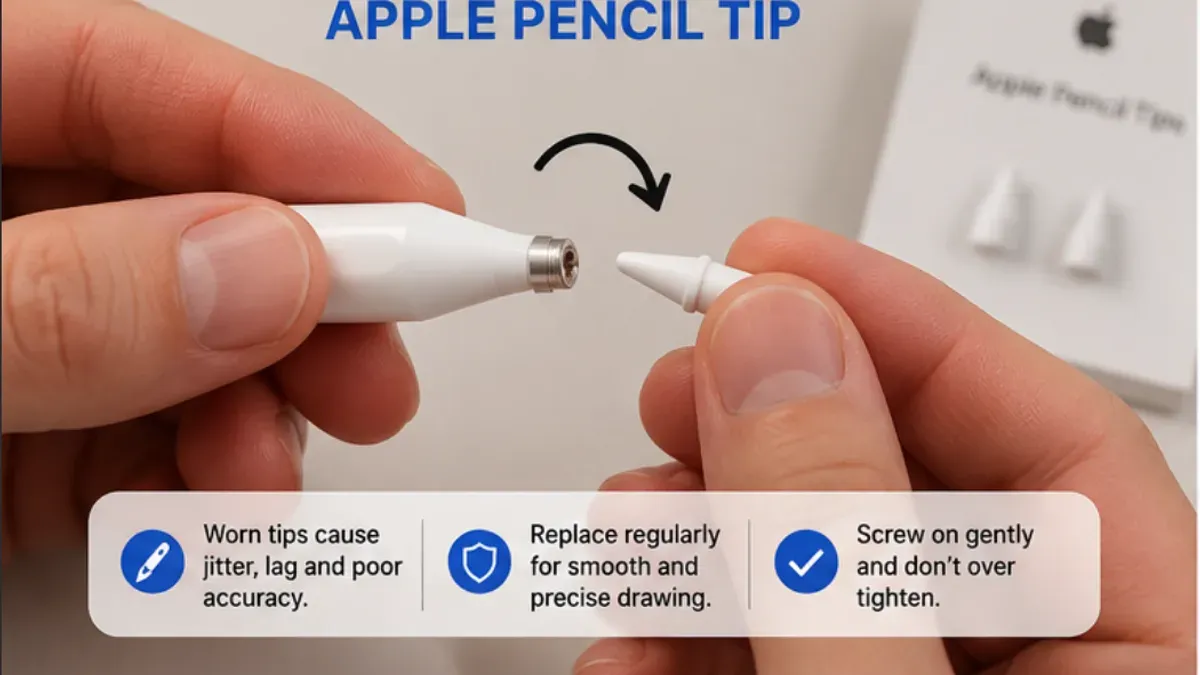
Sidecar must be fully active and configured to accept Apple Pencil input. On the Mac, this configuration is accessible via Apple menu → System Settings → Sidecar. Ensuring the Apple Pencil is charged and paired correctly with the iPad outside of Sidecar sessions is also essential, as Sidecar relies on the Apple Pencil’s native connection to the iPad.
If Apple Pencil input still does not register, disconnecting and reconnecting Sidecar refreshes the input pipeline and can resolve transient communication issues. This process reestablishes the Sidecar session and its connection with the Apple Pencil input system.
To address the issue, follow these steps:
- Confirm that the iPad model supports Apple Pencil input with Sidecar by verifying it runs iPadOS 13 or later and is compatible with Apple Pencil for Sidecar use.
- On the Mac, open Apple menu → System Settings → Sidecar and check that Sidecar is active and configured properly for Apple Pencil input.
- Ensure the Apple Pencil is charged and paired directly with the iPad outside of Sidecar sessions.
- Disconnect Sidecar by ending the current session, then reconnect it to refresh the connection.
Success is indicated when the Apple Pencil begins to draw and annotate on the Sidecar display without interrupting touch input. If these steps fail, the devices may not meet the necessary compatibility requirements for Apple Pencil input with Sidecar.
Sidecar Does Not Appear as an Option or Won’t Connect
To function, both devices must run compatible operating systems—macOS Catalina or later on the Mac and iPadOS 13 or later on the iPad. Without meeting these minimum system requirements, Sidecar will neither appear as an option nor establish a connection.
Connection prerequisites are critical. Both devices must be signed into the same Apple Account and have Bluetooth and Wi-Fi enabled. If either device uses a different Apple Account or has Bluetooth or Wi-Fi turned off, Sidecar will fail to start, and Apple Pencil input will be unavailable.
To troubleshoot when Sidecar does not appear or connect, begin by verifying the Mac and iPad meet the OS requirements. Next, confirm both devices are logged into the same Apple Account and that Bluetooth and Wi-Fi are active on both. Then, use the Sidecar settings on the Mac—found via Apple menu → System Settings → Sidecar—to attempt a manual connection and observe any error messages. These messages often indicate whether the issue is account-related, connectivity, or compatibility.
If connection errors persist, restart both the Mac and iPad. Restarting can resolve transient issues with Bluetooth, Wi-Fi, or system processes that block Sidecar. Finally, ensure both devices are updated to the latest available OS versions. Updates frequently fix bugs and improve compatibility, which helps Sidecar function properly.
Compatibility and Account Differences Affecting Apple Pencil with Sidecar
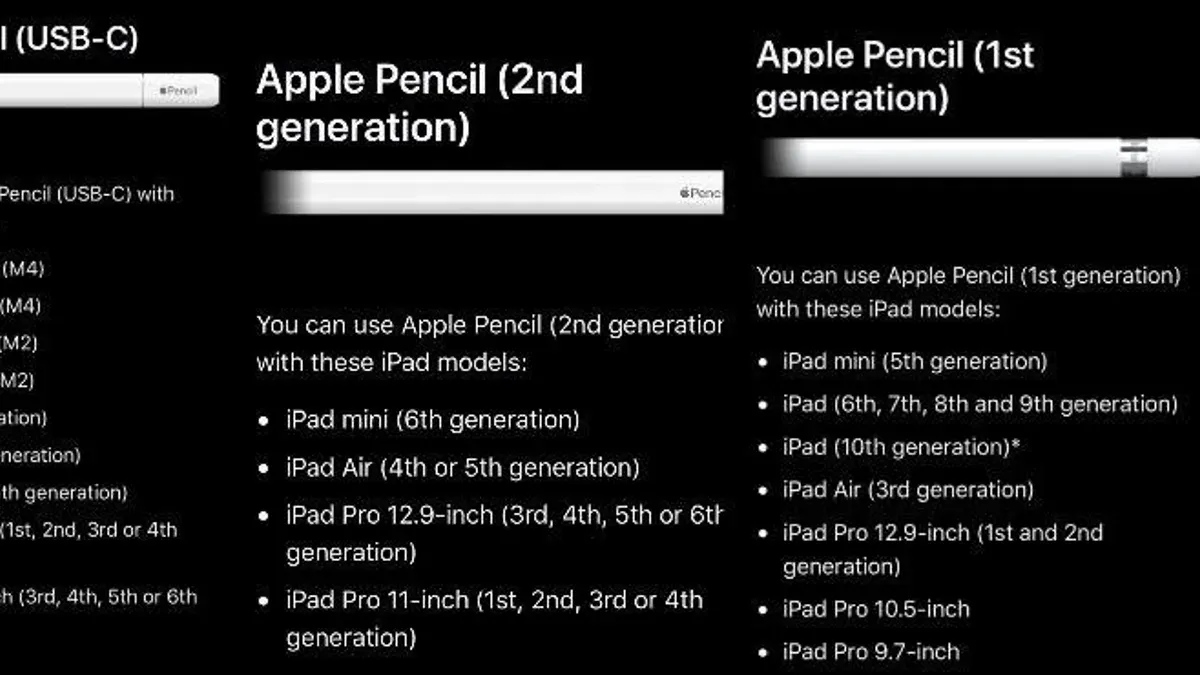
Devices with older operating systems do not support Sidecar or Apple Pencil input through it. Additionally, only specific iPad models are compatible with Sidecar; verifying device support is essential before proceeding with troubleshooting.
Both Mac and iPad must be signed into the exact same Apple Account to authenticate Sidecar connections and enable Apple Pencil input. Using different Apple Accounts on the two devices will prevent Sidecar from functioning.
| Requirement | Supported | Not Supported |
|---|---|---|
| Operating System | macOS Catalina or later (Mac), iPadOS 13 or later (iPad) | Any earlier OS versions |
| Device Model | Mac models supporting macOS Catalina+; iPad models compatible with Sidecar | Older Macs and iPads not listed as Sidecar-compatible |
| Apple Account | Same Apple ID signed in on both devices | Different Apple IDs on Mac and iPad |
| Connectivity | Bluetooth and Wi-Fi enabled on both devices | Bluetooth or Wi-Fi disabled; wired connection only |
If Sidecar or Apple Pencil input does not work, confirm these compatibility and account conditions. To fix account or connection issues:
- Verify both Mac and iPad are signed into the same Apple Account via System Settings or System Preferences.
- Ensure Bluetooth and Wi-Fi are enabled on both devices.
- Confirm both devices run supported OS versions and the iPad model supports Sidecar.
Sidecar’s Apple Pencil support depends strictly on these compatibility and account conditions.
Ensuring that both devices use the same Apple ID and have Bluetooth and Wi-Fi enabled can resolve many common problems. Persistent issues may involve deeper compatibility checks or network environment adjustments.
This foundational step frequently restores full Apple Pencil functionality with Sidecar, preventing many connectivity and input problems before exploring more complex troubleshooting.
Pages this guide relies on
- Official Apple Support — Apple Support
See also: Fix Magic Keyboard Not Pairing on Mac: Clear Step-by-Step Guide · How to Fix Java Not Found Error on Mac: A Clear Troubleshooting Guide · How to Fix Sidecar Not Working on Mac: Step-by-Step Solutions · How to Fix Universal Control Not Working on Mac