How to Fix Siri Not Responding on Mac: Step-by-Step Solutions
Discover effective solutions to fix Siri not responding on your Mac by enabling and configuring Siri properly for voice or manual activation.
A common scenario is pressing the default keyboard shortcut, Command + Space bar, and getting no response.
Additionally, the voice activation feature 'Hey Siri' only works on supported Mac models or paired AirPods, and the Mac must be open, not closed. Misunderstanding these conditions or misconfiguring Siri preferences often causes the problem.
Facts and figures here were checked against Apple Support in November 2026.
Which Siri activation method fits your Mac and usage style
Siri on Mac can be activated either by voice using the "Hey Siri" command or manually through a keyboard shortcut or the menu bar icon. However, not every Mac model or paired AirPods supports the "Hey Siri" voice activation feature. Additionally, the Mac must be open, meaning not closed or sleeping, to respond to "Hey Siri" commands.
Alternatively, clicking the Siri icon in the menu bar also triggers Siri.
| Situation | Recommended Activation Method | Key Fact |
|---|---|---|
| Mac or paired AirPods support "Hey Siri" and Mac is open | Enable "Hey Siri" voice activation | Voice activation needs hardware support and an open Mac |
| Mac or paired AirPods do not support "Hey Siri" | Use Command + Space bar or menu bar icon for manual activation | Hardware limitation disables voice activation |
| Mac is closed or user prefers manual control | Use manual activation methods | "Hey Siri" requires Mac to be open; manual works anytime |
- Determine if the Mac or paired AirPods support "Hey Siri" and confirm the Mac is open. If so, proceed to enable voice activation in Siri preferences.
- If the Mac or AirPods do not support "Hey Siri", plan to use manual activation methods instead.
- Use the keyboard shortcut Command + Space bar or click the Siri icon in the menu bar to manually activate Siri.
- Decide based on personal preference whether hands-free voice activation or manual control fits the usage style better.
Tip: Keep the Mac open to ensure voice activation works reliably. If hands-free use is not essential, manual activation avoids hardware restrictions.
Enable and configure Siri preferences on your Mac
To get Siri responding on a Mac, it must first be enabled and properly configured. The exact steps vary depending on the macOS version installed, with notable differences between Catalina and Ventura.
- On macOS Ventura, open the Apple menu and select System Settings. Navigate to Apple Intelligence & Siri or Siri. Turn on Siri by clicking the toggle, then click Enable. A confirmation shows Siri is active.
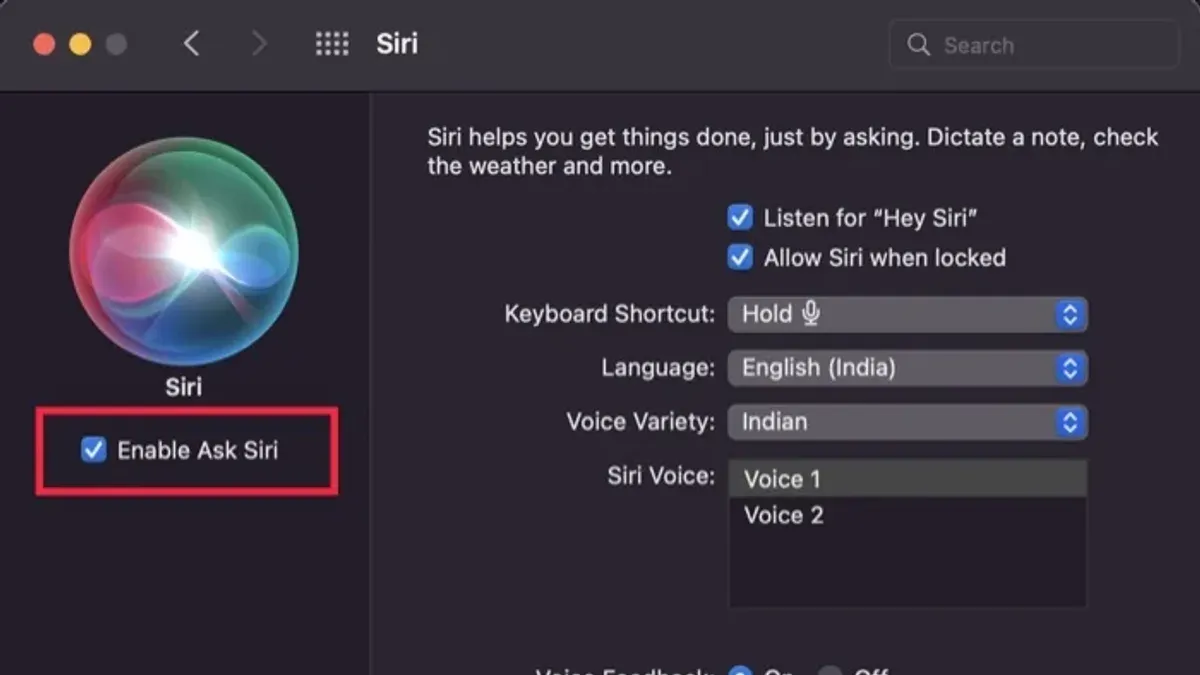
- On macOS Catalina, open the Apple menu and go to System Preferences. Click Siri and check the box labeled Enable Ask Siri. A visual cue confirms Siri is enabled.
- To allow voice activation with “Hey Siri,” enable the Listen for "Hey Siri" checkbox in Siri preferences. This option only appears when supported by the Mac model and macOS version.
- For manual access, check Show Siri in menu bar. This adds the Siri icon to the menu bar, allowing easy activation by clicking it.
- If it is desirable for Siri to respond even when the Mac is locked or asleep, enable Allow Siri when locked if this setting is available. This grants Siri permission for locked-state access on supported Macs.
Tip: The exact names and locations of these settings differ between macOS versions; missing options often mean the feature is unsupported on that Mac or version.
Check your internet connection as Siri requires it to respond
To verify internet connectivity, first look at the Wi-Fi or Ethernet icon in the menu bar. A solid signal indicator means the Mac is connected. Opening a web browser and loading a website further confirms active internet access. If these fail, the Mac is offline or the connection is unstable.
When the Mac lacks internet access, Siri will not respond. For example, attempting to ask Siri a question while offline results in silence or an error prompt. To fix this, reconnect to a known Wi-Fi network or plug in an Ethernet cable. Restarting the router or checking for service outages can further restore connectivity.
- Click the Wi-Fi icon in the menu bar to view available networks and confirm connection status. A checkmark indicates an active connection.
- Open Safari or any web browser and visit a reliable website to confirm internet access. The page should load completely.
- If there is no connection, select a Wi-Fi network from the list or connect an Ethernet cable. The Wi-Fi icon should show signal strength bars.
- If connection issues persist, restart the router or modem, then repeat steps 1 and 2. The internet should be restored.
- Once connected, activate Siri again; it should now respond promptly to requests.
Tip: Even weak or unstable connections can cause Siri to fail. Ensure the Mac’s signal strength is strong and stable for best results.
Siri requires an active internet connection to function on Mac.
Use the keyboard shortcut or menu bar icon to activate Siri manually
Manually activating Siri on a Mac can be done quickly using the default keyboard shortcut or the Siri icon in the menu bar. The standard shortcut involves pressing and holding the Command key and the Space bar simultaneously. When this is done correctly, the Siri interface should appear on the screen, indicating it is ready to receive commands.
To use the menu bar icon, first ensure it is enabled in Siri preferences. This icon typically looks like a small circle with a waveform and is located at the top-right corner of the screen. Clicking this icon opens Siri immediately, providing a visual confirmation that the assistant is listening.
To check or reset it, navigate to Siri preferences where this shortcut can be reassigned.
- Press and hold Command + Space bar together. The Siri window should appear, signaling readiness.
- If Siri does not open, open Siri preferences and verify the keyboard shortcut setting.
- Enable “Show Siri in menu bar” to add the icon if it is not visible.
- Click the Siri icon in the menu bar. The Siri interface should display.
- Test both methods to confirm manual activation functions properly.
Tip: Keeping the menu bar icon enabled offers a quick visual and click option to access Siri without keyboard shortcuts.
Troubleshooting common pitfalls that prevent Siri from responding
Voice activation with "Hey Siri" requires specific hardware support and proper enabling in preferences. Attempting voice activation on unsupported Macs or using AirPods not paired for this feature will fail silently. Additionally, if the Mac is closed or asleep, voice activation cannot work.
Disabling the "Listen for 'Hey Siri'" checkbox in Siri preferences prevents voice commands from being recognized. Siri must also be enabled in the system settings to respond at all. Checking these settings and ensuring the Mac is awake addresses many problems.
| Symptom | Cause | Fix |
|---|---|---|
| Siri does not respond to "Hey Siri" voice command | "Listen for 'Hey Siri'" not enabled in Siri preferences | Go to Siri settings and enable "Listen for 'Hey Siri'" checkbox |
| "Hey Siri" does not activate on Mac or AirPods | Using unsupported Mac model or AirPods for "Hey Siri" | Use manual activation or check device compatibility before relying on voice activation |
| Siri does not respond when Mac is closed or asleep | Mac must be open and awake for voice activation to work | Open and wake Mac to enable voice activation or use manual activation methods |
| Siri does not respond at all | Siri disabled in system preferences or permissions missing | Enable Siri in the appropriate system settings panel and verify permissions |
- Open Siri settings through the correct system panel according to macOS version.
- Ensure the "Listen for 'Hey Siri'" checkbox is enabled to allow voice activation.
- Confirm the Mac model supports "Hey Siri" voice activation or use manual activation shortcuts.
- Keep the Mac open and awake if relying on voice activation; closed or sleeping Macs will not respond.
- Verify Siri is enabled overall and check permissions if Siri remains unresponsive.
Tip: When "Hey Siri" voice activation is unreliable, use the keyboard shortcut Command + Space bar for immediate manual access.
How to reset Siri settings to resolve deeper issues
This process involves disabling Siri, removing related preference files if necessary, and restarting the Mac to apply changes fully. Resetting Siri preferences will not delete any personal files but will revert Siri settings to default, requiring reconfiguration.
- Open the system settings relevant to your macOS version: for Ventura, go to System Settings > Apple Intelligence & Siri; for Catalina, use System Preferences > Siri. Disable Siri by turning off the Enable Ask Siri checkbox or switch.
- Close the settings window and open Finder. Navigate to the
~/Library/Preferences/folder by selecting "Go" > "Go to Folder" and entering the path. - Locate and delete the files named
com.apple.Siri.plistandcom.apple.assistant.plistif present. These files store Siri preferences and their removal forces the system to create fresh copies. - Restart the Mac to ensure all changes take effect and any cached settings clear.
- After restart, return to the Siri settings and re-enable Siri by selecting the Enable Ask Siri option again. Reconfigure voice activation and keyboard shortcuts as needed.
Following these steps resets Siri to its default state, which often resolves deeper issues that simple toggling cannot fix. After re-enabling, check if Siri responds correctly. If it still does not, confirm the Mac’s internet connection and hardware support for voice activation.
Tip: Deleting preference files removes customizations like chosen voice and language, so note down current settings if they need to be restored precisely.
Check that Siri responds after changes and what to do next
After adjusting Siri settings or troubleshooting issues, it is essential to confirm that Siri now responds correctly. First, test Siri by activating it either with the voice command "Hey Siri" if voice activation is enabled and supported, or by using the default keyboard shortcut Command + Space bar. When activated, Siri should respond promptly with an audible or visual cue and be ready to process requests.
- Ensure the Mac is connected to the internet, as Siri requires an active connection to function properly.
- If using "Hey Siri," verify that the Mac or paired AirPods support this feature and that the Mac is open, not closed.
- Activate Siri using the chosen method. When Siri responds visually on screen or with voice feedback, the setup is successful.
- Speak a simple query or command and observe whether Siri understands and executes it correctly.
- If Siri does not respond, revisit Siri preferences to confirm that "Listen for 'Hey Siri'" or manual activation options remain enabled.
If problems continue despite these checks, consider hardware factors such as microphone functionality or system restrictions that may block Siri’s operation. In such cases, contacting Apple Support or visiting an authorized service provider is advisable to diagnose and resolve hardware or deeper software issues.
Tip: Periodically verify Siri’s responsiveness to avoid surprises, especially after system updates or network changes.
What this guide does not cover and when to seek specialized help
If Siri remains unresponsive despite correct settings and a stable internet connection, inspecting the Mac’s microphone or audio hardware may be necessary. In such cases, consulting an authorized repair provider ensures proper diagnostics and repair.
When network-level issues prevent Siri from accessing the internet, adjusting firewall or router settings might be needed and often requires technical expertise.
They can perform in-depth troubleshooting, hardware testing, and account verification to restore Siri’s responsiveness.
- Verify that the Mac is connected to the internet and that Siri settings are enabled as described in this guide.
- If Siri still fails to respond, test the microphone by using other voice-enabled apps to confirm hardware function.
- Check for any Apple ID or account notifications related to Siri or iCloud, resolving them as needed.
- Review network firewall or security software settings that might block Siri’s access to Apple servers.
- If issues persist, contact Apple Support or visit an authorized Apple repair center for professional assistance.
Frequently asked questions
How to fix siri not responding?
Refer to the step-by-step solutions in this guide, starting with choosing the suitable Siri activation method for the Mac model and usage style, then enabling and configuring Siri preferences correctly. Checking the internet connection and using manual activation through the keyboard shortcut can also resolve many issues.
Why isn't siri responding?
This symptom often occurs because Siri requires an active internet connection to operate. Additionally, 'Hey Siri' voice activation works only on supported Mac models or when paired with compatible AirPods, and the Mac must be open, not closed.
Why doesn't siri respond?
If Siri does not respond, it may be due to incorrect settings in the Siri preferences, a disabled Siri feature, or the Mac being in Low Power Mode, which can restrict Siri's functionality depending on the macOS version.
How come siri is not responding?
Common causes include Siri being turned off in the system settings, the Mac lacking support for voice-activated Siri, or network connectivity problems. Verifying the exact Siri activation method supported by the Mac model helps clarify which steps to take.
Why isn't siri responding to me?
Voice recognition issues can arise if the Mac model does not support 'Hey Siri' or if the microphone access is restricted. Manual activation via the keyboard shortcut Command + Space bar is a reliable alternative in such cases.
Why is siri not responding?
Check the Siri settings specific to the macOS version in use, as the menu paths and options differ between Catalina and Ventura. Ensuring the correct preference pane is used and that Siri is enabled there is crucial for proper function.
Limitations of This Guide and When to Seek Further Assistance
This guide focuses specifically on software settings and network conditions that influence Siri's responsiveness on Mac. It does not address potential hardware problems such as microphone malfunctions, which can prevent Siri from hearing commands even if all software settings are correct. Additionally, issues related to Apple ID authentication or account-specific restrictions affecting Siri are outside the scope of this advice.
If Siri remains unresponsive after following all troubleshooting steps here, inspecting the Mac's microphone hardware or Apple ID status may be necessary.
References
- Use Siri on Mac — Apple Support
- Use Siri on your Mac — Apple Support
See also: How to Fix Slow Internet Only on Mac: Step-by-Step Solutions · How to Fix Bluetooth Mouse Lagging on Mac: Step-by-Step Solutions · How to Fix Sidecar Not Working on Mac: Step-by-Step Solutions · How to Fix Universal Control Not Working on Mac