
How to Fix Sidecar Not Working on Mac: Step-by-Step Solutions
Learn how to fix Sidecar not working on Mac with clear steps to start and connect Sidecar properly for a smooth extended display experience.
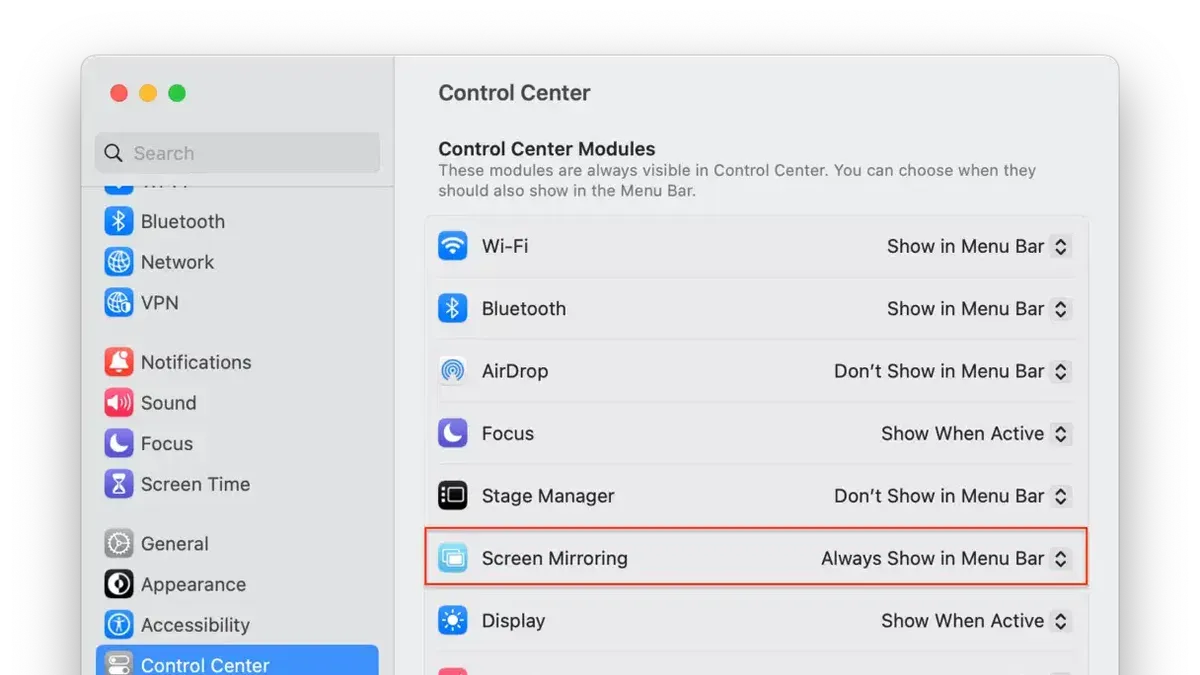
Many users struggle because Sidecar no longer appears as a standalone setting; it’s now part of the Displays preference pane and accessible through Control Center’s Display menu on recent macOS versions. This shift often leads to confusion about where and how to start Sidecar.
Begin by opening the Displays pane or Control Center’s Display menu to manually start Sidecar each session, as it does not launch automatically. Ensuring this order is followed avoids common errors where Sidecar won’t connect or appear.
Checked in November 2026 against MacPaw, Trend Micro Help Center, iBoysoft (full list at the end); details like these change, so the date matters.
Start Sidecar correctly on your Mac to avoid confusion
Instead, it is integrated into the Displays preference pane and can also be accessed via the Control Center's Display menu. Knowing where to start Sidecar is crucial because it does not launch automatically and must be manually initiated every session.
To start Sidecar on macOS Sonoma, Ventura, or Monterey, follow these steps:
- Click the Control Center icon at the top-right of your screen.
- Open the Display menu.
- Click the "Add Display" button.
- Select your iPad from the list to start Sidecar.
Alternatively, on macOS Monterey or later, you can start Sidecar from the Screen Mirroring icon in the menu bar by selecting your iPad.
If your Mac runs an older macOS version prior to Monterey, Sidecar is accessed differently:
- Open System Preferences.
- Click on the Sidecar pane.
- Select your iPad in the "Connect to" dropdown menu.
You will know Sidecar started successfully when your iPad shows the extended or mirrored display from your Mac. Attempting to open Sidecar in any other location or expecting it to start automatically will not work. Always begin with the correct menu path based on your macOS version to avoid confusion and connection failures.
Check your Mac and iPad meet Sidecar compatibility requirements
Sidecar requires a Mac model that supports macOS Catalina or later. Compatible Macs include MacBook models from 2016 onward, MacBook Air from 2018, MacBook Pro from 2016, Mac mini from 2018, iMac from late 2015, iMac Pro from 2017, Mac Pro from 2019, and Mac Studio. If your Mac is older or running an earlier macOS version, Sidecar will not appear or function.
On the iPad side, Sidecar needs iPadOS 13 or newer. Supported iPads include all iPad Pro models, iPad (6th generation or newer), iPad mini (5th generation or newer), and iPad Air (3rd generation or newer). Using an unsupported iPad or an outdated iPadOS will prevent Sidecar from connecting or showing options.
| Device | Compatible Models | Required OS |
|---|---|---|
| Mac | MacBook (2016+), MacBook Air (2018+), MacBook Pro (2016+), Mac mini (2018+), iMac (late 2015+), iMac Pro (2017+), Mac Pro (2019+), Mac Studio | macOS Catalina or later |
| iPad | iPad Pro (all models), iPad (6th gen+), iPad mini (5th gen+), iPad Air (3rd gen+) | iPadOS 13 or later |
If Sidecar options are missing or the feature won’t connect, verify your devices meet these requirements and are fully updated. Unsupported hardware or OS versions block Sidecar entirely.
If you have an unsupported Mac but want to try Sidecar, you can enable it via a Terminal command that allows all devices to use Sidecar. To do this:
- Open Terminal on your Mac.
- Enter
defaults write com.apple.sidecar.display allowAllDevices -bool trueand press Return. - Restart your Mac.
Use it only if you accept that support is unofficial and may cause issues.
Check for Sidecar’s presence in the Displays pane of System Preferences or Control Center after restarting. If it appears and connects, the workaround worked; if not, your Mac remains unsupported.
Verifying compatibility avoids wasted troubleshooting on devices that cannot support Sidecar.
Verify both devices use the same Apple ID with two-factor authentication
If your devices use different Apple IDs, Sidecar cannot authenticate and will fail to connect. This mismatch is a frequent cause of connection problems.
Without this security feature activated, Sidecar connectivity is blocked even if both devices share the same Apple ID.
If you suspect your devices are not correctly signed in, or two-factor authentication is disabled, follow these steps to reset your Apple ID sessions:
- On your Mac, open the Apple menu and go to System Preferences > Apple ID. Click Sign Out and confirm.
- On your iPad, navigate to Settings > [Your Name], then tap Sign Out.
- Sign back in on your Mac via System Preferences > Apple ID using the same Apple ID with two-factor authentication enabled.
- Sign back in on your iPad through Settings > [Your Name] with the same Apple ID and ensure two-factor authentication is active.
After signing back in with the correct Apple ID and two-factor authentication enabled, Sidecar should recognize both devices and allow connection.
Ensure wireless features and proximity meet Sidecar’s connection needs
Sidecar’s wireless connection depends on both your Mac and iPad being within 10 meters (30 feet) of each other. If the devices are farther apart, the connection will fail or be unstable. Bluetooth, Wi-Fi, and Handoff must all be enabled on both devices for Sidecar to work wirelessly.
Verify Handoff is active by following these steps:
- On your Mac, open Apple menu > System Preferences > General.
- Check the box labeled "Allow Handoff between this Mac and your iCloud devices."
- On your iPad, go to Settings > General > Handoff and toggle it on.
Additionally, the iPad cannot be sharing its cellular connection, and the Mac must not be sharing its Internet connection. These network sharing states interfere with Sidecar’s wireless communication.
This refresh can resolve temporary wireless glitches. Confirm the devices remain close and with all wireless features enabled before attempting to start Sidecar again.
When these conditions are met and Sidecar connects successfully, your iPad will appear as an extended or mirrored display without error messages or dropped connections. If connection fails, recheck proximity and wireless settings.
Learn more about Sidecar wireless requirements
Fix USB connection issues by resetting trust settings on your iPad
Sidecar requires a trusted connection between your Mac and iPad to function over USB. A reliable USB cable alone is not enough; your iPad must explicitly trust the Mac for data communication to occur. Without this trust, Sidecar can fail to start despite the cable being connected.
If Sidecar works wirelessly but not when wired, resetting the trust settings on your iPad often resolves this issue. This resets the Location & Privacy preferences, forcing your iPad to prompt you again to trust the Mac when you reconnect.
To reset trust settings, follow these steps on your iPad:
- Open Settings.
- Go to General.
- Scroll down and tap Reset.
- Choose Reset Location & Privacy.
- Confirm the reset when prompted.
After completing these steps, reconnect your iPad to your Mac with the USB cable. You will see a prompt asking whether to trust this computer. Approve trust to re-establish the connection.
You will know this method worked if Sidecar successfully initiates over the wired connection without errors.
For more details, see this guide.
Adjust Mac firewall and disable VPN or interfering software
Your Mac’s firewall can block the network communication channels Sidecar depends on, preventing it from connecting to your iPad. To fix this, open System Settings, go to Network > Firewall > Options, and make sure Block all incoming connections is unchecked. This setting allows Sidecar’s required incoming connections through the firewall.
VPNs and certain third-party apps often interfere with Sidecar by disrupting the network traffic it uses. Common culprits include VPN software and apps like Remote Mouse or Parallels Remote Access. If you experience Sidecar failures, temporarily disable any active VPN or uninstall these apps to see if connectivity improves.
After changing firewall settings or disabling interfering software, start Sidecar again manually. If the connection establishes without errors and your iPad appears as a secondary display, the issue is resolved.
- Open System Settings on your Mac.
- Navigate to Network, then select Firewall and click Options.
- Uncheck Block all incoming connections to allow Sidecar’s network traffic.
- Exit settings and disable any VPNs you use.
- Uninstall or quit apps like Remote Mouse or Parallels Remote Access if still present.
- Manually start Sidecar from the Displays preference pane or Control Center.
Allow incoming connections in firewall settings
Troubleshoot common connection errors and software updates
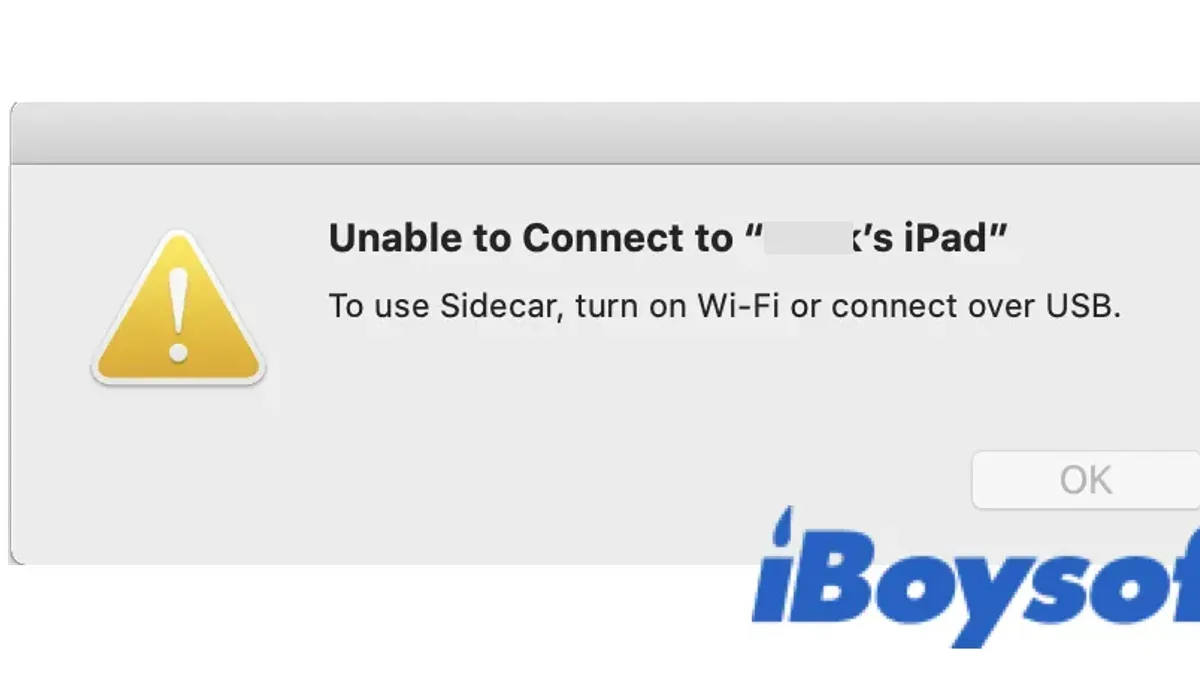
Sidecar errors often display as messages like "Unable to Connect to iPad. The device timed out." To resolve this, start by restarting both your Mac and iPad. On Mac, select Apple menu → Restart. On iPad, hold the top and volume button, then slide to power off and turn it on again.
This refreshes your authentication and can clear connection blocks.
Disable any VPN software or network proxies while using Sidecar to prevent blocking its communication.
Go to Settings → General → Reset → Reset Network Settings. This removes saved Wi-Fi passwords but often fixes stubborn Sidecar connectivity problems.
After major macOS or iPadOS updates, Sidecar may malfunction. If errors persist, combine resetting network settings with signing out and back into Apple ID on both devices.
If video fails to play, quit the TV app and reopen it after ending your Sidecar session.
Avoid common mistakes that block Sidecar from working
Using different Apple IDs on your Mac and iPad blocks Sidecar because it requires both devices signed into the same Apple ID with two-factor authentication for the connection handshake. Verify both devices use the identical Apple ID under System Settings or System Preferences on Mac and Settings on iPad.
Sidecar needs your Mac and iPad within 10 meters with Bluetooth, Wi-Fi, and Handoff enabled. If devices are too far apart or any of these wireless features is off, the connection fails. Check Bluetooth and Wi-Fi are active on both, and in iPad Settings > General > AirPlay & Handoff, confirm Handoff is enabled.
Your Mac’s firewall can block incoming connections that Sidecar relies on. If Sidecar won’t connect, open System Settings > Network > Firewall and ensure Block all incoming connections is unchecked. Add Sidecar or related services to the firewall exceptions if available.
VPNs or third-party apps like Remote Mouse or Parallels Remote Access sometimes interfere by blocking or rerouting Sidecar’s network traffic. Temporarily disable VPN and quit such apps to see if Sidecar connects properly.
When connecting via USB, you must trust your Mac on the iPad. If you skipped or declined the trust prompt, Sidecar won’t work over cable. To fix this:
- On your iPad, go to Settings > General > Reset > Reset Location & Privacy.
- Reconnect the iPad to your Mac via USB.
- Tap Trust when the prompt appears.
Once trusted, the USB connection enables Sidecar to function reliably.
Running outdated macOS or iPadOS versions prevents Sidecar from appearing or working. Ensure your Mac runs macOS Catalina or later and your iPad uses iPadOS 13 or later. Update both devices via System Settings > General > Software Update or System Preferences > Software Update. Sidecar requires these minimum versions to operate.
Choose between wireless and wired Sidecar based on your situation
Wireless Sidecar is convenient but demands specific conditions: both your Mac and iPad must be within 10 meters (30 feet), with Bluetooth, Wi-Fi, and Handoff enabled on each device. The iPad must not share its cellular connection, nor can the Mac share its Internet connection. If these conditions are met, wireless Sidecar can provide flexible, cable-free use.
However, wireless connections can be unstable or timeout if proximity or wireless settings falter. In such cases, a wired USB connection offers a more reliable alternative. Wired Sidecar requires a trustworthy USB cable and a trust relationship between your iPad and Mac. When you connect via USB, your iPad will prompt you to "Trust This Computer"; you must accept this to establish communication.
To switch to a wired connection after experiencing wireless instability, follow these steps:
- Disconnect the wireless Sidecar session by closing Sidecar on both devices.
- Connect your iPad to your Mac using a reliable USB cable.
- On your iPad, respond to the "Trust This Computer" prompt by tapping "Trust" and entering your passcode if required.
- On your Mac, open the Displays pane or Control Center and start Sidecar manually.
- Confirm Sidecar appears and functions correctly on your iPad screen.
If Sidecar works smoothly over USB without disconnections, the trust relationship and wired connection are properly established. This setup avoids wireless interference and is ideal if your environment has unstable Wi-Fi or Bluetooth signals or if you must use Sidecar beyond the wireless range limits.
Be aware that VPNs or third-party software can interfere with both wireless and wired connections by blocking network communication or device recognition. Disable these if you encounter issues. Deciding between wireless and wired Sidecar rests on your current connection stability and work environment constraints.
More on Sidecar connection requirements
Essential steps to get Sidecar working
Deciding between wireless or wired Sidecar depends on your environment and needs. Choose a wired connection if you require a stable, interference-free link or have poor Wi-Fi and Bluetooth signals. Wireless Sidecar suits situations where mobility matters and both devices are within Bluetooth and Wi-Fi range with Handoff enabled. Consider network conditions and convenience to pick the best option for your workflow.
Documentation used
- How to fix Sidecar not working on Mac — MacPaw
- Sidecar not working after macOS upgrade — Trend Micro Help Center
- Fix Sidecar Not Working: Device Timed Out on Mac — iBoysoft
- Sidecar Not Working — MacKeeper
- Sidecar Not Working? How To Troubleshoot • macReports — macReports



