Bluetooth Not Available on Mac? Step-by-Step Fixes That Work
Learn step-by-step fixes to resolve Bluetooth not available on Mac issues and restore your device’s connectivity with ease.
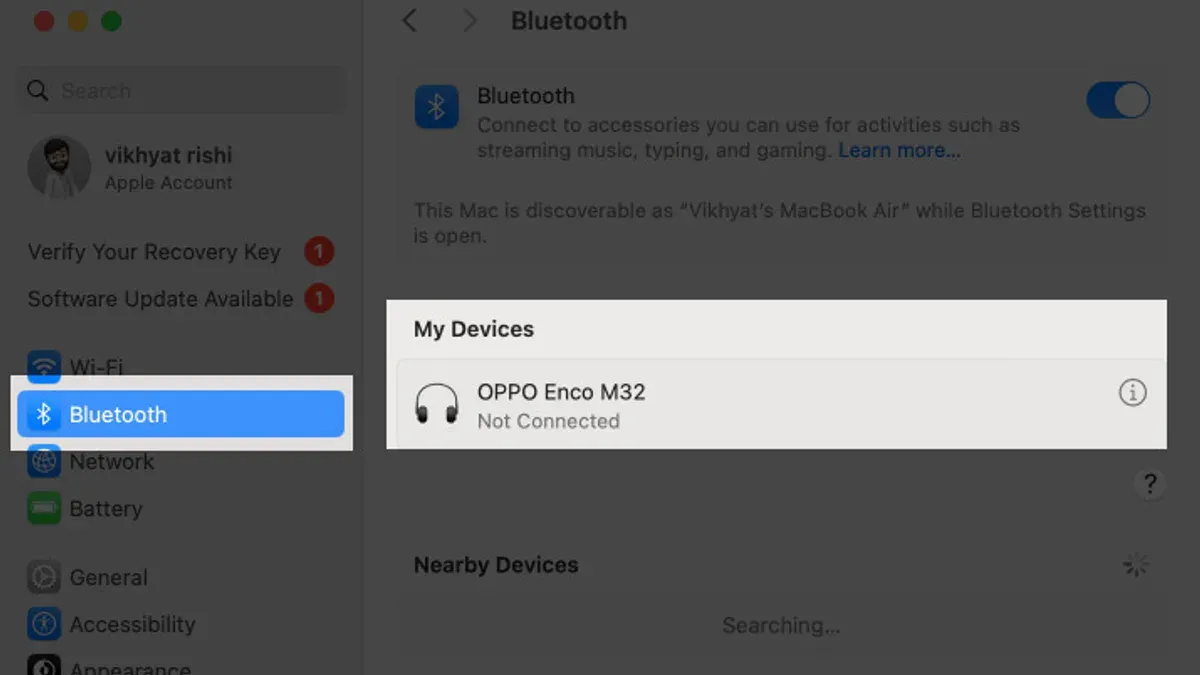
You open your Mac expecting to connect your favorite Bluetooth headphones, only to find the Bluetooth menu greyed out or reporting as unavailable. This sudden loss of Bluetooth functionality can halt your workflow and cause real frustration.
This article covers a thorough, step-by-step "Bluetooth not available on Mac fix" designed to help you identify whether the issue stems from software glitches, hardware miscommunication, or permission conflicts. You'll learn how to methodically reset Bluetooth components, check key system settings, and apply fixes often overlooked by generic guides.
By following this guide, you’ll gain confidence in diagnosing and restoring Bluetooth functionality without resorting to unnecessary repairs or full system resets.
Key takeaways
- Start by verifying basic settings and connection status in System Preferences under Bluetooth.
- Reset the Bluetooth module using Terminal commands to clear low-level faults.
- Delete Bluetooth configuration files from the Library folder to remove corrupted system caches.
- Reset NVRAM and SMC to restore hardware-related Bluetooth settings.
- Use Disk Utility and Terminal to check and repair Bluetooth permission issues that block proper operation.
Before You Start: What You Need to Check
Before diving into Bluetooth troubleshooting, ensure your Mac model supports Bluetooth. You can verify this by clicking the Apple menu > About This Mac > Overview tab. Your Mac model and year will be listed here. Most Macs from recent years include Bluetooth, but verifying avoids unnecessary steps.
Next, check the Bluetooth icon in your menu bar, usually near the clock. If you don’t see it, go to System Preferences > Bluetooth and enable "Show Bluetooth in menu bar." The icon’s status can indicate if Bluetooth is active, searching, or unavailable.
Confirm you have administrative access on your Mac. Many fixes require entering system passwords to modify settings or reset hardware.
Gather recent system change information, such as macOS updates, new software installations, or changes to network settings. These can affect Bluetooth functionality.
Finally, inspect your environment for physical damage to your Mac or sources of wireless interference. Common interference includes microwaves, cordless phones, or other nearby wireless devices that may disrupt Bluetooth signals.
- Click the Apple menu > About This Mac > Overview tab. You should see your Mac model and year listed here.
- Look for the Bluetooth icon in the menu bar. If it’s missing, open System Preferences > Bluetooth and check “Show Bluetooth in menu bar.” The icon should appear, showing its current status.
- Verify that you can access System Preferences and enter your administrator password if prompted. This confirms you have admin rights.
- Recall if you installed any system updates or new applications recently that could coincide with Bluetooth issues.
- Examine your Mac’s physical condition and move away or turn off devices like microwaves or cordless phones that might interfere with Bluetooth signals. You should notice improved connectivity with fewer interference sources.
Turn Bluetooth Off and On Again Using System Preferences
Sometimes Bluetooth issues stem from temporary glitches in the system or the Bluetooth service itself. Restarting Bluetooth through System Preferences is a straightforward way to refresh connections and drivers without more invasive actions. This can resolve problems like devices failing to connect or Bluetooth showing as unavailable.
- Open System Preferences by clicking the Apple menu and selecting it.
- Click on the Bluetooth pane to open Bluetooth settings.
- Click the Turn Bluetooth Off button. You should see the status change to "Bluetooth: Off" and the Bluetooth icon in the menu bar will dim or disappear.
- Wait a few seconds, then click Turn Bluetooth On. The status should switch to "Bluetooth: On" and the menu bar icon will become active again.
- Check the Bluetooth menu bar icon and the devices list in System Preferences to confirm devices reconnect or a previously unavailable status changes to available.
For example, before toggling Bluetooth off, you may see the status as "Bluetooth: Not Available" or devices not connecting. After turning it off and on again, the status often updates to "Bluetooth: On," with devices reconnecting normally. This quick refresh can solve many common temporary Bluetooth issues efficiently.
Reset the Bluetooth Module via Terminal
Sometimes, Bluetooth issues stem from corrupted configurations within the Bluetooth module itself, which are not resolved by simply toggling the Bluetooth in System Preferences. Resetting the Bluetooth module at a deeper system level can clear these corrupt states and restore normal functionality. This process requires using Terminal commands with administrator privileges, so you will need your Mac's admin password ready.
- Open the Terminal app from Applications > Utilities.
- Type sudo pkill bluetoothd and press Enter. This command terminates the Bluetooth daemon, forcing it to restart and reload its settings.
- Enter your admin password when prompted. Note that the password will not show as you type; this is normal.
- Wait a few seconds while the Bluetooth daemon restarts. During this time, Bluetooth devices may disconnect temporarily.
- Check the Bluetooth icon in the menu bar or open System Preferences > Bluetooth to verify that Bluetooth is now available. You should see devices reconnect or be able to pair new devices.
Before the reset, you might have seen the Bluetooth status as “Not Available” or experienced persistent connection failures. After the reset, the Terminal command output will be silent if successful, and the Bluetooth icon typically becomes responsive again. This method addresses deeper system-level glitches that are not accessible through the standard user interface.
Delete Bluetooth Configuration Files Safely
Corrupted Bluetooth preference files can cause your Mac to show Bluetooth as unavailable. Removing these files forces macOS to recreate fresh, error-free versions, often resolving the issue. Before deleting anything, it's crucial to back up these files so you can restore them if needed.
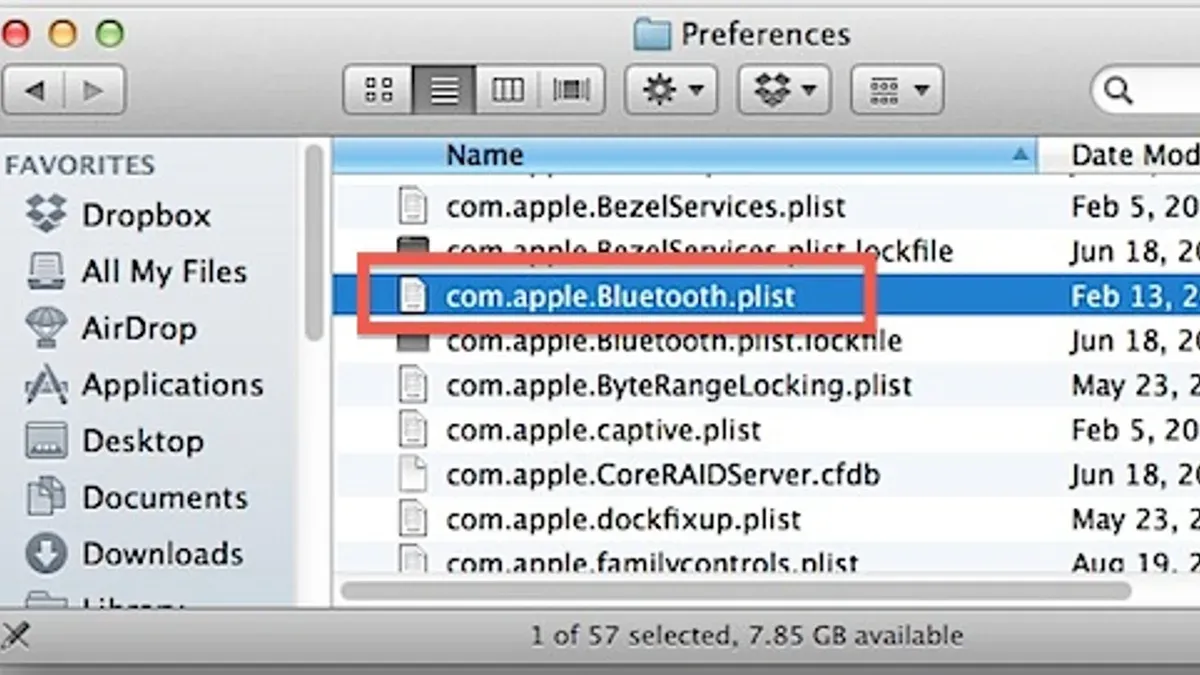
- Open Finder and press Shift+Command+G to open the "Go to Folder" dialog.
- Enter
~/Library/Preferences/and click Go. Locate files starting withcom.apple.Bluetooth, such ascom.apple.Bluetooth.plist. - Copy these files to a safe backup folder on your Desktop or another location you can easily access.
- Once backed up, move the original
com.apple.Bluetooth*files to the Trash. - Empty the Trash to ensure the files are deleted.
- Restart your Mac to allow the system to regenerate these preference files automatically.
After reboot, check if Bluetooth is now available. Many users see Bluetooth reappear and function normally once corrupted preference files are removed. This step removes hidden configuration conflicts that simpler resets cannot fix.
Reset NVRAM and SMC to Restore Bluetooth Hardware Settings
NVRAM (Non-Volatile Random-Access Memory) stores settings related to hardware configuration, such as speaker volume and display resolution, which can indirectly affect Bluetooth performance. The System Management Controller (SMC) handles low-level functions including power management and hardware initialization, making it crucial for resolving hardware-level issues affecting Bluetooth connectivity.
For Intel-based Macs, resetting NVRAM and SMC can often resolve Bluetooth unavailability caused by corrupted hardware settings. On M1 and later Macs, these resets happen automatically during startup, so manual intervention is unnecessary.
- Shut down your Mac completely.
- To reset NVRAM, turn on your Mac and immediately press and hold Option + Command + P + R keys together for about 20 seconds until the Mac restarts and you hear the startup chime twice (or see the Apple logo appear and disappear twice). Release the keys afterward. Successful reset is indicated by the Mac rebooting twice.
- To reset SMC on Intel-based Mac desktops, unplug the power cord, wait 15 seconds, plug it back in, wait 5 seconds, then press the power button to turn on. For Intel-based Mac notebooks with a non-removable battery, press Shift + Control + Option on the left side and the power button simultaneously for 10 seconds, then release all keys and press power to start. You should see the Mac power on normally.
- After both resets, check if Bluetooth is available and functioning in System Preferences. If the issue persists, proceed with other troubleshooting steps.
User reports suggest that resetting NVRAM and SMC often restores Bluetooth functionality when the problem stems from hardware settings conflicts or power management glitches.
Check and Repair Bluetooth Permissions Using Disk Utility and Terminal
Corrupted system permissions can block Bluetooth services from running correctly, causing the device to appear unavailable. To address this, start by running First Aid in Disk Utility, which checks and repairs disk permissions that may affect system processes, including Bluetooth.
- Open Disk Utility from the Applications > Utilities folder.
- Select your startup disk (usually named "Macintosh HD") from the sidebar.
- Click the First Aid button and confirm by selecting Run. Wait until the process completes and shows any repairs made.
Next, use Terminal to reset Bluetooth permissions at a deeper level. This step ensures the system grants the necessary access for Bluetooth daemons and services.
- Open Terminal from Applications > Utilities.
- Type
sudo chmod -R 755 /Library/Preferences/com.apple.Bluetooth.plistand press Enter. Enter your administrator password when prompted. - Then type
sudo chown root:wheel /Library/Preferences/com.apple.Bluetooth.plistand press Enter. - Restart your Mac to apply these changes.
To verify the fix, open Console (Applications > Utilities) and filter for "bluetoothd" messages. Before repair, you may see permission denied errors; after, these should be absent, and Bluetooth status in System Preferences should no longer show as unavailable.
Update macOS and Bluetooth Drivers
Outdated macOS software or Bluetooth drivers can cause your Mac’s Bluetooth to become unavailable due to compatibility issues or unresolved bugs. Apple frequently releases updates that include important fixes for connectivity problems, making it essential to keep your system current. Checking for updates and installing them can often resolve Bluetooth issues without further troubleshooting.
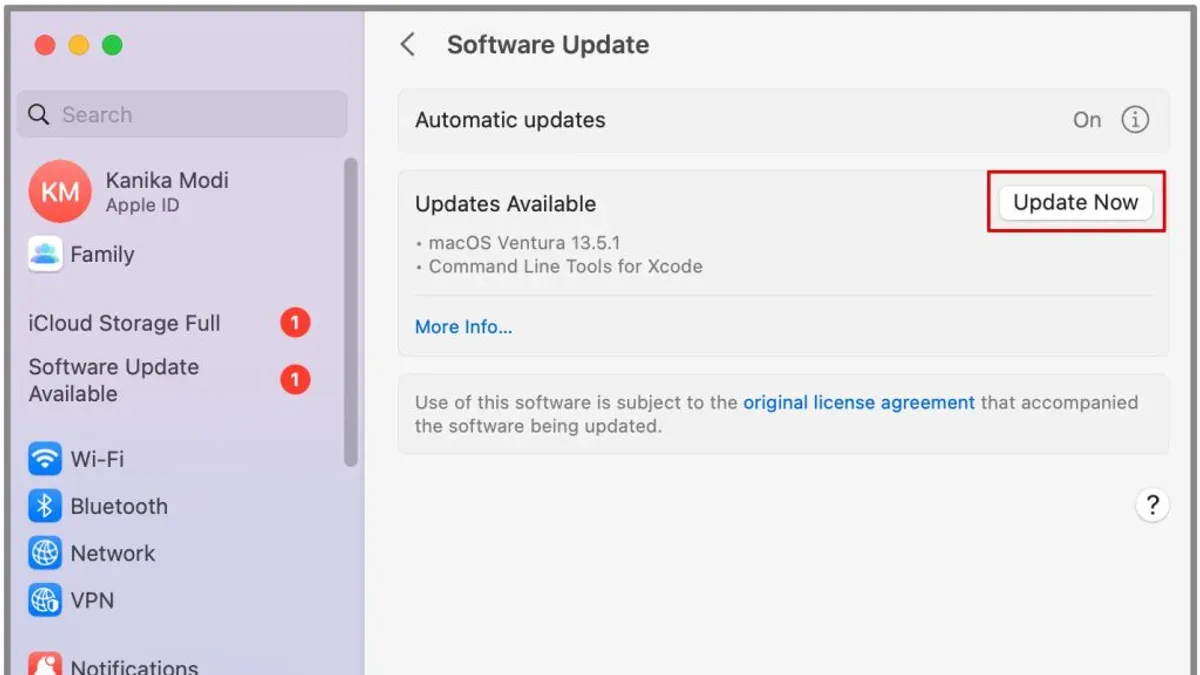
- Open System Preferences from the Apple menu and click Software Update. You should see if any macOS updates are available.
- If an update is listed, click Update Now. Your Mac will download and install the update, which may take several minutes depending on the size.
- After installation, your Mac will prompt a restart. Allow it to reboot completely to apply the update properly.
- Once restarted, return to System Preferences > Bluetooth to check if the Bluetooth status has changed from unavailable to available.
Many users notice Bluetooth functionality restored after updates, especially when update logs mention bug fixes related to wireless or Bluetooth connectivity. Regularly updating macOS ensures you benefit from Apple’s ongoing improvements and driver optimizations that help maintain stable Bluetooth performance.
Troubleshoot Common Bluetooth Failures
If previous steps have not restored your Bluetooth functionality, it’s time to investigate more persistent issues. Start by checking for any physical damage to your Mac’s Bluetooth antenna or nearby devices that might cause interference, such as microwaves, cordless phones, or Wi-Fi routers operating on the same frequency. Removing or relocating these can sometimes resolve connectivity problems.
Next, test Bluetooth in Safe Mode to determine if third-party software or extensions are causing conflicts. Restart your Mac and hold down the Shift key immediately after hearing the startup chime. In Safe Mode, observe if Bluetooth becomes available; if it does, incompatible software is likely interfering with Bluetooth in normal mode.
Use Apple Diagnostics to check for hardware faults that might be impairing Bluetooth. Shut down your Mac, then turn it on while holding the D key. Follow the on-screen instructions to run the test. If diagnostics report hardware issues, you should contact Apple Support or visit an authorized service provider for hardware repair.
Identifying whether Bluetooth problems stem from software or hardware makes choosing the next troubleshooting step clearer and helps avoid unnecessary repairs.
Frequently asked questions
Why does my Mac say Bluetooth is unavailable?
Your Mac may show Bluetooth as unavailable if the Bluetooth hardware is not responding properly, if system files related to Bluetooth are corrupted, or if there are permission issues preventing the system from accessing the Bluetooth service. Sometimes, recent system changes, including updates or third-party software conflicts, can also cause this message. Checking Bluetooth settings and performing targeted resets often resolves the issue.
How do I know if the Bluetooth hardware is faulty?
One clear sign of faulty Bluetooth hardware is when software fixes like resetting the Bluetooth module or deleting configuration files do not restore functionality. Additionally, if Bluetooth remains unavailable after resetting NVRAM and SMC, or if your Mac cannot detect any Bluetooth devices despite them being nearby, hardware issues may be present. Running Apple Diagnostics or visiting an authorized service provider can confirm hardware problems.
Can software updates cause Bluetooth to stop working?
Yes, software updates can sometimes introduce bugs or incompatibilities that affect Bluetooth performance. Occasionally, new macOS versions modify system files or drivers that interfere with Bluetooth connectivity. If Bluetooth issues start immediately after an update, checking for subsequent patches or reinstalling the update can help resolve the problem.
What should I do if Bluetooth still won’t turn on after these fixes?
If Bluetooth remains unavailable despite following all troubleshooting steps, consider creating a new user account to check if the problem is user-specific. If the issue persists system-wide, backing up your data and reinstalling macOS may be necessary as a last resort. When software solutions fail, contacting Apple Support or visiting an authorized repair center is recommended for hardware inspection.
What This Guide Does Not Cover
This guide does not cover physical repairs or internal hardware replacements. If your Bluetooth hardware is damaged or malfunctioning at a component level, professional service is required to diagnose and fix the problem. Similarly, this advice does not extend to issues caused by third-party hardware conflicts or software installed outside of macOS's native environment. For persistent hardware faults, visiting an Apple Store or authorized repair center is the safest option.
Bluetooth problems related to specific third-party accessories may need device-specific troubleshooting steps not included here. If your Bluetooth issue started after a recent hardware replacement or physical impact, consider hardware diagnostics before applying software fixes.
The single most useful next step is to methodically reset the Bluetooth module using Terminal commands. This action often restores core Bluetooth functionality by refreshing the system’s Bluetooth controller without risking data loss or extensive system resets. You can find this option under the Terminal by entering sudo pkill bluetoothd followed by a system restart, which many users overlook but frequently resolves the “Bluetooth not available” status efficiently.
See also: Fix MacBook Pro M1 Pro AirDrop Not Working: A Clear Step-by-Step Guide · How to Fix MacBook Pro M1 Pro Lagging and Freezing: A Step-by-Step Guide