
Can Mac Use External GPU? Clear Answers and How to Set It Up
Discover if your Mac supports external GPUs and how to set one up to boost graphics performance for demanding tasks like video editing and gaming.
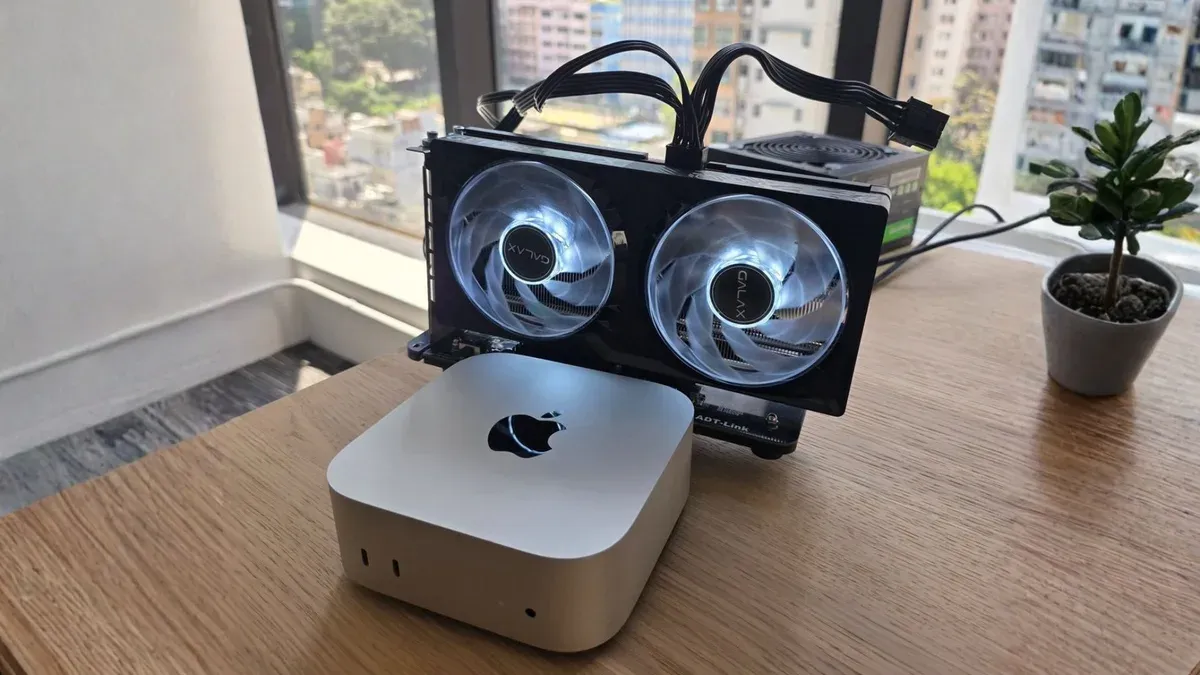
You might be wondering if you can boost your Mac’s graphics performance by connecting an external GPU. Whether you’re running intensive video editing software or playing graphics-heavy games, the question "can mac use external gpu" is common among Mac users seeking extra power.
This article guides you through understanding if your particular Mac model supports external GPUs, what type of GPUs Macs typically use, and how to set up an external GPU correctly. You'll also get insights on practical benefits and limitations based on your Mac model, including MacBook, Mac Mini, and Mac Studio.
Key takeaways
- Most Macs with Thunderbolt 3 or later ports support external GPUs but check your model’s specifications first.
- macOS supports AMD external GPUs natively; Nvidia GPUs require workarounds and are less straightforward.
- Using an external GPU can significantly improve graphics performance for compatible apps and workflows.
- Setting up involves connecting the eGPU via Thunderbolt, installing drivers if needed, and selecting the eGPU as the preferred graphics processor.
- MacBook users need to consider power and portability trade-offs when using an external GPU.
Can I attach external GPU to Mac?
Yes, you can attach an external GPU (eGPU) to many Mac models, provided they have Thunderbolt 3 or later ports. This connection allows you to boost your Mac's graphics performance, especially for demanding tasks like video editing, 3D rendering, or gaming. However, compatibility depends largely on your Mac model and the macOS version you are running.
Officially, Macs supporting eGPU include MacBook Pro models from 2016 onward, MacBook Air from 2018 onward, Mac mini from 2018 onward, iMac models released in 2017 or later, and the 2019 Mac Pro. Your Mac must be running macOS High Sierra 10.13.4 or later, with newer versions offering improved support and stability.
Users typically report noticeable improvements when using an eGPU with compatible Macs, particularly in graphics-intensive applications. Keep in mind that performance gains vary depending on the external GPU model and the application's ability to utilize the extra graphics power.
Does Mac have GPU and what GPU does Mac use?
Yes, every Mac has a GPU, but the type varies depending on the model. Most Macs feature integrated GPUs built directly into their processors. For example, Macs with Apple’s M-series chips include powerful integrated GPUs designed to handle a wide range of graphics tasks efficiently without needing separate hardware. Older Intel-based Macs often have Intel integrated graphics, which are suitable for basic use but less capable for demanding graphics work.
Some MacBook Pro models and desktop Macs come with discrete AMD GPUs. These dedicated graphics cards offer higher performance for tasks like video editing, 3D rendering, and gaming. The presence of a discrete GPU means your Mac already has enhanced graphics power, so adding an external GPU might not provide as significant a boost compared to models with only integrated graphics.
Understanding whether your Mac has an integrated or discrete GPU is key to deciding if an external GPU will be beneficial. Apple silicon GPUs have been optimized for performance and efficiency, reducing the need for external solutions unless you require very high-end graphics capabilities.
How to use external GPU with your Mac
To use an external GPU (eGPU) with your Mac, start by confirming that your Mac model and macOS version support eGPU functionality. You need macOS 10.13.4 or later and a Mac equipped with Thunderbolt 3 ports. Next, select a compatible eGPU enclosure and a supported graphics card, typically from AMD, as macOS does not officially support Nvidia cards for eGPU use.
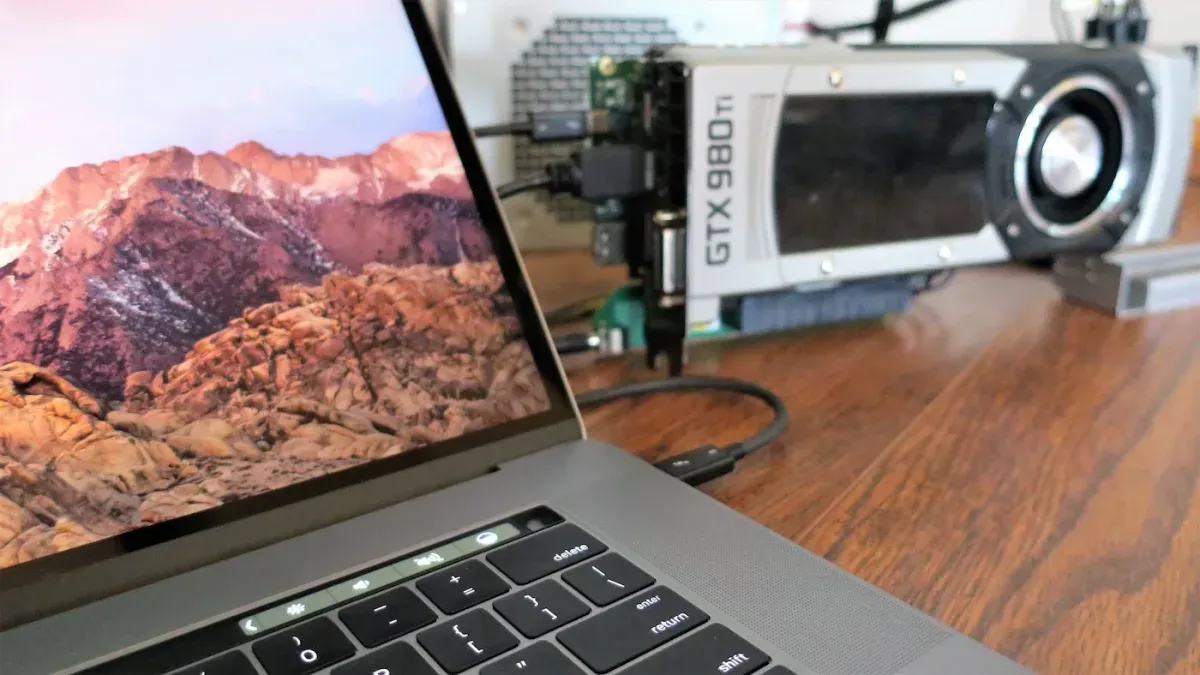
Begin setup by connecting the eGPU enclosure to your Mac via the Thunderbolt 3 cable. Power on the enclosure, then open System Preferences and navigate to Displays to confirm your Mac recognizes the external GPU. You can also check under the About This Mac > System Report > Graphics/Displays section to verify the eGPU is listed.
For optimal performance, run applications that explicitly support eGPU acceleration, such as Final Cut Pro, Adobe Premiere Pro, or specific 3D rendering tools. In some apps, you may need to assign the eGPU by right-clicking the app icon, selecting Get Info, and checking Prefer External GPU. This ensures the app uses the eGPU instead of the internal GPU.
Performance improvements vary by application but can be significant, especially in graphics-intensive workflows. Remember to keep macOS updated to maintain compatibility and stability with your eGPU setup.
Can MacBook use external GPU and does MacBook have a GPU?
Yes, MacBook Pro models with Thunderbolt 3 or later ports support external GPUs, while MacBook Air models generally do not support eGPUs due to their integrated GPUs and hardware limitations. MacBook Airs typically rely on integrated graphics built into their processors, which limits their ability to utilize external GPU power effectively.
MacBook Pro models from 2016 onward usually come with Thunderbolt 3 ports and can connect to external GPUs to boost graphics performance. User reports show that pairing a MacBook Pro with a compatible eGPU can significantly improve tasks like video editing and 3D rendering, although the magnitude of improvement depends on the specific MacBook Pro model and the eGPU's GPU.
For example, a 16-inch MacBook Pro with a discrete GPU sees moderate gains with an eGPU, while a 13-inch model with only integrated graphics benefits more noticeably. Keep in mind that macOS limits eGPU acceleration to certain applications, so performance gains might vary. Checking a detailed model compatibility chart helps identify which MacBook Pro versions fully support external GPUs and what realistic performance improvements to expect.
What about Mac Mini and Mac Studio external GPU support?
Intel-based Mac Minis with Thunderbolt 3 ports can support external GPUs, allowing you to boost graphics performance if your workload demands it. You connect the eGPU enclosure via Thunderbolt 3 and configure it similarly to other compatible Macs. However, Apple silicon Mac Minis do not officially support external GPUs, so attempts to use an eGPU with these models will not work reliably or may not be recognized by macOS.
Mac Studio models with Apple silicon come with very powerful integrated GPUs designed to handle demanding professional graphics tasks. Because of this, Apple does not provide external GPU support for Mac Studio, and adding an eGPU is generally unnecessary. Benchmarks show that Mac Studio’s built-in GPU performance often surpasses what many external GPUs can deliver, making eGPU use redundant.
If you have an Intel Mac Mini and require better graphics capabilities, an external GPU is a practical option. For Apple silicon Mac Mini and Mac Studio users, focusing on software optimization and the built-in GPU is the recommended approach.
Mac GPU vs Nvidia: What you need to know
Macs primarily use AMD GPUs or Apple silicon GPUs rather than Nvidia hardware, which shapes external GPU compatibility. macOS offers limited support for Nvidia GPUs because Nvidia drivers are not fully integrated into the system, making Nvidia eGPU setups less reliable and often problematic.
When considering an external GPU for your Mac, choosing an AMD-based eGPU is generally the safer and more compatible option. Apple’s macOS includes native support for AMD GPUs, ensuring smoother installation, driver updates, and better performance consistency compared to Nvidia eGPUs.
Many users attempting to use Nvidia GPUs with Macs encounter driver issues, lack of official support, or the need for complex workarounds that may not work well with recent macOS versions. In contrast, AMD eGPU enclosures tend to be plug-and-play, with fewer configuration hurdles.
In summary, if you want a hassle-free external GPU experience on your Mac, selecting an AMD GPU enclosure aligns best with macOS compatibility and user experience. Nvidia GPUs remain a less practical choice due to driver limitations and macOS’s ecosystem.
Frequently asked questions
Does mac has gpu?
Yes, all Macs come with a built-in GPU, either integrated into the processor or as a discrete graphics card. The exact GPU depends on your Mac model—for example, many MacBook Airs use integrated graphics, while some MacBook Pros and Mac Studios include more powerful discrete GPUs. You can check your GPU by going to Apple menu > About This Mac > System Report > Graphics/Displays.
Can you use external gpu on laptop?
You can use an external GPU (eGPU) on certain Mac laptops that have Thunderbolt 3 or Thunderbolt 4 ports. However, only specific Mac models support eGPUs, mainly Intel-based Macs and some Apple Silicon Macs with limited support. The macOS version must also support eGPUs, typically macOS Catalina or later.
Do macbooks have a gpu?
MacBooks do have GPUs, but the type varies by model. Most MacBook Airs rely on integrated GPUs within the Apple M-series chips or Intel processors. MacBook Pros often have more powerful integrated GPUs or dedicated discrete GPUs, especially in higher-end models. You can confirm the exact GPU by checking the system information on your device.
Can you have an external gpu?
Yes, you can connect an external GPU to compatible Macs via a Thunderbolt 3 or Thunderbolt 4 port. To do this, you need an eGPU enclosure with a supported graphics card inside. Keep in mind, macOS supports a limited range of AMD GPUs for eGPU use, so Nvidia cards are generally not compatible.
Does my mac have a gpu?
To find out if your Mac has a GPU and which one it uses, open the Apple menu and select About This Mac. Click on System Report, then choose Graphics/Displays. This section lists the GPU model and details, showing whether it’s integrated or discrete and its specifications.
Honest Limits of External GPU Advice
This advice does not cover hacking or unofficial workarounds for unsupported Macs, which may risk system stability or void your warranty. If your Mac model is not officially supported for external GPU use, attempting to force compatibility can lead to unpredictable performance or software issues. Additionally, this guidance does not address software-level GPU acceleration limits or the impact of specific apps that may not benefit from an external GPU. For users with older Macs or models lacking Thunderbolt 3 or later ports, external GPUs are generally not a practical solution.
If your needs extend beyond the scope of official support, or you require consistent professional-grade GPU performance, considering a Mac model designed with powerful internal graphics or exploring other hardware options may be a better path.
Your Next Step: Check Your Mac’s Thunderbolt Port and macOS Version
The single most useful next step is to verify that your Mac has a Thunderbolt 3 (USB-C) or Thunderbolt 4 port, as this is essential for external GPU compatibility. You can find this by clicking the Apple menu > About This Mac > System Report > Thunderbolt. Also, confirm your macOS version supports eGPU, generally macOS High Sierra 10.13.4 or later, by going to System Preferences > Software Update. Ensuring both hardware and software compatibility is key before investing in an external GPU setup.
See also: Can Mac Use NTFS? Clear Answers and Practical Solutions · Can Mac Use Steam? Clear Answers and How to Get Started



