
Can Mac Use Steam? Clear Answers and How to Get Started
Discover how to use Steam on Mac, including installation, game compatibility, and tips for smooth gameplay on macOS devices.
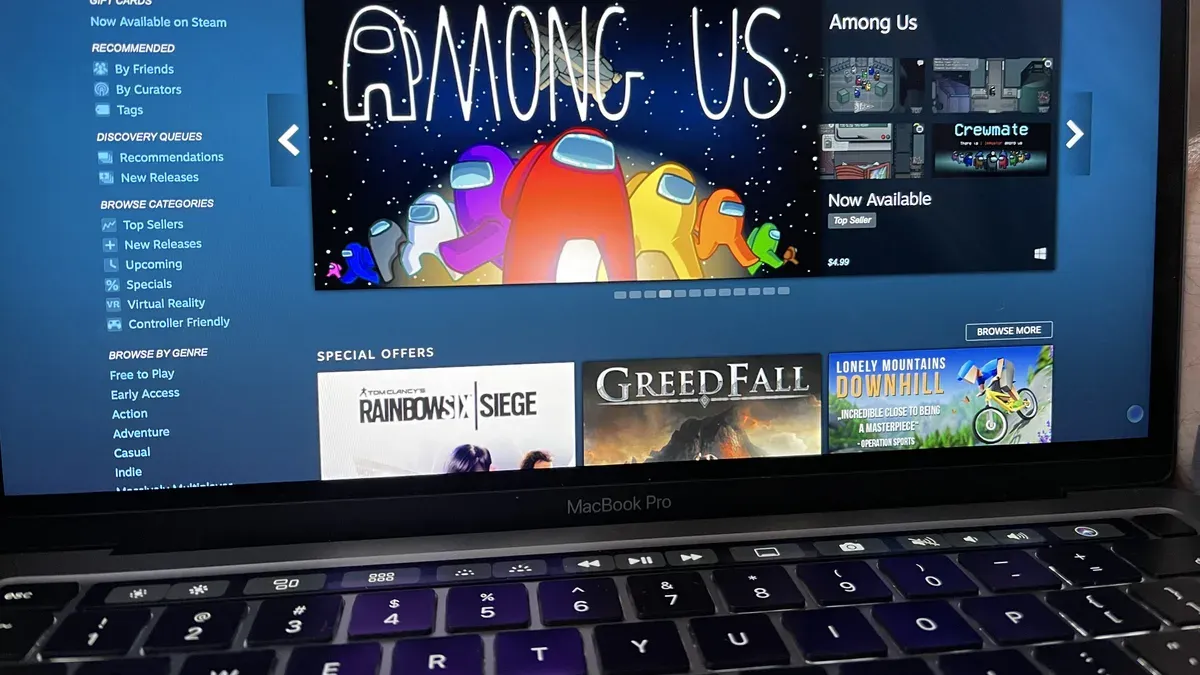
You’ve heard about Steam’s vast game library and wonder if it’s a good fit for your Mac. Maybe you’ve tried downloading Steam but aren’t sure if it will run smoothly or if all your favorite games are available. If you’re asking, can mac use steam effectively, you’re in the right place.
This article walks you through using Steam on macOS or MacBook, covering installation, game compatibility, and performance tips. You’ll also learn about Steam Link and Remote Play options, plus how Proton can help you run Windows-only games on your Mac. Finally, you’ll find practical advice for what to do if some games won’t run as expected.
Key takeaways
- Steam is fully supported on macOS with a dedicated client available from the Steam website.
- You can use Steam Link and Remote Play to stream games from other devices to your Mac.
- Proton compatibility layers help run many Windows games, but performance varies by title and Mac hardware.
- Checking game system requirements and adjusting Steam settings improves playability on Mac.
- If a game won’t run, exploring alternatives like cloud gaming or Windows virtualization can help.
Can you use Steam on Mac?
Yes, you can use Steam on Mac computers. Valve provides an official Steam client that is compatible with macOS, which you can download directly from Steam's website. This client lets you browse, purchase, and play a wide range of games designed to run on Mac systems.
However, it's important to understand that not every game available on Steam supports macOS. While a significant portion of the Steam library includes Mac-compatible titles, many games remain Windows-exclusive. Steam's platform filters and labels games by operating system to help you identify which ones will work on your Mac.
Installing Steam on your Mac involves downloading the macOS installer from the official Steam page, running it, and following the setup prompts. Once installed, you can access your library, but be prepared to check each game's system requirements to confirm Mac compatibility before downloading or purchasing.
How to use Steam on Mac
To use Steam on your Mac, start by downloading the Steam installer from the official Steam website. Open your preferred browser, go to store.steampowered.com/about/, and click the "Install Steam" button for macOS. Once the installer is downloaded, double-click the.dmg file, then drag the Steam icon into your Applications folder to install it.
Next, launch Steam from your Applications folder. If you don’t already have a Steam account, click "Create a new account" and follow the prompts to set up your profile. If you have an account, simply click "Login" and enter your credentials.
After signing in, browse the Store tab to find games that are compatible with macOS; these are usually marked with the Apple logo under system requirements. When you find a game you'd like, click "Add to Cart," complete your purchase, then go to your Library tab to download and install the game. You can monitor download progress in the Library under the "Downloads" section.
To manage your Steam settings on Mac, open the Steam menu and select "Preferences." Here, you can adjust download restrictions, such as limiting bandwidth or scheduling downloads to specific times, which helps when managing your network usage. Also, enabling Steam’s built-in cloud sync ensures your game saves stay updated across devices.
Can Mac use Steam Link and Steam Remote Play?
Yes, you can use both Steam Link and Steam Remote Play on a Mac, which expands your gaming options beyond what your Mac can run natively. Steam Link is an app that lets you stream games from another computer running Steam, typically a more powerful Windows PC, to your Mac. Steam Remote Play allows you to play games installed on that remote PC as if they were running locally, using your Mac as a display and input device.
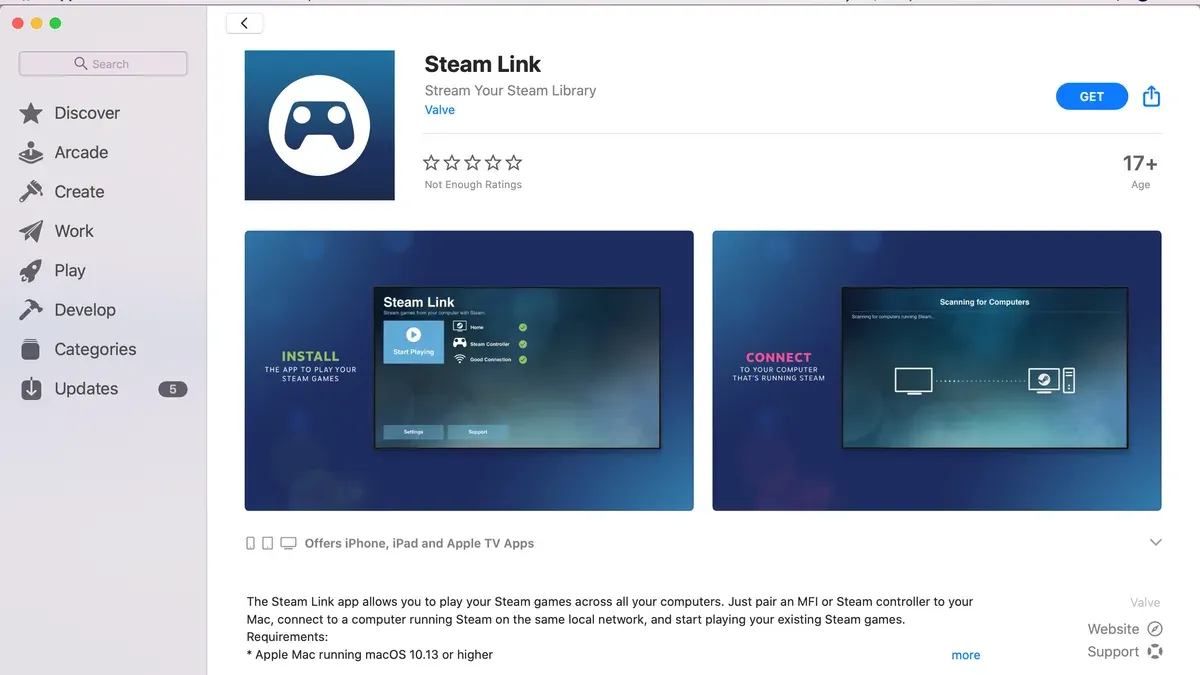
To set up Steam Link on your Mac, download the Steam Link app from the Mac App Store. Once installed, open the app and follow the prompts to connect it to your main gaming PC running Steam over the same local network. The pairing process involves scanning a code or entering a PIN displayed on your Mac. After connection, you can browse and launch games from your PC’s Steam library directly on your Mac.
Using Steam Remote Play to stream games depends heavily on your network quality. For smooth gameplay, a wired Ethernet connection or a strong 5GHz Wi-Fi network is recommended. Latency can vary, but a well-optimized setup generally provides responsive controls and high-quality streaming. Keep in mind that network congestion or distance from the router can cause lag or lower image quality. This method effectively lets you enjoy Windows-only or graphically demanding games on your Mac without needing the native compatibility.
Can Mac use Steam Proton to play Windows games?
No, Steam Proton is not officially supported on macOS, so you cannot use it directly to run Windows-only Steam games on your Mac. Proton is a compatibility layer developed by Valve that allows many Windows games to run on Linux through Steam, but it relies on Linux-specific system components that macOS does not provide.
Instead, Mac users have alternative methods to play Windows Steam games. If you have an Intel-based Mac, Boot Camp is a reliable option that lets you install Windows natively, providing full performance for gaming. For Macs with Apple Silicon chips, Boot Camp is not available, so virtualization software such as Parallels Desktop or VMware Fusion is necessary. These tools create a Windows virtual machine, but performance can be limited compared to native Windows, especially for graphics-intensive titles.
Third-party projects like CrossOver or Wine offer some ability to run Windows games on macOS without full Windows installation, but compatibility varies and setup can be complex. Checking compatibility charts for your specific games and hardware is essential before choosing the best method. In summary, Proton itself is Linux-only, so on Mac, using Boot Camp (Intel) or virtualization (Apple Silicon) are your practical paths to access Windows Steam games.
What to do if your Mac can’t run the Steam game you want
If your Mac can’t run a specific Steam game natively, start by carefully checking the game’s system requirements on its Steam store page. Look for macOS compatibility and minimum hardware needs like CPU, GPU, and RAM. For example, popular titles like "Cyberpunk 2077" require high-end graphics and are Windows-only, which explains why they won’t run directly on most Macs.
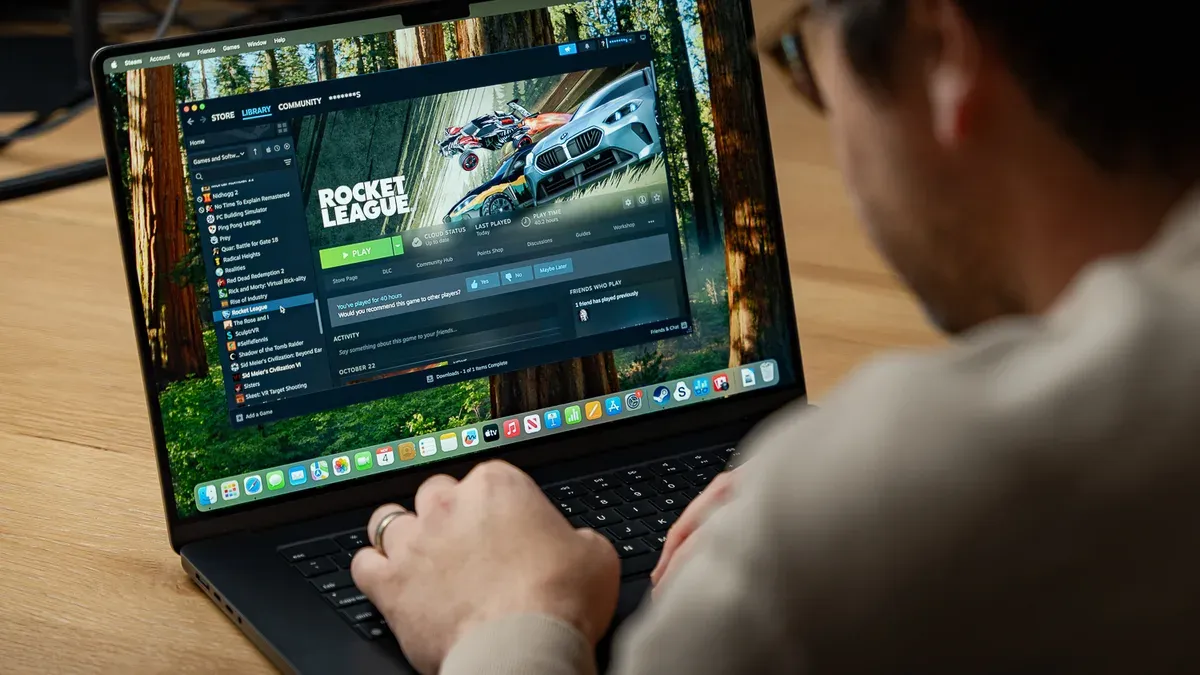
One practical alternative is using Steam Remote Play to stream the game from a Windows PC. This method works well if you have a powerful PC on the same network and a stable connection. Streaming "Doom Eternal," which lacks native Mac support, often offers smooth gameplay through Remote Play when the network is good.
Cloud gaming services such as NVIDIA GeForce Now or Xbox Cloud Gaming can also provide access to Windows-only games without needing local hardware upgrades. These services handle the game processing remotely and stream video to your Mac, though latency and image quality will depend on your internet speed.
If you prefer local play and your Mac’s hardware is limiting, consider upgrading components where possible. Intel-based Macs can sometimes benefit from external GPUs (eGPUs) via Thunderbolt 3, which significantly boosts graphics performance. Note that Apple Silicon Macs currently don’t support eGPUs, so virtualization options or streaming remain better choices there.
Frequently asked questions
Can you use steam on mac os?
Yes, Steam is fully compatible with macOS. You can download the Steam client directly from the official Steam website, install it, and access a wide selection of games designed for Mac. Keep in mind that not all Steam games support macOS, so check the game's system requirements before purchase.
Can i use steam on mac?
Absolutely, you can use Steam on a Mac by installing the Steam app available for macOS. After installation, log in or create an account, and browse the Steam store for games compatible with your Mac's hardware and operating system version.
Can you use steam on a mac book?
Yes, Steam works on MacBook models running supported versions of macOS. Whether you have a MacBook Air or MacBook Pro, you can download Steam, but performance will depend on your MacBook’s specifications and the demands of the game you want to play.
Can an apple mac use steam?
Apple Macs can use Steam as long as they meet the minimum software and hardware requirements. Steam’s macOS client supports Intel and Apple Silicon Macs, though some older Macs might face performance limitations with certain games.
How to use steam link on mac?
To use Steam Link on your Mac, first download the Steam Link app from the Mac App Store. Make sure your Mac and the host PC or Steam machine are connected to the same network. Open the app, pair it with your Steam library on the host device by entering the provided PIN, and start streaming your games directly to your Mac.
What This Advice Does Not Cover
This article does not cover in-depth troubleshooting for specific hardware issues or third-party software installations that may void warranties or violate terms of service. If your Mac has unique hardware configurations or you plan to install unofficial software to enhance Steam compatibility, you should seek specialized support or consult official Apple and Steam resources. Additionally, this guide does not address detailed network troubleshooting for Steam Remote Play, which can require advanced adjustments depending on your router and internet setup.
The best next step is to download Steam directly from the official Steam website and install it using the standard macOS installer. After launching Steam, sign in with your account, and explore the macOS-compatible games section. This approach ensures you start with the most stable, supported setup tailored to your Mac without risking system stability or violating terms.
See also: Can Mac Use NTFS? Clear Answers and Practical Solutions · Can iMac M4 Run Starcraft 2? A Clear Compatibility Guide · Can iMac M4 Run Age of Empires 2 or 4? A Clear Guide · Can Your iMac M4 Run Civilization VI? A Clear and Practical Guide



