How to Collaborate Effectively in Freeform: A Step-by-Step Guide
Discover practical steps to collaborate in Freeform, enabling real-time teamwork and efficient content management across Apple devices.
You open a Freeform board to organize your project, only to realize your teammates are editing the same content simultaneously. Messages fly back and forth as you try to sync ideas and update each other in real time. If you've wondered how to collaborate in Freeform in Freeform without losing track or creating duplicates, this guide is for you.
This article walks you through practical workflows tailored to Freeform's real-time collaboration features. You'll learn how to start boards, share them efficiently, manage content drops, and troubleshoot common issues, all while supporting cross-device teamwork. Each step builds on the last, helping you and your team work smoothly and stay on the same page.
Key takeaways
- Enable real-time collaboration by sharing Freeform boards via Messages or Mail with edit permissions.
- Use drag-and-drop to add images, files, and notes smoothly, avoiding duplicate content.
- Check Freeform’s sync status in the top-right corner to ensure all participants see updates instantly.
- Organize dropped content with stacks and grids to keep boards clear and navigable.
- Resolve common issues by verifying network connections and updating devices to the latest system version.
Before You Start Collaborating in Freeform
Freeform is an Apple app designed for brainstorming and organizing ideas on a flexible, shared canvas. To collaborate effectively, you need compatible Apple devices running supported operating systems. Freeform works on iPhone, iPad, and Mac, requiring iOS 16.2 or later, iPadOS 16.2 or later, and macOS Ventura 13.1 or later. Ensuring your devices meet these requirements is the first step to smooth collaboration.
Collaboration in Freeform depends on having an Apple ID signed into iCloud on all participating devices. Each collaborator must be connected to the internet so changes sync in real time. Make sure iCloud Drive is enabled in Settings under your Apple ID to allow Freeform boards to be shared and updated seamlessly across devices.
Freeform is a free app from Apple, included with supported devices and does not require a separate purchase or subscription. This distinguishes it from unrelated apps like Typeform, which is an online form-building platform, and Free Form, which is a different app altogether. Understanding this helps avoid confusion when searching for collaboration tools.
- Check your device’s OS version by opening Settings > General > About > Software Version. You should see iOS 16.2, iPadOS 16.2, or macOS Ventura 13.1 or later. Successful update means your device supports Freeform collaboration.
- Verify you are signed in with your Apple ID by going to Settings > [your name]. If signed in, your Apple ID email appears at the top. This confirms you can share boards via iCloud.
- Ensure iCloud Drive is active by opening Settings > [your name] > iCloud and toggling on iCloud Drive. When enabled, Freeform boards can sync automatically.
- Confirm you have an active internet connection. Open a browser or app that requires online access and verify content loads properly. This ensures your collaboration updates will sync in real time.
How to Use Freeform App for Collaboration
- Download and open the Freeform app from the App Store on your supported Apple device. When you launch the app, you will see the main screen with options to create or open boards.
- Create a new board by tapping the + icon in the top-right corner. Once created, your blank canvas appears ready for input.
- Invite collaborators by tapping the Share button, usually represented by a person icon with a plus sign. Enter the email addresses or Apple IDs of your team members. After sending the invitation, you will see a list of invited collaborators with their status.
- Set permissions for each collaborator by tapping their name in the collaborator list. Choose from Can Edit or View Only. Confirm these settings to control who can modify the board.
- Use Freeform’s built-in tools to add content: select the drawing tool to sketch or annotate, tap the note icon to add text notes, insert images via the media button, and add links by pasting URLs. Each element appears as a movable object on your board.
- As collaborators join and interact in real time, you can observe their pointers or edits live on your device, ensuring smooth teamwork.
[Step-by-step visuals and screenshots showing each interface element: creating boards, invite dialog, permission toggles, and sample content types, should accompany these instructions for clarity.]
How to Use Freeform in SolidWorks Workflow
Freeform is a visual collaboration tool designed to complement, not replace, CAD software like SolidWorks. It excels at early-stage brainstorming and sketching, allowing teams to quickly share ideas before detailed modeling begins. By using Freeform boards, you can gather initial concepts, annotations, and feedback in a flexible space that supports images, drawings, and notes.
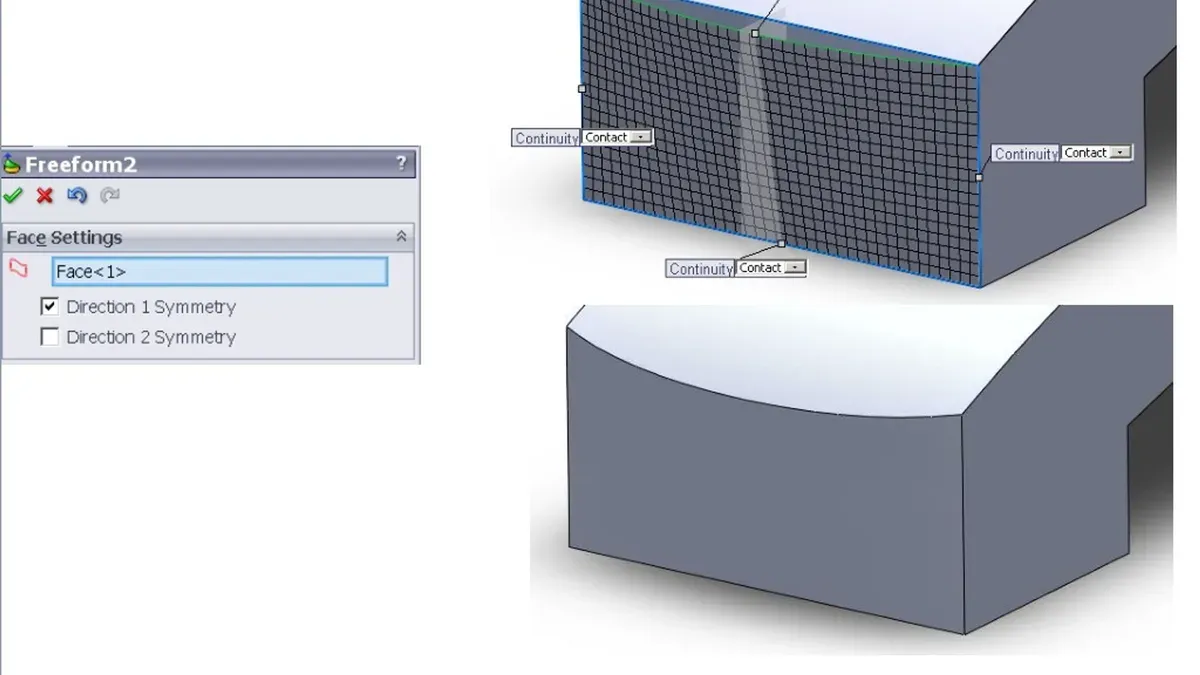
To integrate Freeform with SolidWorks effectively, start by creating a Freeform board to capture rough sketches or inspiration images. This visual resource can then be referenced or exported alongside SolidWorks files, helping team members align on design intent. Remember, Freeform does not handle 3D modeling but acts as a collaborative canvas to prepare for that stage.
Here is a practical example from a product design team: they created a Freeform board to compile sketches and mood images for a new device concept. After gathering input and refining ideas on the board, the team used these visuals as a reference while building the detailed SolidWorks model. This workflow kept collaboration fluid and allowed rapid iteration before investing time in precise CAD work.
- Open Freeform and create a new board dedicated to your product concept. You should see a blank canvas ready for input.
- Invite your design team to the board and encourage them to add sketches, photos, or notes. As collaborators contribute, these elements will appear in real time.
- Use Freeform's drawing tools to sketch rough shapes or workflows related to your SolidWorks project. When done, the board will display a clear visual summary of ideas.
- Export the Freeform board as a PDF or image through the Share menu. You should now have a file that can be attached or referenced alongside SolidWorks project files.
- In your SolidWorks workflow, refer to the Freeform board frequently to ensure modeling aligns with the collaborative concepts developed earlier. This keeps everyone on the same page.
How to Use Freeform on Windows
Freeform is designed exclusively for Apple devices, so there is no native Windows app available. However, you can still access Freeform content on Windows through the iCloud web interface at iCloud.com. While iCloud.com allows you to view and lightly interact with Freeform boards, the experience is limited compared to the full app on Apple devices.
For more robust collaboration on Windows, consider alternative apps that offer similar functionality, such as Microsoft Whiteboard, Miro, or MURAL. These platforms provide cross-device real-time collaboration with features like sticky notes, drawing tools, and content embedding. They can integrate well into workflows involving users on both Windows and Apple devices.
| Feature | Freeform (Apple Devices) | Windows Alternatives (e.g., Microsoft Whiteboard, Miro) |
|---|---|---|
| Native Windows app | No | Yes |
| Real-time collaboration | Yes, seamless | Yes, seamless |
| Rich multimedia support | Yes | Yes |
| Integration with Apple ecosystem | Strong | Limited or none |
For cross-platform teams, a practical workflow involves Apple users creating and collaborating in Freeform, then exporting boards as PDFs or images to share with Windows users. Windows users can contribute through alternative apps and share their updates as files or links. Regular sync meetings help ensure alignment despite platform differences.
- Open a browser on your Windows PC and navigate to iCloud.com.You should see the iCloud sign-in page.
- Sign in with your Apple ID credentials.The iCloud dashboard appears with available apps.
- Click the Freeform icon to open your shared boards.You will see a list of accessible Freeform boards, but editing capabilities will be limited.
- To collaborate more fully, consider using a Windows-friendly whiteboard app alongside Freeform.You should have a second app ready to create and share content with your team.
- Coordinate with team members to exchange exported Freeform boards (PDFs or images) and update shared files regularly.This keeps everyone informed despite device differences.
How Does Freeform Work for Real-Time Collaboration?
Freeform enables seamless real-time collaboration by instantly syncing changes across all participants’ devices. When you or your teammates add, move, or edit content on a board, those updates appear immediately for everyone, ensuring that the team stays aligned without manual refreshes. You will see colored cursors or presence indicators representing each collaborator, making it clear who is active and where they are working on the board.
To manage potential conflicts when multiple users edit the same element simultaneously, Freeform uses a last-write-wins approach combined with subtle visual cues. If you and a teammate modify the same sticky note at once, the system merges changes or highlights the latest update, preventing confusion and data loss. Communicating through comments or embedded notes within Freeform helps clarify intentions and reduces editing overlaps.
Here is a typical workflow for live collaboration:
- Open the shared Freeform board from your iCloud account. You should see collaborator avatars or colored dots along the board edges indicating active users.
- Begin editing or adding content; your changes will appear on others’ screens instantly, along with your cursor color and name label.
- Observe other participants’ cursors and edits in real time, which helps coordinate who is working on which area.
- If you notice conflicting edits, leave a comment or use Freeform’s built-in chat to discuss and resolve before proceeding.
- Save periodically and confirm that all collaborators see the latest updates without lag or missing elements.
This live interaction model supports dynamic brainstorming and quick iteration, making Freeform a practical choice for teams needing fluid, transparent collaboration.
How to Start Freeforms and Share Them with Your Team
Creating and sharing Freeform boards efficiently sets the stage for smooth collaboration. Begin by launching the Freeform app and tapping the New Board button, typically marked with a plus sign. This opens a blank canvas where you can start adding content immediately. Alternatively, you can choose from available templates or duplicate a previous board by selecting it and tapping the Duplicate option; this saves time and maintains design consistency.
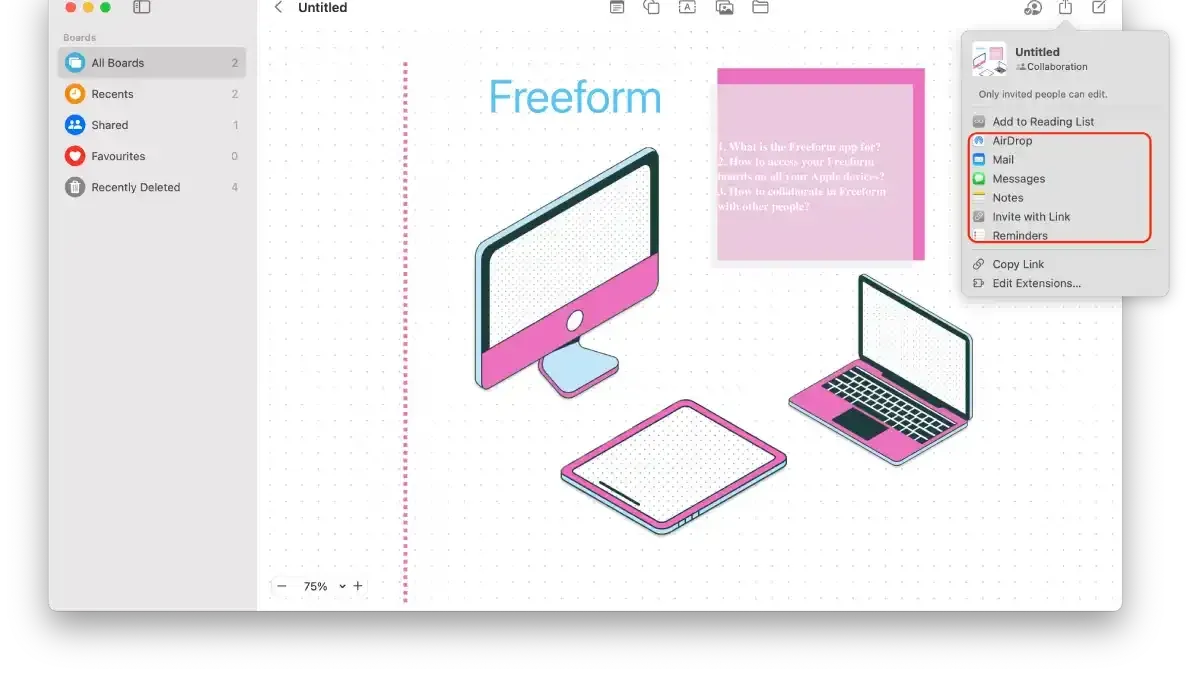
Once your board is ready, sharing it with your team is straightforward. Tap the Share icon, usually located at the top right of the board. Here, select Invite People to add collaborators by entering their email addresses or names if they are in your contacts. You can also generate a shareable link for broader access by choosing Copy Link. The link can be set with specific permission levels: Can Edit allows full collaboration, while Can View restricts changes.
Managing permissions carefully prevents unwanted edits. After sending invitations or sharing the link, you can adjust permissions anytime through the Manage Sharing menu. Notifications for changes can be toggled on or off to help collaborators stay updated without overwhelming their inboxes. Confirm successful sharing when you see the list of invited users and their permission status displayed in the sharing panel.
- Tap the New Board button in Freeform to start a blank board. You should see a blank canvas ready for your input.
- To use a template, tap Templates and select one, or open a previous board and tap Duplicate. The new board will open with the selected layout.
- Tap the Share icon, then choose Invite People. Enter email addresses; you will see them appear in the invite list.
- Set permissions by tapping each invitee’s role and selecting Can Edit or Can View. The permission icon updates accordingly.
- Alternatively, tap Copy Link to create a shareable link. Choose the permission level for the link, then share it. A confirmation message appears when the link is copied.
- Review and adjust permissions anytime via Manage Sharing. The interface shows current collaborators and their access levels.
- Enable or disable notifications for collaborators under Sharing Settings to control update alerts. The toggle switch reflects your choice.
How to Get Freeforms to Drop and Organize Content Smoothly
Adding and arranging content in Freeform is intuitive once you get familiar with its drag-and-drop features and organizational tools. You can drag images, text snippets, PDFs, and other files directly onto your board from your device or other apps. When the item appears, you can move it freely by dragging with your finger or mouse. Resize objects by dragging their corners or edges to fit your layout needs.
To keep your board tidy, use Freeform’s grouping and layering options. Select multiple items by tapping and dragging around them or holding Shift while clicking. Then, group them via the contextual menu to move or resize these elements together. Organize content into sections by creating frames or using color-coded backgrounds to visually separate ideas.
Watch out for common pitfalls like overlapping too many objects without grouping, which makes later adjustments difficult. Avoid clutter by spacing content evenly and using layers to keep essential items visible. For example, a cluttered board might have scattered images and text overlapping chaotically, whereas a well-organized board groups related items, uses whitespace effectively, and labels sections clearly.
- Drag an image or file from your device or another app onto the Freeform board. You should see the item appear immediately where you dropped it.
- Tap and drag the item to reposition it on the board. You will notice it moves smoothly under your finger or cursor.
- Drag the corners or edges of the item to resize it. The content should scale proportionally or crop depending on the file type.
- Select multiple items by tapping and dragging a selection box or holding Shift while clicking each. A highlight should appear around all selected objects.
- Right-click or tap the selection menu and choose "Group." The items now move and resize as one unit.
- Create a colored frame or section by selecting the frame tool and drawing it around grouped content. This visually segments your board.
- Arrange layers by selecting an item, right-clicking, and choosing "Bring to Front" or "Send to Back" to manage overlapping content. The item should move accordingly in the stack.
Troubleshooting Common Collaboration Issues in Freeform
When collaborating in Freeform, you may encounter sync delays, permission errors, version conflicts, or connectivity issues. Addressing these problems promptly keeps your teamwork flowing smoothly.
Fixing Sync Delays or Failures
- Check your internet connection and ensure all collaborators have stable access. When fixed, Freeform updates appear within seconds across devices.
- Close and reopen the Freeform app to refresh the sync process. You should see recent changes reflected immediately.
- If delays persist, sign out and sign back into iCloud on your device to reset sync tokens. After this, edits should sync without error messages.
Resolving Permission Errors and Access Problems
- Verify collaborator permissions by opening the board’s share menu and confirming roles (Can make changes vs. View only). Correct settings eliminate “Access Denied” errors.
- If collaborators cannot see updates, ask them to check their Apple ID login and iCloud Drive status.
Handling Version Conflicts and Accidental Deletions
- When you see conflict alerts, review changes on the board and manually merge content to preserve edits.
- Use Freeform’s undo feature immediately after mistakes to recover deleted items; if unavailable, check if collaborators have a saved copy to restore.
Addressing Connectivity and Device Compatibility Issues
- Ensure all devices run compatible OS versions supporting Freeform features. Older devices may experience limited functionality.
- Restart devices experiencing freeze or crash issues during collaboration sessions. After reboot, Freeform should operate normally.
Common error messages include “Could not sync changes,” “You don’t have permission to edit,” and “Conflict detected.” Following these steps typically resolves such problems, as in scenarios where signing out of iCloud refreshed sync or adjusting share permissions restored collaborator access.
Frequently asked questions
How to download freeform?
To download Freeform, open the App Store on your Apple device, then search for "Freeform". Locate the official app by Apple and tap the download button. Ensure your device is running a compatible version of iOS, iPadOS, or macOS for the app to install successfully.
Is freeform a free app?
Yes, Freeform is a free app provided by Apple. You do not need to pay to download or use the basic collaboration features. However, full functionality might require signing in with an Apple ID and having compatible devices.
Is freeform a word?
Yes, freeform is a word used to describe something that lacks a fixed or regular form, often implying flexibility. In the context of the app, it reflects the flexible, open layout style of the workspace where you can add different types of content freely.
How to use Freeform?
Start by creating a new board within the Freeform app and invite collaborators via the share option. Use drag-and-drop to add files, notes, images, and links. You can edit content together in real time, making it ideal for brainstorming and project planning across devices.
How to download Freeform?
Download Freeform by opening the App Store on your iPhone, iPad, or Mac. Search "Freeform," select the Apple-developed app, and tap to install. Make sure your device software is updated to meet the app’s requirements.
What This Guide Does Not Cover
This guide does not cover advanced design or CAD modeling within Freeform, as it is primarily a visual collaboration tool rather than a full design suite. If your work demands high-precision modeling or detailed 3D design, you should use specialized CAD software like SolidWorks or Fusion 360. Additionally, Freeform collaboration features require Apple ecosystem devices and iCloud. Users outside this ecosystem have limited access and may need to explore alternative collaboration platforms that support cross-platform use more robustly.
To take the next step, focus on setting up your first shared Freeform board with your team. Make sure everyone is signed into iCloud and has Freeform updated to the latest version. Start by inviting collaborators via the Share button and experiment with adding and organizing content in real time. This hands-on practice will help you understand how Freeform’s real-time syncing and cross-device updates work, which is key to smooth collaboration.