How to Create and Manage Safari Profiles on Mac and iPhone
Discover how to create and manage Safari profiles in Safari on your Mac and iPhone for isolated browsing environments and better account management.
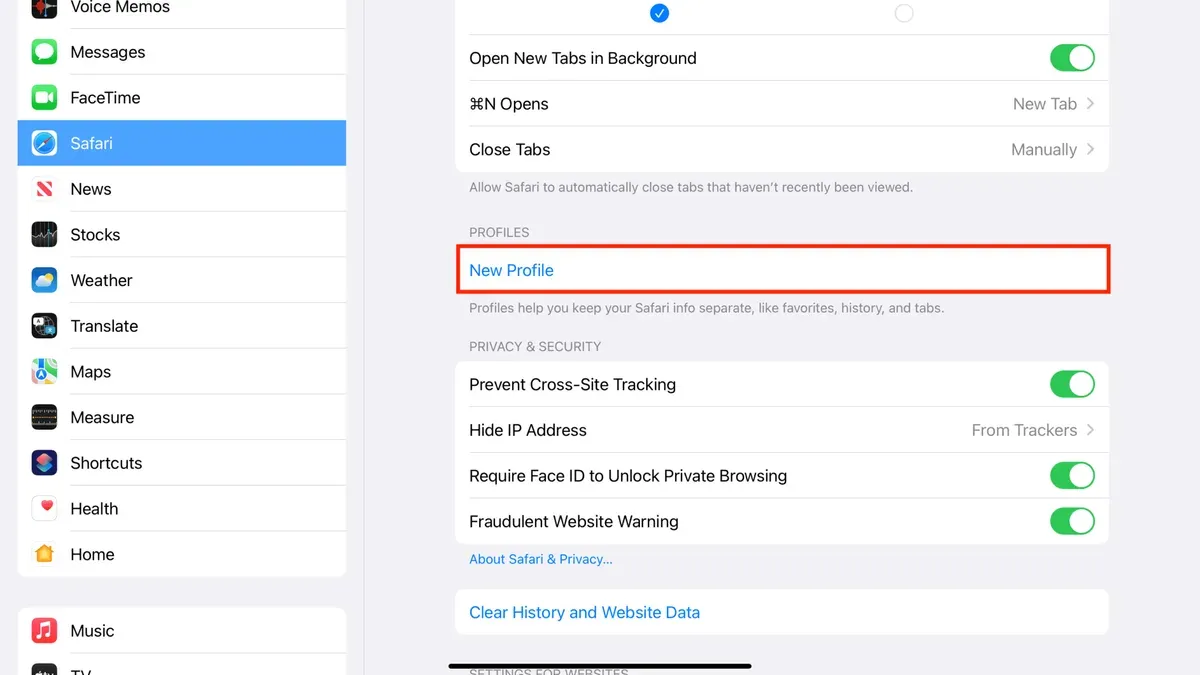
Safari profiles provide isolated browsing environments within Safari on your Mac and iPhone. This guide explains how to create Safari profiles, their practical benefits, and management tips.
What Are Safari Profiles and Why Use Them?
Safari profiles are separate browsing contexts within the Safari app. Each profile maintains its own cookies, history, cache, saved logins, and settings. This isolation prevents data from one profile affecting another.
Unlike Tab Groups, which organize tabs within a single session, profiles create fully independent browsing environments. This is useful for keeping login sessions or preferences separate—for example, separating personal and work accounts or testing websites without interference.
Common use cases include:
- Maintaining simultaneous logins to multiple accounts on the same site.
- Separating work and personal browsing to reduce distractions and data crossover.
- Testing websites in a clean environment unaffected by existing cookies or cache.
- Allowing multiple users to share the same Mac or iPhone without mixing browsing data.
Step-by-Step: How to Create a Safari Profile on Mac and iPhone
On Mac
- Open Safari and click the profile icon in the top-right corner of the toolbar (a circular avatar).
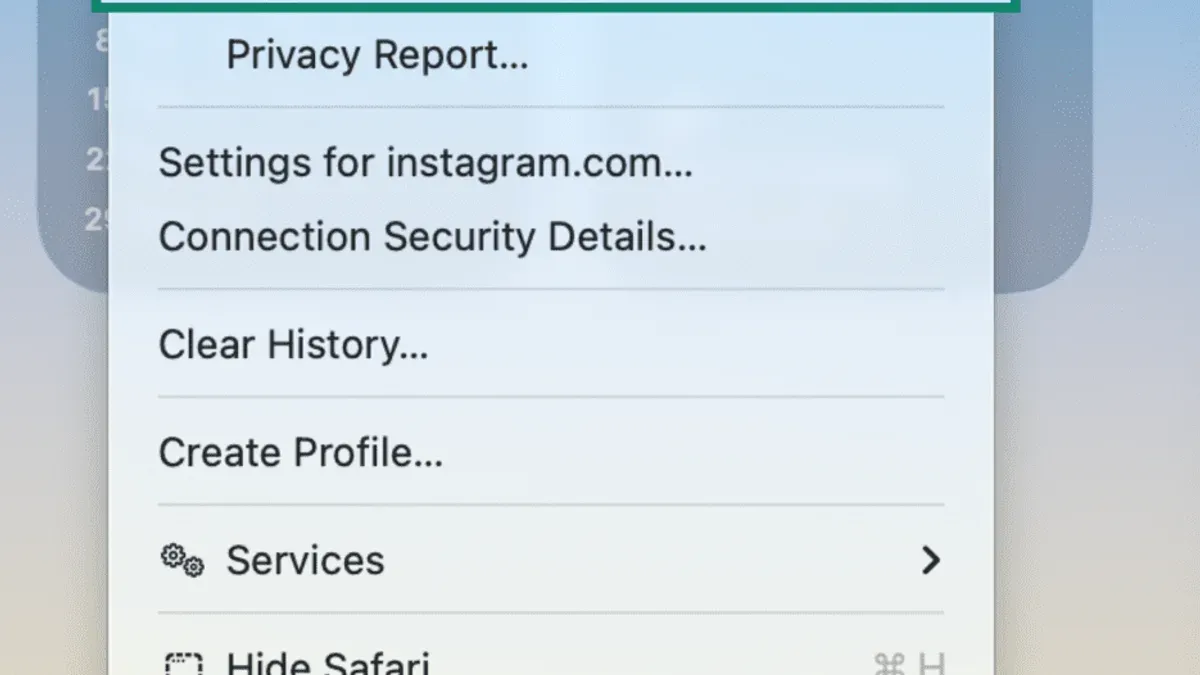
- Select "Add Profile" from the dropdown menu.
- Enter a name for the profile, like "Work" or "Personal." Optionally, choose a custom avatar for easy identification.
- Click "Create." Safari opens a new window using the new profile with a clean slate.
- To switch profiles, click the profile icon and select the desired profile. Each profile opens in its own window.
On iPhone (iOS 2026)
- Open Safari.
- Tap the tabs button in the bottom-right corner.
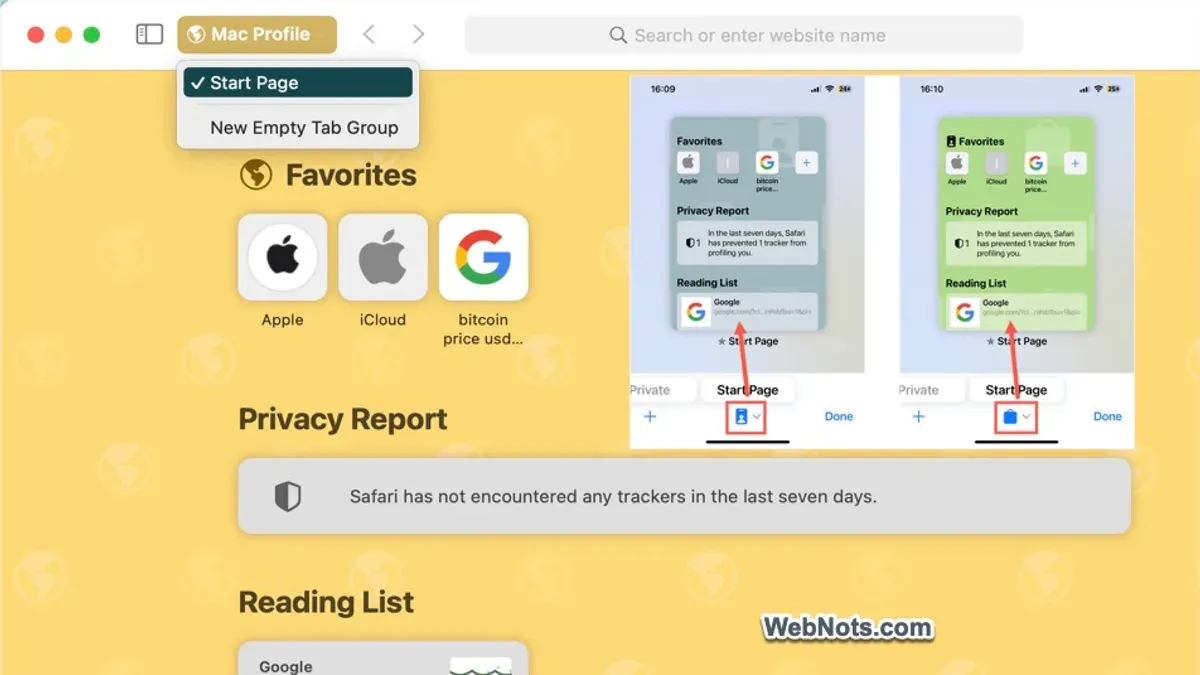
- Tap the profile icon at the bottom center of the tab view.
- Tap "Add Profile."
- Name the profile and select an avatar if desired.
- Tap "Create." Safari switches to the new profile environment.
- To switch profiles later, tap the profile icon and select the profile you want.
Troubleshooting: If the profile icon does not appear, verify your macOS or iOS version supports Safari profiles (macOS Sonoma or later, iOS 20 or later). Restarting Safari can refresh the interface.
Managing Safari Profiles: Best Practices and Tips
To optimize Safari profiles, consider these tips:
- Use clear, descriptive names: Names like "Work," "Personal," or "Testing" help identify profiles quickly.
- Choose distinct avatars: Custom icons aid quick visual recognition when switching profiles.
- Sync profiles with iCloud: Safari profiles sync across devices via iCloud, keeping profile lists and settings consistent.
- Understand syncing limits: While bookmarks and passwords sync, profile-specific cookies and browsing history do not sync to maintain isolation.
- Backup profile data: Export bookmarks or passwords by switching to the profile before exporting.
Example: A user maintains profiles named "Work," "Personal," and "Research," assigning distinct avatars. This helps switch contexts smoothly across Mac and iPhone, as profile names and avatars sync via iCloud.
Privacy and Security Benefits of Using Safari Profiles
Safari profiles isolate browsing data, confining cookies, cache, and local storage within each profile. This prevents cross-profile tracking and data leakage.
- Prevent cross-profile tracking: Advertisers and websites cannot track users across profiles because cookies and identifiers do not overlap.
- Use profiles for sensitive activities: Dedicated profiles reduce risk during online banking, shopping, or confidential research.
- Profiles vs. Private Browsing: Private Browsing deletes data on close but does not support persistent session separation. Profiles provide ongoing isolated environments for workflows.
Profiles offer stronger boundaries between browsing contexts than private browsing alone.
Limitations and When Not to Use Safari Profiles
Consider these limitations:
- Profiles do not replace macOS or iOS user accounts or parental controls; they isolate browsing data only within Safari.
- Users with simple browsing needs may not benefit from profiles.
- Profile syncing requires macOS Sonoma or later and iOS 20 or later; older devices do not support profiles fully.
- Some extensions may not fully support profiles, causing inconsistent behavior.
Evaluate your workflow and device compatibility before adopting profiles as a core strategy.
Compatibility Caveats
Safari profiles are new and may not be fully supported on all devices or older OS versions. Verify compatibility before relying on profiles for critical workflows or syncing.
Frequently asked questions
Can I use Safari profiles to keep my work and personal browsing completely separate?
Yes. Each profile isolates cookies, history, and settings, allowing separate sessions for work and personal use.
Do Safari profiles share bookmarks and extensions between them?
Bookmarks and extensions are profile-specific. Passwords and autofill data may sync via iCloud but remain isolated per profile to maintain separation.
How many Safari profiles can I create on my Mac or iPhone?
There is no published limit, but practical use suggests creating only as many as you can manage effectively.
Will creating multiple profiles affect Safari’s performance or battery life?
Each profile runs in its own environment, which can increase resource use if many profiles are open simultaneously. Typical use with a few profiles should not noticeably impact performance or battery life.