How to Cut and Move Files in Finder on Mac Easily
This guide explains how to cut and move files in Finder on Mac using keyboard shortcuts to avoid duplication and keep your files organized.
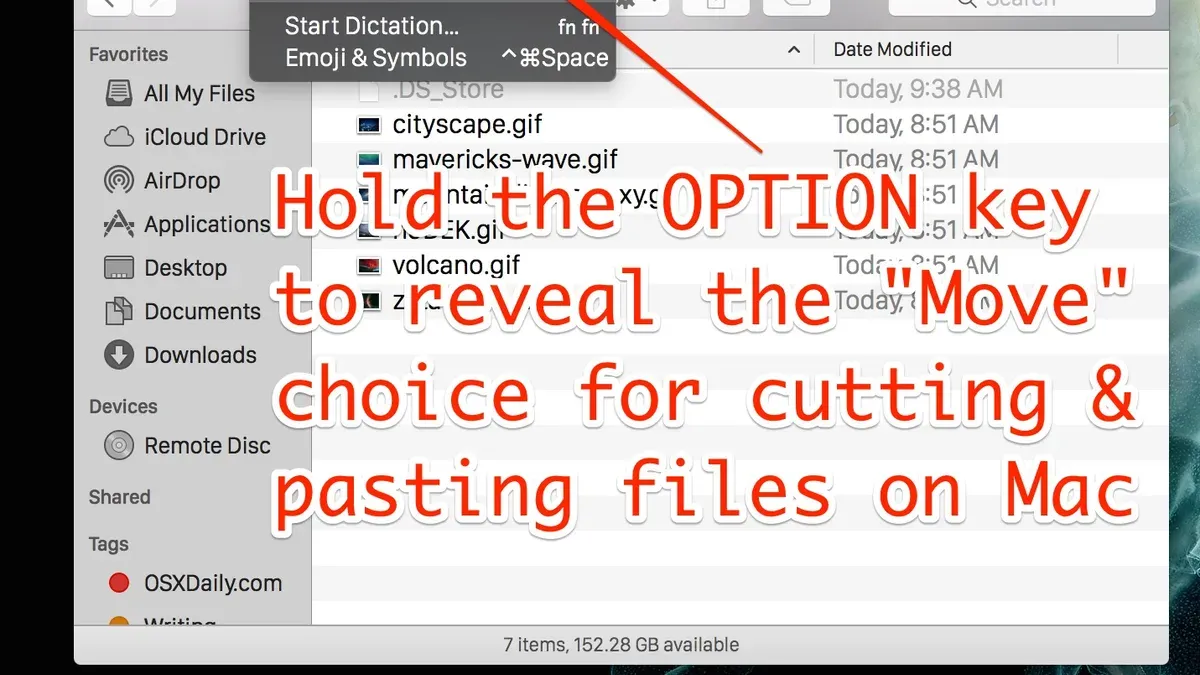
Moving files within Finder on a Mac can be confusing because it doesn’t use the traditional cut and paste commands familiar from other operating systems. This guide explains how to cut and move files in Finder efficiently, highlighting useful keyboard shortcuts and behaviors that help you avoid accidental duplication and keep your files organized.
Understanding the Difference Between 'Cut and Move' and 'Copy and Paste' in Finder
Unlike Windows Explorer, Finder on macOS does not offer a traditional “Cut” command for files. Instead, it provides a “Copy” command followed by a special paste operation to move files.
- When you press Command + C, Finder copies the file to the clipboard without removing it from the original location.
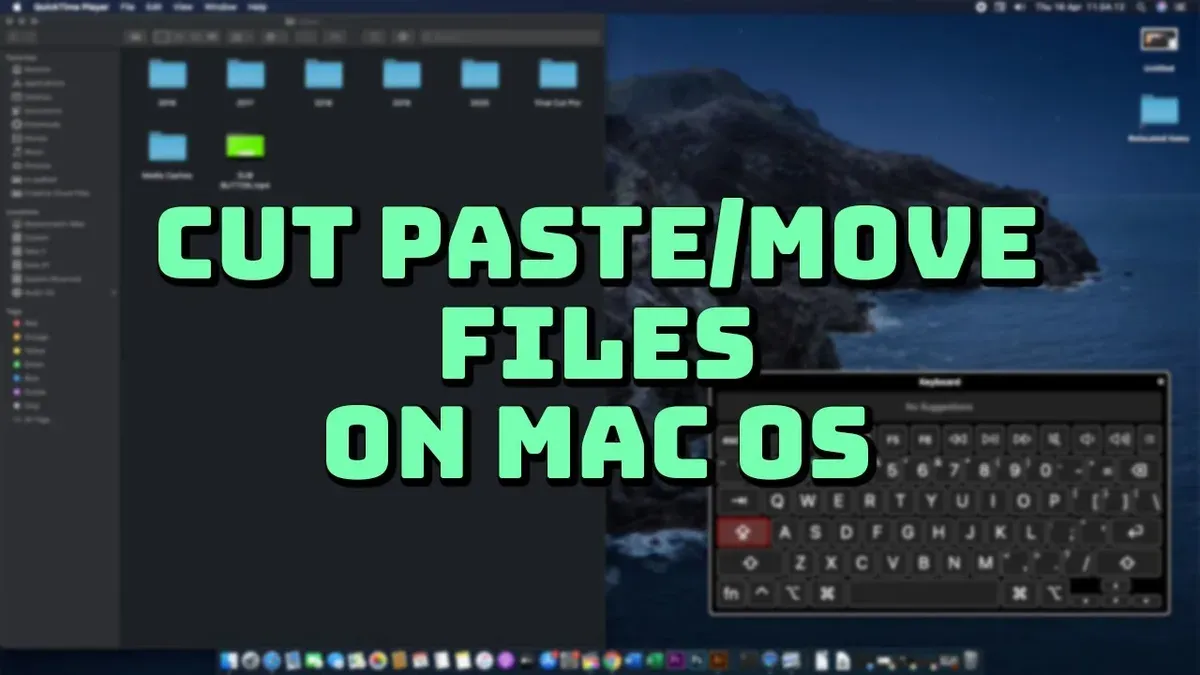
- To actually move (cut and paste) the file, you use Command + Option + V instead of the usual paste command.
- This method ensures that files are not duplicated unintentionally, preserving storage and preventing confusion.
Example: If you copy a file from the Desktop with Command + C, then paste it to Documents using Command + Option + V, Finder moves the file. The file disappears from Desktop and appears in Documents. Using Command + V alone would copy the file, leaving the original intact.
Step-by-Step Guide: How to Cut and Move Files Using Keyboard Shortcuts in Finder
- Select the file or files you want to move.
- Press Command + C to copy them to the clipboard.
- Navigate to the destination folder where you want to move the files.
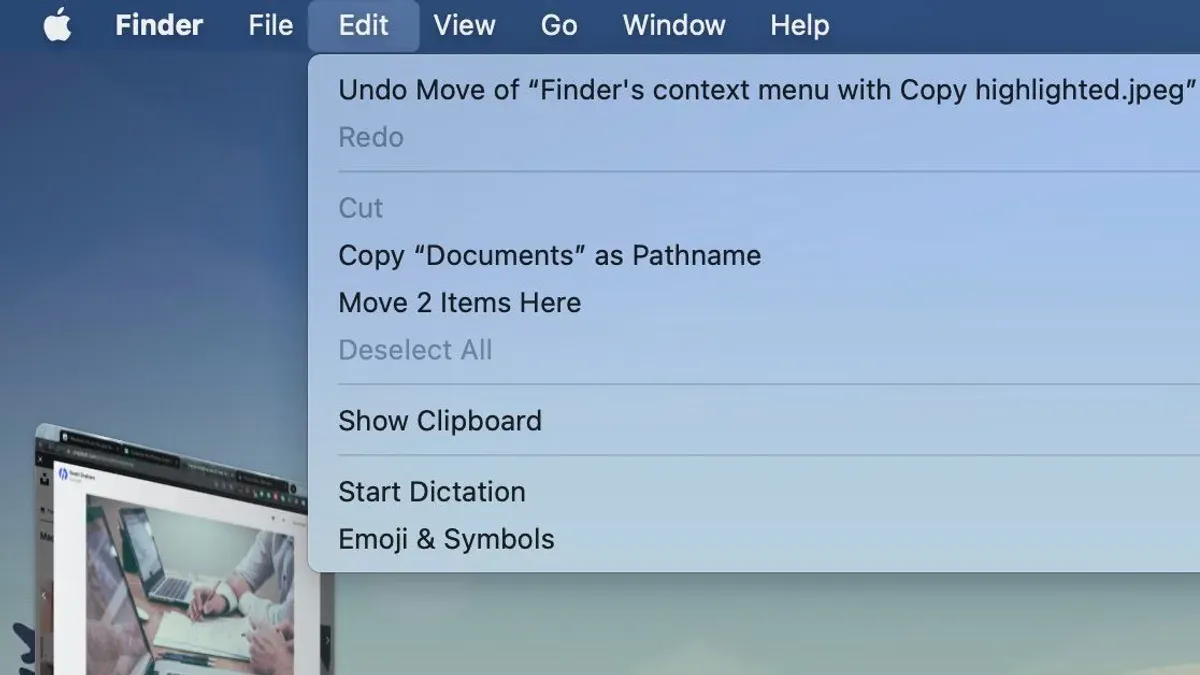
- Press Command + Option + V to move (cut-paste) the files to the new location.
- Verify that the files no longer exist in the original folder and appear in the destination.
Note that if you are moving files between different volumes, Finder’s behavior differs: dragging files between drives copies by default, while the keyboard shortcut Command + Option + V moves the files by transferring them physically. This shortcut triggers a "Move Items Here" command that replaces the usual paste action.
Common Mistakes and How to Avoid Them When Moving Files in Finder
- Using Command + V alone: This pastes a copy, not a move. The original remains, which may clutter your storage.
- Dragging files between different drives: Dragging files from one drive to another defaults to copying, not moving. To move, hold down the Command key while dragging.
- Interrupting a move operation: Cancelling or force-quitting Finder during a move can cause partial transfers or data loss. Always let the move finish completely before closing Finder or shutting down.
- Confusing move and copy operations: To ensure you are moving files, use the keyboard shortcut Command + Option + V instead of drag-and-drop unless you are certain about modifier keys and drive types.
Example: Copying a file with Command + C then pasting with Command + V duplicates the file. Moving it with Command + Option + V removes it from the source. Dragging between external drives copies unless Command is held.
Note: Moving very large files or folders may take time and Finder might not show progress clearly. Monitoring the move and avoiding interruptions is important. For disk health issues or persistent errors, consider using Disk Utility or Terminal commands.
Using Finder’s Context Menu and Drag-and-Drop to Move Files Safely
Besides keyboard shortcuts, Finder offers alternative ways to move files.
- If your macOS version supports it, right-clicking a file may show a "Move to" option that moves the file directly without copying.
- Dragging files within the same drive moves them by default.
- Dragging files while holding down the Option key forces copying even on the same drive.
- Dragging files between different drives defaults to copying; holding Command while dragging forces a move.
| Action | Within Same Drive | Between Different Drives |
|---|---|---|
| Drag without modifier | Move file | Copy file |
| Drag with Option key | Copy file | Copy file |
| Drag with Command key | Move file | Move file |
When Not to Use Cut and Move in Finder: Scenarios to Consider
- System or Library files: Avoid moving these files as it can cause macOS to malfunction or prevent apps from working correctly.
- Synced cloud folders (iCloud Drive, Dropbox): Moving files may trigger sync conflicts or delays. It’s safer to use the cloud app interface or wait for sync to complete before moving.
- Bulk or complex moves: For large batches or intricate folder structures, specialized apps or Terminal commands offer better control, error handling, and logging.
For example, moving a large folder within iCloud Drive using Finder’s cut and move can cause the file to reupload, slowing down the process and risking sync conflicts.
Caveats and Advanced Options
This article does not cover moving files using Terminal commands or third-party applications. Advanced users or those with specific workflows requiring scriptable or bulk moves may need these tools for efficiency or automation.
Frequently asked questions
Can I undo a move operation in Finder if I made a mistake?
Yes. Immediately after moving files, pressing Command + Z will undo the move, restoring files to their original location. This works only within the current Finder session and before performing other file operations.
Why does Finder not have a traditional 'Cut' command for files?
Finder’s design separates copying and moving to reduce accidental data loss. By requiring Command + Option + V to move, it makes the user explicitly decide to relocate files rather than just paste copies.
What happens if I move files between two different external drives?
By default, dragging files between external drives copies them. Holding the Command key while dragging forces a move, physically relocating the file and removing it from the source drive.
Is it safe to move files from iCloud Drive using Finder’s cut and move method?
Moving files within iCloud Drive using cut and move can cause sync delays and conflicts. It is generally safer to move files using the cloud app interfaces or after ensuring the files are fully synced.