
How to Permanently Delete Your Apple ID Account: A Clear Step-by-Step Guide
This guide explains how to delete your Apple ID account permanently with step-by-step instructions and important preparation tips.
You might be considering deleting your Apple ID account because you no longer use Apple services, want to protect your privacy, or need to start fresh with a new account. The process might seem straightforward, but Apple’s security measures and the permanent consequences require careful attention.
This article explains how to delete Apple ID account permanently, providing clear, step-by-step instructions for various devices and scenarios. It also covers what you should prepare before starting, how to handle situations like lost phone numbers, how to erase your data, and what happens after deletion. Understanding these details helps you make an informed decision and avoid common pitfalls.
Key takeaways
- Prepare your account information and backup data before starting deletion.
- Use Apple's Data & Privacy website or device settings to initiate permanent deletion.
- Account deletion is irreversible and removes access to Apple services tied to that ID.
- If you lack access to your trusted phone number, follow specific recovery steps before deletion.
- Consider alternatives like temporarily disabling your account if you’re unsure about permanent deletion.
Before you start: What you need to prepare
Deleting your Apple ID permanently means losing access to all Apple services linked to that account. This includes iCloud data, purchased content from the App Store and iTunes, subscriptions, and any synced information like contacts, calendars, photos, and documents.
Before proceeding, it is crucial to back up all important data. Without a backup, files such as photos stored in iCloud Photos, device backups, notes, and app data will be irretrievably lost. Many users overlook this step, leading to permanent data loss they later regret.
You will also need your Apple ID credentials—the email address and password associated with the account. Additionally, ensure you have access to trusted devices or phone numbers registered for two-factor authentication, as Apple uses these to verify your identity during the deletion process.
Check for any active subscriptions or services tied to your Apple ID, such as Apple Music, Apple TV+, or third-party app subscriptions. Cancel these ahead of time to avoid unexpected charges or service interruptions.
- Back up your data via Settings > [your name] > iCloud > iCloud Backup, and tap Back Up Now. Successful backups show the latest backup date and time.
- Make a list of active subscriptions under Settings > [your name] > Subscriptions, and cancel those you no longer want. Confirm cancellations by checking the subscription expiry dates.
- Verify your Apple ID email and password by signing in at appleid.apple.com. Successful login confirms your credentials are correct.
- Confirm access to trusted devices or phone numbers by checking Settings > [your name] > Password & Security. You should see trusted phone numbers and device lists.
How to delete my Apple ID account permanently
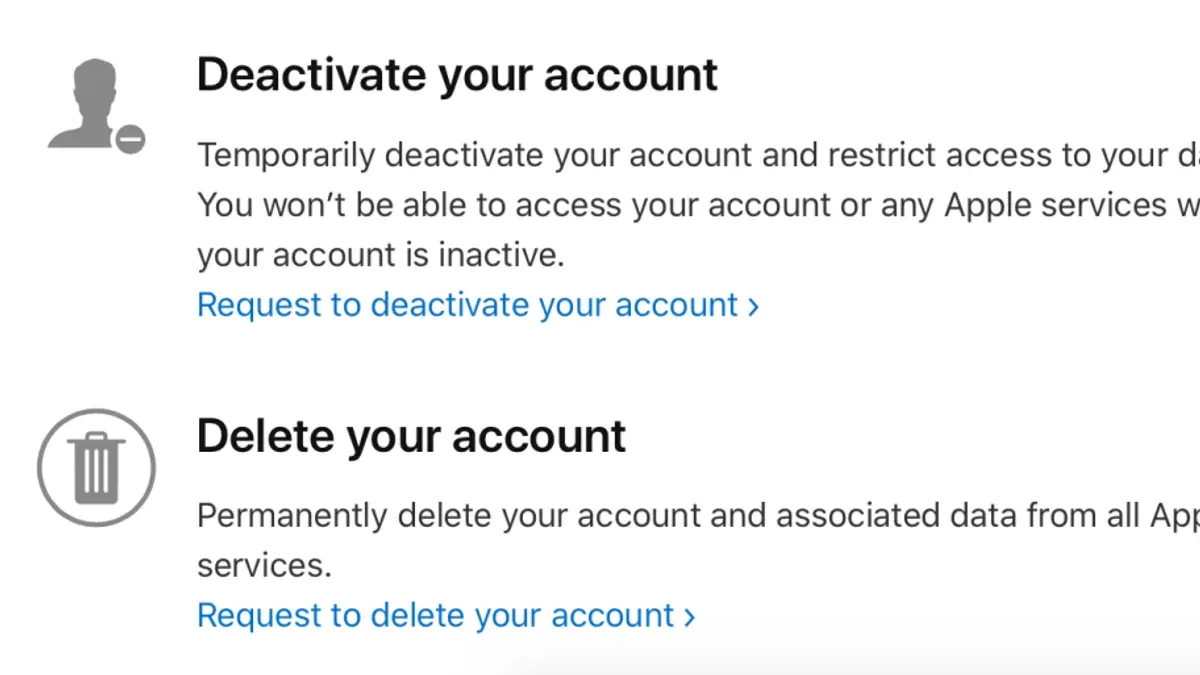
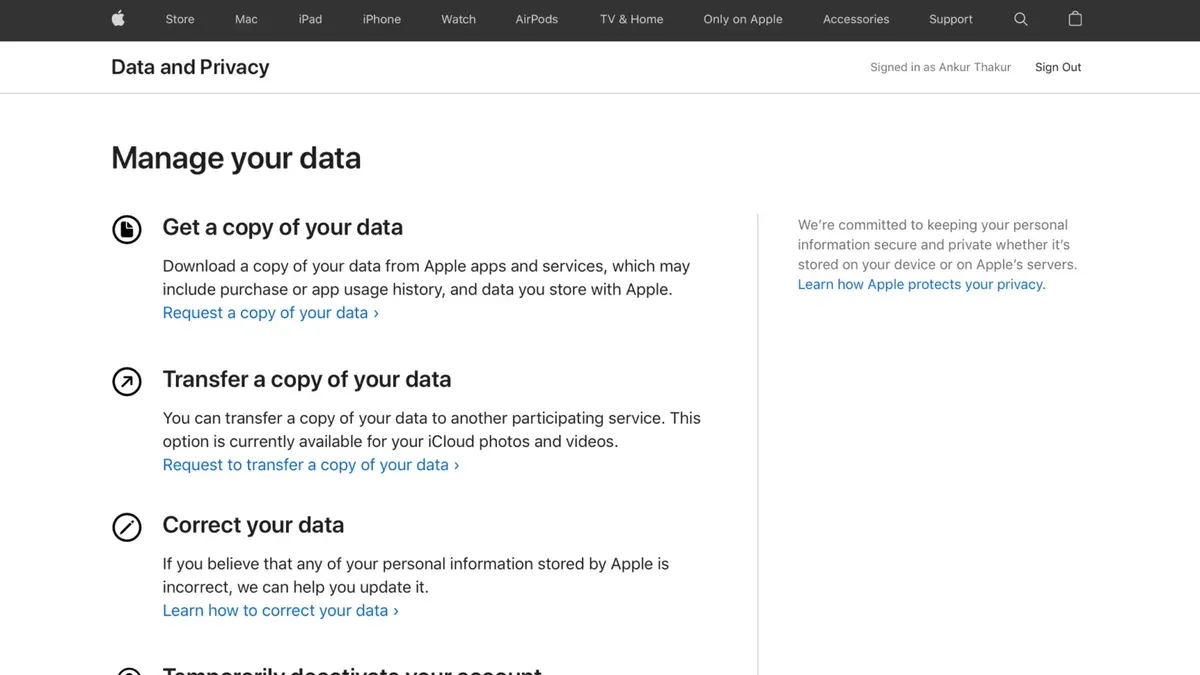
To permanently delete your Apple ID, you need to use Apple’s official Data and Privacy website. This process requires signing in, submitting a request, verifying your identity, and waiting for Apple to complete the deletion.
- Go to Apple’s Data and Privacy website at privacy.apple.com and sign in with your Apple ID and password. After successful login, you will see the main dashboard with options related to your data and privacy.
- In the dashboard, locate and click on the option labeled “Request to delete your account.” This will take you to a page explaining the deletion process, its consequences, and the required steps.
- Review the information carefully and click “Continue.” Apple will prompt you to select a reason for deletion from a dropdown menu. Choose the option that best matches your intent and click “Continue.”
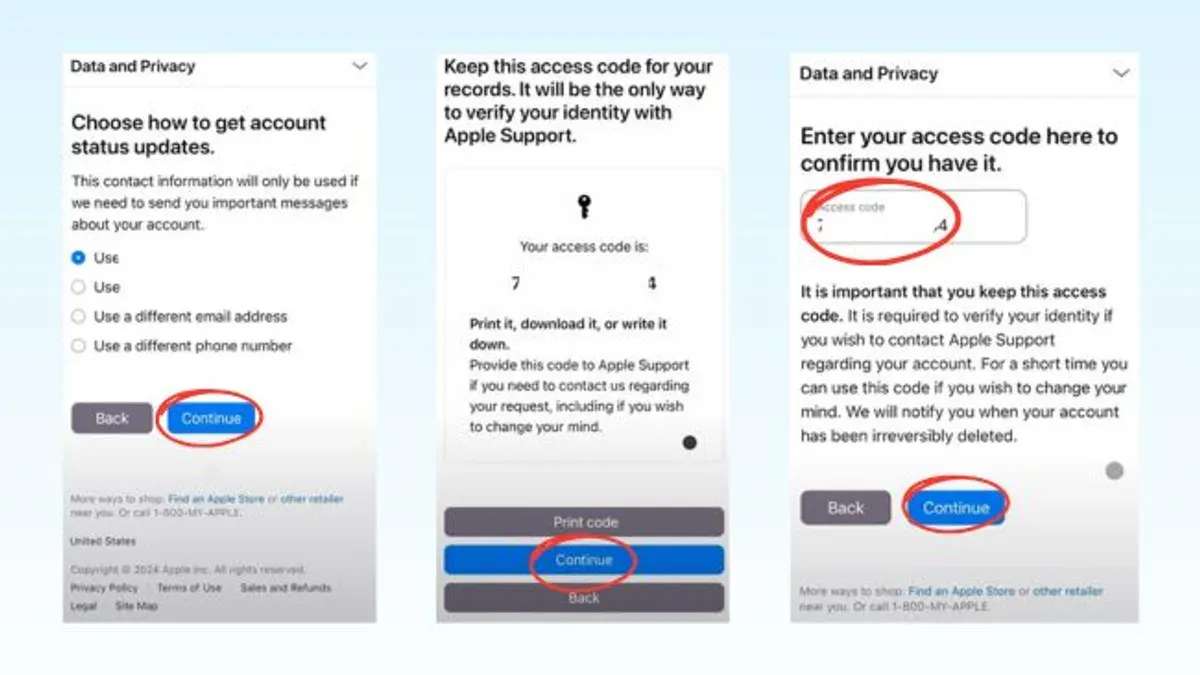
- Apple will then ask you to verify your identity, either by receiving a verification code on a trusted device or phone number associated with your Apple ID. Enter the code when prompted to proceed.
- After verification, you will receive a unique access code. Save this code securely as it is needed to cancel the deletion request if you change your mind.
- Confirm your deletion request. Apple will display a summary of what will happen, including loss of access to Apple services and data.
- Apple begins a waiting period, typically up to seven days, during which you can cancel the deletion by using the access code. During this time, your account remains active but flagged for deletion.
- Once the waiting period ends, Apple permanently deletes your Apple ID and all associated data. You will no longer be able to sign in or recover any information.
The Data and Privacy portal interface is straightforward, with clear prompts and confirmations at each step. Expect the entire deletion process to take about a week due to Apple’s security measures.
How to delete Apple ID permanently on iPhone
To initiate the permanent deletion of your Apple ID directly from your iPhone, follow these steps carefully to navigate Apple’s security protocols and complete the request.
- Open the Settings app on your iPhone and tap your name at the top to access your Apple ID settings. You should see your Apple ID profile and related options.
- Scroll down and tap Privacy & Security, then locate and select Data & Privacy. This will redirect you to Apple’s Data and Privacy website within Safari.
- On the Data and Privacy webpage, sign in with your Apple ID credentials if prompted. You will see several options related to your data, including account deletion.
- Tap Request to Delete Your Account. Apple will display important information about the deletion process and its effects. Read carefully and then tap Continue.
- Follow the on-screen prompts to verify your identity, which usually involves receiving and entering a verification code sent to your trusted phone number or email.
- Choose a contact method for updates about your deletion request and confirm your understanding of the consequences. Submit the request when ready.
- After submitting the deletion request, return to Settings > Your Apple ID at the top, scroll down, and tap Sign Out to remove the Apple ID from your device. You will be asked to enter your Apple ID password to disable Find My iPhone.
- Once signed out, your Apple ID is removed from the iPhone, but the account remains active until Apple completes the permanent deletion after the security-mandated waiting period.
Following these steps ensures you start the deletion process securely and remove your Apple ID from your iPhone promptly.
How to delete old Apple ID account when you no longer have access to the phone number
If you cannot receive verification codes because you no longer have access to your trusted phone number or device, deleting your Apple ID becomes more complex. Apple’s security protocols require identity verification to protect your account, so you must use alternative recovery options.
Start by initiating Apple’s account recovery process at iforgot.apple.com. This process attempts to verify your identity through other means, such as secondary email addresses or security questions. Be aware that recovery can take several days or longer, depending on what information you provide and Apple’s assessment.
If recovery fails or is unavailable, contacting Apple Support directly is necessary. Apple Support may ask you to provide proof of identity, such as a government-issued ID or details about your account purchase history. However, Apple’s policies require strict verification and may not grant access without sufficient evidence, which can prevent deletion.
Failing to verify your identity means you cannot complete the deletion request, leaving your Apple ID active with all associated data intact. This highlights the importance of maintaining updated contact information and trusted devices.
- Go to iforgot.apple.com and enter your Apple ID email address.
You should see prompts for alternative verification methods if your trusted phone number is unavailable. - Follow the on-screen instructions, providing any requested account information or secondary contact details.
The system will inform you of the estimated time for account recovery. - If recovery is unsuccessful, contact Apple Support via support.apple.com.
Prepare to verify your identity with official documents or account details. - Explain that you want to permanently delete your Apple ID but cannot access your trusted phone number.
Apple Support will guide you through any possible manual verification steps. - If Apple cannot verify your identity, understand that deletion cannot proceed until verification is successful.
You will be advised on maintaining or updating your account security settings.
How to erase Apple ID account data before deleting permanently
Erasing your Apple ID data manually ensures that personal information and services are properly removed prior to account deletion. Follow these steps for a thorough cleanup:
- Sign out of iCloud and disable Find My iPhone. Go to Settings > [your name] > Find My, then toggle off Find My iPhone. You should see a prompt to enter your Apple ID password to confirm. After disabling, navigate back to Settings > [your name] and tap Sign Out. Successful sign-out removes iCloud data from the device.
- Delete iCloud backups, photos, and documents. Open Settings > [your name] > iCloud > Manage Storage, select Backups, and delete any device backups listed. Next, in Photos, turn off iCloud Photos and manually delete photos stored online by visiting iCloud.com Photos. For documents, access Files > iCloud Drive and remove files or folders. Confirm deletions by checking storage space is reduced.
- Cancel subscriptions and remove payment methods. Navigate to Settings > [your name] > Subscriptions and cancel all active subscriptions linked to your Apple ID. Then, under Settings > [your name] > Payment & Shipping, remove saved payment cards. You should see an updated payment method list reflecting these changes.
- Unlink Apple ID from third-party apps and services. Review apps where you used Apple ID sign-in by going to Settings > Passwords & Accounts > Apps Using Apple ID. For each app, follow the app’s process to disconnect your Apple ID or revoke permissions via their settings or website. This prevents residual access after account deletion.
Completing these steps ensures your data is fully erased, minimizing the risk of leftover personal information after your Apple ID is permanently deleted.
Troubleshooting common problems when deleting Apple ID permanently
If your Apple ID deletion request is not accepted, check for error messages such as "Request cannot be processed" or "Account locked." These often indicate unresolved issues like pending payments or security holds.
- Verify all subscriptions and pending charges are cleared by going to Settings > Your Name > Subscriptions. Once all subscriptions show as expired or canceled, the deletion request should proceed.
- If you encounter two-factor authentication issues, ensure your trusted devices are accessible. Navigate to Settings > Your Name > Password & Security and confirm your trusted phone numbers and devices are up to date. If you cannot receive verification codes, use the recovery key or contact Apple Support for identity verification.
- For accounts locked or disabled with messages like "Your Apple ID has been disabled for security reasons," visit Apple's account recovery site to reset your password or unlock the account. Only unlocked accounts can proceed with deletion.
- If deletion is blocked by pending charges, review your purchase history under Settings > Your Name > Media & Purchases > Purchase History. Resolve any unpaid balances by updating payment methods or contacting Apple Support.
Following these steps resolves the most common barriers to permanent Apple ID deletion, ensuring a smoother process.
What happens after you delete your Apple ID account permanently
Once you complete the permanent deletion of your Apple ID, you lose access to all Apple services linked to that account. This includes iCloud, iTunes, the App Store, Apple Music, and any other Apple services requiring your Apple ID login.
Devices signed in with the deleted Apple ID will no longer be able to use services such as iCloud syncing, Find My, and Apple Pay. You must sign out or reset these devices to avoid functionality issues.
Apple retains some personal data for a limited time after deletion to comply with legal obligations and security purposes. However, this data is not accessible to you or usable for account recovery. Apple’s policy states that after the retention period, your data is permanently removed from their servers.
Importantly, once the deletion process is completed, there is no way to recover your Apple ID or any data associated with it. Unlike some other platforms that offer account reactivation windows, Apple’s deletion is final.
- Verify your deletion confirmation email from Apple: This confirms Apple has processed your deletion request.
- Sign out and reset any devices using the deleted Apple ID: Devices will no longer sync or access Apple services tied to the account.
- Monitor your email for any final communications from Apple: Apple may retain some data temporarily, but you will not have access.
- Understand that you cannot sign back in or recover data: The deletion is irreversible and all associated data will be permanently removed.
Alternatives to deleting your Apple ID permanently
If you are hesitant to delete your Apple ID permanently, consider other options that might better suit your needs without losing access to your data and services.
Deactivate or disable your Apple ID
Apple does not offer a direct deactivation option, but you can limit your account use by signing out on all devices and removing payment methods. This approach pauses activity without losing your account.
Change your email or password to secure your account
If your concern is security, updating your Apple ID email or password can protect your information without deleting the account. You can do this in Settings > [your name] > Password & Security on your device. Successful change means your account is secured with new credentials.
Remove payment methods and cancel subscriptions only
If you want to avoid charges but keep your account, remove all payment methods via Settings > [your name] > Payment & Shipping and cancel subscriptions through Settings > [your name] > Subscriptions. When done correctly, you will no longer incur charges but retain your Apple ID.
Create a new Apple ID and migrate data where possible
Sometimes starting fresh is best. You can create a new Apple ID via the Apple ID website or your device. Transfer data like contacts, calendars, and photos manually or with iCloud sharing. This method is useful if you want a clean slate but still keep essential information.
These alternatives let you address specific issues like security, billing, or account management without the permanence of deletion, making them suitable for many user scenarios.
Frequently asked questions
How to delete apple id and icloud account permanently?
To delete your Apple ID and iCloud account permanently, visit Apple’s Data and Privacy website and sign in with your Apple ID. Then select “Request to delete your account” and follow the on-screen prompts, including verifying your identity. Remember, this action removes access to all Apple services tied to your ID, including iCloud data, purchases, and subscriptions.
How to delete an apple id account permanently?
Deleting an Apple ID account permanently requires submitting a deletion request through Apple’s Data and Privacy portal. After signing in, you’ll confirm your decision and receive a unique access code to track the process. The deletion can take up to seven days, during which you should not sign back into your account to avoid cancellation of the request.
How to permanently delete apple account?
To permanently delete your Apple account, navigate to privacy.apple.com and log in. Choose “Delete your account,” verify your identity, and follow the instructions carefully. Make sure to back up any important data since this deletion is irreversible and removes access to all Apple services linked to your account.
Can you permanently delete apple id?
Yes, you can permanently delete your Apple ID by submitting a deletion request via Apple’s Data and Privacy website. This process removes your account and all associated data from Apple’s systems, but you should be aware that it cannot be undone and will affect all Apple services you use.
Can you permanently delete Apple ID without phone number?
Deleting an Apple ID without access to the associated phone number is possible but may require additional verification steps. Apple might ask for other account details or use your trusted devices to confirm your identity. If you cannot verify your identity, the deletion request may be delayed or denied for security reasons.
What this advice does not cover and who should consider other options
This article does not cover recovering a deleted Apple ID account once the deletion process is complete, as Apple does not allow recovery after permanent deletion. If you are unsure about permanently losing access to purchased content, subscriptions, or iCloud data, consider temporarily disabling your account or simply signing out of devices instead. Users facing serious security issues like compromised accounts should prioritize contacting Apple Support directly for specialized help before proceeding with deletion.
The single most useful next step is to review all your active subscriptions and device backups. Make sure you have saved any important data externally and canceled ongoing subscriptions tied to your Apple ID. This preparation prevents unexpected loss and ensures a smoother transition if you decide to proceed with permanent deletion.



