
How to Delete Your Disney+ Account Permanently: Step-by-Step Guide
Step-by-step guide on how to delete your Disney+ account permanently and manage your subscription and device access.
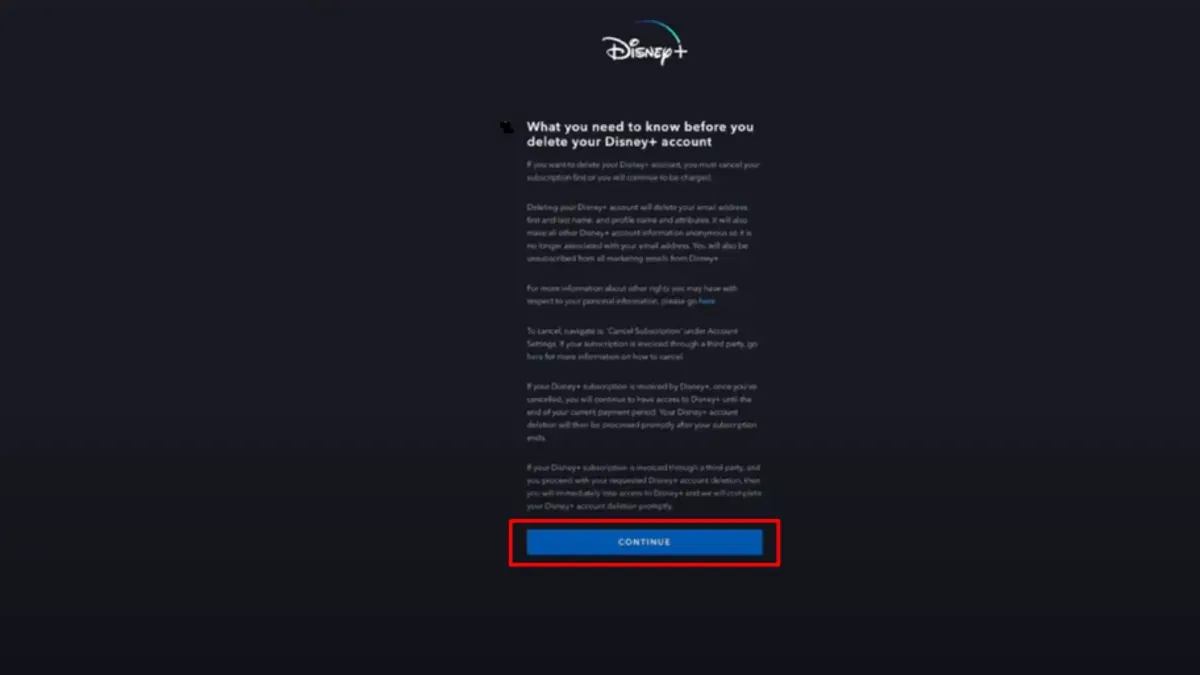
You’ve decided to stop using Disney+ and want to completely remove your presence from the service. Maybe you’ve canceled your subscription but wonder if your Disney account still exists or if you can delete it altogether. Understanding the difference between deleting a Disney+ subscription, removing a Disney+ account, and permanently deleting your entire Disney account is crucial to making the right choice.
This article explains how to delete Disney+ account permanently and covers related actions like canceling subscriptions, deactivating accounts temporarily, and managing devices. By following clear, step-by-step instructions, you’ll be able to select the best option for your needs and know exactly what to expect at each stage.
Key takeaways
- Canceling your Disney+ subscription stops charges but doesn’t delete your Disney account.
- Deleting your Disney+ account removes your profile but leaves your overall Disney account intact.
- Permanently deleting your Disney account erases all Disney services linked to it and cannot be undone.
- Deactivating your Disney account temporarily suspends access without permanent deletion.
- Removing Disney+ from devices requires signing out on each app or device separately.
Before you start: What you need to know
Understanding the distinctions between deleting your Disney+ subscription, deleting your Disney+ account, and permanently deleting your entire Disney account is crucial before proceeding. Canceling your Disney+ subscription stops recurring payments but does not erase your account or personal data. Deleting your Disney+ account removes your profile from the streaming service but may not affect other Disney services linked to that account. Permanently deleting your Disney account closes access to all Disney services tied to that login, including Disney+, Disney Store, and other platforms.
Before you begin, ensure you have your Disney account login credentials, access to the registered email address, and any payment information used for subscriptions. Losing access to these can prevent successful deletion or cancellation.
Be aware that permanent deletion results in loss of all saved data, including watch history, preferences, and purchases. Subscription cancellation halts payments but keeps your account active, allowing you to resume later.
| Action | Effect | Data Retention |
|---|---|---|
| Cancel Disney+ subscription | Stops payments, maintains account | Account data retained |
| Delete Disney+ account | Removes streaming profile | May retain Disney account data |
| Delete Disney account permanently | Removes all Disney services access | All data deleted |
- Confirm your Disney account email and password; you will need these to log in and manage settings. Successful login shows your account dashboard.
- Locate your payment method details associated with Disney+ for verification purposes; these appear under Account & Billing settings.
- Access your registered email to receive confirmation or verification links during the deletion process.
How to delete Disney+ subscription
Before deleting your Disney+ account, canceling your subscription is essential to avoid future charges. You can do this through the Disney+ website, app, or a third-party service if your subscription is linked externally.
- Sign in to your Disney+ account at www.disneyplus.com. After logging in, select your profile icon in the top right corner.
- Click Account from the dropdown menu to open your subscription settings page.
- Under the Subscription section, locate and click Billing Details. Here, select Cancel Subscription.
- You will be prompted to confirm. Follow the on-screen instructions to finalize cancellation. Once completed, you should see a confirmation message indicating the cancellation date.
- Check your email for a cancellation confirmation from Disney+. This verifies your subscription has been successfully canceled.
- Keep in mind your subscription remains active until the current billing period ends. No refunds are typically issued for mid-cycle cancellations.
- If you subscribed via a third party such as Apple App Store or Google Play, you must cancel through their service portals. Visit your Apple or Google account subscriptions and cancel Disney+ there to avoid ongoing charges.
- After cancellation, verify your subscription status under your Disney+ account settings to ensure it displays as inactive or canceled.
Canceling your subscription stops future billing but does not delete your Disney+ or Disney account. This step is necessary if you wish to avoid charges while deciding whether to delete your account permanently.
How to delete Disney+ account
Disney+ accounts are integrated within a broader Disney account system, meaning you cannot delete a Disney+ account separately from your overall Disney account. Disney’s official support documentation clarifies that the Disney+ service operates as a profile or subscription under your main Disney account.
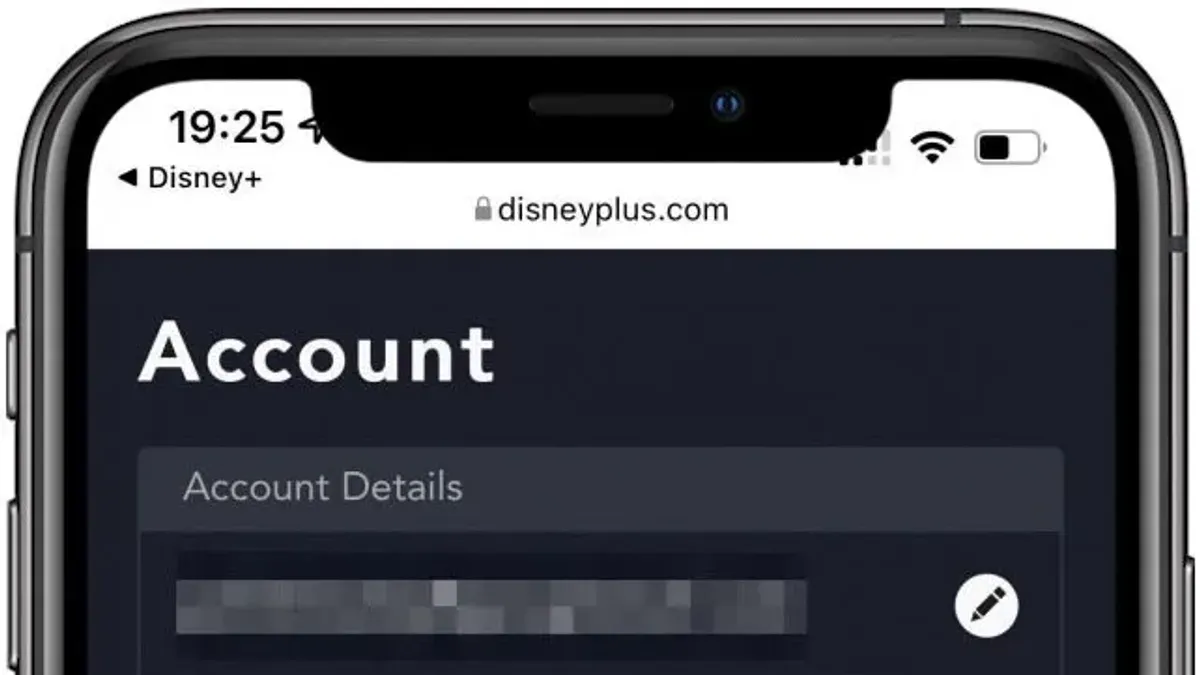
If you want to remove specific Disney+ profile data, such as viewing history or preferences, you can manage profiles within the Disney+ app or website, but full profile deletion is limited to removing the entire Disney account or cancelling subscriptions.
To inquire about account deletion options or request data removal beyond what is available via your account settings, you should contact Disney+ customer support directly. They can provide guidance tailored to your account and region.
- Visit the Disney+ Help Center or navigate to the "Contact Us" section at the bottom of the Disney+ website or app.
- Choose the option to chat or call customer support and verify your identity with your login details.
- Request information about deleting your Disney+ profile data or account and follow any instructions provided by the support representative.
If direct deletion of your Disney+ account is not available, your alternative is to cancel your Disney+ subscription and deactivate your Disney account temporarily or permanently, depending on your needs, to stop access and data use.
How to delete your Disney account permanently
Deleting your entire Disney account removes your access to all Disney services, including Disney+, Disney Store, and any linked apps. This process also deletes your purchase history, saved preferences, and personal data. Follow these steps to submit a deletion request.
- Go to the Disney Account Management page at https://www.disney.com/account and log in using your Disney account credentials. You should see your account overview.
- Scroll down and select Contact Us or Support to access customer service options. This is where you can initiate a deletion request, as there is no direct self-service delete button.
- Choose the option to chat with an agent or send an email request. Clearly state that you want to permanently delete your Disney account and all associated data.
- Prepare to verify your identity. Customer support will ask for information such as your account email, full name, billing address, and recent transaction details to confirm you are the account owner.
- After verification, the agent will confirm your deletion request and provide an estimated timeline. Typically, account deletion and data removal take up to 30 days to complete.
- You will receive a confirmation email summarizing your request and the expected completion date. Keep this email for reference.
- During the deletion period, avoid logging into your Disney account, as this may delay or cancel the deletion process.
Once completed, your account and all related data will be irreversibly deleted. You will no longer have access to any Disney services or content purchased under that account.
How to deactivate my Disney account temporarily
Disney does not offer a formal option to deactivate or temporarily suspend your Disney account. Instead, you can sign out from all devices and pause usage without deleting your account or subscription. This approach keeps your data intact and allows easy reactivation whenever you decide to return.
Benefits of signing out versus deleting: Signing out preserves your watch history, preferences, and payment information, enabling seamless access later. In contrast, deleting your account removes all data permanently and requires a verified request to restore access.
To safely pause your Disney account access, follow these steps:
- Go to the Disney website or app and log in to your account. You should see your profile dashboard.
- Navigate to your profile icon in the upper-right corner and select "Account Settings" or "Profile" from the dropdown menu. The account management page will open.
- In the "Account Settings" section, locate the "Sign Out of All Devices" option and click it. A confirmation prompt appears.
- Confirm signing out from all devices. You will receive a message that all active sessions have been ended.
- Close the browser or app. Your account is now inactive on all devices but still exists with saved data and subscription status.
When you want to reactivate your account, simply log back in with your credentials. Your profile, preferences, and subscription will be restored immediately without loss.
Disney’s official guidance recommends signing out from devices to pause access rather than deleting the account if you might return. This method balances security with convenience and keeps your data safe.
How to remove Disney+ account from devices and apps
After deleting or cancelling your Disney+ subscription, you need to sign out and remove your account from all devices to protect your privacy and prevent unauthorized access. This process varies slightly depending on the device and app you use.
- On smartphones (iOS and Android): Open the Disney+ app, tap your profile icon at the bottom right, select Settings, then tap Log Out. You should see the login screen confirming the account is signed out.
- On smart TVs (Samsung, LG, Sony): Launch the Disney+ app, navigate to the left menu, select Settings, then choose Log Out. The app will return to the sign-in screen, indicating successful logout.
- On streaming devices (Roku, Amazon Fire TV, Apple TV): Open the Disney+ app, go to the Profile or Settings section, and select Log Out. The app will prompt for login details afterward.
- Clear stored credentials and data: On smartphones, you can further clear app data via device settings (e.g., Settings > Apps > Disney+ > Storage > Clear Data on Android). On smart TVs and streaming devices, uninstalling and reinstalling the app removes cached data.
- Verify device-level removal: Sign in to your Disney+ account on a computer and check the Account section under Registered Devices. Remove any devices you no longer use to ensure full account disconnection.
Removing your Disney+ account from all devices and apps is essential for maintaining security and ensuring your subscription status is accurately reflected everywhere.
Troubleshooting common issues when deleting Disney+ or Disney accounts
Encountering problems during account deletion or subscription cancellation is not uncommon. Below are steps to resolve typical issues efficiently.

Unable to log in to delete your account
If you cannot access your account, first use the “Forgot Password” link on the Disney+ login page to reset your password. Ensure you have access to the email associated with the account. If password reset emails do not arrive, check your spam folder or verify your email address. Persistent login issues may require contacting Disney+ support directly for identity verification and assistance.
Subscription billed through third parties
If your Disney+ subscription is billed via a third-party service like Apple App Store, Google Play, or a TV provider, you cannot cancel it directly on Disney+. Instead, cancel through the third-party platform’s subscription management settings. Look for “Subscriptions” or “Manage Subscriptions” in your device or account settings.
Deletion request ignored or delayed
Official Disney policy states account deletion requests take about 30 days. If you do not receive confirmation or notice activity after this period, follow these steps:
- Verify your deletion request was submitted through the official Disney support channel.
- Contact Disney+ support again, referencing your initial request and providing any ticket or case numbers.
- Document all communications and request escalation if delays continue beyond a reasonable timeframe.
Disney support response times vary but generally take a few business days. Patience and persistence are key.
Contacting Disney+ support effectively
Use the official Disney+ Help Center or app support chat for the fastest response. When contacting support, include your account email, description of the issue, and screenshots of error messages if possible. Common error messages include “Account not found,” “Subscription not active,” or “Deletion request cannot be processed.” Clear communication reduces back-and-forth and expedites resolution.
What happens to your data after deleting Disney+ or Disney account
When you delete your Disney+ subscription or permanently remove your Disney account, Disney initiates a data deletion process guided by their privacy policy. Generally, personal data tied to your account is deleted within approximately 30 days from the confirmation of your deletion request.
However, some data may be retained longer for legal obligations, dispute resolution, or compliance with regulatory requirements. For example, transaction records or certain communications might remain stored securely beyond the deletion period.
Disney's privacy policy states that after your account is deleted, you should no longer have access to any personal information, and Disney will cease using your data for marketing or profiling purposes.
To ensure your personal data security after deletion, make sure you have signed out and removed your account from all devices and cleared any locally stored app data, as residual information may remain on your devices otherwise.
For detailed information, refer to Disney’s official privacy policy and data protection statements available on their website, which outline their data retention timelines and user rights regarding data deletion and privacy.
Frequently asked questions
How to delete disney account permanently?
To delete your Disney account permanently, you must submit a request through the Disney website's privacy settings. Navigate to the 'Privacy' section under your account settings, then select 'Request My Data' or 'Delete My Account.' You may need to verify your identity before the deletion process starts, and note that this action is irreversible and will remove access to all Disney services linked to that account.
How can i delete my disney account?
Deleting your Disney account requires contacting Disney's customer support or using the account deletion option found in the privacy settings. After logging into your account, go to the 'Settings' menu, select 'Privacy,' and follow prompts to request account deletion. Keep in mind that deleting the account will cancel all subscriptions and erase your profile data permanently.
How to delete your disney plus account?
Disney+ does not have a separate account from your Disney account. To delete your Disney+ subscription, go to your Disney+ account settings and select 'Billing Details.' Cancel your subscription from there to stop payments. To remove your Disney+ profile data entirely, you need to delete your whole Disney account following the privacy settings process.
How do i delete my disney account?
Start by logging into your Disney account and accessing the 'Account Settings' page. From there, find the 'Privacy' tab and choose the option to delete your account. Confirm your request and follow any verification steps; your account will be scheduled for permanent deletion, which removes access to all Disney services.
How to permanently delete disney plus account?
Since Disney+ is linked to your overall Disney account, permanently deleting your Disney+ account means deleting your entire Disney account. Use the privacy section in your Disney account settings to request deletion. Cancel your Disney+ subscription first to avoid further charges, then proceed with the account deletion request to remove all associated data.
What this guide does not cover and who should do something else
This guide does not cover deleting Disney+ or Disney accounts that were created through third-party platforms such as Apple, Google, or Amazon. If your Disney+ subscription is billed via one of these services, you will need to cancel through their respective account settings.
Permanent deletion of your Disney account affects all linked Disney services, including purchases, profiles, and saved preferences across platforms like Disney+, ESPN+, and Hulu (if linked). Consider if you want to lose access to all content and services tied to your Disney account before proceeding.
For temporary breaks, deactivating your Disney account or canceling only your Disney+ subscription may be better options than permanent deletion.
The single most useful next step is to review your current subscriptions and linked services through your Disney account’s Account Settings > Subscriptions page. This ensures you understand exactly what will be affected and helps you choose the option that best matches your needs.



