
How to Delete Your DoorDash Account Permanently: A Clear Step-by-Step Guide
This guide explains how to delete your DoorDash account permanently, covering steps, data removal, and troubleshooting tips.
Deciding to close your DoorDash account can come from various reasons — perhaps you rarely use the service anymore, or you want to manage your online presence more carefully. Whatever your motivation, you need clear instructions to ensure your account is deleted properly without lingering data or confusion.
This guide covers how to delete DoorDash account permanently on any device, explains the difference between deactivation and deletion, outlines what happens to your personal information after deletion, and offers solutions if you encounter issues during the process.
Key takeaways
- You can delete your DoorDash account from the website by navigating to Account Settings and submitting a deletion request.
- The DoorDash mobile app also allows account deletion through the Profile section under Account Settings.
- Deleting your account permanently removes your order history and personal data, but you cannot recover it later.
- If you want a temporary break, deactivating your account is an alternative to permanent deletion.
- Common issues include pending orders or subscription ties, which must be resolved before deletion.
Before you start deleting your DoorDash account
Before you proceed with deleting your DoorDash account, confirm that you have your login credentials handy, including the email address and password associated with your account. Without these, you won’t be able to sign in to initiate deletion.
Understand that deleting your account is permanent. This action will erase your order history, preferences, saved addresses, and payment methods linked to your account. You will lose access to any data stored within DoorDash.
Ensure that you have no active orders in progress or pending refunds. DoorDash requires all transactions to be fully completed or settled before allowing account deletion.
Consider downloading or saving any receipts, order confirmations, or other data you want to keep for your records. DoorDash does not retain your data once the account is deleted.
Have your preferred device ready—whether it's a smartphone, tablet, or computer—depending on which method you plan to use for deletion. This will streamline the process.
- Gather your DoorDash login credentials (email and password). When successful, you should be able to log in to your account without issues.
- Check for any active orders or pending refunds under your account. If none exist, you will see no ongoing orders or unresolved transactions.
- Download or save any receipts or order history you want to keep. You should see your order history accessible for download or screenshot.
- Choose the device you will use to delete your account and ensure it is connected to the internet and ready.
How to delete your DoorDash account on the website (computer)
- Open your preferred web browser and go to the official DoorDash website at https://www.doordash.com/. You should see the DoorDash homepage.
- Click on the profile icon in the top-right corner of the page and select Account Settings from the dropdown menu. This will take you to your account management page.
- In the left sidebar, find and click on the Privacy & Settings section. This area contains options related to your account data and preferences.
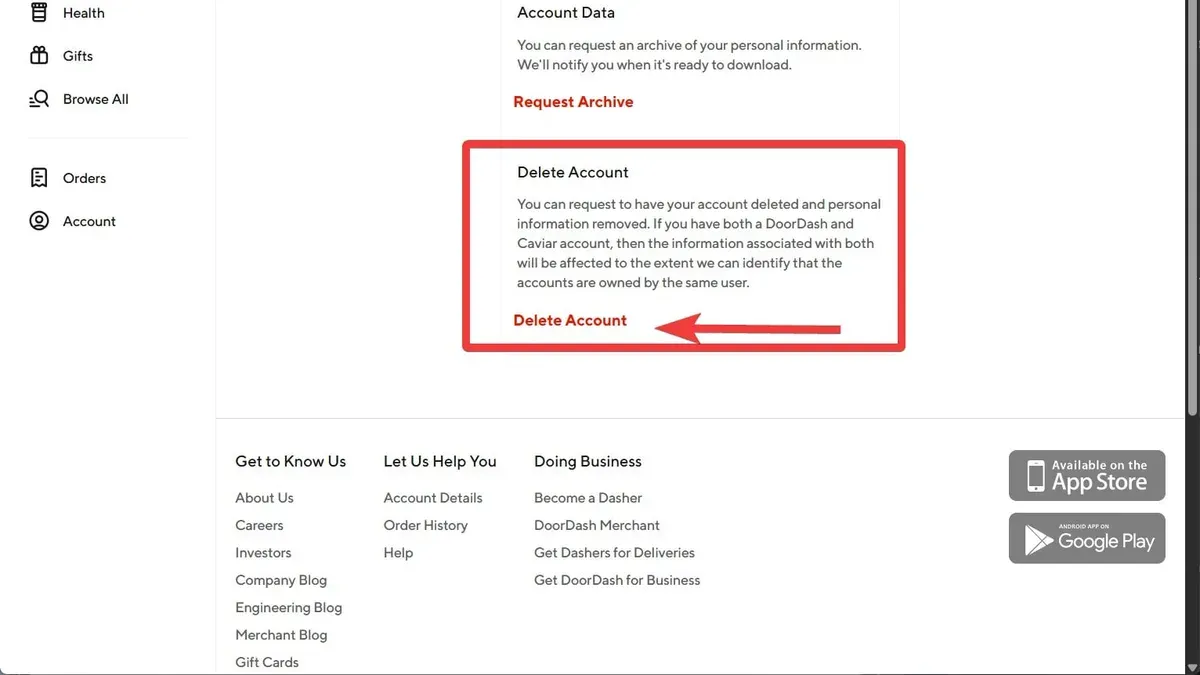
- Scroll down to the bottom of the Privacy & Settings page until you find the Delete Account link or button. It may be labeled as "Request Account Deletion" or similar.
- Click the Delete Account link. DoorDash will prompt you to verify your identity by entering your account password or by requesting a verification code sent to your email or phone number linked to the account.
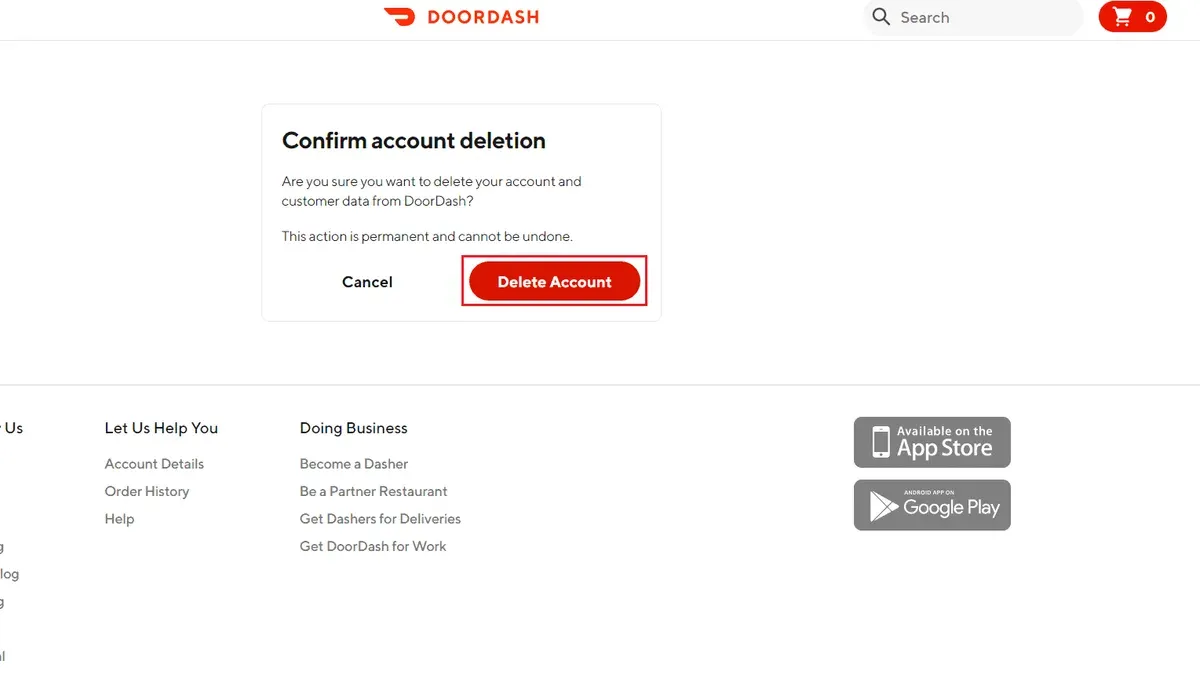
- After completing verification, you will be asked to confirm your decision to permanently delete your account. Read the information provided carefully, as this action cannot be undone.
- Confirm the deletion request. You should receive an on-screen message confirming that your request was submitted successfully and information on how long the process will take, typically within a few days.
- Check your email inbox for a confirmation email from DoorDash. This email serves as proof that your account deletion request is being processed.
Note that the website interface may update occasionally, but the deletion option is generally found under Privacy or Account Settings. If you do not see the option, try clearing your browser cache or using a different browser.
How to delete your DoorDash account on the phone app
- Open the DoorDash app on your iOS or Android device and log in if you are not already signed in. You should see the main home screen with current deals and orders.
- Tap the profile icon or the menu button, usually located at the bottom right on iOS or in the top left corner on Android. This opens the account or settings menu.
- Scroll down and select "Account Settings" or simply "Settings," depending on your app version. This section contains all your personal and app preferences.
- Look for the option labeled "Privacy," "Security," or directly "Delete Account." On some versions, this may be under a submenu named "Manage Account" or "Account Preferences."
- Tap the "Delete Account" option. The app will prompt you to verify your identity, typically by entering your password or confirming via a code sent to your email or phone number.
- After verification, confirm that you want to permanently delete your account. The app will display a final warning about data loss and account closure.
- Submit the deletion request. You should receive an on-screen confirmation that your request is being processed, followed by an email confirmation within a short time frame.
Note that the layout and wording might vary slightly between iOS and Android apps due to interface differences, but the overall process remains similar. If you cannot find the deletion option, ensure your app is updated to the latest version or consult DoorDash support.
How to deactivate vs. permanently delete your DoorDash account
Account deactivation on DoorDash is a temporary suspension of your account, allowing you to pause usage without losing your data. When deactivated, you can reactivate your account by simply logging back in and restoring access to your order history, saved information, and preferences.
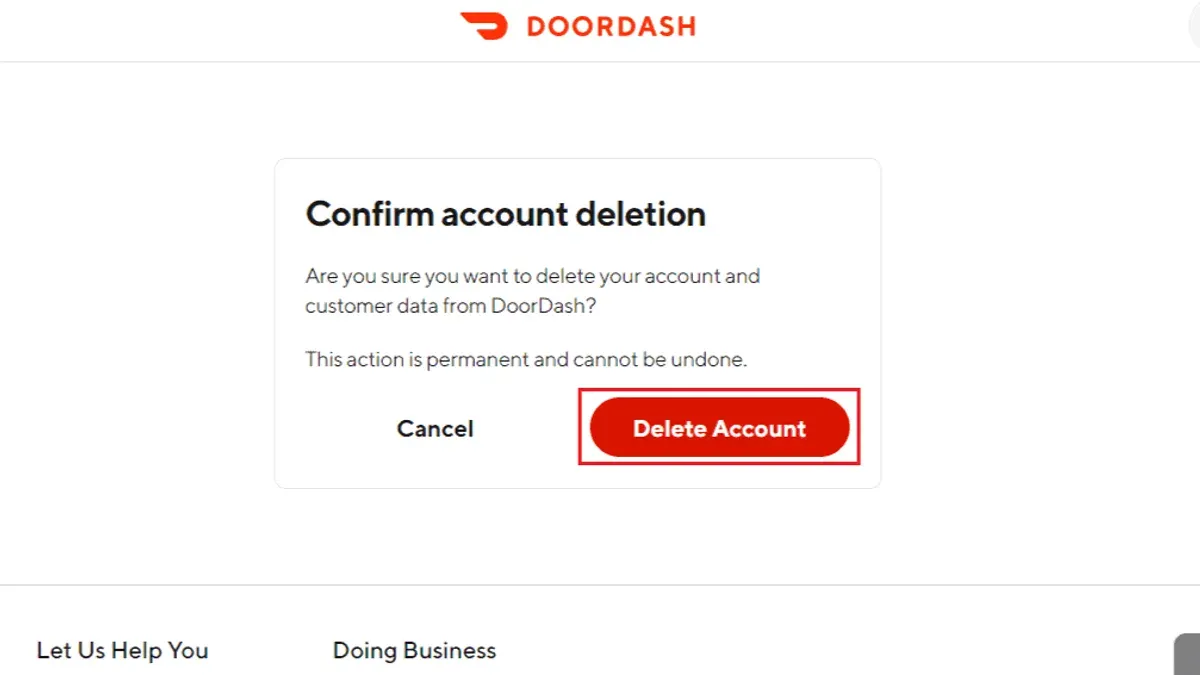
Permanent deletion, in contrast, is an irreversible process that removes all your account data from DoorDash's systems. This includes your profile, order history, payment information, and saved addresses. Once deleted, you cannot recover your account or any associated data.
You might prefer deactivation if you want to take a break from DoorDash without losing your history or settings. Deactivation is useful during temporary situations like travel or budgeting phases. However, if you are certain you no longer want to use DoorDash, or have privacy concerns about retaining your data, permanent deletion is the appropriate choice.
| Feature | Account Deactivation | Permanent Deletion |
|---|---|---|
| Data retention | Data is preserved and accessible upon reactivation | All data is permanently removed and unrecoverable |
| Order history | Retained and visible when active | Deleted entirely |
| Account access | Temporarily disabled but can be restored | Fully terminated, no access possible |
| Use case | Temporary break, privacy concerns minimal | Permanent exit, strong privacy or security reasons |
DoorDash’s official policy states: "Deactivating your account suspends your access but retains your data. Permanent deletion removes your account and all personal data irreversibly."
What happens after you delete your DoorDash account
Once you delete your DoorDash account, your profile, order history, and personal data will be removed following DoorDash’s data retention policies. Typically, DoorDash retains some information for a limited period to comply with legal or financial obligations, but all identifiable data linked to your account will be deleted permanently over time.
You will immediately lose access to any active subscriptions, credits, or promotions associated with your account. These cannot be transferred or recovered after deletion.
Pending refunds or disputes related to orders may be affected. It is advisable to resolve any outstanding issues before deleting your account, as you may lose the ability to track or claim refunds once the account is deleted.
Account deletion is irreversible. You cannot recover your account or any data once the deletion process is complete.
- After confirming deletion, you will see a confirmation message indicating your request has been received.
- DoorDash will process your deletion request, during which your account becomes inaccessible to you.
- Data removal occurs according to DoorDash’s privacy policy, meaning some information may remain temporarily for compliance purposes.
- After the process completes, attempts to log in will fail, confirming permanent deletion.
Troubleshooting common issues when deleting your DoorDash account
If you can’t find the delete option on your device, first ensure your app or browser is fully updated. On mobile, the delete account option is under Account > Settings > Privacy > Delete Account. If it’s missing, try logging out and back in or reinstalling the app. On desktop, check under Privacy & Settings; if it’s not visible, clear your browser cache and refresh.
If you encounter errors or delays after submitting your deletion request, wait 24 to 48 hours as processing can take time. If the issue persists, try submitting the request again or use a different device or network to rule out connectivity problems.
Forgot your login credentials but still want to delete your account? Use the “Forgot Password” option on the login screen to reset your password. If you no longer have access to your email or phone number linked to the account, you must contact DoorDash support for manual deletion.
When automated deletion fails, contact DoorDash support directly. You can reach them through the in-app Help section or at [email protected]. Provide your account details and request permanent deletion. Support typically responds within a few days and can manually process your request.
- Attempt to locate the delete option in Account > Settings > Privacy. Successful step: The “Delete Account” button is visible.
- If not found, update or reinstall the app and check again. Successful step: Delete option appears after update.
- If deletion request returns an error, wait 48 hours then try again. Successful step: Confirmation message appears after submission.
- If you forgot your password, select “Forgot Password” to reset it. Successful step: Receive password reset email and regain login access.
- Contact DoorDash support via in-app Help or email if issues persist. Successful step: Receive support confirmation and deletion completion notification.
Alternatives to deleting your DoorDash account
If you are unsure about permanently deleting your DoorDash account or want to reduce your usage without losing access, several options let you control your interaction with the platform.
- Temporarily deactivate notifications or emails: Go to Account Settings > Notifications to turn off promotional emails, push notifications, and SMS alerts. This reduces distractions without affecting your account.
- Remove payment methods and personal information: In Payment Settings, delete saved credit cards and update or remove your address and phone number. Your account remains active but with limited stored data to reduce risk or temptation.
- Set spending limits or take a break from ordering: While DoorDash does not currently offer built-in spending caps, you can manually limit orders by setting personal budgets or uninstalling the app temporarily. Some users choose to pause their activity for weeks or months and then resume without needing a new account.
- Use DoorDash as a guest: You can place orders without an account by selecting the guest checkout option. This avoids creating a full profile, though you lose access to order history and saved preferences.
These alternatives provide varying levels of control, allowing you to tailor your engagement with DoorDash without irreversible deletion. Many users find adjusting notification settings or clearing stored payment details sufficient to manage their usage effectively.
How to delete your DoorDash account on different devices and platforms
The process to delete your DoorDash account varies slightly between the mobile app and the website due to interface design and navigation paths. While both platforms require account verification and confirmation, the steps to reach the deletion option differ.
| Feature | Mobile App | Website (Computer) |
|---|---|---|
| Navigation to Deletion | Account > Settings > Privacy > Delete Account | Account Icon > Privacy & Settings > Delete Account |
| Verification Method | Enter password or use biometric login | Enter password and email verification link |
| Confirmation Prompt | Confirm deletion with an in-app prompt | Confirm deletion via webpage prompt |
| Typical User Success Rate | Generally high, but some users report navigation confusion | High success, easier to navigate with full screen |
To ensure successful deletion regardless of platform, double-check your internet connection, have your login credentials ready, and carefully follow the on-screen prompts. Deletion requests may take a short time to process; avoid logging back in immediately to prevent cancellation.
- Choose the device or platform you want to delete your account from.
- Navigate to the account deletion section following the platform-specific path.
- Verify your identity by entering your password or following the verification prompt.
- Confirm the deletion when prompted; you should see a confirmation message indicating your request was received.
- Log out and avoid logging back in to ensure the process completes.
- After 24 to 48 hours, attempt to log in to confirm your account is no longer accessible.
If you use multiple devices, repeat the process on each to ensure the account deletion propagates across all platforms.
- How to Delete Your Disney+ Account Permanently: Step-by-Step Guide
- How to Permanently Delete Your Apple ID Account: A Clear Step-by-Step Guide
Frequently asked questions
Can i delete doordash account?
Yes, you can delete your DoorDash account permanently. This action removes your personal information and prevents you from placing new orders. Keep in mind that deleting your account is irreversible and will erase your order history and payment details.
How to delete doordash account?
To delete your DoorDash account, log in to your account on the DoorDash website, navigate to the Account Settings, and look for the option to delete your account. You will typically need to confirm your decision by entering your password or responding to a confirmation email. Follow the on-screen prompts to complete the process.
How to delete doordash account on phone?
Deleting your DoorDash account on a phone is done through the mobile app or a mobile browser. In the app, open the Account tab, select Settings, then Privacy, and look for the option to delete your account. If the app does not provide this option, use a mobile browser to access the DoorDash website and follow the web instructions.
How to delete doordash account on app?
The DoorDash app may not always have a direct delete option. If available, go to Account > Settings > Privacy > Delete Account. If you don’t see this, you will need to delete your account through the DoorDash website on a desktop or mobile browser.
How to deactivate my doordash account?
DoorDash does not offer a formal account deactivation feature separate from deletion. If you want to stop using the service without deleting your account, simply log out and uninstall the app. To permanently stop using DoorDash, deleting your account is the recommended step.
What this advice does not cover and important considerations
This article does not cover how to delete DoorDash driver or Dasher accounts, which require a separate process through the DoorDash driver support channels. Additionally, deleting your DoorDash account may not immediately erase all personal data due to DoorDash’s data retention policies mandated by law. If you have active orders, pending refunds, or ongoing DashPass subscriptions, the deletion process could be delayed or temporarily restricted until those issues are fully resolved.
The single most useful next step is to review your DoorDash account for any active orders, subscriptions, or payment holds before initiating deletion. Resolving these first will help ensure a smoother account closure experience without unexpected interruptions or delays.



