How to Delete Your Dropbox Account Permanently: Step-by-Step Guide
Step-by-step guide to permanently delete your Dropbox account, cancel subscriptions, and remove your files securely.
You’ve decided to stop using Dropbox and want to make sure your account is fully deleted. Whether you’re concerned about lingering data or simply want to clear your digital footprint, knowing the correct steps is essential.
This article explains how to delete Dropbox account permanently with clear, step-by-step instructions. It also covers how to remove Dropbox from your computer and mobile devices, what happens to your files after deletion, and how to handle subscription cancellations and inactive account policies.
Key takeaways
- Deleting your Dropbox account requires logging into the website and confirming the deletion process.
- Removing Dropbox from your computer or mobile device does not delete your account or files stored online.
- Subscription plans must be canceled separately before deleting your account to avoid future charges.
- Dropbox retains data for a limited period after deletion, allowing account recovery within that window.
- Inactive Dropbox accounts are not automatically deleted but may have storage limitations applied.
Before you start: What you need to know and prepare
Deleting your Dropbox account is a permanent action that removes all your files from Dropbox servers, making them inaccessible to you and anyone you shared them with. Before proceeding, ensure you have your Dropbox login credentials ready to avoid access issues during deletion.
Backing up your data is essential. Download all important files from your Dropbox to local storage or an alternative cloud service. Once deleted, Dropbox does not retain your files for recovery, so missing this step could result in irreversible data loss.
Shared folders and links will stop working immediately after your account deletion. Any collaborators or people with shared access will lose their ability to view or edit those files.
Check your account for active subscriptions, such as Dropbox Plus or Professional plans, and linked third-party apps. These should be canceled or unlinked beforehand to avoid ongoing charges or app access issues.
- Gather your Dropbox username and password. After logging in successfully, you will see your Dropbox homepage.
- Download all files you want to keep by selecting them and choosing the “Download” option. Confirm that the files are saved on your device or another cloud service.
- Review shared folders and links by going to the "Sharing" section in Dropbox. Note any important collaborations that will be lost.
- Go to your account settings and check the "Billing" tab for active subscriptions. Cancel these subscriptions to prevent future charges.
- Visit the "Connected apps" section in settings and unlink any third-party applications to avoid access conflicts after deletion.
How to delete your Dropbox account permanently via the website
- Go to the official Dropbox website and log in with your credentials. Once logged in, you should see your account homepage.
- Click your profile icon in the upper-right corner to open a dropdown menu and select "Settings." This opens your account settings page.
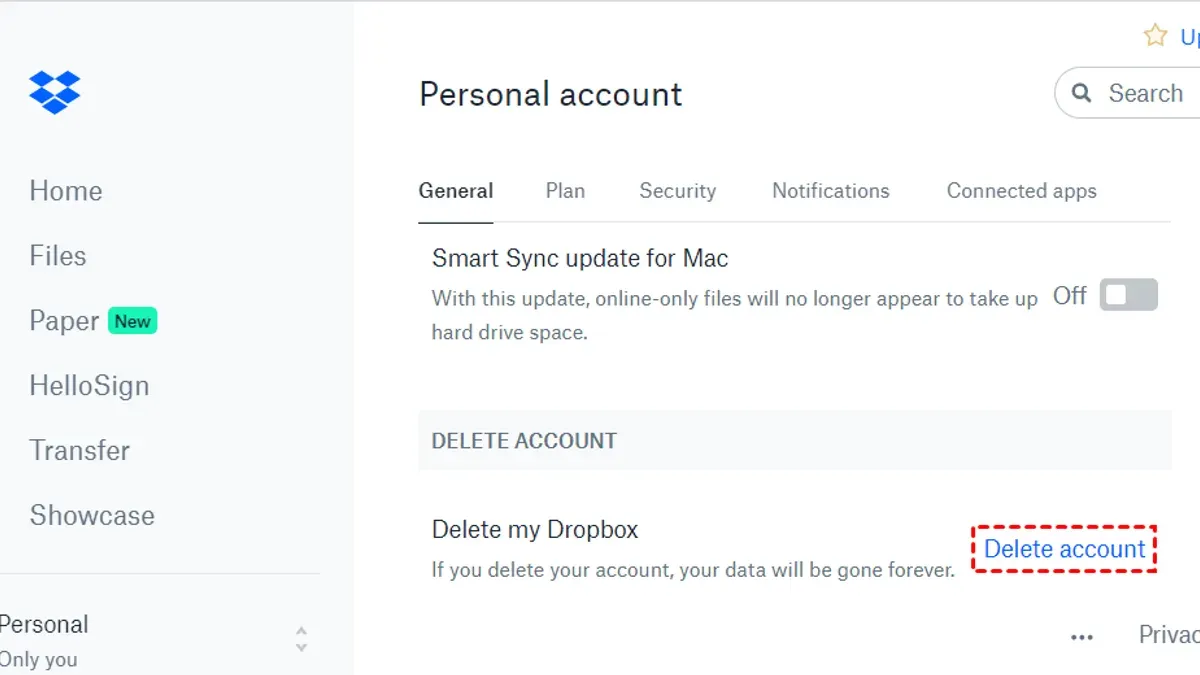
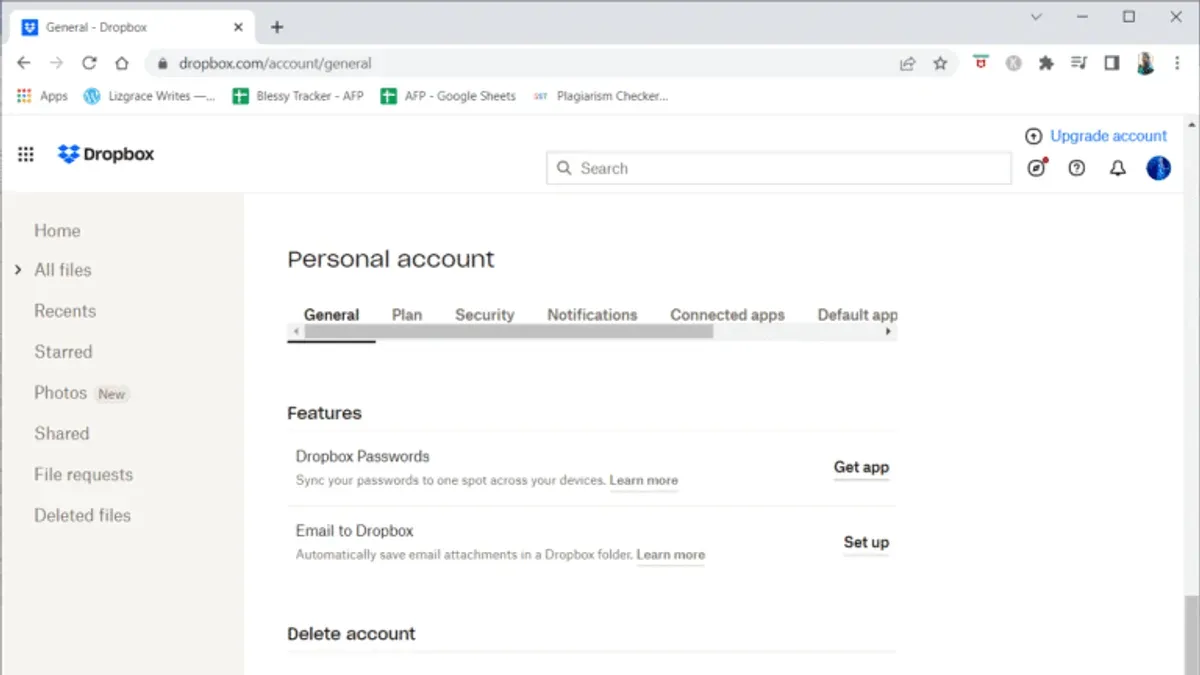
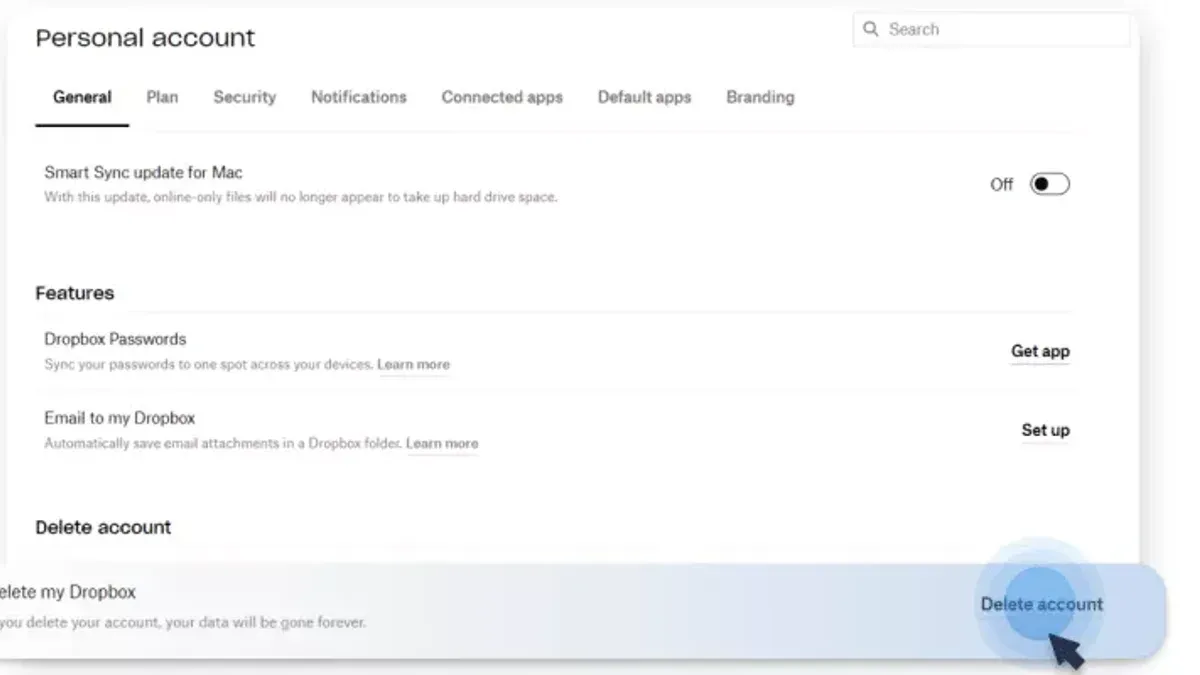
- Navigate to the "General" tab within the settings menu. Scroll down to find the "Delete account" option at the bottom of the page.
- Alternatively, you can directly visit https://www.dropbox.com/account/delete to access the account deletion page.
- On the deletion page, Dropbox will prompt you to confirm your identity by entering your password again. If you have two-factor authentication enabled, you may need to provide the authentication code from your device.
- After verifying your identity, you will see a final warning explaining what deletion entails. Confirm that you want to delete your account permanently by clicking the appropriate confirmation button.
- Once confirmed, Dropbox will process the deletion immediately. You will receive a confirmation message stating that your account has been deleted, and you will be logged out automatically.
Deleting your account via the website ensures that all your data and shared folders are immediately marked for removal, and access to your Dropbox will be revoked across all devices.
How to remove your Dropbox account from a computer
To remove your Dropbox account from a desktop app on Windows or Mac, you need to unlink or sign out first. This stops syncing without deleting your online account. Afterward, you can delete local Dropbox folders if you want to free up disk space.
- Open the Dropbox desktop application. On Windows, find it in the system tray near the clock; on Mac, locate it in the menu bar at the top right. You should see the Dropbox icon indicating the app is running.
- Click the Dropbox icon, then select your profile picture or initials in the top right corner of the app window to open the account menu.
- Choose Preferences from the dropdown menu. A new window will open with multiple tabs.
- Go to the Account tab. Here, you will see your linked Dropbox account details.
- Click Unlink This Dropbox (Windows) or Sign Out (Mac). A confirmation prompt appears to ensure you want to disconnect the account.
- Confirm the action. The app will stop syncing, and your account will be unlinked from the device. The Dropbox icon may change to indicate no account is linked.
- Optionally, delete the local Dropbox folder on your computer to remove files stored offline. On Windows, this is usually located in
C:\Users\[YourUsername]\Dropbox. On Mac, check/Users/[YourUsername]/Dropbox. Deleting this folder frees disk space but does not affect your online Dropbox storage. - Restart your computer to finalize the removal process. This ensures all Dropbox services stop running.
Unlinking or signing out from the desktop app disconnects your device from Dropbox without deleting your cloud data. Local files remain on your computer unless you manually delete them after unlinking. The interface and terminology differ slightly between Windows and Mac, but the core steps are consistent.
What happens if you delete your Dropbox account
When you delete your Dropbox account, you immediately lose access to all your stored files and any shared folders. Any files stored solely in Dropbox will no longer be accessible to you or anyone you shared them with.
Dropbox’s policy states that your data is permanently deleted from their servers according to their data retention procedures, typically within 30 days after account deletion. This means once the deletion process completes, your files cannot be recovered.
Any third-party apps or services linked with your Dropbox account will also lose access to your data. This can affect integrations that rely on Dropbox storage.
Your subscription and billing will be terminated as part of the deletion process. You will no longer be charged, and any remaining subscription time will stop.
It is important to understand that account deletion is irreversible. Once completed, you cannot recover your account, files, or settings.
Does Dropbox delete inactive accounts automatically?
Dropbox does not automatically delete accounts due to inactivity. According to Dropbox's official policies, your account and files remain intact regardless of how long you go without logging in. This means that if you stop using Dropbox, your data will not be removed unless you take explicit action to delete your account.
While Dropbox does not delete inactive accounts, it may impose storage limits or temporarily suspend accounts that violate terms or exceed storage quotas. However, suspension is different from deletion and typically requires user intervention to resolve. Users who leave accounts unused should be aware that data remains stored and accessible unless manually deleted.
To securely manage unused accounts, Dropbox recommends signing out on all devices and considering deleting the account if you no longer need it. This prevents unauthorized access and ensures your data is permanently removed. Simply leaving an account inactive does not guarantee it will be purged from Dropbox's servers.
Several user reports confirm that accounts inactive for extended periods remain active, supporting Dropbox’s official stance. Therefore, if you want to remove your data completely, you must delete your Dropbox account manually through your account settings.
How to cancel Dropbox subscriptions before deleting your account
Before deleting your Dropbox account, you must cancel any active paid subscriptions to avoid further charges. Subscription management is found within your account settings on Dropbox’s website.
- Log in to your Dropbox account at dropbox.com and click your profile picture in the top-right corner. You should see a dropdown menu.
- Select Settings from the dropdown. This opens your account settings page.
- Navigate to the Plan tab within the settings menu. Here, you will see your current subscription details.
- Click on Cancel plan or Downgrade to revert to the free Basic plan. You will be prompted to confirm this action.
- Confirm cancellation by following the on-screen instructions. After confirmation, you should receive an email stating your subscription will not renew.
- Note that your paid plan remains active until the end of the current billing period, so you retain access to paid features until that time.
- Verify cancellation by checking your account status in the Plan tab or reviewing the confirmation email. The plan should indicate "Basic" or show no active paid subscription.
Failing to cancel subscriptions before account deletion may lead to unexpected charges, as billing cycles do not stop immediately upon deletion.
Troubleshooting common issues when deleting or removing Dropbox accounts
If you encounter problems logging in or verifying your identity, ensure you are using the correct email and password associated with your Dropbox account. If you have forgotten your password, use the "Forgot your password?" link on the login page to reset it. Two-factor authentication (2FA) may require you to enter a verification code sent to your device or email; make sure you have access to these.
When you see error messages during deletion confirmation such as "Unable to process request" or "Action cannot be completed," try clearing your browser cache, using a different browser, or disabling browser extensions that might interfere. If issues persist, log out and log back in before attempting deletion again.
To unlink Dropbox from desktop or mobile apps, open the Dropbox desktop app, go to your profile picture or initials in the top-right corner, select "Preferences," then "Account," and click "Unlink This Dropbox." On mobile, open the app, tap your profile icon, select "Settings," then choose "Sign out." If unlinking fails, restart the device and try again.
Shared folders or team accounts cannot be deleted by individual users if they are managed by an organization. You must leave shared folders manually or contact your team administrator to remove your account from the team before deletion.
If you continue to face problems, contact Dropbox Support by visiting their Help Center at https://www.dropbox.com/support and submitting a ticket or using live chat when available.
How to remove Dropbox account from mobile devices
Removing your Dropbox account from mobile devices involves signing out or unlinking the account within the app, then optionally deleting the app and clearing its data. The process differs slightly between iOS and Android.
Unlink or sign out of Dropbox on iOS and Android
- Open the Dropbox app on your mobile device.
- Tap the Account tab, usually represented by a person icon at the bottom right.
- Tap the gear icon or Settings in the top right corner to open app settings.
- Scroll down and select Sign out or Unlink account. A confirmation prompt should appear.
- Confirm the action. You will be signed out, and the app will no longer sync with your Dropbox account.
Deleting the app and clearing app data
After signing out, delete the Dropbox app from your device to remove local files and app data.
- On iOS, tap and hold the Dropbox app icon on the home screen, then tap Remove App followed by Delete App. This deletes the app and clears its data.
- On Android, go to Settings > Apps > Dropbox. Tap Storage, then Clear Data to remove local files and settings, followed by Uninstall to delete the app.
Consider syncing and offline files: Signing out stops syncing, but any files saved for offline use remain on your device until you clear app data or uninstall. Clearing data or uninstalling removes these files.
Differences from desktop removal: Mobile unlinking and app deletion do not delete your Dropbox account or cloud data; these steps only disconnect the device. To erase your account permanently, you must delete it via the website.
- How to Delete Your DoorDash Account Permanently: A Clear Step-by-Step Guide
- How to Delete Your Disney+ Account Permanently: Step-by-Step Guide
- How to Permanently Delete Your Apple ID Account: A Clear Step-by-Step Guide
- How to Install Dropbox on Mac: A Clear Step-by-Step Guide
Frequently asked questions
How to terminate dropbox account?
To terminate your Dropbox account, sign in to the Dropbox website, go to your account settings, select the "Delete account" option under the "General" tab, and follow the prompts to confirm. Make sure to back up any important files before proceeding, as deletion is permanent.
Can you delete a dropbox account?
Yes, you can delete a Dropbox account permanently through the account settings on the Dropbox website. This action removes all your files and data associated with the account, so ensure you have saved anything needed before deleting.
How to quit dropbox account?
To quit or stop using your Dropbox account, you can simply sign out and uninstall the app from your devices. For permanent quitting, you should delete the account via the website to prevent future access and data retention.
What happens if i delete my dropbox account?
Deleting your Dropbox account permanently removes your files, shared folders, and account information from Dropbox’s servers after a certain grace period. Any linked devices will lose access, and you will no longer be able to recover the data or sign in using that account.
How to remove account from dropbox?
To remove an account from the Dropbox app on a computer, open Dropbox preferences, navigate to the "Account" tab, and select "Unlink This Dropbox." On mobile, sign out of the account in the app settings to remove it from the device without deleting the account itself.
What this guide does not cover
This guide does not cover deleting Dropbox Business or team accounts, which have different procedures and may require admin permissions. If your account is part of a team or managed by an organization, you should contact your administrator or refer to Dropbox Business support for specific instructions.
Also, this article does not address data recovery options after account deletion or legal considerations related to data retention. If you need to recover files after deletion or have compliance concerns, consult Dropbox support or a legal advisor.
The single most useful next step is to log into your Dropbox account on the official website, review your data and subscription status, and carefully follow the account deletion steps to ensure you fully understand the consequences and avoid losing important files inadvertently.