
How to Delete Your Epic Games Account Permanently: A Step-by-Step Guide
Follow this clear guide to delete your Epic Games account permanently and understand the impact on your purchases and game progress.
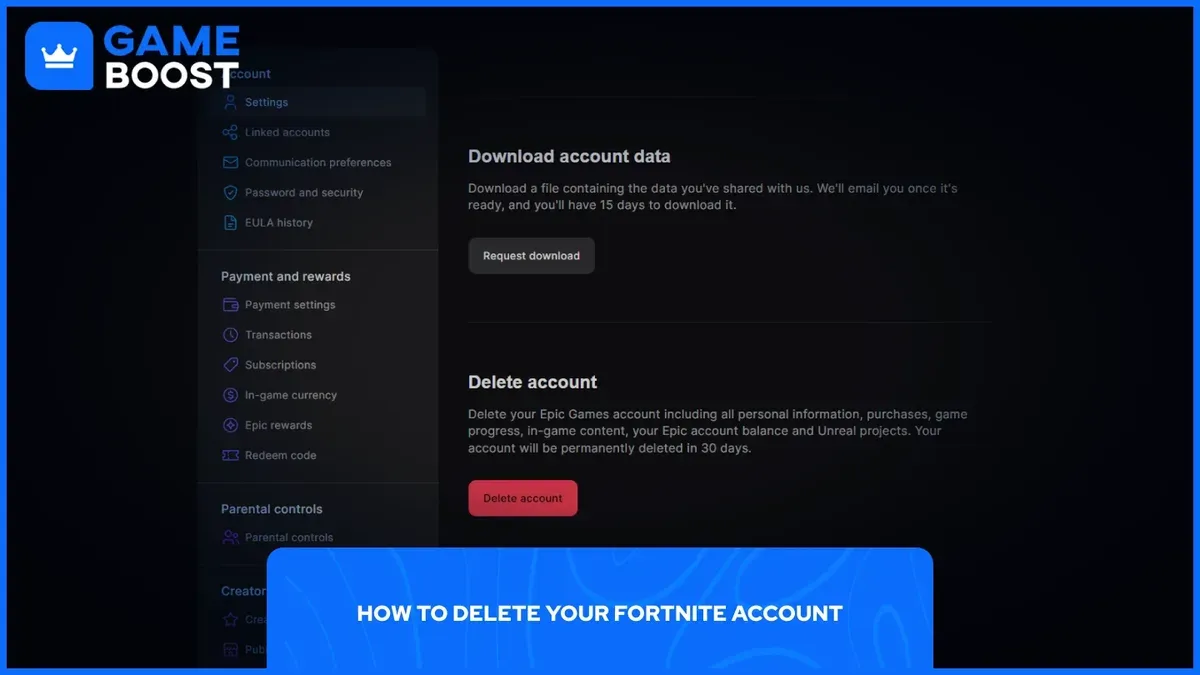
You might have decided to move on from Epic Games and want to ensure your account is fully removed. Whether you're concerned about privacy, no longer play games tied to the account, or want to stop receiving emails, knowing how to delete Epic Games account permanently is essential.
This guide walks you through the step-by-step process of deleting your Epic Games account, explains what data will be erased, outlines the impact on your game library and purchases, and addresses common problems users encounter during deletion. By following these clear instructions, you can make an informed decision and avoid unexpected consequences.
Key takeaways
- Deleting your Epic Games account permanently removes your profile, purchases, and game progress.
- The deletion process requires account verification and can take several days to complete.
- Uninstalling Epic Games Launcher and individual games does not delete your account.
- Some data may remain in backups for a limited time even after deletion.
- Issues during deletion often involve account security settings or linked services.
Before you start: What you need to know and prepare
To delete your Epic Games account, you must have access to the email address linked to that account. This is essential because Epic Games will send confirmation and verification messages to that email during the deletion process.
Deleting your account is permanent. You will lose access to all purchased games, in-game progress, virtual currency, and any other services connected to your Epic Games account. For example, if you own Fortnite skins or have progress in Unreal Tournament, these will be irretrievable after deletion.
Before proceeding, consider backing up any important data or screenshots related to your games. Some games might allow exporting certain progress or settings, but this depends on the specific title.
Check your account for any active subscriptions, outstanding balances, or pending refunds. These must be resolved before deletion, as deleting your account does not cancel subscriptions or guarantee refunds.
Unlike account deletion, Epic Games does not offer a temporary deactivation option. Deletion removes your data completely and cannot be reversed.
- Verify that you can log in to your Epic Games account and access the registered email address. You should be able to receive emails and click on links sent by Epic Games.
- Review your game library and note which titles and progress you will lose permanently. Take screenshots or export data if the game supports it.
- Check for active subscriptions by navigating to Account Settings > Subscriptions. Cancel any you want to end.
- Ensure there are no unpaid balances or pending transactions. Visit Payment History in Account Settings to verify.
- Understand that once you confirm deletion, Epic Games will remove your account and all associated data with no option to recover it.
How to permanently delete your Epic Games account
- Go to the official Epic Games website and log in with your account credentials. Upon a successful login, you should see your account dashboard or homepage.
- Click on your account name in the upper right corner to open a dropdown menu, then select Account to enter the Account Settings page.
- Within Account Settings, navigate to the Privacy tab in the left-hand menu. Scroll down to find the Delete Account section or a similarly named option.
- Click the Request Account Delete button. You will be prompted to confirm your decision to proceed with deleting your account.
- After submitting the deletion request, Epic Games will send a confirmation email to the address linked to your account. Open this email and follow the instructions to verify your identity and confirm the deletion request.
- Once confirmed, your account enters a waiting period before full deletion. This period typically lasts around 30 days, during which you can cancel the deletion by contacting Epic Games support if you change your mind.
- After the waiting period, your Epic Games account and all associated data will be permanently deleted and cannot be recovered.
How long does it take to delete an Epic Games account
Once you initiate the deletion request for your Epic Games account, the process begins with an initial confirmation phase. Epic Games typically acknowledges your request promptly via email, confirming that the deletion process has started.
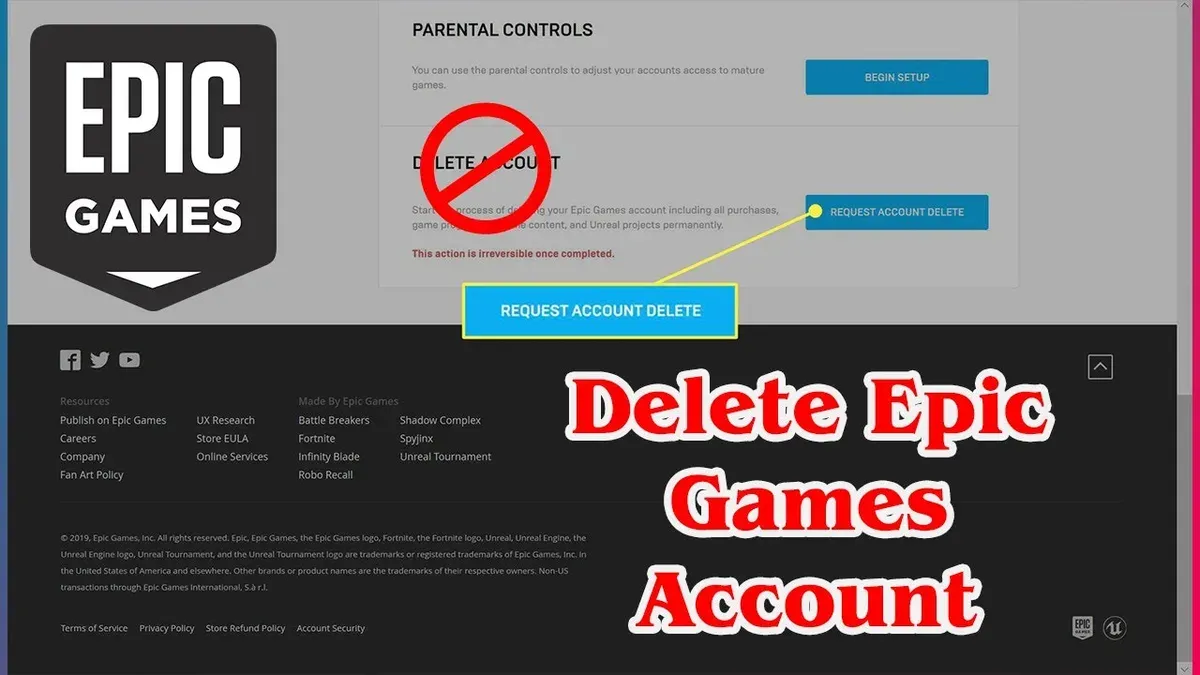
After confirmation, there is a mandatory waiting period during which your account remains accessible but marked for deletion. According to Epic Games’ official privacy policy, this waiting or “cooling-off” period lasts approximately 30 days. This pause allows users to reconsider and cancel the deletion if needed.
During this time, Epic Games may perform additional verification or review, especially if there are outstanding purchases, subscriptions, or unusual account activity. Such reviews can cause delays beyond the typical timeline.
After the waiting period, the actual deletion process begins, which can take several days to complete as data is removed from Epic’s servers. Once finished, your account and all associated data are permanently deleted and cannot be recovered.
To check the status of your deletion request, you can log into your Epic Games account. If the deletion is underway, you will see a notification indicating that your account is scheduled for deletion. If you no longer have access or the account is fully deleted, attempting to log in will fail.
- Log in to your Epic Games account and submit a deletion request in the Privacy settings. You should receive a confirmation email shortly after.
- Wait for the approximately 30-day waiting period during which your account is marked for deletion but still accessible.
- Monitor your email and account status for any verification requests or updates from Epic Games.
- After the waiting period, your account will be permanently deleted, which may take additional days for full removal.
- Attempt to log in after this period to confirm the account no longer exists; failure to log in indicates deletion completion.
How to delete Epic Games games and uninstall them
Removing Epic Games titles from your devices involves uninstalling the games and, optionally, the Epic Games Launcher itself. This process deletes local game files but does not affect your account or purchases stored on Epic's servers.
- To uninstall a game on Windows, open the Epic Games Launcher and navigate to your Library. Hover over the game you want to uninstall and click the three dots next to the game title. Select "Uninstall". After confirmation, the game files will be removed from your PC. You should see the game disappear from your local storage.
- On macOS, open the Epic Games Launcher, go to your Library, and click the gear icon next to the game. Choose "Uninstall" and confirm. The game files will be deleted from your Mac. Verify by checking the Applications folder or your chosen install location.
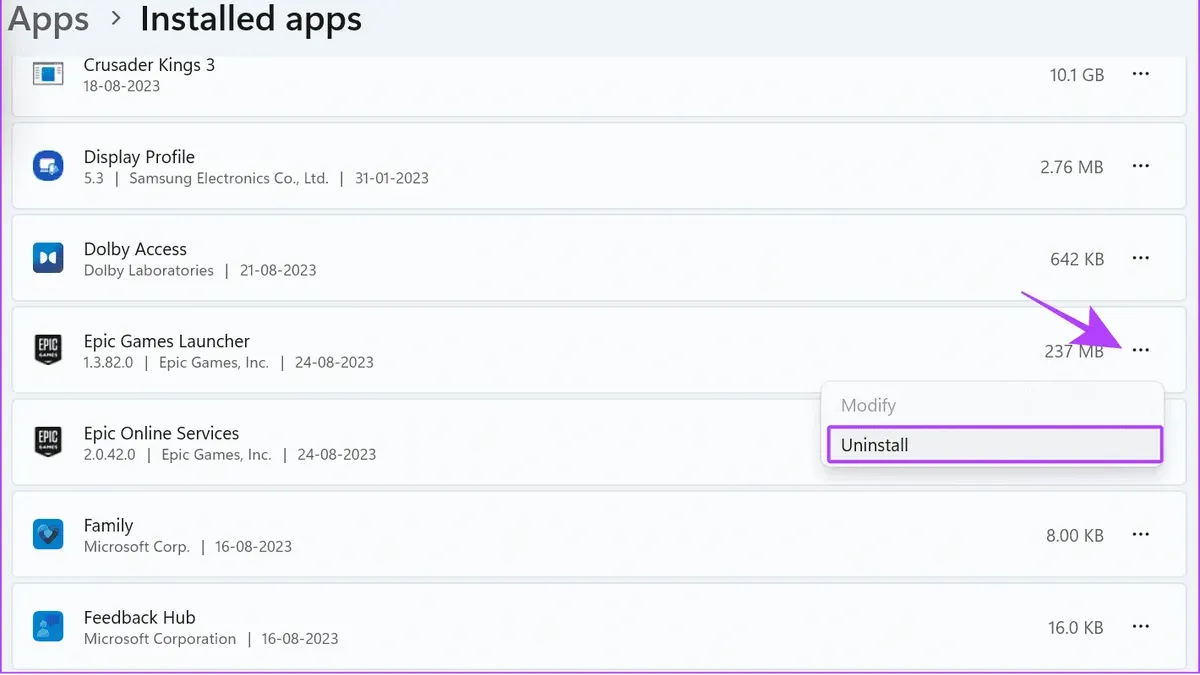
- To uninstall the Epic Games Launcher on Windows, open the Start menu and go to Settings > Apps > Apps & features. Find "Epic Games Launcher" in the list, select it, and click "Uninstall." Follow prompts until the process completes. This removes the launcher and all cached data but leaves your Epic account and purchased games intact on the server.
- On consoles, uninstall games through the system’s main menu: on PlayStation, highlight the game, press the Options button, and select "Delete"; on Xbox, press the Menu button on the game tile and choose "Uninstall." This removes the game from the console but not from your Epic account.
Remember, uninstalling games or the Epic Games Launcher removes only local files and does not delete your Epic Games account or your purchases. Deleting your account is a separate, irreversible action that removes access to all linked games and content.
Troubleshooting common issues when deleting your Epic Games account
If you do not receive the confirmation email to proceed with account deletion, first check your spam or junk folder. If it's not there, ensure your registered email address is correct in your account settings. You can request the deletion again after verifying your email.
When you encounter errors submitting the deletion request, such as "Unable to process request" or "Server error," try clearing your browser cache or switching to a different browser. If the problem persists, wait a few hours before trying again, as server issues are often temporary.
Accounts linked to external services like PlayStation Network, Xbox Live, or social media may face deletion delays if linked purchases or subscriptions are unresolved. Make sure all subscriptions are canceled and any pending transactions are completed or refunded before requesting deletion.
For persistent problems, contact Epic Games Support directly. You can submit a request at https://www.epicgames.com/help/en-US/contact-us. Response times vary but typically range from 24 to 72 hours. Provide error messages and your account details to expedite assistance.
- Check your email spam folder for the confirmation email. You should see an email titled "Epic Games Account Deletion Confirmation." If found, open it and follow the link.
- Review your account's registered email for accuracy under Account Settings > General. Correct it if necessary, then retry the deletion request.
- Clear your browser cache or switch browsers if you get an error submitting the deletion request. After refreshing, reattempt submission and look for a success message.
- Verify all linked accounts and subscriptions are canceled in Account Settings > Subscriptions & Payments. Resolve any outstanding issues.
- If issues remain unresolved, visit the Epic Games Support page, submit a detailed support ticket, and await their response. You should receive a confirmation reply within a few days.
- How to Delete Your eBay Account Permanently: Step-by-Step Guide
- How to Delete Your Dropbox Account Permanently: Step-by-Step Guide
- How to Delete Your DoorDash Account Permanently: A Clear Step-by-Step Guide
- How to Delete Your Disney+ Account Permanently: Step-by-Step Guide
Frequently asked questions
How to permanently delete epic games account?
To permanently delete your Epic Games account, you need to submit a deletion request through the Epic Games website. Log into your account, visit the Privacy section under Account Settings, and click on the "Request Account Deletion" option. Follow the verification steps and confirm your request via email. Once completed, all your account data and purchases will be scheduled for deletion.
How to delete epic games account immediately?
Immediate deletion is not possible because Epic Games enforces a waiting period to process account deletion requests, typically around 30 days. This delay helps prevent accidental deletions and allows users to cancel if they change their mind. You can start the deletion process anytime through your account settings, but the account remains active during the waiting period.
Can you delete an epic games account?
Yes, you can delete your Epic Games account permanently. The process involves submitting a deletion request via your account settings on the Epic Games website. Be aware that deleting your account will remove access to all games, purchases, and content tied to it, and this action cannot be reversed once finalized.
How to delete epic games permanently?
Deleting your Epic Games account permanently requires initiating the deletion request in the Privacy tab of your account settings. After confirming your identity and the request, the account enters a deletion phase where data is removed after a waiting period. Ensure you have backed up any important data or linked accounts before proceeding.
How to permanently delete my epic games account?
You permanently delete your Epic Games account by logging into your account and navigating to Account Settings > Privacy. Click "Request Account Deletion," verify your identity, and confirm through the email sent to you. The account will then enter a final deletion process after a short waiting period, after which recovery is not possible.
What this guide does not cover and who should look elsewhere
This guide does not cover recovery options after deletion because the process is irreversible. If you are unsure about permanently deleting your Epic Games account, consider disabling it temporarily by adjusting your account settings or contacting Epic Games Support for assistance. Account deactivation allows you to pause your activity without losing purchases, friends, or game progress.
For those facing issues related to account security or unauthorized access, reaching out directly to Epic Games Support is the recommended approach instead of deleting the account immediately. Similarly, if you want to transfer your games or data, deletion is not the appropriate solution.
The single most useful next step after deciding to delete your account is to carefully review your purchases and subscriptions within your Epic Games account. Make sure to download any important game data, save files, or receipts, as all access will be lost once deletion is complete.



