How to Download Songs Offline in Spotify on Mac: Step-by-Step Guide
Discover how to download songs offline in Spotify on Mac with this easy guide to enjoy music without an internet connection.
You're about to head out but want your favorite Spotify playlists ready without relying on an internet connection. Downloading songs offline on Spotify using your Mac can seem straightforward, yet it often involves subscription checks and specific app settings.
This guide explains how to download songs offline in Spotify on Mac, walking you through enabling offline mode, managing storage, troubleshooting common issues, and understanding the limitations of offline playback on this platform.
Key takeaways
- You need a Spotify Premium subscription to download songs offline on Mac.
- Enable Offline Mode via Spotify's menu and download playlists or albums using the download toggle.
- Manage your downloads under "Your Library" and monitor storage in Spotify's settings.
- Common issues include insufficient storage, expired licenses, and app version conflicts.
- Spotify offline downloads on Mac are limited to playlists and albums, not individual songs or podcasts.
Before you start: What you need to download songs offline on Spotify for Mac
Downloading songs offline on Spotify for Mac requires an active Spotify Premium subscription. Unlike the free tier, which only allows streaming with ads and no offline playback, Premium users can download playlists, albums, and podcasts to listen without an internet connection.
Ensure you have a stable internet connection when initially downloading content; interruptions can cause incomplete downloads. Additionally, check your Mac has enough storage space. Each song typically takes up about 3 to 5 MB, so downloading a playlist of 100 songs might require at least 300 to 500 MB of free space.
Make sure the Spotify desktop app for Mac is installed and updated to the latest version. Spotify regularly updates the app to improve download functionality and bug fixes. Finally, confirm your Mac’s operating system meets Spotify’s minimum requirements—generally macOS 10.11 (El Capitan) or later—to avoid compatibility issues.
- Verify your Spotify subscription status by opening the app and clicking your profile icon; you should see “Premium” listed. Successful verification means you can access the download feature.
- Check your internet connection by opening a browser and loading a webpage; a quick load indicates readiness for downloading.
- Review available disk space by clicking the Apple menu > About This Mac > Storage. Ensure you have at least 500 MB free for moderate-sized playlists.
- Open the Spotify app, go to Spotify > About Spotify to confirm the version. If an update is available, a prompt will appear to update the app.
- Open System Preferences > Software Update to confirm your macOS version meets Spotify’s minimum requirements.
How to enable offline mode and download playlists or albums on Spotify for Mac
- Open the Spotify app on your Mac and log in using your Premium account credentials. You should see your library and search options upon successful login.
- Navigate to the playlist or album you want to download by using the Search bar or browsing your Library. The playlist or album page will display track lists and controls.
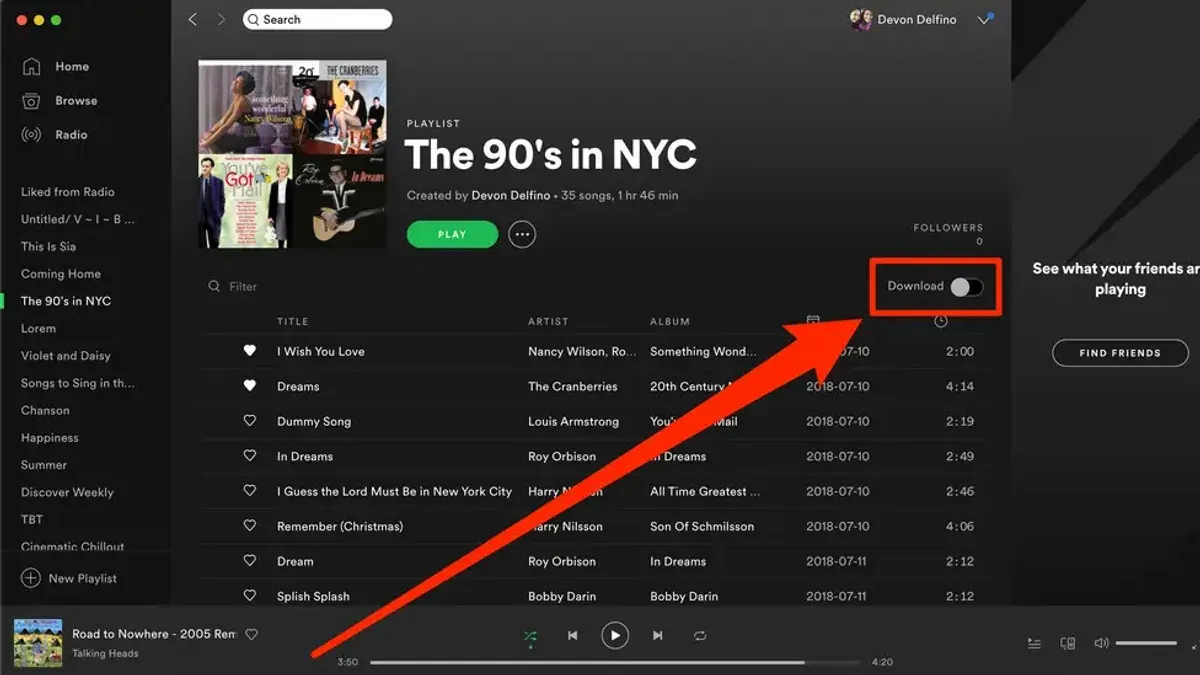
- Locate the Download toggle switch near the top of the playlist or album page. Click this switch to start downloading; it will turn green when activated.
- Wait for the download to complete. During this time, a green arrow icon will appear next to each track indicating successful download. For a 50-song playlist, this usually takes a few minutes depending on your internet speed.
- Once downloads are complete, go to Spotify in the menu bar, select Settings, then scroll to the Offline Mode option and toggle it on. This enables listening to your downloaded content without an internet connection.
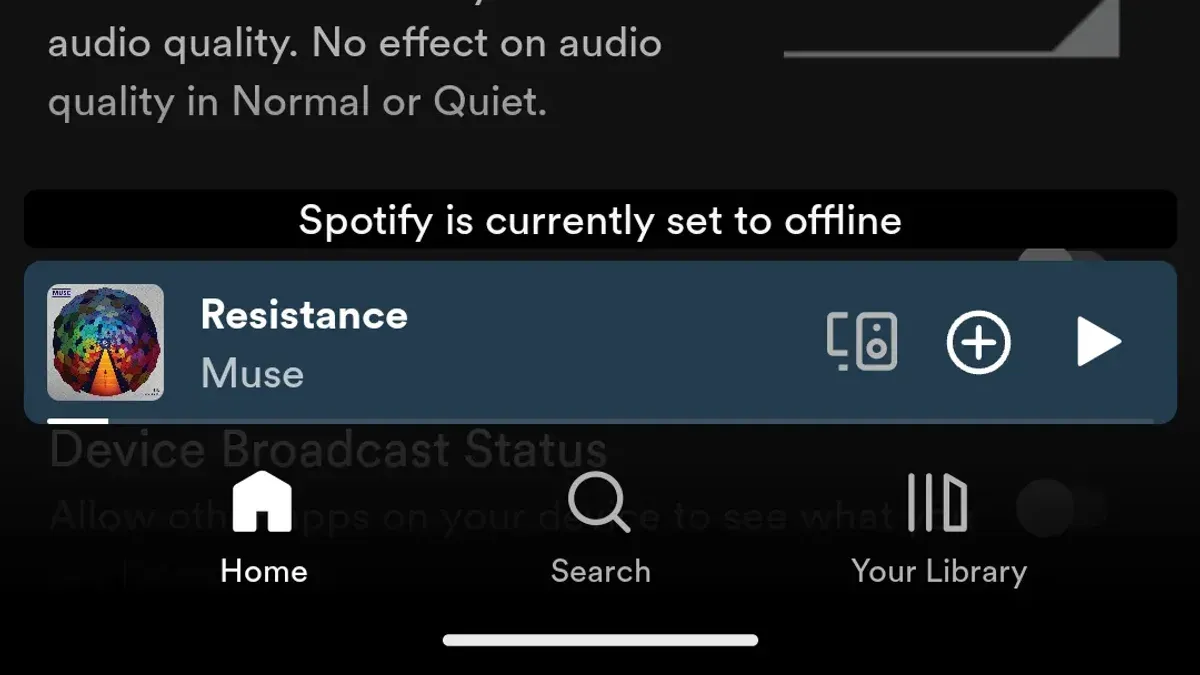
Remember, enabling Offline Mode restricts Spotify to only play downloaded songs, so you won't access streaming content until you disable it.
Managing downloaded songs and storage on your Mac
Spotify stores downloaded songs in a hidden system folder on your Mac, typically within ~/Library/Application Support/Spotify/PersistentCache/Storage. These files are encrypted and cannot be accessed or played outside the Spotify app, ensuring your downloads remain protected by DRM.
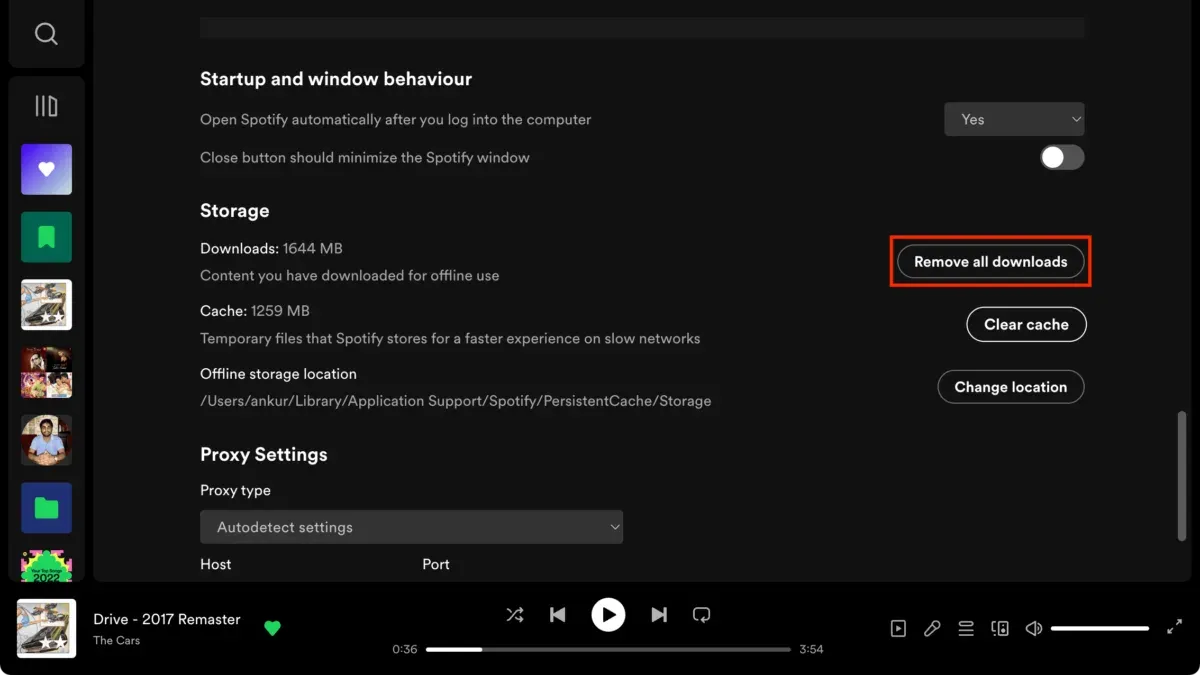
If your downloads fail or Spotify warns about insufficient space, check your Mac’s available storage by clicking the Apple menu > About This Mac > Storage. Removing unused files or apps can free space for your downloads.
To reclaim storage taken by Spotify downloads, remove downloaded playlists or albums within the app. Navigate to the playlist or album, toggle off the Download switch, and Spotify will delete the local files. Typical playlists with dozens of songs might use hundreds of megabytes, so managing downloads can significantly impact your disk usage.
Remember, downloaded songs are encrypted and playable only within Spotify, so manual file management outside the app is not effective and could corrupt your offline library.
Common issues when downloading songs offline on Spotify on Mac and how to fix them
If the download button is greyed out, it often means your Premium subscription isn’t active or the app needs updating. Verify your subscription status under Account settings and update Spotify via the menu Spotify > About Spotify. Older app versions had bugs disabling downloads, so using the latest release is crucial.
When Offline Mode fails to activate or shows a 'No internet connection' error, check that your Mac’s firewall or security software isn’t blocking Spotify. Temporarily disabling or configuring these settings to allow Spotify can resolve connectivity issues.
Downloaded songs disappearing from playlists typically occurs after logging out or app updates. Spotify requires you to stay logged in to access offline content. Re-login and re-download missing songs if necessary.
Insufficient storage errors mean your Mac lacks enough free disk space for downloads. Clear space by deleting unused files or removing offline content inside Spotify under Your Library > Downloads.
Network restrictions, especially on work or school networks, may block Spotify’s servers. Switching to a different Wi-Fi or using a VPN can help bypass these blocks.
- Check your Premium subscription status: Go to Spotify > Account and confirm active Premium. If inactive, the download button will stay greyed out.
- Update Spotify: Select Spotify > About Spotify and install any available updates. The download button should become active afterward.
- Verify Offline Mode: Click Spotify > Offline Mode. If errors appear, check firewall settings by going to System Preferences > Security & Privacy > Firewall and allow incoming connections for Spotify.
- Free up disk space: Open About This Mac > Storage to review available space. Remove unnecessary files or offline playlists in Spotify under Your Library > Downloads.
- Test network restrictions: Try connecting to a different network or enable a VPN to see if downloads proceed.
How to update and maintain your Spotify app on Mac for smooth offline listening
Keeping your Spotify app up to date ensures compatibility with macOS and reduces download and playback issues. Updates often include bug fixes and improvements that enhance offline functionality, such as faster downloads and more stable playback.
To check for updates within Spotify:
- Open the Spotify app on your Mac.
- Click on the menu bar at Spotify > About Spotify. You will see the current version and a prompt if an update is available.
- If an update is available, follow the on-screen instructions to download and install it. Once complete, Spotify will restart automatically.
Alternatively, check updates via the Mac App Store if you installed Spotify from there:
- Open the App Store on your Mac.
- Click Updates in the sidebar.
- If Spotify appears, click Update next to it. The app will update and be ready for offline use.
If you experience persistent issues despite updates, a fresh install may help. Before reinstalling:
- Back up your playlists by exporting them or ensuring they are saved to your Spotify account.
- Note any preferences or local files you use within Spotify.
- Uninstall Spotify by dragging it to the Trash and emptying it.
- Download the latest Spotify installer from the official website or the Mac App Store and install it.
Recent update notes have highlighted improved offline download stability and fixes for playback errors when offline. Following these steps helps maintain smooth offline listening on your Mac.
Alternatives and limitations: What offline downloading on Spotify on Mac cannot do
Spotify’s offline downloads on Mac are exclusively available to Premium subscribers; free accounts cannot access this feature. Downloads are encrypted and stored in a hidden folder, making it impossible to export or play these files in other media players due to Digital Rights Management (DRM) protections.
Offline downloads are tied to the device where they were made and cannot be transferred or shared with other devices or users. If your Premium subscription lapses or you log out, all downloaded content becomes inaccessible until you renew or log back in.
| Feature | Free Account | Premium Account |
|---|---|---|
| Offline Downloads | No | Yes |
| Export Downloaded Files | No | No (DRM protected) |
| Download Sharing Between Devices | No | No |
Some users may consider alternatives like using Spotify’s mobile apps, which offer similar offline features, or third-party tools claiming to convert or download tracks. These tools are not endorsed by Spotify and may violate terms of service or pose security risks.
For those seeking fully transferable music files, purchasing songs from authorized stores or using services that sell DRM-free music is a more reliable option.
- How to Stop Spotify Opening at Startup on Mac: A Clear Step-by-Step Guide
- How to Set Up Automatic Media Downloads in WhatsApp Desktop on Mac
- How to Record with Webcam Overlay in OBS Studio on Mac
Frequently asked questions
Can I download individual songs for offline listening on Spotify for Mac?
No, Spotify on Mac does not support downloading individual songs. You need to download entire playlists, albums, or podcasts for offline listening. To save specific songs, add them to a playlist and then download that playlist.
How much storage space do I need to download songs on Spotify?
The storage space required depends on the number of tracks and the streaming quality you select. Generally, a single song takes about 2 to 3 MB at normal quality and up to 6 to 7 MB at high quality. Make sure you have several gigabytes of free space if you plan to download large playlists or multiple albums.
What do I do if Spotify says I’m offline but I have internet?
This issue often occurs when the app is stuck in Offline Mode. Check under the 'Spotify' menu bar and ensure 'Offline Mode' is unchecked. Also, verify your network connection and restart the app to refresh its connection to Spotify's servers.
Will my downloaded songs be deleted if I cancel my Spotify Premium subscription?
Yes, you will lose access to your downloaded songs if you cancel Spotify Premium. Offline listening is a Premium feature, so once your subscription ends, you can only stream songs online and cannot play them offline until you renew.
What this guide does not cover and who should do something else
This guide does not cover downloading Spotify content on non-Mac devices or using unauthorized third-party software, which may violate Spotify’s terms of service. If you are seeking to download individual tracks outside of Spotify’s app or want offline access on platforms like Windows, iOS, or Android, consult device-specific instructions or Spotify’s official support resources. Also, this article does not address offline downloads for Spotify Free users, as offline listening requires a Premium subscription.
For users who need extensive offline access across multiple device types, including non-Apple hardware, exploring Spotify’s multi-device features or alternative music services may be necessary.
The single most useful next step is to ensure your Spotify app is updated to the latest version available on the Mac App Store or Spotify’s website. This helps avoid compatibility issues and ensures the offline download features work as intended. After updating, verify your subscription status and test downloading a playlist of moderate size (around 30-50 songs) to confirm everything is set up correctly.