Fix BeReal Two-Factor Authentication Code Not Working Quickly
Learn how to quickly fix BeReal two-factor authentication code not working issues and regain secure access to your account.
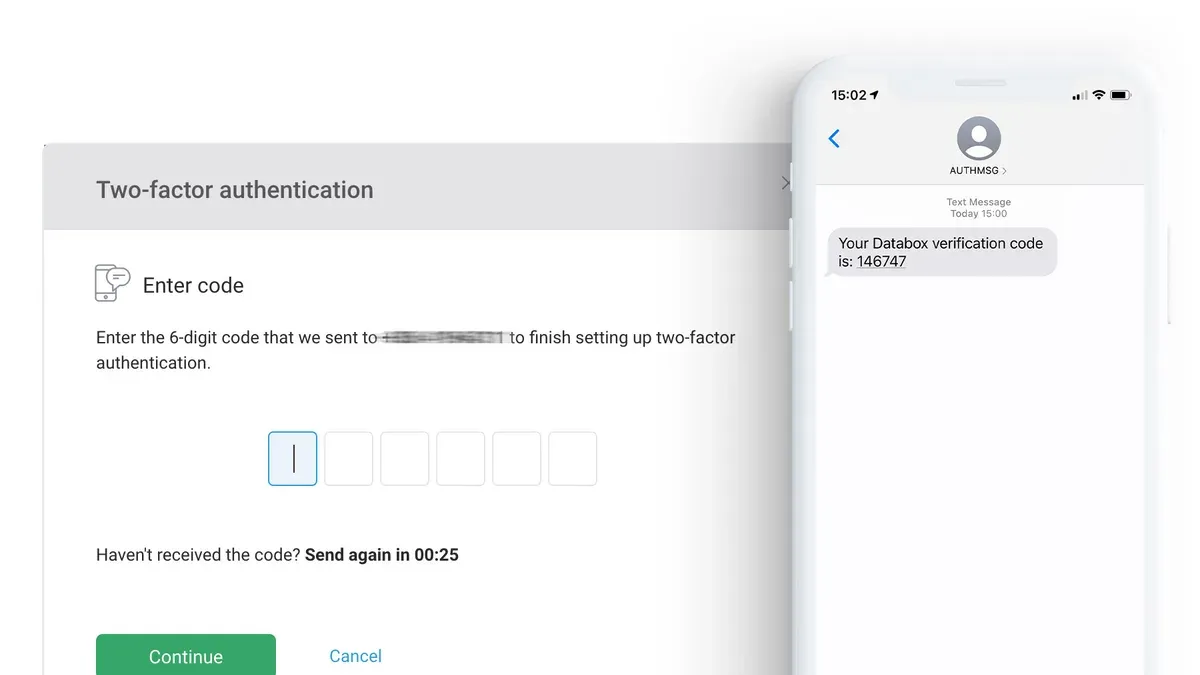
You try to log into your BeReal account, but the two-factor authentication code you receive doesn't work. Despite entering the code carefully, access remains blocked, leaving you unsure why the verification fails.
This guide explains how to recognize when your BeReal two-factor authentication code is not working and explores common causes often missed, such as time synchronization or app-specific glitches. It then offers quick, safe fixes to resolve the issue without risking your account security. For more persistent problems, it outlines advanced troubleshooting steps and advises when to seek help from BeReal support or security professionals.
Key takeaways
- Ensure your device’s time and date settings are accurate and set to automatic.
- Check for app updates and restart BeReal before trying codes again.
- Avoid disabling 2FA or sharing codes to maintain account security.
- Clear app cache or reinstall if authentication issues persist.
- Contact official BeReal support when basic fixes don’t resolve the problem.
How to identify when your BeReal two-factor authentication code is not working
You know your BeReal two-factor authentication (2FA) code is not working when you repeatedly receive error messages such as "Invalid code," "Code expired," or "Authentication failed" after entering the code. These messages indicate the app is rejecting the 2FA input rather than a general login failure.
It is important to distinguish 2FA code problems from other login issues like incorrect passwords or network disruptions. For example, a password error usually prompts a message like "Incorrect password," while network problems often show "Unable to connect" or "Network error." If you can enter your password successfully but the 2FA step fails, the issue is likely with the authentication code.
To confirm the problem is with the 2FA code and not your device or account, follow these steps:
- Ensure your device is connected to a stable internet network.
- Enter your BeReal username and password correctly and proceed to the 2FA prompt.
- Input the current 2FA code from your authentication app or SMS.
- If you receive repeated rejection or expiration errors, the problem lies with the 2FA code.
You will know this method worked if you can successfully log in after entering a new or verified 2FA code without error messages. Avoid rushing into resets or disabling 2FA before confirming this specific issue.
| Symptoms | 2FA Code Issue | Other Login Issues |
|---|---|---|
| Error Message | "Invalid code," "Code expired," "Authentication failed" | "Incorrect password," "Network error," "Unable to connect" |
| Password Entry | Accepted | Rejected or prompts retry |
| Network Status | Usually stable | May show connectivity problems |
| Repeated Attempts | Fails at 2FA code step | Fails before reaching 2FA step |
Common causes behind BeReal two-factor authentication code failures
Several factors can cause your BeReal two-factor authentication (2FA) code not to work, often related to timing, app setup, or account status. A frequent culprit is time synchronization errors. For example, most authenticator apps generate codes valid for 30 seconds; if your phone’s clock is off by even 30 seconds, the code may be rejected. Ensuring your device’s time is set to automatic network time usually resolves this.
Incorrect setup or misconfiguration of the authenticator app is another cause. This can happen if the QR code was not scanned correctly or if the wrong account details were entered. Codes generated in these cases won’t match what BeReal expects.
Expired or reused codes also lead to failures. Each 2FA code is single-use within its time window, so entering an old code or attempting to reuse a code from a previous login attempt will not work.
Network latency or server-side delays can briefly affect code validation, especially if your internet connection is unstable. This means even a correct code might be rejected if BeReal’s servers don’t process it in time.
Finally, account-specific issues such as temporary lockouts due to multiple failed login attempts or app bugs can interfere with 2FA code acceptance.
To check if time synchronization is the issue, follow these steps:
- Go to your phone’s Settings.
- Navigate to Date & Time settings.
- Enable "Set Automatically" or "Use Network-provided Time."
- Restart your authenticator app and try generating a new 2FA code.
- Attempt to log in with the new code.
If the login succeeds, time drift was the problem. If not, consider other causes before proceeding.
Quick and safe fixes to try first for your BeReal 2FA code problem
If your BeReal two-factor authentication code is not working, start with these straightforward steps that address common, easily overlooked issues.
- Check and correct your device’s date and time settings: Go to Settings > General > Date & Time (iPhone) or Settings > System > Date & Time (Android). Make sure 'Set Automatically' or 'Automatic date & time' is enabled. Incorrect time can cause generated codes to be rejected.
- Restart your phone: Power off your device completely, wait 30 seconds, then turn it back on. Restarting can resolve temporary glitches affecting authentication apps.
- Confirm you are entering the current code: Authentication codes refresh every 30 seconds. Ensure you type the code displayed at the moment of login, not an older code.
- Try logging in from a different device or network: Use another smartphone, tablet, or computer, and switch between Wi-Fi and mobile data. This helps identify if the problem is local to your device or network.
- Reinstall or update the authenticator app: If you use a third-party app for your BeReal 2FA, check for updates via your app store or uninstall and reinstall it. This can fix bugs or compatibility issues causing code errors.
You will know a fix worked when your BeReal login accepts the 2FA code without error messages and grants access promptly. If problems persist after these steps, further troubleshooting may be needed.
Advanced troubleshooting for persistent BeReal 2FA code problems
If quick fixes do not resolve your BeReal two-factor authentication code issues, more detailed steps can help. Start by resyncing your authenticator app with BeReal's server if this feature is supported by your app, as it corrects any time drift between devices.
- Open your authenticator app and look for a “resync” or “time correction” option, typically found in settings or under the account linked to BeReal.
- Select this option to sync the app’s time with the server.
- Generate a new code and try logging into BeReal again.
You will know it worked if the new code is accepted without error.
If resyncing fails, consider resetting two-factor authentication within BeReal. This process removes your current 2FA setup, allowing you to start fresh but requires you to have backup codes or an alternative verification method ready. Using backup codes often leads to faster account recovery compared to a full reset, which can involve additional identity verification steps.
- Log into your BeReal account on a trusted device.
- Navigate to Settings > Security > Two-Factor Authentication.
- Choose the option to disable or reset 2FA.
- Follow prompts to confirm your identity, using backup codes if prompted.
- Set up 2FA again after the reset.
Check for app updates regularly, as unresolved 2FA issues have sometimes been fixed in recent BeReal app releases. If problems persist, contact BeReal support, providing details about your issue and the troubleshooting steps you have taken.
When to seek professional or official help for BeReal 2FA issues
If you have exhausted basic and advanced troubleshooting steps without success, it may be time to contact BeReal support or a digital security professional. Signs that the problem is beyond your control include persistent error messages referencing server issues, account lockouts, or notifications about suspicious activity from BeReal.
Attempting account recovery without official guidance carries risks such as permanent lockout or unintended security breaches. Many users have reported longer lockout periods after incorrect recovery attempts, highlighting the importance of following official procedures.
To contact BeReal support, go to the app’s settings, select “Help & Support,” then “Contact Us.” Provide your account username, a detailed description of the 2FA issue, the exact error messages received, and steps you have already tried. This information helps speed up response times, which typically range from a few hours to a couple of days depending on the issue complexity.
Consider professional digital security assistance if you suspect your account has been compromised or if you are unsure about recovery steps. Experts can guide you through secure recovery without risking further damage.
- Confirm you have tried all recommended troubleshooting measures.
- Gather relevant account details and error information.
- Use the official BeReal support channel via the app’s “Help & Support” section.
- Follow instructions from support carefully and avoid unauthorized recovery tools.
- If security concerns persist, consult a trusted digital security professional.
You will know the issue is resolved when you successfully log in without 2FA errors and receive confirmation from BeReal support that your account is secure.
Frequently asked questions
Why does my BeReal two-factor authentication code say it's invalid?
Your code may be invalid if your device’s time is out of sync, since authenticator apps rely on precise timing to generate codes. Another common cause is using an expired code—BeReal codes typically refresh every 30 seconds, so entering a code too late can result in an error. Double-check you’re entering the current code and that your device’s clock is set to automatic network time.
How do I resync my authenticator app with BeReal?
To resync, first ensure your phone’s time settings are on automatic. Then, open your authenticator app and look for a sync or refresh option—some apps like Google Authenticator allow manual resync in settings. If that’s unavailable, remove the BeReal account from the app and set up 2FA again by scanning a fresh QR code from your BeReal security settings.
Can I disable two-factor authentication if codes aren’t working?
Disabling 2FA is possible but not recommended unless you have no other options, as it reduces your account’s security. If you decide to disable it, you’ll usually need to log in and access BeReal’s security settings to turn off 2FA, often requiring backup codes or alternative verification methods. Always try to fix code issues before disabling to keep your account protected.
What should I do if I lose access to my authenticator app?
If you lose your authenticator app access, use backup codes provided when you set up 2FA to log in. If you don’t have backups, contact BeReal support for account recovery options, which may involve identity verification. To prevent future lockouts, store backup codes securely and consider setting up multiple authentication methods if supported.
What this advice does not cover and when to seek other help
This guide does not cover bypassing two-factor authentication or recovering accounts without proper verification, as these actions may compromise your account's security or violate BeReal's terms of service. If you have lost access to your authentication device or backup codes, or if you suspect your account has been compromised, you should contact BeReal's official support directly rather than attempting unauthorized workarounds.
The single most useful next step is to verify that your device's date and time settings are set to update automatically via network or internet time. Incorrect time synchronization is a common cause for authentication codes failing and is often overlooked. Ensuring this setting is enabled usually resolves the problem quickly without risk, making it the safest initial fix to try before considering more complex troubleshooting or support requests.