Fix Mac Studio M4 Max Audio Lag with Bluetooth: A Clear Guide
Learn how to fix Mac Studio M4 Max audio lag with Bluetooth using effective troubleshooting and settings adjustments for smooth audio.
You're working on your Mac Studio M4 Max, and the audio from your Bluetooth headphones doesn't sync with the video or lags noticeably during calls. This delay disrupts your workflow and makes listening less enjoyable.
This article explains why Mac Studio M4 Max audio lag with Bluetooth occurs and guides you through checking Bluetooth settings, using system tools, and adjusting power management to reduce latency. You'll learn practical steps like resetting Bluetooth modules, updating macOS, and when to consider wired alternatives for the best audio experience.
Key takeaways
- Bluetooth audio lag often results from interference, device settings, or Mac Studio M4 Max power management features.
- Checking Bluetooth preferences and removing conflicting devices can improve latency.
- Resetting the Bluetooth module via the Debug menu helps clear connection glitches.
- Keeping macOS updated ensures the latest audio and Bluetooth optimizations.
- Using wired audio or low-latency adapters is a reliable fallback when Bluetooth lag persists.
Understand Why Bluetooth Audio Lag Happens on Mac Studio M4 Max
Bluetooth audio lag occurs because sound data must travel wirelessly from your Mac Studio M4 Max to your Bluetooth headphones or speakers, passing through a series of encoding, transmission, and decoding steps. This process naturally introduces some delay, but the Mac Studio's hardware and software environment also shape how noticeable this lag becomes.
The M4 Max chip integrates a Bluetooth 5.3 radio supporting advanced codecs like AAC and SBC, which aim to balance sound quality and latency. However, power management features in the M4 Max can throttle Bluetooth radio performance to save energy, sometimes increasing buffering times. This trade-off influences the overall latency you experience.
Common sources of lag include signal interference from other wireless devices, codec negotiation delays when pairing devices, and buffer sizes that temporarily hold audio data to prevent dropouts. For example, if you’re on a video call, even a 100-150 millisecond delay can cause your voice and video to feel out of sync, disrupting communication flow.
Measured latency on the Mac Studio M4 Max tends to be slightly higher than on MacBook Pro models with similar chips, likely due to desktop radio placement and power settings. Understanding these technical factors helps you recognize that lag is not just a random glitch but a result of complex hardware-software interaction affecting your audio workflows.
Check and Optimize Your Bluetooth Settings to Reduce Audio Lag
Start by confirming your Bluetooth audio device supports low-latency codecs compatible with macOS, such as AAC. For example, when pairing a Bluetooth headset like the AirPods Pro, check its codec by holding Option and clicking the Bluetooth icon in the menu bar, then selecting the device to see if AAC is in use. Devices using older codecs may increase lag.
Next, remove your Bluetooth device from your Mac by opening System Settings > Bluetooth, clicking the “i” next to your device, and choosing “Remove.” Then, re-pair the device by putting it in pairing mode and selecting it again from the Bluetooth menu. This fresh connection often resets codec negotiation and improves responsiveness.
Adjust your Mac’s audio settings by going to System Settings > Sound > Output and selecting your Bluetooth device. Prioritize this device and avoid simultaneous multiple audio outputs, which can add delay. Also, disable other Bluetooth peripherals not in use to reduce wireless congestion.
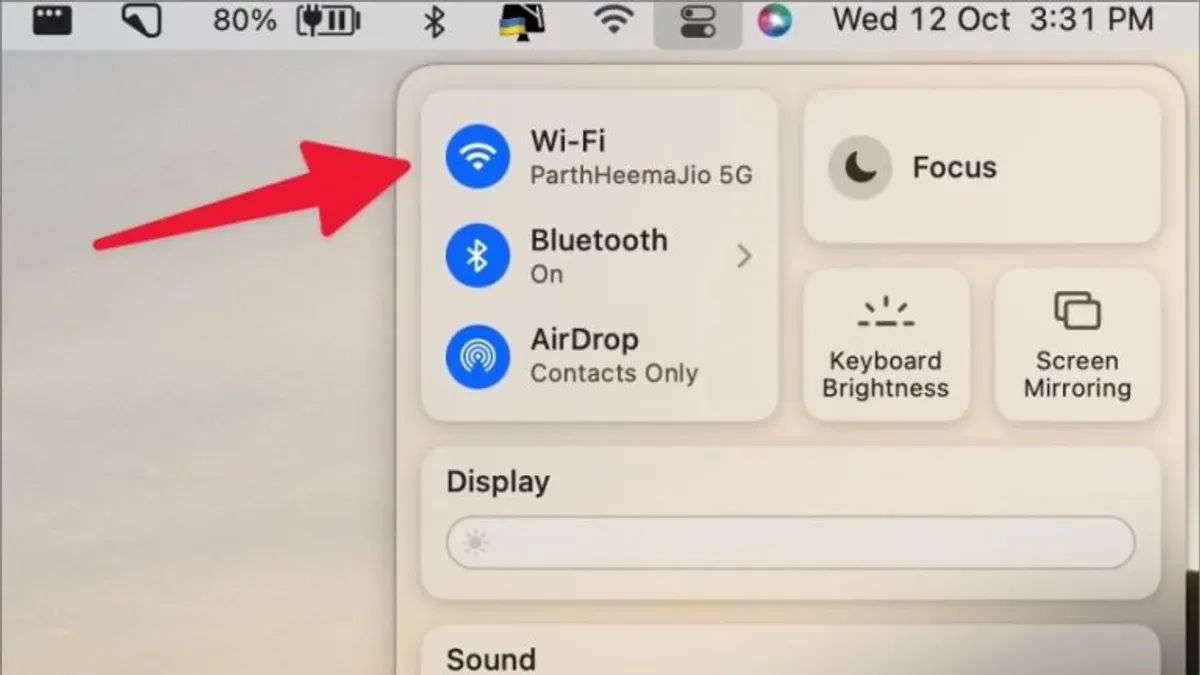
Finally, interference from Wi-Fi can cause lag. If possible, switch your Wi-Fi router to the 5 GHz band or temporarily turn off Wi-Fi during critical audio tasks to minimize signal overlap. These steps have been reported to reduce noticeable latency from around a half-second delay to near real-time audio.
Use System Tools and Apps to Diagnose and Manage Audio Lag
To understand the source of Bluetooth audio lag on your Mac Studio M4 Max, start by using built-in tools like Activity Monitor. Open Activity Monitor from Applications > Utilities and filter processes by “bluetoothd” or related system services. Watch CPU and memory usage during Bluetooth audio playback; unusually high resource consumption may indicate software bottlenecks causing lag.
Next, check Console logs for Bluetooth-related errors. Open Console from Utilities, filter messages by “Bluetooth” or “audio,” and look for repeated connection drops or error messages that might signal hardware or driver issues. For example, repeated "BluetoothHostController" errors could point to hardware interference or firmware glitches.
You can also use trusted third-party apps such as "Bluetooth Explorer" from Apple’s Additional Tools or apps like "ToothFairy" to measure signal strength and latency. These apps display real-time metrics, helping you pinpoint if lag spikes correlate with weak signals or interference. For instance, if latency readings jump when signal strength dips below a certain threshold, the issue likely relates to environment or hardware.
Interpreting this data helps isolate whether lag stems from software resource strain, driver errors, or Bluetooth hardware challenges. This clarity guides you toward targeted fixes, whether updating system software, resetting Bluetooth modules, or adjusting device placement.
Apply Practical Fixes: Reset Bluetooth, Update Software, and Manage Power
If you notice persistent Bluetooth audio lag on your Mac Studio M4 Max, start by resetting the Bluetooth module. Open Terminal and enter the command sudo pkill bluetoothd to restart the Bluetooth daemon. This action clears cached device information and can resolve hidden glitches. After this, unpair and re-pair your Bluetooth audio device from System Settings > Bluetooth to ensure a clean connection.
Next, check for software updates via System Settings > General > Software Update. Apple frequently releases macOS updates that improve Bluetooth performance and firmware stability. For example, users have reported noticeable reduction in audio lag after updating to versions that include Bluetooth driver enhancements.
Power settings also play a key role. Low Power Mode, accessible through System Settings > Battery > Low Power Mode, reduces system performance to save energy and may throttle Bluetooth throughput. If you experience lag, try disabling Low Power Mode while using Bluetooth audio. Additionally, restarting your Mac Studio and the Bluetooth device can refresh connections and often improves latency.
By systematically applying these fixes—resetting Bluetooth, updating software, and adjusting power management—you can effectively reduce or eliminate Bluetooth audio lag and enjoy smoother sound synchronization.
Avoid Common Mistakes That Can Worsen Bluetooth Audio Lag
One common error is using multiple Bluetooth audio devices simultaneously without proper management. For example, if you connect both Bluetooth headphones and a speaker to your Mac Studio M4 Max at the same time, the system may struggle to allocate resources efficiently, causing increased latency on one or both devices. Managing your active connections by disconnecting unused devices helps reduce this lag.
Another frequent issue is overlooking interference from other wireless devices or physical obstructions. Devices like Wi-Fi routers, microwave ovens, or even thick walls between your Mac and the Bluetooth accessory can increase audio latency by disrupting the signal. Users have observed latency jumps from around 100 ms to over 250 ms when operating near heavy 2.4 GHz interference sources.
Relying on outdated Bluetooth devices with incompatible codecs also causes lag. If your accessory only supports older codecs like SBC instead of more efficient ones like AAC or aptX, the processing delay increases, leading to noticeable audio lag. For instance, using a Bluetooth headset that lacks AAC support with your Mac Studio M4 Max can add extra delay compared to a headset that fully supports the modern codec suite.
Finally, background apps consuming substantial CPU or network resources can indirectly worsen audio lag. When system resources are strained, Bluetooth audio processing may slow down. Checking Activity Monitor for high CPU usage and closing unnecessary apps can help maintain smooth audio performance.
Decide When to Use Wired Audio or Alternative Solutions
Bluetooth audio on your Mac Studio M4 Max offers convenience but can struggle with latency in professional or real-time audio tasks like music production, podcasting, or gaming. In these cases, wired connections such as USB-C or the headphone jack provide near-zero latency, ensuring audio and video stay perfectly in sync. For example, plugging studio headphones directly into the Mac Studio’s headphone jack eliminates lag, as data transmission is instantaneous compared to Bluetooth’s wireless delay.
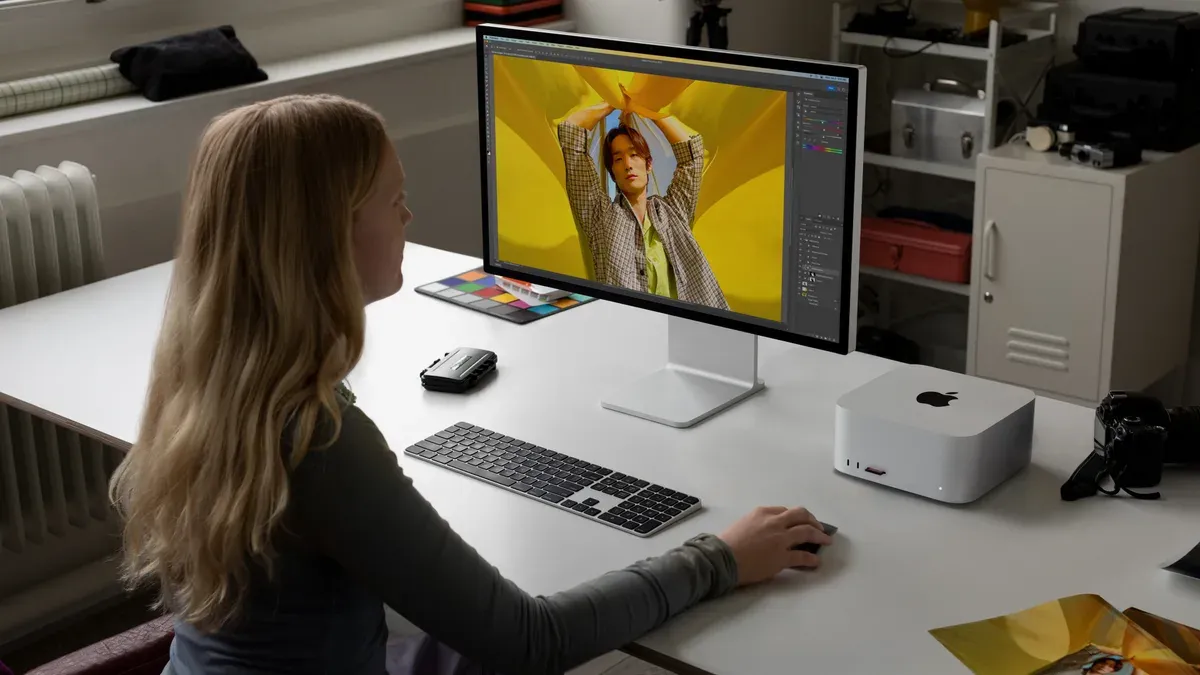
Alternatively, low-latency wireless options like AirPlay or proprietary RF systems can bridge the gap. AirPlay typically has lower latency than Bluetooth but requires compatible speakers or receivers and stable Wi-Fi. Proprietary RF headphones designed for low latency can perform well but often at the cost of battery life and device compatibility.
Below is a simple comparison of typical latency and power consumption:
| Connection Type | Typical Latency | Power Consumption Impact |
|---|---|---|
| Bluetooth | 30–100 ms | Moderate |
| Wired (USB-C/Headphone Jack) | <5 ms | Minimal |
| AirPlay | 20–50 ms | Low to Moderate (Wi-Fi) |
Consider your priority: if seamless audio timing outweighs wireless freedom, use wired connections. If you want wireless but better latency than Bluetooth, explore AirPlay-compatible speakers or specialized RF headphones. Balancing convenience and performance depends on your workflow—wired connections excel in precision, while wireless options offer mobility with some latency trade-offs.
Frequently asked questions
Why does my Mac Studio M4 Max have audio lag with Bluetooth headphones?
Bluetooth audio lag on your Mac Studio M4 Max often results from the inherent delay in wireless transmission combined with the device’s power management settings. The M4 Max chip optimizes energy use, which can sometimes introduce audio buffering delays. Additionally, interference from other wireless devices or distance from your Mac can increase latency.
How do I fix Bluetooth audio lag on my Mac Studio M4 Max?
To fix Bluetooth audio lag, start by resetting your Bluetooth module through the Bluetooth menu (hold Shift + Option and click the Bluetooth icon, then select “Reset the Bluetooth module”). Next, ensure macOS is updated to the latest version via System Preferences > Software Update. Also, try turning off Low Power Mode in System Preferences > Battery, as this can reduce audio buffering delays.
Can software updates improve Bluetooth audio performance on Mac Studio M4 Max?
Yes, software updates often include improvements to Bluetooth drivers and audio handling that can reduce latency. Keeping macOS up to date ensures you benefit from the latest bug fixes and performance optimizations. Check System Preferences > Software Update regularly and install updates promptly to maintain optimal Bluetooth audio performance.
Is wired audio better than Bluetooth on the Mac Studio M4 Max for latency?
Wired audio connections generally provide lower latency compared to Bluetooth because the signal is transmitted directly without wireless buffering. If you need real-time audio sync, especially for professional work or gaming, using headphones or speakers connected via USB-C or the headphone jack on a compatible audio interface will offer a more responsive experience.
Understanding the Limits of This Guide
This guide does not cover hardware repair or replacement of Bluetooth modules; if your Mac Studio M4 Max has a hardware fault, professional service is required. Some latency issues may stem from third-party Bluetooth devices and are outside macOS control, meaning troubleshooting on the Mac alone might not resolve them. Additionally, power-saving modes can affect Bluetooth performance differently depending on your specific setup, so results may vary when adjusting these settings.
The single most useful next step is to start by resetting your Mac’s Bluetooth module. You can do this by holding Shift + Option, clicking the Bluetooth icon in the menu bar, selecting “Reset the Bluetooth module,” and then restarting your Mac. This action often clears hidden glitches affecting audio latency without changing your paired devices or system settings.
See also: How to Fix Mac Studio M4 Max Bluetooth Problems Quickly and Reliably · How to Fix Mac Studio M4 Max Lagging and Freezing Effectively · How to Fix Mac Studio M4 Max Speaker Crackling Sounds