
How to Fix mds_stores High CPU Usage on Mac
Learn how to fix mds_stores high CPU usage on Mac by managing Spotlight indexing and force quitting the process for faster performance.
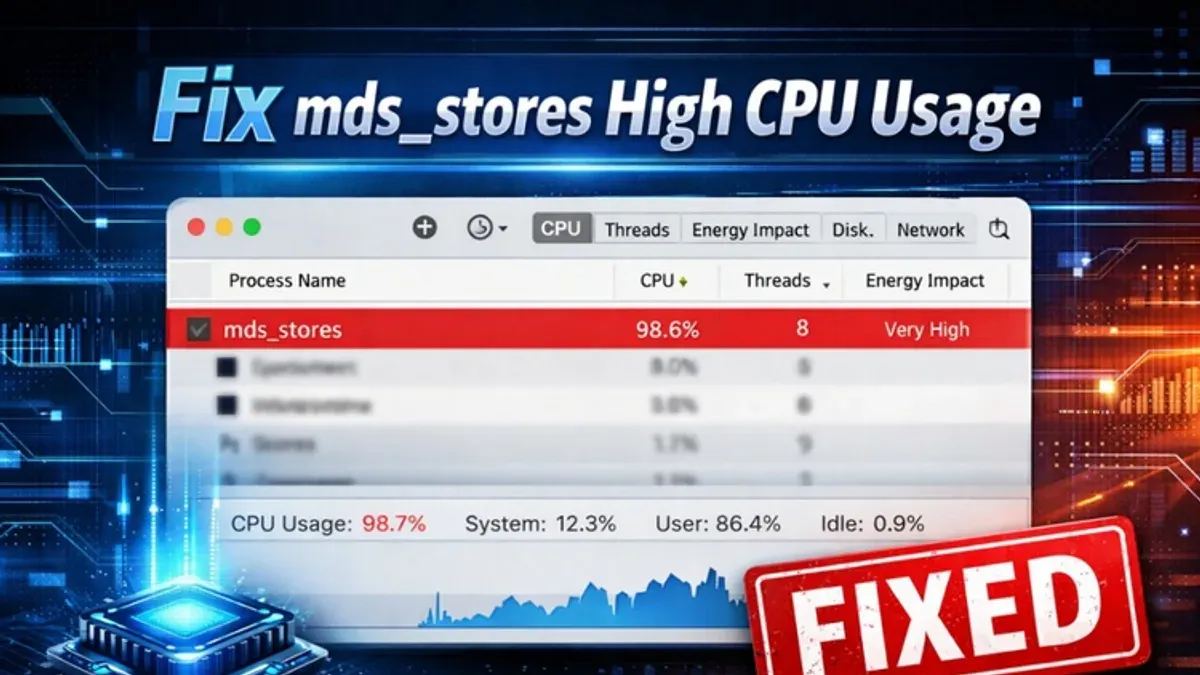
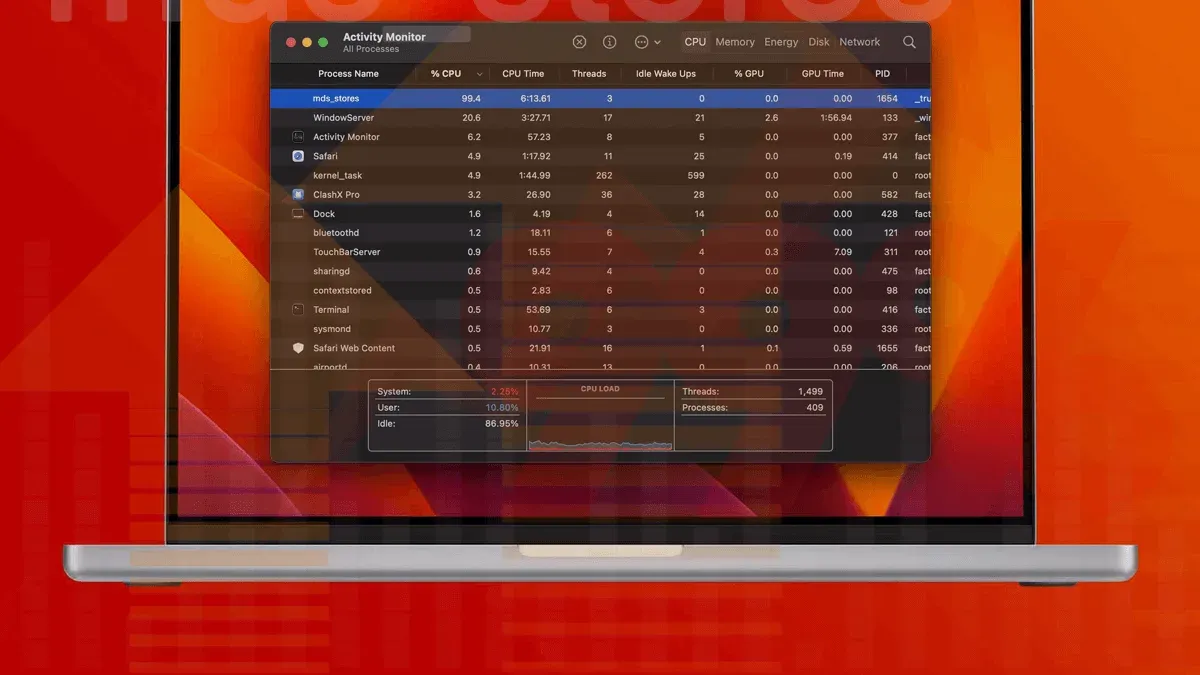
If you see mds_stores consuming a large portion of your Mac’s CPU, you face a common issue where this metadata server process is working overtime. This process powers Spotlight by indexing files and metadata, but when it uses more than 100% CPU, it can slow your Mac significantly. The "mds_stores high CPU on Mac fix" you need depends on what triggered the surge—often major system changes like adding huge folders, reinstalling macOS, or connecting external drives.
Next, managing Spotlight’s indexing settings by excluding large folders or external drives through System Settings > Spotlight > Search Privacy can help reduce ongoing CPU load.
Settings, menu paths and limits here were checked against MacSecurity, EaseUS, OS X Daily (full list at the end) in November 2026.
The quickest way to reduce mds_stores CPU usage now
If you need immediate relief from high CPU consumption caused by mds_stores without restarting your Mac, force quitting the process is your fastest option. This process can spike CPU usage beyond 100%, fully occupying one or more processor cores.
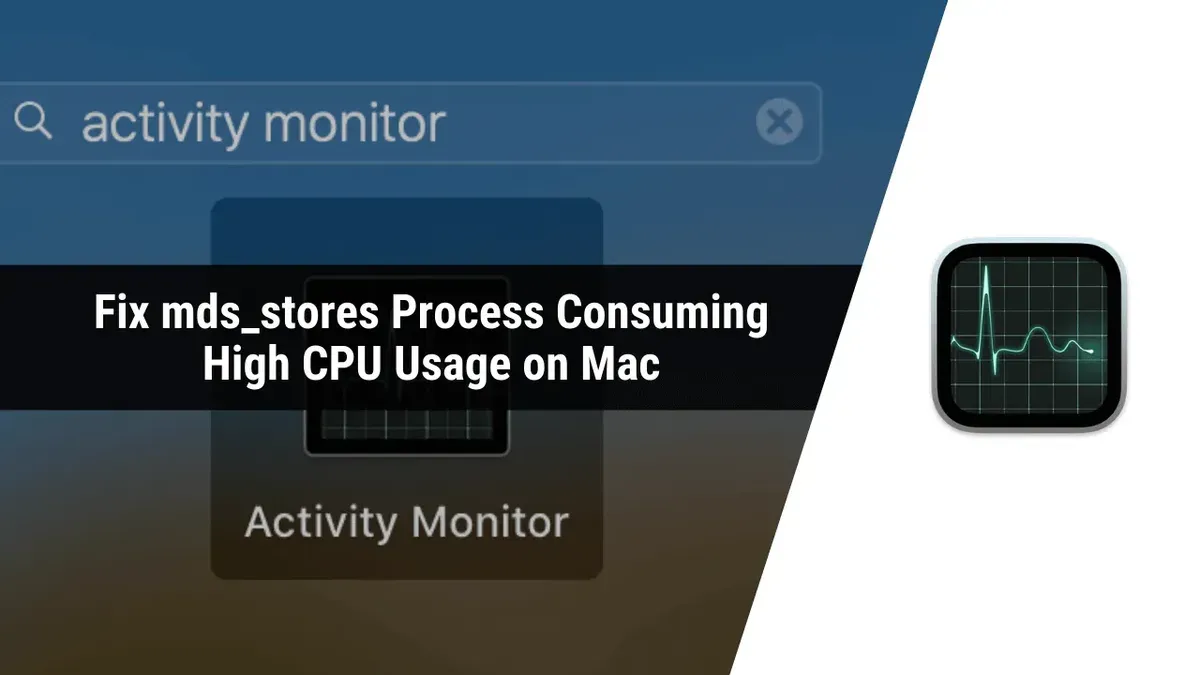
- Open Finder and navigate to Applications > Utilities, then launch Activity Monitor.
- Click the CPU tab and enter mds_stores in the search field to locate the process.
- Select the mds_stores process and click the (X) button in the toolbar to force quit it. You should see the process disappear from the list.
- Next, open Finder's View menu and toggle Show File Name Extensions off and then back on. This action prompts Spotlight to refresh its indexing gracefully.
The mds_stores process will restart automatically, and CPU usage may rise again if underlying indexing issues persist.
How to permanently fix mds_stores high CPU usage by managing Spotlight indexing
Start by restarting your Mac to reset the mds_stores process and clear any temporary indexing issues. This simple reboot often resolves transient CPU spikes.
Next, exclude large folders or external drives that do not need to be indexed. Go to System Settings > Spotlight > Search Privacy and add the folders or drives you want Spotlight to ignore. This reduces the workload on mds_stores and lowers CPU usage. Avoid excluding your entire startup disk, as it will disable important search features and affect system functions.
Read this first: This command deletes data and there is no undo: nothing goes to the Trash. Check the path or disk name character by character, and make sure a backup exists before pressing Return.
Caution: A command that starts with sudo runs as administrator: the system asks for your login password and shows nothing while you type it. Read the path twice first — at this level a typo is applied without a second warning.
If high CPU usage persists, rebuild the Spotlight index to fix potential corruption. Use Terminal to delete the index folder with sudo rm -rf /.Spotlight-V100 and then re-enable indexing on all volumes by running sudo mdutil -a -i on. This forces macOS to recreate the index from scratch, which can take from 15 minutes to several hours depending on your data size. During this time, indexing-related CPU usage may remain elevated but should improve afterward.
After completing these steps, monitor your Mac for a day or week. Check Spotlight search responsiveness and CPU load. If needed, you can adjust exclusions or repeat the rebuild process. Maintaining appropriate exclusions prevents mds_stores from overloading your system while preserving search functionality.
What causes mds_stores to use high CPU and how to prevent it
These events trigger intensive Spotlight indexing that taxes the CPU.
Frequent updates to indexed files or handling large volumes of data cause the process to repeatedly spike in CPU usage. Some third-party applications and browser extensions can also provoke continuous reindexing, increasing the load.
- Allow Spotlight indexing to finish after system changes; you should see CPU usage gradually drop once done.
- Monitor third-party apps or extensions that might trigger repeated indexing and disable or update them as needed.
- Avoid turning off Spotlight indexing to maintain search functionality and prevent recurring CPU spikes.
How to use cleanup and CPU limiting tools to reduce mds_stores load
CleanMyMac removes system junk and scans for malware that may trigger excessive Spotlight activity and worsen mds_stores CPU consumption.
App Tamer lets you cap the CPU usage of background processes like mds_stores, preventing your Mac from slowing down during indexing or heavy disk activity.
- Download and install CleanMyMac. Run its system cleanup and malware scan modules to clear clutter and detect threats that might cause Spotlight overload. When complete, you should see reduced junk files and a clean malware report.
- Install App Tamer and launch it. Find mds_stores in the list of processes and set a CPU usage limit appropriate for your workflow. Once set, App Tamer will restrict mds_stores CPU consumption, keeping your system responsive.
- Monitor your Mac’s performance after using these tools. Remember, these utilities assist but do not replace Spotlight index management strategies such as excluding folders or rebuilding the index.
Common mistakes people make with mds_stores high CPU and how to avoid them
Force quitting the mds_stores process might seem like a quick fix, but it only stops the problem briefly. The process automatically restarts, often bringing back the high CPU usage shortly after. Disabling Spotlight indexing entirely using Terminal commands such as sudo mdutil -a -i off may stop mds_stores temporarily, but the issue frequently resurfaces once indexing is re-enabled.
This drastically reduces the usefulness of Spotlight and can disrupt macOS features that rely on indexing. Instead, exclude only specific large folders or drives that are known to cause problems.
Relying solely on toggling Spotlight off and on via Terminal commands does not address the root cause and fails as a permanent solution.
To avoid these pitfalls, do not force quit mds_stores expecting a lasting fix, avoid disabling Spotlight indexing completely, never exclude the whole startup disk from Spotlight, allow indexing to complete fully, and avoid using Terminal toggles as a permanent remedy.
- Allow Spotlight indexing to finish without interruption
- Exclude only problematic folders or drives via System Settings > Spotlight > Search Privacy
- Avoid force quitting
mds_storesas a permanent fix
When you have shared or managed Mac accounts, or lost access to drives
On managed Mac accounts, Spotlight settings including Search Privacy are often locked down. You must contact your system administrator before attempting to add or remove folders and drives from Spotlight Privacy. Without admin rights, changes to indexing or Terminal commands to rebuild the Spotlight index will not work.
Shared Macs present challenges since Spotlight indexing needs may differ by user. Be cautious when excluding folders or drives from indexing to avoid disrupting other users’ workflows. Coordinate with others who use the device to determine which exclusions are appropriate.
If external or network drives that previously triggered mds_stores high CPU become inaccessible or are removed, ensure you delete them from Spotlight Privacy to stop repeated indexing attempts. This can be done via System Settings > Spotlight > Search Privacy by selecting the drive and clicking the minus button.
- Open System Settings from the Apple menu.
- Go to Spotlight, then Search Privacy.
- Use the + button to add folders or drives you want to exclude from indexing. Use the – button to remove inaccessible or unwanted drives.
- If you have admin access and need to rebuild the index, use Terminal commands carefully; these require appropriate privileges and can affect system data.
Managing Spotlight in environments with limited permissions or shared usage requires clear communication and proper authorization to effectively reduce mds_stores CPU load without unintended consequences.
Common mistakes people make with mds_stores high CPU and how to avoid them
- Rebuilding the Spotlight index without backing up data or knowing what the Terminal commands do. Deleting
/.Spotlight-V100removes the index and forces a rebuild, which can take hours and uses CPU. Only proceed if high CPU persists after other steps.
A practical order of steps to reduce mds_stores CPU usage and maintain performance
Your choice among available fixes depends on your setup. If you have specific folders or external drives triggering high CPU, adding them to Spotlight Privacy is the quickest relief. When Spotlight indexing is stuck or corrupted, rebuilding the index is necessary but slower and more involved. Shared or managed account environments require reviewing access rights to avoid repeated indexing. Tools that limit CPU or clean temporary files may help in some cases but are not substitutes for proper Spotlight management.
Pages this guide relies on
- How to fix mds_stores high CPU Mac process issue — MacSecurity
- What Is Mds_Stores High CPU Usage and How to Fix It? — EaseUS
- Fix mds_stores on Mac Using Excess Memory & CPU - OS X Daily — OS X Daily
- How to Stop mds_stores from Causing High CPU Usage on a Mac — 4macos
- How to fix mds_stores high CPU usage? — Setapp



