
Google Drive Implementation Timeline: Your Complete Guide
Explore the Google Drive implementation timeline, from launch to feature enhancements, and learn how to use timeline tools for better collaboration.
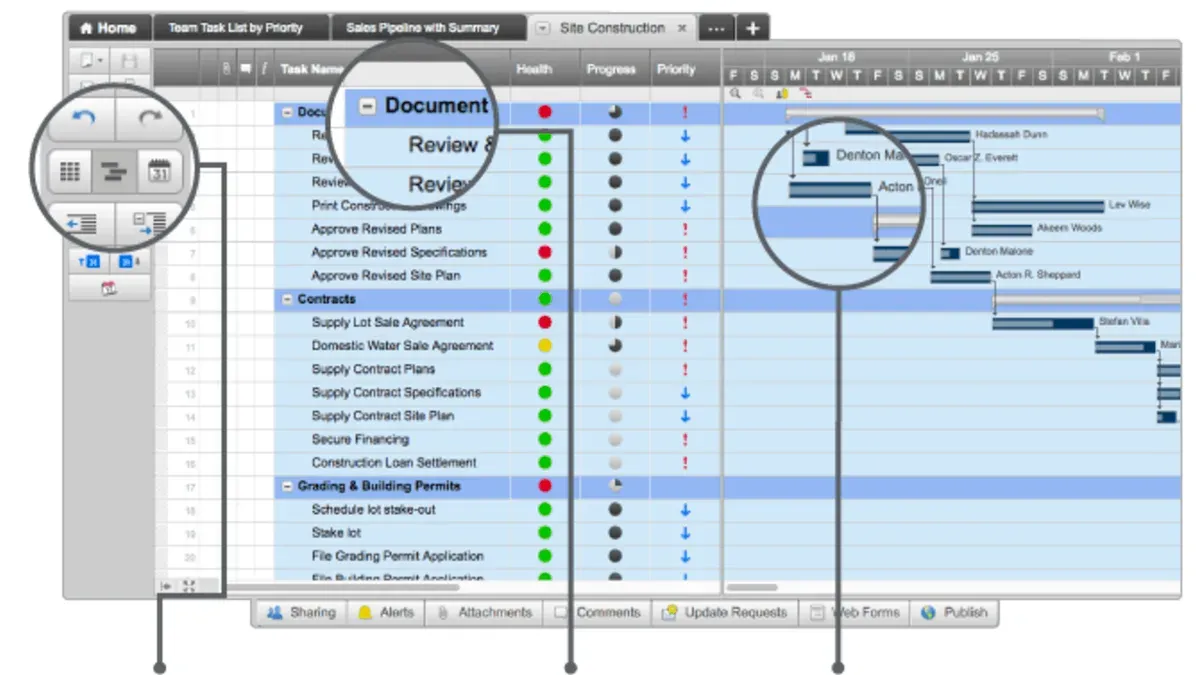
Short answer: The Google Drive implementation timeline spans from its initial launch to continuous feature enhancements, including its timeline and version history tools. These features support detailed tracking of document changes and activity, helping you manage collaboration and data integrity effectively.
This guide covers the origins of Google Drive, explains the concept of Google Timeline and its integration with Drive, and walks you through creating timelines in Google Docs using Drive tools. You will also learn how to use timeline features across Google Maps and Drive, practical applications for your workflows, common pitfalls, and tips for seamless integration into your organization’s existing processes.
When did Google Drive start and what led to its creation
Google Drive officially launched in April 2012, introducing a cloud storage service that combined file storage, synchronization, and collaborative editing within one platform. Initially, users received 5 GB of free storage, allowing them to store various file types, including documents, photos, and videos. The launch coincided with Google’s goal to compete directly with established cloud providers like Dropbox and Microsoft OneDrive, which were gaining traction by offering easy access to files across devices.
Google Drive’s strategic purpose was to integrate seamlessly with Google’s existing productivity suite, including Docs, Sheets, and Slides, promoting real-time collaboration and version control. Early adoption was swift, with millions of users registering within months, drawn by the integration with Gmail and other Google services. This integration differentiated Drive from competitors primarily focused on storage alone.
A key milestone was the introduction of Drive’s desktop sync client, which allowed users to synchronize files effortlessly between their computers and the cloud. Imagine an IT manager setting up team folders that automatically update across all members’ devices, reducing email attachments and version confusion. This convenience became a compelling reason for organizations to adopt Drive for their collaborative workflows, emphasizing both accessibility and control.
What is Google Timeline and how does it relate to Drive
Google Timeline primarily refers to a feature within Google Maps that tracks and displays your location history, offering a visual record of places you've visited over time. This timeline is accessible through the Google Maps app or website under the "Your Timeline" section, where you can review daily routes, locations, and even photos tagged with specific places.
In contrast, Google Drive’s timeline is represented by the document version history, a feature that allows you to see changes made to files stored in Drive. This version history is available inside Docs, Sheets, Slides, and other Drive files via the menu path File > Version history > See version history. It shows a chronological list of edits, who made them, and when, enabling you to track progress, restore earlier versions, or compare changes.
While both features use the concept of a timeline, their purposes differ: Google Maps Timeline is about spatial and temporal tracking of physical movement, whereas Google Drive’s version history focuses on managing the evolution of digital documents. For example, if you use Google Maps Timeline to review your travel route from last week, you see a map with timestamps and places. Meanwhile, in Drive, opening a document’s version history reveals a side panel listing saved snapshots of that document's content over time, allowing you to revert or copy from previous versions.
Understanding this distinction helps you leverage each timeline appropriately—Google Maps for location insights, and Google Drive for document management. Although separate, these timeline features share the principle of chronological tracking but serve unique functions within Google's ecosystem.
How to create a timeline in Google Docs using Drive tools
To build a clear visual timeline in Google Docs, start by exploring Google Drive’s available templates. Open Drive, click New > Google Docs > From a template, then search for “timeline” in the template gallery. You’ll find several timeline templates with preformatted tables and placeholders, ideal for quickly structuring your project milestones or historical events.
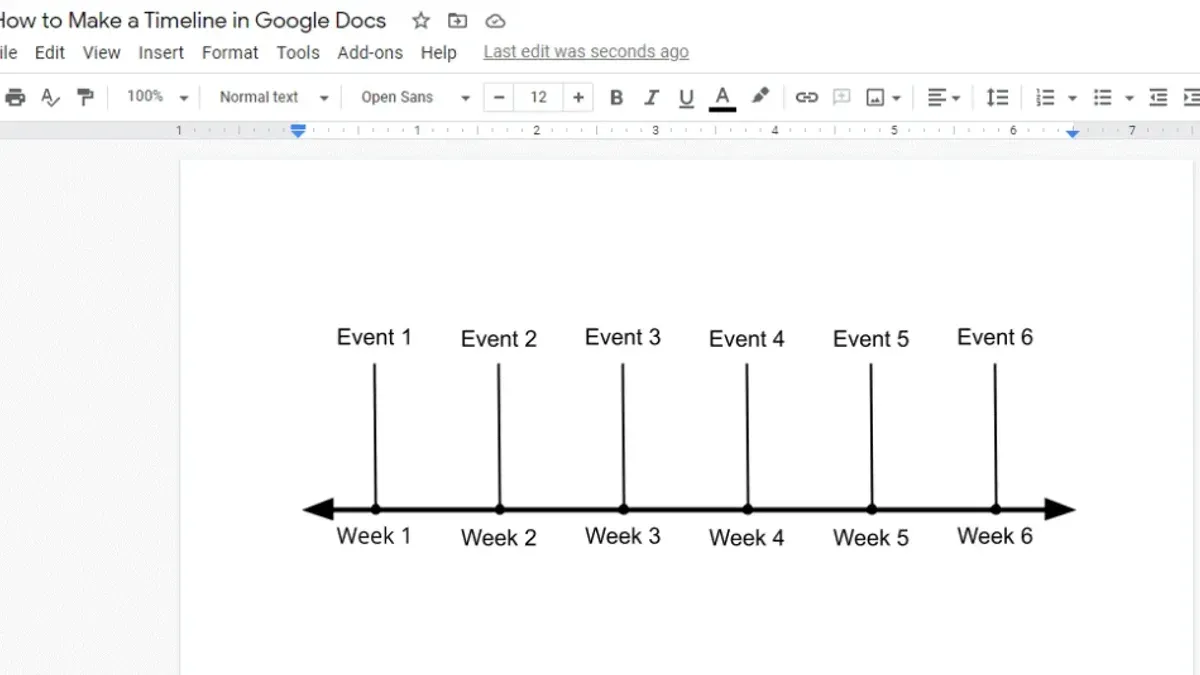
If you prefer a custom timeline, use Google Docs’ built-in drawing and table tools. Insert a table with a single row and multiple columns representing time periods. Label each column with dates or phases, then use Insert > Drawing > + New to add shapes and arrows to illustrate events or dependencies. For example, a project lead could create a 5-column table for phases like Planning, Development, Testing, Deployment, and Review, then add color-coded shapes in the drawing to mark key deliverables.
For more advanced visuals, third-party add-ons such as Lucidchart Diagrams and Office Timeline integrate well with Google Docs. Install these via Extensions > Add-ons > Get add-ons, then search for “timeline.” These tools offer drag-and-drop interfaces and timeline-specific templates, reducing manual effort and improving clarity.
- Access timeline templates via Google Drive’s template gallery
- Use tables and drawings within Google Docs for manual timeline creation
- Install and utilize timeline add-ons like Lucidchart or Office Timeline for enhanced visuals
How to use Google Timeline features in Google Maps and Drive
Accessing and Managing Location History in Google Maps Timeline
To view your Google Maps Timeline, open Google Maps and click on the menu icon (three horizontal lines) in the top-left corner. Select "Your timeline" from the list. Here, you can explore your location history by day, month, or year. Use the calendar feature to jump to specific dates and view detailed maps of where you traveled. To manage this data, click the settings gear icon within the timeline view to pause or delete location history.
For example, if you visited multiple client sites in a day and want to verify your travel route, the timeline will display the exact path taken, including stops and modes of transport.
Downloading Google Timeline Data Securely
Google allows you to download your timeline data via Google Takeout. Navigate to takeout.google.com, deselect all services, then select only "Location History." Choose a preferred export format and delivery method (such as a download link sent by email). This ensures you safely archive your timeline data without sharing it inadvertently.
Accessing and Restoring Previous Versions of Drive Documents
Within Google Drive, open the document whose version history you want to explore. Click "File" > "Version history" > "See version history." A panel on the right displays past versions with timestamps and editor names. You can click any version to preview it and select "Restore this version" to revert the document.
For example, if a team member accidentally deleted a section of a report, you can restore the version saved just hours earlier to recover the lost content.
- Open Google Maps, select "Your timeline" for location review.
- Use the settings gear to pause or delete location history as needed.
- Download timeline data securely via Google Takeout for backup.
- In Google Drive, access "Version history" from the File menu to view past document versions.
- Restore previous versions to recover lost or altered content efficiently.
Practical applications of Google Drive’s timeline and document history
Google Drive’s timeline and document history features provide crucial support for managing collaboration and project workflows. By tracking every edit and comment, you gain a transparent record of contributions, enabling easier conflict resolution and accountability. For instance, a marketing team coordinating a campaign can review version history to pinpoint when changes were made and by whom, simplifying revision approvals.
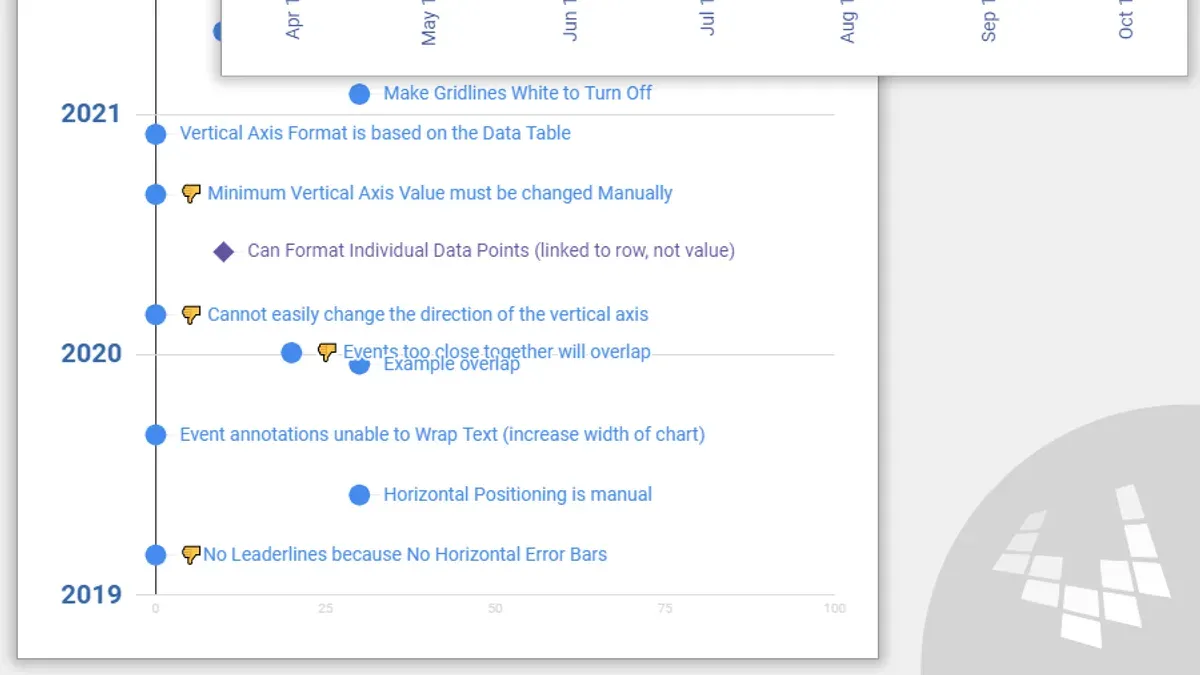
Timeline templates in Google Docs serve as visual aids during project planning and reporting. Using Drive’s template gallery, you can select a timeline layout that fits your workflow—such as a Gantt-style chart for task deadlines or a milestone tracker for progress updates. This helps keep stakeholders aligned without needing specialized project management software.
Google Maps timeline complements Drive’s document history by offering insights into travel patterns. Business travelers analyzing their Maps timeline can identify frequent routes or optimize client visit schedules, while personal users might use it to track trip histories for expense reporting. Integrating Maps data with Drive documents allows for comprehensive travel logs and reports.
Consider a project lead overseeing a product launch: they use Drive’s version history to monitor document edits from design to final review, apply a timeline template in Docs to map out key deliverables, and reference their Google Maps timeline to coordinate travel for vendor meetings. This integrated approach reduces miscommunication and streamlines project delivery.
- Use version history to audit changes and assign accountability
- Leverage timeline templates for clear visual project plans
- Combine Google Maps timeline data with Drive documents for travel analysis
- Review collaboration history to resolve conflicts and streamline workflows
Common mistakes to avoid when using Google Drive’s timeline features
One frequent oversight is ignoring Google Drive’s document version limits and storage quotas. Drive retains a finite number of versions per file and overall storage space, so relying solely on version history without regular cleanup can lead to unexpected storage shortages or loss of older versions. For example, if you don’t periodically delete large outdated files or reduce unnecessary versions, you might hit your storage cap, preventing new uploads or version saves.
Another common error is confusing Google Maps Timeline with Drive’s document history. While both use timelines, Maps Timeline tracks location data, and Drive’s version history tracks document edits. Mixing these up can cause misinterpretation of data, such as expecting document edit histories to reflect location changes or vice versa, which disrupts workflow and decision-making.
Neglecting privacy and sharing settings when downloading or sharing timeline data is also a serious pitfall. Downloaded version histories or Maps Timeline exports can contain sensitive information. If shared without adjusting sharing permissions or anonymizing data, this can expose confidential project details or personal location history. For instance, sharing a document’s version history without restricting access may reveal internal changes or comments not intended for all recipients.
- Regularly monitor and manage your Drive storage and version history limits in Settings > Storage and document details.
- Keep Google Maps Timeline and Drive version history data separate to avoid confusion.
- Review sharing permissions carefully before exporting or sharing timeline data.
Tips for integrating Google Drive timeline tools into your existing workflow
To maximize the utility of Google Drive’s timeline features, start by training your team on the benefits of version history and timeline tracking. Use Google Workspace Admin Console to schedule interactive training sessions or create short tutorial videos highlighting how to access and revert document versions via File > Version history > See version history. Teams familiar with these controls typically experience smoother collaboration and fewer file conflicts.
Organizing your Drive folders strategically enhances timeline tracking. Adopt a clear folder hierarchy with descriptive names and consistent access permissions. For example, separate project phases into folders like Planning, Execution, and Review, each containing related documents. This approach simplifies locating specific document versions and supports timeline clarity.
For organizations leveraging location data, combining Google Maps timeline insights with Drive project files can enrich context. Attach Maps timeline screenshots or export location history data (via Google Maps > Your timeline > Settings > Download a copy of your data) into Drive folders related to travel or site visits. This integration aids in correlating physical activity timelines with project milestones.
Consider a marketing team managing a campaign timeline: by training members to track document edits and linking Maps location history to on-site promotional events, the team improved deadline adherence and situational awareness. Introducing a simple workflow chart mapping document version checkpoints alongside event dates can reinforce the process visually.
- Schedule team training on version history and timeline navigation via the Workspace Admin Console.
- Implement a folder structure reflecting project phases for easier timeline tracking.
- Integrate Google Maps timeline exports into Drive folders for location-based project insights.
- Create workflow charts linking document versions with key milestones.
Read next
- Moving from Dropbox to Google Drive Checklist for Seamless Migration
- Moving from Dropbox to Google Workspace: Your Complete Checklist
- Dropbox Implementation Timeline: From Inception to Everyday Use
- Google Classroom Implementation Timeline: Your Step-by-Step Guide
Frequently asked questions
When was google drive created?
Google Drive was officially launched in April 2012. It was developed to provide seamless cloud storage and file synchronization, integrating tightly with Google's suite of productivity tools.
What is timeline on google?
Google Timeline is a feature primarily found within Google Maps that tracks and displays your location history over time. It helps you visualize places you've visited, routes taken, and can be used for personal or professional tracking purposes when location history is enabled.
How to create a timeline google docs?
To create a timeline in Google Docs, you can use the built-in Drawing tool by selecting Insert > Drawing > + New, then using shapes and lines to build a timeline manually. Alternatively, you can insert a pre-made timeline template from Google Docs Template Gallery or use third-party add-ons designed for timeline creation.
How to use google maps timeline?
Access Google Maps Timeline by opening Google Maps, tapping your profile icon, and selecting 'Your Timeline.' Ensure that Location History is enabled in your Google Account settings to view and manage your visited places and routes over specific dates.
When did google drive come out?
Google Drive came out in April 2012, following years of Google offering various cloud-based services. It consolidated cloud storage and collaboration tools into a single platform accessible via web, desktop, and mobile apps.
Quick checklist
- Enable Version History in Google Docs via File > Version History > See Version History to track document changes effectively.
- Use Google Maps Timeline by accessing the Timeline feature under the menu to visualize location history.
- Create timelines in Google Docs using built-in Drawing tools or timeline templates stored in Drive.
- Regularly review and clean up outdated versions in Drive to maintain organized storage and clarity.
- Integrate timeline views with project management tools for better workflow visibility.
Limitations of this guide
This guide does not cover Google Drive implementation in highly regulated industries with specific compliance requirements, which may require tailored security and audit workflows. Organizations subject to strict data governance, such as healthcare or finance sectors, should consult specialized resources or compliance experts to ensure that timeline and document history features meet regulatory standards.
Prioritize enabling and familiarizing yourself with Google Drive’s version history and timeline tools as your next step. This foundational action provides immediate insight into document changes and location data, forming the basis for more advanced timeline integrations in your workflows and projects.



