
Moving from Dropbox to Google Drive Checklist for Seamless Migration
This checklist guides you through moving from Dropbox to Google Drive, ensuring seamless file transfer and preserving your data integrity.
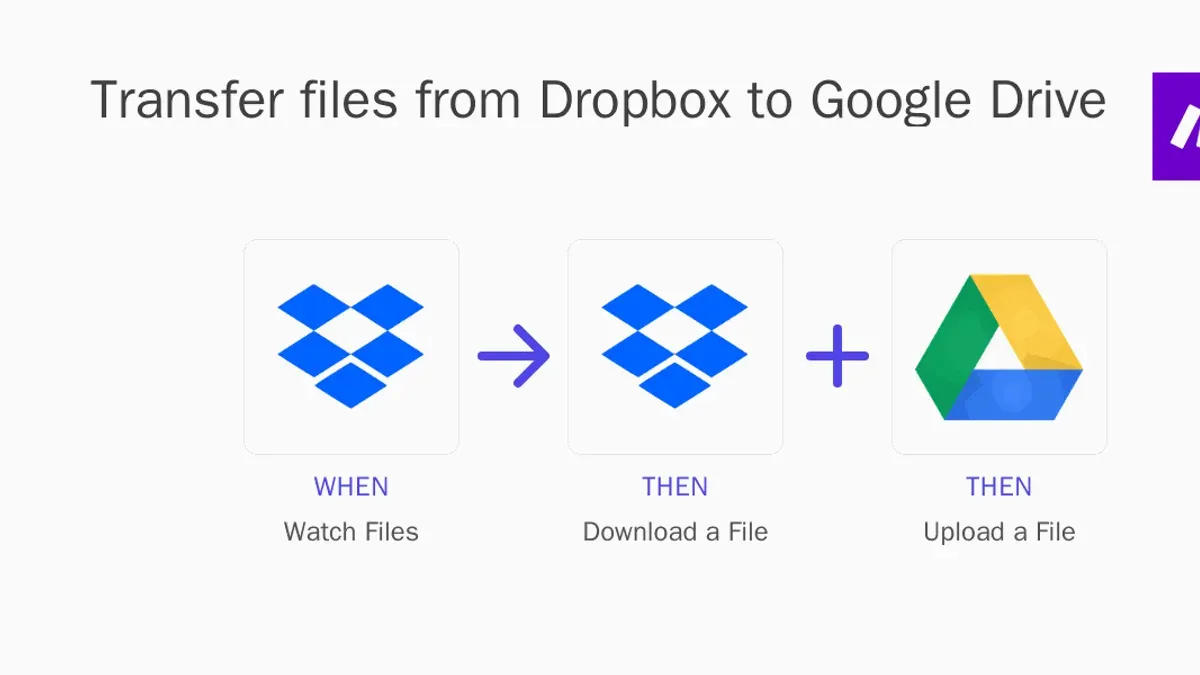
Short answer: Moving from Dropbox to Google Drive is best done by systematically downloading your files from Dropbox and then uploading them to Google Drive using Google's web interface or Backup and Sync tool, while carefully preserving file structures and metadata. A moving from Dropbox to Google Drive checklist helps you track each step to avoid data loss or workflow disruption.
This guide covers essential strategies for a seamless migration, including detailed steps for transferring files, handling various file types and large volumes, and maintaining metadata integrity. You will also learn how to optimize Google Drive after migration and avoid common pitfalls that generic guides often miss, ensuring your transition is efficient and secure.
Understand why moving from Dropbox to Google Drive matters
Choosing to migrate from Dropbox to Google Drive often revolves around differences in storage options, collaboration tools, and app integrations. Google Drive typically offers more flexible storage plans, including seamless upgrades through Google One, which can be cost-effective for growing teams. Its deep integration with Google Workspace apps—Docs, Sheets, Slides, and Meet—makes real-time collaboration smoother and more intuitive compared to Dropbox.
For example, a marketing team accustomed to Dropbox might find Google Drive's direct editing and commenting inside documents, combined with integrated cloud search, simplifies their workflow. Dropbox’s strengths lie in file syncing and third-party app support, but Google Drive’s ecosystem suits teams prioritizing collaborative content creation and communication.
Common reasons prompting migration include the need for better collaboration features, aligning with organizational app standards, or reducing costs by consolidating services. A simple comparison clarifies this:
| Feature | Dropbox | Google Drive |
|---|---|---|
| Base Storage | 2 GB free, paid plans start at 2 TB | 15 GB free, paid plans through Google One start at 100 GB |
| Collaboration | File sharing, Paper docs | Direct editing in Docs, Sheets, Slides, commenting, version history |
| App Integration | Wide third-party app ecosystem | Native integration with Google Workspace apps and services |
This comparison highlights why migrating can align your tools better with your team’s needs and budget.
How to move Dropbox to Google Drive step by step
Start by organizing your Dropbox files: remove duplicates and group related files into folders to simplify transfer. This reduces clutter and speeds up the process. Choose your migration method next: manual download and upload or a third-party migration tool like MultCloud or CloudFuze. Manual transfer is straightforward but can be time-consuming for large volumes.
For manual migration, log in to Dropbox web, select files or folders, and download them as a ZIP archive. Then, open Google Drive web or use the Google Drive desktop app, and upload the extracted files. The desktop app offers drag-and-drop convenience and background syncing, which can cut upload time significantly compared to the web interface.
Handling shared folders requires special care: Dropbox permissions do not transfer automatically. Recreate sharing settings in Google Drive by inviting collaborators and setting appropriate access levels after upload.
For example, transferring 10 GB manually can take several hours depending on your internet speed, while third-party tools automate and often speed up the process by syncing directly between cloud services.
- Organize and clean Dropbox files
- Decide between manual or third-party tool migration
- Download from Dropbox and upload to Google Drive via web or desktop app
- Manually reset sharing permissions in Google Drive
How to migrate Dropbox to Google Drive without losing data or metadata
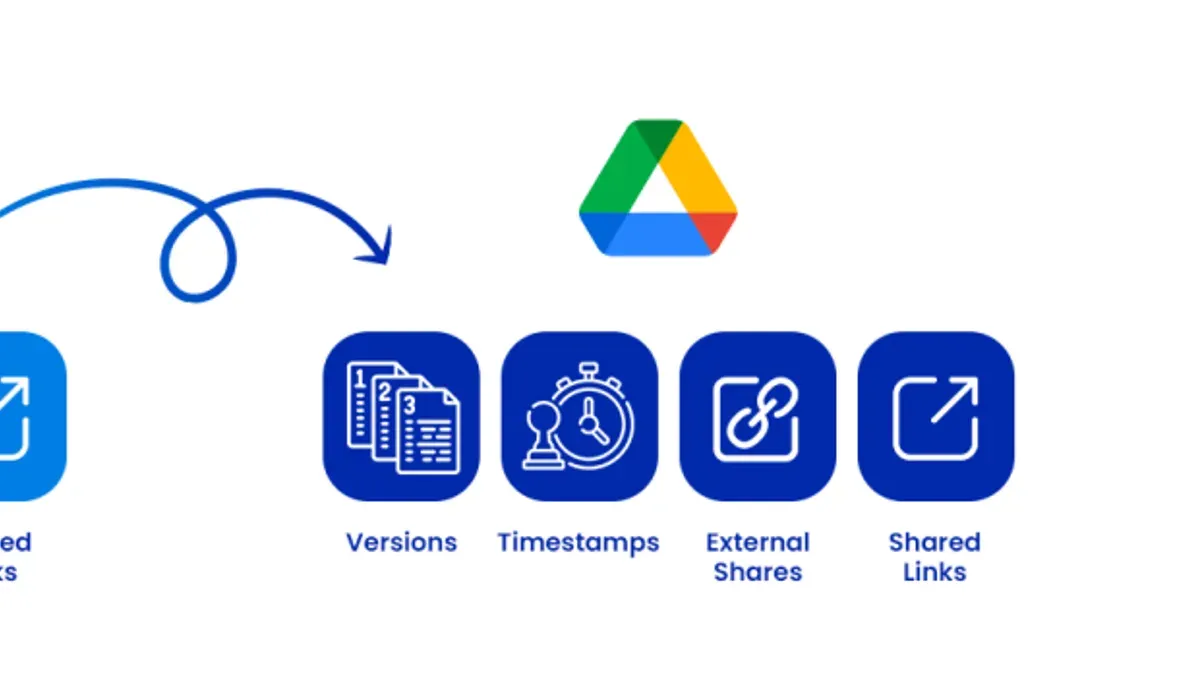
Manual transfers from Dropbox to Google Drive often result in loss of metadata such as file versions, timestamps, and sharing settings. For example, copying files directly via download and upload resets modified dates and discards version history, which can disrupt audit trails or collaborative workflows.
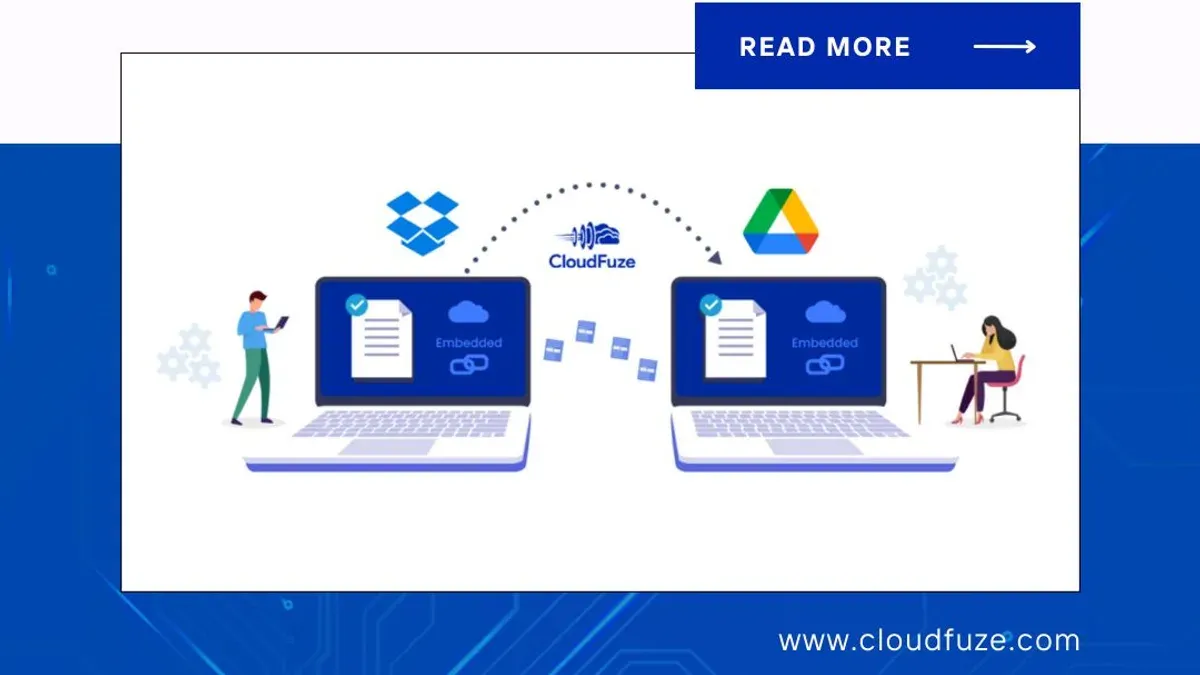
To preserve metadata, use third-party migration tools like MultCloud or CloudFuze. These tools connect to both Dropbox and Google Drive through APIs, enabling migration while retaining timestamps, version histories, and shared permissions. For instance, MultCloud's 'Cloud Transfer' feature migrates files without altering original modified dates and supports preserving Dropbox file versions as Google Drive versions or separate files.
After migration, verify data integrity by checking the following:
- Confirm file counts match between Dropbox and Google Drive.
- Check that timestamps (created and modified dates) are consistent.
- Review version history availability and accessibility in Google Drive.
- Test shared folder and file permissions with collaborators.
Consider migrating a small folder first to evaluate metadata preservation before scaling up. This process helps ensure your files retain their full context and collaboration settings after transfer.
How to transport Google Drive to Dropbox when needed
Transferring files from Google Drive back to Dropbox requires attention to file compatibility and syncing nuances. While both platforms support standard file formats like PDFs, images, and videos without issue, Google Docs, Sheets, and Slides are stored as proprietary formats that Dropbox cannot natively read.
To move Google Docs, Sheets, or Slides to Dropbox, you must first export them to compatible formats such as Microsoft Office files or PDFs. For example, open a Google Doc, select File > Download > Microsoft Word (.docx) before uploading to Dropbox. This preserves the content but loses native Google collaboration features.
For ongoing two-way syncing, avoid manual copying. Instead, use third-party tools like MultCloud or CloudHQ that automate syncing between Google Drive and Dropbox. These services can maintain folder structures and detect changes, syncing only updated files to reduce bandwidth.
Picture a marketing team that stores final assets on Dropbox for client sharing but drafts internally on Google Drive. With two-way syncing set up, new versions created in Google Drive automatically update in Dropbox, ensuring seamless workflow continuity without manual intervention.
- Export Google Docs/Sheets/Slides to compatible formats before upload to Dropbox
- Use syncing tools (e.g., MultCloud, CloudHQ) for automated two-way sync
- Verify folder structures remain consistent during transfer
- Test file access and editability post-transfer to avoid workflow disruption
Avoid common mistakes when transferring files between Dropbox and Google Drive
One frequent mistake is underestimating file size limits and bandwidth constraints during transfer. Uploading a 5GB video without checking your Google Drive storage quota or internet speed can stall the migration, causing incomplete uploads and frustrating downtime.
Ignoring shared folder permissions leads to collaboration breakdowns. Dropbox’s granular sharing settings don’t always translate directly in Google Drive. For example, a team member with edit rights on a Dropbox folder might lose access post-migration if permissions aren’t carefully reset, disrupting workflows.
Failing to back up data before starting the migration risks irreversible loss. Even with tools, unexpected errors can corrupt files or metadata. A simple backup ensures you can restore files if transfer glitches occur.
Overlooking differences in file formats—especially Google Docs conversion—can create confusion. Dropbox stores Microsoft Office files natively, but Google Drive may convert these to Google Docs formats, sometimes altering formatting. Not anticipating this can lead to version mismatches and additional editing work.
- Check file sizes and available Google Drive storage before migrating large files.
- Review and manually adjust shared folder permissions after transfer.
- Create a full backup of Dropbox content before starting migration.
- Decide whether to convert Office files to Google formats or keep originals to avoid formatting issues.
Optimize your new Google Drive environment after migration
After migrating, organizing your files and folders in Google Drive is crucial. Replicate your Dropbox structure or streamline it for easier navigation. For instance, create top-level folders by project or client, then subfolders by document type or date. This approach reduces search time and keeps your workspace tidy.
Set sharing permissions carefully by selecting files or folders, clicking the "Share" button, and choosing roles like Viewer, Commenter, or Editor. Use the "Advanced" settings to restrict downloading or resharing if needed. This ensures appropriate access while maintaining control.
Leverage Google Drive’s advanced features like offline access by enabling it in Settings under "Offline" to work without internet connection. Use Version History (File > Version history > See version history) to track changes and restore earlier file versions. This is especially helpful when collaborating on documents.
For example, a marketing team reorganized their Drive by campaign folders with subfolders for assets and reports, set granular sharing permissions per folder, and enabled offline access for field agents. This resulted in noticeably smoother workflows and fewer access issues.
- Create a clear folder hierarchy reflecting your workflow
- Adjust sharing settings with the "Share" button and "Advanced" options
- Turn on offline access via Settings > Offline
- Use Version History to manage and restore file edits
Read next
- Dropbox Rollout Plan for Teachers with Low Tech Confidence
- Dropbox Implementation Timeline: From Inception to Everyday Use
- Google Classroom Implementation Timeline: Your Step-by-Step Guide
- Google Classroom Rollout Plan for Elementary Teachers: Your Step-by-Step Guide
Frequently asked questions
How to transfer dropbox to google drive?
To transfer files from Dropbox to Google Drive, first download your files from Dropbox to your computer or use a third-party migration tool. Then, upload these files to Google Drive via the web interface or desktop app. Ensure you maintain folder structure by downloading entire folders as ZIP files and extracting them before uploading.
How to transfer Dropbox to Google Drive in bulk?
For bulk transfers, use the Dropbox desktop app to sync files locally, then move the synced folder into the Google Drive folder on your computer to trigger automatic upload. Alternatively, services like MultCloud or CloudFuze can automate bulk migration without manual downloads and uploads.
Can I move Google Docs files to Dropbox without losing formatting?
Google Docs files are stored natively in Google Drive and don’t have a direct file format when exported. To preserve formatting, export Google Docs as Microsoft Word (.docx) or PDF files before uploading to Dropbox. Directly moving Docs files without exporting will result in loss of Google Docs-specific features.
What is the best tool to migrate Dropbox to Google Drive automatically?
Cloud migration tools such as MultCloud, CloudFuze, and Mover.io offer automated Dropbox to Google Drive migration. They handle file transfers, folder structures, and metadata with minimal user input, especially useful for large volumes or complex folder hierarchies.
How to handle large files when moving from Google Drive to Dropbox?
Large files can be transferred by syncing with desktop apps of both Google Drive and Dropbox, moving files locally between synced folders. If files exceed Dropbox’s upload limits, consider compressing them or splitting into smaller parts before transfer. Also, ensure stable internet connectivity to avoid interruptions.
Quick checklist
- Export all Dropbox files and folders to a local drive or use Dropbox's export tool.
- Verify file integrity and completeness before import.
- Organize files into logical folders to mirror or improve upon your Dropbox structure.
- Use Google Drive’s Backup and Sync or Drive for Desktop to upload your files efficiently.
- Check and adjust file sharing permissions and metadata manually if needed.
- Test access to critical files and confirm that collaborators have appropriate permissions.
- Remove redundant or obsolete files to optimize your new Google Drive environment.
What this advice does not cover
This guide does not cover enterprise-level migrations involving thousands of users or highly complex permissions, which require specialized migration software and IT support. If you manage a large organization or require granular permission mapping and audit trails, consider dedicated migration tools or professional services to ensure compliance and minimize downtime.
Your most useful next step is to start by exporting your Dropbox data systematically and verifying its completeness before initiating any upload. Ensuring you have a clean, verified dataset upfront prevents data loss and makes subsequent steps smoother and more predictable.



