How to Open.msg Files on Mac: Step-by-Step Practical Guide
Discover practical methods to open.msg files on Mac without Outlook using free apps, converters, and online tools.
You receive an email attachment with a.msg extension, but you don’t have Microsoft Outlook installed on your Mac. Opening this file format can be confusing because macOS doesn’t natively support it, and you might be searching for a straightforward solution.
This article explains how to open.msg file on Mac using a variety of practical methods. You will learn about free tools, Microsoft Outlook options, file conversion utilities, command line approaches, and online services. Each method is presented with clear steps, highlighting their advantages and limitations to help you choose the best fit for your needs.
Key takeaways
- You can open.msg files on Mac without Outlook using free apps like Thunderbird with add-ons or dedicated viewers.
- Microsoft Outlook for Mac supports.msg files but requires installation and a valid license.
- File conversion tools can convert.msg files to PDF or EML formats for easier access.
- Command line tools and scripts provide advanced users with flexible ways to extract content.
- Online viewers offer quick access but require careful consideration of privacy and security.
Before you start: What you need to open.msg files on Mac
A .msg file is an email message file format created primarily by Microsoft Outlook on Windows. It stores the email content, attachments, sender and recipient information, and metadata in a proprietary binary format. Because this format is designed specifically for Outlook on Windows, macOS does not natively support opening.msg files, which means standard Mac email clients like Apple Mail or Mail.app cannot open them directly.
Due to the.msg file’s complex structure, which includes embedded MAPI properties, you need specialized tools to view or extract its content on a Mac. These tools generally fall into three categories: dedicated.msg viewers, file conversion utilities that convert.msg files into more common formats such as.eml or PDF, and email clients that support.msg files, notably Microsoft Outlook for Mac.
Before opening any.msg file, especially if received via email, always scan it with up-to-date antivirus software to ensure it is safe. This precaution helps prevent potential malware or phishing attacks hidden in attachments or links.
In summary, to open a.msg file on Mac, you will need either a dedicated viewer, a conversion tool, or a compatible email client. Knowing this upfront prepares you to choose the best method based on your needs and software availability.
How to open.msg file on Mac without Outlook using free software
Several free tools allow you to open.msg files on Mac without Microsoft Outlook. Two popular options are MSG Viewer for Outlook and Klammer. Both provide straightforward interfaces to view message content, though with some limitations regarding attachments and formatting.
- Download and install MSG Viewer for Outlook from the Mac App Store. Open the app and drag your.msg file into the window. You should see the email body and basic headers displayed immediately.
- Alternatively, install Klammer from the Mac App Store. Open Klammer, click Open, and select your.msg file. The app renders the email content and often supports viewing attachments inline.
- To use online.msg viewers, upload your file to a trusted service like Encryptomatic. Ensure you do not upload sensitive emails to unknown sites to protect your privacy.
- Apple Mail does not open.msg files directly, but you can convert.msg files using free online converters to.eml, then import them into Mail by dragging the.eml file into the inbox.
Free tools generally display basic message text and some attachments but may struggle with complex formatting, embedded images, or encrypted content. User interfaces are simple but can vary in stability and speed.
| Tool | Attachment Support | Formatting Accuracy | User Interface | Success Rate with Complex.msg Files |
|---|---|---|---|---|
| MSG Viewer for Outlook | Basic attachments visible | Good for plain text; limited for HTML | Simple and clear | Moderate |
| Klammer | Better attachment handling including images | Better HTML rendering | Intuitive, modern | High |
| Online Viewers (e.g., Encryptomatic) | Depends on service | Varies widely | Depends on website | Variable |
How to open.msg file on Mac using Microsoft Outlook
If you have Microsoft Outlook installed on your Mac, you can open.msg files directly, although the process differs slightly from Windows. Outlook for Mac does not support native drag-and-drop opening of.msg files like Outlook for Windows, so importing is necessary.
- Open Microsoft Outlook on your Mac and go to the folder where you want to import the.msg file, such as the Inbox or a custom folder.
- From the menu bar, choose File > Import. This opens the import wizard.
- Select Outlook for Windows archive file (.pst) or Outlook for Mac archive file (.olm) if you have those formats; however,.msg files are not directly supported here. Instead, proceed to the next step.
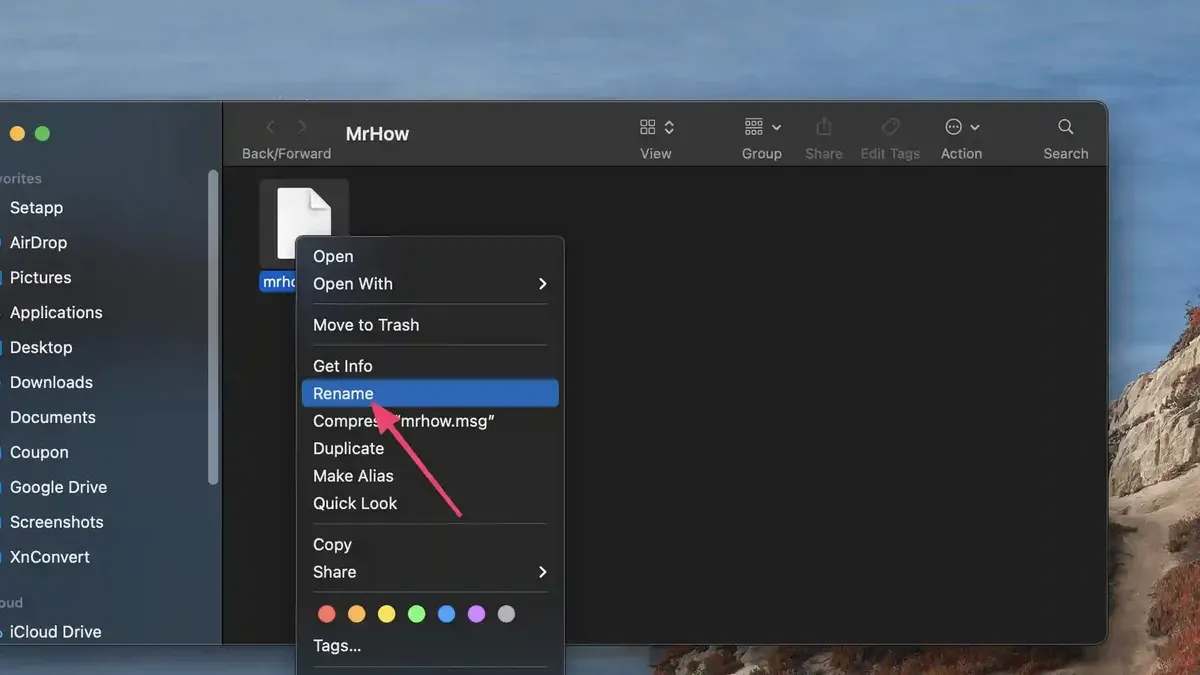
- Since Outlook for Mac does not import.msg files natively, use Finder to locate the.msg file, then right-click it and choose Open With > Microsoft Outlook. Outlook will open the message in a new window but does not import it into the mailbox folders.
- To save the opened.msg email, drag it from the new window into an Outlook folder. This preserves the email content and formatting.
- Attachments embedded in the.msg file will appear in the opened message window, allowing you to save or open them individually.
Note that Microsoft Outlook for Mac requires an active Microsoft 365 subscription or a licensed Office purchase to function. The feature set for handling.msg files is more limited compared to Outlook for Windows, which can open and import.msg files more seamlessly.
While Outlook for Mac retains email formatting and attachments better than some third-party apps, the indirect import process might be less convenient for frequent users of.msg files.
How to open.msg file on Mac using file conversion tools
Converting.msg files into Mac-friendly formats like.eml or PDF allows you to access email content with common Mac applications such as Apple Mail or Preview. Several desktop and online tools facilitate this process with varying features.
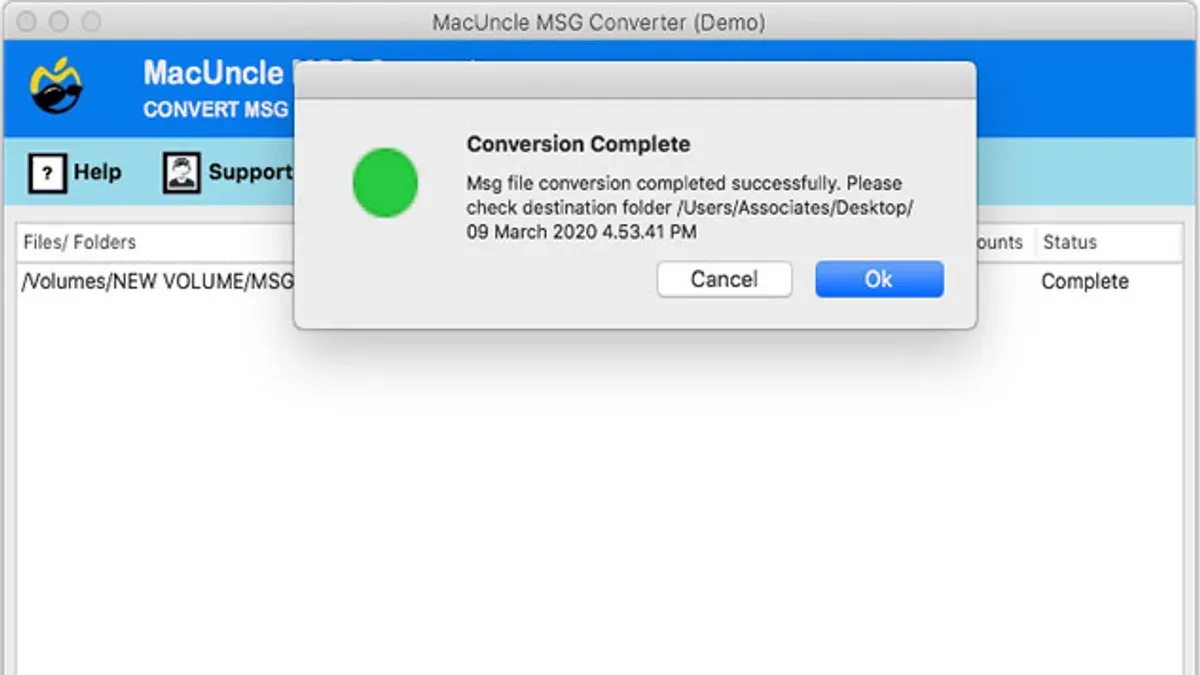
- Download and install a reliable file conversion tool, such as "MsgConvert" for batch.msg to.eml conversion or "Zamzar" for online file conversion. Once installed or accessed, launch the tool.
- For desktop tools, add your.msg files by dragging them into the application window or using the File > Open menu. For online tools, upload your.msg files following the site instructions.
- Select the target format, usually.eml for email compatibility or PDF for a fixed layout. Confirm your choice to start conversion.
- Wait for the conversion process to complete. Desktop tools often convert multiple files simultaneously, saving time when dealing with numerous emails.
- After conversion, open the resulting.eml files with Apple Mail or import the PDFs into Preview. Verify that the email content, attachments, and formatting are intact.
Converting to.eml preserves email structure and allows easy integration with Apple Mail, but some formatting nuances or embedded attachments may not transfer perfectly. PDF conversion ensures consistent appearance but loses the ability to reply or forward within mail clients.
Batch conversion tools like MsgConvert excel in speed and convenience for large sets, while online converters are accessible without installation but may have file size limits and privacy considerations.
Be aware that during conversion, some data loss or formatting errors can occur, especially with complex emails containing embedded images or rich formatting. Always review converted files carefully to ensure fidelity before deleting originals.
How to open.msg file on Mac using command line or scripts
For advanced users, command-line tools and scripting libraries offer powerful ways to extract content from.msg files on macOS, especially useful for automation or processing large batches.
Using readpst
readpst is a command-line utility primarily designed to convert Outlook PST files but can handle.msg files in certain contexts. It is part of the libpst package and can be installed via Homebrew.
- Open Terminal and install readpst with brew install libpst. You should see the installation progress and completion message.
- Run readpst -o output_folder file.msg to extract the contents. Successful execution creates an output_folder with the email content in.eml format and attachments.
- Check the output_folder for extracted files. The.eml files can be opened with Apple Mail or other clients.
Using Python libraries
Python libraries like extract-msg allow parsing.msg files programmatically.
- Install the library by running pip install extract-msg.
- Create a script that loads a.msg file and extracts data. For example:
import extract_msg
msg = extract_msg.Message('file.msg')
print(msg.subject)
msg.save() # saves attachments - Run the script in Terminal. You should see the email subject printed and attachments saved to the script's directory.
These methods can process hundreds of files quickly, but require familiarity with Terminal commands and scripting. They provide flexible output formats and automation options but lack user-friendly interfaces.
How to open.msg attachment on Mac online securely
Using online viewers to open.msg files avoids installing software but requires caution with sensitive data. Choose reputable services that explicitly state data privacy measures and do not store uploaded files permanently.
Popular online tools like Encryptomatic's Free MSG Viewer and CoolUtils Online MSG Viewer offer straightforward interfaces for uploading and viewing.msg files. Their privacy policies generally emphasize that files are deleted shortly after processing, reducing risk.
- Visit a trusted online.msg viewer such as Encryptomatic (https://www.encryptomatic.com/viewer/). You should see a clear upload button labeled “Select.msg file”.
- Click the upload button and select your.msg file from your Mac. After uploading, the tool will parse and display the email content including attachments if supported.
- Review the displayed email in your browser, verifying formatting and attachments. Effective tools show both message body and metadata like sender and date.
- After confirming the content, close the browser tab or clear your browser cache to minimize residual local data.
When uploading sensitive emails, review the service’s privacy information carefully. For example, Encryptomatic states files are deleted from their servers within a short timeframe, and CoolUtils specifies no file retention beyond processing.
If online viewers cannot open your file correctly or you prefer not to upload sensitive content, consider local applications or conversion tools instead.
Troubleshooting common issues when opening.msg files on Mac
If a.msg file won’t open or shows errors such as "File format not supported" or "Unable to read file," the file may be corrupted or incomplete. First, verify the file size matches the sender’s original. If it’s smaller, redownload the file or request it again.
For corrupted or partially downloaded.msg files, try opening them with alternative viewers like Klammer or MSG Viewer for Outlook. If these fail, converting the.msg to.eml or PDF could salvage readable content.
Missing attachments or broken links inside.msg files often occur when the file was created with embedded items stored externally or when attachments were stripped during forwarding. To address this, confirm with the sender that attachments were included, and try opening the file with Microsoft Outlook on Windows if possible, as it handles embedded items more reliably.
When you encounter persistent errors such as "Attachment not found" or the.msg viewer crashes repeatedly, consider seeking professional help from IT support or using specialized recovery software designed for Outlook files.
- Check the file size and redownload the.msg file if it appears incomplete. You should see the full size as expected from the sender.
- Open the file with a different.msg viewer app to identify if the issue is viewer-specific. Successful opening indicates the file is intact.
- Use a conversion tool to change the file format if standard viewers fail. The output file should open without errors.
- If attachments are missing, contact the sender to confirm they were included and resend if necessary. Open the new file to verify attachments appear.
- For repeated failures, escalate to professional help or recovery tools. This step is for complex corruption beyond basic fixes.
Comparing paid versus free solutions to open.msg files on Mac
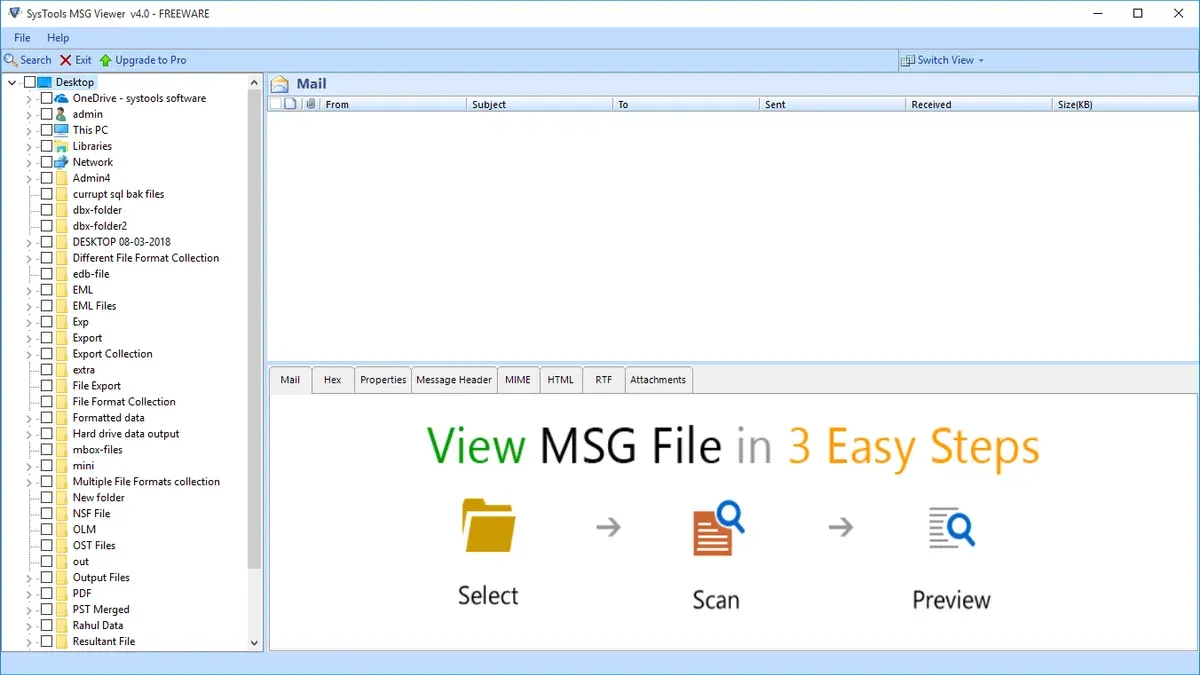
Paid applications like MailRaider Pro, MSG Viewer Pro, and Outlook add advanced functionality beyond basic viewing. These tools typically offer superior formatting retention, reliable batch processing for multiple files, and integrated support for attachments including embedded images and calendars. Customer support and regular updates also come with paid licenses, which can be beneficial if you frequently handle.msg files professionally.
Cost varies: some paid apps operate on a one-time purchase model ranging from $10 to $50, while others use subscription plans with monthly or annual fees. Licensing may also differ between single-user and multi-user options, impacting total cost if you need the software across multiple devices.
Free solutions work well for occasional use or when you only need to view a few messages without complex formatting or attachments. However, if you regularly open large volumes of.msg files or require high fidelity in message rendering and attachment handling, investing in a paid app can save time and reduce frustration.
| Feature | Free Tools | Paid Tools |
|---|---|---|
| Message formatting | Basic, sometimes inconsistent | Advanced, preserves layout and fonts |
| Attachment handling | Limited or partial support | Full support including embedded files |
| Batch processing | Rarely supported | Commonly available |
| Customer support | Community forums or none | Official support and updates |
| Cost | Free | Varies: $10–$50 one-time or subscription |
Assess your usage frequency and complexity of.msg files before deciding. For casual users, free tools provide adequate access. For professional or heavy users, paid software offers efficiency and reliability that may justify the expense.
- How to Open and Run.sql Files on Mac: A Step-by-Step Guide
- How to Open.docx Files on Mac: A Step-by-Step Guide
Frequently asked questions
How to open msg file on macbook?
To open a.msg file on a MacBook, you can use free tools like the open-source app "MSG Viewer" or convert the.msg file to a more common format such as.eml or PDF. Alternatively, Microsoft Outlook for Mac can open these files if installed. Opening the file with a compatible app is typically done by right-clicking the.msg file and selecting "Open With" followed by the chosen application.
How to open msg file on mac without outlook?
You can open.msg files on Mac without Outlook by using third-party apps like "MSG Viewer for Outlook" or online conversion services that turn.msg files into readable formats like PDF or EML. Some free applications allow you to view attachments and message content without requiring Microsoft software. This method helps avoid the need to install or subscribe to Outlook.
How to open msg file on macos?
On macOS, opening a.msg file involves using either dedicated viewers such as "MSG Viewer" or converting the file through online converters or command-line tools like "readpst." You can also use email clients that support.eml files after conversion, as native macOS apps do not directly support.msg format. Choose a method based on your preference for free or paid solutions.
How to open msg file on mac outlook?
If you have Microsoft Outlook installed on your Mac, opening.msg files is straightforward—just double-click the file, and Outlook will launch displaying the email content. If double-clicking does not work, right-click the file, select "Open With," and choose Microsoft Outlook. This is the most direct way to access.msg files if you have Outlook.
How to open msg file on mac?
Opening a.msg file on Mac requires either specialized software capable of reading Outlook message files or converting the file to a compatible format. Free apps like "MSG Viewer" and online tools can help, as can paid applications offering more features and reliability. The method you choose depends on whether you want a quick free solution or a more integrated paid tool.
What this advice does not cover and who should do something else
This article does not cover editing.msg files or converting them back into Outlook message format for Windows; users needing these functions should consider specialized software designed specifically for those purposes. Some methods described may not fully preserve complex email elements such as embedded images, formatting nuances, or attachments, which can affect how the message appears or functions after opening.
Uploading.msg files to online viewers poses security risks, especially if the emails contain sensitive or confidential information. Use online tools cautiously and only with non-sensitive content or when you trust the service's privacy policies.
The most useful next step
If you frequently receive.msg files and want seamless access on your Mac, installing a dedicated mail client like Microsoft Outlook or a reliable third-party app that fully supports.msg format is the most straightforward approach. This avoids conversion hassles and preserves message integrity, saving time and reducing frustration.