
How to Open.raw Files on Mac: Clear Step-by-Step Methods
Discover clear methods to open.raw files on Mac using built-in apps, free tools, and professional software for easy photo access and editing.
You’ve just transferred a batch of photos from your camera and noticed some files end with.raw. These large, uncompressed files contain detailed image data but don’t open like standard JPEGs on your Mac. If you’re wondering how to open.raw file on Mac without relying on Photoshop, this article guides you through practical methods and explains the technical background of.raw files on macOS.
Whether you prefer built-in apps, free alternatives, or professional software, you will find clear, step-by-step instructions tailored to your needs and system capabilities. You’ll also learn how to view.raw files quickly without installing extra software, and how Mac approaches these files differently from Windows.
Key takeaways
- Preview and Photos apps on Mac can open many.raw files without additional software.
- Free tools like RawTherapee offer Photoshop-free editing of.raw images.
- Professional apps such as Adobe Lightroom provide advanced control but require purchase or subscription.
- Quick Look lets you view.raw thumbnails instantly without opening files.
- macOS supports a wide range of camera models natively, but some.raw formats may need updates or third-party apps.
Before you start: What you need to open.raw files on Mac
A.raw file is a digital image file that contains unprocessed data directly from a camera’s image sensor. Unlike JPEG or PNG files, which are compressed and processed, raw files preserve the full range of image information, allowing more control over editing and higher image quality. However, this also means raw files are larger and require specific software to interpret the data.
Raw file formats vary by camera manufacturer. Popular formats include Canon’s.CR2 and.CR3, Nikon’s.NEF, Sony’s.ARW, and Fujifilm’s.RAF. Because each format encodes data differently, you need software that supports the particular raw format from your camera.
macOS includes built-in support for many common raw formats through its Raw Image Converter technology. This native support enables apps like Preview and Photos to open a wide range of raw files without additional software. However, support depends on your macOS version and the specific raw format, so some newer or less common cameras might require third-party applications.
To open.raw files on Mac, you need either native macOS compatibility or third-party software designed for raw image processing. Before proceeding, ensure your Mac’s operating system is up to date to maximize native raw support.
- Check your macOS version by clicking the Apple menu > About This Mac. You should see the macOS name and version number.
- Identify your camera raw file format by looking at the file extension, such as.CR2,.NEF, or.ARW.
- Confirm if your macOS version supports your raw file format by visiting Apple’s support pages or the camera manufacturer’s website.
- If your raw format is unsupported, prepare to install third-party software compatible with your camera’s raw files.
- Have your.raw files accessible on your Mac, either via external storage or internal folders, ready for viewing or editing.
How to open raw files on Mac using Preview and Photos apps
macOS includes Preview and Photos apps that can open many.raw files without additional software. These built-in options provide quick access but have limits on editing and compatibility.
Opening.raw files with Preview
- Locate your.raw file in Finder, for example, a Canon.CR2 or Nikon.NEF file.
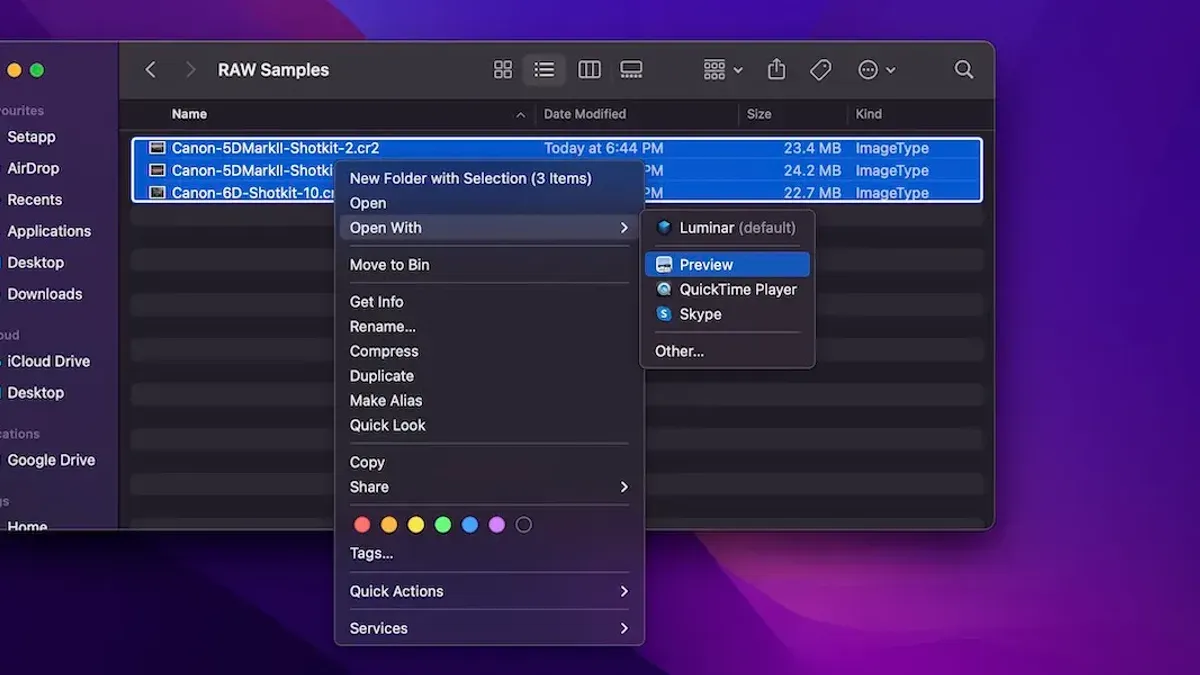
- Right-click the file, choose Open With, then select Preview. Preview will launch and display the image.
- Use Preview’s zoom and rotation tools to view the image. You can also export it to JPEG or PNG via File > Export.
- If the image fails to open or appears blank, your macOS version may lack support for that camera model’s raw format.
Importing and viewing.raw files in Photos
- Open the Photos app from your Applications folder.
- Go to File > Import and select the.raw files you want to add.
- Photos imports the files into your library, enabling viewing alongside JPEGs and other formats.
- Once imported, double-click an image to view it full screen. You can apply basic edits like exposure and color adjustments.
- Note that Photos supports many but not all raw formats; unsupported files won’t import correctly.
While Preview and Photos handle viewing well, they lack advanced editing capabilities found in dedicated raw processors. Compatibility depends on your macOS version and camera model, so some.raw files may require third-party apps.
How to open raw files on Mac without Photoshop using free software
If you want to open.raw files on Mac without Photoshop, several free software options provide strong alternatives. Popular choices include RawTherapee, Darktable, and GIMP, each with different strengths in usability and raw format support.
Installing and opening.raw files with free software
- Download RawTherapee from rawtherapee.com and install it by dragging the app to your Applications folder. When you open RawTherapee, use the file browser panel to locate your.raw file. The image preview should appear automatically.
- Get Darktable from darktable.org and install it similarly. Launch Darktable and click the "Import" button to add your.raw files. Once imported, double-click a file to open the editing view with the raw data processed.
- Download GIMP at gimp.org. Since GIMP does not support raw files natively, install the separate plugin "UFRaw" from ufraw.sourceforge.io or use GIMP's RawTherapee plugin. Open your.raw file through the plugin, then import the processed image into GIMP for editing.
Comparison of usability and supported cameras
| Software | Raw Format Support | User-Friendliness | Key Notes |
|---|---|---|---|
| RawTherapee | Wide support for most common raw formats (Canon CR2, Nikon NEF, Sony ARW, etc.) | Moderate; interface is comprehensive but can be complex for beginners | Strong raw processing features, good for detailed adjustments |
| Darktable | Extensive raw format compatibility including medium format cameras | Moderate to advanced; interface similar to Lightroom with many options | Good for managing large photo libraries and non-destructive editing |
| GIMP (+UFRaw plugin) | Dependent on UFRaw plugin; supports many formats but less comprehensive | Easy to moderate; interface familiar to Photoshop users but plugin adds steps | Best for combining raw conversion with pixel-level editing |
Each app offers a different balance between raw support and user experience. RawTherapee and Darktable focus more on raw processing, while GIMP is suited for users looking to edit images pixel by pixel after raw conversion. Choosing the right tool depends on your workflow and comfort with photo editing software.
How to open raw files on Mac with professional photo editing software
For users requiring advanced editing capabilities beyond free tools, professional photo editing software offers comprehensive support for.raw files with enhanced control over image processing. Popular options include Adobe Lightroom, Capture One, and Affinity Photo, each providing robust raw development workflows.
Adobe Lightroom
Lightroom is widely used for raw photo editing and management. It supports a broad range of camera raw formats and offers non-destructive editing, presets, and cataloging features.
- Open Lightroom and click File > Import Photos and Video.
- Navigate to your.raw file location and select the files.
- Click Import to add them to your library. Once imported, the Develop module allows full raw editing.
Lightroom is subscription-based, typically bundled with Adobe Photoshop as part of Adobe Creative Cloud Photography plan, costing around a monthly fee. A free trial is available.
Capture One
Capture One specializes in raw processing, especially for professional photographers. It provides precise color control and tethered shooting support.
- Launch Capture One and create a new catalog or session.
- Use Import Images to add your.raw files.
- Access the editing tools to adjust exposure, color, and details.
Capture One offers a one-time purchase or subscription model, generally higher priced than Lightroom, with a free trial option.
Affinity Photo
Affinity Photo is a one-time purchase alternative that supports raw editing with a dedicated Develop Persona for raw file adjustments.
- Open Affinity Photo and select File > Open.
- Choose your.raw file; it will open in the Develop Persona.
- Make adjustments then click Develop to proceed to the main editing workspace.
This software is cost-effective compared to subscription models and includes a free trial.
Choosing among these depends on your editing needs and budget. Adobe Lightroom and Capture One offer extensive ecosystem and professional workflow support, while Affinity Photo provides a strong one-time purchase alternative.
How to view raw file on Mac quickly without installing software
If you need to view a.raw file on your Mac without installing any software, online raw file viewers and converters offer a convenient option. These tools allow you to upload your raw image and view or convert it directly in a web browser.
Using online raw file viewers
Popular online viewers such as raw.pics.io and Online-Convert support many raw formats. After uploading, you can preview images quickly. Upload and processing times vary but typically take under a minute for standard raw files.
When using these services, consider privacy and security. Uploaded images may be stored temporarily on servers, so avoid sensitive or private images. Check the website’s privacy policies to understand data handling.
Converting.raw files online to common formats
These services also offer conversion to JPEG, PNG, or TIFF, which are easier to view on any device. Conversion usually takes 30 seconds to a few minutes depending on file size and connection speed.
- Open a reputable online raw file viewer or converter such as raw.pics.io.
- Click the upload button and select your.raw file from your Mac.
- Wait for the file to upload and process; you should see a preview of the image once complete.
- To convert, select the desired output format (JPEG, PNG, TIFF) and confirm conversion.
- Download the converted file when the process finishes.
Risks and limitations
Online viewers may not support all raw file variations and might reduce image quality during conversion. They also require a stable internet connection and can expose your files to third-party servers. For sensitive work or large batches, local software remains more reliable and secure.
How to open raw files on Windows and PC: a brief comparison
Windows offers native support for many raw file formats through the Microsoft Camera Codec Pack, which enables apps like Photos and File Explorer to display thumbnails and previews of raw files. However, this support is limited to popular camera models and may require manual installation from Microsoft’s website. Windows users often rely on specialized software such as Adobe Lightroom, Capture One, or free alternatives like RawTherapee and Darktable to handle a broader range of raw formats and advanced editing.
Compared to macOS, where native apps like Preview and Photos provide more seamless raw file viewing for many cameras without extra downloads, Windows requires additional steps to achieve similar native support. The Windows software ecosystem is rich but more fragmented, with codec installation often necessary to unlock basic raw preview functionality.
For cross-platform workflows, consider software compatibility and file format support. Many professional apps like Lightroom and Capture One are available on both Mac and Windows, ensuring smooth transitions. However, differences in native OS support mean you may need to adjust how you preview or initially sort raw files depending on your operating system.
| Feature | Windows | Mac |
|---|---|---|
| Native raw file preview | Requires Camera Codec Pack installation for many formats | Built-in support in Preview and Photos for many cameras |
| Default viewing apps | Photos, File Explorer (with codecs) | Preview, Photos |
| Free raw editing software | RawTherapee, Darktable, GIMP | RawTherapee, Darktable, GIMP |
| Professional editing software | Lightroom, Capture One, Affinity Photo | Lightroom, Capture One, Affinity Photo |
| Cross-platform workflow | Possible but may require codec installation and software adjustments | Generally seamless within supported apps |
Troubleshooting common issues when opening.raw files on Mac
If your.raw file won’t open or shows an error like “Unable to open file” or “Unsupported format,” it often indicates a compatibility issue or file corruption. Start by confirming the exact error message to pinpoint the problem.
- Check if your macOS version supports your camera’s raw format. Go to Apple menu > About This Mac > Software Update and install any available updates. Compatible raw formats are regularly added with system updates.
- Try opening the file with a different app such as Preview or Photos. If they fail, test with a free raw editor like Darktable or RawTherapee. A failure across apps suggests the file might be corrupted.
- If you encounter errors like “The file is damaged” or “Invalid file format,” attempt to retransfer the file from the camera or memory card. Use a different card reader or cable to rule out hardware issues.
- For unsupported camera models, visit the camera manufacturer’s website to download the latest raw codec or software updates. Some cameras require proprietary software for full compatibility.
- Consider converting the raw file to DNG format using Adobe’s free DNG Converter. This can improve compatibility across software and macOS.
- If none of the above works, contact your camera manufacturer’s support for guidance on your model’s raw format or possible firmware updates.
Following these steps should resolve most common issues encountered when opening.raw files on Mac, ensuring smoother access to your raw images.
- How to Open.avif Files on Mac: Step-by-Step Practical Methods
- How to Open.webp Files on Mac: Practical Step-by-Step Methods
- How to Open.heic Files on Mac: Clear Step-by-Step Methods
- How to Open a.PSD File on Mac: Step-by-Step Methods
Frequently asked questions
How to open raw files on pc?
On a PC, you can open raw files using built-in tools like the Windows Photos app or third-party software such as Adobe Lightroom or RawTherapee. Installing the latest camera raw codecs from Microsoft ensures better compatibility. For quick viewing, the Windows Photos app supports many raw formats, but advanced editing requires dedicated software.
How to open.raw?
Opening a.raw file depends on its type, as.raw can refer to disk images or raw photo files. For raw photos, use image viewers or editors that support raw formats, like Preview or Photos on Mac. For disk images, software like Disk Utility on Mac or specialized tools on Windows are needed to mount or access the file contents.
How to open raw image files?
Raw image files can be opened on Mac using the Preview or Photos app, which provide basic viewing and editing. Free software options include RawTherapee or darktable for more control. Professional applications such as Capture One or Adobe Lightroom offer advanced editing but require installation.
How to open.raw file?
To open a.raw file on Mac, first identify the file's origin to ensure compatibility. Use Preview or Photos for standard camera raw images; these apps support many camera models. If those don't work, try free alternatives like RawTherapee or install professional software for broader support.
How to view a.raw file?
You can view a.raw file quickly on Mac by selecting it and pressing Spacebar to use Quick Look. Alternatively, open it in Preview or Photos for more detailed viewing options. If the file doesn't display correctly, installing additional codecs or raw image software may be necessary.
What this advice does not cover and when to seek other solutions
This article does not cover raw file editing techniques or advanced color grading workflows; it focuses on opening and viewing raw files on Mac with an emphasis on accessibility and software choice. If you require detailed image manipulation, precise color correction, or workflow automation, professional editing software like Adobe Lightroom or Capture One may be necessary.
For quick and straightforward access to your.raw files, the methods outlined here provide clear options without relying on Photoshop. However, if your work demands high-end editing or integration with broader photography workflows, consider dedicated software tailored for those purposes.
The single most useful next step is to identify your primary goal with.raw files—whether it is simple viewing or comprehensive editing—and then select the software that matches that need. Starting with your Mac’s built-in Preview or Photos app can confirm accessibility, and from there, exploring free alternatives like RawTherapee or professional tools will help you find the best fit without unnecessary complexity.



