
How to Install Elixir on Mac: A Clear Step-by-Step Guide
This guide explains how to install Elixir on Mac using Homebrew or asdf, covering prerequisites and troubleshooting tips.
You want to start developing with Elixir on your Mac but aren’t sure which installation method to choose. Maybe you’ve seen mentions of Homebrew and asdf version manager and wonder which fits your workflow best.
This article covers how to install Elixir on Mac using both Homebrew and asdf, while explaining the practical context of Elixir in software development. It also clears up common confusions, such as unrelated search results about gaming or audio plugins, and provides troubleshooting tips to ensure a smooth setup.
Key takeaways
- Homebrew offers a straightforward and quick way to install Elixir on Mac with minimal setup.
- asdf version manager allows managing multiple Elixir versions side-by-side for greater flexibility.
- Verifying the Elixir installation involves running simple commands like elixir --version and compiling a basic script.
- Common installation issues often relate to PATH configuration or missing dependencies like Erlang.
- This guide helps you avoid confusion with unrelated Elixir search results by focusing strictly on software development installation.
Before you start: What you need to install Elixir on Mac
Elixir is a functional programming language designed for building scalable and maintainable applications. It runs on the Erlang Virtual Machine (BEAM), which means installing Erlang is a prerequisite for Elixir to work on your Mac.
To install Elixir, you need a Mac running a recent version of macOS with the Xcode Command Line Tools installed. These tools provide essential compilers and utilities required for building software from source.
Some users confuse Elixir with unrelated software such as gaming platforms or audio plugins; this guide focuses strictly on Elixir the programming language.
Check if you have the Xcode Command Line Tools installed by opening the Terminal app and running:
xcode-select --install
You should see a prompt to install the tools if they are not present; if already installed, the system will notify you.- Verify Erlang installation by typing
erl -versionorerlin Terminal.
If Erlang is installed, you will see its version and a prompt; otherwise, the command will not be found. - Ensure your macOS version is up to date enough to support Homebrew or asdf, typically macOS 10.13 High Sierra or later.
Having these prerequisites in place will prepare you for a smooth Elixir installation process.
Installing Elixir on Mac using Homebrew
Homebrew is a popular package manager for macOS that allows you to install software quickly and easily. If you don’t have Homebrew installed, follow these steps to get it set up and then install Elixir along with its dependency, Erlang.
- Check if Homebrew is installed by running brew --version in your Terminal. If you see a version number, skip to step 3. If not, proceed to step 2.
- Install Homebrew by entering this command in Terminal:
/bin/bash -c "$(curl -fsSL https://raw.githubusercontent.com/Homebrew/install/HEAD/install.sh)"
You should see output indicating the installation progress, which typically takes a few minutes. - Update Homebrew’s package list to ensure you have the latest formulas:
brew update - Install Erlang, which Elixir depends on:
brew install erlang
The Terminal will display messages about downloading and installing; this usually takes a few minutes depending on your internet speed. - Install Elixir:
brew install elixir
This step also shows progress and completes within moments after Erlang is installed. - Verify the installation by checking the Elixir version:
elixir --version
You should see the installed Elixir version number displayed, confirming success.
Pros of using Homebrew: It is straightforward, widely used, and quick for getting Elixir up and running without much configuration.
Cons: Homebrew may not always offer the latest Elixir versions immediately, limiting fine-grained version control if you need to work with multiple Elixir versions or specific releases.
Installing Elixir on Mac using asdf version manager
asdf is a versatile version manager that lets you handle multiple versions of Elixir and Erlang on the same Mac. This flexibility is ideal if your projects require different versions or if you want precise control over your development environment.
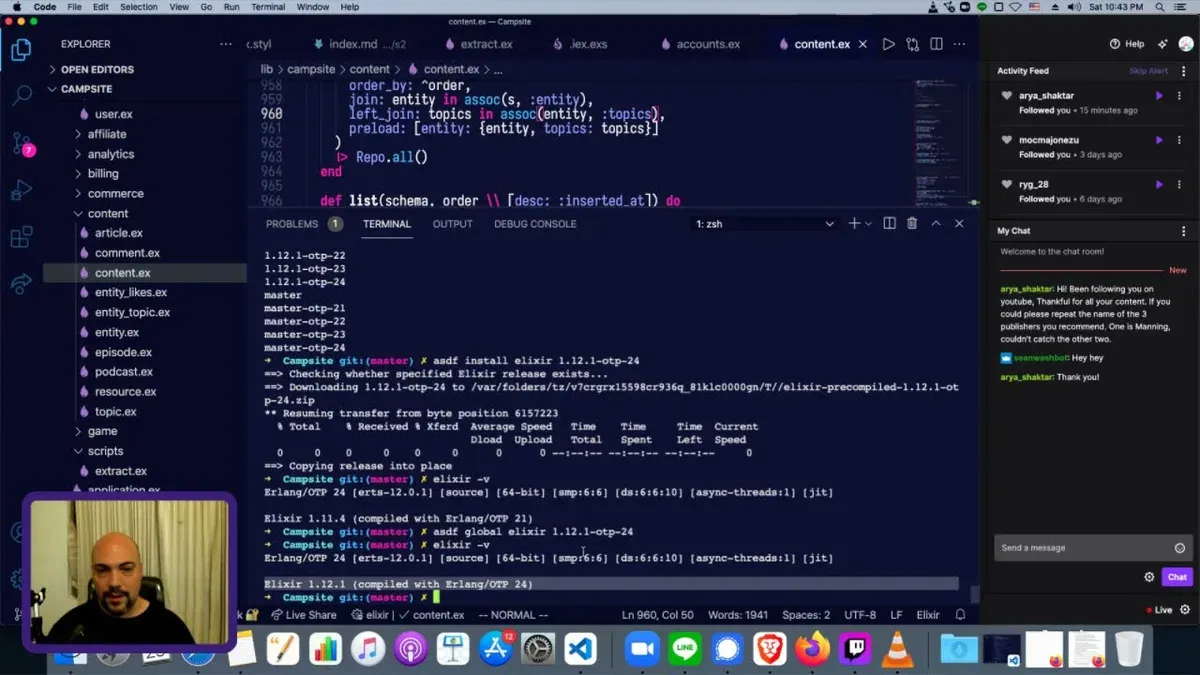
- Install asdf by running git clone https://github.com/asdf-vm/asdf.git ~/.asdf --branch v0.12.0. You should see the repository cloned without errors.
- Add asdf to your shell by appending . $HOME/.asdf/asdf.sh and . $HOME/.asdf/completions/asdf.bash (or the equivalent for zsh) to your profile file like ~/.zshrc. Restart your terminal and type asdf to confirm asdf commands are available.
- Install the Erlang plugin with asdf plugin add erlang and then install a specific Erlang version, e.g., asdf install erlang 25.3. This downloads and compiles Erlang; expect this to take several minutes.
- Set the installed Erlang version globally by running asdf global erlang 25.3. You can verify by typing erl -version or erl to enter the Erlang shell.
- Add the Elixir plugin similarly using asdf plugin add elixir. Then install a desired Elixir version, for example, asdf install elixir 1.15.4.
- Set Elixir globally with asdf global elixir 1.15.4. Confirm successful installation by running elixir --version and iex to enter the interactive shell.
- To switch versions per project, navigate to the project directory and run asdf local elixir 1.14.3 (or any installed version). This creates a .tool-versions file controlling versions just for that folder.
Compared to Homebrew, asdf requires more setup and compilation time but offers superior control over multiple versions simultaneously. Homebrew installs one version system-wide quickly, while asdf manages versions per user or project, which is valuable for development environments with varying requirements.
| Feature | Homebrew | asdf |
|---|---|---|
| Version Control | Single system-wide version | Multiple versions, global or local scope |
| Setup Complexity | Simple, fast install | More complex, requires build time |
| Use Case | Quick install for general use | Development with version flexibility |
Verifying your Elixir installation and running your first Elixir command
- Open the Terminal app on your Mac.
- Type elixir -v and press Enter. You should see the installed Elixir version along with the Erlang/OTP version. This confirms both are properly installed.
- Next, type iex and press Enter to start the Elixir interactive shell. You should see a prompt similar to iex(1)>, indicating the REPL is ready.
- At the iex prompt, type IO.puts("Hello, Elixir!") and press Enter. The shell should output Hello, Elixir! followed by :ok, demonstrating basic Elixir functionality.
- To exit the interactive shell, type exit or press Ctrl+C twice.
If the commands return errors such as "command not found" or unexpected output, check that your PATH environment variable includes the directories where Elixir and Erlang binaries are installed. Restart your terminal after installation to refresh environment settings.
Here is a sample terminal interaction:
elixir -v
Erlang/OTP 25 [erts-13.0] [source] [64-bit] [smp:4:4] [ds:4:4:10] [async-threads:1]
Elixir 1.14.0 (compiled with Erlang/OTP 25)
iex
Interactive Elixir (1.14.0) - press Ctrl+C to exit (type h() ENTER for help)
iex(1)> IO.puts("Hello, Elixir!")
Hello, Elixir!
:ok
iex(2)>
Troubleshooting common issues when installing Elixir on Mac
Installation problems often stem from path configurations or conflicting versions. If Elixir commands like iex fail to run, first check your environment variables. Ensure PATH includes the directories where Homebrew or asdf install Elixir and Erlang. You can verify this with echo $PATH in Terminal.

Conflicting Erlang versions cause errors such as "Erlang runtime not found" or version mismatches. If you have multiple Erlang installations, uninstall duplicates or explicitly set the version in asdf using asdf global erlang <version>. For Homebrew, run brew list --versions erlang to see installed versions.
Permission errors during installation or running commands often appear as "Permission denied". Fix these by running sudo chown -R $(whoami) /usr/local/share or adjusting ownership of Homebrew or asdf directories.
- Open Terminal and type
which iex. You should see the path to the Elixir executable. If not, update your PATH. - Run
iexto start the interactive shell. Successful start means installation is working. - If
iexfails, check for Erlang conflicts by listing versions withbrew list --versions erlangorasdf list erlang. - Fix permission issues by changing ownership of relevant directories with
sudo chown -R $(whoami) /usr/local/share. - If problems persist, uninstall Elixir and Erlang completely, then reinstall via your chosen manager.
- Consult Elixir and Erlang community forums or GitHub issues for similar error messages and solutions.
- How to Install Flask on Mac: A Clear Step-by-Step Guide
- How to Install Deno on Mac: A Complete Step-by-Step Guide
- How to Install Git on Mac: Step-by-Step Guide for Every Setup
- How to Install Docker on Mac: A Clear Step-by-Step Guide
Frequently asked questions
How to use elixir in minecraft?
Elixir in Minecraft typically refers to a mod or custom item unrelated to the Elixir programming language. To use it, you need to install the specific mod through a mod manager like Forge or Fabric, then follow the mod's instructions for crafting or applying the elixir effect. This is separate from software development tools and requires familiarity with Minecraft modding.
How to get elixir?
If you mean Elixir the programming language, you get it by installing it on your system using package managers such as Homebrew or version managers like asdf on your Mac. If you're asking about elixirs in games or other contexts, the process varies by game or application and is not related to software development.
How to install elixir on macos?
You can install Elixir on macOS using Homebrew by running brew install elixir in the Terminal, which is straightforward and integrates well with other packages. Alternatively, use the asdf version manager to install Elixir, which allows managing multiple Elixir versions side-by-side. Both methods require you to have the necessary dependencies like Erlang installed.
What is the use of elixir software?
Elixir is a programming language used for building scalable and maintainable applications, especially suited for concurrent and distributed systems. It runs on the Erlang virtual machine, making it popular for web development, real-time applications, and fault-tolerant systems. It is not related to gaming or multimedia plugins.
What is elixir programming?
Elixir programming refers to writing software using the Elixir language, designed to handle large-scale, concurrent applications efficiently. It combines functional programming with the robustness of the Erlang VM, making it ideal for developers building fault-tolerant systems and distributed services.
What this guide does not cover and who should look elsewhere
This guide focuses solely on installing Elixir on macOS for software development purposes. It does not address Elixir usage in gaming modifications, audio plugin development, or other niche fields where Elixir might be applied differently. If your interest lies primarily in these areas, specialized resources or communities dedicated to those topics will offer more relevant guidance.
If you are managing Elixir installations on operating systems other than macOS or require complex environment setups for large-scale production deployments, consider consulting platform-specific documentation or advanced DevOps resources tailored to your infrastructure.
The single most useful next step after completing your Elixir installation is to start exploring Elixir’s interactive shell by running the iex command in your terminal. This lets you experiment with Elixir code snippets immediately, helping you confirm your setup works and giving you a hands-on introduction to the language’s syntax and features.



