
How to Install Flask on Mac: A Clear Step-by-Step Guide
This guide explains how to install Flask on Mac using terminal commands, virtual environments, and tips to avoid common installation issues.
You have a Mac and want to start web development with Python. Installing Flask, a popular lightweight web framework, is the natural next step, but the process can vary compared to other operating systems.
This article explains how to install Flask on Mac, guiding you through terminal commands, environment setup, and common pitfalls. You'll also see how this differs from installation on Windows, Linux, and specialized devices.
Key takeaways
- Use the Mac terminal and pip or Homebrew Python to install Flask efficiently.
- Set up a virtual environment to avoid conflicts with system Python packages.
- Windows and Linux have different command structures; Mac installation focuses on Unix-based tools.
- Common issues include permission errors and Python version mismatches.
- Specialized devices like Raspberry Pi require slight adjustments in the installation process.
Before you start: What you need to install Flask on Mac
To install Flask on your Mac smoothly, you first need to ensure that Python is installed and that you understand the basic tools involved. Flask requires Python 3, so checking your Python version is essential.
- Open the Terminal app on your Mac.
- Type python3 --version and press Enter.
- You should see an output like Python 3.x.x. If the version starts with 2.x or you get a command not found error, you need to install or update Python.
macOS comes with a system Python, usually an older 2.x version, which is not recommended for Flask development. Many users prefer installing Python via Homebrew to get the latest Python 3 version maintained separately from the system.
Next, check for pip, the Python package installer, which you’ll use to install Flask and other dependencies.
- In Terminal, enter pip3 --version.
- You should see output like pip x.x.x from... (python 3.x). If pip3 is missing, it can be installed using Python’s ensurepip module or by reinstalling Python via Homebrew.
Using virtual environments is a recommended best practice. They isolate your Flask project’s dependencies from your system Python and other projects, reducing conflicts.
Familiarity with Terminal commands is necessary since Flask installation and setup happen there. Basic commands include navigating directories (cd), listing files (ls), and running Python scripts (python3 filename.py).
Finally, ensure you have a stable internet connection and appropriate permissions to install software on your Mac. Installing packages with pip or Homebrew may require administrative rights, so be prepared to enter your password when prompted.
How to install Flask on Mac Terminal using pip
- Open Terminal. You can find Terminal in Applications > Utilities or search for it with Spotlight. You should see a command prompt ending with a dollar sign ($).
- Check Python 3 and pip installation. Enter python3 --version and pip3 --version. You should see Python 3.x.x and pip x.x.x outputs respectively. If not, ensure Python 3 and pip are installed before continuing.
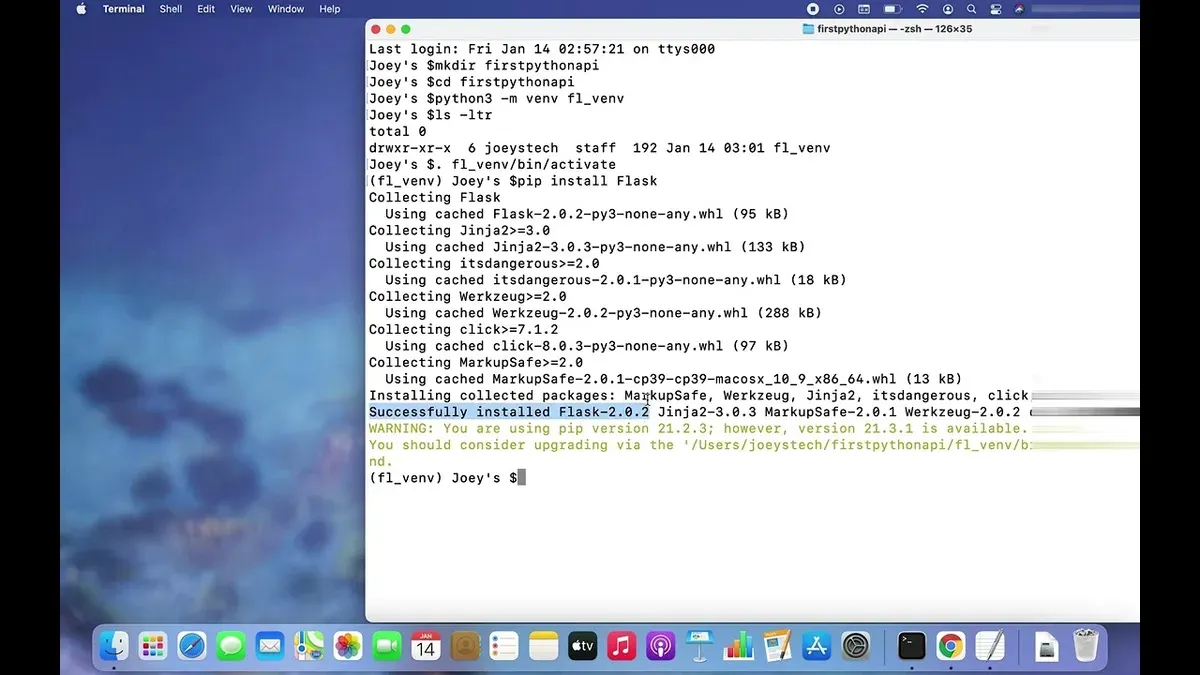
- Create a virtual environment. Run python3 -m venv flaskenv to create a folder named flaskenv containing the isolated environment.
- Activate the virtual environment. Enter source flaskenv/bin/activate. Your prompt will change to show (flaskenv) at the beginning, indicating the environment is active.
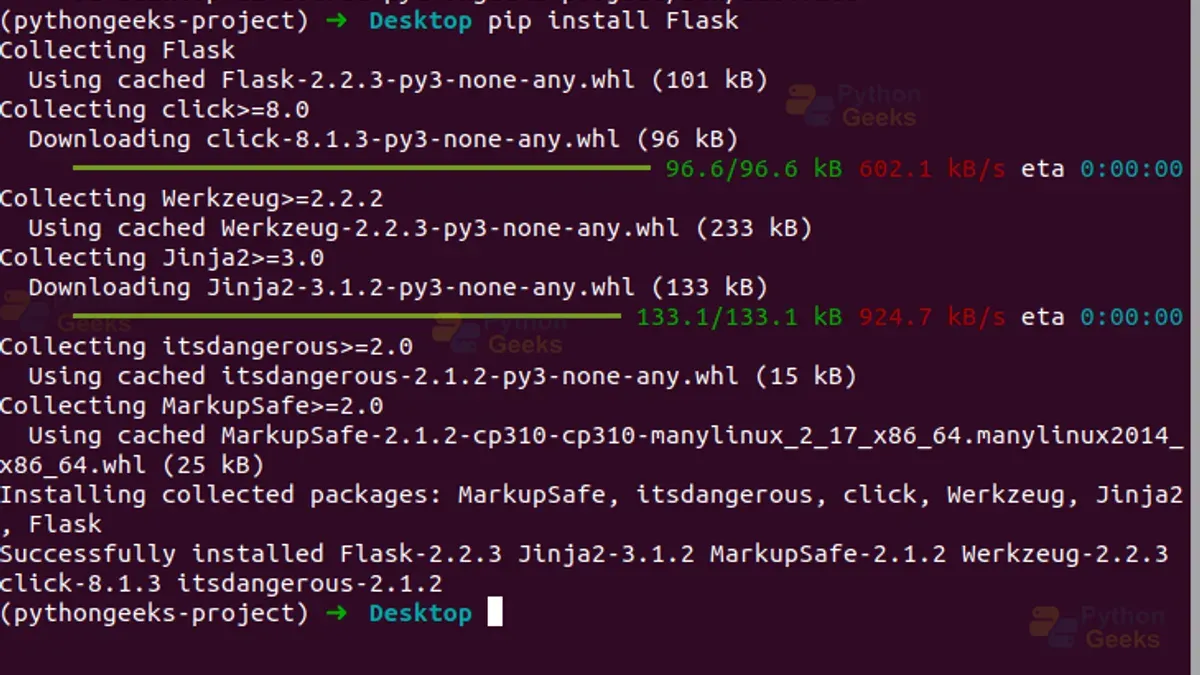
- Install Flask using pip. Run pip install Flask. You should see messages downloading and installing Flask and its dependencies.
- Verify the Flask installation. Create a simple test script by running echo "from flask import Flask\napp = Flask(__name__)\[email protected]('/')\ndef home():\n return 'Flask is installed!'" > test_flask.py.
- Run the test script. Start Python with python, then enter from test_flask import app followed by print(app.name). The output should be test_flask, confirming Flask is importable.
- Deactivate the virtual environment. When done, type deactivate to return to the system Python environment.
This approach keeps Flask contained within a virtual environment, avoiding conflicts with system packages and other projects. Using pip directly in the Mac Terminal provides control and transparency during installation.
How to install Flask on Mac using Homebrew Python
If you prefer managing Python through Homebrew rather than the system default, here is how to install Flask using the Homebrew Python installation. This approach isolates your Python environment from the macOS system Python, offering greater control and easier updates.
- Check if Homebrew is installed by running brew --version in Terminal. If not installed, visit https://brew.sh and follow the installation instructions. Successful installation shows the Homebrew version number.
- Install Python via Homebrew by typing brew install python. When completed, Terminal displays messages confirming the installed version, typically the latest stable release.
- Update your PATH environment variable to prioritize Homebrew Python. Add export PATH="/usr/local/bin:$PATH" to your shell configuration file (e.g., ~/.zshrc or ~/.bash_profile). Reload the shell by running source ~/.zshrc or opening a new Terminal window.
- Verify you are using Homebrew Python by running which python3 and python3 --version. The path should point to /usr/local/bin/python3 or similar, not the system default (usually in /usr/bin).
- Use Homebrew’s pip to install Flask by running pip3 install Flask. Successful installation ends with a message confirming Flask and its dependencies are installed.
- Test the installation by running python3 -c "import flask; print(flask.__version__)". You should see the Flask version number displayed without errors.
Using Homebrew Python provides a more current and easily maintainable Python environment compared to the system Python, which is often older and managed by macOS updates. However, Homebrew Python requires manual PATH management and updates.
| Feature | System Python | Homebrew Python |
|---|---|---|
| Python version | Typically older, macOS-managed | Latest stable, user-managed |
| Flask compatibility | May require workarounds for newer packages | Fully compatible with up-to-date Flask releases |
| Update control | Limited to macOS updates | Full user control via Homebrew commands |
| Environment isolation | Shared system environment | Isolated from system Python |
| Setup complexity | Minimal setup, defaults present | Requires PATH configuration and manual updates |
How to install Flask on Windows and Windows 11: Key differences
Installing Flask on Windows involves some distinct steps compared to Mac, primarily due to differences in command shells, path syntax, and Python setup. Windows users typically choose between Command Prompt (CMD) and PowerShell, each with subtle command variations.
Windows Python installation requires downloading the installer from python.org and ensuring the "Add Python to PATH" option is selected during setup. This step is crucial to run Python and pip commands directly from the terminal. Unlike on Mac, where Python often comes pre-installed, Windows users must install it manually.
Creating and activating virtual environments on Windows differs slightly in command syntax. For example, to activate a virtual environment named venv:
- On Mac Terminal:
source venv/bin/activate - On Windows CMD:
venv\Scripts\activate.bat - On Windows PowerShell:
venv\Scripts\Activate.ps1
Running pip commands is similar but watch for path delimiters: Windows uses backslashes (\) while Mac uses forward slashes (/).
Follow these steps to install Flask on Windows:
- Open Command Prompt or PowerShell. You should see a prompt like
C:\Users\YourName>. - Confirm Python is installed by running
python --version. A version number should display. - Create a virtual environment with
python -m venv venv. This creates a folder named venv. - Activate the virtual environment:You should see
(venv)prefixed to your prompt.- In CMD:
venv\Scripts\activate.bat - In PowerShell:
venv\Scripts\Activate.ps1
- In CMD:
- Install Flask by running
pip install Flask. You will see installation progress messages. - Verify installation by entering the Python interpreter (
python) and runningimport flask. No error means success.
Common Windows issues include execution policy restrictions in PowerShell that block script activation of virtual environments. You can resolve this by running Set-ExecutionPolicy -ExecutionPolicy RemoteSigned -Scope CurrentUser in an elevated PowerShell window.
In summary, Windows requires explicit Python installation and has unique command syntax and policy considerations. Understanding these differences helps avoid common pitfalls when setting up Flask compared to Mac.
How to install Flask on Ubuntu and Linux terminals
Installing Flask on Ubuntu or other Linux distributions involves using the native package manager alongside Python's pip tool, similar to Mac but with Linux-specific commands and considerations. First, ensure Python 3 and pip are installed via the apt package manager.
- Open your terminal and update package lists with sudo apt-get update. You should see a list of updated package indexes indicating success.
- Install Python 3 and pip using sudo apt-get install python3 python3-pip. The terminal will show installation progress and confirm when packages are installed.
- Create a virtual environment by running python3 -m venv flaskenv. If successful, no error will be shown, and the directory flaskenv will be created.
- Activate the virtual environment with source flaskenv/bin/activate. The terminal prompt will change, often showing the environment name.
- Install Flask inside the virtual environment using pip install Flask. The output will list Flask and dependencies being downloaded and installed.
- Verify installation by running python -c "import flask; print(flask.__version__)". The terminal should display the installed Flask version number.
Linux requires attention to user permissions; avoid using sudo with pip inside virtual environments to prevent permission conflicts. Unlike Mac’s Homebrew, apt-get manages system-wide packages, so the virtual environment helps isolate Flask installations.
Common Linux-specific issues include missing build-essential packages needed for some dependencies; install these with sudo apt-get install build-essential if you encounter compilation errors during pip installs.
Troubleshooting common Flask installation issues on Mac
When installing Flask on your Mac, you may encounter errors related to pip, permissions, or Python version conflicts. These issues are common but can be resolved with a few clear steps.
Handling pip not found or outdated pip errors
If the Terminal returns pip: command not found or an outdated pip version error, follow these steps:
- Run
python3 -m ensurepip --upgradeto install or upgrade pip; you should see a confirmation message indicating pip is installed. - Upgrade pip by running
python3 -m pip install --upgrade pip; successful execution will show the new pip version installed. - Confirm pip is accessible by typing
pip3 --version; it should output the current version number.
Resolving permission denied or access errors
Permission errors often occur when installing packages globally without sufficient rights:
- Avoid using
sudowith pip to prevent system conflicts. - Instead, activate your Python virtual environment before installing Flask, ensuring packages install locally.
- If you encounter permission errors outside a virtual environment, check ownership and permissions of your Python directories using
ls -l.
Fixing conflicts between system Python and other Python versions
Conflicts arise when multiple Python versions are installed, leading to mismatched pip or Python commands:
- Verify which Python and pip you are using with
which python3andwhich pip3; paths should correspond to the same installation. - If they differ, adjust your PATH environment variable to prioritize the desired Python version.
- Use version-specific commands like
python3.9 -m pip install Flaskif multiple versions coexist.
Verifying Flask version and reinstalling if necessary
To check Flask installation and version:
- Run
python3 -m flask --version; it should display the installed Flask version and Werkzeug version. - If Flask is not found or the version is incorrect, uninstall with
pip3 uninstall Flask. - Reinstall Flask inside your virtual environment by running
pip3 install Flaskand verify again.
Addressing these common issues ensures a smooth Flask setup tailored for Mac's environment.
Installing Flask on Raspberry Pi and other specialized devices
Installing Flask on a Raspberry Pi involves similar steps as on a Mac, but with attention to the device's hardware and operating system. Raspberry Pi OS typically comes with Python 3 pre-installed, but you may need to ensure pip is available.
- Open the Raspberry Pi terminal and check Python 3 by running python3 --version. You should see the installed Python version displayed.
- Verify if pip is installed by running pip3 --version. If pip is not installed, run sudo apt-get update followed by sudo apt-get install python3-pip. After installation, recheck the pip version.
- Create a Python virtual environment by running python3 -m venv venv. This creates a folder named venv in your current directory.
- Activate the virtual environment with source venv/bin/activate. Your prompt should change to indicate the environment is active.
- Install Flask using pip install Flask. Successful installation will show messages confirming Flask and dependencies are installed.
- Test the installation by running python then typing import flask. No errors indicate Flask is ready to use.
Compared to a Mac, the Raspberry Pi has limited CPU and memory resources, which may affect Flask app performance, especially under heavier loads or when using complex extensions. However, the Pi’s low power consumption and compact size make it suitable for lightweight web projects, IoT applications, or learning environments where portability and cost are key.
Choosing a Raspberry Pi over a Mac for Flask projects is ideal when you require a dedicated, always-on device for simple server tasks or when working on embedded projects. Macs provide more power and faster development cycles, while Raspberry Pis offer affordability and flexibility in specialized contexts.
- How to Install Jupyter Notebook on Mac: A Clear Step-by-Step Guide
- How to Install Miniconda on Mac: A Clear Step-by-Step Guide
- How to Install Anaconda on Mac: A Clear Step-by-Step Guide
- How to Install PyTorch with MPS Support on Mac: A Step-by-Step Guide
Frequently asked questions
How to install flask in command prompt?
To install Flask using the command prompt on Windows, open the Command Prompt application and enter pip install Flask. Ensure Python and pip are installed and added to your system PATH. Using a virtual environment is recommended to manage dependencies cleanly.
How to download flask?
Flask is downloaded automatically when you use pip, Python's package installer. Run pip install Flask in your terminal or command prompt, and pip will fetch and install the latest Flask package from the Python Package Index (PyPI).
How to install flask library?
Installing the Flask library involves running pip install Flask in your terminal or command line interface. To avoid conflicts, consider creating and activating a Python virtual environment before installing the library.
How to install flask in linux?
On Linux, open a terminal and first ensure Python and pip are installed, usually via your package manager like apt or yum. Then run pip install Flask. Using a virtual environment is a common best practice to isolate your Flask projects.
How to install flask in cmd?
Installing Flask via the Windows CMD involves opening Command Prompt and typing pip install Flask. Confirm Python and pip are properly installed and accessible through the CMD before running this command.
What this guide does not cover and who should look elsewhere
This guide focuses on installing Flask for development purposes on Mac and similar environments; it does not cover deploying Flask applications to production servers or using containerization tools such as Docker. Users intending to deploy Flask in a production setting should consult resources specific to deployment strategies, security hardening, and server configuration.
Additionally, if you are working with a heavily customized Python environment or a corporate-managed Mac with restrictions on software installations, you may encounter challenges that require tailored solutions beyond the scope of this article. Such users should seek support from their IT department or specialized community forums.
The most useful next step after installing Flask on your Mac is to create and run a simple Flask application. This helps confirm your setup works correctly and familiarizes you with the Flask development workflow. Starting with the official Flask quickstart tutorial or a minimal "Hello, World!" app in your terminal ensures your environment is ready for more complex projects.



