
How to Install PyTorch with MPS Support on Mac: A Step-by-Step Guide
Follow this step-by-step guide to install PyTorch with MPS support on Mac and enable GPU acceleration for faster machine learning tasks.
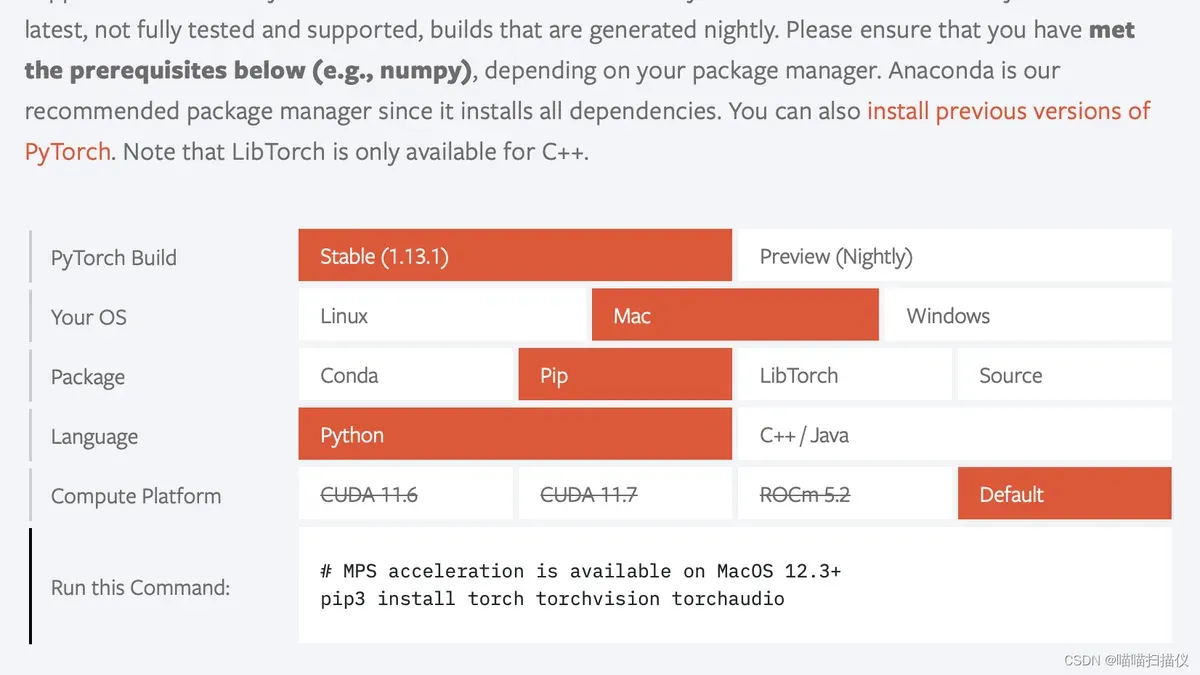
Setting up PyTorch for machine learning on a Mac can be confusing, especially when you want to leverage your Mac’s GPU using Metal Performance Shaders (MPS). Many users find generic installation guides overlook specific steps needed for Mac hardware acceleration.
This article explains how to install PyTorch with MPS support on Mac, focusing on the right PyTorch version, compatibility with Apple Silicon, and verifying GPU acceleration. You will get a clear, step-by-step guide tailored for Mac developers and machine learning practitioners aiming to optimize their workflows.
Key takeaways
- Ensure your Mac has macOS 12.3 or later for MPS support in PyTorch.
- Python 3.8 or newer is recommended for smooth PyTorch installation.
- Use the official PyTorch installation command with the 'mps' device flag for GPU acceleration.
- Verify your setup by checking if PyTorch recognizes the MPS device correctly.
- Apple Silicon Macs require specific PyTorch builds optimized for ARM architecture.
Before you start: What you need to install PyTorch with MPS on Mac
To install PyTorch with MPS support on your Mac, ensure your hardware and software meet specific requirements. MPS (Metal Performance Shaders) optimizes GPU acceleration on Macs equipped with Apple Silicon chips or recent Intel models that support Metal.
Your Mac should be one of the following models: MacBook Air, MacBook Pro, Mac mini, iMac, or Mac Studio with Apple Silicon chips such as M1, M2, M3, or Mac mini M4. Alternatively, it can be an Intel-based Mac running macOS versions that include Metal support, typically macOS 12 Monterey or later.
You need Python installed on your system along with basic familiarity using the command line interface like Terminal. Python environment managers such as Miniconda or virtualenv are recommended to keep your Python packages organized and avoid conflicts during installation.
Understanding PyTorch's MPS backend is crucial. This backend leverages the Mac’s GPU through Metal, offering faster machine learning computations compared to CPU-only operations. Official PyTorch documentation confirms MPS support starting from PyTorch releases in recent years, targeting Apple Silicon Macs and compatible Intel Macs.
- Check your Mac model and macOS version via Apple menu > About This Mac. Confirm it matches Apple Silicon chips M1, M2, M3, Mac mini M4, or an Intel Mac running macOS 12 or newer.
- Verify Python installation by opening Terminal and running
python3 --version. You should see a Python version 3.8 or higher. - Install a Python environment manager like Miniconda from its official website or set up virtualenv using
pip3 install virtualenv. This ensures clean dependency management. - Familiarize yourself with basic command line operations such as navigating directories and running Python scripts, which will be needed during installation and testing.
Meeting these prerequisites will provide a smooth setup experience for running PyTorch with MPS acceleration on your Mac.
How to install Python and PyTorch on Mac using the command line
If Python is not installed on your Mac, you can install it easily using Homebrew or by downloading it directly from python.org. Homebrew is a popular package manager that simplifies software installation.
- Install Python with Homebrew: Open Terminal and run
brew install python. Once completed, verify the installation by typingpython3 --version, which should display the installed Python version. - Set up a virtual environment: Navigate to your project folder and run
python3 -m venv pytorch-env. Activate it withsource pytorch-env/bin/activate. This isolates your PyTorch installation from other Python packages. - Install PyTorch using pip: With the virtual environment activated, run
pip install torch torchvision torchaudio. This command installs the latest PyTorch version with MPS support compatible with your Mac. Successful installation typically ends with "Successfully installed torch torchvision torchaudio" in Terminal. - Alternative installation via conda: If you prefer Anaconda or Miniconda, create and activate a conda environment:
conda create -n pytorch-env python=3.9thenconda activate pytorch-env. Install PyTorch withconda install pytorch torchvision torchaudio -c pytorch-nightly. The output should confirm package installations. - Enable MPS fallback: To ensure PyTorch uses MPS correctly on Mac, set the environment variable by running
export PYTORCH_ENABLE_MPS_FALLBACK=1in Terminal before launching your Python scripts. This enables fallback support for GPU acceleration.
Following these steps prepares your Mac for running PyTorch with MPS support through either pip or conda, depending on your preferred Python environment.
Which PyTorch version to install for MPS support on Mac
PyTorch added initial support for the MPS backend starting with version 1.12, enabling GPU acceleration on Macs with Apple Silicon. Subsequent releases have improved both stability and performance of MPS, with notable enhancements in versions 1.13 and 2.0. Users running Apple Silicon Macs (M1, M2 chips and their variants) benefit most from these versions, as they leverage the Metal Performance Shaders framework for native GPU acceleration.
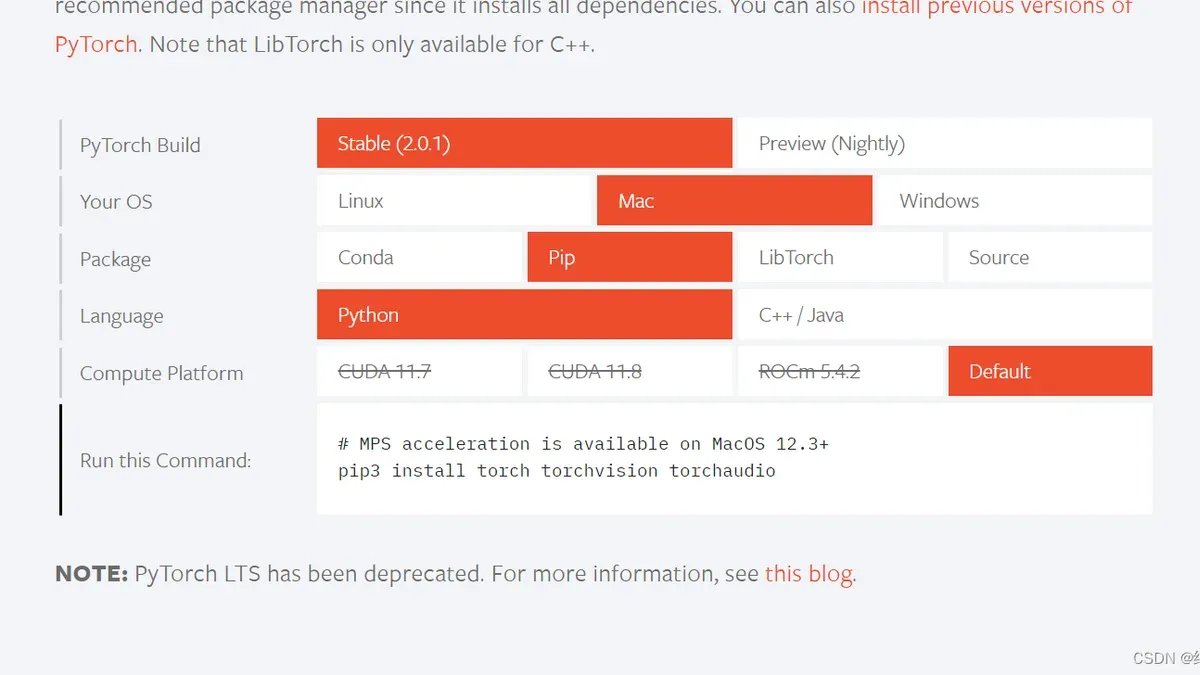
Intel-based Macs have limited or no MPS support, so PyTorch versions with CPU-only support may be more appropriate for those systems. When installing PyTorch, you can specify the version by appending the version tag in your pip or conda command, for example, pip install torch==1.13.1. Using the latest stable release generally provides the best MPS experience due to ongoing bug fixes and optimizations, but some specific projects or dependencies might require a fixed version.
Performance comparisons indicate improved throughput and reduced latency in later versions, especially from 1.13 onwards. However, bleeding-edge releases might introduce compatibility issues with other libraries. Reviewing PyTorch’s official release notes and compatibility matrix helps determine the best version for your workflow and macOS version.
- Check your Mac’s hardware: Confirm if you have Apple Silicon (recommended for MPS support) or Intel processor. If Apple Silicon, proceed to step 2. Intel users should prepare for CPU-only usage.
- Visit PyTorch’s official installation page and select the stable version compatible with your macOS and Python environment. You should see the version number and MPS support status.
- Install PyTorch specifying the chosen version. After installation, verify MPS backend availability within PyTorch by running a simple device check in Python (
torch.backends.mps.is_available()), which should returnTrueon successful MPS setup.
How to verify PyTorch is using MPS (GPU) on your Mac
After installing PyTorch with MPS support, you need to confirm that it is properly using the GPU acceleration on your Mac. This can be done by running a simple Python script to check MPS availability and performing a basic tensor operation on the MPS device.
- Open your terminal and launch Python by typing python3 or python depending on your setup.
- Run the following commands to check MPS support status:You should see True for both if MPS is set up correctly.
import torchprint(torch.backends.mps.is_available())— This returns True if your Mac supports MPS and PyTorch recognizes it.print(torch.backends.mps.is_built())— This indicates if your PyTorch build includes MPS support.
- Next, test running a small tensor operation on the MPS device:
mps_device = torch.device("mps")a = torch.randn(10000, 10000, device=mps_device)b = torch.randn(10000, 10000, device=mps_device)c = a @ bprint(c.device)— This should output mps.
- To compare performance, you can time the same matrix multiplication on CPU and MPS:Typically, MPS should perform this operation faster than CPU.
import timestart = time.time()a_cpu = torch.randn(10000, 10000)b_cpu = torch.randn(10000, 10000)c_cpu = a_cpu @ b_cpuprint("CPU time:", time.time() - start)start = time.time()a_mps = a.to(mps_device)b_mps = b.to(mps_device)c_mps = a_mps @ b_mpsprint("MPS time:", time.time() - start)
- If you encounter errors like "MPS device not found" or warnings mentioning lack of support, verify that your macOS version and PyTorch version support MPS, and that your hardware has Apple Silicon or a supported GPU.
How to use PyTorch for machine learning on Mac with MPS acceleration
To leverage MPS acceleration in PyTorch on your Mac, you must explicitly set the device to 'mps' in your scripts. This directs PyTorch operations to use the Metal Performance Shaders GPU backend for faster computation.
- Set the device in your script:
device = torch.device('mps' if torch.backends.mps.is_available() else 'cpu')
You should see your model and tensors allocated on the MPS device if available. - Move your model and input tensors to the MPS device:
model.to(device)
inputs = inputs.to(device)
This ensures computations run on GPU, improving speed. - Use a typical training loop, for example:
for data, target in dataloader:
  data, target = data.to(device), target.to(device)
  optimizer.zero_grad()
  output = model(data)
  loss = loss_fn(output, target)
  loss.backward()
  optimizer.step()
When working correctly, training times should noticeably decrease compared to CPU-only execution.
Note that MPS support in PyTorch currently has limitations: some advanced operations and custom CUDA extensions may not run on MPS. Additionally, certain precision or numerical differences can cause minor accuracy variations.
For debugging performance or correctness issues, monitor device utilization and compare outputs between CPU and MPS runs. Set torch.backends.mps.debug = True to get more detailed MPS logs. If you encounter unexpected behavior, running on CPU to isolate problems is advised.
How to install PyTorch on Windows and compare with Mac installation
Installing PyTorch on Windows differs significantly from the Mac MPS setup, primarily because Windows leverages NVIDIA's CUDA for GPU acceleration, whereas Mac uses Apple's Metal Performance Shaders (MPS) specific to Apple Silicon hardware.
- Verify your Windows system has an NVIDIA GPU and install the latest CUDA Toolkit and cuDNN drivers. Successful installation is confirmed when the NVIDIA Control Panel is accessible and CUDA samples run without errors.
- Open Command Prompt or PowerShell and create a Python virtual environment. Confirm activation by seeing the environment name in your prompt.
- Install PyTorch with CUDA support using the appropriate command from the official PyTorch website, for example:
pip install torch torchvision torchaudio --index-url https://download.pytorch.org/whl/cu117for CUDA 11.7. Successful installation shows no errors and allows importing torch without issues. - Test GPU availability by running
torch.cuda.is_available()in Python, which should returnTrueif everything is set correctly.
Below is a comparison of key aspects between Mac and Windows PyTorch installation:
| Aspect | Mac (MPS) | Windows (CUDA) |
|---|---|---|
| GPU Acceleration Technology | Apple Metal Performance Shaders (MPS) | NVIDIA CUDA |
| Hardware Compatibility | Apple Silicon Macs only (M1, M2 series) | NVIDIA GPUs with CUDA support |
| Installation Command Example | pip install torch torchvision torchaudio (MPS enabled by default) |
pip install torch torchvision torchaudio --index-url https://download.pytorch.org/whl/cu117 |
| Driver Dependencies | macOS built-in GPU drivers | CUDA Toolkit and cuDNN installed separately |
| Official Documentation | PyTorch MPS Support | PyTorch CUDA Installation |
MPS is exclusive to macOS and Apple Silicon hardware, so it is not available on Windows. This means that while Mac users benefit from GPU acceleration via MPS without requiring external GPU drivers, Windows users must rely on NVIDIA GPUs and corresponding CUDA software for PyTorch GPU acceleration.
Troubleshooting common issues when installing PyTorch with MPS on Mac
If torch.backends.mps.is_available() returns false or the MPS device is not detected, first ensure your Mac is running a supported macOS version (macOS 12.3 or later) and that you have an Apple Silicon chip. Without these, MPS support will not activate.
Errors involving export PYTORCH_ENABLE_MPS_FALLBACK=1 usually indicate that MPS is unavailable or unstable on your system. Confirm you set this environment variable correctly in your shell before running your PyTorch script. For example, in bash or zsh, use export PYTORCH_ENABLE_MPS_FALLBACK=1. If issues persist, try running without fallback or update to the latest PyTorch version, as fallback support is still experimental.
Conflicts with Python versions or environment managers often cause installation or runtime problems. Use a consistent Python version (recommended 3.8 to 3.11) and avoid mixing pip and conda in the same environment. Creating a fresh virtual environment dedicated to PyTorch can prevent package conflicts.
Performance issues or unexpected fallback to CPU despite installing PyTorch with MPS support may arise from unsupported operations or incomplete MPS implementation. Check PyTorch’s GitHub issues page (https://github.com/pytorch/pytorch/issues?q=is%3Aissue+label%3AMPS) for known limitations and updates.
- Verify macOS version and Apple Silicon hardware: run
sw_vers -productVersionand check Apple menu > About This Mac; your macOS should be 12.3+ and hardware Apple Silicon. - Ensure environment variable is set: run
echo $PYTORCH_ENABLE_MPS_FALLBACKand confirm it outputs1. If not, set it properly and restart your terminal or IDE. - Create a new virtual environment with supported Python, install PyTorch following official instructions, and avoid mixing package managers.
- Test simple PyTorch MPS code to check if tensors are processed on MPS device and watch for errors or fallbacks.
- Consult PyTorch’s GitHub issues or forums if problems persist, searching for your exact error message or symptoms.
- How to Install TensorFlow with Metal on Mac: A Step-by-Step Guide
- How to Install Jupyter Notebook on Mac: A Clear Step-by-Step Guide
Frequently asked questions
How to install pytorch with cmd?
To install PyTorch using the command line (cmd), open your terminal or command prompt and run the appropriate pip command. For Macs with MPS support, use pip install torch torchvision torchaudio ensuring you have Python 3.8 or later. On other systems, you may need to specify CUDA versions or CPU-only builds as per your hardware.
How to download pytorch?
You can download PyTorch by visiting the official PyTorch website and using their installation selector to get the right command for your system. Alternatively, you can install it directly via pip or conda in your terminal, which handles downloading and installing the necessary packages automatically.
How to install pytorch in python?
Within your Python environment, use pip to install PyTorch by running pip install torch torchvision torchaudio. Make sure your Python version is compatible and your environment (virtualenv, conda) is properly activated before installation to avoid conflicts with other packages.
How to download pytorch in windows?
On Windows, download PyTorch by opening Command Prompt or PowerShell and running the pip command tailored for your CUDA version if you have an Nvidia GPU, or the CPU-only version otherwise. The official PyTorch site provides exact commands, and using conda is also a popular alternative for managing dependencies.
How to program machine learning with pytorch?
To program machine learning with PyTorch, start by importing the library and preparing your dataset as tensors. Define your model using torch.nn modules, set a loss function and optimizer, then write a training loop to update model weights. Utilizing GPU acceleration like MPS on Mac can speed up computations significantly when available.
What this guide does not cover and who should look elsewhere
This guide does not cover advanced PyTorch custom builds or non-standard hardware setups. MPS support in PyTorch is still evolving, so some models or features may not fully leverage GPU acceleration on Mac yet. If you have an older Intel-based Mac without Metal support or a non-Apple Silicon Mac, you may not see benefits from MPS acceleration. For users seeking deep GPU-accelerated training with broader hardware compatibility, CUDA-enabled GPUs on Windows or Linux remain the preferred choice.
The most useful next step is to explore the official PyTorch documentation for MPS to stay updated on support improvements and new features. Additionally, testing simple MPS-accelerated models on your Mac will help you identify practical performance gains and whether your workflow benefits from this setup.



