
How to Install TensorFlow with Metal on Mac: A Step-by-Step Guide
This guide explains how to install TensorFlow with Metal on Mac to accelerate machine learning tasks using your Mac’s GPU.
Setting up TensorFlow to utilize your Mac’s GPU can significantly speed up machine learning tasks, but the process is not always straightforward. If you have an Apple silicon Mac or a recent macOS version, leveraging Metal support is key for GPU acceleration.
This guide explains how to install TensorFlow with Metal on Mac, covering the necessary prerequisites, step-by-step installation using pip, and troubleshooting tips tailored to the Apple ecosystem. You’ll also find a brief comparison with setting up TensorFlow on Windows and an overview for Linux users.
Key takeaways
- Ensure macOS is updated to at least version 12.3 to support TensorFlow Metal.
- Use the terminal to install the tensorflow-macos and tensorflow-metal packages via pip.
- Metal support is currently optimized for Apple silicon chips (M1, M2 series).
- Check Python version compatibility; Python 3.8 to 3.10 is commonly supported.
- Common installation issues often relate to missing dependencies or outdated system software.
Before you start: prerequisites for TensorFlow with Metal on Mac
To install TensorFlow optimized with Metal on your Mac, you need compatible hardware and software to ensure smooth performance. Metal is Apple’s graphics API that accelerates GPU tasks, providing significant speed improvements for machine learning workloads compared to CPU-only processing.
Hardware compatibility: TensorFlow Metal support requires either Apple silicon Macs (M1, M2, and later) or Intel-based Macs that support Metal, such as models from 2012 onward. Older Intel Macs without Metal support cannot leverage GPU acceleration.
macOS requirements: Your Mac must be running macOS 12.0 Monterey or later to use TensorFlow with Metal. This ensures compatibility with the latest Metal frameworks and developer tools.
Python environment: A clean Python 3.8 to 3.11 environment is recommended. Using virtual environments or conda environments helps avoid conflicts with system packages.
Xcode Command Line Tools: Install these tools as they provide essential compilers and libraries. You can install them by running xcode-select --install in the Terminal. Once installed, the system will confirm with a message like "Command Line Tools are already installed."
By meeting these prerequisites, you avoid installation errors and can benefit from Metal’s GPU acceleration, which benchmarks show can significantly reduce training times on supported Macs compared to CPU-only setups.
How to install TensorFlow Metal on Mac using pip in the terminal
- Open Terminal on your Mac. This is where you'll enter all commands.
- Create a Python virtual environment to keep dependencies isolated by running python3 -m venv tf-metal-env. If successful, no output appears but the environment folder tf-metal-env is created.
- Activate the virtual environment with source tf-metal-env/bin/activate. Your prompt will change to show the environment name, indicating it is active.
- Upgrade pip to the latest version by entering pip install --upgrade pip. You should see pip upgrade messages ending with "Successfully installed".
- Install the TensorFlow macOS package with Metal support by running pip install tensorflow-macos tensorflow-metal. The terminal will download and install these packages, showing progress bars and a "Successfully installed" message.
- Exit Python by typing exit() or pressing Ctrl+D.
Verify the installation by running a short Python script. Start Python with python, then enter:
import tensorflow as tf
print(tf.config.list_physical_devices('GPU'))
This command lists available GPU devices. If Metal GPU is enabled, you will see a GPU device listed, for example: [PhysicalDevice(name='/physical_device:GPU:0', device_type='GPU')].
If the GPU list is empty, TensorFlow is not detecting Metal acceleration, which may require revisiting prerequisites or reinstalling packages.
How to install TensorFlow in command prompt on Windows (brief comparison)
Installing TensorFlow on Windows differs from Mac primarily due to the absence of Metal GPU support. Windows users typically rely on CUDA-compatible NVIDIA GPUs for hardware acceleration or fallback to CPU-only execution.
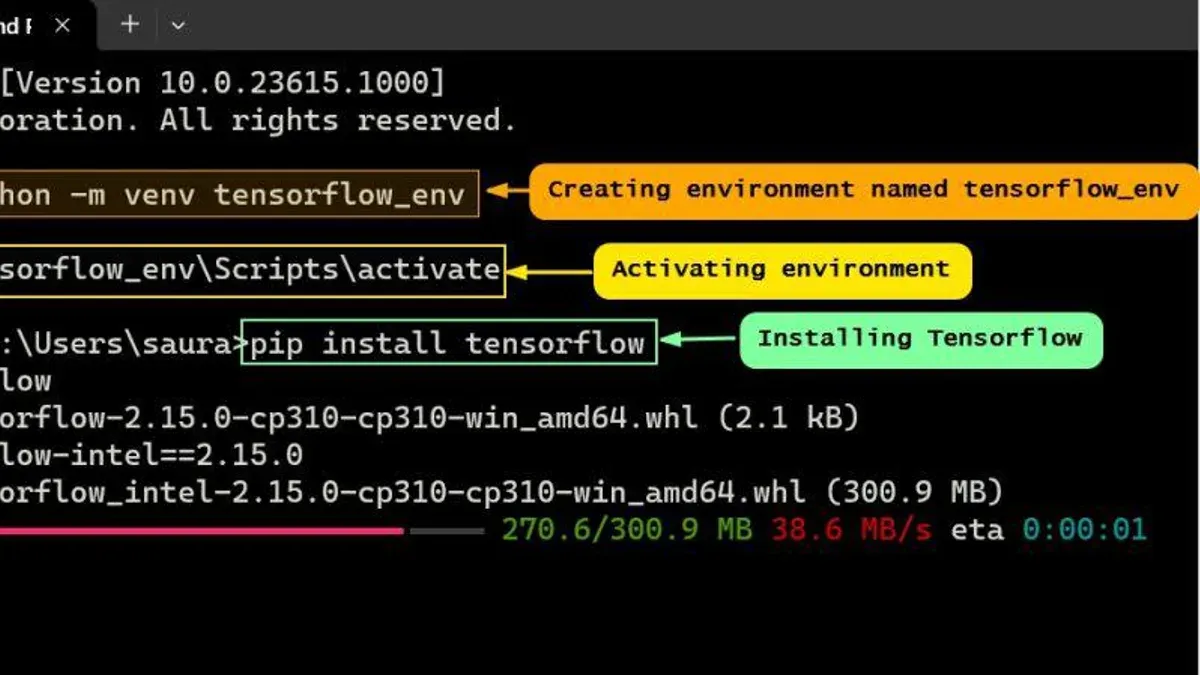
To install TensorFlow on Windows, you use the Command Prompt. The process involves creating a Python virtual environment and installing TensorFlow via pip.
- Open the Command Prompt by pressing Win + R, typing cmd, and pressing Enter. A terminal window should appear.
- Create a new virtual environment by running python -m venv tf-env. This command sets up an isolated environment named tf-env.
- Activate the virtual environment with tf-env\Scripts\activate. You should see the environment name prefixed in the prompt.
- Install TensorFlow by executing pip install tensorflow. This installs the standard TensorFlow package compatible with Windows.
- Verify the installation by running python -c "import tensorflow as tf; print(tf.__version__)". The TensorFlow version number should display without errors.
Unlike macOS, TensorFlow on Windows does not require a separate Metal-specific package. Instead, GPU acceleration depends on CUDA and cuDNN drivers for NVIDIA GPUs. If these are unavailable or incompatible, TensorFlow defaults to CPU processing.
| Aspect | Mac Installation | Windows Installation |
|---|---|---|
| GPU Acceleration | Metal API on Apple Silicon | CUDA on NVIDIA GPUs or CPU only |
| Installation Packages | tensorflow-macos and tensorflow-metal | tensorflow (standard pip package) |
| Command for Installation | pip install tensorflow-macos tensorflow-metal | pip install tensorflow |
| Hardware Requirements | Apple Silicon Mac with supported macOS | Windows PC with NVIDIA GPU and CUDA drivers (optional) |
How to install TensorFlow on other platforms: Linux and Ubuntu overview
Installing TensorFlow on Linux, including Ubuntu, offers flexible options for both CPU and GPU acceleration. You can use either pip or Conda package managers depending on your environment preferences.
Using pip on Ubuntu
- Open your terminal and ensure Python and pip are installed by running
python3 --versionandpip3 --version. You should see their version numbers if installed. - Create a virtual environment with
python3 -m venv tf-envand activate it usingsource tf-env/bin/activate. This isolates your TensorFlow installation. - Install TensorFlow with
pip install tensorflow. After installation, verify by runningpython -c "import tensorflow as tf; print(tf.__version__)", which should print the installed TensorFlow version.
GPU acceleration with NVIDIA CUDA
To enable GPU acceleration on Linux, your system must have an NVIDIA GPU with the appropriate CUDA toolkit and cuDNN installed. TensorFlow supports CUDA-enabled GPUs, which can significantly speed up training and inference workloads.
After setting up CUDA and cuDNN, install the GPU-enabled TensorFlow version with pip install tensorflow. Confirm GPU access in Python by running:
python -c "import tensorflow as tf; print(tf.config.list_physical_devices('GPU'))"This command should list your GPU devices if properly configured.
For detailed and up-to-date installation instructions, consult the official TensorFlow Linux installation guide: https://www.tensorflow.org/install/pip#linux.
Using Conda is an alternative, especially for managing dependencies and environments. You can create a Conda environment and install TensorFlow using conda install tensorflow, which can simplify GPU driver and library management.
Troubleshooting common issues when installing TensorFlow with Metal on Mac
When installing TensorFlow with Metal support on your Mac, you may encounter errors related to Python environments or package conflicts. A common message like "ModuleNotFoundError: No module named 'tensorflow_metal'" often indicates that the tensorflow-metal package is not installed in the active environment. Ensure you activate your Python virtual environment before running your scripts.
Unsupported Mac hardware or outdated macOS versions can prevent Metal GPU acceleration. If you see an error such as "Metal device not found" or GPU usage remains at zero, verify your Mac model supports Metal (generally Macs with Apple silicon or certain recent Intel models) and check your macOS version is 12.0 or higher.
To verify Metal GPU availability and TensorFlow detection, run the following in your terminal:
- Open Python in your virtual environment by typing
pythonand pressing Enter. - Import TensorFlow with
import tensorflow as tf. - Run
print(tf.config.list_physical_devices('GPU'))to list detected GPUs.
If the output shows an empty list, TensorFlow cannot detect your Metal GPU, indicating a setup or compatibility issue.
Pip-related errors or permission issues such as "Permission denied" during installation can be resolved by ensuring you use a virtual environment or by running pip with the --user flag. Avoid using sudo pip to prevent conflicts.
If Metal installation is not possible on your Mac, fallback options include running TensorFlow on CPU-only mode or using Docker containers with preconfigured environments. Keep in mind GPU acceleration will be disabled in these cases.
- How to Install Miniconda on Mac: A Clear Step-by-Step Guide
- How to Install Jupyter Notebook on Mac: A Clear Step-by-Step Guide
Frequently asked questions
How to install tensorflow on windows?
To install TensorFlow on Windows, you need to have Python installed, preferably from the official Python website. Use the command prompt to run pip install tensorflow. It's recommended to use a virtual environment to avoid conflicts with other Python packages.
How to install tensorflow in windows 11?
Installing TensorFlow on Windows 11 follows the same steps as other Windows versions. Open Windows Terminal or Command Prompt, ensure Python and pip are installed, then run pip install tensorflow. For GPU support, additional setup of CUDA and cuDNN is necessary, depending on your graphics hardware.
How to install tensorflow in windows 10?
On Windows 10, start by installing Python 3.7 or later. Open Command Prompt and enter pip install tensorflow. If you want GPU acceleration, install the compatible CUDA Toolkit and cuDNN versions, and verify your GPU supports this setup.
How to install tensorflow using cmd prompt?
Open Command Prompt on your system and type pip install tensorflow. Before this, confirm Python and pip are correctly installed and added to your system PATH. Using a virtual environment is advisable to manage dependencies effectively.
How to install tensorflow metal on mac?
To install TensorFlow Metal on a Mac, ensure you have macOS 12.0 or later and Python 3.8 or newer. Use the Terminal to run pip install tensorflow-macos and then pip install tensorflow-metal to enable Metal GPU acceleration. This setup is optimized for Apple silicon Macs and requires no additional driver installations.
Limits of this guide
This guide does not cover TensorFlow installation on older Macs lacking Metal support or detailed CUDA setup for non-Mac platforms. If you use a Mac model without Apple silicon or Metal-compatible GPUs, or if you require advanced multi-GPU setups on Linux or Windows, consider consulting specialized resources tailored to those environments.
For the most reliable and smooth experience, focus on ensuring your macOS is updated to the latest version and verify that your Mac supports Metal acceleration. The single most effective next step is to test a simple TensorFlow script utilizing the Metal backend to confirm GPU acceleration is active. This practical check often helps identify configuration issues early and ensures your development environment is ready for optimized machine learning workflows.



