
How to Install Emacs on Mac: A Step-by-Step Guide
Discover step-by-step instructions to install Emacs on Mac using command-line tools and native GUI versions for an optimal setup.
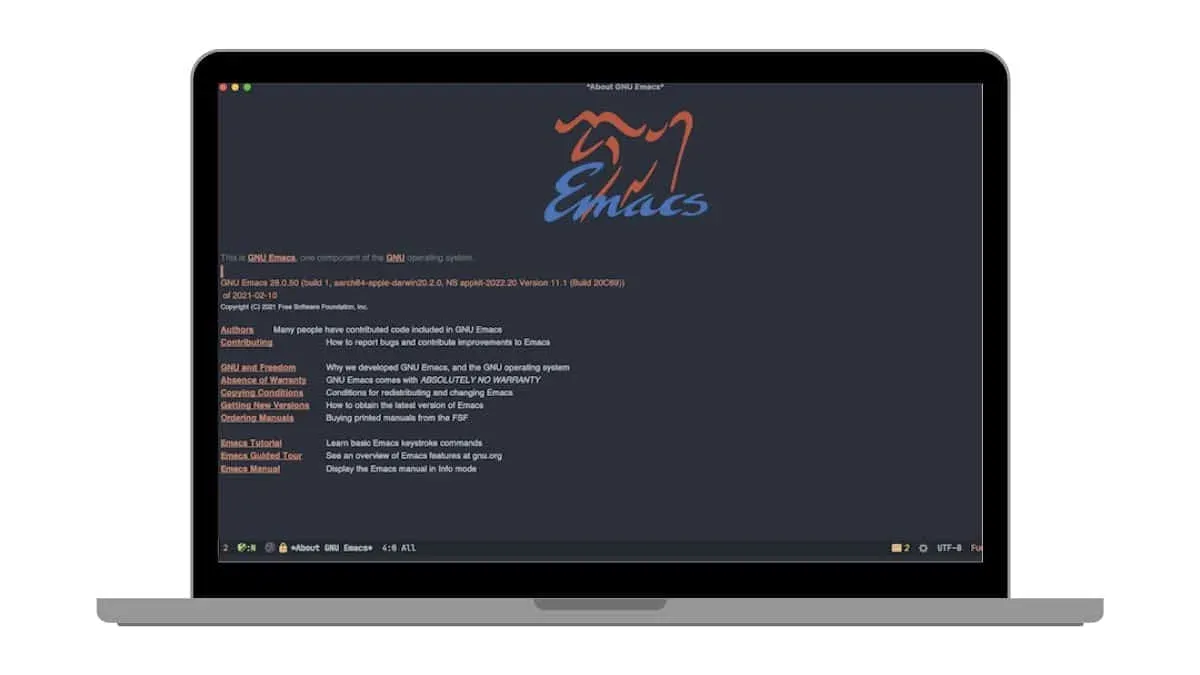
You want to try Emacs on your Mac but aren't sure where to start. Whether you're new to Emacs or moving from another editor, macOS presents some unique challenges and opportunities for installation and use. This guide covers how to install Emacs on Mac using both command-line tools and a native Mac GUI version, helping you choose the best approach for your needs.
You'll learn step-by-step instructions for installing via Homebrew, setting up the Emacs Mac Port for a seamless Mac experience, and integrating Emacs with the Mac terminal. Additionally, common issues specific to Mac users are addressed to help you avoid pitfalls and get Emacs running smoothly.
Key takeaways
- Homebrew provides a straightforward command-line installation of Emacs on Mac.
- The Emacs Mac Port offers a native GUI version tailored to macOS features.
- Launching Emacs from the terminal requires proper PATH configuration.
- Creating and opening files in Emacs follows consistent command shortcuts.
- Common installation issues often involve permissions or PATH environment misconfigurations.
Before you start: What you need to install Emacs on Mac
Emacs is a powerful and extensible text editor widely used for programming, writing, and managing tasks. On Mac, you can choose between different Emacs versions depending on your preferences for features and integration.
To install Emacs smoothly, ensure your Mac runs a relatively recent version of macOS, typically macOS 10.14 (Mojave) or later for best compatibility. Emacs relies on certain system tools, so having the Xcode Command Line Tools installed is essential. These provide compilers and utilities required during installation.
Another key tool is Homebrew, a popular package manager for macOS that simplifies installing software like Emacs and its dependencies. Installing Homebrew before proceeding will save time and reduce complexity.
Two primary Emacs versions are commonly used on Mac:
| Version | Key Features | Mac Integration | Installation Method |
|---|---|---|---|
| GNU Emacs | Classic Emacs with wide plugin availability | Terminal and GUI via Cocoa build; standard experience | Homebrew or manual build |
| Emacs Mac Port | Native Mac interface, better Retina support, improved keybindings | Seamless macOS look and feel, better GUI integration | Homebrew cask or direct download |
Before installing, confirm you have:
- macOS version 10.14 or newer — Check in System Preferences > About This Mac
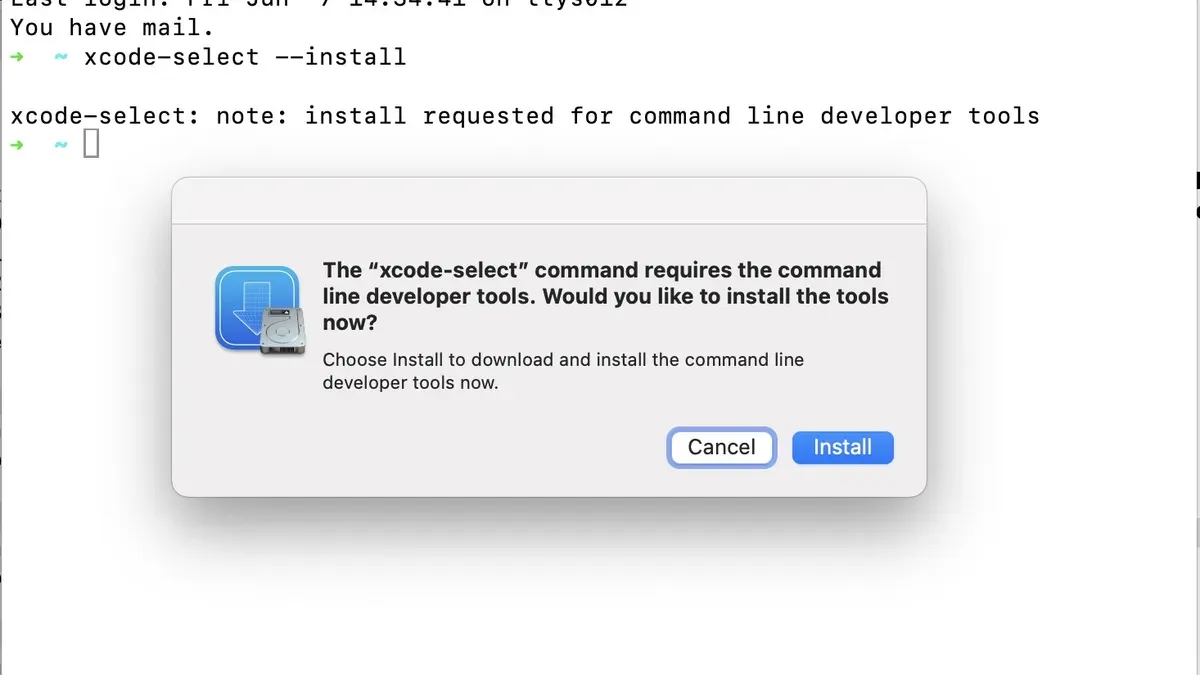
- Xcode Command Line Tools installed — Run xcode-select --install in Terminal; a successful install shows a confirmation prompt or message
- Homebrew installed — Run brew --version in Terminal; you should see the Homebrew version if installed
With these prerequisites, you'll be set for either the classic GNU Emacs or the Emacs Mac Port installation methods covered next.
How to install Emacs on Mac using Homebrew
Homebrew is a popular package manager for macOS that simplifies installing and updating software like Emacs. If you do not have Homebrew installed, you can add it easily via the Terminal.
- Open the Terminal app. You can find it in Applications > Utilities or search with Spotlight.
- Check if Homebrew is installed by typing brew --version and pressing Enter. If Homebrew is installed, you will see its version number.
- If Homebrew is not installed, enter the following command to install it:
/bin/bash -c "$(curl -fsSL https://raw.githubusercontent.com/Homebrew/install/HEAD/install.sh)"
After installation, you should see messages confirming Homebrew was installed successfully. - Once Homebrew is ready, install Emacs by running:
brew install emacs - Wait for the installation to complete. Terminal output will show the download and compilation progress, ending with a success message.
- Verify the installation by typing:
emacs --version
You should see the installed Emacs version number displayed. - Launch Emacs from the Terminal by typing emacs and pressing Enter. This opens Emacs in the Terminal window.
Using Homebrew makes managing Emacs updates straightforward. You can update Emacs and other packages by running brew update followed by brew upgrade emacs.
How to install the Emacs Mac Port for a native Mac experience
The Emacs Mac Port delivers a version of Emacs optimized for macOS, offering smoother GUI integration than the standard GNU Emacs build. It supports native macOS features such as better font rendering, fullscreen mode, and native title bars, enhancing your editing experience on Mac.
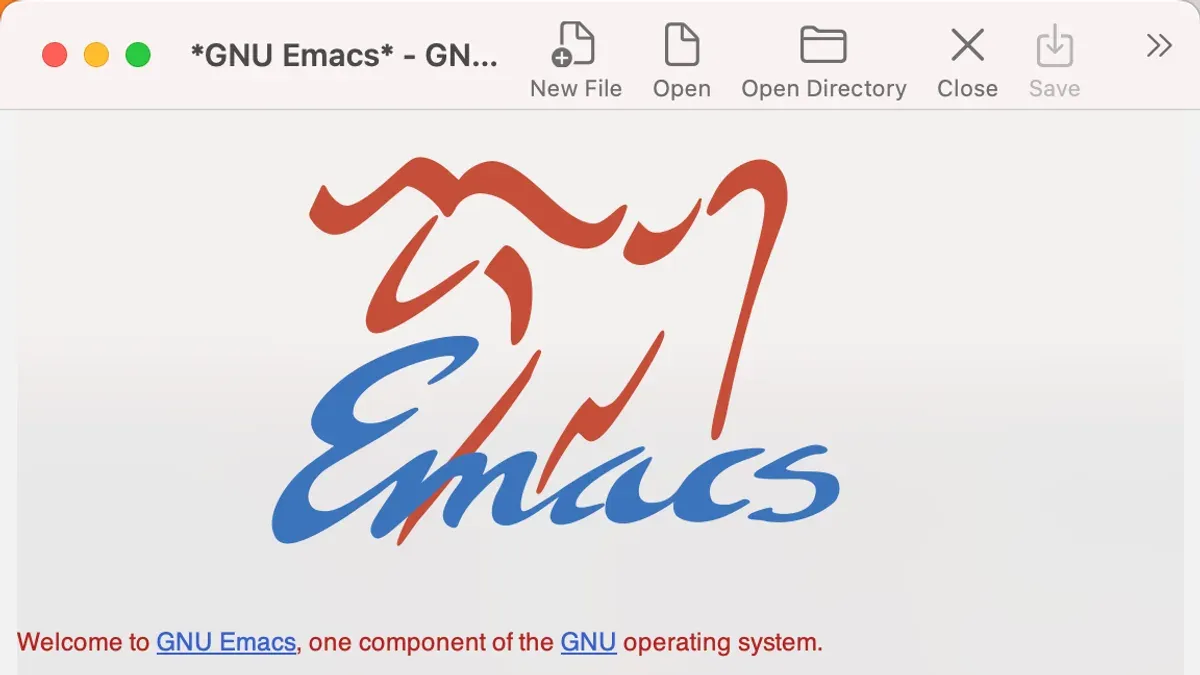
To install the Emacs Mac Port, you can use Homebrew Cask or download the pre-built application directly.
- Open Terminal and run brew install --cask emacs. This installs the latest stable Emacs Mac Port application in your /Applications folder. When complete, you should see "==> Success!" indicating the app is installed.
- Alternatively, visit the official Emacs Mac Port GitHub releases page and download the latest .dmg file. Open the file and drag the Emacs.app into your Applications folder. This method ensures you get the most recent build if Homebrew is outdated.
- Once installed, open the Emacs app from your Applications folder. The GUI window should launch with native Mac menus and support for standard macOS keyboard shortcuts like Command-W to close a window.
- To launch Emacs Mac Port from Terminal, add the following alias to your shell profile:
alias emacs="/Applications/Emacs.app/Contents/MacOS/Emacs". Then runemacsto start the GUI from the command line. - Configure macOS integration by editing your
.emacsorinit.elfile. Enable fullscreen with(setq ns-use-native-fullscreen t)and improve font rendering by setting(set-face-attribute 'default nil:font "Menlo-14")or your preferred font.
The Emacs Mac Port interface features a native title bar and macOS-style menus, making it familiar to Mac users. Screenshot references typically show a clean toolbar, native scrollbars, and support for dark mode if your macOS is set accordingly.
Choosing between the Emacs Mac Port and standard GNU Emacs depends on whether you prioritize native GUI polish and macOS integration over pure command-line usage.
How to open and create files in Emacs on Mac
Understanding how to handle files in Emacs is essential for effective editing. You can open existing files either from within Emacs or directly from the Terminal, and you can create and save new files easily.
- To open a file inside Emacs, press Ctrl-x Ctrl-f (written as C-x C-f). You will see a prompt at the bottom asking for the file name. Type the full path or the file name if it is in the current directory, then press Enter. The file's contents will appear in a new buffer.
- To open a file from the Terminal, type emacs filename and press Enter. This opens Emacs with that file loaded. If the file does not exist, Emacs creates a new buffer with that name.
- To create a new file inside Emacs, press C-x C-f and enter the desired new file name at the prompt, then press Enter. The new buffer will be empty, ready for editing.
- After editing or creating a file, save it by pressing Ctrl-x Ctrl-s (C-x C-s). This writes the buffer contents to disk. If it’s a new file, Emacs will create it.
- Buffers represent open files or unsaved changes. Switch between buffers using Ctrl-x b (C-x b), typing the buffer name, and pressing Enter. To list all buffers, use Ctrl-x Ctrl-b.
- Basic editing includes moving the cursor with arrow keys, deleting text with Backspace, and undoing changes with Ctrl-/ (C-/) or Ctrl-x u. Avoid quitting without saving to prevent data loss.
Beginners often forget to save files after editing. Always confirm the buffer is saved before closing or quitting Emacs. If you try to exit with unsaved changes, Emacs will prompt you to save or discard them.
How to use Emacs on Mac: basic usage and commands
Emacs combines a powerful text editor with a flexible interface composed of multiple modes tailored for different tasks. The main window is divided into buffers showing open files or outputs, with a minibuffer at the bottom for commands and messages.
Start by learning essential keyboard shortcuts that speed up navigation and editing:
- Ctrl + x Ctrl + f: Open or create a file (you'll see the filename prompt in the minibuffer)
- Ctrl + x Ctrl + s: Save the current buffer (look for “Wrote” in the minibuffer)
- Ctrl + g: Cancel the current command or search
- Ctrl + x k: Close the current buffer
- Alt + x: Run any Emacs command by name (type the command, e.g., "compile")
To compile code or run scripts, use Alt + x compile. Emacs prompts for the compile command, such as make or gcc filename.c. The compilation output appears in a separate buffer; errors are clickable for quick navigation.
Basic customization can be done by editing your .emacs or init.el file in your home directory. For example, you can enable line numbers by adding (global-display-line-numbers-mode). More extensive customization and packages are documented on the official GNU Emacs manual and popular community sites like EmacsWiki.
How to install Emacs on Mac terminal for command-line usage
Emacs can run both as a graphical application and within the terminal. The terminal version is lightweight and integrates smoothly with command-line workflows, while the GUI offers more macOS-specific features. To use Emacs exclusively in the terminal, you will install and configure it accordingly.
- Open your Terminal application on Mac. You should see a command prompt ready for input.
- Type emacs --version and press Enter. If Emacs is installed via Homebrew, the version number will display. If not, proceed to install it using
brew install emacs, which installs the command-line Emacs without GUI support. - Launch Emacs in the terminal by typing emacs and pressing Enter. You should see the Emacs welcome screen inside your terminal window.
- To improve your terminal Emacs experience, configure your terminal emulator to support 256 colors and proper key mappings. For example, in iTerm2, go to Preferences > Profiles > Terminal and enable “Declare terminal as xterm-256color.”
- Set Emacs as the default editor for terminal-based tasks by adding
export EDITOR="emacs"to your shell configuration file (~/.zshrc, ~/.bash_profile, or ~/.bashrc). After saving, runsource ~/.zshrcor the equivalent command to apply changes. - Test the default editor setting by running a command like
git commit. The commit message editor should open in terminal Emacs.
By following these steps, you get a fully functional Emacs environment directly in your Mac terminal, optimizing for speed and minimal resource use without macOS GUI dependencies.
Troubleshooting common issues when installing Emacs on Mac
Encountering installation problems with Emacs on Mac is common but usually resolvable with a few targeted steps.
Permission errors during installation
If you see errors like "Permission denied" or "Operation not permitted" during installation, it often means you lack proper write access.
- Run the install command with sudo, for example:
sudo brew install emacs. You should be prompted for your password, and the command should proceed without permission errors. - If you still get errors, check the permissions of the Homebrew directories by running
ls -ld /usr/local /usr/local/bin. Both should be writable by your user or group. - Adjust permissions with
sudo chown -R $(whoami) /usr/localif necessary. After this, retry the installation.
Fixing PATH and environment variable issues
If Emacs commands are not found after installation, your PATH variable may not include the correct Homebrew directories.
- Check your PATH by running
echo $PATH. It should include/usr/local/binor/opt/homebrew/bindepending on your Mac. - If missing, add the correct path by editing your shell configuration file (e.g.,
~/.zshrcor~/.bash_profile) and addingexport PATH=/usr/local/bin:$PATHorexport PATH=/opt/homebrew/bin:$PATH. - Reload the shell profile with
source ~/.zshrcor restart the Terminal. Then verify withwhich emacsthat the Emacs binary is found.
Resolving conflicts with existing Emacs versions
Conflicts arise if multiple Emacs versions exist, causing unexpected behavior or launching the wrong version.
- Check existing versions with
which emacsandemacs --version. - If an older Emacs is installed via MacPorts or other package managers, uninstall or disable them by running
sudo port uninstall emacsor removing their binaries from PATH. - Prioritize the Homebrew Emacs path by ensuring it appears first in your PATH variable.
Emacs fails to launch or crashes
If Emacs does not open or crashes immediately, consider these steps:
- Launch Emacs from Terminal with
emacs --debug-initto identify configuration errors in your init file. - Temporarily move your Emacs configuration file (
~/.emacsor~/.emacs.d/init.el) by runningmv ~/.emacs ~/.emacs.backupand then relaunch Emacs to check if the issue relates to your config. - Check system logs with
Console.appfor crash reports related to Emacs to gain insights on the failure. - Reinstall Emacs via Homebrew with
brew reinstall emacsto fix corrupted installations.
Following these steps should resolve most common installation and launch issues with Emacs on Mac.
- How to Install Neovim on Mac: A Clear Step-by-Step Guide
- How to Install Git on Mac: Step-by-Step Guide for Every Setup
- How to Install GitHub CLI on Mac: A Complete Step-by-Step Guide
- How to Install Arduino IDE on Mac: A Step-by-Step Guide
Frequently asked questions
How to install emacs on windows?
To install Emacs on Windows, download the latest installer from the official GNU Emacs website or the GNU FTP mirror. Choose the appropriate 32-bit or 64-bit version, run the installer, and follow the setup prompts. You can then launch Emacs from the Start menu or desktop shortcut.
How to install emacs on ubuntu?
On Ubuntu, you can install Emacs via the terminal using sudo apt update followed by sudo apt install emacs. This installs the stable Emacs version from Ubuntu's repositories. Alternatively, for newer versions, consider using a PPA or building from source.
How to open file in emacs?
In Emacs, open a file by pressing C-x C-f (hold Control and press x, then f), then type the full path or filename and press Enter. If the file exists, it opens; if not, Emacs starts a new buffer for that filename.
How to download emacs?
You can download Emacs from the official GNU Emacs website or trusted mirrors. Choose the package that matches your operating system, such as a DMG for Mac, EXE for Windows, or source code for Linux. Always verify the download source to avoid unofficial versions.
How to create a file in emacs?
To create a new file, open Emacs and press C-x C-f, then enter the new filename including the desired path. Press Enter, and Emacs will open a new buffer for the file. Save it with C-x C-s to write it to disk.
What this guide does not cover and who should look elsewhere
This guide focuses on installation and basic usage on Mac and does not cover advanced Emacs configuration or package management, which can be complex and vary widely by user needs. If you require custom themes, advanced scripting, or extensive plugin setups, consulting dedicated Emacs resources or community forums will be more beneficial.
The single most useful next step is to familiarize yourself with Emacs’ built-in tutorial by opening Emacs and typing Ctrl-h t. This interactive tutorial provides a solid foundation for navigating and editing within Emacs and helps you build confidence before exploring more complex features or configurations.



