
How to Install Neovim on Mac: A Clear Step-by-Step Guide
This guide walks you through installing Neovim on Mac using Homebrew, configuring plugins, and troubleshooting common Mac-specific issues.
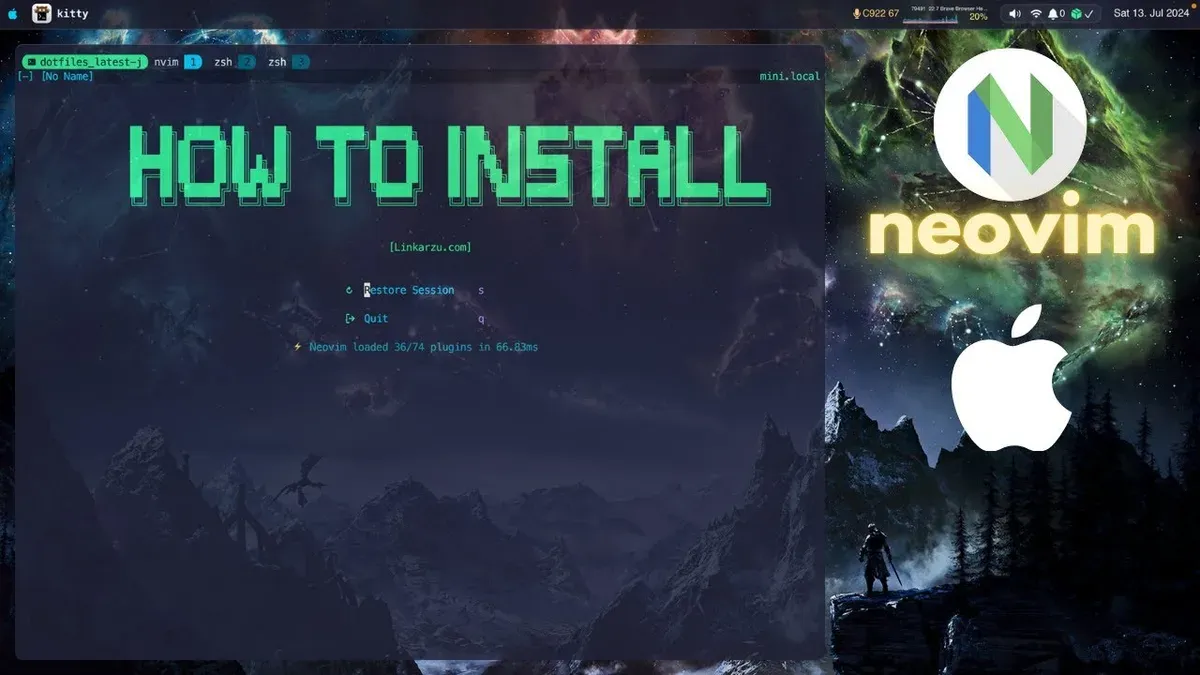
You’ve decided to try Neovim on your Mac, either as a new text editor or a switch from another tool. You want a setup that feels native and works smoothly without confusing steps or compatibility issues.
This article covers how to install Neovim on Mac, walking you through the entire process from installation using Homebrew to configuring plugins and troubleshooting. It highlights Mac-specific environment considerations and common pitfalls so you can get Neovim running confidently on your system.
Key takeaways
- Use Homebrew for the easiest and most reliable Neovim installation on Mac.
- Adjust your shell environment and PATH settings to ensure Neovim runs correctly.
- Manage plugins with a popular plugin manager like vim-plug or Packer for streamlined customization.
- Check common Mac issues such as permission errors or missing dependencies during setup.
- Understand differences in Neovim installation between Mac and other platforms to anticipate environment-specific tweaks.
Before you start: What you need to install Neovim on Mac
To install Neovim on your Mac, start by ensuring your system runs a recent macOS version. Neovim and its preferred package manager, Homebrew, officially support macOS versions from macOS 10.14 Mojave onward. Using an outdated macOS version may cause compatibility issues.
You will need to use the Terminal app, found in /Applications/Utilities/, to execute command-line instructions. Basic familiarity with command-line operations such as navigating directories and running commands will help ensure a smooth installation.
Homebrew is the recommended package manager for installing Neovim on Mac. If you do not have Homebrew installed or if it is outdated, update or install it first. Homebrew installation is straightforward and widely successful, with most users experiencing smooth setup by running the official install script from https://brew.sh.
Additionally, while optional, installing Git is highly advised. Git facilitates version control and is essential for managing Neovim plugins and configurations. You can install Git through Homebrew if it’s not already available on your system.
Finally, consider selecting a plugin manager such as vim-plug or dein.vim before configuring Neovim. These tools simplify plugin installation and maintenance, enhancing your Neovim experience on macOS.
- Verify your macOS version by clicking the Apple menu and selecting "About This Mac." You should see macOS 10.14 Mojave or later.
- Open Terminal from /Applications/Utilities/. You should see a command prompt ready to accept commands.
- Check if Homebrew is installed by typing brew --version. If it returns a version number, Homebrew is installed; otherwise, proceed to install it from https://brew.sh.
- Install or update Homebrew by running the official installation command from the Homebrew website. Successful installation ends with a message confirming Homebrew is ready to use.
- Optional: Install Git via Homebrew by running brew install git. Confirm the installation by typing git --version.
Install Neovim on Mac using Homebrew
Installing Neovim on your Mac using Homebrew is the most straightforward and stable method. Homebrew manages dependencies and updates efficiently, reducing potential errors compared to manual installation.
- Update Homebrew to get the latest package lists. Run brew update in Terminal. Successful completion will end with a message like "Updated Homebrew from..." or "Already up-to-date." This ensures you install the newest Neovim version.
- Install Neovim via Homebrew. Enter brew install neovim. The Terminal displays download progress and installation steps. When finished, you’ll see "==> Summary" with Neovim installed.
- Verify Neovim installation and version. Execute nvim --version. The output shows Neovim’s version number, build details, and features enabled. This confirms Neovim is correctly installed and accessible.
- Ensure your shell recognizes Neovim commands. If typing nvim returns "command not found," you may need to add Homebrew’s binary path to your shell profile. For example, add export PATH="/opt/homebrew/bin:$PATH" to ~/.zshrc or ~/.bash_profile depending on your shell. Reload the profile with source ~/.zshrc or restart Terminal, then retry nvim --version.
Compared to manual builds, Homebrew installations typically complete faster and avoid compilation errors. Homebrew also streamlines future updates with a single brew upgrade neovim command, improving long-term stability and maintenance.
Alternative Neovim installation methods on Mac
If you prefer not to use Homebrew or encounter issues with it, there are reliable alternatives to install Neovim on your Mac. These methods provide different balances of ease, control, and update management.
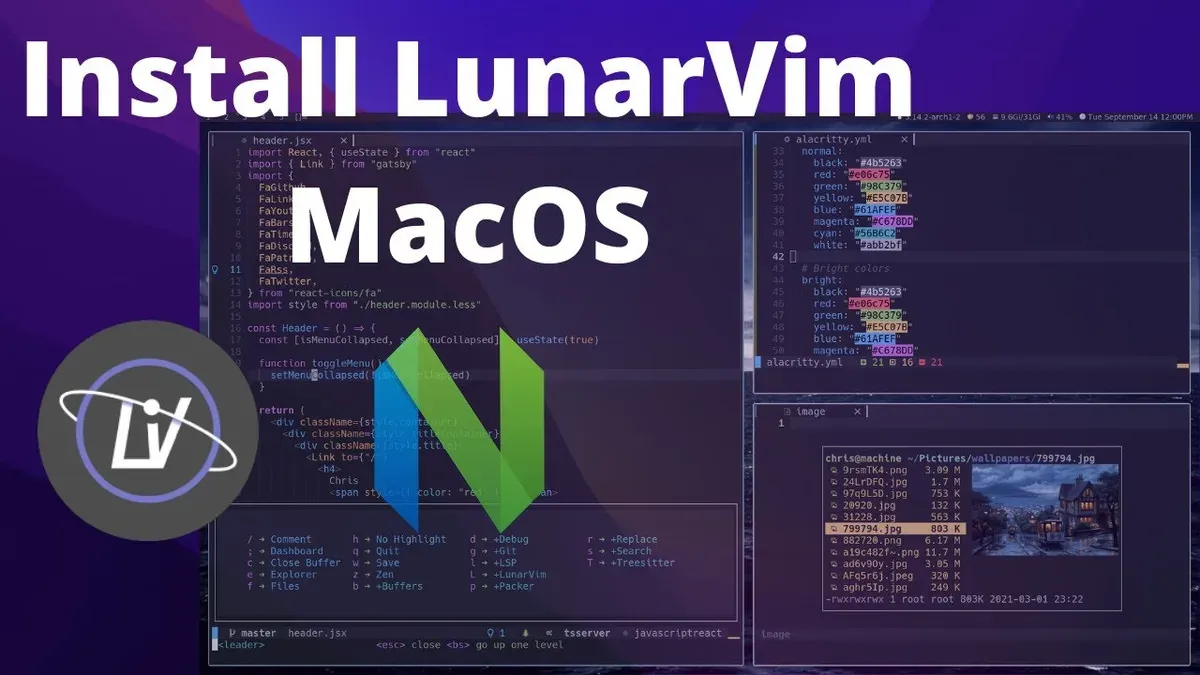
Download the pre-built Neovim macOS app
The official Neovim GitHub releases page offers pre-built macOS app bundles. This method requires no compilation and is straightforward for most users.
- Go to the Neovim GitHub releases page.
- Download the latest stable macOS.zip archive labeled with "nvim-macos.tar.gz" or similar.
- Extract the archive to a preferred location like
/Applicationsor~/Applications. - Open the extracted
nvim.appby double-clicking it; the app should launch Neovim’s GUI version. - Optionally, create a symbolic link to
/usr/local/bin/nvimfor terminal access by runningln -s /path/to/nvim.app/Contents/MacOS/nvim /usr/local/bin/nvim.
This approach requires minimal setup but updates must be handled manually by downloading new releases. The app provides a native GUI but lacks the tight command-line integration of Homebrew installations.
Build Neovim from source
For advanced users wanting full customization and control, building Neovim from source is an option. This method allows applying patches or selecting specific build options.
- Ensure you have the development tools installed, including Xcode Command Line Tools and CMake.
- Clone the Neovim repository via
git clone https://github.com/neovim/neovim.git. - Navigate into the cloned directory with
cd neovim. - Checkout a stable release tag, for example,
git checkout stable. - Run
make CMAKE_BUILD_TYPE=Releaseto compile Neovim; this process may take several minutes depending on your Mac’s hardware. - After building, install Neovim with
sudo make install, which places the executable in/usr/local/bin.
Building from source offers maximum flexibility but requires familiarity with development tools and is time-consuming to update compared to package managers.
In summary, the pre-built app suits users seeking simplicity and a GUI experience without Homebrew, while building from source fits those needing customization despite increased complexity and maintenance effort.
Basic Neovim setup and configuration on Mac
After installing Neovim, you need to create a configuration file to tailor its behavior to your preferences and ensure smooth operation in the Mac terminal environment. Neovim uses init.vim or init.lua for configuration, located in the ~/.config/nvim/ directory.
- Open your Terminal and create the configuration directory if it doesn't exist:
mkdir -p ~/.config/nvim. You should see no error if the directory is created or already present. - Create or open the config file by running
nvim ~/.config/nvim/init.vimornvim ~/.config/nvim/init.lua. The editor opens with a blank or existing config file. - Insert a minimal example configuration. For init.vim, add:
set numberThis enables line numbers, sets tab width to 4 spaces, uses spaces instead of tabs, and integrates the system clipboard for Mac compatibility.
set relativenumber
set tabstop=4
set shiftwidth=4
set expandtab
set clipboard=unnamedplus - Save and exit with
:wq. Upon exit, no error messages should appear. - Restart Neovim by typing
nvimin Terminal. Confirm that line numbers appear as expected and tabs behave consistently. - If an error occurs, it will display on startup. Open the config file again to check for syntax mistakes such as missing keywords or incorrect commands.
- To test changes without restarting, use the command
:source ~/.config/nvim/init.vimor:luafile ~/.config/nvim/init.luainside Neovim to reload the configuration.
Below is a screenshot illustrating the typical directory structure you should have:
| Directory | Contents |
|---|---|
| ~/.config/ | nvim/ |
| ~/.config/nvim/ | init.vim or init.lua |
Following these steps ensures a basic, Mac-friendly Neovim setup that integrates well with your terminal and system clipboard. You can expand this configuration later with plugins and more advanced settings.
How to install Neovim plugins on Mac
Extending Neovim with plugins enhances its functionality, from syntax highlighting to file management. On macOS, plugin management integrates smoothly with your existing Terminal environment, but choosing the right manager and configuring it correctly is key.
Popular plugin managers include vim-plug, Packer.nvim, and dein.vim. Vim-plug is widely used for its simplicity and speed, Packer.nvim offers Lua-based configuration ideal for Neovim, and dein.vim provides asynchronous installation for faster startup.
- Choose a plugin manager and install it as per its instructions. For example, to install vim-plug, run:
curl -fLo ~/.local/share/nvim/site/autoload/plug.vim --create-dirs https://raw.githubusercontent.com/junegunn/vim-plug/master/plug.vim
You should see no errors if successful. - Open or create your Neovim configuration file at
~/.config/nvim/init.vim(orinit.luafor Lua users). Add the plugin manager's initialization block. For vim-plug, this includes:call plug#begin('~/.vim/plugged')
Plug 'tpope/vim-sensible'
call plug#end()
This sets up plugin declarations. - Launch Neovim and run
:PlugInstall(vim-plug) or equivalent commands for your manager. You should see output indicating plugins are downloading and installing. - Restart Neovim to load the new plugins. Verify functionality by testing plugin commands or features documented by the plugin.
- Ensure your Terminal emulator supports true color and UTF-8 encoding to avoid display issues with plugins using advanced highlighting or symbols. For example, set
export TERM=xterm-256colorin your shell profile. - If plugins fail to load, check for common macOS-specific issues such as permission errors in the configuration directory or conflicts with macOS default shell environments. Running
nvim --versioncan confirm if Neovim was built with Lua support, necessary for some plugins.
Following these steps will allow you to manage Neovim plugins effectively on your Mac, providing a tailored editing experience with minimal friction.
Troubleshooting Neovim installation issues on Mac
Neovim installation on Mac can encounter several common issues related to system paths, terminal compatibility, and plugin management. Addressing these promptly ensures a smooth editing experience.
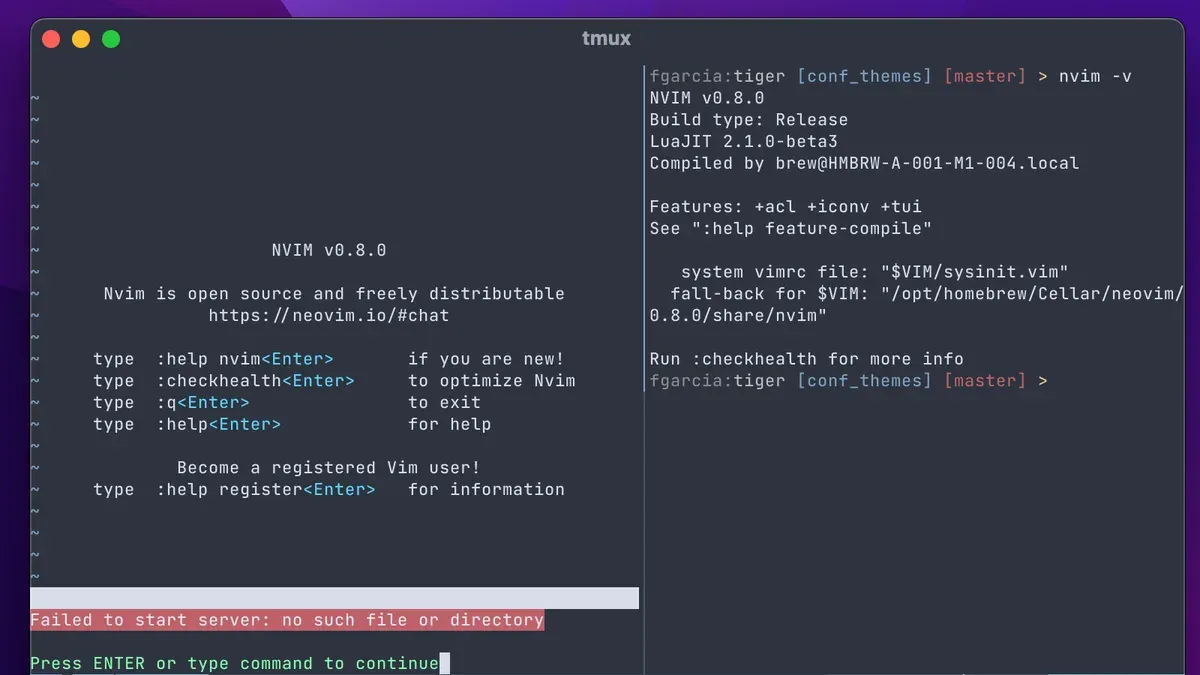
Fixing PATH issues preventing Neovim from launching
If typing nvim in Terminal returns command not found, your system PATH likely does not include Homebrew's binary directory.
- Open Terminal and run
echo $PATH. Check if/usr/local/binor/opt/homebrew/binappears depending on your Mac's processor. - If not present, add it by editing your shell profile file:
~/.zshrcor~/.bash_profile. Add the lineexport PATH="/usr/local/bin:$PATH"orexport PATH="/opt/homebrew/bin:$PATH"accordingly. - Reload the profile by running
source ~/.zshrcorsource ~/.bash_profile. - Type
nvim --version. You should see Neovim's version information confirming it launches correctly.
Resolving terminal compatibility problems affecting Neovim display or input
Some Mac terminal apps may not fully support Neovim’s advanced UI features, causing display glitches or input lag.
- Ensure your Terminal or iTerm2 app supports true color and 256-color mode.
- Set the environment variable
TERM=xterm-256colorin your shell profile. - Disable conflicting terminal settings like alternate screen or cursor blinking if issues persist.
- Switch to a different terminal emulator to isolate the problem.
Handling plugin installation errors and conflicts
Plugin errors often arise from missing dependencies or incompatible versions.
- Check your plugin manager’s output for error messages after running plugin install/update commands.
- Ensure you have Git installed and accessible as many plugins are fetched from Git repositories.
- Review plugin documentation for macOS-specific notes or required external tools.
- Temporarily disable all plugins and add them back one by one to identify conflicts.
When to seek help from community forums or official documentation
If problems persist after these steps, consult the official Neovim GitHub issues page or community forums like Reddit’s r/neovim. Provide details such as exact error messages, macOS version, terminal app used, and your configuration files to get precise assistance.
Comparing Neovim installation on Mac with other platforms
Installing Neovim varies notably across Mac, Windows, and Linux due to differences in package managers and system environments. On Mac, Homebrew offers a streamlined installation with the command brew install neovim, whereas Windows users often rely on Scoop (scoop install neovim) or Chocolatey (choco install neovim). Linux distributions typically use native package managers: Ubuntu users run sudo apt install neovim, while Fedora users use sudo dnf install neovim.
Mac's native Unix-like environment simplifies configuration and plugin management compared to Windows, where path and shell differences can complicate setup. However, Mac users occasionally face challenges related to macOS-specific Terminal quirks and permissions, especially when integrating Neovim with certain GUI applications or external tools.
User feedback highlights Mac’s advantage in consistent command-line experience and robust Homebrew ecosystem, which eases updates and dependency management. Windows users often encounter more fragmented workflows but gain from graphical installers. Linux offers the most customization but may require deeper shell knowledge.
For detailed Windows installation guidance, see the Neovim on Windows guide. Ubuntu users can refer to the Ubuntu Neovim installation tutorial for platform-specific tips and troubleshooting.
| Platform | Package Manager | Installation Command |
|---|---|---|
| Mac | Homebrew | brew install neovim |
| Windows | Scoop / Chocolatey | scoop install neovim / choco install neovim |
| Ubuntu (Linux) | APT | sudo apt install neovim |
- How to Install Lua on Mac: A Clear Step-by-Step Guide
- How to Install Docker on Mac: A Clear Step-by-Step Guide
- How to Install Perl Modules on Mac: A Practical Step-by-Step Guide
Frequently asked questions
How to install neovim on windows?
To install Neovim on Windows, download the latest stable release from the official Neovim GitHub releases page. Extract the zip file and add the Neovim directory to your system's PATH environment variable. Alternatively, you can use package managers like Scoop or Chocolatey by running scoop install neovim or choco install neovim in PowerShell or Command Prompt.
How to install neovim on ubuntu?
On Ubuntu, you can install Neovim using the default package manager with sudo apt install neovim. However, this may not provide the latest version. To get a more recent release, adding the Neovim official PPA repository or building from source are better options.
How to install latest neovim on ubuntu?
To install the latest Neovim on Ubuntu, add the Neovim official PPA by running sudo add-apt-repository ppa:neovim-ppa/stable followed by sudo apt update and sudo apt install neovim. This method ensures you receive recent stable updates directly maintained by the Neovim team.
How to setup neovim on windows?
Setting up Neovim on Windows involves configuring your init.vim file located in %USERPROFILE%\AppData\Local\nvim\. You can install plugin managers like vim-plug by downloading the plug.vim file into the autoload directory. Also, ensure your terminal emulator supports true color and UTF-8 encoding for the best experience.
How to get neovim on windows?
You can get Neovim on Windows by downloading the pre-built binaries from the official GitHub releases or installing via package managers such as Scoop or Chocolatey. Adding Neovim’s executable path to your system environment variables allows you to run it from any command prompt or terminal window.
What this guide does not cover and who should look elsewhere
This guide does not cover advanced Neovim customization beyond basic plugin management or integration with complex development environments such as LSP configurations, debugging setups, or extensive automation workflows. If you require deep customization or work within specialized programming ecosystems, consulting dedicated Neovim resources or community forums will be more beneficial.
For users primarily focused on GUI-based editing or those who prefer a graphical interface over terminal-based tools, exploring Neovim frontends like Neovide or Goneovim may suit your needs better than this command-line-oriented setup.
The most useful next step to solidify your Neovim experience on Mac is to start exploring plugin management with a popular tool like 'packer.nvim'. Installing and configuring a plugin manager will streamline adding features and customizing your editor without manual file management, helping you build a tailored yet maintainable environment.



