
How to Install Perl Modules on Mac: A Practical Step-by-Step Guide
Step-by-step guide to installing Perl modules on Mac using Terminal, Homebrew, and CPAN tools for effective Perl development.
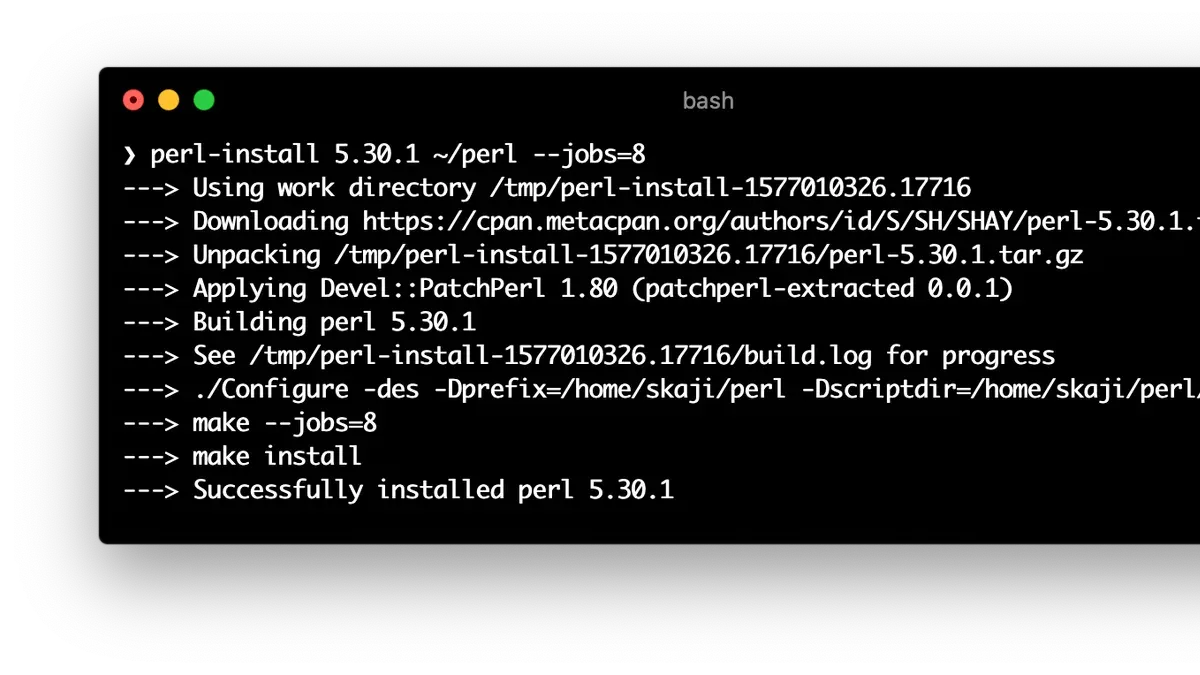
Installing Perl modules on a Mac can sometimes feel like navigating a maze, especially if you’re switching between different operating systems. You might have a Perl script that requires a specific module, but the installation steps differ from those on Linux or Windows.
This article covers how to install Perl modules on Mac with clear, step-by-step instructions. It also compares the process to Perl installation on Linux and Windows, helping you understand the differences and manage your development environment effectively.
Key takeaways
- Use the Terminal and the built-in CPAN or cpanminus (cpanm) tools for installing Perl modules on Mac.
- Installing Perl on Mac often involves using Homebrew for the latest Perl versions.
- Windows Perl installation typically uses Strawberry Perl or ActivePerl distributions.
- On Linux, package managers like apt or yum handle Perl and its modules.
- VS Code supports Perl development with extensions and integrated terminal for module management.
Before you start: What you need for Perl module installation
Mac computers typically come with a pre-installed version of Perl. Recent macOS versions usually include Perl 5.18 or later, which is sufficient for many tasks but may not always meet the requirements of newer modules. If you need a more recent or custom Perl version, tools like Homebrew can help you install and manage it efficiently.
Using the command line is essential for Perl module installation. You will need access to the Terminal app on your Mac, where you can run commands to check Perl versions and install modules.
Homebrew is a widely used package manager on macOS that simplifies installing and managing software, including Perl and its modules. Installing Perl via Homebrew ensures you have an up-to-date version and access to related tools.
Network connectivity is required to download Perl modules from the Comprehensive Perl Archive Network (CPAN), which is the primary repository for Perl software. CPAN clients, such as the built-in CPAN shell or cpanminus (cpanm), automate module installation and dependency management.
- Open Terminal on your Mac. You should see a command prompt indicating readiness for input.
- Check the installed Perl version by typing perl -v and pressing Enter. You will see the current Perl version displayed.
- Verify if Homebrew is installed by entering brew --version. If it is installed, the version number appears; if not, you will get a command not found message.
- Ensure your Mac is connected to the internet to enable downloading modules from CPAN.
- Familiarize yourself with CPAN by running cpan in Terminal, which opens the CPAN shell where you can search and install modules interactively.
How to install Perl on Mac
Mac computers come with Perl pre-installed, but the version may not support newer modules. Start by checking your Perl version in Terminal.
- Open Terminal and type perl -v. You should see output indicating the Perl version number, such as "This is perl 5.30.0". If the version is recent enough for your needs, you can continue using it.
- If you need a newer Perl version, install Homebrew if it’s not already present by executing /bin/bash -c "$(curl -fsSL https://raw.githubusercontent.com/Homebrew/install/HEAD/install.sh)" and follow the prompts.
- Use Homebrew to install Perl by running brew install perl. This installs the latest stable Perl version separately from the system Perl.
- Verify the installation by typing perl -v again. The output should now reflect the Homebrew-installed version, usually newer than the pre-installed one.
- Alternatively, use perlbrew to manage multiple Perl versions. Install it with curl -L https://install.perlbrew.pl | bash, then follow instructions to install and switch between Perl versions.
- After installing, confirm Perl is working by running perl -e 'print "Perl is working\n";'. You should see the message printed without errors.
Homebrew offers a straightforward upgrade path but installs a single version. Perlbrew is better if you need to switch between multiple Perl versions for different projects.
How to install Perl modules on Mac
You can install Perl modules on Mac primarily using the CPAN shell or the cpanminus tool, each offering different user experiences and installation workflows.
Using the CPAN shell
- Open Terminal and type cpan to launch the CPAN interactive shell. You should see a prompt like cpan>.
- At the prompt, enter install LWP::UserAgent. This command downloads, compiles, and installs the module. Successful installation displays messages ending with "...Build successful" and "...Installed".
- To exit, type exit. The CPAN shell manages dependencies automatically but may take several minutes depending on module size and network speed.
Using cpanminus (cpanm) for streamlined installation
- First, install cpanminus if not present by running brew install cpanminus or curl -L https://cpanmin.us | perl - --sudo App::cpanminus.
- Install a module by running cpanm LWP::UserAgent. Output shows progress bars and ends with "Successfully installed" when done.
- cpanminus generally installs faster than the CPAN shell and has simpler output, making it preferred for quick and clean installs.
Managing local libraries and permissions
To avoid system-wide permission issues, use local::lib to install modules in your home directory. Initialize it with perl -Mlocal::lib and add the recommended environment variables to your shell profile.
This approach prevents conflicts with system Perl and does not require sudo privileges. Both CPAN and cpanminus honor local::lib settings.
Example: Installing LWP::UserAgent
Using CPAN shell, after running install LWP::UserAgent, you should see "Building and testing LWP::UserAgent" followed by "...Build successful" and "...Installed" messages.
Using cpanminus, cpanm LWP::UserAgent outputs download progress, compiles, and ends with "Successfully installed LWP::UserAgent".
How to check if a Perl module is installed
Verifying the installation of a Perl module ensures your scripts run smoothly without unexpected errors. You can perform this check directly via Perl commands, CPAN clients, and by inspecting your environment.
- Use a Perl one-liner to test module loading. Open Terminal and run
perl -MModule::Name -e "print 'Installed\n'", replacingModule::Namewith the specific module. If installed, you will see Installed printed. If not, an error like Can't locate Module/Name.pm in @INC appears. - List all installed modules using the CPAN shell. Enter
cpanin Terminal to launch the CPAN client, then typerfor the module list. This displays installed modules and their versions. Exit withq. - Use cpanminus to check module status. Run
cpanm --info Module::Name. If the module is installed, you’ll see its path and version. If missing, the output states the module cannot be found. - Inspect @INC directories. Run
perl -e 'print join("\n", @INC)'to list folders where Perl looks for modules. You can manually check these directories to confirm module presence. - Check environment variables affecting module paths. Variables like
PERL5LIBcan alter where Perl searches. Runecho $PERL5LIBin Terminal to view custom library paths that might contain installed modules.
These methods help diagnose missing modules early and guide you in managing Perl module installations effectively.
How to install Perl in Windows and Windows 11
Windows users typically choose between two main Perl distributions: Strawberry Perl and ActivePerl. Strawberry Perl is a popular open-source option that includes a compiler and build tools, making it suitable for installing modules from CPAN that require compilation. ActivePerl, provided by ActiveState, offers a commercial-supported distribution with a graphical installer and a package manager called PPM (Perl Package Manager), though it may not always have the latest modules.
To install Perl on Windows 11, follow these steps:
- Visit the official Strawberry Perl website (strawberryperl.com) or ActiveState Perl page (activestate.com/products/perl).
- Download the appropriate 64-bit installer for your system.
- Run the installer and follow the prompts; expect a typical Windows installation wizard where you confirm the install directory and agree to the license.
- After installation, open Command Prompt and type perl -v to verify Perl is installed; you should see the Perl version information.
- For module installation, Strawberry Perl supports CPAN and cpanminus (cpanm) out of the box. Use cpan Module::Name or cpanm Module::Name to install modules.
- ActivePerl users can use PPM for modules; however, some CPAN modules may require manual installation or building, which can be more complex on Windows than on Mac.
Common issues on Windows include missing build tools when installing modules that require compilation; Strawberry Perl avoids this by bundling required compilers. Unlike Mac, Windows lacks a native package manager like Homebrew, so managing multiple Perl versions or dependencies can be more challenging.
Overall, Strawberry Perl offers a closer experience to Mac’s CPAN-based installation, while ActivePerl may suit users needing commercial support but with some trade-offs in module availability and build complexity.
How to install Perl on Ubuntu and Linux
Perl is commonly pre-installed on most Linux distributions, but you may need to update or install it explicitly depending on your environment. On Debian-based systems like Ubuntu, the apt package manager is used, whereas Red Hat-based distributions like RHEL and CentOS use yum or dnf.
- Update your package list with
sudo apt updateon Ubuntu orsudo yum check-updateon RHEL. You should see a list of upgradable packages or a confirmation that your packages are current. - Install Perl using
sudo apt install perlon Ubuntu orsudo yum install perlon RHEL. After installation, runningperl -vwill display the installed Perl version. - To install Perl modules, you can use system packages like
libwww-perlon Ubuntu (sudo apt install libwww-perl) orperl-libwww-perlon RHEL (sudo yum install perl-libwww-perl). This method ensures compatibility and ease of maintenance but might not provide the latest module versions. - Alternatively, use CPAN for installing modules to access the latest releases with
cpan Module::Name. CPAN may require building modules from source and could need additional dependencies. - For example, on RHEL, to install the LWP::UserAgent module via CPAN, run
cpan LWP::UserAgent. Success is indicated by compilation and installation messages.
Comparing system Perl with custom installations, the system Perl is integrated with the OS and managed by package managers, which helps with stability but may lag behind in versions. Custom Perl installations using perlbrew or similar tools allow you to run multiple versions side-by-side, useful for development or testing newer modules without affecting system scripts.
| Aspect | System Perl | Custom Perl Installation |
|---|---|---|
| Installation Method | Package manager (apt, yum/dnf) | perlbrew or manual build |
| Version | Stable, possibly older | Latest or specific versions |
| Module Management | System packages or CPAN | CPAN, local::lib |
| Impact on OS | System-wide, potentially critical | Isolated, user-specific |
How to use Perl and Perl modules in VS Code on Mac
To integrate Perl development smoothly in VS Code on Mac, start by installing the Perl extension. Open the Extensions sidebar, search for "Perl", and install the most popular Perl language support extension. Once installed, VS Code will provide syntax highlighting, code snippets, and basic IntelliSense for Perl.
Next, configure VS Code to recognize your Perl interpreter and modules. Open the Command Palette and select "Preferences: Open Settings (JSON)". Add or update the setting "perl.perlPath" to point to your Perl executable, for example, "/usr/local/bin/perl" if installed via Homebrew. This ensures VS Code uses the correct Perl version and can access installed modules.
To run Perl scripts, create a task by adding a tasks.json file in the ".vscode" folder of your project with a command like perl ${file}. This runs the current file in the terminal. For debugging, install the "CodeLLDB" extension, as VS Code does not have native Perl debugging support. Configure launch.json to launch scripts, though debugging Perl with breakpoints requires external tools or plugins.
Managing module dependencies within VS Code can be streamlined by utilizing the integrated terminal to run CPAN or cpanminus commands directly inside the editor. You can also include a local::lib environment setup in your project and add relevant environment variables in settings.json to ensure your scripts find the right module paths.
Troubleshooting common Perl module installation issues on Mac
If you encounter permission errors such as "Can't write to install area: Permission denied", use local::lib to install modules in your user directory without sudo. This avoids system-wide conflicts. Initialize local::lib with eval $(perl -Mlocal::lib) and then retry installation.
Compilation failures often arise from missing dependencies, especially with modules requiring native libraries like cryptography. For example, errors mentioning "Can't find OpenSSL headers" indicate missing development tools. Install Xcode Command Line Tools using xcode-select --install and the required libraries via Homebrew, e.g., brew install openssl.
Network problems connecting to CPAN mirrors may cause timeouts or "Could not fetch URL" errors. In this case, update your CPAN configuration with a reliable mirror: run cpan, then enter o conf urllist and add a different mirror URL. Save with o conf commit.
Version conflicts between system Perl and installed modules can lead to unpredictable behavior. Using perlbrew or switching Perl versions via Homebrew can help. Verify which Perl is active with which perl and perl -v. Modules installed under one Perl version won’t be available to another.
- Run
perl -Mlocal::libto check local::lib setup. Successful output confirms local module path. - If permission errors appear, enable local::lib with
eval $(perl -Mlocal::lib)and reinstall modules. - If compilation fails, install Xcode Command Line Tools:
xcode-select --install. - Install missing libraries via Homebrew, e.g.,
brew install openssl. Then retry module installation. - For network issues, open CPAN shell (
cpan), runo conf urllistto add a new mirror URL, theno conf commit. - Check active Perl version with
which perlandperl -v. Switch versions if necessary. - After fixes, module installations should complete without errors, confirmed by
perl -MModuleName -e 1running silently.
- How to Install Lua on Mac: A Clear Step-by-Step Guide
- How to Install Elixir on Mac: A Clear Step-by-Step Guide
- How to Install R and RStudio on Mac: A Clear Step-by-Step Guide
- How to Install Git on Mac: Step-by-Step Guide for Every Setup
Frequently asked questions
How to install perl linux?
On Linux, Perl is often pre-installed, but you can install or upgrade it using your distribution’s package manager. For Ubuntu and Debian-based systems, use sudo apt-get install perl. For Red Hat-based systems, use sudo yum install perl or sudo dnf install perl. This ensures you get the Perl interpreter and core modules.
How perl can be installed?
Perl can be installed by downloading precompiled packages or compiling from source. On Mac and Linux, package managers like Homebrew or apt handle installation easily. On Windows, use distributions like Strawberry Perl or ActivePerl, which include the interpreter and common modules for straightforward setup.
How to check perl module installed?
You can check if a Perl module is installed by running perl -MModule::Name -e1 in the terminal, replacing Module::Name with the module's name. If the command exits without errors, the module is installed. Alternatively, use cpan -l or check your Perl library paths.
How to install perl on windows?
On Windows, the easiest way to install Perl is by downloading Strawberry Perl or ActivePerl installers. Run the installer, follow the setup wizard, and ensure the option to add Perl to your system PATH is selected. This provides both the Perl interpreter and a package manager for modules.
How to install perl in vs code?
To use Perl in VS Code, install the Perl extension from the VS Code marketplace for syntax highlighting and code snippets. Ensure Perl is installed on your system and added to the PATH. You can then run Perl scripts via the integrated terminal or configure tasks to automate running scripts.
Limits of this guide and when to seek specialized resources
This article focuses on straightforward Perl module installation and basic environment setup on Mac, Windows, and Linux. It does not cover advanced Perl environment management techniques such as containerization, multi-version Perl management with tools like perlbrew or plenv, or Perl deployment in production servers. Users with complex requirements, such as automated CI/CD pipelines, custom Perl builds, or enterprise-grade configuration, should consult more specialized resources or dedicated documentation.
For your next step, try installing a simple, widely used Perl module like JSON::MaybeXS via CPAN on your Mac. This practical task helps you confirm your setup works end-to-end and prepares you to handle more complex modules. Remember to use cpan JSON::MaybeXS or cpanm JSON::MaybeXS in your terminal, and verify installation with perl -MJSON::MaybeXS -e "print \"Module works\n\"". This hands-on approach reinforces the concepts covered and builds your confidence for managing Perl modules across platforms.



