
How to Install Lua on Mac: A Clear Step-by-Step Guide
This guide explains how to install Lua on Mac using Homebrew or building from source, plus tips on running scripts and troubleshooting.
You want to try Lua on your Mac but aren’t sure where to start. Installing Lua can seem confusing with different methods available and Mac-specific quirks to consider.
This guide covers how to install Lua on Mac using two main approaches: Homebrew, a popular package manager, and building Lua from source. You’ll also learn how to open Lua files, run scripts, configure environment variables, and troubleshoot common issues that Mac users encounter.
Key takeaways
- Homebrew offers a quick and straightforward Lua installation with automatic updates.
- Building Lua from source provides customization but requires more steps and developer tools.
- Setting PATH correctly ensures your Mac recognizes Lua commands in Terminal.
- Opening and running Lua scripts directly is simple with the Terminal and proper file associations.
- Common pitfalls include permissions errors and missing dependencies, which this guide addresses.
Before you start: What you need to install Lua on Mac
To install Lua on your Mac, you will need to use the Terminal app, which allows you to enter command line instructions. Basic familiarity with commands like cd, ls, and brew (if you choose Homebrew) will help you follow the steps smoothly.
If you plan to build Lua manually from source, you must have Apple's Xcode Command Line Tools installed. These tools include compilers necessary to compile Lua. You can check if they are installed by running xcode-select -p in the Terminal; if a path returns, the tools are present.
Homebrew, a popular package manager for macOS, simplifies Lua installation and management. If you don't already have Homebrew, you can verify its presence by running brew --version. Installing Homebrew beforehand is recommended unless you prefer manual builds.
No prior experience with Lua is required to complete the installation. This guide assumes you are new to Lua and explains each step clearly.
- Open Terminal (found in Applications > Utilities). You should see a prompt with your computer's name.
- Check for Xcode Command Line Tools by typing xcode-select -p and pressing Enter. If you see a directory path like /Library/Developer/CommandLineTools, the tools are installed.
- Check for Homebrew by typing brew --version and pressing Enter. If you see a version number, Homebrew is installed.
- If either tool is missing, follow Apple's instructions to install Xcode Command Line Tools or Homebrew before proceeding.
Install Lua on Mac using Homebrew
Homebrew is a widely used package manager for macOS that simplifies installing and managing software like Lua. It handles dependencies and updates, making it a convenient choice for most users.
- Check if Homebrew is installed: Open Terminal and run
brew --version. If Homebrew is installed, you will see its version number. If not, proceed to the next step. - Install Homebrew: Enter the following command in Terminal:
/bin/bash -c "$(curl -fsSL https://raw.githubusercontent.com/Homebrew/install/HEAD/install.sh)"
Once complete, you should see a message confirming the installation. - Install Lua using Homebrew: Run
brew install luain Terminal. The process will download and compile Lua automatically. - Verify Lua installation: Type
lua -vin Terminal. You should see an output like Lua 5.4.x, confirming Lua is installed and ready to use. - Manage Lua versions: To update Lua later, use
brew updatefollowed bybrew upgrade lua. Homebrew keeps Lua current and allows easy switching between versions if needed.
This method minimizes manual configuration and is the recommended approach for most Mac users seeking a straightforward Lua setup.
Install Lua on Mac by building from source
If you want precise control over the Lua version or cannot use Homebrew, building Lua from source is a reliable alternative. This method lets you customize compilation options and ensures you get the exact Lua release you need.
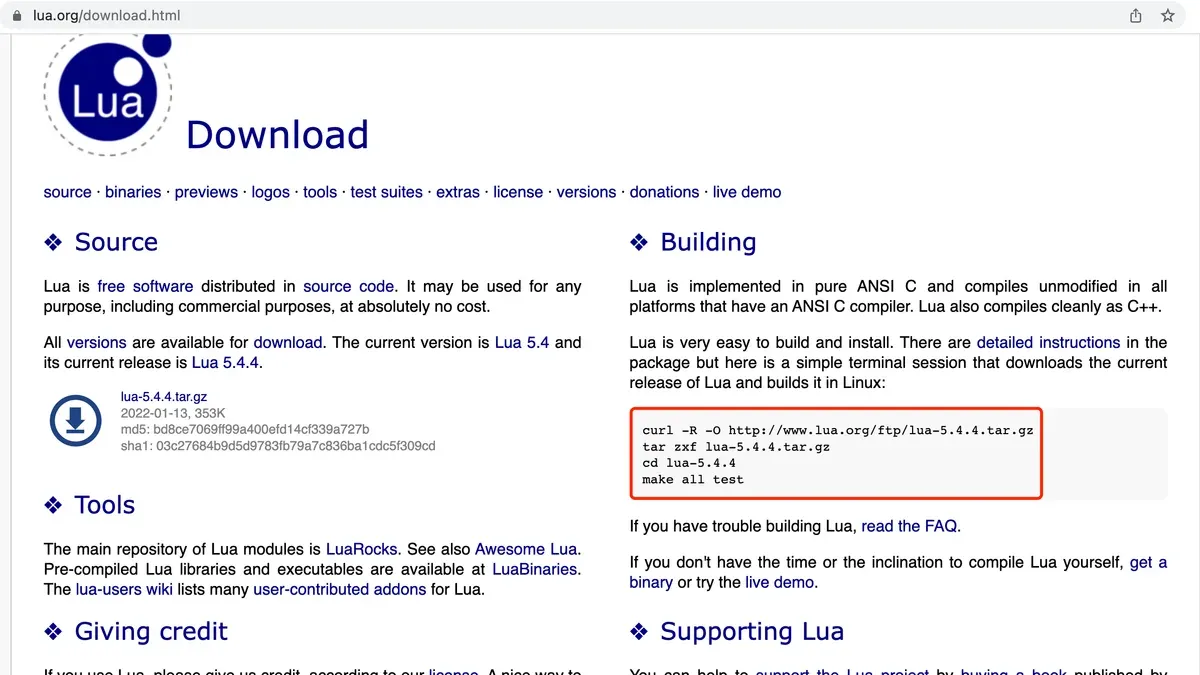
- Download the latest stable Lua source archive from the official website https://www.lua.org/download.html. Choose a file like lua-5.4.4.tar.gz.
- Open Terminal and navigate to your Downloads folder (or wherever you saved the archive). Extract it with tar -zxvf lua-5.4.4.tar.gz. You should see the source files unpacked into a lua-5.4.4 directory.
- Change into the directory: cd lua-5.4.4. Here, you’ll find a Makefile tailored for Mac OS X.
- Compile Lua by running make macosx. This command builds the Lua interpreter and libraries using typical optimization flags. You should see output lines indicating compilation of.c files and linking.
- Optionally, run make test to verify the build passed Lua’s internal tests. Successful tests confirm the build is stable.
- Install Lua system-wide with sudo make install. This copies binaries and libraries into standard locations like /usr/local/bin and /usr/local/lib. You may be prompted for your password.
- Verify the installation by typing lua -v in Terminal. It should output the Lua version installed, for example, Lua 5.4.4.
Common compilation flags include MYCFLAGS for specifying additional compiler options and MYLDFLAGS for linker settings. These can be appended to the make command if you need to customize builds, such as enabling debugging or static linking.
This manual build process is preferable if you require a Lua version not yet available via Homebrew, want to apply patches, or need full control over installation paths and build parameters. It demands more terminal familiarity but offers maximum flexibility.
How to open Lua files and run Lua scripts on Mac
Once Lua is installed on your Mac, you can run Lua scripts directly from the Terminal using the lua interpreter. Lua files typically have the .lua extension. To execute a Lua script, navigate in Terminal to the folder containing your script and run it with the command lua filename.lua. For example, if you have a script named hello.lua, you would type lua hello.lua and see the script's output in the Terminal.
To start the Lua interactive interpreter (REPL), simply enter lua in Terminal. This opens a prompt where you can type and execute Lua commands line by line, which is useful for quick testing and debugging.
- Open Terminal and navigate to your Lua script directory using
cd /path/to/your/scripts. You should see your.lua files when you typels. - Type
lua yourscript.luareplacingyourscript.luawith your script's name. If the script runs without errors, you will see its output or results in Terminal. - To start the Lua REPL, simply type
luaand press Enter. The prompt changes to>>>indicating you can enter Lua commands interactively. - To exit the Lua REPL, type
os.exit()or press Control + D.
For editing Lua scripts on Mac, popular text editors include Visual Studio Code, Sublime Text, and Atom, all of which support Lua syntax highlighting and extensions. You can associate.lua files with your preferred editor by right-clicking any.lua file in Finder, selecting Get Info, then choosing the editor from the Open with dropdown and clicking Change All.
This setup makes it easy to open, edit, and run Lua scripts. Using Terminal for execution combined with a dedicated editor for writing scripts offers a smooth workflow for Lua development on Mac.
How to set up Lua environment variables and PATH on Mac
The PATH environment variable is crucial for running Lua commands smoothly from any Terminal session. It tells your shell where to look for executable files like lua. If Lua’s installation directory isn’t in your PATH, you’ll get a “command not found” error when trying to run Lua.
To check if Lua is in your PATH, open Terminal and enter:
echo $PATH
Look for the directory containing the lua executable, such as /usr/local/bin for Homebrew installs or the directory where you built Lua manually.
If Lua is not found in PATH after a manual install, you need to add its location to your PATH environment variable. The process depends on your shell:
- Determine which shell you use by running
echo $SHELL. macOS defaults tozshfor recent versions andbashfor older ones. - For zsh, open or create
~/.zshrc. For bash, open or create~/.bash_profile. - Add a line like
export PATH="/path/to/lua/bin:$PATH", replacing/path/to/lua/binwith your Lua binary directory. For example:export PATH="/usr/local/lua/bin:$PATH". - Save the file and reload the shell configuration with
source ~/.zshrcorsource ~/.bash_profile. - Verify the PATH update by running
echo $PATHagain. You should see your Lua directory at the front. - Finally, confirm Lua is accessible by typing
lua -vto check the installed version.
Adding Lua’s directory at the front of PATH ensures your shell prioritizes that version. Remember that changes to PATH in one shell config file won’t affect other shells or new Terminal windows until reloaded.
Troubleshooting common Lua installation issues on Mac
If you encounter the "lua: command not found" error, it typically means your system PATH does not include the directory where Lua is installed. To fix this, verify Lua's installation path with which lua. If no path appears, add Lua’s bin directory to your PATH environment variable and restart Terminal.
Conflicts between multiple Lua versions can cause unexpected behavior. Use brew list lua or check manual install locations like /usr/local/bin to identify duplicates. Remove or unlink unwanted versions using brew unlink lua or by deleting conflicting binaries to ensure only one Lua version runs.
During manual installations, permission denied errors are common when copying files to system directories. Use sudo with install commands to grant necessary permissions. For example, sudo make install in the Lua source directory should complete without errors.
Homebrew installation failures often relate to outdated Homebrew or missing dependencies. Running brew update followed by brew doctor helps identify and fix issues. If errors persist, reinstall Homebrew or consult its logs typically found in /usr/local/Homebrew/Library/Logs.
To confirm Lua is properly installed and working, type lua -v in Terminal. A successful installation displays the Lua version number. Running lua alone opens the interactive prompt where you can enter print("Hello, Lua") and see the output Hello, Lua.
How to install Lua on other platforms: Windows and Linux basics
While this guide centers on Mac, many users compare Lua installation across Windows and Linux. Installation methods differ due to platform tools and package management.

| Platform | Common Installation Method | Notes |
|---|---|---|
| Windows | Lua for Windows, LuaBinaries | Includes precompiled Lua with optional IDEs; manual PATH setup needed |
| Linux (Ubuntu) | APT package manager (e.g., sudo apt install lua5.3) | Multiple Lua versions available; install development packages for compiling scripts |
| Linux (Arch) | Pacman package manager (e.g., sudo pacman -S lua) | Latest Lua versions usually available; simple dependency management |
Installing Lua on Windows
- Download a Lua installer such as "Lua for Windows" or obtain precompiled binaries from LuaBinaries. Once downloaded, run the installer and follow prompts. After installation, open Command Prompt and type lua -v to check Lua version; you should see Lua's version info.
- If the command is not recognized, add Lua's
binfolder to your system PATH: Open System Properties > Environment Variables, edit PATH to include Lua'sbindirectory. Reopen Command Prompt and verify with lua -v.
Installing Lua on Linux
- Open Terminal. For Ubuntu or Debian-based distros, run
sudo apt updatefollowed bysudo apt install lua5.3or another available version. After completion, type lua5.3 -v to confirm installation. - For Arch Linux, run
sudo pacman -Syu luato install the latest Lua version. Confirm by executing lua -v. - To develop Lua applications, install development headers with
sudo apt install liblua5.3-devon Ubuntu orsudo pacman -S luawhich includes headers on Arch.
This section provides a brief comparison and basic steps for Windows and Linux to support users working across platforms. For detailed platform-specific instructions, consult dedicated Lua installation guides tailored to Windows and Linux environments.
- How to Install Dart on Mac: A Complete Step-by-Step Guide
- How to Install Julia on Mac: A Step-by-Step Guide
- How to Install Scala on Mac: A Clear Step-by-Step Guide
- How to Install Elixir on Mac: A Clear Step-by-Step Guide
Frequently asked questions
How to install lua on windows?
To install Lua on Windows, download the Lua binaries from the official Lua website or a trusted distributor like LuaBinaries. Extract the files to a folder, then add that folder to your system PATH to run Lua from the command line. Alternatively, use a package manager like Chocolatey with the command choco install lua for a streamlined installation.
How to download lua on windows?
Visit the official Lua website or a reliable source such as LuaBinaries to download the latest Lua Windows binaries. Choose the appropriate 32-bit or 64-bit version, download the ZIP archive, and extract it to a preferred location on your system. Ensure you download from official or well-known sites to avoid compromised files.
How to use lua on windows?
After installing Lua on Windows, open Command Prompt and type lua to start the interactive interpreter. You can run Lua scripts by typing lua filename.lua in the command line, where filename.lua is your script's path. Use a plain text editor or an IDE that supports Lua for editing your scripts.
How to install lua on windows 11?
Installing Lua on Windows 11 follows the same process as other Windows versions. Download the Lua binaries or use Chocolatey with choco install lua. After installation, add the Lua folder to your PATH environment variable via System Settings > System > About > Advanced system settings > Environment Variables.
How to download lua?
Download Lua from the official website lua.org or use trusted distributors like LuaBinaries for precompiled versions. For Mac and Linux, package managers such as Homebrew or apt can also download and install Lua. Always verify the source to ensure you get a safe and up-to-date version.
What this guide does not cover
This article focuses on installing the standard Lua interpreter on Mac and does not cover Lua variants like LuaJIT or embedding Lua in other applications, which require different setup steps and more specialized configurations. If you need to use LuaJIT for performance-critical projects or embed Lua within software like game engines or specialized tools, consult dedicated resources tailored to those environments.
For those interested in advanced Lua development, including module management with LuaRocks or integrating Lua with IDEs, additional setup beyond this guide will be necessary.
Next step after installation
Once you have Lua installed and your environment variables set, the most practical next step is to create and run a simple Lua script to verify your setup. For example, create a file named hello.lua with the line print("Hello, Lua!") and execute it in Terminal with lua hello.lua. This test confirms that Lua is working correctly and that your PATH is properly configured, ensuring a smooth start to your Lua scripting on Mac.



