
How to Install Dart on Mac: A Complete Step-by-Step Guide
Follow this complete step-by-step guide to install Dart on your Mac and set up your development environment efficiently.

Setting up a development environment on your Mac can be confusing, especially when you want to work with Dart but encounter terms like "dart flights" or "Microsoft Dart" that seem unrelated. You might be wondering how to install Dart on Mac correctly and ensure your setup integrates well with your preferred code editor.
This article provides a clear, step-by-step guide to downloading and installing the Dart SDK on Mac, configuring it in Visual Studio Code, and avoiding common misunderstandings. Whether you're new to Dart or moving your projects to a Mac, you'll find practical instructions to get your environment ready for effective Dart development.
Key takeaways
- Download the Dart SDK directly from the official Dart website for the most reliable version.
- Use Homebrew on Mac for a streamlined Dart installation process.
- Integrate Dart with Visual Studio Code by installing the Dart extension from the VS Code Marketplace.
- Distinguish between the Dart programming language and unrelated terms like "dart flights" or "Microsoft Dart" to avoid confusion.
- Verify your Dart installation by running basic commands in the terminal to confirm the SDK is active.
Before you start: What you need to install Dart on Mac
To install Dart on your Mac, ensure your system meets essential prerequisites for a smooth setup. Dart is an open-source programming language optimized for client-side development, known for its fast performance and versatility across platforms. On Mac, Dart applications often run efficiently, leveraging the system's Unix-based architecture and robust hardware.
First, check your macOS version: Dart requires macOS 10.14 Mojave or later for compatibility. To verify, click the Apple menu, select "About This Mac," and confirm your version. If your macOS is older, consider updating it to meet this baseline.
Next, ensure the Xcode Command Line Tools are installed. Open Terminal and enter xcode-select --install. A prompt will appear if installation is needed; otherwise, you’ll see a message indicating tools are already installed. These tools provide essential compilers and Unix utilities necessary for Dart SDK installation.
Verify your internet connection is stable, as the Dart SDK download requires a reliable network. Also, confirm you have at least 500 MB of free disk space to accommodate the SDK and related files.
With these prerequisites met, your Mac is ready for Dart installation and development.
How to download Dart on Mac
To download the official Dart SDK safely, start by visiting the Dart SDK's official download page at https://dart.dev/get-dart. This page provides the latest stable and beta versions suitable for Mac.
- Open your preferred web browser and navigate to the Dart SDK download page. You should see options for different platforms including macOS.
- Locate the macOS section and choose the installation package best suited for your system—typically a.zip archive. The file size is usually around 150 MB but may vary slightly depending on the channel and version.
- Understand the difference between channels: the stable channel offers thoroughly tested releases for reliable development, while the beta channel includes newer features but may have occasional bugs. Choose stable for most use cases.
- Click the download link for your chosen channel. Your browser will display the download progress, which depends on your internet speed but generally completes within a few minutes on a stable connection.
- Once downloaded, locate the.zip file in your Downloads folder. Verify the file size roughly matches the size stated on the website to confirm a complete download.
- Prepare the SDK for installation by unzipping the archive. You can do this by double-clicking the file, which creates a folder containing the Dart SDK ready for setup.
Following these steps ensures you obtain the Dart SDK directly from the official source, minimizing risks associated with third-party downloads.
How to install Dart SDK on Mac step-by-step
The recommended way to install Dart SDK on a Mac is using Homebrew due to its simplicity and efficient management of dependencies and updates. Alternatively, manual installation from the downloaded SDK is possible but requires additional configuration.
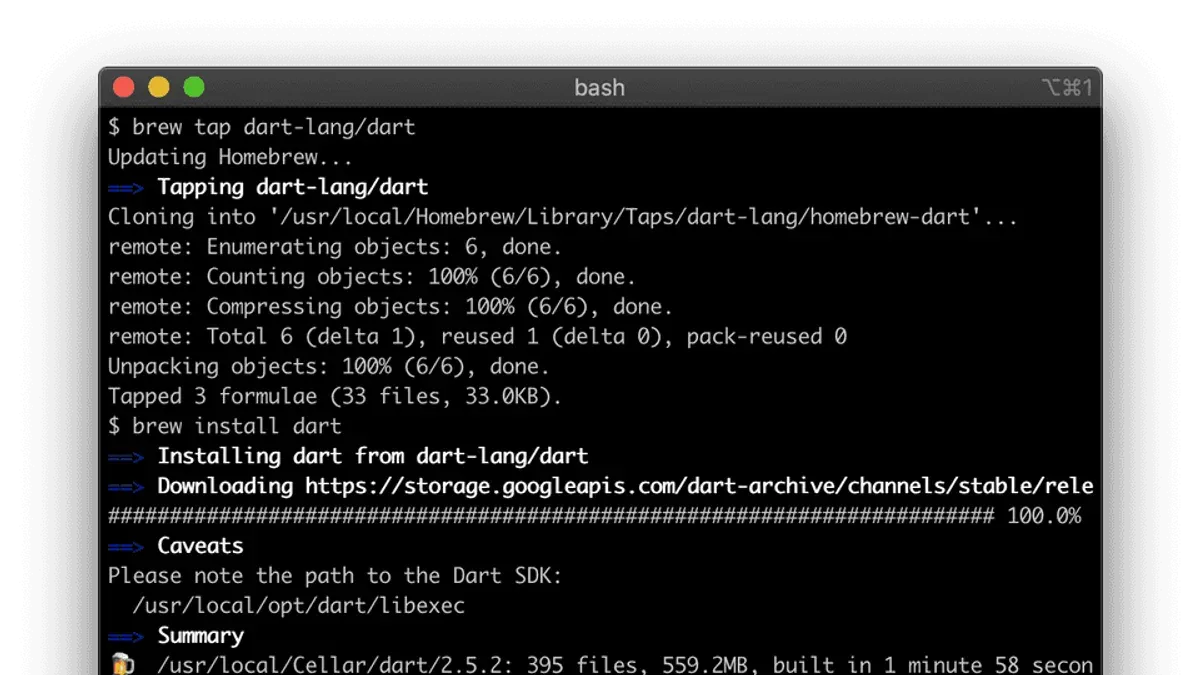
- Install via Homebrew: Open Terminal and run
brew tap dart-lang/dartto add the Dart repository. Then, install Dart by runningbrew install dart. This process typically completes in under a minute depending on your internet speed. Upon success, Terminal will display a message confirming Dart’s installation. - Verify Homebrew installation: In Terminal, enter
dart --version. You should see output similar to Dart SDK version 3.x.x, confirming the SDK is installed and accessible. - Manual installation: If you prefer, unzip the downloaded Dart SDK package to a directory like
~/dart-sdk. This method can take longer due to manual setup steps. - Set PATH environment variable: Add Dart to your PATH by editing your shell profile file (e.g.,
~/.zshrcor~/.bash_profile) with the lineexport PATH="$PATH:$HOME/dart-sdk/bin". Save and runsource ~/.zshrcor reopen Terminal. - Verify manual installation: Run
dart --versionagain. Successful output indicates the manual setup was completed correctly.
Homebrew installation is usually faster and automatically keeps Dart updated, while manual installation gives you more control but requires careful environment setup. Both methods result in a functional Dart SDK on your Mac.
How to install Dart in VS Code on Mac
- Download and install Visual Studio Code from the official VS Code website if it is not already on your Mac. Once installed, launch the application.
- Open VS Code and go to the Extensions view by clicking the square icon on the sidebar or pressing Cmd+Shift+X. In the search bar, type "Dart" to find the Dart extension published by the Dart Team.
- Click Install on the Dart extension page. After installation, you should see the Dart logo in the bottom status bar of VS Code, indicating the extension is active.
- Configure VS Code to recognize your Dart SDK. Open the Command Palette with Cmd+Shift+P, then type and select Dart: Change SDK. Navigate to the folder where your Dart SDK is installed (such as /usr/local/opt/dart/libexec) and select it. This ensures VS Code uses the correct Dart SDK for code analysis and running.
- Run the Dart program by right-clicking inside the editor and selecting Run Dart, or press F5 if you have a launch configuration. The integrated terminal should display "Hello, Dart in VS Code!" confirming successful compilation and execution.
- If you encounter any performance lags or issues, check that no conflicting Dart or Flutter extensions are installed simultaneously, as they can interfere. Adjust VS Code settings to allocate sufficient memory if needed.
Create a new Dart file by selecting File > New File, then save it with a .dart extension. Enter a simple Dart program, for example:
void main() {
print('Hello, Dart in VS Code!');
}
How to use Dart after installation on Mac
Once Dart is installed on your Mac, you can start writing and running Dart programs easily. Here’s how to create a simple Dart script and execute it from the Terminal.
- Dart’s core features include sound null safety, just-in-time (JIT) compilation for quick development cycles, and ahead-of-time (AOT) compilation for optimized performance. These features enable fast execution and reliable code on macOS environments.
- For Mac users interested in app development, Dart is the language behind Flutter, a popular UI toolkit for building cross-platform apps. You can explore Flutter further at flutter.dev.
Save the file and open your Terminal. Navigate to the directory containing hello.dart using cd. When ready, run:
dart hello.dart
You should see Hello, World! printed to the Terminal, confirming Dart runs scripts correctly.
Create a new file named hello.dart with your preferred text editor (e.g., VS Code). Enter the following code:
void main() {
print('Hello, World!');
}
This defines the main entry point and prints a greeting.
Simple benchmarks show Dart scripts start in milliseconds with minimal memory usage, making it suitable for both small utilities and large applications on Mac.
How to set up darts (the game) versus Dart programming language
Search data shows many users confuse "darts" the game with "Dart" the programming language, leading to mixed search results. Darts, the traditional pub game involving throwing small missiles at a circular board, requires physical equipment and setup unrelated to software installation.
This article focuses exclusively on installing and configuring the Dart programming language and SDK on Mac for software development purposes. If you are looking to set up or learn darts the game, you will not find relevant guidance here.
For information on darts the game, including rules, equipment, and online darts apps, visit authoritative resources such as the DartBoard official site or the DARTSLIVE platform. These sites provide detailed instructions for both physical and digital darts setups.
To clarify, installing Dart the programming language involves downloading SDKs and configuring development environments like VS Code, whereas setting up darts the game entails acquiring dartboards, darts, and learning gameplay rules.
Troubleshooting common Dart installation issues on Mac
When installing Dart on Mac, you might encounter issues involving the PATH environment variable, permissions, or conflicts with existing SDKs. These problems can prevent Dart from running correctly or being recognized in your terminal.
Fixing PATH environment variable issues
If you see an error like dart: command not found after installation, your PATH might not include the Dart SDK location. To fix this:
- Open your terminal and run
echo $SHELLto identify your shell (bash or zsh). - For zsh, edit
~/.zshrc; for bash, edit~/.bash_profileusingnano ~/.zshrcornano ~/.bash_profile. - Add the line
export PATH="$PATH:/usr/local/share/dart-sdk/bin"(adjust path if your SDK is elsewhere). - Save and exit, then run
source ~/.zshrcorsource ~/.bash_profileto reload. - Verify by running
dart --version; it should display the installed Dart SDK version without errors.
Resolving permission errors with Homebrew
Permission errors like Permission denied during Homebrew installation often occur due to incorrect directory ownership.
- Check ownership of Homebrew directories with
ls -ld /usr/local/Homebrew. - If you lack write permission, run
sudo chown -R $(whoami) /usr/local/Homebrewto change ownership. - Retry installing Dart with
brew install dart. - Successful installation ends with a message like dart 3.x.x installed.
Handling conflicts with existing SDKs or outdated versions
Conflicts arise if older Dart versions or Flutter SDKs are installed.
- Check Dart versions with
which dartanddart --version. - If an unexpected path appears (e.g., Flutter’s embedded Dart), consider uninstalling or updating those SDKs.
- Remove or rename old SDK folders to avoid PATH conflicts.
- After cleanup, refresh your shell and confirm with
dart --versionshowing the correct, updated version.
Tips for verifying the correct Dart version
To ensure you’re using the intended Dart SDK:
- Run
dart --versionand check output such as Dart SDK version: 3.x.x. - Use
which dartto confirm the Dart executable location matches your installed SDK. - If versions mismatch, revisit PATH settings or uninstall conflicting versions.
How to install Dart programming language on other platforms briefly
Installing Dart on Windows and Linux involves steps similar to Mac but varies in package management and environment setup. On Windows, you typically download the Dart SDK from the official site or install it via Chocolatey, a popular Windows package manager. After installation, configuring the PATH environment variable ensures Dart commands work globally. VS Code integration on Windows follows the same process as Mac, by installing the Dart extension and pointing it to the SDK location.
On Linux, installation can be done via apt-get on Debian-based systems or yum/dnf on Red Hat-based distributions by adding the Dart repository, followed by SDK installation and PATH configuration. Linux users often need to handle permissions and dependencies manually, which can add complexity compared to Mac.
Mac installation is often simpler due to the streamlined Homebrew package manager, which handles dependencies and PATH setup automatically. This reduces manual configuration steps, making it more straightforward for developers primarily using Mac.
| Platform | Installation Method | Package Manager | PATH Setup | Complexity |
|---|---|---|---|---|
| Mac | Homebrew or manual SDK download | Homebrew | Automated with Homebrew | Low |
| Windows | Official SDK download or Chocolatey | Chocolatey | Manual environment variable setup | Medium |
| Linux | Repository via apt/yum + manual SDK setup | apt, yum, dnf | Manual, permissions may vary | Medium to High |
- How to Install Julia on Mac: A Step-by-Step Guide
- How to Install Scala on Mac: A Clear Step-by-Step Guide
- How to Install Haskell GHCup on Mac: A Clear Step-by-Step Guide
- How to Install Deno on Mac: A Complete Step-by-Step Guide
Frequently asked questions
How to use microsoft dart?
Microsoft Dart is not related to the Dart programming language. If you're referring to Microsoft's tools or services, ensure you clarify the context, as there is no official Microsoft product named "Microsoft Dart" for programming. For Dart development, focus on the Dart SDK and its integration with editors like VS Code.
How to install dart flights?
Dart flights typically refer to lightweight, small drones or other unrelated products, not the Dart programming language. To install the Dart programming language, follow the official SDK installation process on your Mac. For anything related to "dart flights," consult the specific product's manual or website.
How to install dart on macos?
To install Dart on macOS, download the official Dart SDK from dart.dev or use Homebrew by running brew tap dart-lang/dart followed by brew install dart in the Terminal. After installation, verify by running dart --version. For development, integrate Dart with VS Code by installing the Dart extension from the marketplace.
How to play dart?
Playing darts involves aiming and throwing steel-tipped darts at a circular dartboard divided into numbered sections. The most common game is "501," where players start with a score of 501 and reduce it to zero by hitting specific board segments. Each player throws three darts per turn, aiming for high-value areas like the triple 20.
How to use Microsoft Dart?
There is no official Microsoft Dart tool for programming. If you meant something else related to Microsoft, such as development tools or extensions, please specify. For Dart programming, use the official Dart SDK and compatible editors like Visual Studio Code, which supports Dart through dedicated extensions.
What this guide does not cover and when to seek other resources
This guide focuses exclusively on Dart SDK installation and setup on Mac and does not cover Flutter or Dart web frameworks in depth. If your goal is to build mobile apps with Flutter or develop web applications using Dart frameworks, you will need additional, specialized resources.
Users looking for professional-grade Dart development environments should consider IDEs beyond VS Code, such as IntelliJ IDEA or Android Studio, and consult platform-specific documentation for advanced tooling and debugging support.
This article also does not cover installation on older Mac hardware that may not support recent macOS versions or Homebrew, which could affect compatibility with the Dart SDK.
The single most useful next step after installing Dart and setting it up in VS Code is to create and run a simple Dart script from the terminal or VS Code integrated terminal. This hands-on approach helps verify your environment is correctly configured and familiarizes you with basic Dart commands such as dart create and dart run. It also highlights common pitfalls like missing PATH updates or SDK version mismatches early in your development process.



