
How to Install Haskell GHCup on Mac: A Clear Step-by-Step Guide
This guide walks you through installing Haskell GHCup on Mac, setting up GHC and Cabal, and verifying your environment for smooth Haskell development.
You want to start programming in Haskell on your Mac but aren’t sure how to set up the development environment efficiently. Installing GHCup is often the recommended approach, but knowing exactly how to install Haskell GHCup on Mac can make the process smoother and avoid common pitfalls.
This article walks you through each step, from preparing your Mac to running your first Haskell code. You’ll also learn how to install the Glasgow Haskell Compiler (GHC) and Cabal using GHCup, verify your setup, and troubleshoot typical issues. By the end, you’ll be confident deciding if GHCup fits your Haskell workflow and how to maintain your environment effectively.
Key takeaways
- Ensure you have the latest macOS version and Xcode Command Line Tools installed before starting.
- Use the official GHCup installer script via the terminal for streamlined setup.
- Install GHC and Cabal through GHCup and verify with simple commands like
ghc --version. - Run and compile Haskell code using the terminal to confirm your environment works correctly.
- Common issues often relate to missing dependencies or environment path configurations.
Before you start: What you need for installing GHCup on Mac
To install GHCup on your Mac, ensure your system runs macOS Catalina (10.15) or later, as older versions may lack necessary compatibility. Confirm you have an active internet connection since GHCup downloads various components during setup. Familiarity with the Terminal app is helpful because installation and usage involve command-line instructions.
Before proceeding, verify that Apple's Command Line Tools or Homebrew is installed. Command Line Tools provide essential development utilities, while Homebrew is a popular package manager that can simplify dependency management. You can check Command Line Tools presence by running clang --version in Terminal; if missing, you will be prompted to install them. For Homebrew, running brew --version will confirm installation; Homebrew installation is successful in the vast majority of cases and often supports smoother package handling.
GHCup is a dedicated installer for the Glasgow Haskell Compiler (GHC) and related tools like Cabal. Compared to manual GHC installation, GHCup automates version management, simplifies updates, and handles dependencies, reducing setup errors and maintenance effort. It is generally preferred for new Haskell users on Mac who want a reliable and straightforward installation experience.
Downloading and running the GHCup installer on Mac
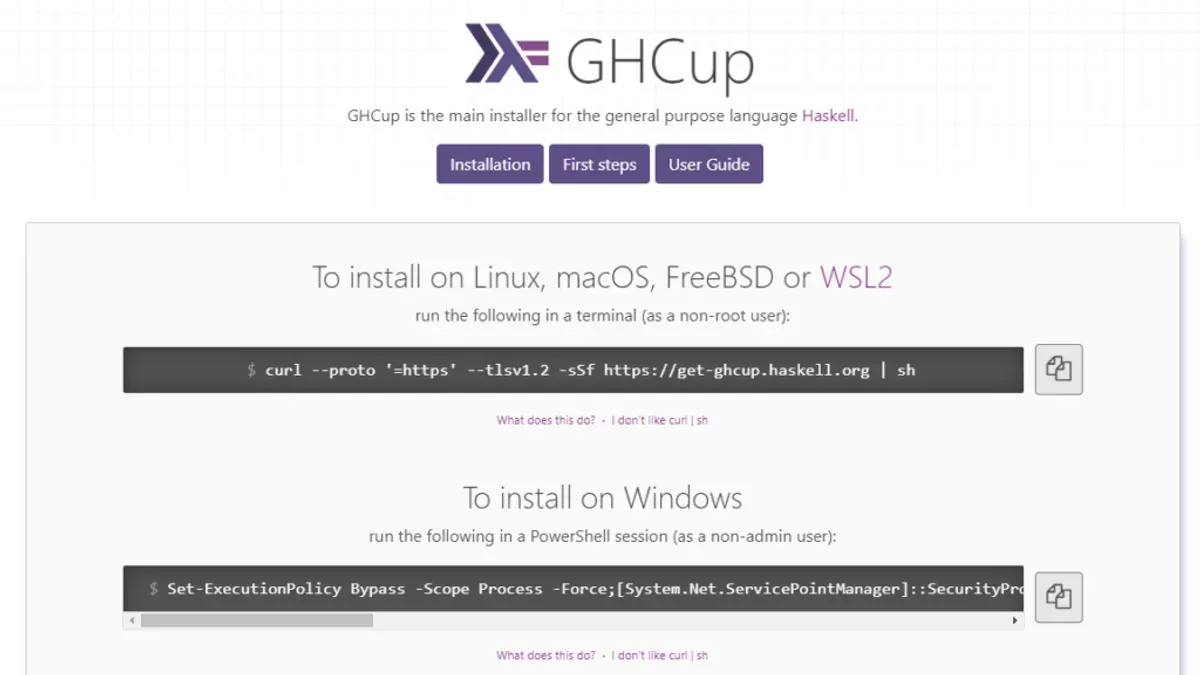
To install GHCup on your Mac, start by securely downloading the installer script. Open your Terminal and use either curl or wget to fetch the official GHCup script from its trusted source.
- Run
curl --proto '=https' --tlsv1.2 -sSf https://get-ghcup.haskell.org | shorwget -qO- https://get-ghcup.haskell.org | shin Terminal. You should see a progress bar followed by prompts. - When the installer prompts you to proceed, type
Yto confirm. It will download necessary components and offer to set up environment variables automatically. - Allow the installer to modify your shell profile (such as
~/.zshrcor~/.bash_profile) to add GHCup's bin directory to your PATH. This step ensures you can run GHCup and installed tools from any terminal session. - Restart your Terminal or run
source ~/.zshrc(or the relevant profile) to apply the changes immediately. - Verify the installation by typing
ghcup --version. A successful install will output the current GHCup version number, confirming that the tool is correctly set up.
If automatic environment setup is skipped or fails, you can manually add export PATH="$HOME/.ghcup/bin:$PATH" to your shell profile. This manual step is crucial for GHCup commands to be recognized.
Installing GHC and Cabal with GHCup and verifying setup
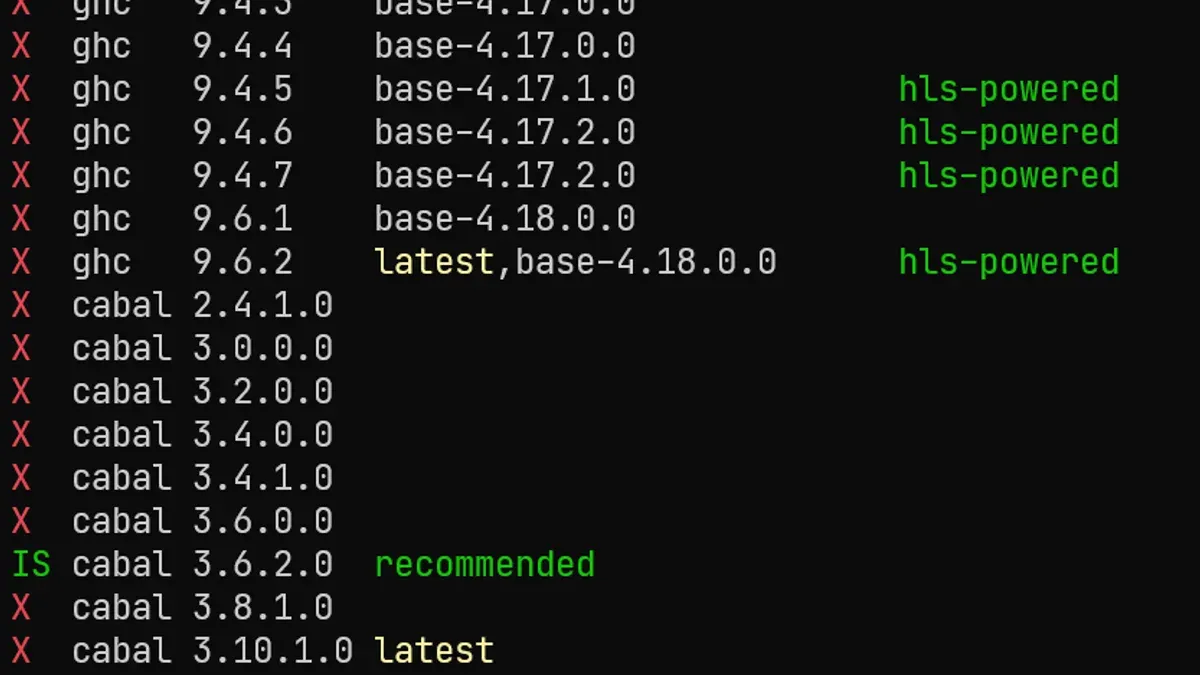
- Open your terminal and run ghcup install ghc to install the latest stable version of the Glasgow Haskell Compiler (GHC). You should see progress messages indicating the download and installation process. Once complete, GHC will be available on your system.
- Next, install Cabal, the Haskell package manager, by running ghcup install cabal. The terminal will confirm when installation finishes successfully.
- Verify that GHC is installed correctly by typing ghc --version. You should see output similar to The Glorious Glasgow Haskell Compilation System, version 9.4.4, confirming the installed version.
- Check Cabal’s installation by running cabal --version. The output typically starts with cabal-install version 3.8.1.0, verifying it is properly set up.
- To update GHC or switch to a different version, use GHCup commands like ghcup install ghc X.Y.Z for a specific version and ghcup set ghc X.Y.Z to make it the default. This flexibility allows you to manage multiple GHC versions easily.
Installation times vary depending on your internet speed and system, but the GHC binary typically downloads within a few minutes, with sizes around 100 MB. Cabal’s installation is generally faster and smaller. Confirming the versions is a quick step that ensures your Haskell environment is ready for development.
How to run and compile Haskell code on your Mac
Once GHCup has installed GHC and Cabal, you can start using Haskell immediately. The easiest way to experiment is with GHCi, the interactive Haskell environment.
- Open Terminal and type ghci, then press Enter. You should see a prompt like Prelude>, indicating GHCi is ready.
- Enter a simple expression like "Hello, world!" by typing putStrLn "Hello, world!" and pressing Enter. You should see the output Hello, world! printed below the prompt.
- To exit GHCi, type :quit or :q and press Enter.
To compile a basic Haskell program, follow these steps:
- Create a file named HelloWorld.hs with the following content:
main = putStrLn "Hello, world!" - In Terminal, navigate to the directory containing HelloWorld.hs.
- Compile the program by running ghc HelloWorld.hs. This creates an executable named HelloWorld (or HelloWorld.exe on Windows).
- Run the executable by typing ./HelloWorld. You should see Hello, world! printed.
For project management, use Cabal:
- Initialize a new project with cabal init and follow prompts to set project details.
- Build your project by running cabal build.
- Execute the compiled program with cabal run.
For debugging, GHCi supports the debug adapter protocol, which integrates with editors like VS Code. You can set breakpoints, step through code, and inspect variables interactively, making troubleshooting straightforward.
Troubleshooting common GHCup and Haskell installation issues on Mac
When installing or using GHCup on Mac, you may encounter environment variable issues, permission errors, network failures, or need to reinstall cleanly. Here are practical solutions to these common problems.
Fixing PATH and environment variable errors
- Open your shell configuration file (e.g., ~/.zshrc for zsh or ~/.bash_profile for bash).
- Ensure the line export PATH="$HOME/.ghcup/bin:$PATH" is present. This adds GHCup to your PATH.
- Save the file and run source ~/.zshrc or source ~/.bash_profile to reload.
- Verify by running ghcup --version; you should see the installed version number.
Resolving permission or shell compatibility issues
If you see "permission denied" errors when running GHCup commands, check that the ~/.ghcup/bin directory and its contents have execute permissions. Use chmod +x ~/.ghcup/bin/* to fix this.
Also confirm your shell is compatible; GHCup supports bash, zsh, and fish. If using an uncommon shell, configure environment variables manually or switch to a supported shell.
Dealing with network or download failures during install
Failures fetching GHC or Cabal often result from network issues or firewall restrictions. Retry the installation with a stable connection.
If problems persist, download the required binaries manually from the official Haskell website and place them in ~/.ghcup/bin following GHCup instructions.
When to uninstall and reinstall GHCup cleanly
If errors accumulate or installations conflict, a clean uninstall can help:
- Remove GHCup and all installed components by running ghcup nuke.
- Delete the ~/.ghcup directory manually if it remains.
- Remove the GHCup PATH export line from your shell config.
- Restart your terminal, then reinstall GHCup fresh following the official steps.
Following these steps will resolve most common issues encountered on Mac with GHCup and Haskell.
- How to Install Elixir on Mac: A Clear Step-by-Step Guide
- How to Install Git on Mac: Step-by-Step Guide for Every Setup
- How to Install Docker on Mac: A Clear Step-by-Step Guide
- How to Install OpenJDK on Mac: A Complete Step-by-Step Guide
Frequently asked questions
How to install haskell on windows?
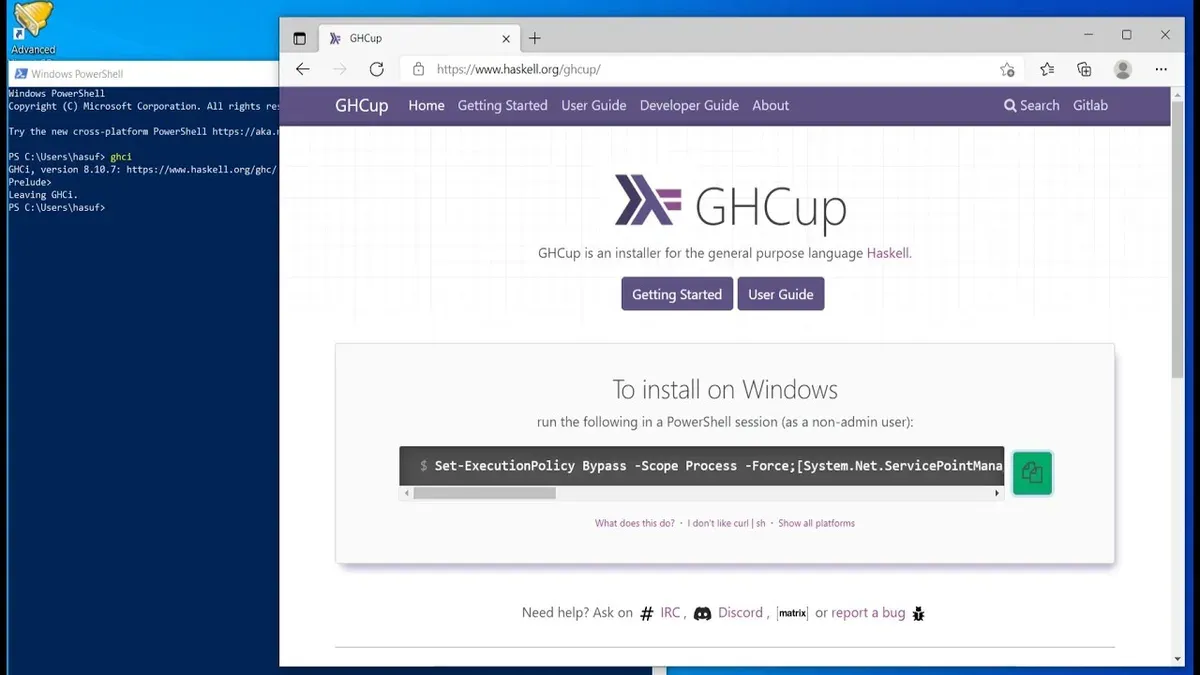
To install Haskell on Windows, download the Haskell Platform or use the GHCup installer for Windows from the official Haskell website. GHCup manages GHC (Glasgow Haskell Compiler) and Cabal installations, providing an easy way to keep your tools updated. After installation, add the relevant directories to your system PATH to use Haskell tools from the command prompt.
How to run haskell code?
You can run Haskell code using the GHCi interactive environment by typing ghci in your terminal or command prompt after installing GHC. Load your Haskell file with :load filename.hs or run expressions directly in the prompt. Alternatively, compile your code with GHC and execute the generated binary.
How to run haskell?
Running Haskell typically involves using GHCi, the interactive REPL for Haskell, where you can test code snippets quickly. For longer programs, compile your source files with the ghc command, then run the resulting executable. This approach suits development and production use.
How to install haskell?
Installing Haskell usually means installing GHC and Cabal, which you can do through tools like GHCup or the Haskell Platform. GHCup is recommended for its ease of managing different GHC versions and related tools. After installation, verify by running ghc --version and cabal --version.
How to compile haskell?
Compile Haskell code with the ghc filename.hs command in your terminal or command prompt. This creates an executable file you can run directly. Use flags like -o outputname to specify the output file name or -Wall to enable warnings during compilation.
What this guide does not cover and when to look elsewhere
This guide focuses on installing and using GHCup on Mac for basic Haskell development. It does not cover advanced Haskell tooling such as IDE integration (for example, Visual Studio Code extensions or IntelliJ plugins) or specialized utilities like Clash HDL. If you need to set up Haskell on Linux or Windows, or require a fully integrated development environment beyond command-line tools, consider platform-specific instructions or dedicated IDE setup guides.
For users interested in extensive Haskell project management or alternative build systems beyond Cabal, further resources will be necessary.
The most useful next step after completing your GHCup installation and verifying your setup is to write and compile a simple Haskell program. Create a file named Main.hs with a basic main = putStrLn "Hello, Haskell!", then compile it by running ghc Main.hs in your Terminal. Running the resulting executable confirms your environment works and builds confidence to explore more complex Haskell code.



