
How to Install Julia on Mac: A Step-by-Step Guide
Follow this step-by-step guide to download, install, and set up Julia on your Mac, including tips for version management and VSCode integration.
You’ve decided to start using Julia for programming or data science on your Mac, but the installation process seems unclear. Maybe you’ve encountered confusing instructions or compatibility questions.
This article covers how to install Julia on Mac with clear, step-by-step instructions. You’ll learn how to download and set up Julia properly on macOS, integrate it with Visual Studio Code for efficient coding, manage Julia versions, and install packages. Troubleshooting tips and initial usage advice will also help you get started smoothly on your Apple hardware.
Key takeaways
- Download the official Julia.dmg file from julialang.org for macOS compatibility.
- Drag the Julia app to the Applications folder to complete installation.
- Use the Julia extension in VSCode for seamless code editing and debugging.
- Manage Julia versions with tools like jill or manual installs.
- Install packages via Julia’s built-in package manager using the Pkg REPL mode.
Before you start: What you need to install Julia on Mac
To install Julia on your Mac, first verify that your macOS version is compatible. Julia supports macOS versions from 10.13 (High Sierra) onward, but newer versions improve stability and performance. You can check your system version by clicking the Apple menu and selecting "About This Mac."
Ensure you have at least 1 GB of free disk space available, as the Julia installer ranges around 150 to 200 MB, with additional space needed for packages and updates. A stable internet connection is necessary for downloading the installer and managing packages later.
Consider your Mac’s processor architecture. If you have an Intel-based Mac, download the Intel-specific Julia installer. For Apple Silicon Macs (M1, M2, or later), choose the ARM64 version optimized for better performance and energy efficiency. Using the correct version avoids compatibility issues and ensures smoother operation.
Optionally, you may want to install Visual Studio Code (VSCode) to enhance your Julia programming experience. VSCode supports Julia through extensions that provide code completion, debugging, and integrated REPL. Installing VSCode can streamline development but is not required to run Julia.
How to download Julia for Mac
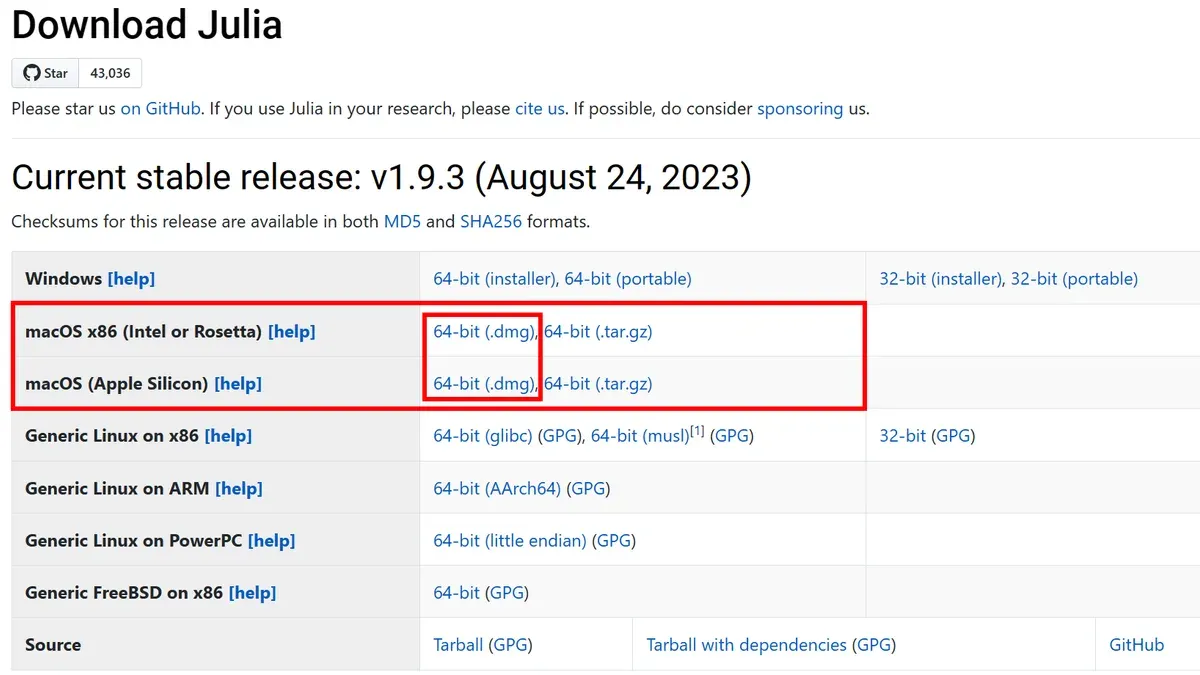
To download Julia safely, start by visiting the official Julia website at https://julialang.org/downloads/. This ensures you avoid unsafe or outdated versions from third-party sources.
- Open your web browser and go to the Julia downloads page. You should see a clear list of available installers for different platforms.
- Locate the Mac section on the downloads page. Here, you will find separate installers for Intel-based Macs and Apple Silicon (M1, M2) Macs. Identify your Mac’s processor type in the Apple menu under “About This Mac”.
- Click the download link that matches your Mac’s architecture. The download typically begins immediately, with file sizes around 200 MB leading to download times of a few minutes on typical broadband connections.
- After downloading, verify the integrity of the installer by checking the SHA256 checksum provided on the website. On your Mac, open Terminal and run shasum -a 256 followed by the path to the downloaded file. Compare the output with the checksum on the site to confirm the file is intact and authentic.
- Once verification is complete, you are ready to proceed to installation.
Following these steps helps ensure you have the correct and secure Julia installer for your Mac.
How to install Julia on macOS step-by-step
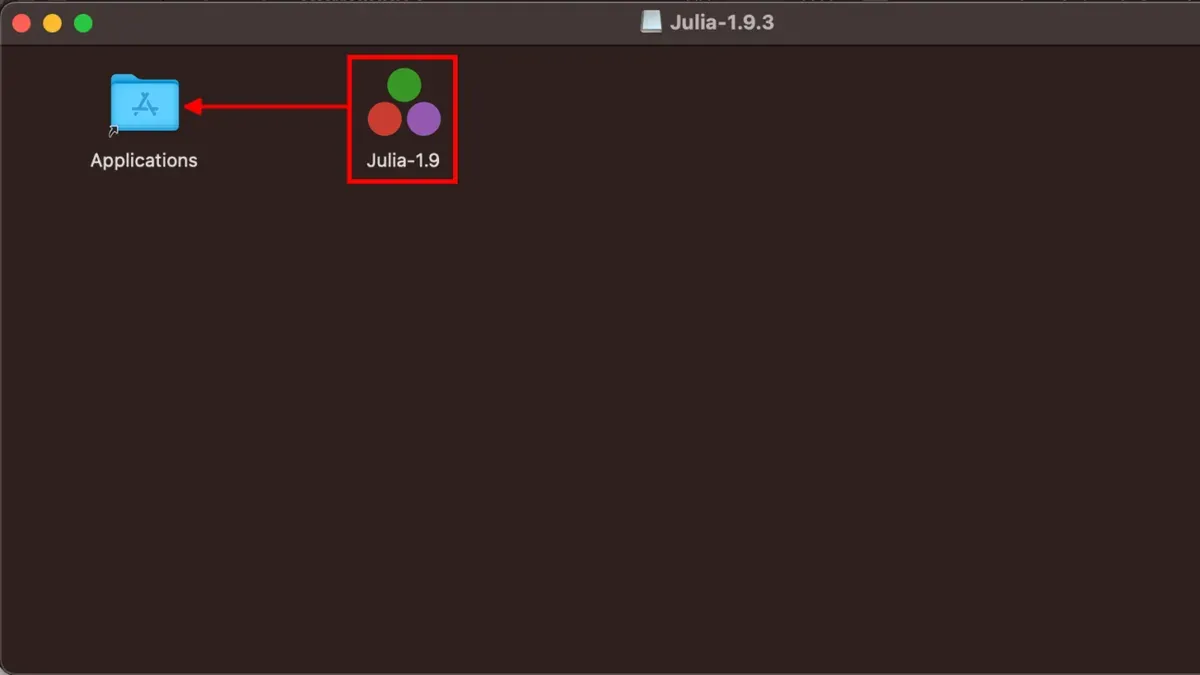
- Locate the downloaded .dmg file in your Downloads folder and double-click it to open the installer disk image. You should see a window with the Julia application icon and an Applications folder shortcut.
- Drag the Julia icon into the Applications folder shortcut. This copies Julia to your system's Applications directory, making it accessible like other installed apps.
- Close the installer window and eject the mounted disk image by right-clicking it on your desktop and selecting "Eject".
- Reload your shell configuration by running
source ~/.zshrcor restart your Terminal. Then typejuliaand press Enter. You should see the Julia REPL prompt displaying the installed version, confirming successful setup. - To uninstall Julia, simply drag the Julia application from the Applications folder to the Trash and empty it. Remove the PATH entry from your shell profile to clean up your environment variables.
- Upgrading Julia involves downloading the newer version's installer and repeating the installation steps. You can keep multiple Julia versions and switch between them by adjusting your PATH accordingly.
Open the Terminal app (found in Applications > Utilities). To run Julia from the command line, you need to add it to your PATH environment variable. Enter the following command to append Julia's binary path to your shell profile:
echo 'export PATH="/Applications/Julia-*/Contents/Resources/julia/bin:$PATH"' >> ~/.zshrc
Replace Julia-* with the exact folder name inside Applications if different.
Example terminal output after typing julia:
julia> versioninfo() Julia Version 1.9.0 Platform Info: OS: macOS CPU: Apple M1...
How to install Julia on VSCode
- Download and install Visual Studio Code from the official website code.visualstudio.com. After installation, launch VSCode; the welcome screen should appear.
- Open the Extensions view by clicking the square icon on the left sidebar or pressing Shift+Command+X. In the search bar, type Julia and locate the extension published by julialang. Click Install. Once installed, you will see the Julia extension listed in the Installed section.
- Configure VSCode to recognize your Julia executable. Open Settings via Code > Preferences > Settings or press Command+,. Search for Julia: Executable Path. Enter the full path to the Julia binary, typically
/Applications/Julia-.app/Contents/Resources/julia/bin/julia. Close settings after saving. - Open a new file and save it with a
.jlextension to enable Julia syntax highlighting. You can now write Julia code in the editor. - Run Julia code by pressing Command+Shift+P, typing Julia: Execute File, and pressing Enter. The integrated terminal will display the output. Alternatively, highlight code and press Shift+Enter to execute selected lines.
With the Julia extension active, you will see features like syntax highlighting, inline results, and access to the Julia REPL within VSCode. This setup streamlines coding and debugging Julia programs on your Mac.
How to update Julia on Mac
Keeping Julia up to date ensures access to the latest features and performance improvements without disrupting your workflow. Start by checking your current Julia version by opening the Julia REPL and typing versioninfo(). Compare this with the latest version listed on the official Julia downloads page.
- Download the newest Julia installer matching your Mac’s architecture from the official website. Avoid uninstalling the existing Julia immediately to prevent losing your settings and environments.
- Run the new installer and drag the updated Julia app to your Applications folder, replacing the old version or keeping both side-by-side if preferred for testing.
- If you maintain multiple Julia versions, consider using the juliaup tool for managing and switching versions seamlessly. This helps in isolating projects to specific Julia releases.
- Launch the updated Julia and activate your environment by navigating to your project directory and typing using Pkg; Pkg.activate(".") in the REPL.
- Update installed packages with Pkg.update() to ensure compatibility with the new Julia version. This command fetches the latest package versions and resolves dependencies.
- Confirm the update worked by checking the version again with versioninfo() and testing your core scripts or projects.
By following these steps, you maintain your Julia installation with minimal disruption, preserving your environments and packages while benefiting from improvements.
How to install packages in Julia
Julia uses its built-in package manager, Pkg, to add, update, and remove packages efficiently. Managing packages within Julia's environment system helps prevent version conflicts and keeps projects organized.
- Start Julia by opening the Julia REPL (Read-Eval-Print Loop) from your terminal or the Julia app.
- Enter package mode by typing ] (closing square bracket). The prompt will change to pkg>.
- To install a package, type add PackageName. For example, to install the popular DataFrames package, enter
add DataFrames. You should see output indicating that the package and its dependencies are being downloaded and installed. - After installation, press Backspace or Ctrl+C to exit package mode and return to the normal prompt.
- Test the installation by typing
using DataFramesat the Julia prompt. If no error appears, the package is ready to use. - To update installed packages, re-enter package mode and type
update. This updates all packages in the current environment. - To remove a package, use
rm PackageNamein package mode. For example,rm DataFramesremoves the package. - Manage project-specific packages by creating separate environments with
activate ProjectFolderin package mode. This keeps dependencies isolated and avoids conflicts across projects.
This workflow ensures you can add, update, and remove Julia packages reliably while maintaining clean project environments.
Troubleshooting common Julia installation issues on Mac
If you see the error "julia: command not found" in the terminal, it's likely a PATH issue. Ensure the Julia binary directory is added to your shell's PATH environment variable. For example, add export PATH="/Applications/Julia.app/Contents/Resources/julia/bin:$PATH" to your ~/.zshrc or ~/.bash_profile, then restart the terminal. When fixed, typing julia should start the Julia REPL.
Apple Silicon Macs sometimes show slower performance or compatibility warnings when running Julia. Installing the ARM-native version of Julia avoids this. If you must run the Intel version, Rosetta 2 is required. To check if Rosetta is installed, run softwareupdate --install-rosetta in the terminal. Missing Rosetta can cause Julia crashes or freezes.
Package installation errors like "could not resolve package" or network timeouts often stem from connectivity issues or firewall restrictions. Verify your internet connection and try running using Pkg; Pkg.update() to refresh package registries. Setting HTTP proxy environment variables may be necessary in corporate networks.
Conflicts can arise if other programming environments alter PATH or use different Julia versions. Ensure your PATH prioritizes the Julia you intend to use. Avoid installing multiple Julia versions in overlapping directories. Use Julia's built-in version management or tools like juliaup to handle multiple versions cleanly.
How to use Julia after installation: Getting started tips
Once Julia is installed, you can begin programming immediately using the Julia REPL (Read-Eval-Print Loop). To open the REPL, launch the Terminal app and type julia. You should see a prompt starting with julia>, where you can enter commands interactively.
- Type
println("Hello, Julia!")and press Enter. You should see the output: Hello, Julia! - Exit the REPL by typing
exit()or pressingCtrl+D.
For writing longer programs, create a text file with a .jl extension using any text editor. For example, save a file named example.jl containing:
println("This is a Julia script")
- Run the script in Terminal by typing
julia example.jl. The script’s output should display below.
Julia’s syntax is designed for clarity and speed, supporting variables, functions, control flow, and multiple dispatch. For example:
function greet(name) println("Hello, $name!") end greet("Mac User")
To deepen your understanding, visit the official Julia documentation at docs.julialang.org, which offers tutorials, examples, and comprehensive language references.
Additional learning resources include the free Julia Academy courses and community forums like Julia Discourse where you can ask questions and share knowledge.
- How to Install Haskell GHCup on Mac: A Clear Step-by-Step Guide
- How to Install Elixir on Mac: A Clear Step-by-Step Guide
- How to Install R and RStudio on Mac: A Clear Step-by-Step Guide
- How to Install MATLAB on Mac: A Clear Step-by-Step Guide
Frequently asked questions
How to install julia in windows?
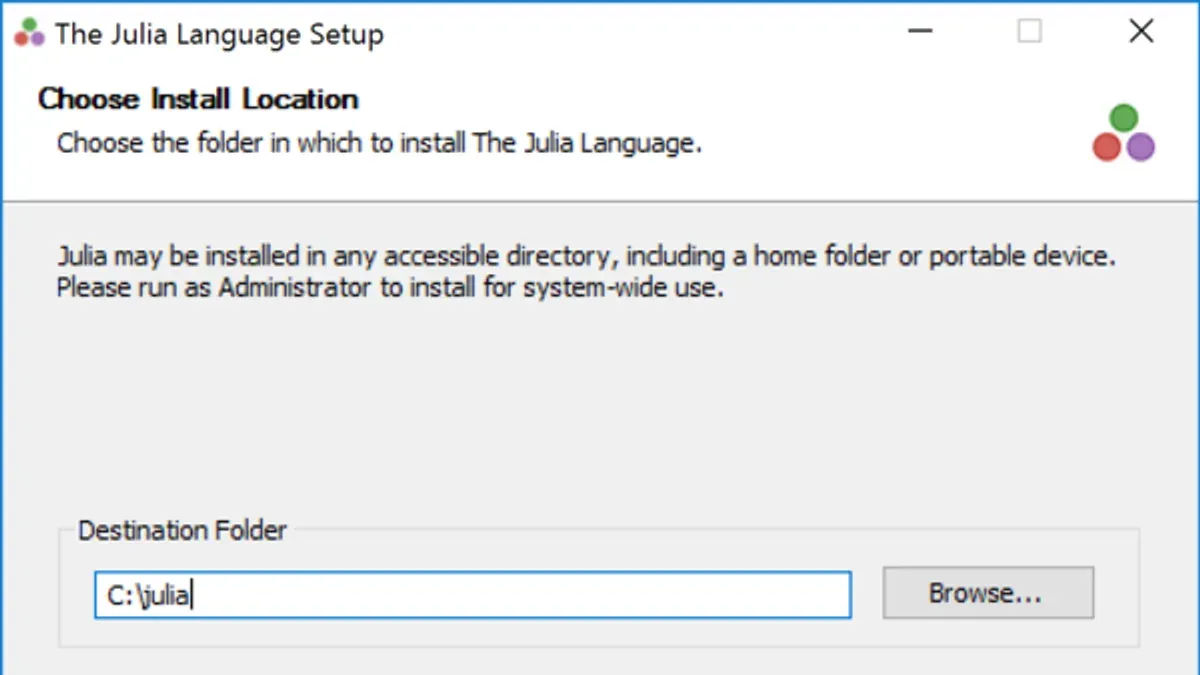
To install Julia on Windows, visit the official Julia website and download the Windows installer (.exe). Run the installer and follow the prompts, choosing the installation directory and adding Julia to your system PATH for easy command-line access. After installation, verify by opening Command Prompt and typing julia to launch the REPL.
How to watch julia?
If you are referring to watching Julia tutorials or presentations, popular platforms include YouTube, where many channels offer programming tutorials on Julia. Additionally, JuliaCon and other conference talks are often streamed or recorded online. For interactive learning, consider the JuliaLang official website's resources or community forums.
How to install julia on macbook?
Download the macOS disk image (.dmg) from the official Julia website. Open the downloaded file and drag the Julia app to your Applications folder. To run Julia from the terminal, add its path to your shell profile, typically by adding export PATH="/Applications/Julia-.app/Contents/Resources/julia/bin:$PATH" in your .zshrc or .bash_profile.
How to install duo on mac?
To install Duo Mobile on a Mac, visit the Mac App Store and search for "Duo Mobile." Click install and follow the instructions to set it up for two-factor authentication. If using Duo in a browser, ensure your Mac has the necessary browser extensions or plugins as directed by your organization's Duo setup guide.
How to install Julia in Windows?
This is the same as installing Julia on Windows. Download the Windows installer from the official Julia website, run the installer, and follow the setup wizard. Make sure to add Julia to your system PATH during installation for easier access through the command line.
What this guide does not cover
This guide does not cover advanced Julia configuration for specialized hardware setups such as GPUs, cluster computing, or server environments. If your use case involves high-performance computing or deployment on remote servers, consult the official Julia documentation and community resources tailored to those scenarios. Additionally, this guide focuses on standard macOS installations and may not address issues related to alternative Mac operating systems or beta versions.
To move forward effectively, the most useful next step is to open the Julia REPL and familiarize yourself with the package manager by typing ]. This will allow you to install essential packages, update existing ones, and explore Julia’s extensive library ecosystem, which forms the core of productive development and data science workflows on your Mac.



