
How to Install and Set Up Karabiner Elements on Mac: A Step-by-Step Guide
This guide shows how to install and set up Karabiner Elements on Mac for powerful keyboard customization and improved typing experience.
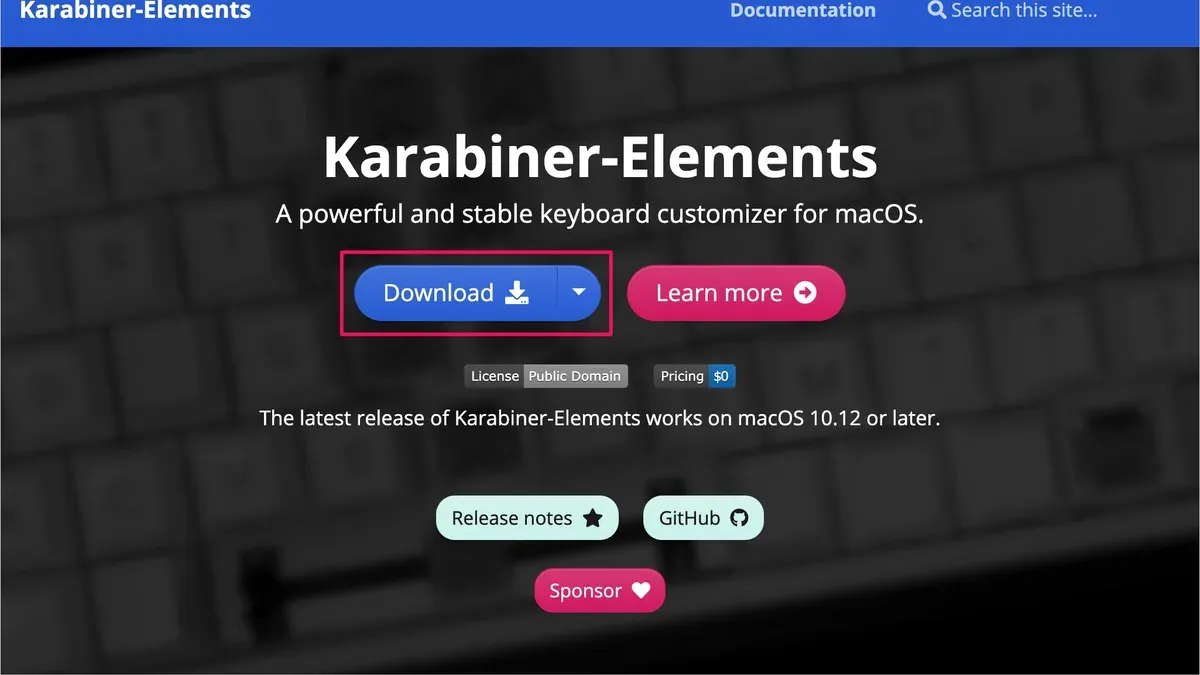
Many Mac users find themselves wanting to customize their keyboard beyond the default macOS options. Whether you want to remap keys, create custom shortcuts, or adjust behavior to suit your workflow, Karabiner Elements is a powerful tool to consider.
This article explains how to install Karabiner Elements on Mac, guiding you through each step from initial setup to advanced configuration. You’ll also learn about common issues and how to troubleshoot them, plus an alternative tool you might find useful.
Key takeaways
- Download Karabiner Elements from the official website to ensure safety and compatibility.
- Enable necessary permissions in System Preferences, especially under Security & Privacy > Input Monitoring.
- Use the Karabiner-Elements preferences pane to create or import complex key remapping profiles.
- Consider KeyMagic as an alternative or complement for more language-specific key customizations.
- Common installation issues often relate to macOS privacy settings or outdated software versions.
Before you start: What you need to install Karabiner Elements
Karabiner Elements is a powerful keyboard customizer for Mac that allows you to remap keys, create complex modifications, and enhance your typing experience. Before installing, ensure your Mac runs macOS 10.15 or later, as this is the minimum version supported according to the official Karabiner Elements documentation.
You must have administrator access on your Mac to install the software and grant it the necessary permissions, including input monitoring and accessibility permissions for full functionality.
An active internet connection is required to download the installation package and access the official documentation or updates.
Typical uses include swapping modifier keys (like Control and Command), disabling unwanted shortcuts, or creating application-specific key behaviors. Confirming these prerequisites will help you avoid common issues during installation and setup.
How to set up Karabiner Elements on Mac
- Visit the official Karabiner Elements GitHub repository at https://github.com/pqrs-org/Karabiner-Elements and download the latest stable version of the installer. You should see a.dmg file download to your Mac.
- Open the downloaded.dmg file and drag the Karabiner Elements app into your Applications folder. This ensures the app is installed properly and accessible.
- Launch Karabiner Elements from the Applications folder. On first launch, macOS will prompt you to grant essential permissions. In System Preferences, go to Security & Privacy > Privacy tab.
- Within the Privacy tab, select Accessibility and click the lock icon to make changes. Add Karabiner Elements to the list by clicking the + button if it is not already listed. This permits the app to control your keyboard.
- Next, select Input Monitoring in the Privacy tab and similarly allow Karabiner Elements access. You may need to restart the app or your Mac to apply changes. When permissions are properly set, Karabiner Elements will display a green status indicator on its main window.
- Once permissions are confirmed, Karabiner Elements will automatically enable basic key remapping. You can verify this by opening the Simple Modifications tab where default remaps are listed. Any changes you make here will take effect immediately.
If permission dialogs do not appear or permissions cannot be granted, check that your macOS user account has administrator rights and that you restart the system after granting permissions. Successful setup shows the app running without error messages and allows you to customize keys with immediate effect.
How to use Karabiner Elements Mac for advanced key remapping
Karabiner Elements offers powerful options for complex key remapping beyond basic settings. You can navigate to the Complex Modifications tab within the app to add or manage advanced rules. This section allows you to import pre-made modification rules from the Karabiner-Elements GitHub repository or create your own.
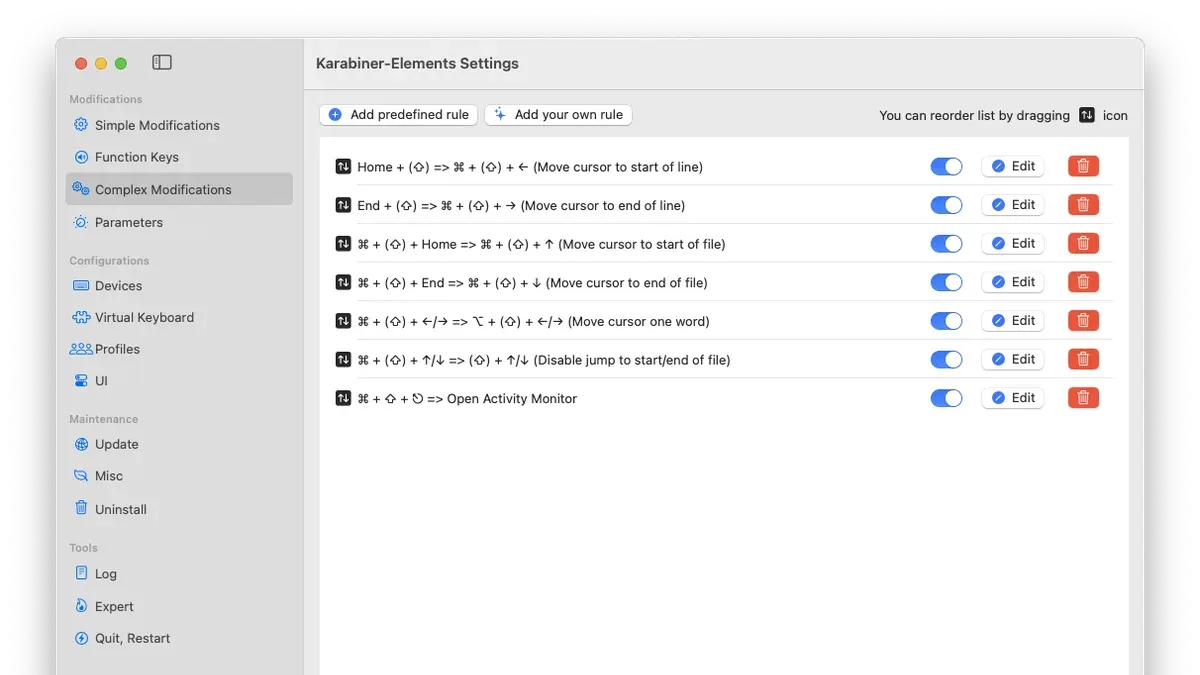
- Open Karabiner Elements and select the Complex Modifications tab. You should see options to add rules and import from the official repository.
- Click Add rule and then Import more rules from the Internet. This opens a browser window displaying popular custom configurations. When you add a rule, it appears in your active list.
- For personalized setups, edit the configuration file located at ~/.config/karabiner/karabiner.json. This JSON file defines your key mappings and complex behaviors.
- Another example is launching an app by remapping a key: you can define a "to_if_alone" action that triggers an application launch command.
Example: To remap Caps Lock to Escape, add a rule with the following JSON snippet under "rules":
{
"description": "Change caps_lock to escape",
"manipulators": [{
"from": {"key_code": "caps_lock"},
"to": [{"key_code": "escape"}],
"type": "basic"
}]
}
After saving changes and reloading Karabiner Elements, pressing Caps Lock behaves like Escape.
These configurations allow granular control over your keyboard, such as swapping keys, creating app shortcuts, or disabling problematic keys. The official repository at KE-complex_modifications contains many user-contributed rules you can test and customize.
How to install KeyMagic on Mac as an alternative or complement
KeyMagic is a keyboard mapping software that offers multilingual input and key remapping features, often favored for its support of complex scripts and languages. Unlike Karabiner Elements, which excels at low-level key remapping and macOS-specific customization, KeyMagic focuses more on input method flexibility and character mapping.
Here is how you can install KeyMagic on your Mac:
- Visit the official KeyMagic website or its GitHub repository to download the latest Mac installer; you should see a file named similar to KeyMagic-Setup.dmg.
- Open the downloaded.dmg file, then drag the KeyMagic app icon into your Applications folder; this confirms the installation process has copied the app correctly.
- Launch KeyMagic from Applications; the first run may prompt you to allow input monitoring or accessibility permissions—go to System Preferences > Security & Privacy > Privacy tab to enable these for KeyMagic.
- Once permissions are granted, KeyMagic will open its interface, letting you configure language inputs or remap keys; you should see your selected keyboard layouts active.
Use KeyMagic when you need extensive multilingual input or character remapping beyond standard key remapping, which Karabiner Elements may not handle as intuitively. Some users run both applications simultaneously to combine Karabiner Elements’ robust hardware-level remapping with KeyMagic’s language input strengths.
| Feature | Karabiner Elements | KeyMagic |
|---|---|---|
| Primary function | Hardware key remapping and customization | Multilingual input and character remapping |
| Best for | macOS-specific key behavior changes, complex modifications | Typing in multiple languages, input method flexibility |
| Configuration complexity | Advanced JSON config files for complex changes | GUI-based layout and mapping customization |
| Permission requirements | Accessibility and input monitoring | Accessibility and input monitoring |
| Use both together? | Yes, for combining low-level remapping with language input | Yes, complements Karabiner Elements well |
Troubleshooting common Karabiner Elements installation and usage issues
If Karabiner Elements does not appear in System Preferences under Accessibility or Input Monitoring, it usually means permissions were not granted correctly. To fix this, open System Preferences > Security & Privacy > Privacy, then select both Accessibility and Input Monitoring. Ensure the checkbox next to Karabiner Elements is checked. If it is grayed out, click the lock icon at the bottom left to make changes and enter your administrator password. After enabling permissions, restart your Mac or log out and back in; Karabiner Elements should then be fully functional.
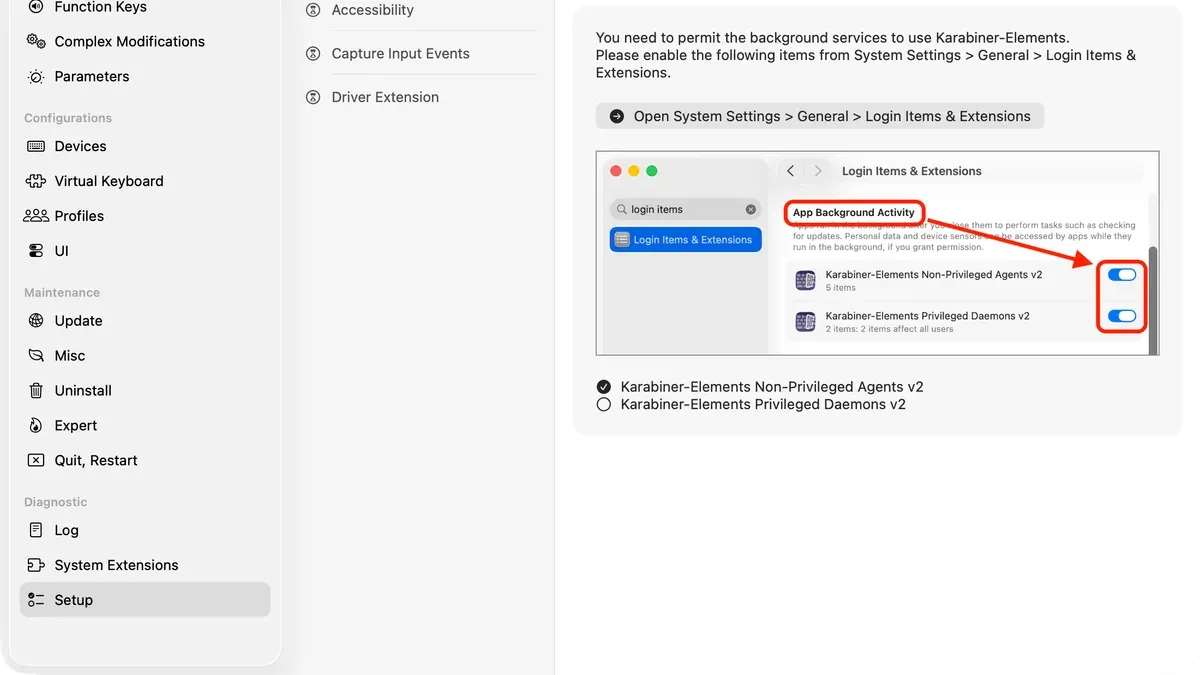
Permission errors often show messages like "Karabiner-Elements cannot control the computer because the Accessibility permission is not granted". Running the command sudo kextutil /Library/Extensions/org.pqrs.karabiner.kext in Terminal can also help reload kernel extensions if macOS security prompts block parts of the software.
To uninstall Karabiner Elements properly, open the app, click Misc tab, then choose Uninstall Karabiner-Elements. Confirm the action; the app will remove its components and prompt you to reboot. Verify uninstallation by checking System Preferences to ensure no Karabiner permissions remain.
A common misconception is that Karabiner Elements works on Windows. It is macOS-only. Windows users need to explore separate tools like AutoHotkey. Mentioning Windows-related Karabiner queries can cause confusion; clarify that Karabiner Elements does not support Windows and that any Windows keyboard remapping requires different software.
- How to Install and Set Up Rectangle on Mac: A Step-by-Step Guide
- How to Install and Use Magnet on Mac: A Complete Step-by-Step Guide
- How to Install AppCleaner on Mac: A Step-by-Step Guide
- How to Install The Unarchiver on Mac: A Clear Step-by-Step Guide
Frequently asked questions
How to install keymagic in mac?
To install KeyMagic on your Mac, first download the latest macOS version from the official KeyMagic website. Open the downloaded.dmg file and drag the KeyMagic app into your Applications folder. After that, launch KeyMagic and follow the on-screen prompts to grant necessary permissions in System Preferences under Security & Privacy, particularly for input monitoring and accessibility.
How to play maplestory on mac?
MapleStory does not have a native macOS version, so to play it on a Mac, you typically need to use a Windows emulator or virtualization software such as Parallels Desktop or Boot Camp to run Windows. Alternatively, some players try Wine or CrossOver, but these may result in performance or compatibility issues. Installing Windows and the game inside that environment is the most reliable approach.
How to play Maplestory on Mac using Karabiner Elements?
Karabiner Elements can help remap keys to improve your keyboard experience while playing MapleStory on Mac, especially if using virtualization or emulation. However, Karabiner Elements does not enable the game to run natively; it only customizes key behavior on macOS. Use it to create convenient key mappings or macros but combine it with Windows virtualization to actually play the game.
Is there Karabiner Elements for Windows or alternatives?
Karabiner Elements is exclusive to macOS and does not have a Windows version. For Windows, alternatives like AutoHotkey or SharpKeys provide similar functionality for remapping keys and customizing keyboard behavior. Each tool varies in complexity and features, so choose one that fits your needs and comfort with scripting or configuration.
How to uninstall Karabiner Elements on Mac?
To uninstall Karabiner Elements, first open the app and use the Uninstall option in the Karabiner Elements menu if available. If not, quit the app, then delete Karabiner Elements from the Applications folder. Next, remove the configuration folder located at ~/.config/karabiner and any related system extensions via System Preferences > Security & Privacy > Privacy. Restart your Mac to complete the removal.
What this guide does not cover and who should look elsewhere
Karabiner Elements is designed exclusively for macOS and does not support Windows. If you need similar keyboard customization on Windows, you will need to explore alternative software like AutoHotkey or KeyTweak. This guide focuses on installation and basic to intermediate configuration steps and does not delve into creating complex custom scripts or resolving hardware-specific key issues that may require deeper technical knowledge or developer expertise.
For the most effective use of Karabiner Elements, start by exploring the "Simple Modifications" tab in the app's interface to remap common keys quickly. This is often the step users overlook, but it delivers immediate, practical improvements to your keyboard experience without needing to write any JSON configuration files.



