
How to Install and Sync MEGA on Your Mac: A Clear Step-by-Step Guide
Discover how to install Mega Sync on your Mac and effortlessly synchronize your files across devices with our clear step-by-step guide.
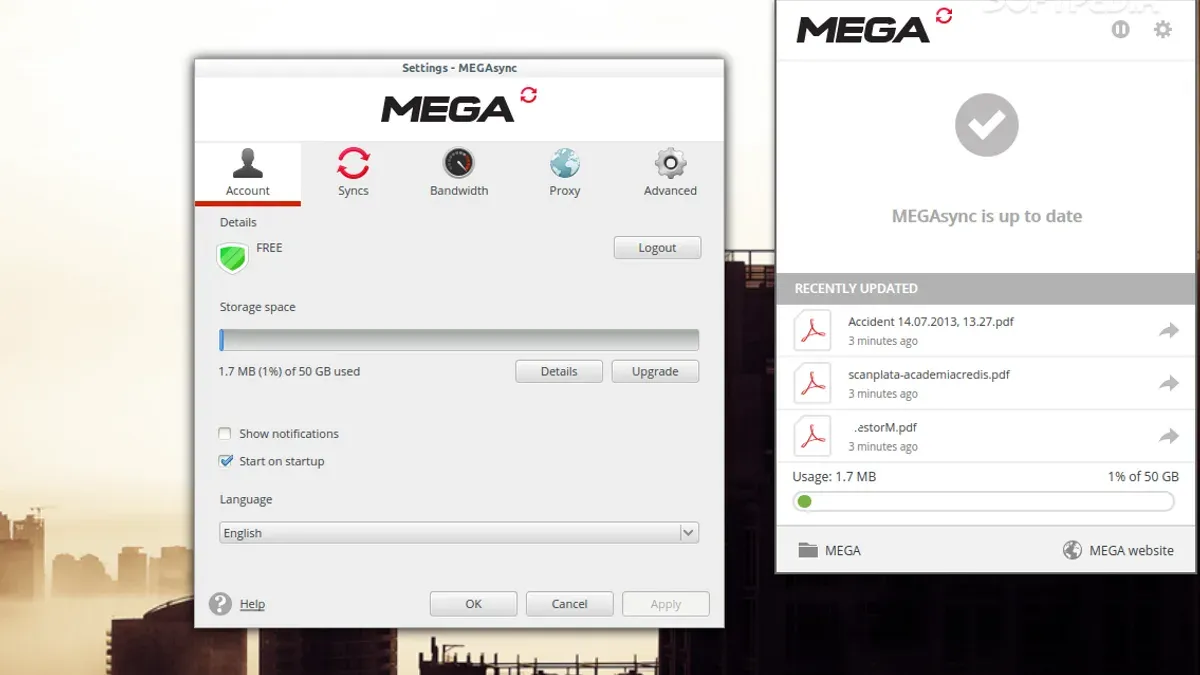
You have important files scattered across multiple Mac computers and want a seamless way to keep them updated without manual transfers. Setting up MEGA Sync can help you automatically synchronize your files, ensuring consistency and easy access.
This article covers how to install Mega sync on Mac and guides you through its key features, including syncing across devices, and how it compares to traditional backup solutions. You'll get clear, step-by-step instructions tailored for Mac users, plus tips on optimizing your setup and troubleshooting common issues.
Key takeaways
- MEGA Sync allows automatic file synchronization between your Mac and MEGA cloud storage.
- Installation requires downloading the official MEGA client and granting necessary macOS permissions.
- You can sync specific folders or your entire MEGA cloud drive across multiple Macs.
- MEGA Sync differs from backup solutions by focusing on real-time syncing rather than versioned backups.
- Common issues include permission settings and network interruptions, which have straightforward fixes.
Before you start: What you need for MEGA Sync on Mac
To ensure a smooth installation and syncing experience with MEGA Sync on your Mac, prepare the following prerequisites.
- Check your internet connection. A stable, high-speed internet connection is essential for uploading and downloading files reliably. When connected properly, you should see consistent network activity during sync.
- Verify sufficient disk space. MEGA Sync stores files locally as well as in the cloud, so ensure your Mac has enough free disk space for the files you plan to sync. You can check available space via Apple menu > About This Mac > Storage.
- Create a MEGA account. You need either a free or paid MEGA account to use MEGA Sync. Free accounts provide a limited storage quota, while paid plans offer expanded storage and bandwidth. You can sign up at https://mega.nz.
- Confirm Mac system compatibility. MEGA Sync supports macOS versions 10.13 (High Sierra) and later. Ensure your Mac is running a compatible version by checking Apple menu > About This Mac > Overview.
- Understand MEGA Sync versus cloud backup. MEGA Sync continuously synchronizes selected folders between your Mac and the cloud, whereas traditional cloud backup solutions typically create scheduled backups without real-time sync. This means changes you make locally or remotely update across devices promptly with MEGA Sync.
What is MEGA Sync and how it works on Mac
MEGA Sync is a client application designed to synchronize files between your Mac and MEGA’s cloud storage. Unlike traditional backup solutions that create static copies of files at specific times, MEGA Sync continuously updates your files in real time. This means changes you make on one device are instantly reflected across all devices linked to your MEGA account.
One of the key benefits of MEGA Sync is its ability to sync multiple Mac computers or other devices seamlessly, allowing you to access the latest versions of your files wherever you are. The software uses end-to-end encryption to protect your data, ensuring that only you can access your files, not even MEGA’s servers.
| Feature | MEGA Sync | MEGA Backup |
|---|---|---|
| Primary Function | Real-time file synchronization across devices | Scheduled backups of selected folders |
| File Updates | Automatic and immediate | Periodic, manual or scheduled |
| Multi-Device Sync | Yes, keeps all devices up to date | No, focused on backup only |
| Use Case | Continuous access and editing across Macs and devices | Archiving and restoring files after data loss |
| Security | End-to-end encryption | End-to-end encryption |
Choosing between MEGA Sync and MEGA Backup depends on your needs. If you require constant file access and updates across devices, MEGA Sync is appropriate. If your priority is creating periodic backups for recovery, MEGA Backup serves that purpose better.
How to install MEGA Sync on your Mac
- Go to the official MEGA website: Open your preferred browser and visit https://mega.io/sync. You should see options to download MEGA Sync for various platforms.
- Select the Mac version and download the installer: Click on the Mac icon to download the MEGA Sync installer package. A.dmg file will be saved to your Downloads folder or the location set by your browser.
- Verify the download integrity: Before opening, check the file size matches the website’s stated size or use any provided checksum to ensure the file is complete and untampered.
- Open the installer package: Double-click the downloaded.dmg file. This will mount the installer volume and open a new window showing the MEGA Sync app icon.
- Drag MEGA Sync to the Applications folder: In the installer window, drag the MEGA Sync icon onto the Applications folder shortcut. This copies the app to your Mac.
- Launch MEGA Sync: Open your Applications folder and double-click MEGA Sync. The first launch may prompt a security warning; click Open to proceed.
- Grant necessary permissions: MEGA Sync will request access to files and folders on your Mac. In System Preferences under Security & Privacy > Privacy, allow MEGA Sync permissions for Full Disk Access or specific directories as prompted to enable seamless sync.
- Sign in or create a MEGA account: The app will prompt you to enter your MEGA credentials. If you don’t have an account, use the Create account option to register. Upon successful login, MEGA Sync will be ready to configure your sync folders.
Each step usually presents clear on-screen instructions or dialogs. Missing permissions can cause sync failures, so it’s essential to follow the permission prompts carefully.
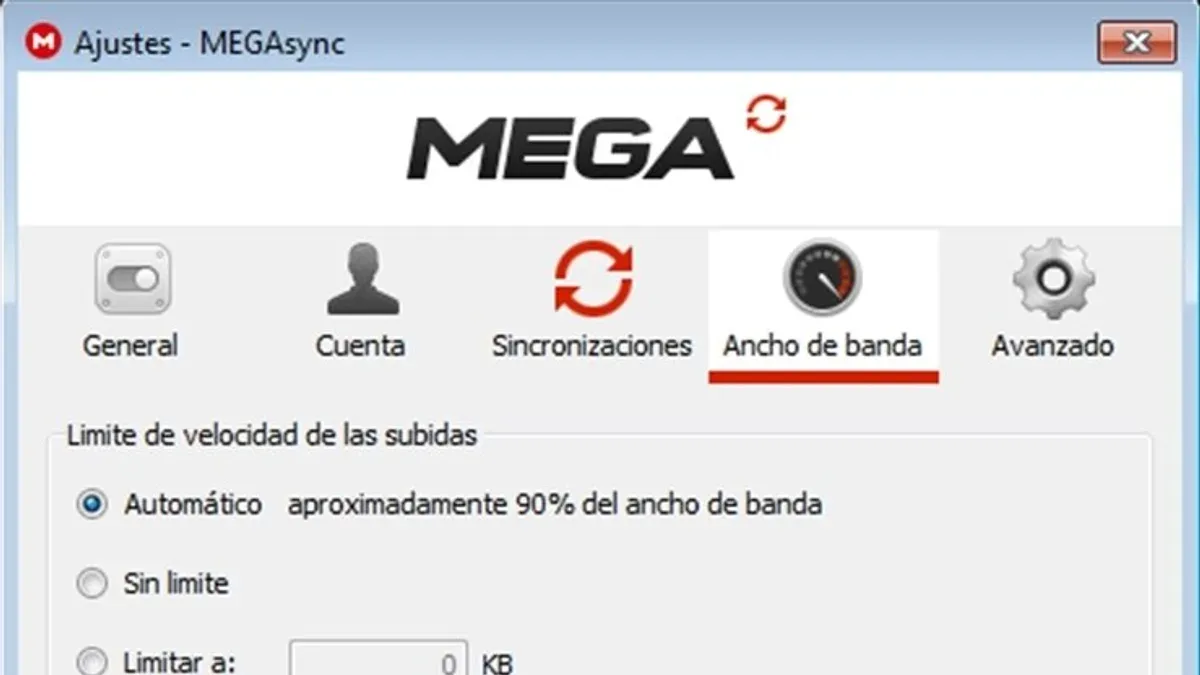
How to sync Mac computers using MEGA Sync
- On your first Mac, open MEGA Sync and select or create the folder you want to sync. This folder will automatically start syncing and appear in your MEGA cloud storage. You should see the sync icon next to the folder indicating active syncing.
- On your additional Mac, download and install MEGA Sync if not already done. Sign in using the same MEGA account credentials. After signing in, the cloud folders, including your synced folder, will be accessible.
- Choose the synced folder from your cloud storage to sync locally on the second Mac. This folder will download to your device, and you will see files appear within minutes depending on size and network speed.
- Manage sync conflicts by reviewing the MEGA Sync notifications. If two files with the same name are edited on different Macs before syncing, MEGA creates copies with version tags to prevent data loss. You can then manually merge or delete duplicates.
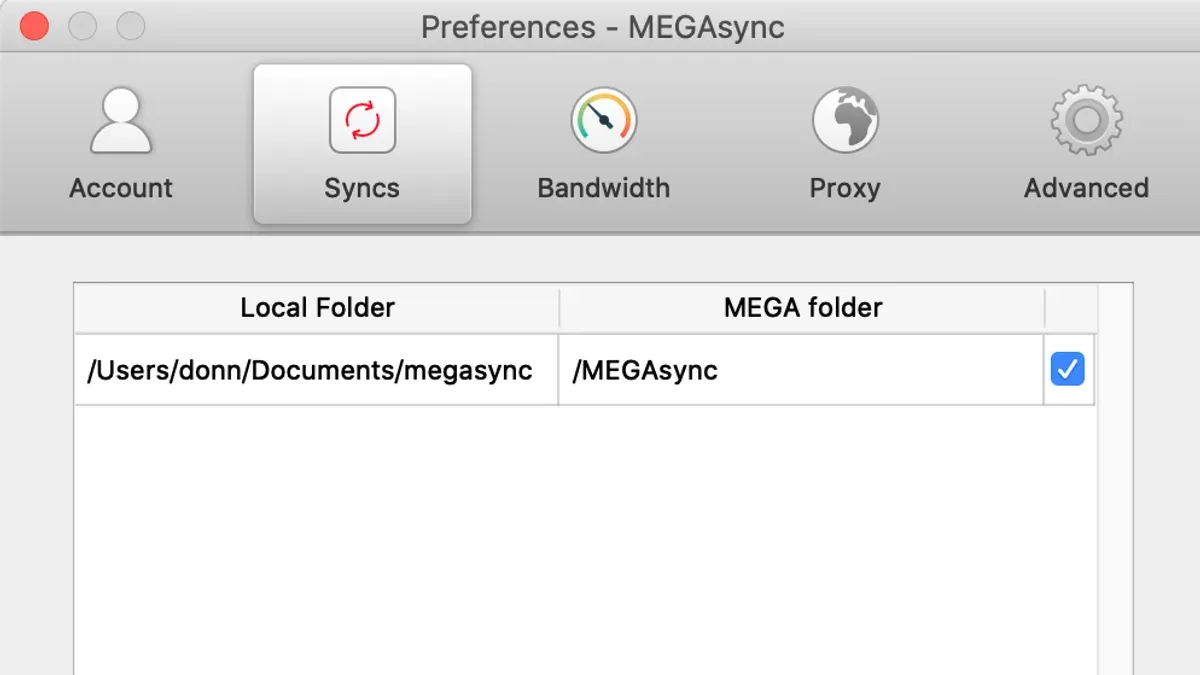
- Use Selective Sync in MEGA Sync’s preferences to control which folders sync on each Mac. This helps save disk space by syncing only needed folders on each device. Select folders by checking or unchecking them under the sync settings.
For example, syncing a 1 GB folder between two Macs over a typical home network may take a few minutes initially. Afterwards, changes are synced in near real-time. Conflicts occurred when files with identical names were modified offline on both Macs; MEGA's versioning preserved both copies, allowing users to resolve differences safely.
Troubleshooting common MEGA Sync issues on Mac
If MEGA Sync won’t start or crashes at launch, first quit the app completely via the Activity Monitor. Relaunch it and if the problem persists, reinstall MEGA Sync after removing its preference files located in ~/Library/Preferences/. Common error messages like “Failed to start sync engine” often indicate corrupted settings.
When syncing stalls or gets stuck on certain files, check for filenames with special characters or very long paths, which MEGA Sync may reject. Temporarily move problematic files out of the sync folder and restart syncing. Also, ensure that your disk is not full or write-protected.
Permission errors can block file access. Verify that MEGA Sync has full disk access under System Preferences > Security & Privacy > Privacy > Full Disk Access. Granting this permission usually resolves “Permission denied” errors.
Slow upload or download speeds might be caused by network limits or firewall settings. Confirm your router does not throttle MEGA ports and that your Mac’s firewall allows MEGA Sync connections. Using a wired Ethernet connection often improves speed and stability.
For login or authentication failures, double-check your MEGA account credentials and reset your password if needed. Two-factor authentication issues may require re-linking your device or generating an app-specific password.
- Quit MEGA Sync from the Activity Monitor to stop processes; relaunch the app and verify it opens without errors.
- Check and rename files with special characters or extremely long names; move them out of the sync folder and restart syncing; the sync should progress past the stuck files.
- Open System Preferences > Security & Privacy > Privacy > Full Disk Access; add MEGA Sync to the list; upon reopening MEGA Sync, permission errors should clear.
- Test your network by switching from Wi-Fi to Ethernet; verify firewall settings allow MEGA Sync; observe improved upload/download speeds.
- Log out from MEGA Sync and sign back in with correct credentials; if two-factor authentication is enabled, follow MEGA’s instructions to authenticate your device; successful login confirms resolution.
- How to Install OneDrive on Mac: A Step-by-Step Guide
- How to Install Dropbox on Mac: A Clear Step-by-Step Guide
- How to Install Google Drive for Desktop on Mac: A Step-by-Step Guide
- How to Install Microsoft Office on Mac: A Clear Step-by-Step Guide
Frequently asked questions
What is MEGA Sync?
MEGA Sync is a desktop application designed to synchronize files between your Mac and the MEGA cloud storage service. It automatically uploads and downloads files to keep your selected folders updated across devices, offering end-to-end encryption for security. This ensures your data remains private while being accessible wherever you use MEGA Sync.
How do I sync Mac computers with MEGA?
To sync multiple Mac computers using MEGA, install the MEGA Sync app on each device and sign in with the same MEGA account. Select the folders you want to sync on each Mac through the app’s sync settings. Changes made in these folders on one Mac will automatically update on the others via the cloud.
Can I download MEGA Sync for Windows and Mac?
Yes, MEGA Sync is available for both Windows and Mac operating systems. You can download the appropriate version from MEGA’s official website. This cross-platform availability allows you to sync files seamlessly between different types of devices.
What is the difference between MEGA Sync and MEGA Backup?
MEGA Sync focuses on continuous synchronization of selected folders between your device and the cloud, updating files in real-time across devices. MEGA Backup, on the other hand, is typically a one-way process to copy files from your device to the cloud for protection. Sync keeps folders mirrored, while backup preserves copies without automatic two-way updating.
What this guide does not cover and who should look elsewhere
This guide focuses on basic installation and syncing features of MEGA Sync on Mac. It does not cover advanced MEGA functionalities such as encrypted chat, business account configurations, or automated scripting options. Users needing complex team collaboration tools or enterprise-level security settings should consult MEGA’s official business documentation or seek specialized tutorials.
For those managing sensitive data requiring compliance with specific regulations, or who want to integrate MEGA Sync into automated backup workflows, additional resources and technical expertise will be necessary.
The single most useful next step is to verify your MEGA Sync settings by accessing the app's Preferences menu. Check the Syncs tab to confirm your folders are correctly linked and that the upload and download bandwidth limits suit your network. This ensures efficient syncing without unexpected slowdowns or conflicts, especially when syncing across multiple Mac devices.



