
How to Install MySQL on Mac: A Step-by-Step Guide
This guide explains how to install MySQL on Mac efficiently with clear steps for different hardware and installation methods.
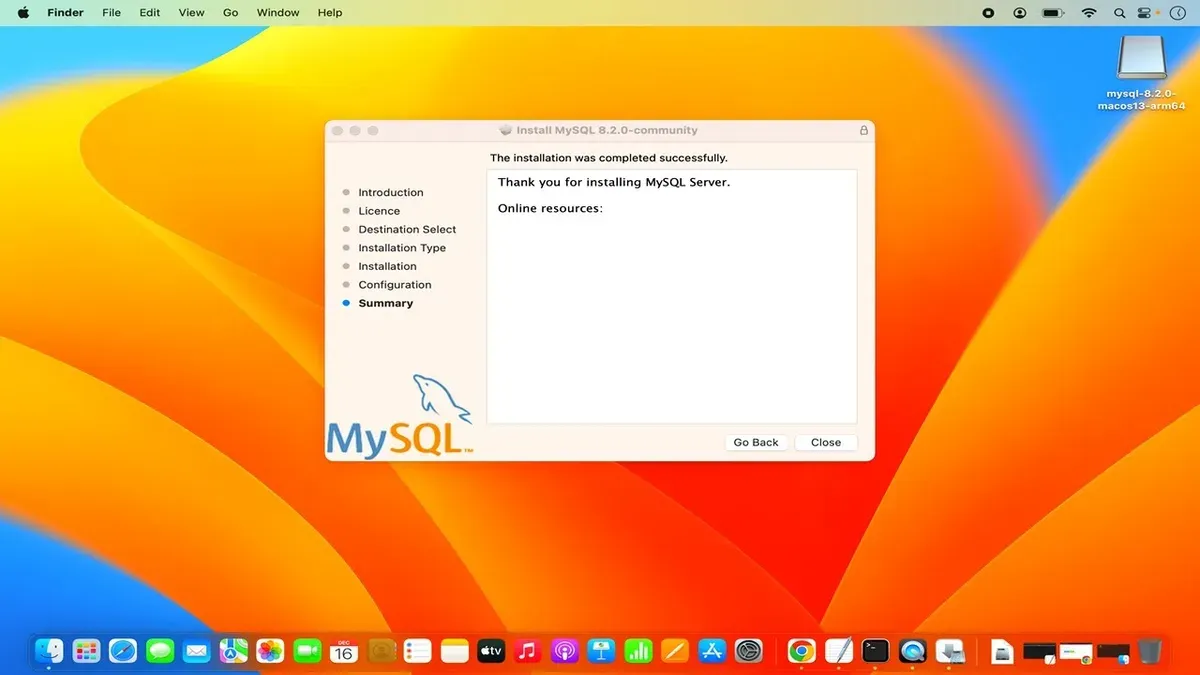
This guide explains how to install MySQL on Mac efficiently, covering multiple methods suited to different hardware and user preferences.
Installing MySQL on Mac requires deciding between package managers like Homebrew and the official MySQL installer. Each method has trade-offs regarding ease of setup, control, and compatibility with Intel or Apple Silicon (M1) chips. This article addresses installation on MacBook, MacBook Pro, and M1 models, providing step-by-step instructions tailored to the system’s architecture.
Clear advice on setup, configuration, and troubleshooting common problems ensures MySQL runs smoothly after installation. Users will learn exact terminal commands, key system preferences to check, and how to verify a successful installation.
Before you start: What is needed to install MySQL on Mac
Installing MySQL on a Mac requires consideration of hardware compatibility, necessary system tools, and user privileges. Mac systems run on either Intel processors or Apple Silicon (M1/M2), and installation methods can differ between these architectures. Knowing which processor the Mac uses helps select the appropriate MySQL version and installation approach.
System tools essential for installation include Terminal for command-line operations. Homebrew, a package manager for macOS, is optional but widely recommended for simplifying installation and dependency management. Administrative privileges are mandatory to install MySQL since it modifies system files and manages services.
MySQL Community Server is the free, open-source version suitable for most users, while commercial or custom distributions may offer additional features or support. Selecting the right distribution depends on user needs like licensing, support, and feature sets.
Choosing the installation method depends on hardware and user preferences: Homebrew offers a streamlined process for Intel and Apple Silicon Macs; the official MySQL installer provides a graphical interface but may have limited Apple Silicon support; manual installation offers full control but requires more steps.
| Hardware | Homebrew Installation | Official Installer | Manual Installation |
|---|---|---|---|
| Intel Macs | Fully supported, easy | Fully supported, GUI | Supported, requires manual steps |
| Apple Silicon (M1/M2) | Supported with native builds | Limited support, may require Rosetta 2 | Supported, complex setup |
How to install MySQL on Mac using Homebrew
- Check if Homebrew is installed by running
brew --version. If not installed, install it using the command:/bin/bash -c "$(curl -fsSL https://raw.githubusercontent.com/Homebrew/install/HEAD/install.sh)". Successful installation shows brew version output. - Install MySQL by running
brew install mysql. The terminal should display download progress and installation completion messages. - Start the MySQL service with
brew services start mysql. Confirmation will show Service `mysql` started in the terminal. - To stop MySQL, use
brew services stop mysql. The terminal will confirm Service `mysql` stopped. - Check MySQL service status anytime with
brew services list. The output lists all services with their current status, such as started or stopped. - Run
mysql_secure_installationto secure the MySQL installation. Follow prompts to set the root password, remove anonymous users, disable remote root login, and remove test databases. A successful run ends with All done! - If the
mysqlcommand is not found, add Homebrew’s bin directory to the PATH environment variable by addingexport PATH="/usr/local/bin:$PATH"(Intel Macs) orexport PATH="/opt/homebrew/bin:$PATH"(Apple Silicon) to the shell profile file like~/.zshrcor~/.bash_profile. Reload the profile or restart the terminal for changes to take effect.
Tip: Use brew services restart mysql to apply configuration changes without rebooting the system.
How to install MySQL on Mac using the official MySQL installer
- Visit the official MySQL website at dev.mysql.com and navigate to the Downloads section, then select the macOS DMG archive for the MySQL Community Server version.
- Download the DMG file compatible with the Mac’s architecture (Intel or Apple Silicon). Once downloaded, open the DMG to mount the installer volume.
- Run the MySQL installer package (.pkg). The installer window will appear with a Welcome screen; click Continue to proceed.
- Follow the on-screen instructions through the installation steps: read and agree to the license, choose the installation destination, and proceed with the standard installation.
- When prompted, configure the initial MySQL root password. This step is critical; enter a strong password and confirm it. The installer also allows configuring MySQL to start automatically at system startup and setting a port (default 3306).
- Complete the installation; the installer will show a summary screen. After finishing, the MySQL preference pane will be installed in System Preferences (or System Settings on newer macOS versions).
- Open System Preferences and locate the MySQL pane. Use the Start/Stop buttons here to manually control the MySQL server. The status indicator shows whether MySQL is running.
- Optionally, verify the installation by opening Terminal and running mysql -u root -p. Enter the root password set during installation to access the MySQL shell.
The graphical installer provides a straightforward setup process with clear prompts and integrates MySQL server management into macOS settings.
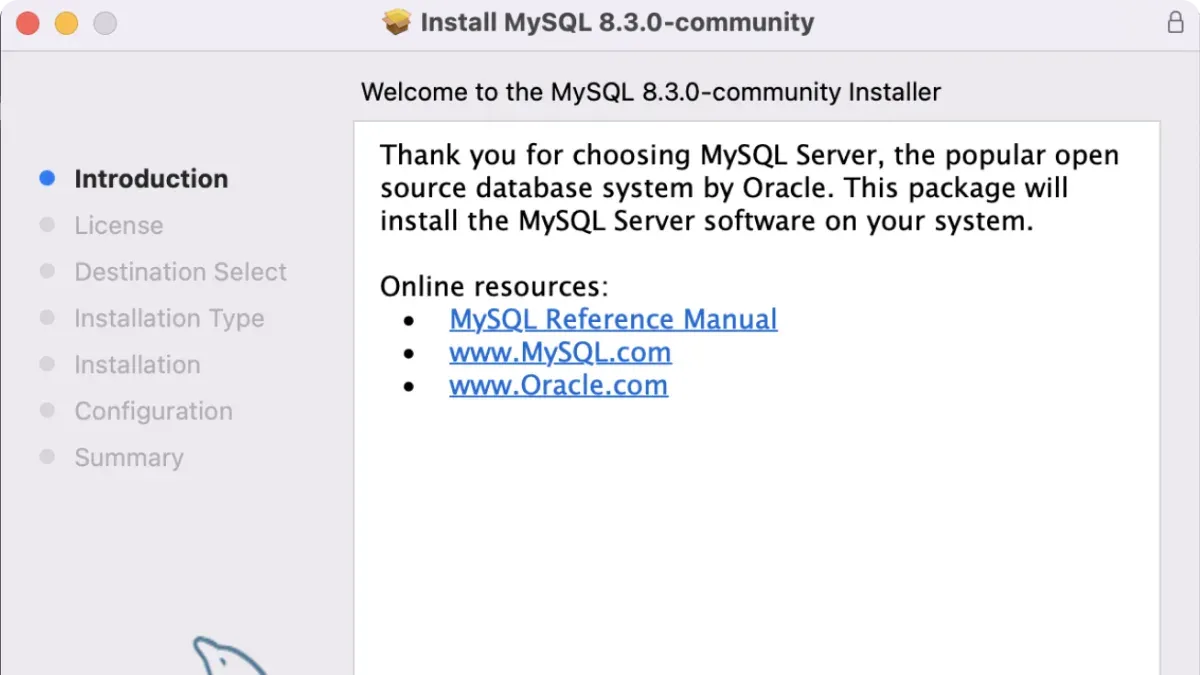
Tip: Ensure the root password is recorded securely; losing it requires resetting MySQL permissions manually.
How to install MySQL on Mac M1 (Apple Silicon)
Apple Silicon Macs use a different architecture than Intel-based models, affecting MySQL compatibility and installation methods. Native MySQL builds for M1 are available but limited compared to Intel versions. Rosetta 2, Apple's translation layer, enables running Intel-based MySQL binaries on M1 chips but may impact performance.
To install MySQL on an M1 Mac, first verify if Rosetta 2 is installed. Open Terminal and run softwareupdate --install-rosetta. If already installed, the system will notify accordingly. Rosetta 2 is required for most Intel-based MySQL packages and some Homebrew formulas.
- Install or confirm Rosetta 2 installation.
Outcome: Terminal confirms installation or existence of Rosetta 2. - Use Homebrew configured for Apple Silicon by installing it in
/opt/homebrew.
Outcome: Homebrew runs natively on M1 with support for many MySQL formulas. - Install MySQL with Homebrew:
brew install mysql.
Outcome: Native or Rosetta MySQL binaries install, depending on availability. - For manual installation, download the DMG installer labeled for ARM architecture from the official MySQL website.
Outcome: Installer runs natively without Rosetta. - After installation, start the MySQL server and verify it runs natively (check with
archcommand or Activity Monitor).
Outcome: MySQL runs with optimal performance under native ARM or translated Intel mode.
Tip: Native ARM MySQL versions generally deliver better performance and lower resource usage than Rosetta-translated Intel versions but may lack some plugins or tools.
Performance comparisons indicate native ARM MySQL runs faster and more efficiently on M1 Macs, while Rosetta versions maintain compatibility with a broader range of software at a slight performance cost. Choose based on stability needs and software dependencies.
How to install MySQL on Mac terminal
Installing and managing MySQL entirely via the macOS Terminal suits users comfortable with command-line interfaces. It involves downloading MySQL packages manually or using package managers, initializing the database, starting the server, and optionally setting it to launch on boot.
- Download MySQL Community Server using
curlorwget. For example, runcurl -O https://dev.mysql.com/get/mysql-8.0.33-macos11-x86_64.tar.gz. A successful download shows the file saved with its size. - Extract the downloaded package with
tar -xzf mysql-8.0.33-macos11-x86_64.tar.gz. The terminal will return to the prompt when extraction finishes. - Move the extracted folder to
/usr/local/mysqlfor standard location:sudo mv mysql-8.0.33-macos11-x86_64 /usr/local/mysql. This requires admin password and returns to prompt on success. - Initialize the MySQL data directory by running
sudo /usr/local/mysql/bin/mysqld --initialize. It outputs a temporary root password or mentions success. - Start the MySQL server manually with
sudo /usr/local/mysql/bin/mysqld_safe &. The terminal will show process info and return the prompt. - Access the MySQL shell using
/usr/local/mysql/bin/mysql -u root -p. Enter the root password from initialization to connect and see the MySQL prompt. - Run initial queries like
SHOW DATABASES;to verify proper operation. - To automate MySQL startup, create a launch daemon or use
brew services start mysqlif Homebrew is installed. Forlaunchctl, place the MySQL plist in~/Library/LaunchAgents/and load it withlaunchctl load -w ~/Library/LaunchAgents/com.mysql.mysqld.plist.
Tip: Always verify the MySQL version and architecture compatibility before downloading to avoid installation issues.
How to install MySQL on MacBook and MacBook Pro
MySQL is fully compatible with MacBook and MacBook Pro models, including those with Intel and Apple Silicon processors. However, these laptops have limited thermal headroom compared to desktops, so running MySQL continuously can increase CPU usage and reduce battery life. It is best to monitor resource usage during heavy database operations to avoid performance drops or overheating.
For installation on MacBook or MacBook Pro, using Homebrew is the recommended method. It offers a lightweight, command-line approach that avoids the bulk of graphical installers and allows easy service management. Homebrew’s version control also simplifies updates and uninstalls, which is convenient on portable systems with storage constraints.
To verify MySQL is running correctly on a MacBook, open Terminal and run mysqladmin -u root -p status. A successful connection will display server uptime and threads. Alternatively, launching the MySQL preference pane or checking active processes via Activity Monitor confirms the server is active.
Battery impact varies depending on workload, but idle MySQL server generally consumes minimal power. Intensive queries or multiple connections increase CPU load and can noticeably reduce battery life. It is advisable to stop the MySQL server when not in use by running brew services stop mysql or using the preference pane.
- Open Terminal and install MySQL with Homebrew by running brew install mysql. The command completes when installation finishes without errors.
- Start the MySQL server using brew services start mysql. Confirmation appears indicating that MySQL has started successfully.
- Secure the installation by running mysql_secure_installation and following prompts to set a root password and remove test users. Success messages appear after completion.
- Verify MySQL is active by executing mysqladmin -u root -p status. It should display server uptime and thread count.
- When finished, stop the MySQL server with brew services stop mysql to conserve battery and system resources.
Tip: Use Activity Monitor to track MySQL’s CPU and energy impact during development to manage battery usage effectively.
Troubleshooting common MySQL installation issues on Mac
MySQL installation on Mac can encounter several common problems that block smooth operation. One frequent issue is the terminal responding with command not found after installation. This usually means the MySQL binary path is not added to the shell’s PATH environment variable. Adding /usr/local/mysql/bin or Homebrew’s MySQL bin path to the PATH resolves this.
Port conflicts can prevent MySQL from starting, often showing errors like Can't start server: Bind on TCP/IP port: Address already in use. This typically happens if another service uses port 3306. Identifying and stopping the conflicting process or changing MySQL’s port in the configuration file helps.
Permission errors or insufficient admin rights often cause MySQL server startup failures. Running commands with sudo or adjusting file ownership and permissions on MySQL directories is necessary. Permission denied errors on /usr/local/mysql or data folders are common examples.
If locked out of the root account, resetting the MySQL root password is possible by starting the server with --skip-grant-tables, then updating the password via SQL commands. This process requires stopping the MySQL service first.
Homebrew service failures or outdated versions may cause errors like Service not started or unexpected crashes. Running brew update and brew upgrade mysql, then restarting the service with brew services restart mysql usually fixes these.
- Check MySQL command availability with
mysql --version. If command not found, add MySQL to PATH:export PATH=/usr/local/mysql/bin:$PATH
Then retry the command. - Identify port conflicts by running:
lsof -i:3306
If another process appears, stop it or change MySQL port in/etc/my.cnf. - Fix permission errors by adjusting ownership:
sudo chown -R $(whoami) /usr/local/mysql
Then restart MySQL. - Reset root password:
a. Stop MySQL:brew services stop mysql
b. Start with skip grant tables:sudo mysqld_safe --skip-grant-tables &
c. Login without password:mysql -u root
d. Update password:ALTER USER 'root'@'localhost' IDENTIFIED BY 'new_password';
e. Exit and restart MySQL normally. - Update Homebrew MySQL:
brew update
brew upgrade mysql
brew services restart mysql
Confirm service status withbrew services list.
Frequently asked questions
How to install mysql on mac os?
MySQL can be installed on macOS by downloading the official installer from the MySQL website or by using Homebrew. The official installer provides a graphical interface and includes a preference pane for system-wide management. After installation, it requires running the initial setup commands to secure and start the MySQL server.
How to install mysql on macos?
The process involves either using Homebrew with the command brew install mysql or downloading the DMG package from MySQL’s official site. Post-installation, starting the server can be done through System Preferences if using the official installer, or via terminal commands with Homebrew installations.
How to install mysql on mac homebrew?
Open the Terminal app and run brew update to refresh Homebrew. Then execute brew install mysql to install MySQL. Once installed, start the MySQL service using brew services start mysql, and use mysql_secure_installation to configure the root user and security settings.
How to download mysql on mac?
Navigate to the official MySQL download page and select the macOS DMG Archive suitable for the Mac’s architecture (Intel or Apple Silicon). After downloading, open the DMG file and follow the installation prompts. The package includes the server, preference pane, and command-line tools.
How to install mysql on mac using brew?
Run brew install mysql in Terminal to begin installation. Once complete, start MySQL with brew services start mysql to have it run in the background. Secure the installation with mysql_secure_installation to set passwords and remove anonymous users.
What this guide does not cover
This guide does not cover advanced MySQL configuration, scaling, or security hardening beyond initial installation. Users needing detailed setup of replication, performance tuning, or securing MySQL instances for production environments should consult dedicated MySQL administration resources or official documentation. It also excludes integrating MySQL with specific development frameworks or cloud services, which require specialized instructions.
The most useful next step after installation is to verify that MySQL is running correctly and set the root user password securely. Running mysql_secure_installation from the terminal guides through essential security settings such as removing anonymous users, disabling remote root login, and setting the root password. This step ensures the database server is properly secured for local use and ready for further configuration or development tasks.
See also: Switching from Google Drive to Dropbox: A Clear Step-by-Step Guide · Moving from Moodle to Google Classroom: A Practical Checklist · Moving from Moodle to Canvas: A Practical Checklist for Educators



