
How to Install qBittorrent on Mac: A Clear Step-by-Step Guide
This guide shows you how to install qBittorrent on Mac, set it up properly, and troubleshoot common issues for a smooth torrenting experience.
Downloading torrents on a Mac can sometimes feel confusing, especially with the latest macOS versions like Sequoia and Tahoe changing default settings. You might find the qBittorrent interface unfamiliar or notice missing download buttons and unclear folder locations.
This article guides you through how to install qBittorrent on Mac, covering installation steps tailored for newer MacBooks and macOS versions. It also helps you set up the app properly and troubleshoot common issues like missing download folders or interface quirks that many generic guides overlook.
Key takeaways
- Ensure your Mac meets basic security settings to allow qBittorrent installation.
- Download the latest compatible qBittorrent version from the official site for macOS Sequoia and Tahoe.
- Adjust macOS privacy settings to access downloaded files and folders seamlessly.
- Configure qBittorrent’s default download location to avoid missing files.
- Use Activity Monitor and Console for troubleshooting if qBittorrent fails to launch or connect.
Before you start: what you need for qBittorrent on Mac
To install qBittorrent on your Mac, ensure your system meets certain requirements and understand the basics of torrenting and its legal context. qBittorrent supports macOS versions from Catalina (10.15) onward, including newer releases like Sequoia and Tahoe. Your Mac should have at least 2 GB of RAM and sufficient storage space—ideally 500 MB free for the application and additional space for downloaded files.
| Requirement | Minimum | Recommended |
|---|---|---|
| macOS Version | Catalina (10.15) | Sequoia, Tahoe, or newer |
| RAM | 2 GB | 4 GB or more |
| Free Disk Space | 500 MB for app + file storage | Varies by download size |
| Internet Connection | Broadband recommended | Stable high-speed connection |
Make sure you have a stable internet connection for downloading the installer and torrent content. Torrenting involves downloading files shared by other users, so understanding the legal implications in your region is essential to avoid copyright infringement.
Download qBittorrent only from the official source to avoid malware or corrupted versions. Visit the official qBittorrent website at https://www.qbittorrent.org/download.php and select the macOS installer compatible with your OS version.
- Open your preferred web browser on your Mac.
You should see the browser window open. - Go to the official qBittorrent download page: https://www.qbittorrent.org/download.php.
The download page with multiple platform options should load. - Scroll to the macOS section and click the link matching your macOS version (e.g., Sequoia, Tahoe, or Catalina).
The installer download should begin automatically. - Wait for the file to finish downloading.
The installer file should appear in your Downloads folder.
How to install qBittorrent on MacBook, including Sequoia and Tahoe
- Go to the official qBittorrent website and download the latest DMG file designed for Mac. Once downloaded, locate the file in your Downloads folder or the location you chose. You should see a file named similar to qbittorrent_xxx.dmg.
- Double-click the DMG file to mount it. A new window should open showing the qBittorrent application icon alongside a shortcut to the Applications folder. This confirms the DMG mounted successfully.
- Drag the qBittorrent icon into the Applications folder shortcut. This copies the app to your main applications directory. After dragging, you can eject the mounted DMG by clicking the eject icon next to it in Finder's sidebar.
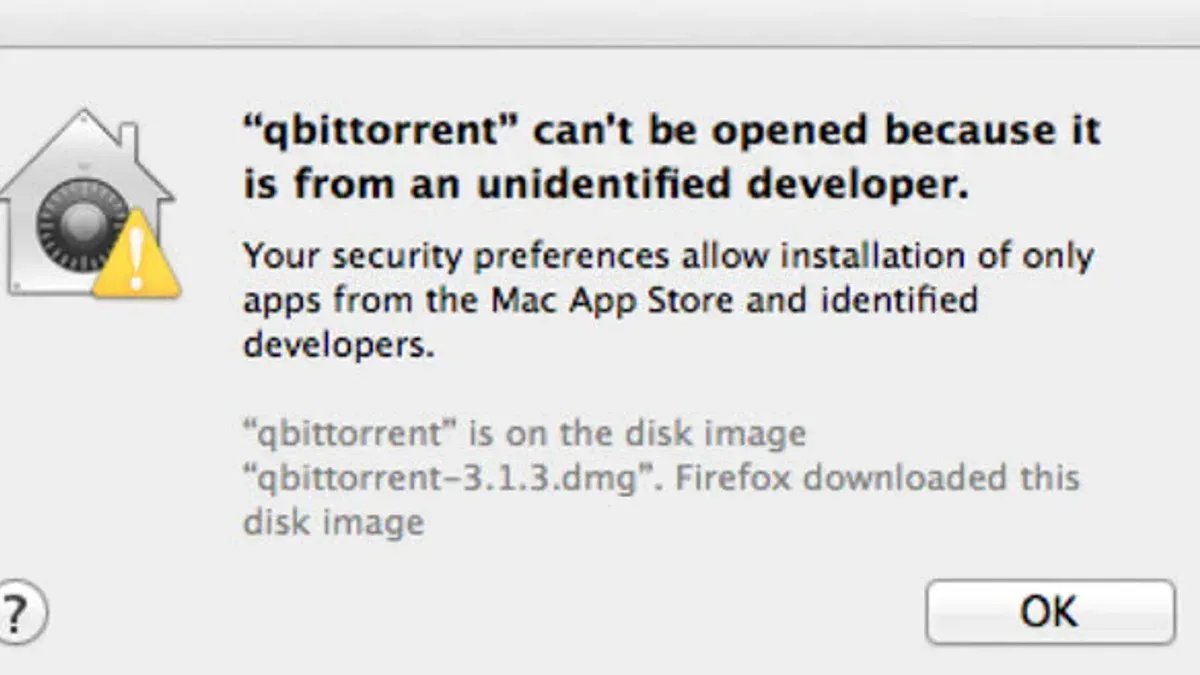
- Open the Applications folder and locate qBittorrent. On first launch, newer Mac OS versions like Sequoia and Tahoe may display a security prompt because this app is from an unidentified developer. To proceed, go to System Settings > Privacy & Security, find the section titled Allow apps downloaded from, and click Open Anyway next to the qBittorrent warning.
- After granting permission, launch qBittorrent again. You should now see the main interface without further blocks. This step is crucial on newer OS versions that restrict apps outside the App Store or identified developers by default.
- If prompted to allow incoming network connections, approve it to ensure qBittorrent can communicate properly for downloading and uploading torrents.
Screenshots accompanying these steps typically show the DMG mount window with the drag-and-drop interface, the security permission prompt in System Settings, and the initial qBittorrent launch screen. These visual aids help clarify the process for users on both Intel and Apple Silicon Macs running current OS versions.
How to open and run qBittorrent on your Mac
- Open Finder and navigate to the Applications folder or click on Launchpad in the Dock. You should see the qBittorrent icon there if the installation was successful.
- Double-click the qBittorrent icon to launch the application. The first time you open it, macOS Gatekeeper may display a warning stating "qBittorrent cannot be opened because the developer cannot be verified."
- To bypass this, go to System Settings > Privacy & Security > Security section and find the message about qBittorrent. Click Open Anyway. A confirmation dialog appears; click Open again to proceed.
- Once launched, qBittorrent may prompt you to set initial preferences such as the default download folder and bandwidth limits. Review these settings and customize them if desired, or use the defaults and adjust later via Preferences in the menu bar.
- The main qBittorrent window will appear, showing categories like Torrents, Trackers, and Peers. You can now start adding torrent files or magnet links to begin downloads.
If you do not see the application or experience repeated permission warnings, verify that qBittorrent is correctly installed in the Applications folder and that your macOS security settings allow apps from identified developers.
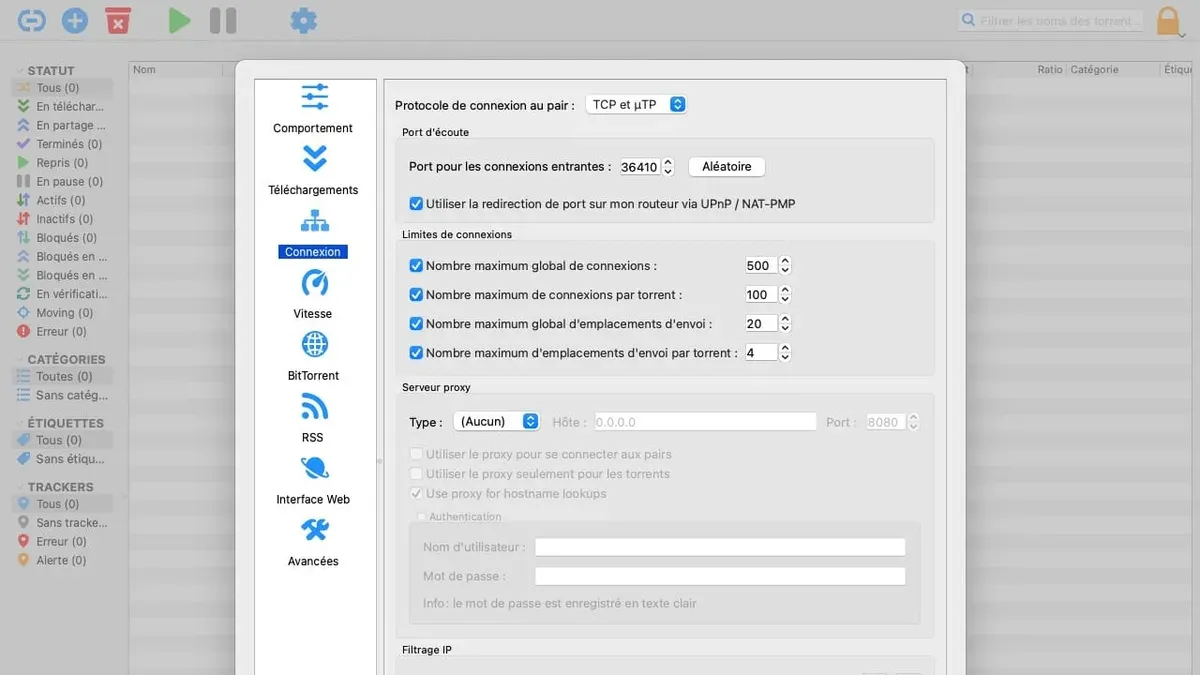
How to setup qBittorrent for optimal use on Mac
- Open qBittorrent and go to Preferences from the qBittorrent menu. This opens the main settings window.
- Navigate to the Downloads tab. Set a clear, existing folder as the Default Save Path. This prevents the common issue where no download folder is found and files fail to save properly.
- In the same tab, enable Append.!qB extension to incomplete files to avoid confusion with partial downloads. Confirm the folder reflects correctly in the interface.
- Go to the Connection tab. Set bandwidth limits by enabling Global Rate Limits and inputting values for Download and Upload speeds based on your internet plan. This prevents uncontrolled bandwidth use and stalled downloads.
- Adjust the Maximum number of connections to a moderate number like 200 to balance speed and system load. Too high can cause lag or connection drops.
- Switch to the Behavior tab. Under Interface, ensure Show Transfer List and Show Status Bar are enabled. These settings make download buttons and queue status clearly visible.
- Still in Preferences, visit the Advanced tab. Find Check for qBittorrent updates and choose between automatic or manual update checking. Automatic updates ensure security but can interrupt ongoing downloads.
Default settings often leave the download folder undefined or unrestricted bandwidth, causing stalled or missing downloads. Optimized folder paths and controlled bandwidth improve reliability and speed. Enabling interface elements prevents confusion about download status and available actions. Finally, update settings balance convenience with stability.
Troubleshooting common qBittorrent issues on Mac
Many qBittorrent users on Mac encounter specific issues such as missing download buttons, no available download sources, or stalled downloads. These problems often stem from permission settings, interface glitches, or network restrictions unique to Mac OS environments.
Fixing the 'no download button' or 'no download option' issue
- Open qBittorrent and go to the View menu in the top bar.
You should see the Toolbar option checked. If not, click it to enable the toolbar. - Check if the download button appears on the toolbar.
The button should be visible as a downward arrow icon. - If still missing, reset the toolbar by right-clicking the toolbar area and selecting Customize Toolbar, then drag the download button back onto the toolbar.
The download button will be restored for easy access.
Resolving 'no download sources' or 'no download peers' problems
- Open qBittorrent Preferences via the menu qBittorrent > Preferences and select BitTorrent.
Ensure options like Enable DHT (decentralized network) and Peer Exchange are checked. - Verify your firewall or security software allows qBittorrent network access.
If blocked, add qBittorrent as an exception to allow peer connections. - Restart qBittorrent and the torrent to check if peers appear.
The number of peers should increase, reflecting active sources.
Dealing with missing download progress or no download queue visibility
- Ensure the Transfers tab is selected at the bottom of the qBittorrent window.
This tab displays active and queued downloads. - If the tab is empty despite active downloads, go to the View menu and select Status Bar to enable progress indicators.
Progress bars and queue lists will become visible. - Consider resetting the qBittorrent configuration by quitting the app and deleting the
qBittorrentfolder from~/Library/Preferences/, then restarting.
This clears corrupted settings that may hide progress displays.
What to do if downloads do not start or stall
- Check your internet connection and ensure your Mac is online.
Other internet-dependent apps should also work. - Verify that the torrent files or magnet links are valid and contain active peers.
Try a different torrent known to be active. - Adjust the Download Speed Limit in Preferences > Speed. Setting it to 0 (unlimited) often helps.
Download speeds should increase if limits were too restrictive. - Restart qBittorrent and your Mac to clear temporary network or software glitches.
Downloads should resume normally.
How to install qBittorrent on Windows 11 (brief overview)
If you are also interested in installing qBittorrent on Windows 11, the process is straightforward but differs from the Mac installation in several ways. Windows users download an executable installer, whereas Mac users deal with a disk image (DMG) file.
- Visit the official qBittorrent website at https://www.qbittorrent.org/download.php and select the Windows installer. You should see a file named something like qbittorrent_x64_setup.exe.
- Run the downloaded installer by double-clicking it. The User Account Control (UAC) prompt may appear; click "Yes" to proceed. The setup wizard will open.
- Follow the setup wizard steps: accept the license agreement, choose the installation folder (default is usually fine), and select additional components if desired. When complete, click "Install." A progress bar will appear indicating installation status.
- Once installed, launch qBittorrent from the Start menu or desktop shortcut. The application will open, and you may be prompted to configure basic settings like download locations and bandwidth limits.
- Windows 11 users should verify that their firewall or antivirus software allows qBittorrent to access the internet to avoid connectivity issues.
Below is a comparison table highlighting key differences between Mac and Windows installation steps:
| Step | Mac Installation | Windows 11 Installation |
|---|---|---|
| Download file type | DMG (Disk Image) | EXE (Installer) |
| Installation process | Mount DMG, drag app to Applications | Run installer wizard |
| Security prompts | Gatekeeper warnings, explicit permissions | User Account Control prompt |
| Post-install setup | Grant permissions in System Preferences | Configure firewall/antivirus if needed |
| Launching app | Applications folder or Launchpad | Start menu or desktop shortcut |
This overview provides a concise guide to get qBittorrent up and running on Windows 11, complementing the Mac instructions with platform-specific details.
Understanding legal and security considerations when using qBittorrent
Using qBittorrent involves navigating legal boundaries and security risks. Torrenting copyrighted content without permission is illegal in many countries and can lead to fines or other penalties. Always consult your local laws and official guidelines from government or intellectual property offices to understand what is permitted.
To enhance your security while torrenting, use a reputable VPN service. A VPN masks your IP address, encrypts your connection, and helps protect your privacy from trackers and unauthorized surveillance. Avoid downloading torrents from untrusted sources, as these can contain malware or compromised files.
This guide focuses on installation, setup, and basic troubleshooting of qBittorrent on Mac. It does not cover advanced torrent management techniques, such as configuring seed ratios or using specialized plugins, nor does it address network-level troubleshooting like firewall or router settings that affect torrent traffic.
Following these practices helps ensure that your torrenting activities remain within legal limits and that your system stays secure.
- How to Install and Sync MEGA on Your Mac: A Clear Step-by-Step Guide
- How to Install OneDrive on Mac: A Step-by-Step Guide
- How to Install Dropbox on Mac: A Clear Step-by-Step Guide
- How to Install VLC on Mac: A Clear Step-by-Step Guide
Frequently asked questions
How to download on qbittorrent?
To download files using qBittorrent, first add a torrent file or a magnet link by clicking the “Add Torrent” button or selecting “File” > “Add Torrent Link.” Choose a download location when prompted, then the download will begin automatically. Make sure the software has proper permissions to access your chosen folder to avoid missing files.
How to open qbittorrent?
Open qBittorrent by locating it in your Applications folder or using Spotlight search on your Mac. On newer Mac OS versions, if you see a warning about unidentified developers, open it by right-clicking the app icon and selecting “Open” to bypass the security prompt.
How to run qbittorrent?
Running qBittorrent involves launching the app and ensuring it has full network permissions in your Mac’s Security & Privacy settings under the Firewall tab. Once open, you can start adding torrent files or magnet links. Remember to check your internet connection and firewall rules to allow incoming and outgoing traffic for qBittorrent.
How to download on qBittorrent?
Start by adding a torrent or magnet link through the “Add Torrent” option. Confirm the download destination folder in the pop-up window to avoid confusion about where files are saved. Monitor the progress in the main window and pause or resume downloads as needed using the toolbar buttons.
How to install qBittorrent on MacBook?
Download the latest qBittorrent DMG file from the official website. Open the DMG, then drag the qBittorrent icon into the Applications folder. For Mac OS versions like Sequoia or Tahoe, you may need to adjust security settings in System Preferences > Security & Privacy to allow apps from identified developers. After installation, launch the app by opening it from the Applications folder or Spotlight.
What this advice does not cover
This article does not cover advanced torrent client alternatives or in-depth network troubleshooting beyond common Mac-specific issues. If you require detailed configuration for VPN integration, port forwarding on complex routers, or managing multiple torrent clients simultaneously, you may need specialized resources or professional support. Additionally, this guide does not address legal restrictions on torrenting content in your jurisdiction; it is your responsibility to ensure compliance with local laws.
If you encounter persistent problems such as network timeouts or firewall conflicts not resolved by standard settings, consulting Apple's support or networking forums may be necessary.
The single most useful next step is to familiarize yourself with the qBittorrent preferences panel under qBittorrent > Preferences > Downloads. Setting your default save location explicitly and enabling the option to create a separate incomplete files folder will prevent common issues with missing downloads or misplaced files on your Mac.



