
How to Install Telegram on Mac: A Clear Step-by-Step Guide
Follow this clear step-by-step guide to install Telegram on your Mac, covering download, setup, and troubleshooting for all macOS versions.
You’ve decided to use Telegram on your Mac, but the variety of Mac models and macOS versions makes the installation process less straightforward than expected. Whether you’re on a MacBook Air with the latest macOS or an older MacBook Pro, knowing the right steps can save time and avoid common pitfalls.
This article guides you through how to install Telegram on Mac, covering everything from initial download to setup tailored for different Mac environments. You’ll also find alternative installation methods and solutions to frequent issues specific to Macs.
Key takeaways
- Download Telegram directly from the official website or the Mac App Store, depending on your macOS version.
- Drag the Telegram app to the Applications folder to install it properly on any Mac model.
- Set up Telegram by verifying your phone number and adjusting notification permissions in System Preferences.
- Consider the differences in installation on older macOS versions where the App Store version may be unavailable.
- Troubleshoot common issues like app permissions and network connectivity to ensure smooth operation.
Before you start: What you need to install Telegram on Mac
To install Telegram on your Mac, ensure your system meets the necessary requirements. Telegram supports macOS versions 10.11 (El Capitan) and later. Confirm your Mac is running one of these versions by clicking the Apple menu > About This Mac. Telegram requires a minimum of around 200 MB of free disk space, though allowing extra space for app data and future updates is recommended.
You will also need a stable internet connection to download the app and to use Telegram after installation. A broadband connection is ideal to avoid interruptions.
When choosing how to install Telegram, you can either download it directly from the official Telegram website or install it via the Mac App Store. Using the App Store requires an Apple ID to log in and manage the app, including updates and purchases if applicable. Direct download bypasses the App Store but may require you to adjust security settings to allow apps from identified developers.
Consider which installation method fits your preferences: the App Store provides automatic updates and integration with your Apple account, while direct download offers quicker access without needing an Apple ID.
- Check your macOS version by clicking the Apple menu and selecting About This Mac. You should see a version number 10.11 or newer to proceed.
- Verify you have at least 200 MB of free disk space by opening Finder, selecting your startup drive, and pressing Command + I to view available space.
- Ensure your Mac is connected to the internet via Wi-Fi or Ethernet and that the connection is stable.
- If you plan to install from the Mac App Store, sign in with your Apple ID in System Preferences > Apple ID to enable app downloads.
How to download Telegram on MacBook, MacBook Air, and MacBook Pro
Downloading Telegram on your Mac is straightforward, whether you prefer the Mac App Store or direct download from Telegram’s website. Choose the method that best fits your Mac model and macOS version.
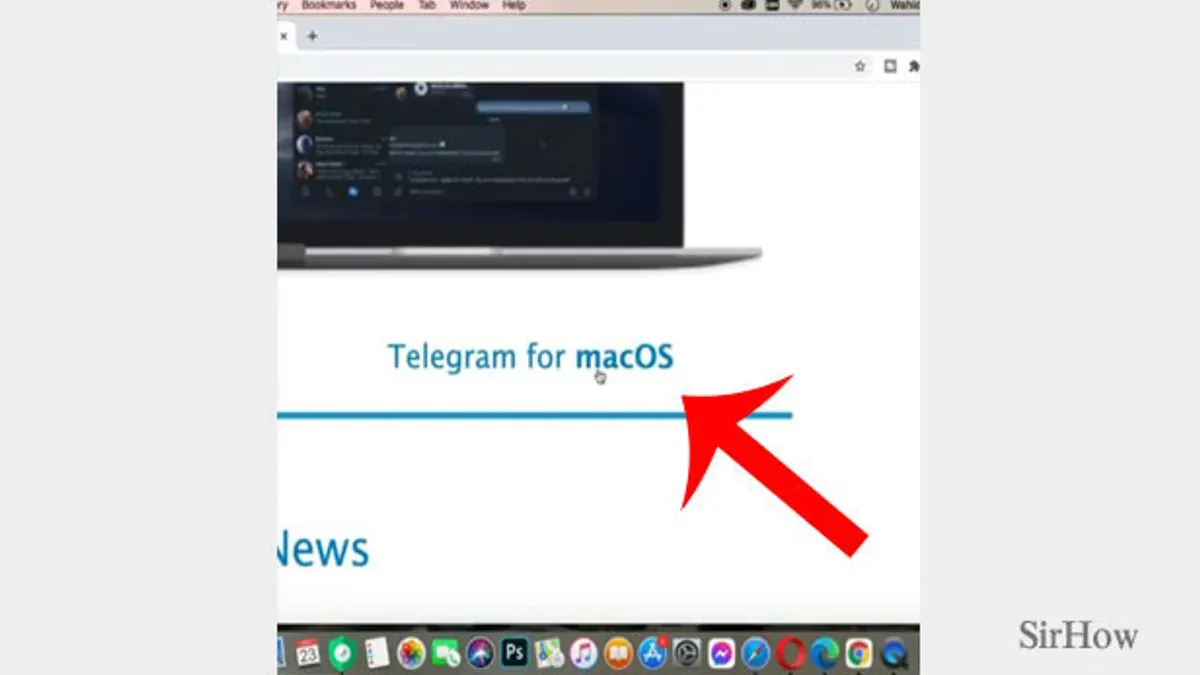
- Open your preferred web browser and go to https://telegram.org. You should see the official Telegram homepage with a clear link to download Telegram for macOS.
- Click the Get Telegram for macOS button. This downloads a .dmg file. Once downloaded, check your Downloads folder for the Telegram file.
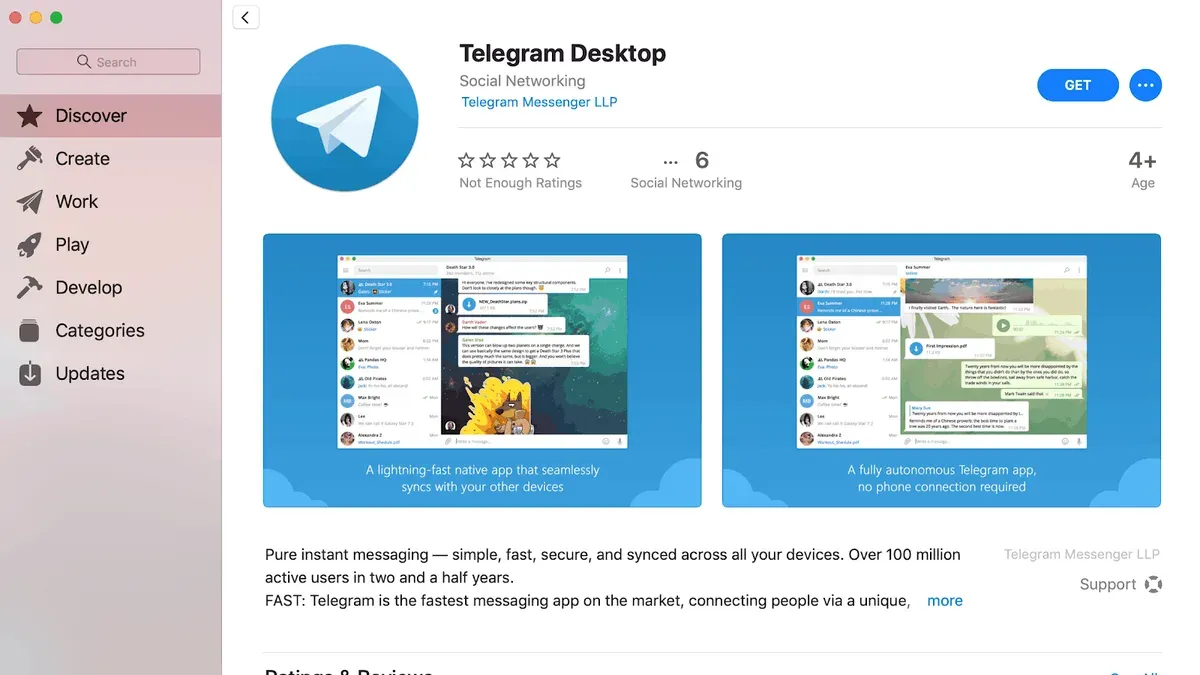
- If you prefer the Mac App Store, open the App Store app on your Mac. Search for Telegram. You will find Telegram Messenger with the developer listed as Telegram Messenger LLP.
- Click Get or the cloud download icon to install Telegram via the App Store. This version is sandboxed by Apple and receives automatic updates through the store.
- If you downloaded Telegram from the website, macOS may block the app when you first open it. To allow it, go to System Preferences > Security & Privacy > General. Look for a message about Telegram being blocked and click Open Anyway.
- Verify the app’s authenticity by checking the digital signature. In Finder, right-click the Telegram app, select Get Info, and confirm the developer is Telegram Messenger LLP. Avoid versions from unofficial sources to prevent malware risks.
How to install Telegram app on Mac after downloading
After downloading Telegram, the installation process on Mac involves moving the app to the Applications folder and setting the appropriate permissions to ensure smooth operation. The steps are largely consistent across MacBook Air, MacBook Pro, and other Mac models running compatible macOS versions.
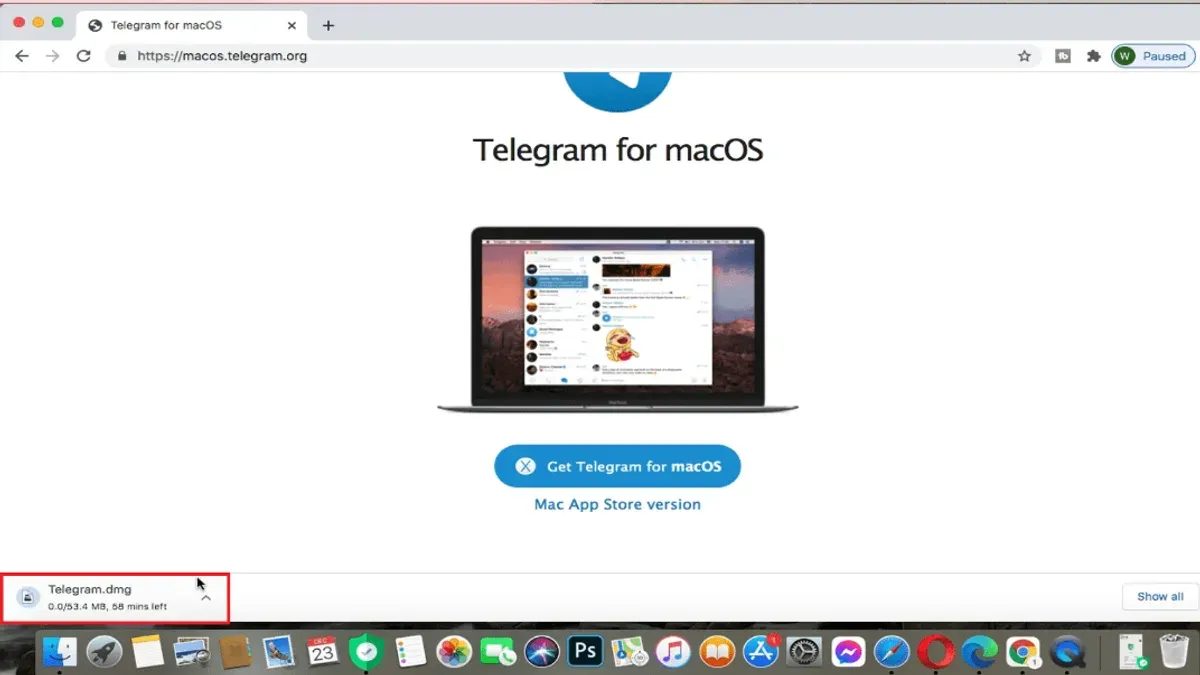
- Locate the downloaded Telegram file, usually a .dmg disk image, in your Downloads folder. Double-click the file to open it. You should see a window displaying the Telegram app icon and a shortcut to the Applications folder.
- Drag the Telegram icon into the Applications folder shortcut within the same window. Once the drag-and-drop completes, Telegram is copied to your Applications directory, which is necessary for proper app management.
- Open the Applications folder in Finder and double-click the Telegram app to launch it for the first time. macOS may display a security prompt stating the app is from an unidentified developer or asking for permission to open it.
- If you see the security warning, go to System Preferences > Security & Privacy > General tab. At the bottom, you will find an option to "Open Anyway" for Telegram. Click this button to allow the app to run. This step is essential because macOS Gatekeeper restricts apps downloaded outside the App Store.
- Once you approve Telegram as a trusted app, it will launch normally. You may be prompted to grant permissions such as access to notifications or contacts, which you can allow to improve app functionality.
Differences between MacBook Air, MacBook Pro, and other Macs are minimal in this process, mostly depending on macOS security settings configured by the user. Newer Macs with Apple Silicon chips may require you to confirm running apps from Intel-based architectures the first time, but the drag-and-drop and permissions steps remain the same.
This manual installation method ensures you have the latest Telegram version without relying solely on the App Store, giving you control over updates and app management.
How to set up Telegram on Mac after installation
- Launch Telegram from the Applications folder or Launchpad. You will see a welcome screen prompting you to sign in with your phone number.
- Enter your phone number including the country code and click Next. Telegram will send a verification code to your Telegram app on another device or via SMS.
- Input the received verification code in the prompt. If you have two-factor authentication enabled, you will be asked to enter your password on this screen.
- Once logged in, Telegram syncs your chats and contacts to the Mac app automatically using cloud storage, allowing seamless continuation from other devices.
- To customize notifications, click on Telegram in the menu bar, select Preferences, then Notifications. Here you can enable or disable message previews, sounds, and badge icons.
- Adjust privacy settings by navigating to Preferences > Privacy and Security. You can control options such as who can see your phone number, last seen status, and active sessions.
- Change the app’s appearance under Preferences > Appearance. Choose between Light, Dark, or System theme, and adjust message text size to your preference.
Following these steps ensures you can securely access your Telegram account on your Mac and tailor the app’s behavior and look to suit your workflow.
Telegram install on Mac: Alternative methods and considerations
Besides the standard installation from the Mac App Store or Telegram's official website, there are alternative methods to access Telegram on your Mac. Each option has distinct pros and cons regarding convenience, security, and functionality.
Using Telegram Web as a temporary solution
Telegram Web allows you to use Telegram directly in your browser without installation. This option is convenient for quick access or when installation is not feasible. However, it offers limited features compared to the desktop app, such as no native notifications or offline access.
Installing Telegram via Homebrew or third-party package managers
Homebrew users can install Telegram using the command brew install --cask telegram. This method automates updates and integrates well with other package management tasks. However, third-party repositories may lag behind official releases, and security depends on the package source's trustworthiness.
Running Telegram on Mac via emulators or virtualization
Some users run Telegram through Windows emulators or virtual machines on Mac. This approach can provide access to Telegram versions unavailable natively but requires significant system resources and technical setup. It also introduces additional security and performance risks.
Why official app installation is generally recommended
The official installation methods offer the best balance of security, functionality, and user experience. They provide timely updates, native notifications, and full feature sets optimized for macOS. Alternative methods are suitable for specific scenarios but generally come with trade-offs.
| Method | Convenience | Security | Functionality |
|---|---|---|---|
| Official App (App Store/Website) | High | High | Full |
| Telegram Web | Very High | Medium | Limited |
| Homebrew/Package Manager | Medium | Medium | Full |
| Emulator/Virtualization | Low | Low | Full (via Windows version) |
Troubleshooting common issues when installing Telegram on Mac
Some users encounter the error message “Telegram cannot be opened because the developer cannot be verified” when launching the app after installation. This occurs due to macOS Gatekeeper blocking apps from unidentified developers. To fix this, go to System Settings > Privacy & Security, find the Allow apps downloaded from section, and click Open Anyway next to Telegram. You should then see a prompt to confirm opening the app.
Login issues often involve not receiving verification codes. Check that your phone number is entered correctly with the right country code. If codes don’t arrive, ensure your device has a stable internet connection or try requesting the code via SMS instead of the app. Some users report delays; waiting a few minutes or restarting Telegram can help.
Performance problems or app crashes on various Mac models may stem from outdated macOS versions or conflicting software. Make sure your macOS is updated to a supported version. Closing unnecessary background apps or restarting your Mac can resolve temporary instability. If crashes persist, deleting the Telegram app and reinstalling can clear corrupt files.
When Telegram won’t update or install properly, check your internet connection and available disk space. Sometimes the App Store or direct download stalls. Quitting and reopening the App Store or clearing temporary files by restarting your Mac can restart the process. If an update fails repeatedly, consider uninstalling Telegram first, then reinstalling the latest version.
Managing Telegram updates and uninstalling on Mac
Keeping Telegram updated ensures you benefit from the latest features, security patches, and performance improvements. Updates typically occur every few weeks, depending on the developer's release schedule.
To update Telegram via the Mac App Store, open the App Store app, click Updates in the sidebar, and look for Telegram in the list. Click Update if available; once complete, Telegram will run the latest version.
If you installed Telegram by manual download, check the official Telegram website periodically for new releases. Download the newest version and replace the existing app in your Applications folder.
Backing up before uninstalling
Before uninstalling Telegram, back up your chat data to prevent loss. Telegram stores chats in the cloud, but if you have local media or secret chats, export important data using the desktop app’s Settings > Advanced > Export Telegram Data option.
Proper uninstallation steps
- Quit Telegram completely by right-clicking its dock icon and selecting Quit. This ensures no files are in use.
- Open Finder, go to the Applications folder, and drag Telegram to the Trash. This removes the main app.
- In Finder, press Cmd+Shift+G and enter
~/Library/Application Support/Telegram. Delete this folder to remove residual data. - Repeat with
~/Library/Preferences/org.telegram.desktop.plistto clear preference files. - Empty the Trash to complete uninstallation.
Proper removal avoids leftover files that can cause issues on future installs or consume disk space unnecessarily.
When to consider reinstalling Telegram
Reinstall Telegram if you experience frequent crashes, login problems, or outdated features not resolved by updates. Reinstalling refreshes app files and settings, often fixing persistent bugs. Ensure you back up data beforehand to avoid losing any local content.
- How to Install WhatsApp on Your Mac: A Clear Step-by-Step Guide
- How to Install Rosetta 2 on Your Mac: A Clear Step-by-Step Guide
- How to Install Git on Mac: Step-by-Step Guide for Every Setup
- How to Install Tmux on Mac: A Clear Step-by-Step Guide
Frequently asked questions
How to install telegram on macbook?
To install Telegram on your MacBook, visit the official Telegram website and download the macOS version of the app. Once downloaded, open the.dmg file, drag the Telegram icon to your Applications folder, and launch the app from there. Ensure your macOS version is compatible, usually macOS 10.11 or later.
How to install telegram on macbook air?
Installing Telegram on a MacBook Air follows the same process as on other Mac models. Download the Telegram installer from the official site, open the.dmg file, and move the Telegram app into your Applications folder. If your MacBook Air uses Apple Silicon, the same installer works, but check for any architecture-specific prompts.
How to install telegram on macbook pro?
For MacBook Pro users, download Telegram’s macOS installer from the official website. Open the downloaded.dmg file, drag the Telegram app into the Applications folder, and open it using Finder. If you encounter security warnings, adjust your Security & Privacy settings to allow apps from identified developers.
Can i install telegram on macbook?
Yes, you can install Telegram on any MacBook model that meets the minimum macOS requirements. Simply download the app from Telegram’s official website, open the installer, and move the app to Applications. Make sure your macOS version supports the app to avoid compatibility issues.
Can I install Telegram on MacBook Air?
Absolutely, Telegram is compatible with MacBook Air as long as the device runs a supported version of macOS. Download the Telegram.dmg file, open it, and drag the app into your Applications folder. If you have an M1 or M2 MacBook Air, the app runs natively without needing additional emulation.
What this guide does not cover and who should look elsewhere
This guide does not cover Telegram installation on non-Mac devices such as Windows PCs, Linux machines, iPhones, or Android phones. It also does not address specialized enterprise environments where additional security or deployment policies may affect app installation. Users running outdated versions of macOS, particularly those earlier than macOS 10.12 Sierra, may encounter compatibility issues not addressed here and should consider updating their operating system or using Telegram’s web version instead.
The most useful next step after installation and setup is to familiarize yourself with Telegram’s privacy and notification settings found under Preferences > Privacy & Security and Notifications > Settings. Adjusting these will help tailor Telegram’s behavior on your Mac to your preferences, avoid unnecessary alerts, and protect your conversations. This ensures a smoother ongoing experience as you begin using Telegram regularly on your Mac device.



